How to Compress a Screenshot on Android
Shrink an Android screenshot safely: resize, choose JPEG or WebP, preserve readable text, verify the file size, and avoid common sharing limits.
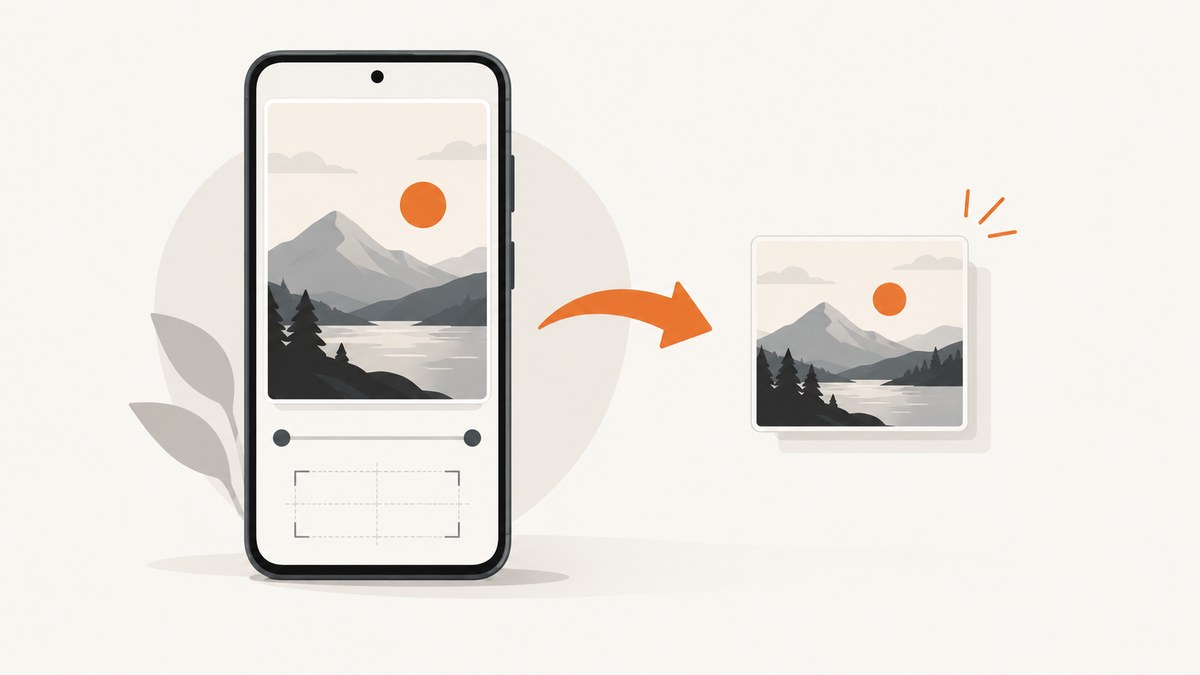
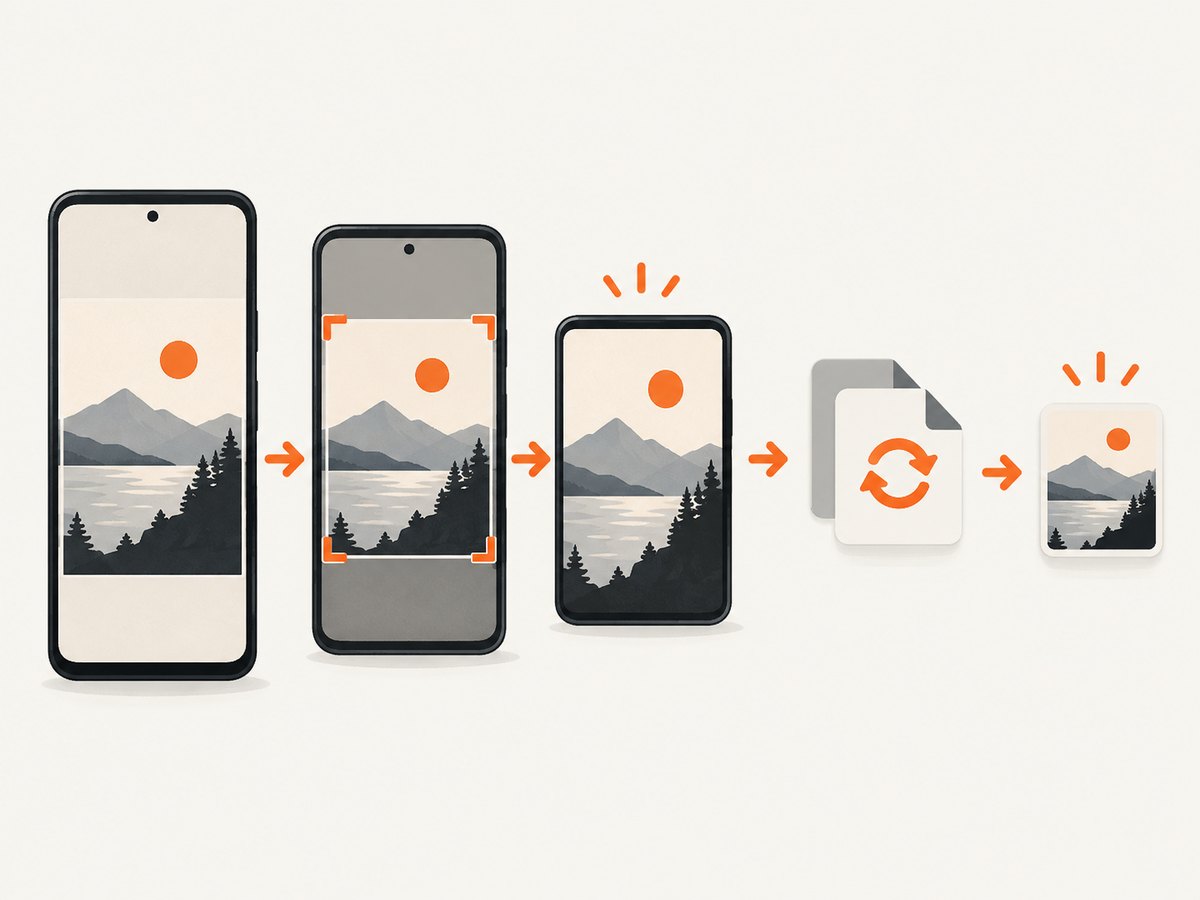
To compress a screenshot on Android, export a smaller copy at reduced dimensions or quality. Cropping alone usually does not reduce the file enough. Open the image in your Gallery, Google Photos, or an image-compression app, crop unnecessary margins if useful, then export as JPEG or WebP at a smaller width or quality setting. Check the new file size before sharing and keep the original until the copy is accepted.
1. Choose the right method
| Method | Creates a smaller local file? | Best use | Limits |
|---|---|---|---|
| Resize and export | Yes | Meeting an upload or attachment limit | Small text can become hard to read |
| Change format | Yes | Reducing size when transparency is unnecessary | JPEG is lossy; WebP support varies |
| Crop | Sometimes | Removing blank margins or irrelevant areas | Does not reliably meet a specific megabyte limit |
| Google Photos Storage saver | Usually affects the backup copy | Reducing cloud storage use | It is not a documented local-file export control |
| Files by Google cleanup | No | Freeing phone storage by deleting unwanted files | Deletion is not compression |
2. Compress a screenshot with an Android app
- Open the screenshot in your phone’s Gallery, Photos, or a reputable image-compression app.
- Crop only empty borders or content the recipient does not need. Keep text, controls, timestamps, and other evidence required for the task.
- Choose Resize, Export, or Compress.
- Start with a moderate reduction, such as 75% of the original width or a quality value around 80. Export a copy rather than replacing the original.
- Inspect the result at 100% zoom. If labels are still readable, check its file size in the file details screen.
- Reduce dimensions or quality again only if the receiving service still rejects it.
For a long, text-heavy screen, reducing the width gradually is safer than choosing the smallest preset. A screenshot that looks fine as a thumbnail can become unreadable when someone zooms in.
3. Use JPEG, WebP, or PNG deliberately
| Format | When to choose it | Trade-off |
|---|---|---|
| PNG | Sharp interface text, diagrams, or transparent pixels | Often produces larger files |
| JPEG | Broad compatibility and photographs without transparency | Lossy artifacts can appear around small text and thin lines |
| WebP | The receiving app accepts it and you want a compact file | Some older upload systems do not accept WebP |
File size depends on dimensions, color complexity, metadata, and format. Removing unnecessary metadata and colors can help, but test the actual export because two screenshots with the same dimensions can compress very differently.
4. Compress a screenshot in your own Android app (Kotlin)
This example decodes a screenshot, scales it to a maximum width, and writes a JPEG copy to the app’s cache directory. It leaves the source file untouched.
import android.graphics.Bitmap
import android.graphics.BitmapFactory
import java.io.File
import java.io.FileOutputStream

fun compressScreenshot(source: File, output: File, maxWidth: Int = 1600, quality: Int = 82) {
    require(quality in 1..100)
    val original = BitmapFactory.decodeFile(source.absolutePath)
        ?: error("Could not decode ${source.name}")

    val scaled = if (original.width > maxWidth) {
        val height = (original.height.toLong() * maxWidth / original.width).toInt()
        Bitmap.createScaledBitmap(original, maxWidth, height, true)
    } else {
        original
    }

    FileOutputStream(output).use { stream ->
        check(scaled.compress(Bitmap.CompressFormat.JPEG, quality, stream)) {
            "Bitmap compression failed"
        }
    }

    if (scaled !== original) scaled.recycle()
    original.recycle()
}
Call it with a file you can read, for example:
val input = File(cacheDir, "original.png")
val output = File(cacheDir, "screenshot-compressed.jpg")
compressScreenshot(input, output, maxWidth = 1600, quality = 82)
println("Compressed bytes: ${output.length()}")
Use PNG output when you must preserve transparency or pixel-sharp UI edges:
FileOutputStream(outputPng).use { stream ->
    scaled.compress(Bitmap.CompressFormat.PNG, 100, stream)
}
PNG ignores the quality value. For very large screenshots, decode and resize carefully to avoid memory pressure; do not load several full-resolution bitmaps at once.
5. Verify the result before sending it
- Open the exported file and zoom into the smallest text.
- Confirm that the file extension matches the actual format.
- Open file details and compare the byte size with the service’s limit.
- Upload the copy, not the original, so you can retry with a different setting.
- Keep the original until the recipient confirms the image is usable.
6. Google Photos and Files by Google: what they do
Google Photos’ Storage saver setting applies to backed-up media. Its documentation describes compression and resizing large photos for storage, including a 16 MP limit for larger photos and a 3 MP limit in Express quality. Those settings do not document a control that replaces one local screenshot with a smaller exported file. A Google Photos Support Community answer states: “Google Photos does not offer a resize feature.”
Google Photos editing can crop an image, which may reduce pixels when you remove a large border, but cropping is not a dependable way to hit a required megabyte limit. Files by Google can help you review duplicate or unwanted screenshots and delete them after confirming a backup. Deleting files frees storage; it does not compress an individual screenshot.
7. Troubleshooting
| Problem | Cause | Fix |
|---|---|---|
| The file is still too large | Only the visible area changed, or the dimensions remain high | Export at a smaller width and verify the byte count; then lower quality gradually |
| Text looks blurry | Dimensions or JPEG quality were reduced too far | Undo the last reduction, use PNG or WebP, or keep a larger width |
| The upload rejects WebP | The destination accepts only selected formats | Export JPEG, or PNG if transparency and crisp edges matter |
| Transparency became a solid color | JPEG does not support transparency | Use PNG or WebP with alpha when the destination supports it |
| Google Photos did not create a smaller local file | Storage saver controls backup quality | Use an editor or compressor that exports a new local copy |
| The phone runs out of memory | Several large bitmaps are decoded simultaneously | Process one image at a time, resize early, and recycle temporary bitmaps |
| Compression changed colors | Lossy encoding or color conversion | Use PNG for exact UI colors, or increase JPEG quality |
8. Performance, privacy, and cost considerations
- Performance: Resizing before encoding reduces memory use and encoding time. A smaller maximum width usually has a larger effect than a small quality adjustment.
- Readability: Preserve enough pixels for the smallest text that matters. Review at the size the recipient will actually use.
- Privacy: Offline compression keeps the image on the device. Cloud editors may upload the screenshot, so check their handling of sensitive data.
- Storage: Exported copies temporarily require space for both the original and result. Delete the copy only after confirming which one you need.
- Cost: Local Android compression uses no service quota. If you automate captures remotely, account for the screenshot service’s billing rules and cache behavior.
9. Or skip the browser setup
If you are creating screenshots for a pipeline instead of compressing an existing phone image, ScreenshotNeo returns a PNG, JPEG, WebP, or PDF from one GET request. Its capture options include resizing, full-page lazy-image loading, device presets, custom viewports, and caching with a TTL you choose.
See the ScreenshotNeo API documentation for all parameters. A compact WebP capture looks like this:
curl -G "https://api.screenshotneo.com/v1/shot" -d access_key=YOUR_API_KEY --data-urlencode url=https://stripe.com -o shot.webpimport requests
r = requests.get("https://api.screenshotneo.com/v1/shot", params={"access_key": "YOUR_API_KEY", "url": "https://stripe.com"}, timeout=90)
open("shot.webp", "wb").write(r.content)const q = new URLSearchParams({ access_key: 'YOUR_API_KEY', url: 'https://stripe.com' });
const res = await fetch(`https://api.screenshotneo.com/v1/shot?${q}`);
const data = Buffer.from(await res.arrayBuffer());
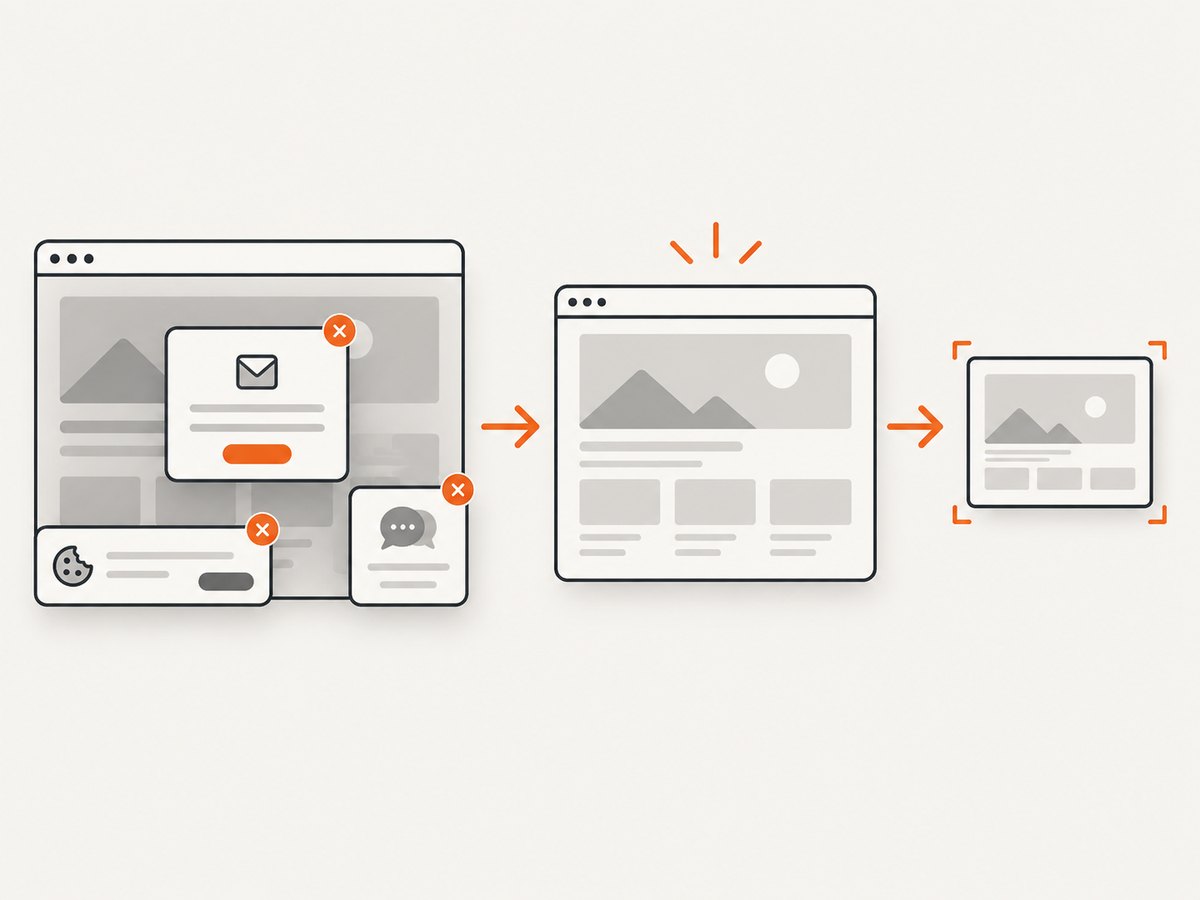
require('fs').writeFileSync('shot.webp', data);Cookie banners, newsletter popups, and chat widgets are removed before the shot. Bot checks, blank pages, timeouts, failed loads, and cache hits are never billed, and response headers report the page verdict and billing result. An MCP server lets AI agents take screenshots, inspect pages, and capture PDFs. The Free plan includes 1,000 screenshots a month with no card; paid plans start at $5 for 3,000 shots.
Create a free ScreenshotNeo account and start with the 1,000 monthly shots.
10. FAQ
Does cropping compress a screenshot?
It can reduce the pixel count when you remove a large area, but it is not reliable for meeting a file-size limit. Export and verify the result.
Is JPEG or PNG better for screenshots?
PNG preserves sharp text and transparency. JPEG is usually smaller and more widely accepted when transparency is unnecessary. WebP can be smaller where supported.
Can Google Photos resize a screenshot?
Its documented Storage saver setting concerns backups, and Google Photos does not provide a documented local resize export. Use a compressor or editor for a new local file.
How small should I make a screenshot?
Use the largest dimensions that satisfy the destination limit while keeping the smallest required text readable. Reduce in steps and inspect each copy.
How do I free space without compressing?
Review duplicates and unwanted screenshots in Files by Google or your file manager, confirm a backup, and delete only what you no longer need.


