How to Compress a Screenshot on Mac
Compress a Mac screenshot in Preview by exporting to JPEG or resizing it, with steps for images and PDFs plus quality and troubleshooting tips.
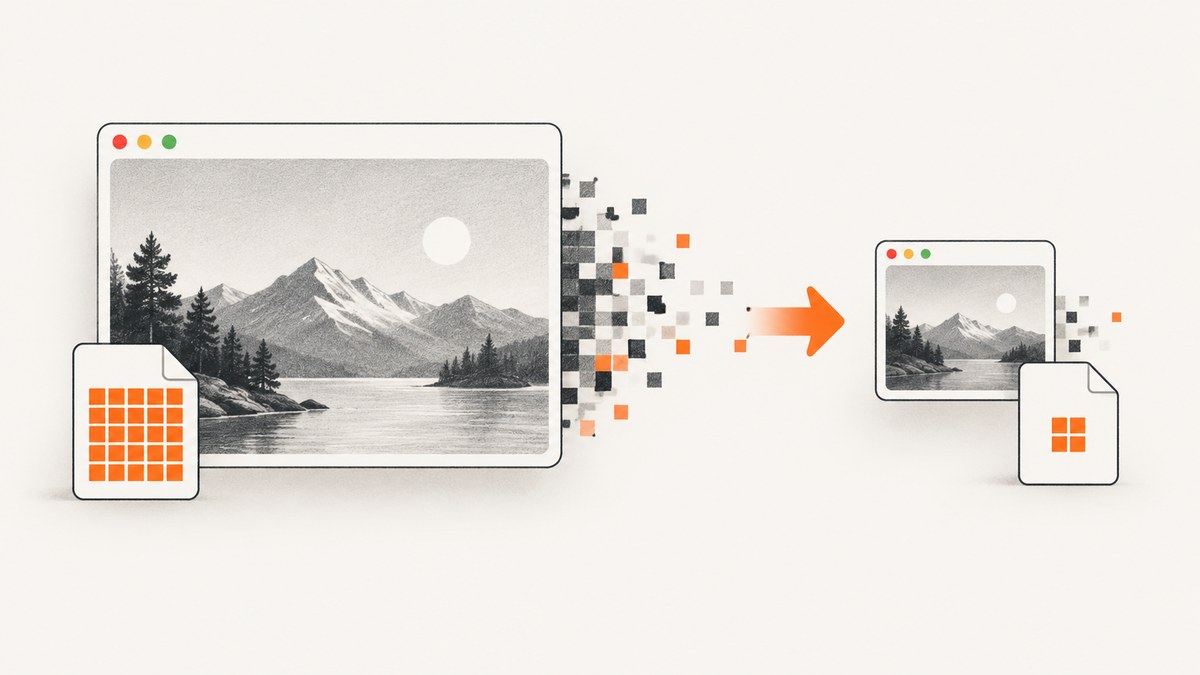
For an existing screenshot, open it in Preview, choose File > Export, select JPEG or JPEG-2000, and lower the quality setting. If the image still has too many pixels, choose Tools > Adjust Size, enable Resample image, and enter a smaller resolution. Save a separate copy, then compare the file size and appearance before replacing the original.
Use the method that matches your goal:
| Goal | Best built-in method | Trade-off |
|---|---|---|
| Reduce file size while keeping dimensions | Preview export to JPEG or JPEG-2000 and adjust quality | Lower quality can add visible artifacts |
| Meet a pixel or upload-dimension limit | Preview > Tools > Adjust Size > Resample image | Fewer pixels mean less detail |
| Compress a PDF containing screenshots | Preview PDF export with the Reduce File Size Quartz filter | Output quality and savings vary |
| Choose a format for a new capture | Screenshot options, where available | Format choices depend on your Mac model and macOS version |
Compress an existing screenshot in Preview
1. Make a copy first
In Finder, duplicate the screenshot or use Save As when exporting. Compression can permanently remove detail, so keep the original until you have checked the result.
2. Export as JPEG or JPEG-2000
- Open the screenshot in Preview.
- Choose File > Export.
- Choose JPEG or JPEG-2000 from the Format menu.
- Move the quality control toward a smaller file, while watching the estimated size if Preview displays one.
- Choose a new filename and click Save.
Preview supports HEIC, JPEG, JPEG-2000, OpenEXR, PDF, PNG, and TIFF export. JPEG and JPEG-2000 expose a quality adjustment. The best setting depends on the screenshot: text, thin lines, and UI edges usually show compression damage sooner than photographs.
3. Resample when dimensions are the problem
- Open the image in Preview.
- Choose Tools > Adjust Size.
- Enable Resample image.
- Enter a smaller width, height, or resolution. Keep the lock enabled if you want to preserve the aspect ratio.
- Preview shows the resulting dimensions; click OK, then export or save a copy.
Resampling removes pixels. It is useful when a service rejects an image for being too large, but it cannot be undone without returning to the original.
Choose between JPEG, PNG, HEIF, and JPEG-2000
| Format | Use it when | Watch for |
|---|---|---|
| PNG | You need crisp text, UI edges, transparency, or broad compatibility | Lossless files can be large |
| JPEG | You need a smaller file and can accept some visual loss | Text and sharp edges may show blocking or halos |
| JPEG-2000 | Your destination accepts it and you want Preview’s quality control | Some websites and tools do not accept it |
| HEIF | You need a newer, efficient format and your recipient supports it | Compatibility is narrower than PNG or JPEG |
For a new screenshot, Apple documents Screenshot capture choices on supported Mac models running macOS Tahoe 26 or later: SDR can be captured as PNG, while HDR can be captured as HEIF. These are capture choices for new screenshots; they do not convert an existing file.
Compress a PDF screenshot in Preview
A PDF is a separate workflow from compressing a standalone PNG or JPEG.
- Open the PDF in Preview.
- Choose File > Export.
- Choose PDF as the format.
- Choose the Reduce File Size Quartz filter, or use the available image-optimization options such as optimizing for screen viewing or saving images as JPEG.
- Save to a new file and inspect every page.
Apple warns that reducing a PDF can lower quality, and the resulting size depends on the document and options. Do not use the PDF filter for a standalone image unless you specifically need a PDF.
Measure the result before sending it
In Preview, open Tools > Show Inspector to check file size and image resolution. Also zoom into small text, icons, gradients, and screenshots of code. A smaller byte count is useful only if the recipient can still read the image.
Batch-resize screenshots
If several screenshots need the same pixel dimensions, select them in Finder and open them together in Preview. Use the image-size controls to apply the same dimensions, then export copies. Check that the aspect ratio is preserved and that the originals remain available.
Or skip the browser setup
If you are generating screenshots from web pages rather than compressing files already on your Mac, ScreenshotNeo returns PNG, JPEG, WebP, or PDF from one GET request. You can then open the returned image in Preview and apply the export or resampling steps above.

Use the API documentation for the full request options: ScreenshotNeo docs.
cURL
curl -G "https://api.screenshotneo.com/v1/shot" -d access_key=YOUR_API_KEY --data-urlencode url=https://stripe.com -o shot.webpPython
import requests

r = requests.get(
    "https://api.screenshotneo.com/v1/shot",
    params={"access_key": "YOUR_API_KEY", "url": "https://stripe.com"},
    timeout=90,
)
r.raise_for_status()
open("shot.webp", "wb").write(r.content)
Node.js
const q = new URLSearchParams({ access_key: 'YOUR_API_KEY', url: 'https://stripe.com' });
const res = await fetch(`https://api.screenshotneo.com/v1/shot?${q}`);
if (!res.ok) throw new Error(`HTTP ${res.status}`);
const data = Buffer.from(await res.arrayBuffer());
require('fs').writeFileSync('shot.webp', data);
ScreenshotNeo removes cookie and consent banners, newsletter popups, and chat widgets before capture; each cleanup step can be turned off. Bot checks, blank pages, failed loads, timeouts, and cache hits are not billed, and the response identifies the page verdict and billing result with X-Page-Verdict and X-Billed headers. Its MCP server lets Claude, Cursor, and other MCP clients take screenshots, inspect pages, and capture PDFs. The Free plan includes 1,000 screenshots per month with no card; paid plans start at $5 for 3,000.
Sign up free for ScreenshotNeo and use the returned file directly or compress a copy in Preview.
Troubleshooting
| Problem | Cause | Fix |
|---|---|---|
| The file is still too large | Quality was reduced but pixel dimensions remain high | Use Tools > Adjust Size, enable Resample image, and reduce width or height. |
| Text looks blurry | Too much JPEG compression or too few pixels | Raise JPEG quality, use PNG, or resample less aggressively. |
| The recipient cannot open the file | The chosen format is unsupported | Export a copy as PNG or JPEG and confirm the destination’s requirements. |
| Transparency disappeared | JPEG does not preserve transparent backgrounds | Keep PNG or use another format that your destination supports. |
| The PDF became unreadable | The Reduce File Size filter discarded too much image detail | Export again with different optimization options, or keep the original PDF. |
| Colors or HDR appearance changed | Format conversion or SDR/HDR differences | Compare the exported copy with the original and use a format supported by the viewing system. |
| Preview’s size estimate differs from the upload result | Metadata, destination processing, or recompression | Check the final file after saving and before uploading. |
Performance, reliability, and cost considerations
- Quality: There is no universal JPEG quality value that works for every screenshot. Inspect small text and sharp edges.
- Dimensions: Reducing pixel count often saves more than changing quality, but it also removes detail.
- Reliability: Keep the original and create versioned compressed copies so you can change settings without losing information.
- Cost: Preview is included with macOS. ScreenshotNeo charges only for clean captures; failed loads, bot checks, blank pages, timeouts, and cache hits are not billed.
- Automation: For repeated web captures, use ScreenshotNeo’s caching, async jobs, signed webhooks, bulk capture, and usage API options rather than maintaining a browser runner.
FAQ
What is the quickest way to shrink a Mac screenshot?
Open it in Preview, export as JPEG, lower the quality, and save a copy.
Should I resize or change the format first?
Resize when a pixel-dimension limit is the problem. Change format or quality when the dimensions are acceptable but the file is too large.
Can I compress a screenshot without losing quality?
PNG preserves image data but may remain large. Any lossy quality reduction or resampling can remove detail.
Why is my screenshot a PDF?
Compress it with Preview’s PDF export and Quartz filter workflow. Image export controls do not apply to a PDF as a whole.
Does ScreenshotNeo replace Preview?
It generates clean web screenshots through an API. Preview remains useful for compressing or resizing the resulting file on your Mac.


