How to Configure Caching for Browser Automation
Configure browser, HTTP, and session caching in Playwright, Puppeteer, and Selenium, with CI guidance, troubleshooting, and a managed screenshot option.

Direct answer: “Caching” in browser automation describes three different mechanisms. A framework download cache stores browser or driver binaries. The browser HTTP cache stores responses and can affect page behavior. A storage-state file preserves cookies, local storage, and sometimes IndexedDB so a later context can reuse a session. Configure each separately; they are not interchangeable.
For repeatable CI runs, pin your framework version, choose its documented cache directory, persist that directory with your CI provider, and restore it before installing browsers or drivers. For tests that need real browser-cache behavior, avoid request interception in Playwright because routing disables the HTTP cache. For authenticated workflows, save storage state in a private location and treat it like a credential.
What kind of cache do you need?
| Cache type | What it retains | Scope and lifetime | What it changes |
|---|---|---|---|
| Browser or driver download cache | Chromium, Firefox, WebKit, browser drivers, and related assets | Framework installation directory; usually shared by jobs on one machine | Setup time and whether a job can start without downloading |
| Browser HTTP cache | HTTP responses such as scripts, stylesheets, and images | Browser profile or context; controlled by browser behavior and test code | Network requests and page loading behavior |
| Storage state | Cookies, local storage, and optionally IndexedDB | Exported file, then loaded into a new browser context | Login and client-side session state |
Start by naming the retained data in your test plan. A faster CI setup needs the first type. A cache-control regression test needs the second. Reusing a logged-in account needs the third.

Cache Playwright browsers in CI
Playwright’s documented defaults are ~/.cache/ms-playwright on Linux, ~/Library/Caches/ms-playwright on macOS, and %USERPROFILE%\\AppData\\Local\\ms-playwright on Windows. Set PLAYWRIGHT_BROWSERS_PATH when your CI cache must live elsewhere. See the Playwright browser documentation for the current path rules.
Local setup
# Choose a project-local cache (Linux/macOS)
export PLAYWRIGHT_BROWSERS_PATH="$PWD/.pw-browsers"
npx playwright install chromium

# Verify that the browser can launch
node -e "const { chromium } = require('playwright'); chromium.launch().then(async b => { await b.close(); console.log('ok'); }).catch(e => { console.error(e); process.exit(1); })"
CI sequence
- Set
PLAYWRIGHT_BROWSERS_PATHto a directory your CI cache service can persist. - Restore a cache key containing the operating system, architecture, Playwright version, and browser channel.
- Run
npx playwright install. A hit should reuse files; a miss downloads them. - Run a smoke test that launches the same browser your production tests use.
- Save the directory after a successful install, using a new key when the Playwright version changes.
The exact cache restore and save syntax belongs to your CI provider. Persisting a directory without including the framework version can reuse incompatible binaries. Conversely, including a lockfile hash in every key can create unnecessary misses when application code changes but browser assets do not.
Common Playwright cache mistakes
- Installing as one user and running as another: use a shared directory with permissions that the test process can read.
- Setting the variable only during install: export
PLAYWRIGHT_BROWSERS_PATHin the test step as well. - Mixing framework versions: key the cache by the Playwright package version and reinstall after upgrades.
Cache Puppeteer browsers
Puppeteer’s troubleshooting documentation says that starting with version 19.0.0, downloaded browsers go to ~/.cache/puppeteer by default. Check your installed version before relying on that path. You can override it with PUPPETEER_CACHE_DIR or a configuration file. The official guide documents both approaches at Puppeteer troubleshooting.
# Use a stable cache directory in CI
export PUPPETEER_CACHE_DIR="$PWD/.puppeteer-cache"
npm ci
npx puppeteer browsers install chrome

# Launch using the installed browser
node - <<'NODE'
const puppeteer = require('puppeteer');
(async () => {
  const browser = await puppeteer.launch({headless: 'new'});
  const page = await browser.newPage();
  await page.goto('https://example.com', {waitUntil: 'networkidle2'});
  console.log(await page.title());
  await browser.close();
})().catch(err => { console.error(err); process.exit(1); });
NODE
Alternatively, create .puppeteerrc.js (or puppeteer.config.js):
module.exports = {
  cacheDirectory: './.puppeteer-cache'
};
Puppeteer’s documentation notes that you must reinstall Puppeteer for a cache-directory configuration change to take effect. Cache the directory used by the installed package, and include the Puppeteer version and platform in the CI key.
Cache Selenium Manager assets
Selenium Manager stores downloaded browsers and drivers in ~/.cache/selenium by default. Its cache also contains se-config.toml and se-metadata.json; the metadata records discovered versions and a freshness TTL. Read the current behavior in the Selenium Manager documentation.
from selenium import webdriver
from selenium.webdriver.chrome.options import Options

options = Options()
options.add_argument('--headless=new')
driver = webdriver.Chrome(options=options)
try:
    driver.get('https://example.com')
    print(driver.title)
finally:
    driver.quit()
In CI, persist ~/.cache/selenium between jobs when the runner user is stable. Keep the cache key tied to the operating system, architecture, Selenium version, and browser channel. Selenium Manager may still resolve a new asset when metadata says the cached version is stale; do not treat the directory as a promise of permanently offline driver discovery.
Browser HTTP cache and Playwright routing
A downloaded browser cache only avoids installation work. It does not make pages load from a previous run. The browser’s HTTP cache is a separate concern and must be tested in a persistent browser profile or context under the conditions your application uses.
Playwright’s BrowserContext documentation states: Enabling routing disables http cache.
A route such as page.route('**/*', handler) can therefore change the network behavior you are trying to measure. If the test is about cache headers, revalidation, or repeat visits, run a control case without routing. If interception is required to block analytics or mock an API, record that the test no longer represents ordinary HTTP-cache behavior.
const { chromium } = require('playwright');
(async () => {
  const browser = await chromium.launch();
  const context = await browser.newContext();
  const page = await context.newPage();

  // Control case: no routing, so normal browser HTTP caching can apply.
  await page.goto('https://example.com', {waitUntil: 'networkidle'});
  await page.reload({waitUntil: 'networkidle'});

  await browser.close();
})();
Use BrowserContext documentation to verify behavior for the Playwright version in your lockfile. Do not generalize this routing rule to every automation framework.
Reuse login state with storageState
When the goal is to reuse a login, export browser state instead of trying to copy an HTTP cache. Playwright’s browserContext.storageState() saves cookies and local storage. Its API can include IndexedDB when your application stores authentication data there. The saved state can initialize a later context, as shown in the Playwright API testing guide and Browser API documentation.
const { chromium } = require('playwright');
const fs = require('fs');
(async () => {
  const browser = await chromium.launch();
  const loginContext = await browser.newContext();
  const loginPage = await loginContext.newPage();
  await loginPage.goto('https://app.example.com/login');
  // Fill credentials using your test secret store.
  await loginPage.getByLabel('Email').fill(process.env.TEST_EMAIL);
  await loginPage.getByLabel('Password').fill(process.env.TEST_PASSWORD);
  await loginPage.getByRole('button', {name: 'Sign in'}).click();
  await loginPage.waitForURL('**/dashboard');
  await loginContext.storageState({path: 'playwright/.auth/state.json', indexedDB: true});
  await loginContext.close();

  const reused = await browser.newContext({storageState: 'playwright/.auth/state.json'});
  const page = await reused.newPage();
  await page.goto('https://app.example.com/dashboard');
  await reused.close();
  await browser.close();
})();
Keep state files outside public repositories, CI logs, and broadly readable artifact stores. Rotate the account if a token is accidentally exposed. A storage-state file can expire even while the browser binaries remain valid.
Cache invalidation, keys, and reliability
- Key by environment: include OS, CPU architecture, framework version, browser channel, and lockfile hash where relevant.
- Invalidate on upgrades: create a new key when Playwright, Puppeteer, Selenium, or the browser version changes.
- Keep a cold-start path: a cache miss must install assets from the official source and fail with a clear diagnostic.
- Check permissions: the runtime user needs read and, for some installers, write access.
- Do not share mutable state between parallel tests: use separate browser contexts or profiles to avoid cookie and local-storage races.
- Measure the right thing: compare cold install time, warm install time, page navigation time, and test duration separately. The reviewed official documentation provides no universal percentage speedup.
Performance and cost considerations
Download caching reduces repeated binary transfers and setup work. It does not guarantee faster page navigation: network conditions, server response time, JavaScript execution, and image size still dominate many runs. HTTP caching can improve repeat navigations, but routing, private contexts, cache-control headers, and profile isolation may prevent reuse. Storage-state reuse usually removes login steps, but it can increase failures when sessions expire.
For cost control, cache only assets that are expensive to download and prune obsolete framework versions. Avoid uploading authentication state as a general-purpose build cache. If your workflow only needs an image or PDF from a URL, running a full browser stack for every request adds maintenance and infrastructure work.
Or skip the browser setup
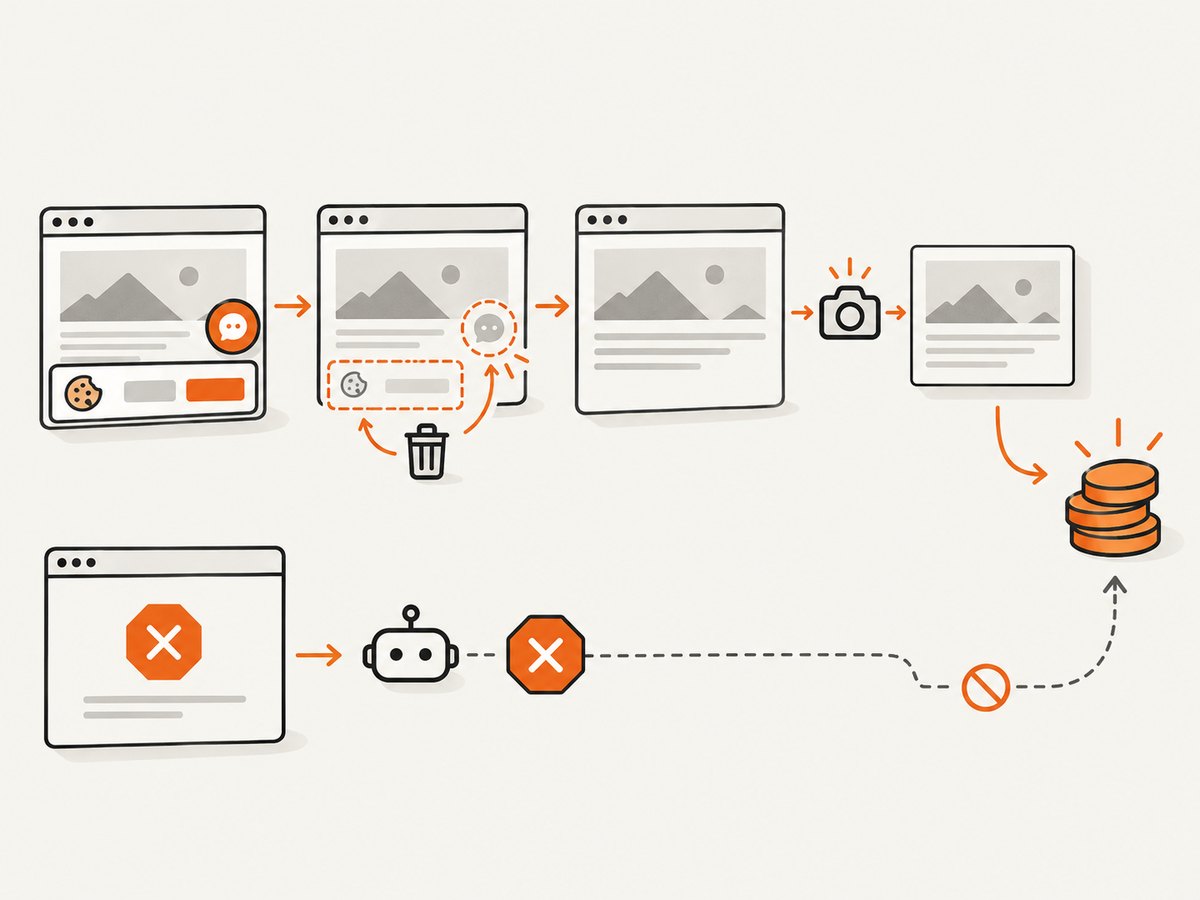
ScreenshotNeo provides a website screenshot API and MCP server. One GET request returns a PNG, JPEG, WebP, or PDF. Its cache has a different purpose from Playwright’s browser download cache: you choose a screenshot cache TTL, and repeated captures can reuse a result. The service also removes cookie and consent banners, newsletter popups, and chat widgets before capture. Bot checks, blank pages, timeouts, failed loads, and cache hits cost nothing, with the outcome reported in X-Page-Verdict and X-Billed headers.
See the ScreenshotNeo API documentation for all options. The same endpoint supports full-page shots with lazy images loaded, CSS-element capture, dark mode, device presets or custom viewports, retina scale, PDF paper sizes and page ranges, custom CSS and JavaScript, clicks, selector waits, delays, network-idle waits, blocked resources, headers, cookies, user agents, authorization, timezone, geolocation, transparent backgrounds, resizing, signed links, asynchronous webhooks, bulk capture, usage reporting, and an OpenAPI specification.
curl -G "https://api.screenshotneo.com/v1/shot" -d access_key=YOUR_API_KEY --data-urlencode url=https://stripe.com -o shot.webpimport requests
r = requests.get("https://api.screenshotneo.com/v1/shot", params={"access_key": "YOUR_API_KEY", "url": "https://stripe.com"}, timeout=90)
open("shot.webp", "wb").write(r.content)const q = new URLSearchParams({ access_key: 'YOUR_API_KEY', url: 'https://stripe.com' });
const res = await fetch(`https://api.screenshotneo.com/v1/shot?${q}`);An MCP server exposes take_screenshot, get_page_info, and capture_pdf to Claude, Cursor, and other MCP clients. Plans include 1,000 shots per month free with no card; paid plans start at $5 for 3,000 shots, and every feature is available on every plan. Create a free ScreenshotNeo account.
Troubleshooting checklist
| Symptom | Likely cause | Fix |
|---|---|---|
| Browser executable not found | Cache path differs between install and test steps | Export the same path in both steps and run the framework install command. |
| CI cache restores but launch fails | OS, architecture, or framework version mismatch | Include those values in the key; delete the stale entry and reinstall. |
| Puppeteer keeps downloading | Wrong PUPPETEER_CACHE_DIR or config changed after install |
Print the environment, use one directory, and reinstall after changing configuration. |
| Selenium uses a newer driver | Metadata TTL or browser version changed | Inspect se-metadata.json and allow Selenium Manager to resolve a compatible asset. |
| Second navigation still downloads assets | Request routing disabled HTTP cache, or a new context/profile was created | Run a no-routing control test and reuse the intended context. |
| Saved login state is rejected | Expired token, changed domain, or missing IndexedDB | Regenerate state, verify cookie domain, and enable IndexedDB export when required. |
| Cache directory permission denied | Install ran under a different user | Choose a shared writable location or align the CI user and permissions. |
FAQ
Where does Playwright store downloaded browsers?
Linux uses ~/.cache/ms-playwright, macOS uses ~/Library/Caches/ms-playwright, and Windows uses %USERPROFILE%\\AppData\\Local\\ms-playwright by default. PLAYWRIGHT_BROWSERS_PATH overrides the location.
Where does Puppeteer store browsers?
From Puppeteer 19.0.0, the documented default is ~/.cache/puppeteer. Use PUPPETEER_CACHE_DIR or cacheDirectory to change it.
Does storageState cache page responses?
No. It saves cookies, local storage, and optionally IndexedDB. It initializes session state; it is not an HTTP response cache.
Should every test share one browser cache?
Sharing downloaded binaries is usually practical. Sharing a mutable browser profile or storage-state file between parallel tests can cause isolation and credential problems.
How do I test real cache headers in Playwright?
Use a control run without request routing, repeat the navigation in the intended context, and inspect requests and responses. Routing disables Playwright’s HTTP cache.


