How to Configure CHROME_BIN in Jenkins for Headless Chrome
Set CHROME_BIN to the Chrome executable on the Jenkins agent that runs your tests. This guide covers Pipeline syntax, browser discovery, Selenium and Karma, and common CI failures.
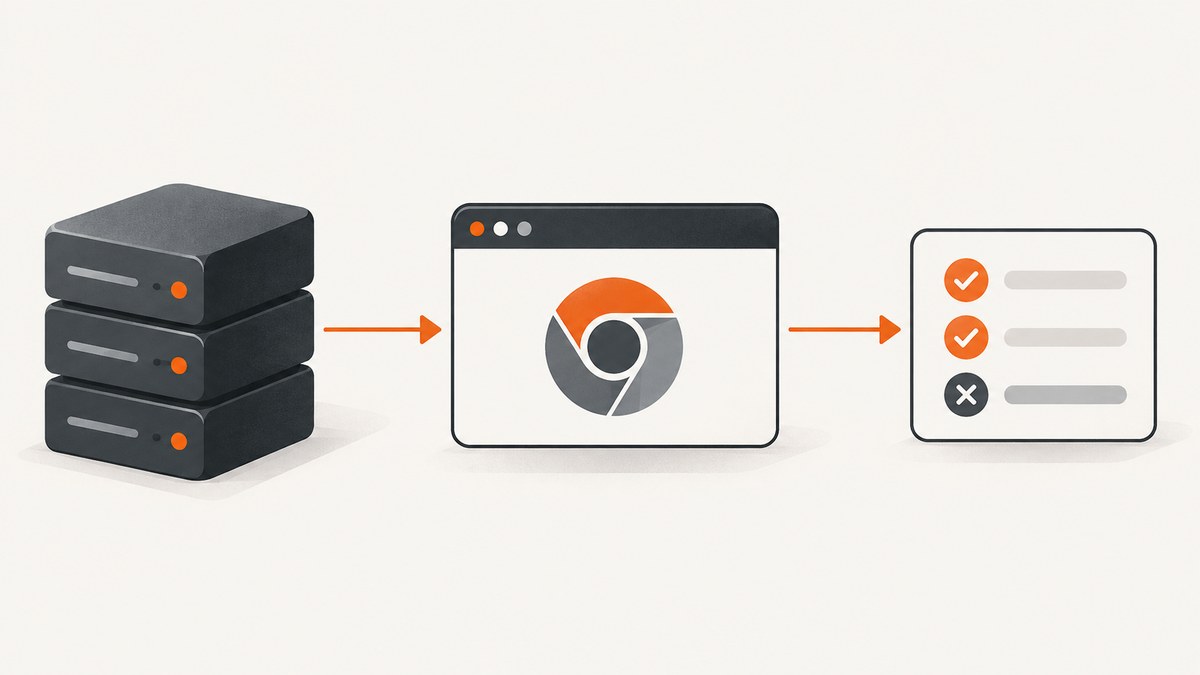
Set CHROME_BIN to the path of an installed Chrome or Chromium executable on the Jenkins agent that runs your tests. For a Declarative Pipeline, set it with an environment block; for a Scripted Pipeline, use withEnv. The variable points to a browser binary—it does not install Chrome. Selenium jobs also need a compatible ChromeDriver.
For example, if command -v google-chrome on the test agent prints /usr/bin/google-chrome, use that exact path. A path that exists on your laptop, Jenkins controller, or a different agent may not exist where the test process runs.
1. Find the Chrome binary on the Jenkins agent
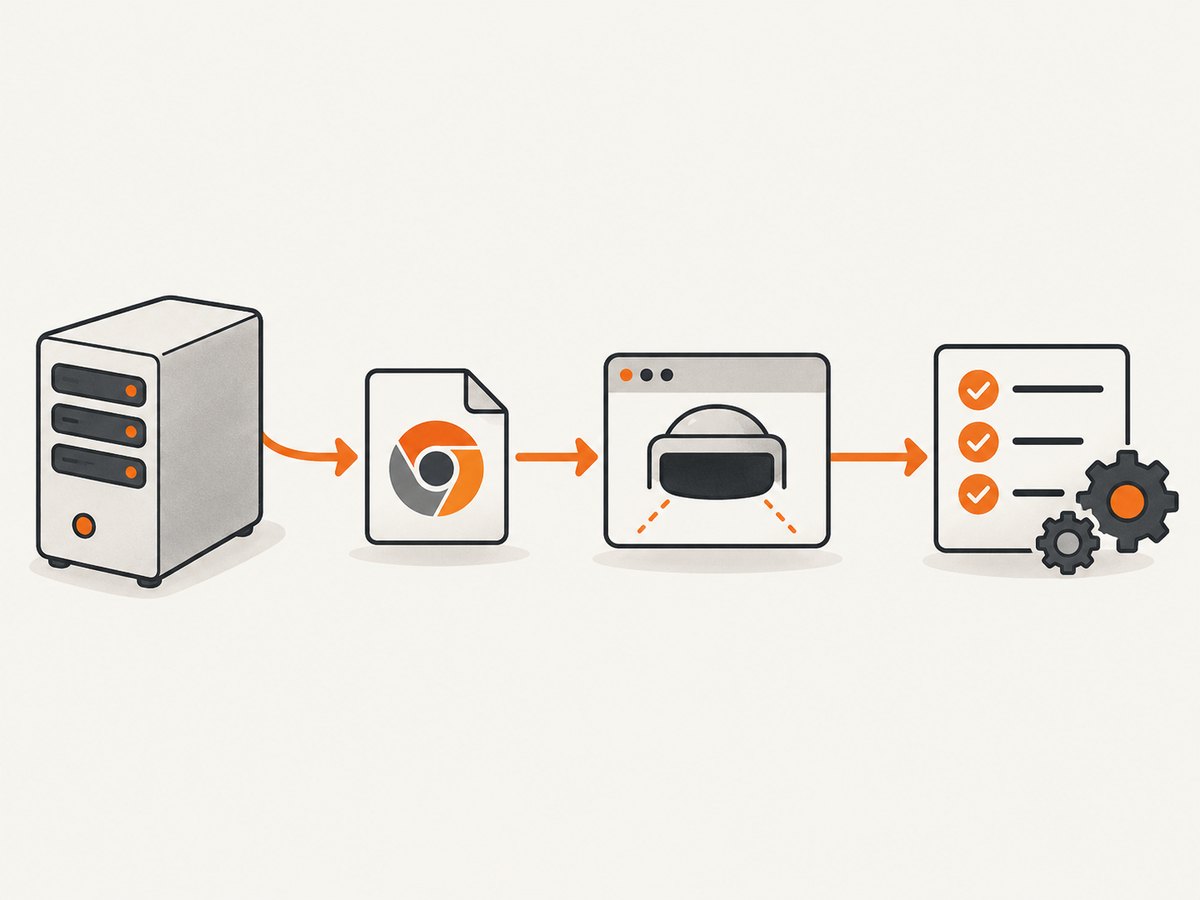
Run discovery inside the same node, container, or Kubernetes pod that executes the tests. Do not infer the path from a developer machine or the Jenkins controller. The executable names vary by distribution and installation method.
set -eu
printf 'PATH=%s\n' "$PATH"
command -v google-chrome || true
command -v google-chrome-stable || true
command -v chromium || true
command -v chromium-browser || true
printf 'CHROME_BIN=%s\n' "${CHROME_BIN:-unset}"
Choose a path printed by command -v, then check that it is executable and reports a version:
CHROME_BIN=/usr/bin/google-chrome
 test -x "$CHROME_BIN"
"$CHROME_BIN" --version
Replace the example path with the one found on your agent. If Chrome is installed in a custom directory, set its absolute path. Some package installations expose a symlink; where available, readlink -f "$CHROME_BIN" can show its resolved target.
2. Set CHROME_BIN in a Jenkins Pipeline
Declarative Pipeline: stage-specific variable
Use stage scope when only the headless test stage needs Chrome. Jenkins also permits a pipeline-level environment block when all stages need the same value. The scope of the environment declaration determines which steps receive it. See the Jenkinsfile documentation and its environment-variable examples.
pipeline {
  agent any
  stages {
    stage('Headless tests') {
      environment {
        CHROME_BIN = '/usr/bin/google-chrome'
      }
      steps {
        sh 'test -x "$CHROME_BIN"'
        sh '"$CHROME_BIN" --version'
        sh 'npm test -- --browsers=ChromeHeadless'
      }
    }
  }
}
Use the actual binary path found on that agent. The checks make a missing or non-executable path fail near the configuration point, rather than later with a less clear browser-launch error.
Scripted Pipeline: withEnv
In Scripted Pipeline, wrap the steps that need the variable:
node {
  withEnv(['CHROME_BIN=/usr/bin/google-chrome']) {
    sh 'test -x "$CHROME_BIN"'
    sh '"$CHROME_BIN" --version'
    sh 'npm test -- --browsers=ChromeHeadless'
  }
}
Jenkins exposes environment values through the global env object in Pipeline Groovy. Prefer declaring a value at the narrowest scope that fits the job, so unrelated stages do not accidentally depend on a browser installation.
Configure it in an agent image
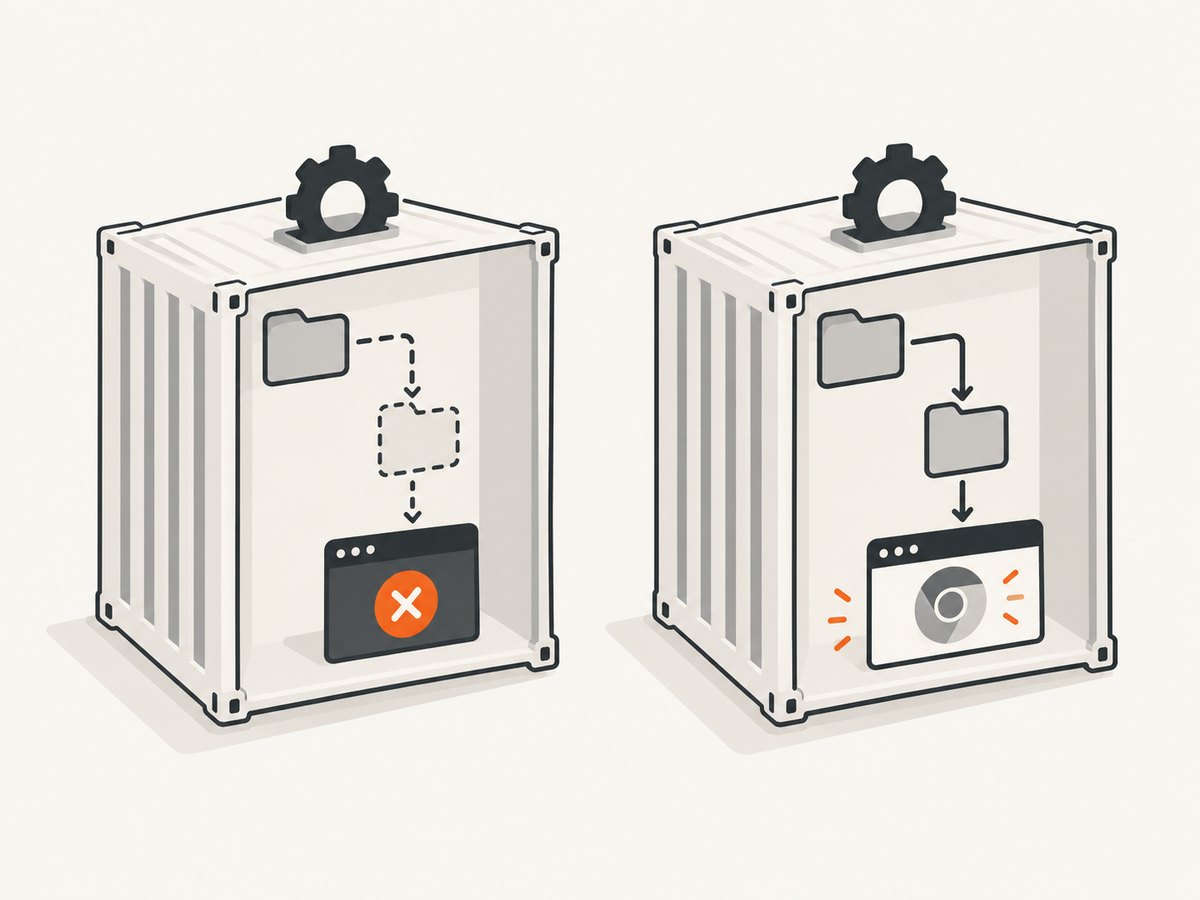
For a fixed agent image, install Chrome or Chromium in the image and set the environment variable there, or set it in the Pipeline as above. The image must include the binary in the same runtime environment that launches tests. A controller-level setting does not make the browser available inside an isolated agent container.
3. Make the test framework launch headless Chrome
CHROME_BIN supplies a path; your test framework still needs to request a headless browser. Google documents that Chrome Headless runs unattended without a visible UI and is selected with the --headless command-line option. Since Chrome 112, headless uses the regular Chrome browser implementation while retaining command-line operation. See Chrome Headless mode.
Karma
For Karma, install and configure karma-chrome-launcher, then use its ChromeHeadless browser name. The launcher maps that browser to CHROME_BIN; check the launcher README for its configuration and alternatives.
// karma.conf.js
module.exports = function (config) {
  config.set({
    browsers: ['ChromeHeadless'],
    singleRun: true
  });
};
Run the test command inside the Jenkins stage where the variable is set. If your environment uses Chromium and the selected launcher expects CHROMIUM_BIN, follow that launcher’s documented variable name rather than assuming every framework reads CHROME_BIN.
Puppeteer
If Puppeteer is the browser provider, it can expose its managed browser executable path. The Karma Chrome launcher README shows assigning Puppeteer’s executablePath() for this setup. Use one clearly managed browser source: either the system installation or the framework-managed Chromium, and make sure the selected framework configuration points at that executable.
Selenium
Selenium needs a browser and a driver. CHROME_BIN identifies Chrome; it does not install or configure ChromeDriver. Provision the driver separately, put it on PATH, or configure its location using your Selenium setup. The Jenkins ChromeDriver plugin describes automatic driver installation on agents. Check browser and driver versions together when sessions fail to start.
4. Verify headless Chrome before running the suite
First verify the executable, then run a small headless smoke check in the same agent context. This helps distinguish a path or installation problem from a framework test failure.
set -eu
test -x "$CHROME_BIN"
"$CHROME_BIN" --version
"$CHROME_BIN" --headless --disable-gpu --dump-dom https://example.com
The final command needs network access to the target. If your CI network policy blocks it, use an approved reachable test page or treat the network failure separately from browser startup. Headless mode means no visible browser UI; it does not bypass the agent’s network, filesystem, or security restrictions.
5. Choose where the browser and configuration live
| Approach | Good fit | Tradeoff to manage |
|---|---|---|
| System Chrome or Chromium on the agent | Existing managed Jenkins nodes or a team-owned container image | Provision the browser on every eligible agent and keep versions predictable |
| Puppeteer-managed Chromium | JavaScript test projects already using Puppeteer | Make the framework use Puppeteer’s executable path and manage the downloaded browser with the project |
| Pipeline environment | One job, stage, or pipeline needs a known path | That path must be valid on whichever agent executes the stage |
| Agent image configuration | Many jobs share a pinned, maintained runtime | Rebuild and roll out the image when browser versions need updating |
For repeatable CI, pin the agent image or otherwise control the browser version, and verify the path during the build. A host-installed “latest” browser can change independently of the test configuration. Keep browser provisioning, test-framework configuration, and driver provisioning as separate checks.
6. Troubleshoot common Jenkins failures
| Symptom | Likely cause | What to check or change |
|---|---|---|
No binary for ChromeHeadless browser on your platform |
The launcher cannot find the executable through CHROME_BIN, or the expected browser name or launcher is missing |
Print the variable in the test stage, run test -x "$CHROME_BIN", confirm karma-chrome-launcher is installed, and check the configured browser name. |
CHROME_BIN is empty or points nowhere |
The variable was set in a different scope, or its value came from another agent/container | Print it inside the failing stage and run command -v there. Set the discovered absolute path in that stage’s environment or withEnv. |
Permission denied |
The file is not executable or the agent user cannot access its directories | Check test -x and the permissions of the executable and its parent directories. Fix installation permissions through the agent image or administrator-managed provisioning. |
| Browser starts locally but not in Jenkins | The Jenkins agent has a different OS, path, user, container filesystem, or runtime constraints | Run discovery and --version in the failing agent context. Do not use a path copied from a workstation. |
| Chrome starts but exits immediately in a container | Container sandbox policy or shared-memory limits may differ from a workstation | Check the image’s security policy and shared-memory configuration. Add browser flags only when required by that environment and permitted by its security policy. |
| Selenium cannot create a session | ChromeDriver is missing, unavailable on PATH, or incompatible with the browser |
Check the driver installation and browser/driver compatibility separately from CHROME_BIN. |
| Smoke check fails to load a URL | Network policy, DNS, proxy, or target availability prevents navigation | Verify connectivity from the agent and use a reachable test endpoint. Separate navigation errors from executable and launch errors. |
Environment variables can affect build behavior. Jenkins’ security guidance advises administrators to review how such values enter build steps. Do not put credentials in CHROME_BIN or log unrelated secrets while debugging the job.
7. Performance, reliability, and cost considerations
Chrome startup and page loading add work to each test run. Reuse the browser lifecycle strategies supported by your test framework, avoid repeating unnecessary full browser setup, and use a focused smoke check before a large suite when diagnosing failures. Network-bound navigation time can vary independently of browser startup, so keep those failure signals distinct.
Reliability mainly comes from running the same browser build and configuration in the same kind of agent environment. A pinned image improves reproducibility; stage-local configuration makes the dependency visible; an executable check gives a fast failure. For Selenium, check the driver as well as the browser. No single CHROME_BIN setting can make a missing binary, incompatible driver, or blocked target reliable.
There is no special Jenkins fee for setting this variable. Operational cost comes from maintaining agent images or browser and driver installations, plus the compute and time consumed by test runs. Choose system-managed versus framework-managed Chromium based on who owns version updates and how consistently the dependency must be reproduced.
Or skip the browser setup
If your task is to capture a website rather than run an interactive browser test suite, ScreenshotNeo offers a one-request screenshot API and an MCP server. It returns a PNG, JPEG, WebP, or PDF from a URL. See the ScreenshotNeo API documentation for request options.
curl -G "https://api.screenshotneo.com/v1/shot" -d access_key=YOUR_API_KEY --data-urlencode url=https://stripe.com -o shot.webpimport requests
r = requests.get("https://api.screenshotneo.com/v1/shot", params={"access_key": "YOUR_API_KEY", "url": "https://stripe.com"}, timeout=90)
open("shot.webp", "wb").write(r.content)const q = new URLSearchParams({ access_key: 'YOUR_API_KEY', url: 'https://stripe.com' });
const res = await fetch(`https://api.screenshotneo.com/v1/shot?${q}`);ScreenshotNeo accepts cookie or consent banners like a visitor and removes more than 60 known consent platforms, newsletter popups, and chat widgets before capture; each step can be turned off. Bot checks, blank pages, timeouts, failed loads, and cache hits are not billed, and the response identifies the page verdict and billing status in headers. Its MCP server gives AI agents such as Claude, Cursor, and other MCP clients tools to take screenshots, get page information, and capture PDFs.
The free plan includes 1,000 screenshots per month with no card. Paid plans start at $5 for 3,000 screenshots; every feature is included on every plan. Sign up for 1,000 free screenshots a month, with no card.
Frequently asked questions
Does CHROME_BIN download Chrome?
No. Install Chrome or Chromium on the agent first, then point the variable at its executable.
Can I set CHROME_BIN globally in Jenkins?
Yes, but use a global value only if every relevant agent has the same executable path. Otherwise set it at the stage or Scripted Pipeline block that runs the tests.
Do headless jobs need a display server?
Chrome Headless runs without a visible UI. The agent still needs a working browser installation and an environment that permits it to launch.
Is ChromeDriver the same as CHROME_BIN?
No. The variable identifies Chrome; ChromeDriver is a separate executable used by Selenium WebDriver sessions.
Why does ChromeHeadless work on one agent but not another?
The agents may differ in browser installation, executable path, user permissions, container setup, or framework configuration. Run the same discovery and version checks on each agent that can execute the stage.


