What Can You Configure in an Embedded Design Editor?
Control how users browse templates, work on the canvas, edit documents, and export designs. Here’s a practical map of Adobe Express Embedded Design Editor settings.
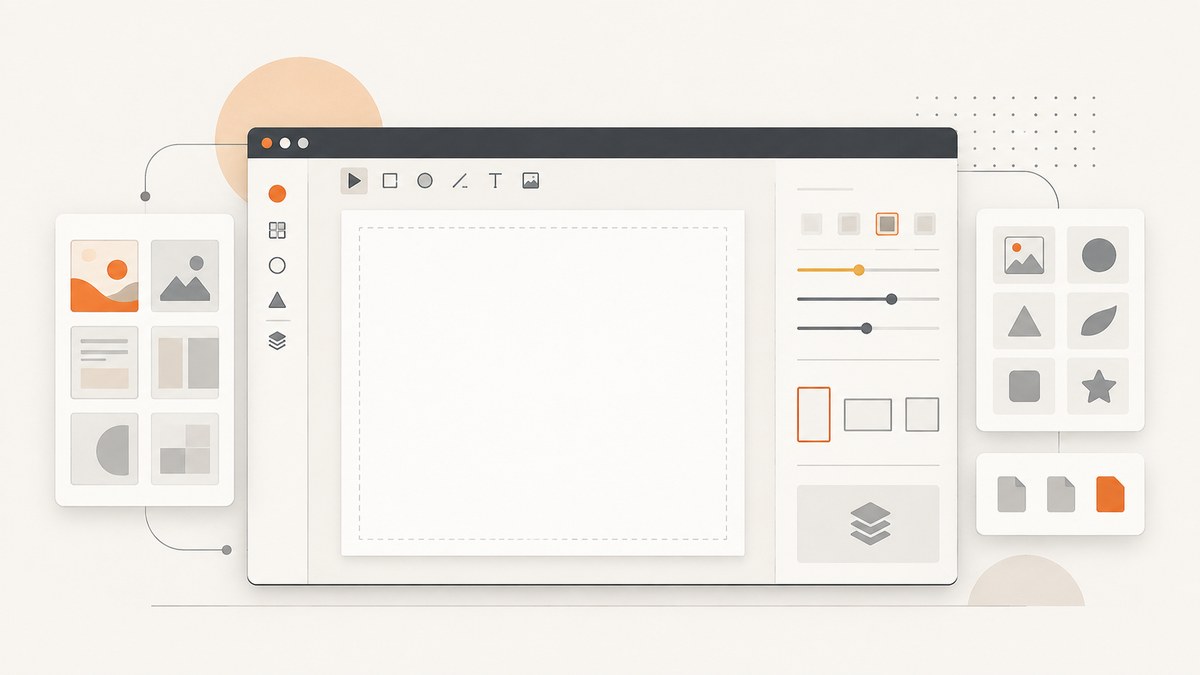
An embedded design editor can be configured across four practical layers: how users start and browse content, which panels and canvas rules they see, which export actions and formats they can use, and workflow-specific output settings such as print guides and PDF color options. In Adobe Express’s Embedded Design Editor (EDE), those controls are spread across Create Design and Edit Design workflows. The exact configuration depends on which workflow you choose; Edit Design also needs a document configuration to open an existing document.
This guide maps the documented controls so you can decide what to expose, what to constrain, and what your host application needs to handle. Adobe’s references describe the EDE surface; consult the Adobe developer documentation for the current SDK setup and exact schemas before integrating.
1. Choose the workflow that matches the user’s task
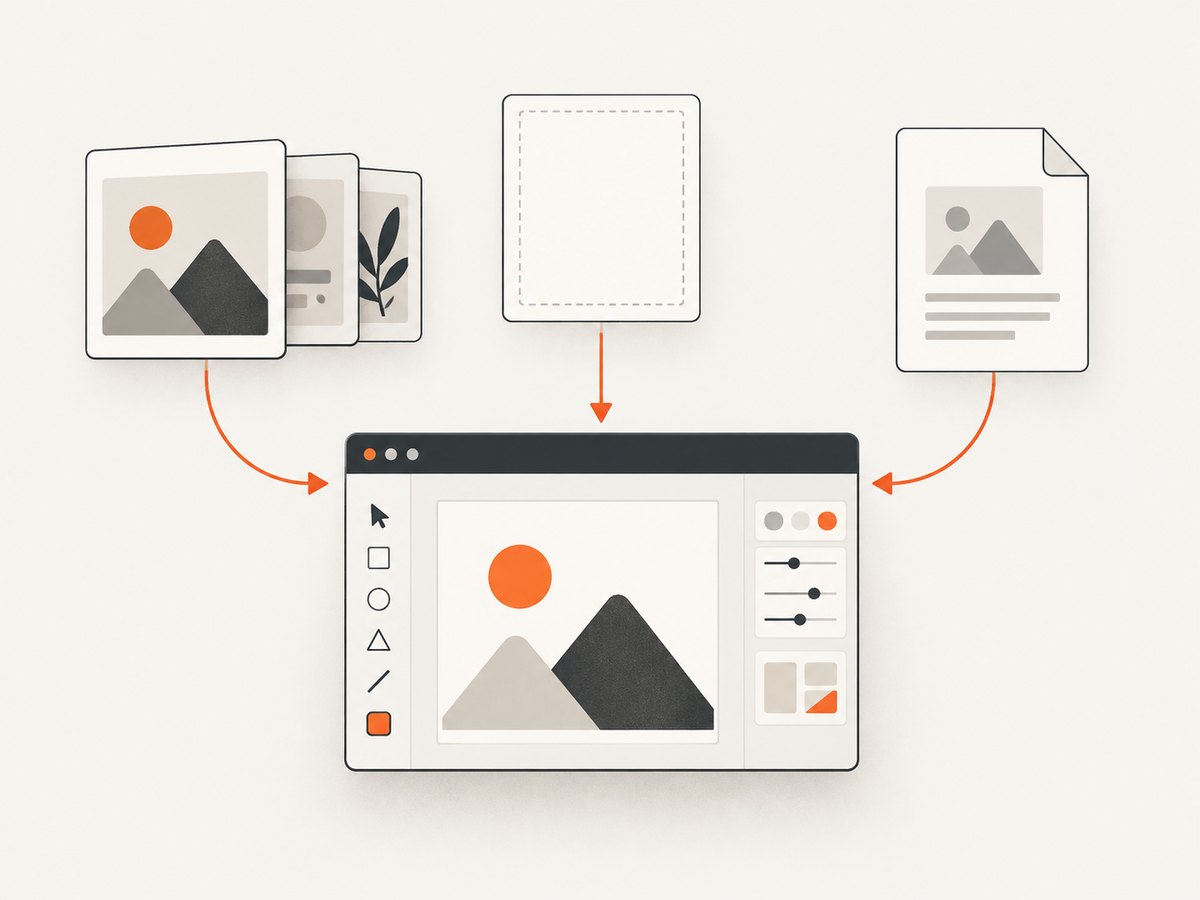
Start by deciding whether people are creating something new or editing a document that already exists. Create Design can start with a curated template collection or a blank canvas. Edit Design opens an existing document and requires document configuration. That distinction affects the user’s starting point and the settings available to the host application.
| Need | Workflow to evaluate | Configuration focus |
|---|---|---|
| Start from a template or blank canvas | Create Design | Template collection, browsing filters, visibility restrictions, and editor settings |
| Open and continue an existing document | Edit Design | Document configuration, editor settings, and export behavior |
| Prepare print-oriented work | Print variant or print-specific Edit Design settings | Print-friendly tools, guides, bleed, crop marks, and PDF output options |
Keep the workflow aligned with the job your application is asking users to do. A template-first flow has different browsing requirements from a flow that reopens a customer’s existing design. For Edit Design, plan how your application supplies the document configuration before considering the surrounding interface.
2. Shape the starting point and template browser
In Create Design, contentBrowseConfig configures template discovery. You can select a collection, apply template filters, set a header label, and control parts of the browsing interface. Documented restrictions include hiding the search bar or filters and disabling premium content. Filters can target behavior, dimensions, and template type.
Decide how much choice users need
- Collection: direct users to a selected template collection rather than an unrestricted starting experience.
- Filters: use behavior, dimensions, and template type to narrow the available templates to the task.
- Header label: label the browsing area for the experience you are embedding.
- Search and filter visibility: hide the search bar or filters when the flow should stay within a simpler, curated path.
- Premium content: disable premium content if it should not appear in the embedded browsing experience.
- More-like-this content: Create Design can hide “more like this” content, which helps keep discovery within the intended scope.
These controls are useful for task-specific or brand-approved entry points. Decide whether users should browse broadly or choose from a known set. Hiding controls can simplify a focused workflow, but it also removes those discovery paths from the interface.
3. Configure the editor panels and canvas
The broader app configuration surface includes settings for the editor’s initial context and page behavior. selectedCategory chooses the initially selected panel, while categorySearchText can prefill a panel search. assetCollection constrains an asset collection, and templateType sets a canvas template type. The multiPage setting controls single-page versus multi-page behavior and defaults to true in Adobe’s reference.
| Setting | What it affects | When to consider it |
|---|---|---|
selectedCategory |
The panel initially selected | When users should begin with a particular kind of editing task |
categorySearchText |
Prefilled panel search | When a known search context helps users find the intended assets |
assetCollection |
The collection available in an asset context | When the workflow should use a constrained asset collection |
templateType |
The canvas template type | When the starting design should match a particular template type |
multiPage |
Single-page or multi-page behavior | When the product flow needs to control page count behavior |
Treat these as separate decisions: where users land, what they can search or select, and whether the document supports multiple pages. A curated template browser does not by itself determine the selected editor panel or page behavior.
Choose an editor variant
The variant setting selects a general-purpose default experience or a print-oriented print experience. Adobe says the variant determines which creative tools the editor surfaces, including text, images, shapes, icons, and other design elements. The print variant is tuned for print-ready work and can use print-friendly defaults such as bleed and crop marks.
Choose the variant based on the output users are producing. A print workflow may benefit from print-focused tools and defaults; a broader design task may fit the default experience. The variant is part of the editor experience, while print guides and PDF output settings provide additional production controls.
4. Limit export formats and host the resulting actions
allowedFileTypes limits what users can publish or download. Adobe’s reference lists PNG, JPEG, MP4, and PDF as the default supported formats, and says the list can be narrowed. Choose only formats that your application can accept and that make sense for the user’s task.
exportConfig defines the buttons or dropdown actions shown in the iframe. The documented action patterns include publish, download, and continuation targets. Lifecycle callbacks such as onPublish, onError, and onCancel let the host application handle results and user exits. containerConfig controls how the SDK iframe is presented.
Plan the host-side behavior
- Choose formats: set the allowed file types to the formats your downstream flow supports.
- Choose visible actions: decide whether users publish, download, or continue to another target from the embedded experience.
- Handle publish results: use the publish callback to connect the result to your application’s next step.
- Handle exits and failures: define what your application does on cancellation or an error rather than leaving those outcomes ambiguous.
- Fit the iframe: use container configuration to present the embedded editor appropriately in the host page.
The editor’s export controls and your application’s result handling are related but distinct: one determines which action the user sees, and the callbacks let the host respond when the user takes an action or exits.
5. Preload documents and configure print output
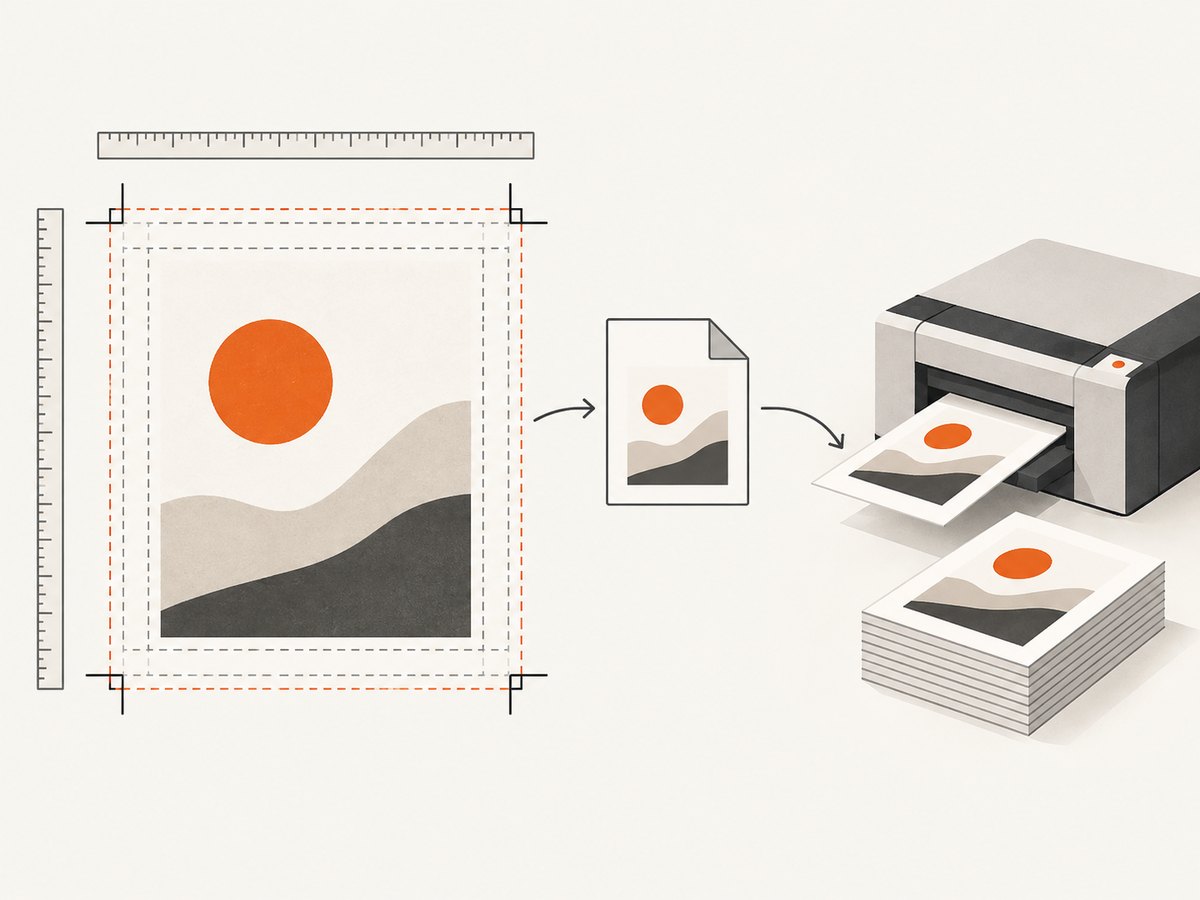
Edit Design is the workflow for opening an existing document, and it requires document configuration. For print work, its settings can show bleed, margins, and rulers on the canvas. PDF print settings can include crop marks, bleed, CMYK color mode, and a supported CMYK profile. Adobe’s reference gives “Coated GRACoL 2006 (ISO 12647-2:2004)” as an example of a supported profile.
Print-production checklist
- Confirm the existing document is supplied through the required document configuration.
- Decide whether users should see bleed, margins, or rulers while editing.
- Choose whether PDF output needs crop marks or bleed.
- For CMYK output, select a supported profile appropriate to the production workflow.
- Test the complete path from opening the document to producing the intended PDF settings in your own integration.
Canvas guides and PDF output settings address different stages: guides help users work in the editor, while PDF settings affect print-oriented output. Do not assume that choosing a print variant alone configures every PDF production option.
6. A practical configuration plan
- Write down the user’s task. Is this a new design, a template-based design, or an edit to a document that already exists?
- Select the workflow. Evaluate Create Design for a new or template-led flow, and Edit Design when the user must open an existing document.
- Set the entry point. For Create Design, decide on a collection, filters, header, premium-content visibility, search and filter visibility, and “more like this” visibility.
- Set editor context. Choose the initial panel and any search context or constrained asset collection. Select a template type and decide whether multi-page behavior fits the task.
- Select the variant. Choose the default or print experience based on the work users are doing.
- Define exports. Narrow allowed file types as needed, configure the visible actions, and map callbacks to host-application behavior.
- Configure print output if needed. Decide which guides appear and which PDF print settings the flow needs.
- Review the iframe presentation. Configure the container to fit the embedding page and its interaction flow.
7. Common integration mistakes and fixes
| Symptom | Likely cause | What to check |
|---|---|---|
| The editor opens without the intended existing design | Edit Design needs document configuration | Confirm that the host supplies the document configuration required by the workflow. |
| Users see more template choices than expected | The Create Design browser is not sufficiently curated | Review collection selection, filters, premium-content restrictions, visibility settings, and “more like this” behavior. |
| The initial panel or asset context is wrong | Editor context settings do not match the task | Review selectedCategory, categorySearchText, and assetCollection. |
| Users can create more pages than the flow expects | Page behavior has not been configured as intended | Review multiPage; Adobe documents its default as true. |
| An export option is missing or unexpected | Allowed file types and visible export actions are separate controls | Review both allowedFileTypes and exportConfig. |
| The host application does not respond after publish or cancel | The relevant lifecycle callbacks are not handled as the application expects | Check the host-side handling for onPublish, onError, and onCancel. |
| Print guides appear, but the PDF lacks the intended production settings | Canvas guides and PDF print settings are separate | Check both the editor guide settings and PDF options such as bleed, crop marks, CMYK mode, and profile. |
| The iframe presentation does not fit the page | Container presentation is not configured for the embedding context | Review containerConfig and the host page layout. |
8. Reliability, performance, and cost considerations
The EDE configuration references establish the available workflow and presentation controls; they do not provide benchmarks or a general performance guarantee. Treat startup time, export handling, document loading, and the effect of the chosen interface settings as integration-specific questions. Validate the actual flow in the application where users will work.
For reliability, define what your host does when a user publishes, cancels, or encounters an error. Keep the chosen export formats aligned with what your application can process. For Edit Design, ensure the existing-document path is part of the integration flow rather than treating it as an optional editor preference.
The supplied documentation does not establish EDE pricing or commercial terms. Verify commercial and partner terms separately before making a product decision. Likewise, do not infer a performance figure or a supported behavior beyond what the current SDK reference documents.
9. When screenshots help with editor integration
When documenting an embedded editor flow, screenshots can show the starting experience, selected panel, print guides, and export choices. A screenshot service is useful for capturing web pages and design references, but it does not configure Adobe EDE itself. If you need screenshots of a hosted page, ScreenshotNeo is a website screenshot API and MCP server for developers. It can remove cookie banners, newsletter popups, and chat widgets before capture, and only clean shots are billed; bot checks, blank pages, and failed loads are not billed. Its MCP server offers screenshot tools for AI agents.
Or skip the browser setup
Use a one-call API request to capture a reference page as a WebP image. Replace the target URL as needed. See the ScreenshotNeo API documentation for the available options.
curl -G "https://api.screenshotneo.com/v1/shot" -d access_key=YOUR_API_KEY --data-urlencode url=https://stripe.com -o shot.webpimport requests
r = requests.get(
"https://api.screenshotneo.com/v1/shot",
params={"access_key": "YOUR_API_KEY", "url": "https://stripe.com"},
timeout=90,
)
open("shot.webp", "wb").write(r.content)const q = new URLSearchParams({ access_key: 'YOUR_API_KEY', url: 'https://stripe.com' });
const res = await fetch(`https://api.screenshotneo.com/v1/shot?${q}`);
if (!res.ok) throw new Error(`Screenshot request failed: ${res.status}`);
await Bun.write('shot.webp', res);- Cookie banners, popups, and chat widgets are removed before the shot.
- Bot checks, blank pages, and failed loads are never billed.
- An MCP server lets AI agents take screenshots.
- 1,000 screenshots a month are free with no card; paid plans start at $5 for 3,000.
Try ScreenshotNeo and sign up for 1,000 free screenshots a month with no card.
10. Frequently asked questions
Can I restrict users to approved templates?
Create Design’s content browsing configuration supports collection selection and filters, along with visibility controls such as disabling premium content and hiding “more like this” content.
Can I limit file types without removing export actions?
Allowed file types and the visible export actions are separate parts of the configuration. Review both so formats and actions match the workflow.
Can I open an existing design?
Yes. Use Edit Design and provide its required document configuration.
Does the print variant automatically set every print option?
No single setting should be assumed to configure all production details. The print variant provides a print-oriented experience; guide visibility and PDF settings such as crop marks, bleed, and CMYK are additional controls.
What is the default for multi-page behavior?
Adobe’s reference says multiPage defaults to true.
Summary
Think of embedded-editor configuration as a set of linked choices: entry workflow and browsing, panel and canvas behavior, export actions and formats, and document-specific output controls. Curate the starting point, set the editor context, make export and callback behavior explicit, and configure print guides separately from PDF production settings. For Adobe EDE, use the current documentation to confirm schemas and integration details before shipping.


