How to Configure ExtentReports for Accurate Test Statuses and Failure Screenshots
Configure ExtentReports so pass, fail, skip, and failure screenshots stay accurate, portable, and useful in CI.

ExtentReports stays accurate when its lifecycle is explicit: attach a reporter before creating tests, create each test once, log the real result at the test boundary, attach the failure screenshot to that same test or failure log, and call flush() after all events. A report can look complete while still being wrong if a later pass call overwrites a failure, a screenshot path is invalid from the HTML file, or the reporter is flushed too early.
This guide shows complete Java and .NET 5 patterns, file and Base64 screenshot attachments, portable paths, CI-friendly filtering, troubleshooting, and practical reliability and performance choices.
1. The correct ExtentReports lifecycle
- Create one
ExtentReportsinstance for the report run. - Create and attach the reporter before creating any tests.
- Create one
ExtentTestfor each test case (or one node for each logical child step). - Run the test and record exactly one final outcome: pass, fail, or skip.
- Write a screenshot before attaching it to a failure.
- Flush after every test has logged its final events.
ExtentReports uses reporters as observers. Spark is attached to the report object and writes the generated HTML output. The commonly used statuses are Pass, Fail, and Skip. Treat the status as the result of the test, not as a progress message.
Java 5: minimal accurate setup
import com.aventstack.extentreports.ExtentReports;
import com.aventstack.extentreports.ExtentTest;
import com.aventstack.extentreports.Status;
import com.aventstack.extentreports.reporter.ExtentSparkReporter;

public class ReportRun {
    public static void main(String[] args) {
        ExtentReports extent = new ExtentReports();
        ExtentSparkReporter spark =
            new ExtentSparkReporter("target/Spark/Spark.html");
        extent.attachReporter(spark);

        ExtentTest test = extent.createTest("Checkout works");
        try {
            runCheckout();
            test.pass("Checkout completed");
        } catch (Throwable failure) {
            test.fail(failure);
        }

        extent.flush();
    }

    static void runCheckout() {
        // Execute browser actions and assertions here.
    }
}
.NET 5: equivalent lifecycle
using AventStack.ExtentReports;
using AventStack.ExtentReports.Reporter;

var extent = new ExtentReports();
var spark = new ExtentSparkReporter("Spark.html");
extent.AttachReporter(spark);

var test = extent.CreateTest("Checkout works");
try
{
    RunCheckout();
    test.Pass("Checkout completed");
}
catch (Exception failure)
{
    test.Fail(failure);
}
finally
{
    extent.Flush();
}

static void RunCheckout()
{
    // Execute browser actions and assertions here.
}
In Java, method names use lower camel case and statuses look like Status.FAIL. In .NET, methods and statuses use Pascal case, such as Fail and Status.Fail. Match the sample to your ExtentReports major version; version 4 and version 5 APIs are conceptually similar but do not have identical reporter and configuration classes.
2. Record the real pass, fail, or skip result
Do not mark a test passed during setup or immediately after navigation. The pass event belongs after assertions and cleanup that determine whether the test succeeded. If an exception reaches the test boundary, preserve it with fail(Throwable) or the equivalent status log.
Java status-driven logging
ExtentTest test = extent.createTest("Search returns results");
try {
    searchFor("screenshot API");
    assertResultsAreVisible();
    test.log(Status.PASS, "Results were visible");
} catch (AssertionError | RuntimeException error) {
    test.log(Status.FAIL, error);
}

ExtentTest skipped = extent.createTest("Safari-only checkout");
skipped.log(Status.SKIP, "Browser is not enabled in this CI job");
.NET status-driven logging
var test = extent.CreateTest("Search returns results");
try
{
    SearchFor("screenshot API");
    AssertResultsAreVisible();
    test.Log(Status.Pass, "Results were visible");
}
catch (Exception error)
{
    test.Log(Status.Fail, error);
}

var skipped = extent.CreateTest("Safari-only checkout");
skipped.Log(Status.Skip, "Browser is not enabled in this CI job");
A common reporting bug is a failure callback that logs fail, followed by teardown code that unconditionally logs pass. Keep result assignment in one place, or guard teardown so it cannot replace the final status.
3. Attach a Selenium failure screenshot correctly
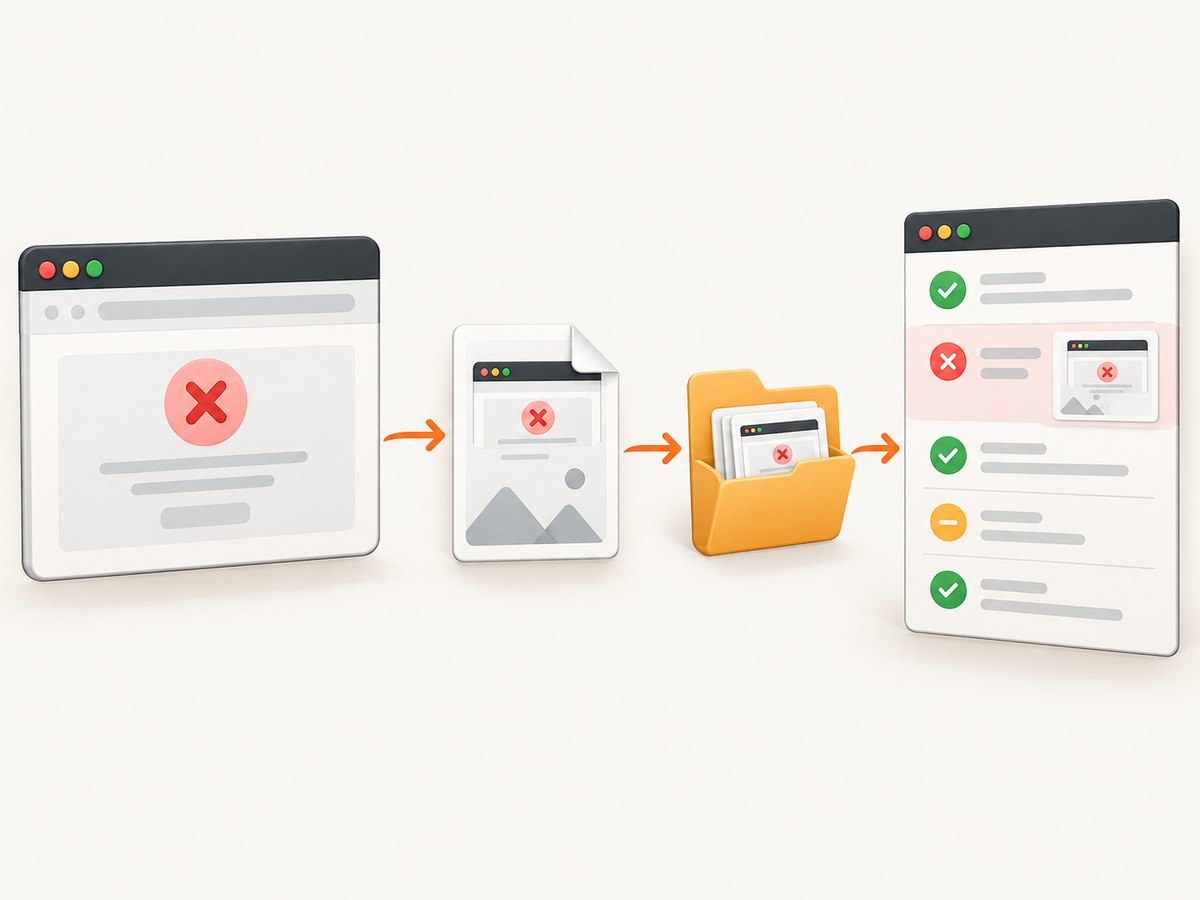
Write the image before calling an attachment method. You can attach it to the test as test-level media, or attach it to the exact failure log entry with a media entity. The second option keeps the image beside the failure message in the report.
Java: test-level file attachment
import org.openqa.selenium.OutputType;
import org.openqa.selenium.TakesScreenshot;
import java.io.File;
import java.nio.file.Files;
import java.nio.file.Path;
import java.nio.file.StandardCopyOption;

static String takeScreenshot(WebDriver driver, String name) throws Exception {
    Path directory = Path.of("target", "screenshots");
    Files.createDirectories(directory);
    Path destination = directory.resolve(name + ".png");
    File source = ((TakesScreenshot) driver).getScreenshotAs(OutputType.FILE);
    Files.copy(source.toPath(), destination, StandardCopyOption.REPLACE_EXISTING);
    return destination.toString();
}

String path = takeScreenshot(driver, "Checkout-failure");
test.fail("Checkout failed")
     .addScreenCaptureFromPath(path);
Java: attach the image to the failure log
import com.aventstack.extentreports.MediaEntityBuilder;

String path = takeScreenshot(driver, "Checkout-failure");
test.fail("Checkout failed",
    MediaEntityBuilder.createScreenCaptureFromPath(path).build());
addScreenCaptureFromPath is useful when the image belongs to the whole test. MediaEntityBuilder is useful when a failure has several logs and you want the screenshot attached to one specific event.
.NET: attach a file to the failure
using AventStack.ExtentReports;

var path = TakeScreenshot(driver, "Checkout-failure");
test.Fail("Checkout failed")
    .AddScreenCaptureFromPath(path);

// Or attach to a failure log entry:
test.Fail("Checkout failed",
    MediaEntityBuilder.CreateScreenCaptureFromPath(path).Build());
Keep the screenshot on the same ExtentTest (or child node) that receives the failure. Creating a second test object for the image makes the report appear to have an unattached screenshot.
4. Use Base64 when file paths are not portable
File reporters reference an image from the generated HTML. They do not automatically make every path portable. A CI publisher that uploads only Spark.html and omits the screenshots directory will produce broken images.
Base64 embeds the image data in the report event and avoids a separate file reference. It increases report size, so use it selectively for important failures or small images.
// Java: base64 data from a PNG file
import java.util.Base64;
import java.nio.file.Files;
import java.nio.file.Path;

byte[] bytes = Files.readAllBytes(Path.of("target/screenshots/Checkout-failure.png"));
String base64 = Base64.getEncoder().encodeToString(bytes);
test.fail("Checkout failed",
    MediaEntityBuilder.createScreenCaptureFromBase64String(base64).build());
The same Base64 media builder is available in the documented Java and .NET APIs. Confirm the exact overload in the version on your build path.
5. Make report and image paths portable in CI
- Put the report and screenshots under one predictable artifact directory, such as
target/Sparkandtarget/Spark/screenshots. - Pass a path that resolves correctly from the generated HTML file, not only from the process working directory.
- Publish the entire directory as one CI artifact.
- Use unique names containing the test name, retry number, and timestamp when parallel workers share a workspace.
- Create directories before the browser takes a screenshot.
- Do not delete screenshots in teardown before the artifact is collected.
Some version 4 reporters provide automatic relative-path media management. Enable it only after checking the option for the reporter you use. Reporter behavior differs, so a shared directory remains the safest default.
6. Configure Spark output and failure-only reports
Spark supports output settings such as document title and theme. It also supports status filters for passed, failed, skipped, and warning tests. A useful CI pattern is to attach the normal report plus a second Spark reporter filtered to failures, so developers can open a small artifact first.
// Java: attach multiple reporters before creating tests
ExtentReports extent = new ExtentReports();
ExtentSparkReporter full = new ExtentSparkReporter("target/Spark/Spark.html");
ExtentSparkReporter failures =
    new ExtentSparkReporter("target/Spark/failures.html");
// Configure the failure reporter's status filter for failed tests
// using the API provided by your ExtentReports version.
extent.attachReporter(full, failures);
Attach every reporter before createTest. Flush once, after all reporters have received all events.
7. A complete failure-handling pattern
The following pattern keeps screenshot capture best-effort while preserving the original test exception. If screenshot capture itself fails, the report still records the test failure.
ExtentTest test = extent.createTest("Checkout works");
try {
    runCheckout(driver);
    test.pass("Checkout completed");
} catch (Throwable failure) {
    try {
        String path = takeScreenshot(driver, "Checkout-failure-" + System.nanoTime());
        test.fail("Checkout failed",
            MediaEntityBuilder.createScreenCaptureFromPath(path).build());
    } catch (Throwable screenshotFailure) {
        test.fail("Checkout failed; screenshot capture also failed");
        test.log(Status.WARNING, screenshotFailure);
    }
    test.log(Status.FAIL, failure);
}

// Only after every test has completed:
extent.flush();
If your framework already logs the exception through a listener, avoid logging a second unrelated failure. Add the screenshot to the existing test or node supplied by the listener.
8. Troubleshooting checklist
| Symptom | Likely cause | Fix |
|---|---|---|
| Every test is green | The failure callback never reaches fail, or teardown later calls pass. |
Log the framework’s final result at the test boundary and remove unconditional pass calls. |
| Failure is present but image is missing | The file was not created, was deleted, or the HTML points to the wrong relative path. | Check file existence before attachment and publish the image directory with the report. |
| Image appears under another test | A second ExtentTest was created for media. |
Attach the media to the same test or node that logs the failure. |
| Report is empty or stale | Reporter was attached after test creation, or flush() was omitted or called too early. |
Attach reporters first and flush once after all events. |
| Code does not compile | Java and .NET casing or ExtentReports major versions were mixed. | Use Java lower camel case, .NET Pascal case, and the API for your installed major version. |
| Screenshot call throws during teardown | The driver already quit, the browser crashed, or the output directory is unavailable. | Capture before driver shutdown, create directories early, and make capture best-effort. |
| Parallel tests overwrite images | Every worker uses the same filename. | Include a unique worker, retry, or timestamp suffix. |
9. Performance, reliability, and cost considerations
Report performance
- Capture one diagnostic image on failure rather than a full screenshot after every assertion.
- Use viewport screenshots for routine failures; reserve full-page captures for layout investigations.
- Prefer files for large images and Base64 for small, portable artifacts.
- Keep the report readable by filtering a second Spark output to failures.
- Flush at the end of a run unless your process can terminate abruptly; flushing after every log adds I/O and can create contention.
Reliability
- Keep the original exception and add screenshot errors as separate diagnostic information.
- Use deterministic artifact directories in local runs and CI.
- For retries, preserve each attempt’s image instead of overwriting the first failure.
- Verify that the browser is still alive before requesting a screenshot.
When a hosted screenshot service helps
If the goal is a screenshot of a URL rather than a screenshot of the live Selenium session, a hosted API can remove browser installation and artifact-path handling. ScreenshotNeo accepts one GET request and returns PNG, JPEG, WebP, or PDF. It can capture full pages, elements, dark mode, custom viewports, retina output, and more. Its clean-shot flow accepts consent banners and removes more than 60 known consent platforms, newsletter popups, and chat widgets before capture; each step can be disabled.
10. Or skip the browser setup
For a URL-based failure artifact, call ScreenshotNeo from your test or CI job. See the ScreenshotNeo API documentation for the complete option list.

cURL
curl -G "https://api.screenshotneo.com/v1/shot" -d access_key=YOUR_API_KEY --data-urlencode url=https://stripe.com -o shot.webpPython
import requests
r = requests.get("https://api.screenshotneo.com/v1/shot", params={"access_key": "YOUR_API_KEY", "url": "https://stripe.com"}, timeout=90)
open("shot.webp", "wb").write(r.content)
Node.js
const q = new URLSearchParams({ access_key: 'YOUR_API_KEY', url: 'https://stripe.com' });
const res = await fetch(`https://api.screenshotneo.com/v1/shot?${q}`);
ScreenshotNeo reports whether a response was clean or billable in the X-Page-Verdict and X-Billed headers. Bot checks, blank pages, timeouts, failed loads, and cache hits cost nothing. Its MCP server provides take_screenshot, get_page_info, and capture_pdf tools for Claude, Cursor, and other MCP clients. The Free plan includes 1,000 screenshots per month with no card; paid plans start at $5 for 3,000 shots. Create a free ScreenshotNeo account.
11. ExtentReports and ScreenshotNeo together
These tools solve different parts of a diagnostic workflow. Selenium captures the browser state at the instant a test fails. ExtentReports records status, exception, steps, and links to that image. ScreenshotNeo is useful for independently capturing a public or authenticated URL, generating a PDF, or collecting a consistent artifact without maintaining a browser in the capture job.
For a CI pipeline, save the ScreenshotNeo response beside the ExtentReports artifact and log its verdict headers. For protected pages, provide the supported custom headers, cookies, user agent, or authorization options rather than placing secrets in a URL. Use caching with a chosen TTL when repeated captures do not need a fresh render.
12. FAQ
Should I call flush() after every test?
Usually no. Call it after all events are logged. Flush after each test only when your process can end unexpectedly and the additional I/O is acceptable.
Is a test-level screenshot different from a log-level screenshot?
Yes. Test-level media is attached to the test object. A media entity on a failure log places the image beside that specific event.
Why does the HTML open but the image is broken?
The HTML contains a path reference and the image is absent or not reachable from that path. Publish the report and image directory together, or use Base64.
Can a skipped test have a screenshot?
Yes, but capture one only when it explains why the test was skipped. Preserve the final status as Skip.
Which screenshot should I use for a layout failure?
Use a full-page image when content below the viewport matters; use a viewport image for the browser state visible at the assertion point. Keep filenames unique across retries and workers.


