How to Configure Firefox Screenshot Settings
Learn every Firefox screenshot option: open the tool, capture full pages, choose download or copy, change save behavior, and fix missing controls.

Fastest method: open a webpage in Firefox, right-click an empty area, and choose Take Screenshot. You can then select a visible region or the full page, and choose Download or Copy.
Firefox’s built-in screenshot tool does not use a separate settings window. Its practical settings are the way you open it, the area you capture, where the result goes, and whether you download or copy it. This guide covers each option and the fixes for the controls that sometimes disappear.
1. Open Firefox Screenshot
Use the page context menu
- Open the page you want to capture.
- Right-click an empty part of the page.
- Select Take Screenshot.
If you right-click a link, image, form field, or other control, the browser may show that object’s context menu instead. Move the pointer to a blank part of the page and try again.

Use a keyboard shortcut
| Operating system | Shortcut |
|---|---|
| Windows or Linux | Ctrl + Shift + S |
| macOS | Command + Shift + S |
The shortcut opens the same screenshot interface as the context-menu command. If another application or desktop utility has claimed the key combination, use the context menu or toolbar button instead.
Add a permanent Screenshot button
- Open the Firefox application menu.
- Choose More Tools, then Customize Toolbar.
- Find Screenshot.
- Drag it to the toolbar or to the overflow menu.
- Select Done.
A toolbar button is useful when you take screenshots often or when the keyboard shortcut conflicts with another tool.
2. Choose visible-page or full-page capture
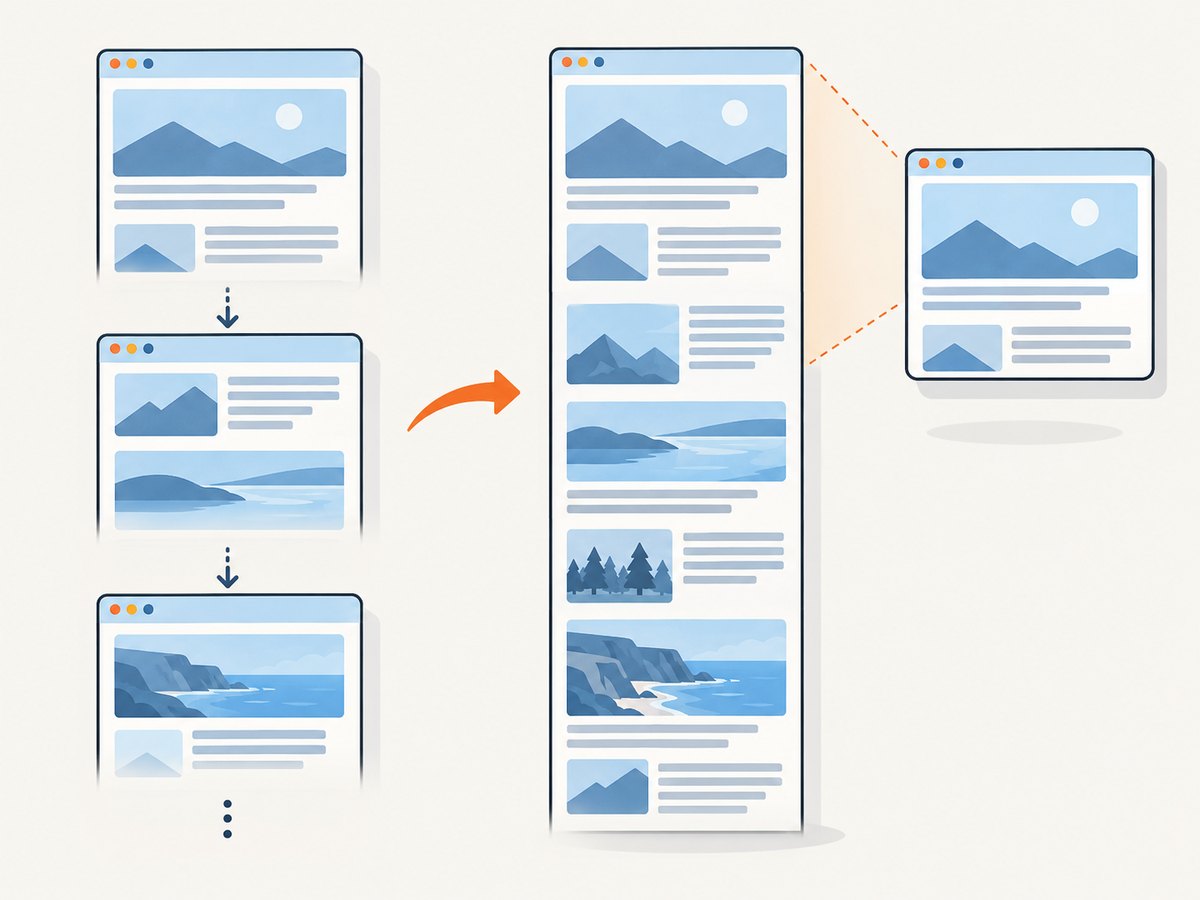
After the screenshot interface opens, Firefox lets you capture the portion currently visible or the entire document.
Visible area
Choose the visible-page option when you need exactly what is on screen. This is useful for a dialog, a chart currently in view, or a quick bug report. Browser controls outside the webpage are not included.
Full page
Choose the full-page option to capture the document from top to bottom in one image. Firefox may need to render content that is below the fold before producing the result. Pages with infinite scrolling, animations, sticky controls, or content that appears only after interaction can therefore produce a result that differs from a sequence of manual viewport captures.
Select a region
You can drag a selection around part of the page. The crosshair follows the pointer; use the arrow keys to move it precisely. Mozilla notes that crosshair movement does not work on Wayland. On Wayland, use pointer movement or select a larger region and crop it in an image editor.
3. Download, copy, or cancel
Download
Select Download to save a PNG file. Firefox uses its normal download location. The filename includes the year, month, day, time, and page title, which helps identify captures later.
Copy
Select Copy to put the screenshot on the system clipboard. Paste it into an email, issue tracker, document, image editor, or chat application. Clipboard behavior is controlled by the operating system and the receiving application; if paste does nothing, use Download instead.
Cancel
Press Esc or use the close control to leave the screenshot interface without saving or copying an image.
4. Control where screenshots are saved
Firefox screenshots follow the browser’s regular download behavior. To change the destination:
- Open Firefox Settings.
- Find the Downloads section.
- Choose a new download folder, or enable Always ask you where to save files.
- Capture another screenshot and confirm the destination.
When the “Always ask” option is enabled, Firefox also asks where to save screenshots. If you need a predictable automated destination, use a separate capture workflow such as a browser automation script or an API rather than relying on a manually selected folder.
Advanced, version-specific folder preferences
Mozilla Support discussions describe additional screenshot-folder preferences in Firefox 141. These are about:config settings, not a stable settings-page workflow. Preference names and behavior can change between releases, so treat them as an advanced troubleshooting route and record the original value before changing anything.
5. Fix a missing Screenshot command or button
Start with toolbar customization
Open More Tools > Customize Toolbar and look for Screenshot. If it is available, drag it back to the toolbar. You can also use the context-menu command or keyboard shortcut while diagnosing the toolbar.
Check whether screenshots are disabled
Mozilla Support troubleshooting guidance identifies the extensions.screenshots.disabled preference as one possible cause. In about:config, search for that preference and check whether it is set to true. Changing advanced preferences can affect browser behavior and may not persist in every managed installation.
Check enterprise policies
On a work or school computer, an administrator may lock screenshot features through about:policies. If a preference is locked, changing it locally will not restore the command. Contact the administrator or use an approved capture tool.
A separate support discussion mentions screenshots.browser.component.enabled for some Firefox versions. Do not change it blindly: first establish that the preference exists in your version and matches the symptom you are seeing.
6. Common problems and fixes
| Problem | Likely cause | Fix |
|---|---|---|
| “Take Screenshot” is missing from the context menu | The feature is disabled, hidden by policy, or the click landed on a special control | Right-click an empty page area; check toolbar customization; then inspect extensions.screenshots.disabled and about:policies if appropriate |
| The toolbar icon disappeared | Toolbar customization changed or the button was moved to overflow | Use More Tools > Customize Toolbar and drag Screenshot back |
| The shortcut does nothing | Another application owns the shortcut, or the browser window is not focused | Focus Firefox, try the context menu, or add the toolbar button |
| The saved file is in the wrong folder | Firefox is using its default download directory | Change the Downloads folder or enable Always ask you where to save files |
| Copy does not paste | The clipboard was cleared, blocked, or the receiving app does not accept images | Try pasting into an image editor; if it still fails, choose Download |
| Full-page capture misses content | Lazy loading, infinite scrolling, animation, or content requiring interaction | Scroll through the page first, wait for content to load, stop animation if possible, or capture smaller regions |
| Arrow keys do not move the crosshair | Firefox documents this limitation on Wayland | Move the pointer manually or crop a downloaded capture |
7. Capture reliability and performance tips
- Wait for the page: let fonts, images, and client-rendered content finish loading before opening the tool.
- Control state: dismiss cookie dialogs and expanded menus before capturing if they should not appear in the result.
- Prefer smaller regions for speed: a viewport or selected region is generally quicker to handle than a very long full-page image.
- Check dynamic pages: dashboards, ads, live counters, and carousels can change between captures. Pause them when possible.
- Keep the original: download a PNG when you need lossless detail or plan to crop later.
- Use Copy for short-lived sharing: use Download when the image must be archived, attached, or processed by another tool.
8. Or skip the browser setup
For repeatable captures in scripts or pipelines, ScreenshotNeo provides a website screenshot API and MCP server. One GET request returns a PNG, JPEG, WebP, or PDF. Cookie and consent banners, newsletter popups, and chat widgets are removed before the shot. Bot checks, blank pages, timeouts, failed loads, and cache hits are not billed, and the response identifies the result with X-Page-Verdict and X-Billed headers.
See the ScreenshotNeo documentation for all options. Basic calls:
cURL
curl -G "https://api.screenshotneo.com/v1/shot" -d access_key=YOUR_API_KEY --data-urlencode url=https://stripe.com -o shot.webpPython
import requests
r = requests.get("https://api.screenshotneo.com/v1/shot", params={"access_key": "YOUR_API_KEY", "url": "https://stripe.com"}, timeout=90)
open("shot.webp", "wb").write(r.content)
Node.js
const q = new URLSearchParams({ access_key: 'YOUR_API_KEY', url: 'https://stripe.com' });
const res = await fetch(`https://api.screenshotneo.com/v1/shot?${q}`);
You can configure full-page capture, CSS element capture, dark mode, device presets, viewport and retina scale, PDF paper and margins, custom CSS or JavaScript, clicks, waits, blocked requests, headers, cookies, user agents, timezone, geolocation, transparent backgrounds, resizing, caching, signed links, asynchronous webhooks, bulk capture, and usage reporting. An MCP server exposes take_screenshot, get_page_info, and capture_pdf to Claude, Cursor, and other MCP clients.
The Free plan includes 1,000 screenshots each month with no card. Paid plans start at $5 for 3,000 shots; every feature is available on every plan. Create a free ScreenshotNeo account.
9. Firefox screenshot FAQ
Does Firefox save screenshots as JPEG?
The built-in tool downloads PNG files. Convert the image afterward if another format is required.
Can I capture a page without its browser tabs and address bar?
Yes. Firefox’s screenshot tool captures webpage content rather than the surrounding browser chrome.
Why does a full-page screenshot differ from what I see while scrolling?
Full-page capture can trigger lazy loading and may encounter dynamic content at a different moment. Wait for the page to settle or capture sections separately.
Can an administrator disable Firefox screenshots?
Yes. Enterprise policies can lock the feature. Check about:policies or ask the person managing the device.
Where is the official Firefox procedure?
Mozilla’s current instructions are in its Firefox screenshot help article. Menu labels and behavior can vary by operating system and Firefox release.


