How to Configure PDF Page Width in Puppeteer
Set Puppeteer PDF width correctly with custom units, standard formats, CSS @page rules, and fixes for ignored width settings.
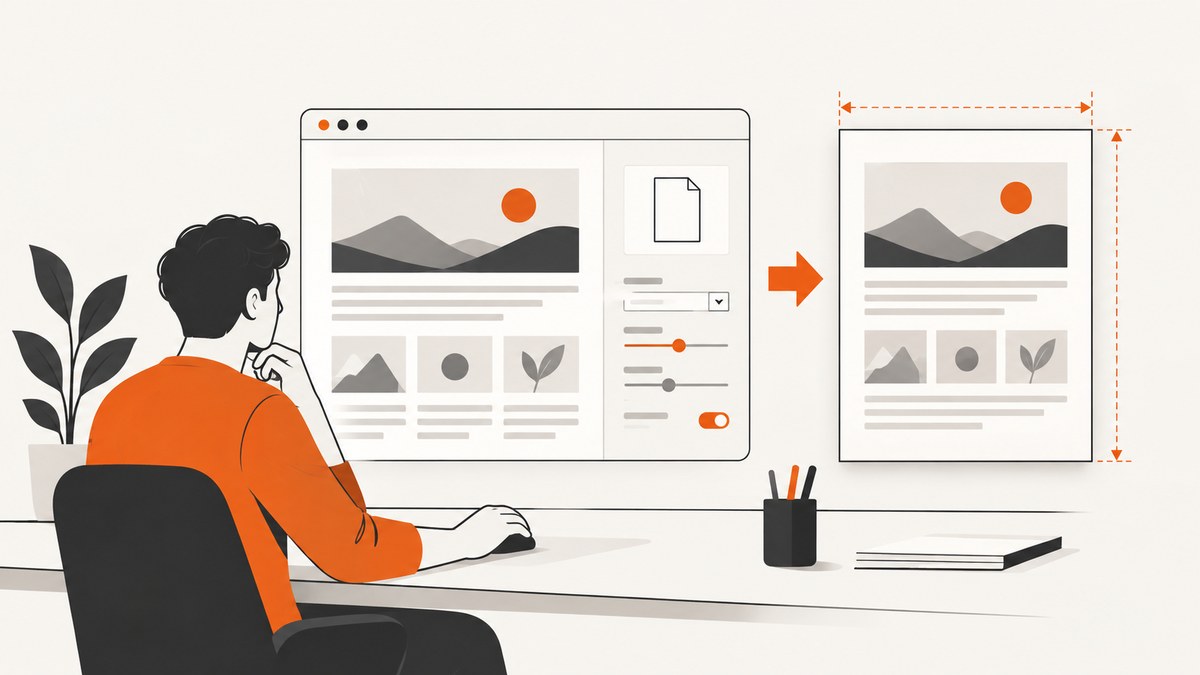
Use the width option passed to page.pdf(). For a US Letter PDF, set both dimensions explicitly:
await page.pdf({
  path: 'output.pdf',
  width: '8.5in',
  height: '11in',
});
Puppeteer accepts numeric values and strings with units for PDF dimensions. Unit-bearing strings such as '8.5in', '210mm', or '595px' make the intended paper size clear. Keep PDF paper width separate from the browser viewport width: page.setViewport() controls the CSS pixel viewport, while page.pdf() controls the physical page dimensions.
This guide explains custom widths, standard paper formats, CSS-driven sizing, print media behavior, complete runnable examples, troubleshooting, and production considerations. The examples use the current Puppeteer PDF API documented in the PDFOptions reference.
1. Set a custom PDF width and height
Launch Chromium, load the document, wait for the content you need, and call page.pdf() with width and height. The following program creates a Letter-sized PDF:

import puppeteer from 'puppeteer';

const browser = await puppeteer.launch({ headless: true });
try {
  const page = await browser.newPage();
  await page.goto('https://example.com', { waitUntil: 'networkidle2' });

  await page.pdf({
    path: 'letter.pdf',
    width: '8.5in',
    height: '11in',
    printBackground: true,
    margin: {
      top: '0.5in',
      right: '0.5in',
      bottom: '0.5in',
      left: '0.5in',
    },
  });
} finally {
  await browser.close();
}
Run it with:
npm install puppeteer
node make-pdf.mjs
width and height describe the paper box. Margins reduce the usable content area inside that box; they do not change the paper width. If you need a fixed-width receipt, label, or banner, specify the exact paper dimensions and set margins deliberately.
Common units
| Unit | Example | Typical use |
|---|---|---|
| in | 8.5in |
US Letter, business print workflows |
| mm | 210mm |
A-series paper and physical labels |
| cm | 21cm |
Metric layouts |
| px | 595px |
Layouts designed around CSS pixels |
Prefer an explicit unit. A bare number is accepted, but a string documents the desired unit and avoids ambiguity when a project changes its surrounding configuration.
2. Choose between width/height and format
Use width and height when the paper dimensions are custom. Use format for named sizes such as A4 or Letter:
await page.pdf({
  path: 'a4.pdf',
  format: 'A4',
  printBackground: true,
});
Puppeteer documents Letter as 8.5 × 11 inches and A4 as approximately 8.2677 × 11.6929 inches. When format is present, it takes priority over explicit width and height. Do not set a conflicting format while debugging a custom width; remove format or choose the named size intentionally.
| Requirement | Recommended setting | Priority behavior |
|---|---|---|
| Exact custom paper | width and height |
Defines the paper dimensions unless a higher-priority CSS page size is enabled |
| Standard paper | format: 'A4' or 'Letter' |
format overrides width and height |
| CSS owns the page size | preferCSSPageSize: true |
@page size takes priority |
3. Let CSS @page control the width
For documents already designed with print CSS, define the paper size in an @page rule and enable preferCSSPageSize:
<style>
  @page {
    size: 120mm 200mm;
    margin: 10mm;
  }

  @media print {
    body {
      margin: 0;
    }
  }
</style>
await page.pdf({
path: 'css-sized.pdf',
preferCSSPageSize: true,
printBackground: true,
});With the default preferCSSPageSize: false, Puppeteer scales the content to fit the selected paper size. Set it to true when the CSS page declaration must determine the output dimensions. Check that the rule is present in the loaded document, rather than only in a stylesheet that failed to load.
4. Understand viewport width versus paper width
These two settings affect different stages:
page.setViewport({ width, height })selects the browser’s CSS viewport. It influences responsive breakpoints, line wrapping, and layout.page.pdf({ width, height })selects the PDF paper dimensions.
You can use a desktop viewport and a narrow paper, but the resulting print layout may wrap unexpectedly. Conversely, a narrow viewport with a wide paper can leave excessive whitespace. Choose the viewport to produce the intended layout, then choose paper dimensions for the physical output.
await page.setViewport({
  width: 1280,
  height: 900,
  deviceScaleFactor: 1,
});

await page.pdf({
  path: 'wide-paper.pdf',
  width: '11in',
  height: '8.5in',
  landscape: true,
});
landscape: true rotates the selected paper orientation. If you provide width and height that are already landscape, keep the intent consistent and verify the generated dimensions in your PDF inspection workflow.
5. Control media, colors, margins, and scaling
Print versus screen styles
page.pdf() uses the print CSS media type by default. If the page should retain screen styles, emulate screen media before creating the PDF:
await page.emulateMediaType('screen');
await page.pdf({
  path: 'screen-styled.pdf',
  width: '8.5in',
  height: '11in',
});
Use this only when screen styling is intentional. Print styles commonly hide navigation, change colors, and adjust spacing for paper.
Preserve background colors
Set printBackground: true when backgrounds, gradients, or colored sections are part of the document:
await page.pdf({
  path: 'colored.pdf',
  format: 'A4',
  printBackground: true,
});
Chromium modifies colors for printing by default. CSS can request more exact color rendering with:
* {
  -webkit-print-color-adjust: exact;
  print-color-adjust: exact;
}
Margins and usable width
If paper width is 8.5in and left and right margins are 0.5in, the content area is approximately 7.5in. A table wider than that area can overflow or wrap. Set margins in the PDF options or in CSS, but avoid defining contradictory values in both places while diagnosing layout problems.
Scale carefully
The scale option changes the rendered content scale. It does not redefine the paper width. Use it for small adjustments after the paper size and layout are correct; changing scale to compensate for a wrong width can make text unreadable.
6. Complete reusable helper
This helper accepts a URL and a paper configuration, waits for fonts and images, and writes a PDF:
import puppeteer from 'puppeteer';

export async function renderPdf(url, outputPath, options = {}) {
  const browser = await puppeteer.launch({ headless: true });
  try {
    const page = await browser.newPage();
    await page.setViewport({ width: 1280, height: 900 });
    await page.goto(url, { waitUntil: 'networkidle2', timeout: 60000 });

    await page.evaluate(async () => {
      if (document.fonts?.ready) await document.fonts.ready;
      await Promise.all(Array.from(document.images).map((image) => {
        if (image.complete) return Promise.resolve();
        return new Promise((resolve) => {
          image.addEventListener('load', resolve, { once: true });
          image.addEventListener('error', resolve, { once: true });
        });
      }));
    });

    await page.pdf({
      path: outputPath,
      width: options.width ?? '8.5in',
      height: options.height ?? '11in',
      margin: options.margin ?? {
        top: '0.5in', right: '0.5in',
        bottom: '0.5in', left: '0.5in',
      },
      printBackground: options.printBackground ?? true,
      preferCSSPageSize: options.preferCSSPageSize ?? false,
    });
  } finally {
    await browser.close();
  }
}

await renderPdf('https://example.com', 'document.pdf', {
  width: '210mm',
  height: '297mm',
});
7. Troubleshooting ignored or incorrect width
“Puppeteer is ignoring my width”
- Confirm that
widthis inside the object passed topage.pdf(), not only insidesetViewport(). - Remove
formatwhile testing. A format such as'A4'overrides explicit dimensions. - Inspect CSS for
@page { size: ... }. If that rule should win, setpreferCSSPageSize: true. - Make sure the value is valid, such as
'120mm'or'8.5in', and not a misspelled unit.
Content is scaled or has large whitespace
Check the viewport, margins, and responsive breakpoints. A viewport that triggers a mobile layout can produce a narrow column on wide paper. A large margin or a small scale can also make the content appear undersized. Measure the usable area after subtracting margins.
CSS page size has no effect
Enable preferCSSPageSize: true, verify that the stylesheet loaded, and remember that the document is rendered with print media by default. If your size rule is inside a screen-only media query, move it into print CSS or emulate the intended media type.
Colors or backgrounds disappear
Set printBackground: true and add -webkit-print-color-adjust: exact where exact color output matters. Check whether print CSS intentionally removes the background.
Fonts or images are missing
Wait for document.fonts.ready and image completion before calling page.pdf(). Confirm that external assets are reachable from the Chromium process and that authentication headers or cookies are available when required.
WebDriver BiDi compatibility
Puppeteer’s documented WebDriver BiDi PDF support lists options including format, height, width, and scale, but does not list preferCSSPageSize. If you run Puppeteer through BiDi, verify the current protocol support before depending on CSS page-size precedence.
8. Performance and reliability considerations
Browser startup is usually more expensive than a second PDF render in the same process. For a service, reuse a browser process and create isolated pages per job, while closing pages in a finally block. Set navigation and PDF timeouts so a broken origin cannot hold a worker indefinitely.
networkidle2 is useful for pages that load many assets, but it can wait forever on applications with long-lived connections. In that case, wait for a stable selector or a known application-ready signal instead. Do not assume that network idle means fonts, lazy images, or client-rendered charts are complete; explicitly wait for those resources when they affect the PDF.
For repeatable output, pin your Puppeteer and Chromium versions, use a consistent viewport, and keep print CSS under version control. Generate a small set of representative PDFs after dependency upgrades, checking page dimensions, wrapping, fonts, and page breaks.
9. Or skip the browser setup
If your goal is a PDF or screenshot of a URL rather than control over a local Chromium process, ScreenshotNeo provides a website capture API and MCP server. Its PDF endpoint supports paper size, margins, landscape mode, and page ranges. A single request can replace browser launch, navigation, and PDF plumbing:
curl -G "https://api.screenshotneo.com/v1/shot" \
  -d access_key=YOUR_API_KEY \
  --data-urlencode url=https://stripe.com \
  -o shot.webp
See the ScreenshotNeo API documentation for PDF parameters and the other capture options. The same API also supports full-page capture, element selectors, dark mode, device presets, custom viewports, retina scale, custom CSS and JavaScript, clicks, waits, blocked resources, headers, cookies, user agents, authorization, timezone, geolocation, transparent backgrounds, resizing, caching, signed links, asynchronous jobs, webhooks, bulk capture, and usage reporting.
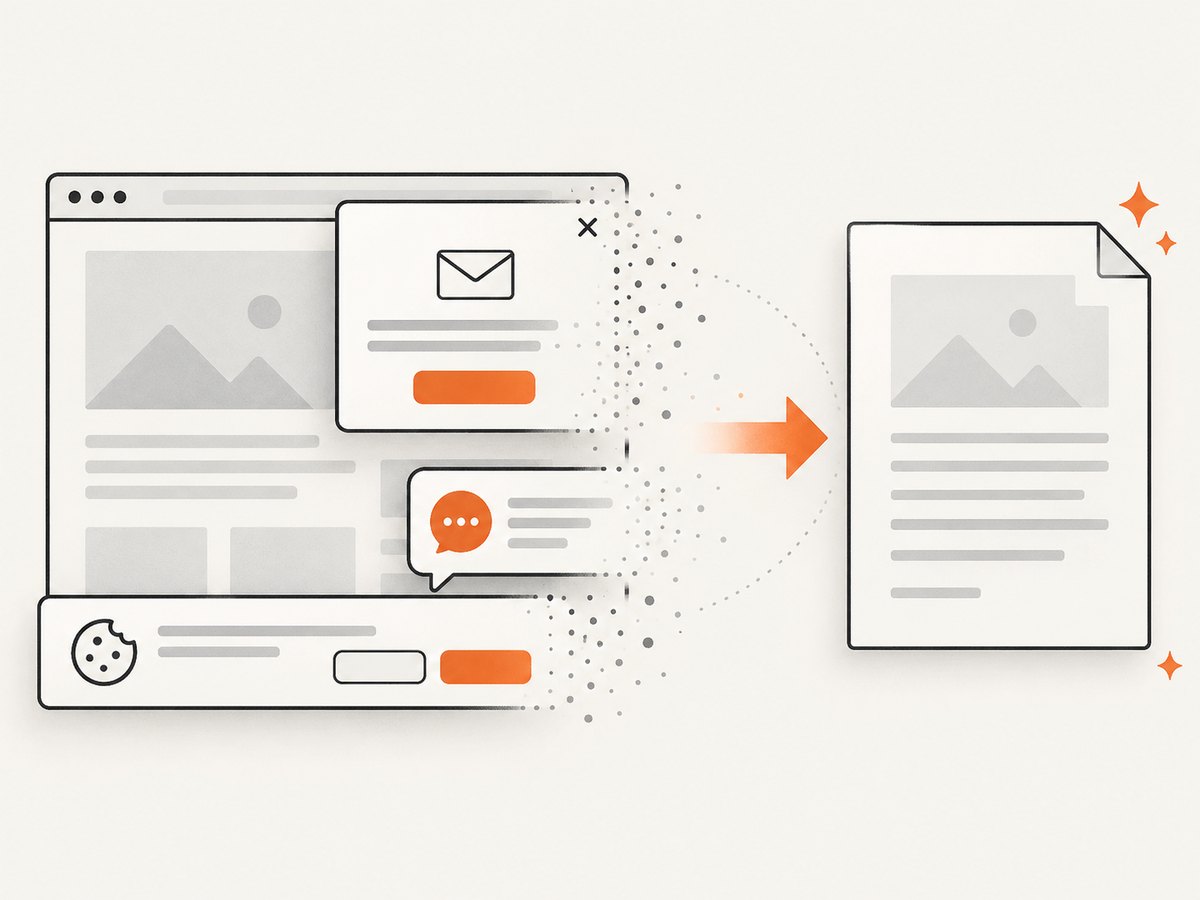
ScreenshotNeo removes cookie and consent banners, newsletter popups, and chat widgets before capture. Bot checks, blank pages, timeouts, failed loads, and cache hits are not billed; response headers identify the page verdict and billing result. Its MCP server exposes take_screenshot, get_page_info, and capture_pdf for Claude, Cursor, and other MCP clients.
The Free plan includes 1,000 screenshots per month without a card. Paid plans start at $5 for 3,000 shots; yearly billing provides two months free, and every feature is available on every plan. Create a free ScreenshotNeo account.
10. Cost and operational notes
Running Puppeteer means operating Chromium processes, allocating memory for concurrent pages, and maintaining the browser dependency. It is a good fit when you need arbitrary browser code, local files, or complete control over page lifecycle. A capture API can reduce infrastructure work when the input is a URL and the required output is a clean image or PDF.
For ScreenshotNeo, only clean shots are billed. Failed loads and cache hits do not consume billed shots, which makes retries and caching easier to reason about. Select a cache TTL for stable pages, use asynchronous jobs for long renders, and use bulk capture for up to 100 URLs per call when processing a batch.
11. FAQ
What is the simplest way to set Letter width?
Pass width: '8.5in' and height: '11in' to page.pdf().
Can I set only width?
Yes. Puppeteer can combine a supplied width with its remaining PDF defaults, but setting both dimensions is clearer for a fixed paper shape.
Does viewport width determine PDF width?
No. Viewport width controls layout in CSS pixels; PDF width controls the paper box.
When should I use preferCSSPageSize?
Use it when an @page rule in your print stylesheet should determine the output dimensions.
Why does my format override width?
format has priority over explicit width and height. Remove it or use the named format intentionally.
How do I make a landscape PDF?
Set landscape: true, or provide width and height in landscape order while keeping the option consistent with your intended output.


