How to Configure the Playwright Config File
Set up playwright.config.ts with the right test, browser, project, server, retry, and parallelism options—and learn where each setting belongs.
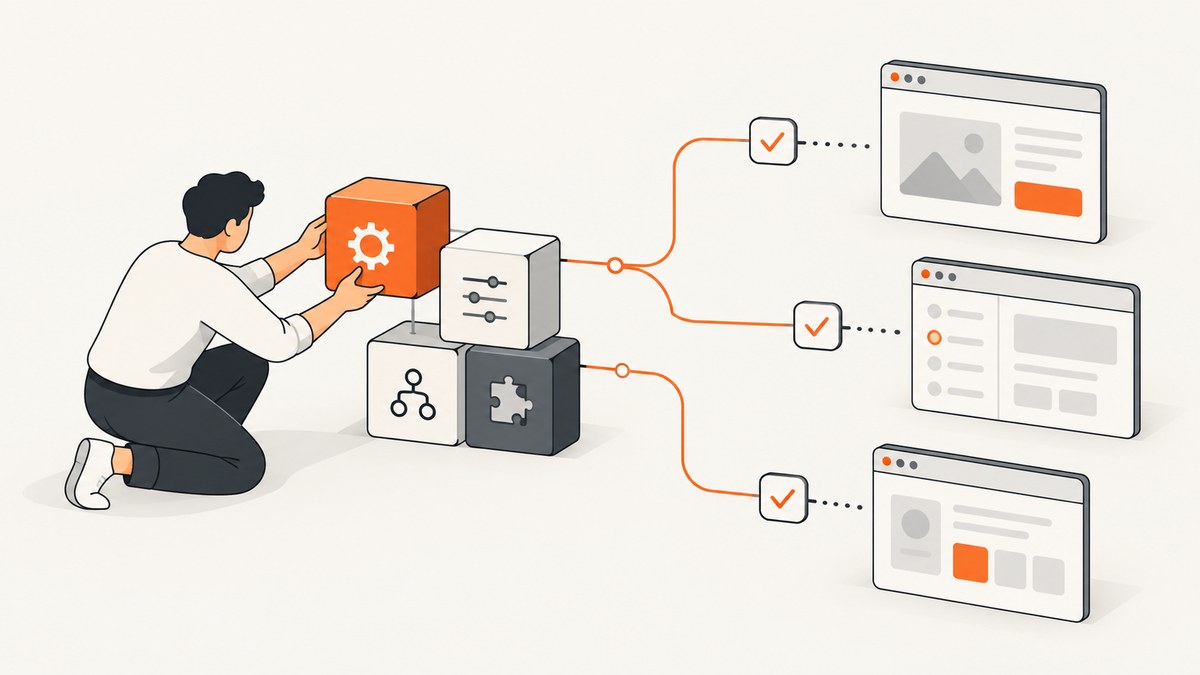
Direct answer: Create playwright.config.ts in your project root, import defineConfig from @playwright/test, and export a configuration object. Put test-runner settings such as testDir, retries, workers, and reporter at the top level. Put browser and browser-context defaults such as baseURL, viewport, and tracing inside use. Use projects for browser or environment variants. [Playwright configuration](https://playwright.dev/docs/test-configuration)
1. Create the config file
Install Playwright Test if the project does not already have it, then create the config in the directory from which you normally run npx playwright test. A standard TypeScript setup imports from @playwright/test. Playwright supports other config formats too, but use the format already supported by your project and installed version.
npm install --save-dev @playwright/test
npx playwright install
Save this as playwright.config.ts at the repository root. This starter assumes your app is served at http://localhost:3000 and your test files live under tests/; update both to match your project.
import { defineConfig, devices } from '@playwright/test';

export default defineConfig({
  testDir: './tests',
  fullyParallel: true,
  forbidOnly: !!process.env.CI,
  retries: process.env.CI ? 2 : 0,
  workers: process.env.CI ? 1 : undefined,
  reporter: 'html',
  use: {
    baseURL: 'http://localhost:3000',
    trace: 'on-first-retry',
  },
  projects: [
    {
      name: 'chromium',
      use: { ...devices['Desktop Chrome'] },
    },
  ],
  webServer: {
    command: 'npm run start',
    url: 'http://localhost:3000',
    reuseExistingServer: !process.env.CI,
  },
});
This is an illustrative configuration shape, not a claim that it was executed in your repository. The command, URL, test directory, and CI policy must match your application. Run it with npx playwright test; if the config is in a nonstandard location, specify it with the runner’s config option.
2. Know which settings go where
The most common configuration mistake is putting runner settings under use. use describes how tests interact with browsers. Top-level properties describe test discovery, execution, reporting, and supporting processes. The official reference lists options and their supported locations; check the version installed in your project because configuration APIs and defaults can change. [Configuration reference](https://playwright.dev/docs/test-configuration) · [Use options](https://playwright.dev/docs/test-use-options)
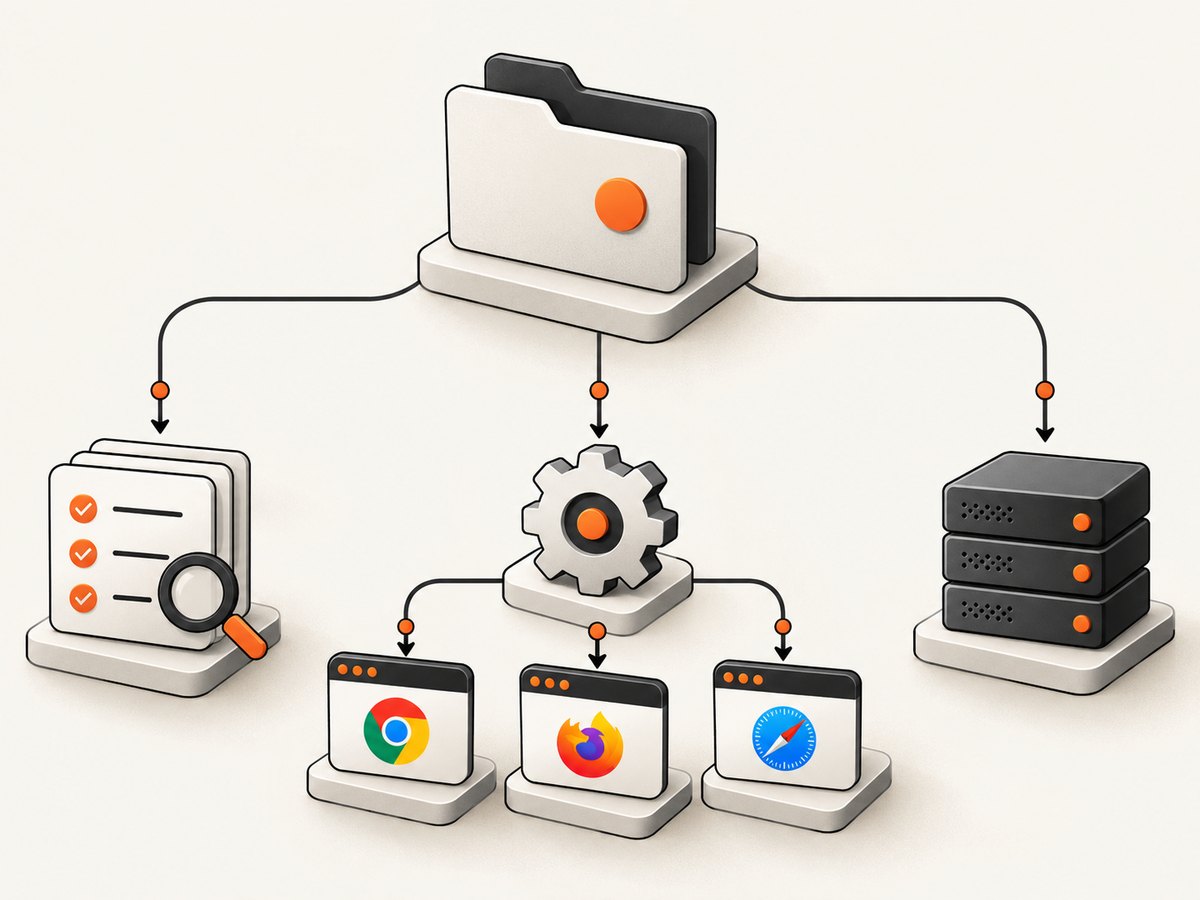
| Location | Typical settings | Purpose |
|---|---|---|
| Top level | testDir, testMatch, timeout, reporter, retries, workers, fullyParallel, forbidOnly, webServer |
Controls which tests run and how the overall run behaves. |
use |
baseURL, browser context options, storage state, tracing, video |
Sets shared browser and context defaults. |
projects |
Named browser/device profiles, separate environments, project-specific settings | Runs a suite under multiple configurations. |
expect |
Assertion timeout and snapshot comparison options | Configures the expectation library separately from test timeout. |
Settings can be scoped: project-specific values are useful when one browser or environment needs a different policy, while shared defaults belong at the top level. A narrower project setting can override a shared default for that project.
3. Configure test discovery and timeouts
testDir points to the directory containing tests. By default, Playwright finds files whose names include test or spec and use supported JavaScript or TypeScript extensions. Use testMatch to narrow the files it includes and testIgnore to exclude files or directories. These are useful in monorepos or when fixture data sits near tests.
export default defineConfig({
  testDir: './e2e',
  testMatch: '**/*.spec.ts',
  testIgnore: '**/fixtures/**',
  timeout: 30_000,
  expect: {
    timeout: 5_000,
  },
});
The test timeout covers the test function, fixtures, and beforeEach work. The assertion timeout is separate: it controls how long web-first assertions wait for a condition. Increasing either timeout can accommodate genuinely slower environments, but it can also make failures take longer to surface. Prefer fixing an incorrect readiness condition or slow test setup before raising a global limit. [Timeout guide](https://playwright.dev/docs/test-timeouts)
Other useful top-level controls include globalTimeout for bounding the overall run and outputDir for test artifacts such as screenshots, traces, and videos. Use reporter to select how results are presented; html is a common local and CI choice. For global setup or teardown, configuration also supports globalSetup and globalTeardown, but use those hooks only for work that truly belongs around the whole run.
4. Set browser defaults with use
Put options that describe the browser session or context under use. The most useful starting point is baseURL, which lets a test navigate to a relative path such as /login rather than repeating the host. Other shared settings may include viewport, storage state, tracing, video, locale, or browser context behavior, depending on your tests and Playwright version.
use: {
  baseURL: 'http://localhost:3000',
  trace: 'on-first-retry',
  viewport: { width: 1440, height: 900 },
},
With a base URL configured, a test can use await page.goto('/login'). Without one, relative navigation has no host to resolve against. When different projects need distinct browser defaults, put those overrides in each project’s use object. See the [use options reference](https://playwright.dev/docs/test-use-options).
5. Use projects for browsers and test profiles
A project is a named configuration. Projects can represent browser engines, device profiles, separate environments, or test groups. Playwright provides device descriptors through devices. Add only the profiles you need: each extra project runs tests again and therefore adds work to the suite.
projects: [
  {
    name: 'chromium-desktop',
    use: { ...devices['Desktop Chrome'] },
  },
  {
    name: 'webkit-mobile',
    use: { ...devices['iPhone 13'], browserName: 'webkit' },
  },
],
Project names appear in results and help identify which configuration failed. For details and supported project-level controls, see the [projects guide](https://playwright.dev/docs/test-projects). A practical sequence is to start with one project, add another when browser or device coverage is required, then decide whether project-specific retries or timeouts are justified.
6. Choose parallelism and retries deliberately
Playwright Test runs test files in parallel by default. Tests inside one file run in order by default; fullyParallel: true opts the project into running individual tests in parallel too. Workers are separate processes. Parallel tests should not depend on shared mutable state, a shared account being edited concurrently, or another test having already created data. [Parallelism guide](https://playwright.dev/docs/test-parallel)
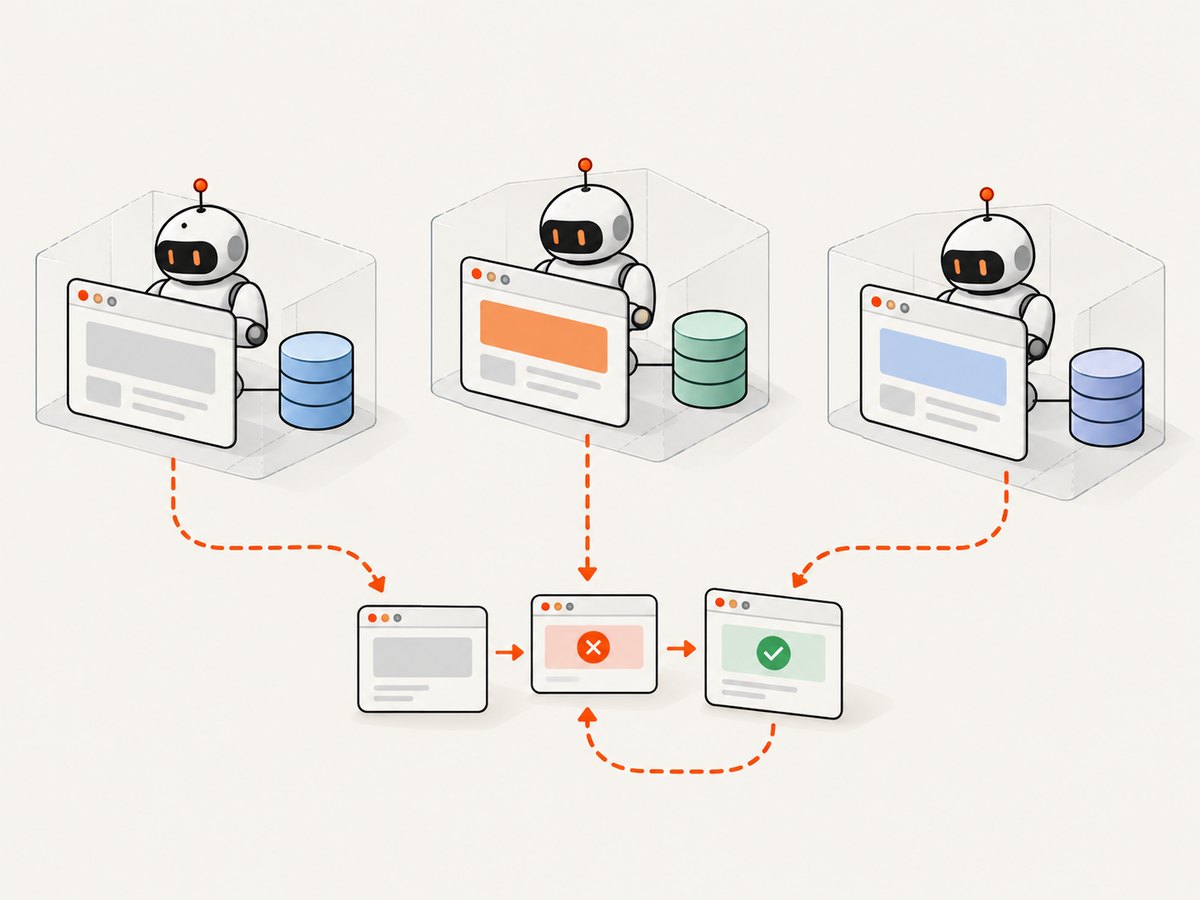
More workers may improve throughput when the machine and application can handle concurrent browser sessions, but they also increase resource use and can expose backend contention. Start with the default locally, then constrain workers in resource-limited CI or where tests compete for external resources. Setting workers: 1 disables parallel scheduling. If reducing workers makes failures disappear, investigate shared state and resource limits rather than treating serial execution as the automatic long-term fix.
Retries default to zero. A CI-only retry policy can help collect evidence about intermittent failures, especially when paired with traces. But if a test fails once and passes on retry, that is flaky evidence to investigate—not proof the test is reliable. [Retries guide](https://playwright.dev/docs/test-retries)
retries: process.env.CI ? 2 : 0,
workers: process.env.CI ? 1 : undefined,
forbidOnly: !!process.env.CI,
forbidOnly makes the run fail if a focused test.only was left in the suite, which is especially useful in CI. Keep retries and worker count explicit so developers can understand why local and CI runs differ.
7. Start a local app with webServer
When tests need a local application, configure webServer with the command that starts it and a URL that indicates readiness. Pair it with use.baseURL so relative navigations target that server. In the starter config, reuseExistingServer: !process.env.CI permits local reuse but asks CI to use the server launched for the run.
webServer: {
  command: 'npm run start',
  url: 'http://localhost:3000',
  reuseExistingServer: !process.env.CI,
  timeout: 120_000,
},
use: {
  baseURL: 'http://localhost:3000',
},
Use the readiness URL your app actually serves; a process starting does not necessarily mean the app is ready. If a run needs multiple servers, configure them as supported by your installed version and set baseURL explicitly so navigation has an unambiguous target. See the [web server guide](https://playwright.dev/docs/test-webserver).
8. Capture screenshots for tests and visual checks
Playwright’s test runner can capture screenshots as test artifacts or compare page and locator screenshots as visual assertions. Those workflows run in your test browser and are configured alongside your test suite. If your task instead is to capture a website from a URL without setting up a browser test, an API may fit better.
ScreenshotNeo is a website screenshot API and MCP server for developers. Its API can return a screenshot or PDF from one GET request. The product documents screenshot options and request parameters at ScreenshotNeo API docs.
Or skip the browser setup
For a URL-based screenshot, call the API directly. This cURL example saves a WebP response:
curl -G "https://api.screenshotneo.com/v1/shot" \
  -d access_key=YOUR_API_KEY \
  --data-urlencode url=https://stripe.com \
  -o shot.webp
In Python:
import requests

r = requests.get(
    "https://api.screenshotneo.com/v1/shot",
    params={"access_key": "YOUR_API_KEY", "url": "https://stripe.com"},
    timeout=90,
)
open("shot.webp", "wb").write(r.content)
In Node.js:
const q = new URLSearchParams({
  access_key: 'YOUR_API_KEY',
  url: 'https://stripe.com'
});
const res = await fetch(`https://api.screenshotneo.com/v1/shot?${q}`);
if (!res.ok) throw new Error(`Screenshot request failed: ${res.status}`);
await import('node:fs/promises').then(fs => fs.writeFile('shot.webp', Buffer.from(await res.arrayBuffer())));
Cookie banners are accepted and removed before the shot, along with 60+ known consent platforms, newsletter popups, and chat widgets; each cleanup step can be turned off. Bot checks, blank pages, timeouts, failed loads, and cache hits cost nothing, and response headers report the page verdict and billing status. An MCP server exposes take_screenshot, get_page_info, and capture_pdf to Claude, Cursor, and other MCP clients. The free plan includes 1,000 screenshots per month with no card; paid plans start at $5 for 3,000 shots, and every feature is on every plan. For request parameters and setup, see the docs. Sign up for 1,000 free screenshots a month, with no card required.
9. Troubleshooting common configuration errors
| Symptom | Likely cause | Fix |
|---|---|---|
| “Unknown option” or config validation failure | A runner setting is nested under use, misspelled, or unsupported by the installed version. |
Move test-runner settings to the top level and compare the option with the docs for the version in your lockfile. |
| No tests found | testDir, testMatch, or testIgnore excludes the files, or the command runs from an unexpected project directory. |
Confirm the file path and filename pattern, then run the test command from the repository root or provide the intended config. |
Relative page.goto fails |
baseURL is missing or is not the host that serves the app. |
Set use.baseURL to the correct origin; include a scheme and port if needed. |
| Web server times out | The configured command fails, uses another port, or the readiness URL never responds. | Run the command yourself, check its logs and actual port, then make command and url agree. Increase the server timeout only if startup is legitimately slower. |
| Tests pass alone but fail in a suite | Tests may share backend records, accounts, files, or other mutable external state. | Give tests or workers separate data and output paths; keep each test self-contained. Temporarily set one worker to help diagnose races. |
| Failures disappear on retry | The test is flaky, perhaps due to timing, data contention, or environment variability. | Inspect trace and failure artifacts, stabilize the precondition or data, and treat the retry pass as evidence rather than a fix. |
| CI is much slower than local | CI may run with a smaller worker limit, extra projects, or slower startup. | Check worker and project counts, server startup, and which tests run. Increase concurrency only if the runner and target environment can sustain it. |
| Browser executable is missing | The required browser binaries have not been installed in that environment. | Run the Playwright browser installation step appropriate to the project and CI image. |
10. Performance, reliability, and cost considerations
A config file shapes test runtime through the number of projects, tests, and worker processes. A cross-browser matrix increases coverage and repeats work. More workers can shorten elapsed time when there is enough CPU and memory, but may increase contention against a local server or shared test backend. Measure your own suite; the supplied documentation does not establish a universal speedup or ideal worker count.
For reliability, make tests independent, use readiness conditions that reflect the real app state, and save useful diagnostics. Retries can reveal instability; traces on retry preserve context for a failing attempt while avoiding tracing every passing test. Ensure CI retains the test artifacts your team needs to debug failures. Keep secrets such as authentication state or credentials out of committed config files.
The Playwright runner itself does not specify a per-screenshot price in this configuration guide. Operational cost comes from the compute and services used to run the suite: browser processes, CI minutes, and any test environment or external service. Keep the project matrix focused and limit concurrency where resource use or shared-service load matters. For occasional URL-to-image or PDF capture, ScreenshotNeo’s stated pricing is Free for 1,000 shots monthly, Starter $5 for 3,000, Growth $15 for 15,000, Pro $39 for 60,000, Scale $99 for 250,000, and Business $249 for 1,000,000; yearly billing gives two months free. Only clean shots are billed.
11. Configuration checklist
- Is the config file where the test command expects it?
- Does
testDirpoint to the actual test folder? - Are runner options top-level and browser defaults inside
use? - Does
baseURLmatch the app thatwebServerstarts? - Are project profiles necessary, and are their names clear?
- Do tests remain independent under the chosen worker count?
- Are CI retries diagnostic rather than masking recurring failures?
- Can CI reject accidental
test.onlyand retain useful artifacts? - Have option names and defaults been checked against the installed Playwright version?
FAQ
Can I use JavaScript instead of TypeScript?
Yes. Playwright supports multiple config file formats. Use a supported JavaScript config extension and keep its module syntax consistent with your project; consult the installed version’s configuration documentation.
Should I set every option in the config?
No. Start with the test directory, browser defaults, server URL if needed, and only the execution controls your workflow requires. Add options when they solve a concrete discovery, isolation, reporting, or runtime need.
Why does a test behave differently when I enable full parallelism?
Full parallelism changes scheduling and exposes assumptions about shared state or test order. Make each test’s setup independent before relying on that mode.
Where should browser-specific settings go?
Put a common default in top-level use; put a browser- or environment-specific override in the relevant project.
Does ScreenshotNeo replace Playwright Test?
No. Playwright Test configures browser-driven test suites. ScreenshotNeo offers URL-based screenshot and PDF capture through an API and MCP server, a different workflow for developers who need captures without managing the test browser setup.


