How to Configure Screenshots in Cypress
Configure Cypress screenshots for failures, manual captures, artifact retention, visual checks, CI, and reliable debugging with practical examples.

Direct answer: Configure Cypress screenshots in your project configuration. Set screenshotOnRunFailure to control automatic screenshots after failed tests, screenshotsFolder to choose where files are written, and trashAssetsBeforeRuns to decide whether Cypress clears previous artifacts before cypress run. Use cy.screenshot() for deliberate captures during a test and Cypress.Screenshot.defaults() for shared capture behavior.
The documented defaults are screenshotOnRunFailure: true, screenshotsFolder: 'cypress/screenshots', and trashAssetsBeforeRuns: true. Automatic failure screenshots are produced during cypress run; Cypress does not automatically capture failures in cypress open. Manual screenshots work in either mode. Confirm the exact configuration shape for your installed Cypress version in the official configuration reference.
1. Configure the screenshot folder and failure behavior
For current Cypress projects, place these settings in cypress.config.js or cypress.config.ts. The settings belong at the top level returned by defineConfig, alongside options such as e2e and component.
const { defineConfig } = require('cypress')

module.exports = defineConfig({
  screenshotOnRunFailure: true,
  screenshotsFolder: 'cypress/screenshots',
  trashAssetsBeforeRuns: false,

  e2e: {
    baseUrl: 'http://localhost:3000',
    setupNodeEvents(on, config) {
      return config
    },
  },
})
With this configuration:
- Every failed test in
cypress rungets an automatic screenshot. - Artifacts are written below
cypress/screenshots. - Existing files are kept when a new run starts because cleanup is disabled.
If you want Cypress to remove old artifacts before each run, either omit trashAssetsBeforeRuns or set it to true:
const { defineConfig } = require('cypress')

module.exports = defineConfig({
  screenshotOnRunFailure: true,
  screenshotsFolder: 'artifacts/cypress/screenshots',
  trashAssetsBeforeRuns: true,
})
Cleanup applies to the entire contents of the screenshot folder, including nested directories and non-image files. Treat that directory as disposable when cleanup is enabled.
Disable screenshots on failure
To stop automatic failure captures during headless runs, set:
const { defineConfig } = require('cypress')

module.exports = defineConfig({
  screenshotOnRunFailure: false,
})
This does not disable explicit calls to cy.screenshot(). It only changes Cypress’s automatic failure behavior.
2. Understand when Cypress captures screenshots
Cypress has two separate screenshot paths:
- Automatic failure screenshots. These occur in
cypress runwhen a test fails andscreenshotOnRunFailureis enabled. - Manual screenshots. These are created wherever your test calls
cy.screenshot(), in both interactive and headless modes.
Failure screenshots are intended to show the state around a failed test. The command reference notes that failure capture is coerced to the runner view. A manual screenshot can instead target the application viewport or a full page.
Retries produce additional artifacts. When a test fails on more than one attempt, Cypress appends an attempt suffix to new screenshots so that one attempt does not overwrite another by default.
3. Capture screenshots manually with cy.screenshot()
The simplest manual capture is:
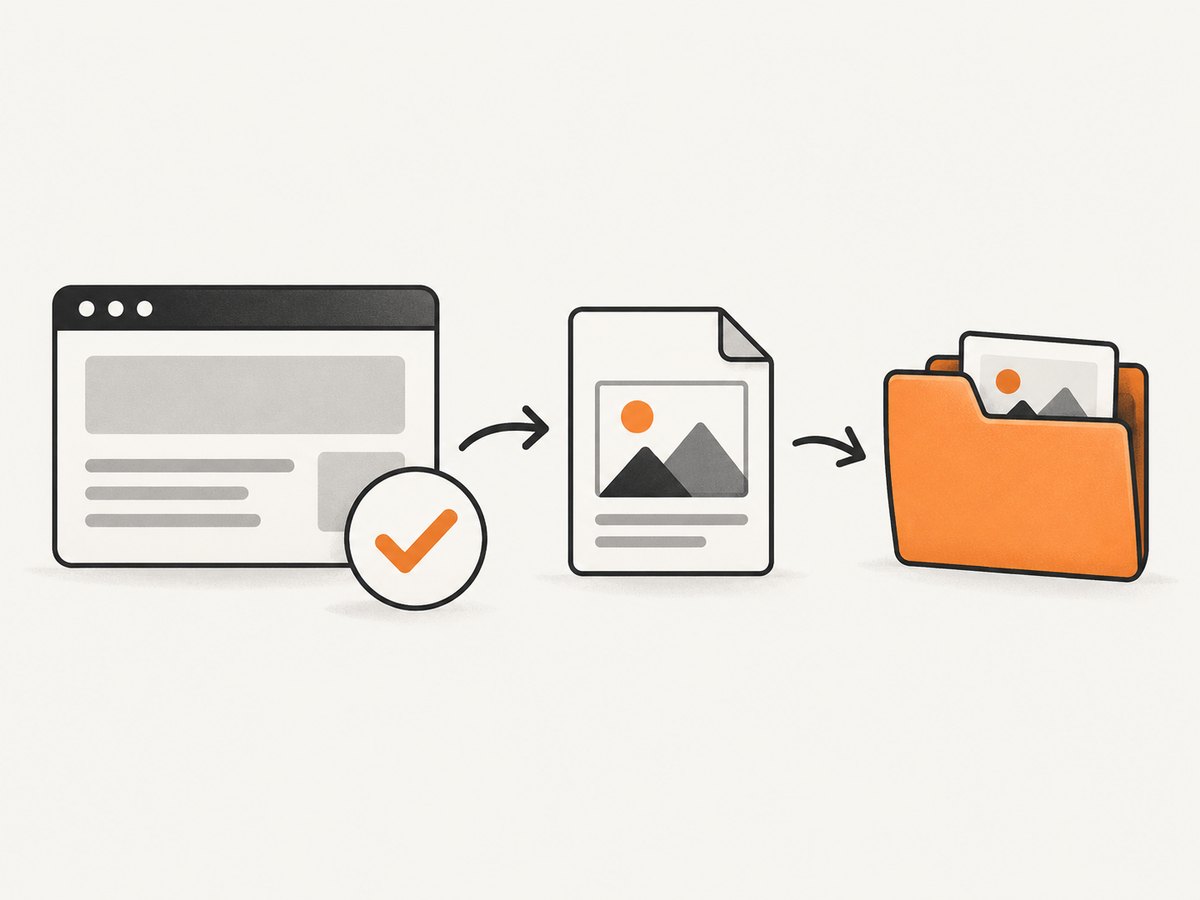
it('shows the account page', () => {
  cy.visit('/account')
  cy.screenshot('account-page')
})
The name is relative to the configured screenshots folder. Cypress creates the needed directory structure for a path:
cy.screenshot('checkout/payment/empty-state')
That produces a file below the screenshots folder in a corresponding checkout/payment directory. If the same name is used more than once, Cypress adds a numeric suffix unless you request overwriting.
Choose a capture mode
The capture option accepts:
| Value | Use it for | Practical detail |
|---|---|---|
viewport |
The visible application area | Useful for checking what a user sees at the current viewport size. |
fullPage |
The complete document | The documented default for manual screenshots; useful for long pages. |
runner |
The Cypress runner view | Useful when the command log and test state are relevant. |
it('captures several states', () => {
  cy.visit('/dashboard')

  cy.screenshot('dashboard-viewport', {
    capture: 'viewport',
  })

  cy.screenshot('dashboard-full-page', {
    capture: 'fullPage',
  })

  cy.screenshot('dashboard-runner', {
    capture: 'runner',
  })
})
Clip to a region and blackout sensitive elements
Use clip when you need a rectangle rather than the whole page. The object contains x, y, width, and height.
cy.screenshot('billing-card', {
  capture: 'viewport',
  clip: {
    x: 40,
    y: 120,
    width: 720,
    height: 420,
  },
})
Use blackout to cover selectors before the image is written. This is useful for account numbers, avatars, timestamps, rotating ads, or other values that make artifacts noisy or expose data.
cy.screenshot('profile', {
  blackout: [
    '[data-testid="email"]',
    '[data-testid="account-number"]',
  ],
})
Control duplicate files
By default Cypress avoids replacing an existing screenshot with the same name. Set overwrite: true when a test intentionally maintains one stable artifact:
cy.screenshot('latest-home', {
  overwrite: true,
})
Use overwriting carefully in CI. A unique name containing the spec, browser, viewport, or build identifier makes failures easier to investigate.
4. Set reusable screenshot defaults
Cypress.Screenshot.defaults() establishes defaults for screenshots made later in the run. Put it in support code or another file that loads before your tests.
// cypress/support/e2e.js
Cypress.Screenshot.defaults({
  blackout: [
    '[data-testid="user-email"]',
    '.live-clock',
  ],
  overwrite: false,
  capture: 'fullPage',
})
You can also disable automatic failure screenshots centrally:
Cypress.Screenshot.defaults({
  screenshotOnRunFailure: false,
})
Use per-call options when one screenshot needs an exception. For example, keep a global blackout list but capture one diagnostic image without it only when your test environment is safe to inspect.
5. Keep artifacts useful in CI
A reliable CI setup separates three concerns: what Cypress captures, what the runner retains, and what your CI system uploads.
- Choose a stable
screenshotsFolder, such asartifacts/cypress/screenshots. - Decide whether each run should start clean. Set
trashAssetsBeforeRuns: truefor isolated runs, orfalsewhen a later job needs earlier artifacts. - Configure the CI provider to upload the folder after Cypress exits, including when the test command fails.
- Keep screenshots for failed attempts when retries are enabled; the attempt suffix helps distinguish intermittent failures from repeatable ones.
- Use deterministic test data and wait for the UI state you intend to inspect.
Do not assume an image proves that the page finished rendering. Cypress’s visual testing guidance warns that screenshots can capture an intermediate state while data, animations, or layout work is still in progress.
it('captures the loaded results', () => {
  cy.visit('/reports')
  cy.get('[data-testid="report-results"]')
    .should('be.visible')
    .and('contain.text', 'Revenue')
  cy.screenshot('reports-loaded')
})
For animations, wait for a stable state or disable motion in a test stylesheet. For network data, wait on an aliased request or assert on the rendered result rather than using an arbitrary delay.
6. Cypress screenshots versus visual regression
Cypress captures images but does not compare them. The Cypress visual testing guide states: “The built-in cy.screenshot() command captures images but does not compare them.”
For visual regression, add a separate comparison system that manages baseline images, diffs, review decisions, and CI failures. When choosing one, check:
- Whether it supports your Cypress version and browser matrix.
- How baselines are created, updated, and reviewed.
- Whether differences are pixel based, region based, or perceptual.
- How fonts, animations, device scale, and operating-system rendering are normalized.
- Whether artifacts and diffs are available when a build fails.
Keep capture and comparison separate in your design. A screenshot can be a debugging artifact even when it is not a regression baseline.
7. A complete example project configuration
const { defineConfig } = require('cypress')

module.exports = defineConfig({
  screenshotOnRunFailure: true,
  screenshotsFolder: 'artifacts/cypress/screenshots',
  trashAssetsBeforeRuns: true,

  e2e: {
    baseUrl: 'http://localhost:3000',
    specPattern: 'cypress/e2e/**/*.cy.js',
    setupNodeEvents(on, config) {
      return config
    },
  },
})
// cypress/e2e/checkout.cy.js
describe('checkout screenshots', () => {
  it('captures the payment form', () => {
    cy.visit('/checkout')
    cy.get('[data-testid="payment-form"]').should('be.visible')
    cy.screenshot('checkout/payment-form', {
      capture: 'viewport',
      blackout: ['[data-testid="card-number"]'],
    })
  })

  it('captures the confirmation page', () => {
    cy.visit('/checkout/confirmation')
    cy.get('[data-testid="confirmation"]').should('be.visible')
    cy.screenshot('checkout/confirmation', {
      capture: 'fullPage',
      overwrite: true,
    })
  })
})
8. Troubleshooting common screenshot problems
No screenshot appears after a failed test
Cause: The test ran in cypress open, where automatic failure capture is not performed, or screenshotOnRunFailure is false.
Fix: Run with cypress run, enable the setting, or add an explicit cy.screenshot() call where you need an interactive artifact.
The folder is empty at the start of every run
Cause: trashAssetsBeforeRuns defaults to true and Cypress clears the folder contents before cypress run.
Fix: Set trashAssetsBeforeRuns: false, or upload artifacts before the next run begins.
Previous files remain unexpectedly
Cause: Cleanup is disabled, or the files are outside the folder Cypress is configured to clean.
Fix: Confirm screenshotsFolder and set trashAssetsBeforeRuns: true when each run should be isolated.
The screenshot shows a loading spinner or half-rendered page
Cause: The capture happened before the application reached its stable state.
Fix: Assert on the final UI, wait for the relevant request, freeze animations, and use deterministic data. Avoid relying on a long arbitrary sleep when a state assertion is available.
Two screenshots have unexpected suffixes
Cause: Cypress avoids duplicate names by adding a numeric suffix.
Fix: Give each state a unique name, or set overwrite: true when replacing one known artifact is intentional.
Secrets appear in artifacts
Cause: Sensitive values were visible when the browser was captured.
Fix: Use blackout selectors, seed test accounts with fake data, and inspect artifacts before publishing them outside the CI system.
Visual comparisons fail on every machine
Cause: Fonts, browser versions, device scale, animation timing, or data differ between baseline and candidate runs.
Fix: Standardize the CI image and browser, wait for stable content, disable motion, load the same fonts, and keep comparison thresholds appropriate for the chosen tool.
9. Performance, reliability, and cost considerations
Screenshot capture adds browser work and produces files that your CI system must store or transfer. Full-page captures are usually larger and may require more layout work than viewport captures. Capture only the states needed for diagnosis or regression coverage.
- Prefer element or viewport captures for fast failure diagnostics.
- Reserve full-page images for documents and flows where below-the-fold layout matters.
- Use blackout selectors to reduce unstable content instead of creating needless retries.
- Keep screenshot names deterministic so CI can retain and find artifacts predictably.
- Clean old artifacts deliberately; accidental cleanup can remove evidence, while indefinite retention increases storage.
- Run visual comparisons in a consistent environment because rendering differences can create noisy diffs.
Cypress itself does not charge per screenshot. Your practical cost is browser execution time, CI minutes, artifact storage, and any separate visual testing service you add. Cypress’s built-in capture does not provide visual comparison, so comparison costs and retention policies belong to the external system.
10. Or skip the browser setup
If you need screenshots of public pages, documentation, reports, or production URLs outside a Cypress test, ScreenshotNeo provides a single HTTP endpoint. Its clean-shot pipeline accepts cookie and consent banners like a visitor, then removes more than 60 known consent platforms, newsletter popups, and chat widgets before capture. Each step can be turned off.
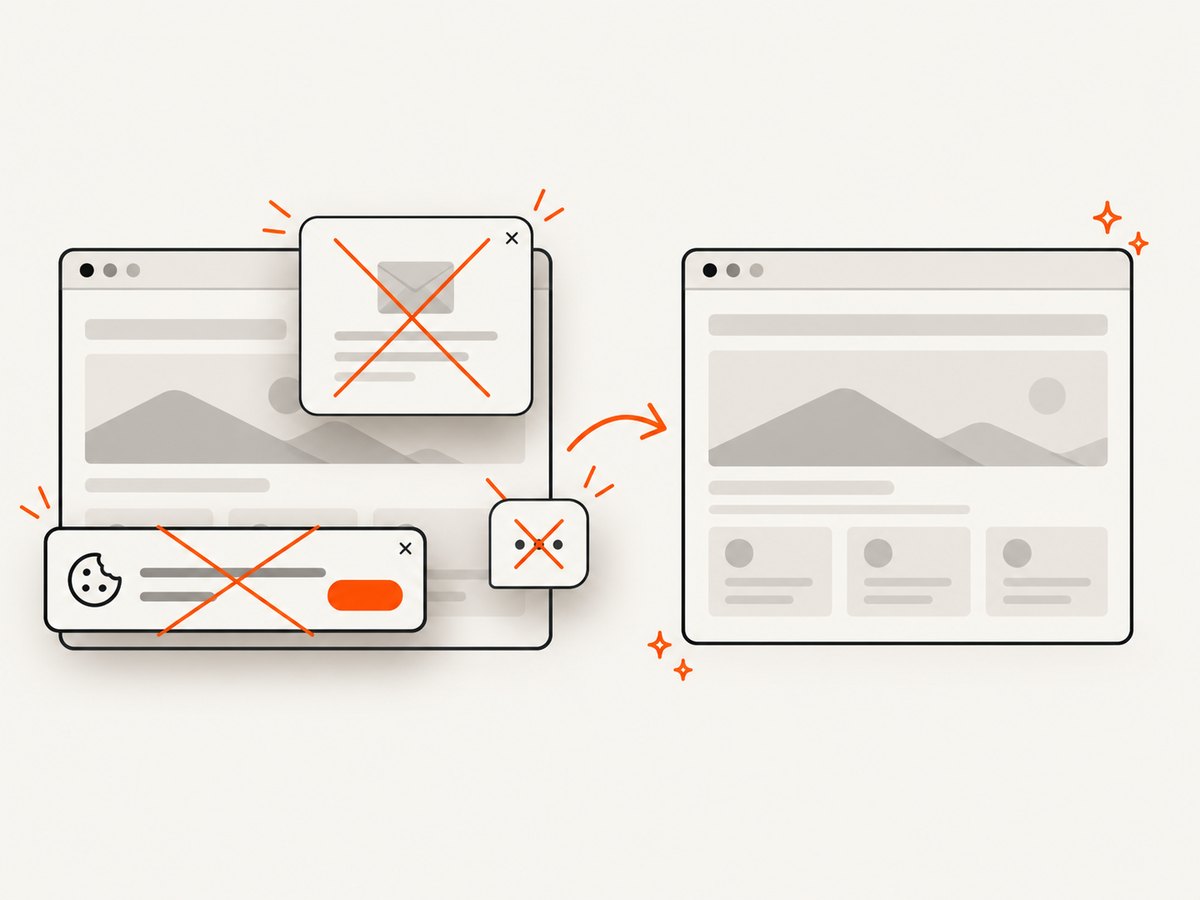
Only clean shots are billed. Bot checks and CAPTCHAs, blank pages, timeouts, failed loads, and cache hits are not billed, and response headers identify the page verdict and billing result.
See the ScreenshotNeo API documentation for the complete option list, including full-page capture with lazy images, CSS selector element capture, dark mode, device presets, custom viewports, retina scale, PDF output, custom CSS and JavaScript, clicks, waits, request blocking, headers, cookies, user agents, Authorization, timezone, geolocation, transparent backgrounds, resizing, TTL caching, signed links, asynchronous jobs, webhooks, bulk capture, usage data, and the OpenAPI specification.
cURL
curl -G "https://api.screenshotneo.com/v1/shot" \
  -d access_key=YOUR_API_KEY \
  --data-urlencode url=https://stripe.com \
  -o shot.webp
Python
import requests

r = requests.get(
    "https://api.screenshotneo.com/v1/shot",
    params={
        "access_key": "YOUR_API_KEY",
        "url": "https://stripe.com",
    },
    timeout=90,
)
r.raise_for_status()
open("shot.webp", "wb").write(r.content)
Node.js
const q = new URLSearchParams({
  access_key: 'YOUR_API_KEY',
  url: 'https://stripe.com',
})

const res = await fetch(`https://api.screenshotneo.com/v1/shot?${q}`)
if (!res.ok) throw new Error(`Screenshot failed: ${res.status}`)

const bytes = await res.arrayBuffer()
await Bun.write('shot.webp', bytes)
ScreenshotNeo also includes an MCP server with take_screenshot, get_page_info, and capture_pdf tools, so Claude, Cursor, and other MCP clients can request captures directly. The Free plan includes 1,000 screenshots per month with no card; paid plans start at $5 for 3,000 shots, and every feature is available on every plan.
Create a free ScreenshotNeo account and get 1,000 screenshots a month with no card.
11. Frequently asked questions
What is the default Cypress screenshots folder?
cypress/screenshots.
Does Cypress capture failures in cypress open?
No. Automatic failure screenshots apply to cypress run. Use cy.screenshot() for captures in interactive mode.
Can Cypress compare screenshots by itself?
No. It captures images; visual comparison requires a separate tool or integration.
How do I preserve screenshots between runs?
Set trashAssetsBeforeRuns: false and configure CI artifact retention.
How do retries affect screenshot names?
Failed attempts receive additional screenshots with an attempt suffix, allowing each attempt to be inspected.
Can I capture only one element?
Use a visual testing integration or another capture workflow for element-specific comparison. Cypress’s built-in cy.screenshot() supports clipping and blackout options; ScreenshotNeo supports CSS selector element capture for URL-based screenshots.


