How to Configure Xvfb Screen Size for Larger Website Screenshots
Set Xvfb geometry and browser viewport together for reliable large screenshots in Playwright, locally or in CI.
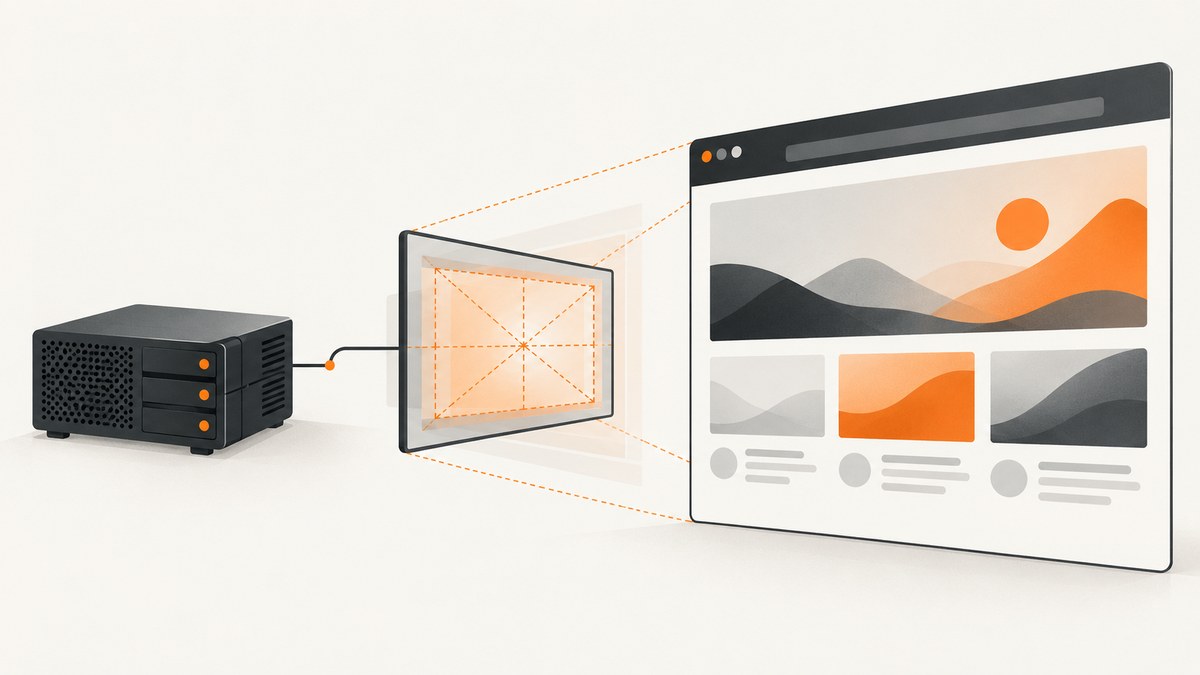
Direct answer: start Xvfb with an explicit WIDTHxHEIGHTxDEPTH screen, then configure the browser viewport to the same width and height.
Xvfb :99 -screen 0 1920x1080x24 &
export DISPLAY=:99
The -screen value defines the virtual display. The browser viewport is a separate setting, so increasing Xvfb alone does not guarantee a larger webpage screenshot.
1. Understand the two sizes involved
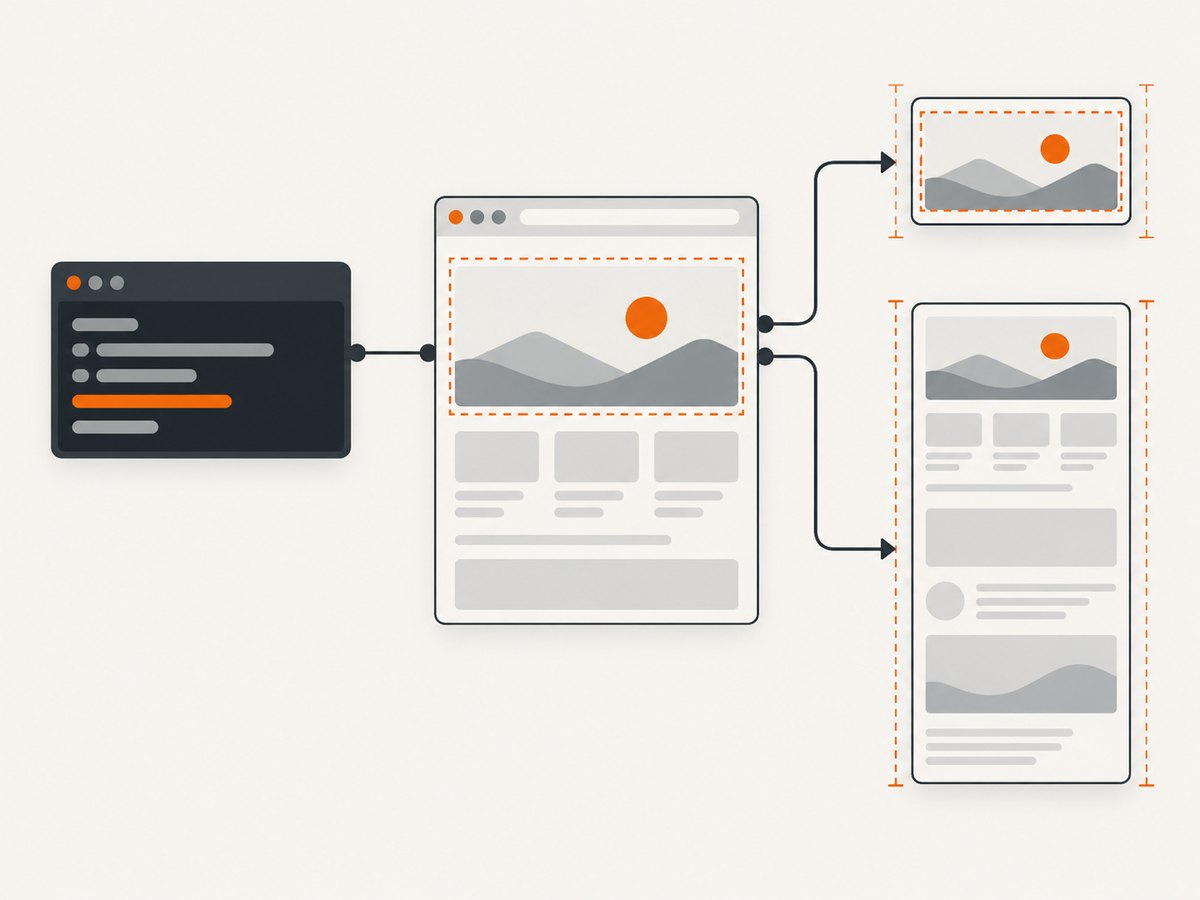
A screenshot made by a headed browser under Xvfb depends on two dimensions:
| Setting | Controls | Example |
|---|---|---|
| Xvfb screen | The virtual monitor available to GUI applications | -screen 0 1920x1080x24 |
| Browser viewport | The CSS pixel area used to lay out the page | viewport: { width: 1920, height: 1080 } |
| Capture mode | Whether the image contains the viewport or the full scrollable page | fullPage: true |
| Color depth | Display depth in bits per pixel | 24 or 32 |
X.Org documents the syntax as -screen screennum WxHxD and shows 1600x1200x32 as a larger-screen example. Its documented default is 1280x1024x8; Debian’s bookworm manual documents a 1280x1024x24 default. Specify all three values so the result does not depend on the installed build. See the X.Org Xvfb manual and Debian Xvfb manual.
2. Start Xvfb with a larger geometry
One-off shell session
#!/usr/bin/env bash
set -euo pipefail

DISPLAY_NUM=99
SCREEN_WIDTH=1920
SCREEN_HEIGHT=1080
SCREEN_DEPTH=24

Xvfb :${DISPLAY_NUM} -screen 0 ${SCREEN_WIDTH}x${SCREEN_HEIGHT}x${SCREEN_DEPTH} &
XVFB_PID=$!
trap 'kill "$XVFB_PID"' EXIT

export DISPLAY=:${DISPLAY_NUM}
printf 'Using DISPLAY=%s\n' "$DISPLAY"

# Run your headed browser command here
npx playwright test
Use a different display number when another process already owns :99. The display number and the DISPLAY environment variable must match: :99 means DISPLAY=:99.
Check that the display is available
echo "$DISPLAY"
xdpyinfo | sed -n '1,12p'
If xdpyinfo is installed, its output lets you confirm the active dimensions and depth. If it cannot open the display, Xvfb did not start, the display number is wrong, or the process exited immediately.
3. Configure Playwright’s viewport
Set the viewport when creating the browser context. This controls CSS layout independently of the X server.
import { chromium } from 'playwright';

const browser = await chromium.launch({ headless: false });
const context = await browser.newContext({
  viewport: { width: 1920, height: 1080 }
});
const page = await context.newPage();

await page.goto('https://example.com', { waitUntil: 'networkidle' });
await page.screenshot({ path: 'viewport.png' });
await page.screenshot({ path: 'full-page.png', fullPage: true });

await browser.close();
Playwright also supports changing the size before navigation:
await page.setViewportSize({ width: 1920, height: 1080 });
await page.goto('https://example.com');
setViewportSize resets the screen size as part of its operation, so choose an intentional order and keep the Xvfb geometry and browser viewport explicit. See Playwright’s setViewportSize documentation.
4. Choose viewport or full-page capture
Without fullPage, Playwright captures the current viewport, such as 1920×1080. With fullPage: true, it captures the full scrollable page and may produce an image much taller than the virtual display.
// Exactly the visible viewport
await page.screenshot({ path: 'viewport.png' });

// The entire scrollable document
await page.screenshot({ path: 'full-page.png', fullPage: true });
Use viewport capture for responsive layout checks and hero images. Use full-page capture for documentation, audits and page archives. A full-page image does not require an equally tall Xvfb screen; the browser scrolls and stitches the document.
5. Complete runnable example
The following script starts a 1920×1080 virtual display, launches headed Chromium, sets the matching viewport and writes both capture modes.
#!/usr/bin/env bash
set -euo pipefail

Xvfb :99 -screen 0 1920x1080x24 &
XVFB_PID=$!
trap 'kill "$XVFB_PID"' EXIT
export DISPLAY=:99

node <<'NODE'
const { chromium } = require('playwright');

(async () => {
  const browser = await chromium.launch({ headless: false });
  const context = await browser.newContext({
    viewport: { width: 1920, height: 1080 },
    deviceScaleFactor: 1
  });
  const page = await context.newPage();
  await page.goto('https://example.com', {
    waitUntil: 'networkidle',
    timeout: 60_000
  });
  await page.screenshot({ path: 'example-viewport.png' });
  await page.screenshot({ path: 'example-full-page.png', fullPage: true });
  await browser.close();
})().catch(error => {
  console.error(error);
  process.exit(1);
});
NODE
6. Run headed Playwright in CI
For a standard CI run, Playwright documents prefixing a headed command with xvfb-run:
xvfb-run npx playwright testWhen the default geometry is unsuitable, start Xvfb yourself and export DISPLAY:
Xvfb :99 -screen 0 1920x1080x24 &
export DISPLAY=:99
npx playwright test
This approach makes the dimensions visible in your build script and lets you choose the color depth. See Playwright’s CI documentation.
7. Select the right geometry and depth
| Goal | Recommended setting |
|---|---|
| Desktop breakpoint at 1920 pixels | 1920x1080x24 plus a 1920×1080 viewport |
| Large portrait or tablet layout | Choose the target width and height, for example 1280x1600x24 |
| High color compatibility | Use depth 24; use 32 when your browser or compositor requires it |
| Very tall page | Keep a practical display height and use fullPage: true |
Do not assume that a 4K Xvfb screen creates a 4K webpage. The viewport must also be set to the intended CSS dimensions. Conversely, a large viewport can be clipped or behave unexpectedly when the virtual screen is smaller.
8. Troubleshooting
Screenshot remains 1280×1024
- Cause: Xvfb started with its package default, or the browser viewport was never changed.
- Fix: pass the complete geometry, export the matching display, and set
viewport: { width, height }.
Cannot open display :99
- Cause: Xvfb failed to start, another process owns the display, or
DISPLAYpoints elsewhere. - Fix: inspect the Xvfb process, choose an unused number such as
:100, and exportDISPLAY=:100.
Browser launches but the image is clipped
- Cause: the viewport exceeds the Xvfb screen or window decorations consume space.
- Fix: make the Xvfb width and height at least as large as the viewport; use headless mode when a physical window is unnecessary.
Full-page image is still short
- Cause: the capture omitted
fullPage: true, or content loads after the screenshot. - Fix: enable full-page capture and wait for the relevant selector, network idle, or a deliberate delay before taking the image.
Different dimensions on different CI runners
- Cause: relying on distribution-specific Xvfb defaults.
- Fix: specify width, height and depth explicitly in the CI command and set the Playwright viewport in code.
Colors or transparency look wrong
- Cause: an incompatible depth or page background.
- Fix: try depth
24or32, and set the page or screenshot background intentionally.
9. Reliability and performance checklist
- Pin the viewport dimensions in source control so responsive breakpoints do not change accidentally.
- Use a unique display number per parallel worker, or let
xvfb-runallocate one. - Wait for the page state that matters instead of using an unnecessarily long fixed sleep.
- Use
fullPageonly when the complete document is required; viewport captures use less memory. - Close the browser and terminate Xvfb with a trap so CI workers do not retain processes.
- Keep screenshot format and device scale factor consistent when comparing images.
- For long pages, monitor image dimensions and memory use; a full-page raster can be much larger than the viewport.
10. Or skip the browser setup
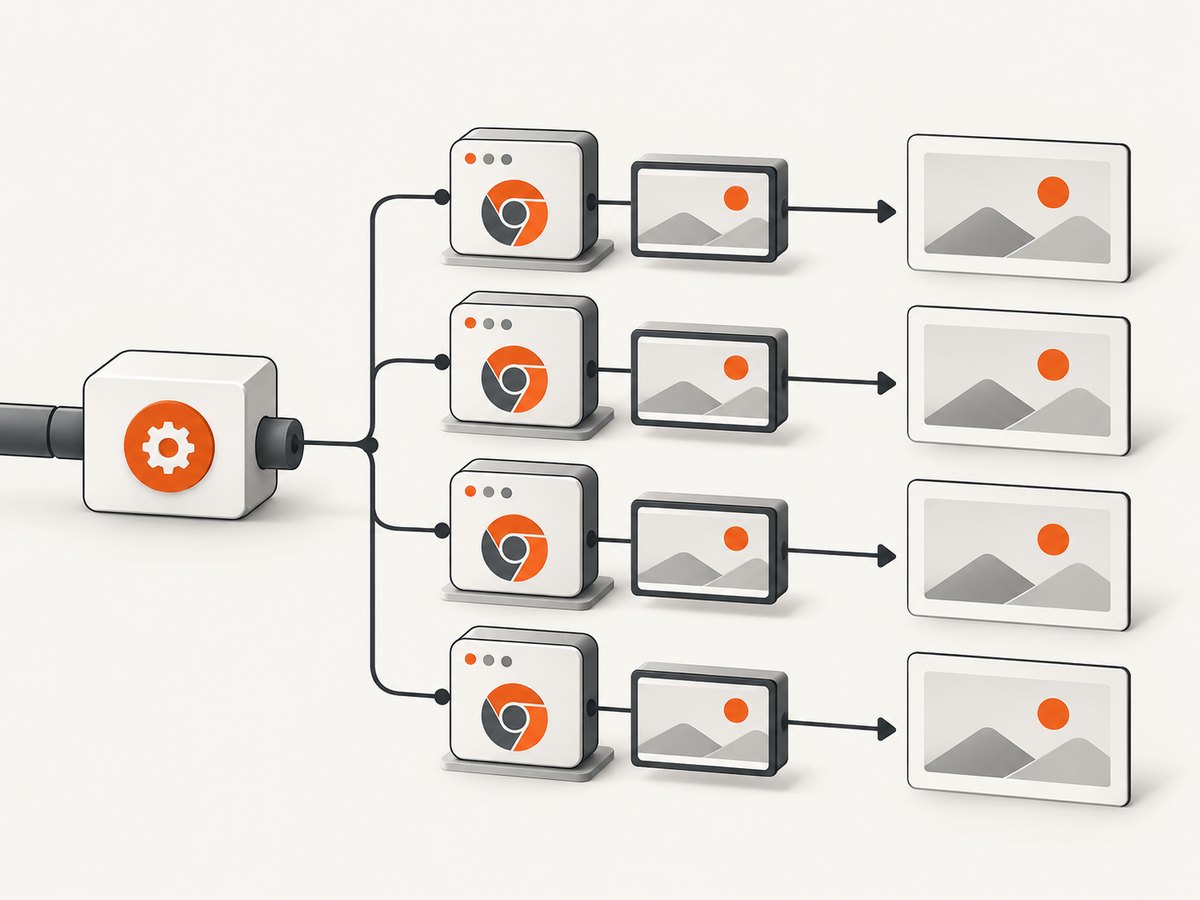
ScreenshotNeo provides a website screenshot API and MCP server, so you can request a PNG, JPEG, WebP or PDF without installing Xvfb or managing a headed browser. Its cleanup steps accept cookie and consent banners and remove more than 60 known consent platforms, newsletter popups and chat widgets before capture. Bot checks, blank pages, timeouts, failed loads and cache hits are not billed, and the response reports the page verdict and billing status in headers.
See the ScreenshotNeo API documentation for the available options, including viewport and device presets, full-page capture, element selectors, wait conditions, custom CSS and JavaScript, request blocking, cookies and headers, caching, PDFs, bulk capture and signed links.
cURL
curl -G "https://api.screenshotneo.com/v1/shot" \
  -d access_key=YOUR_API_KEY \
  --data-urlencode url=https://example.com \
  -o shot.webp
Python
import requests

r = requests.get(
    "https://api.screenshotneo.com/v1/shot",
    params={"access_key": "YOUR_API_KEY", "url": "https://example.com"},
    timeout=90,
)
r.raise_for_status()
open("shot.webp", "wb").write(r.content)
Node.js
const q = new URLSearchParams({
  access_key: 'YOUR_API_KEY',
  url: 'https://example.com'
});
const res = await fetch(`https://api.screenshotneo.com/v1/shot?${q}`);
if (!res.ok) throw new Error(`HTTP ${res.status}`);
require('fs').writeFileSync('shot.webp', Buffer.from(await res.arrayBuffer()));
An MCP server is also available for Claude, Cursor and other MCP clients through the take_screenshot, get_page_info and capture_pdf tools. The free plan includes 1,000 screenshots per month with no card; paid plans start at $5 for 3,000. Create a free ScreenshotNeo account.
11. Cost and operational considerations
Self-hosting Xvfb avoids an API charge but shifts browser installation, patching, concurrency, memory limits, retries and CI maintenance to your infrastructure. For repeatable local or CI captures, explicit geometry gives deterministic layout. For a service that must capture many unrelated sites, account for browser startup time, failed navigations and cleanup between jobs.
With ScreenshotNeo, only clean shots are billed. Failed loads, blank pages, bot checks, timeouts and cache hits cost nothing, which can simplify retry policies and usage accounting.
12. FAQ
Does Xvfb change the website’s CSS viewport?
No. Xvfb supplies a virtual display. Set the browser context or page viewport separately.
Do I need a 1920-pixel-tall Xvfb screen for a long webpage?
No. A normal-height screen is sufficient when using Playwright’s fullPage: true; the browser captures the scrollable document.
Which depth should I use?
Use 24 or 32 explicitly. The important part is avoiding distribution-specific defaults; choose the depth compatible with your browser and image pipeline.
Can I use Xvfb with headless Chromium?
Xvfb is intended for headed applications. Headless Chromium generally does not need a virtual display, while headed runs in CI can use Xvfb or xvfb-run.
Why does xvfb-run not give my requested size?
The wrapper manages Xvfb for you. Start Xvfb manually with -screen 0 WIDTHxHEIGHTxDEPTH when you need a specific geometry, then export DISPLAY before launching Playwright.


