How to Connect Playwright to an Existing Browser Session
Attach Playwright to an open Chromium browser, a Playwright server, or reusable login state with working JavaScript and Python examples.
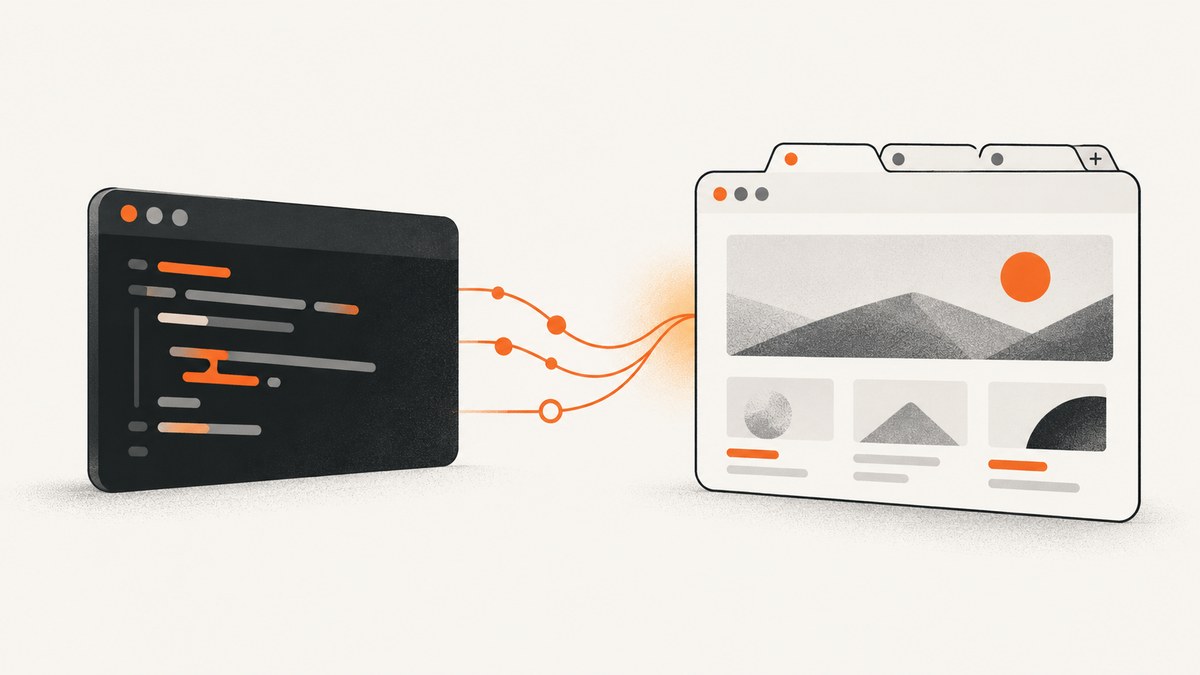
Direct answer: use chromium.connectOverCDP() when the browser is already running with a Chrome DevTools Protocol endpoint. Use browserType.connect() when the browser was launched by Playwright’s launchServer() and you have its Playwright WebSocket endpoint. If you only need login cookies and local storage to survive between runs, use a persistent context or saved authentication state instead of attaching to somebody else’s live browser.
The connection method depends on how the browser started, which engine it uses, and whether you need the exact open tab or merely the same authenticated state. This guide covers each path, complete JavaScript and Python examples, endpoint discovery, profile isolation, security, reliability, performance, troubleshooting, and a hosted screenshot alternative.
Choose the right Playwright connection method
| Situation | Use | Important constraint |
|---|---|---|
| An existing Chrome, Chromium, Edge, Electron, or other Chromium browser exposes CDP | chromium.connectOverCDP(endpoint) |
Chromium-based browsers only; lower fidelity than Playwright’s protocol |
You control a browser started with launchServer() |
browserType.connect(wsEndpoint) |
Connecting and launching Playwright versions must have matching major and minor versions |
| Login state must persist, but a live tab is not required | launchPersistentContext(userDataDir) |
Starts a browser with that profile; it does not attach to an existing process |
| You need reusable authentication without a browser staying open | Save and load Playwright authentication state | State files can contain cookies and headers that act like credentials |
Playwright documents the API distinctions in its BrowserType API and explains state reuse in its authentication guide.
Attach to an existing Chromium browser with CDP
Start Chromium with remote debugging enabled, then pass its HTTP debugging URL or browser WebSocket URL to connectOverCDP. A typical local endpoint is http://localhost:9222. The exact startup command varies by operating system and browser distribution, so use the browser’s current documentation for your environment.
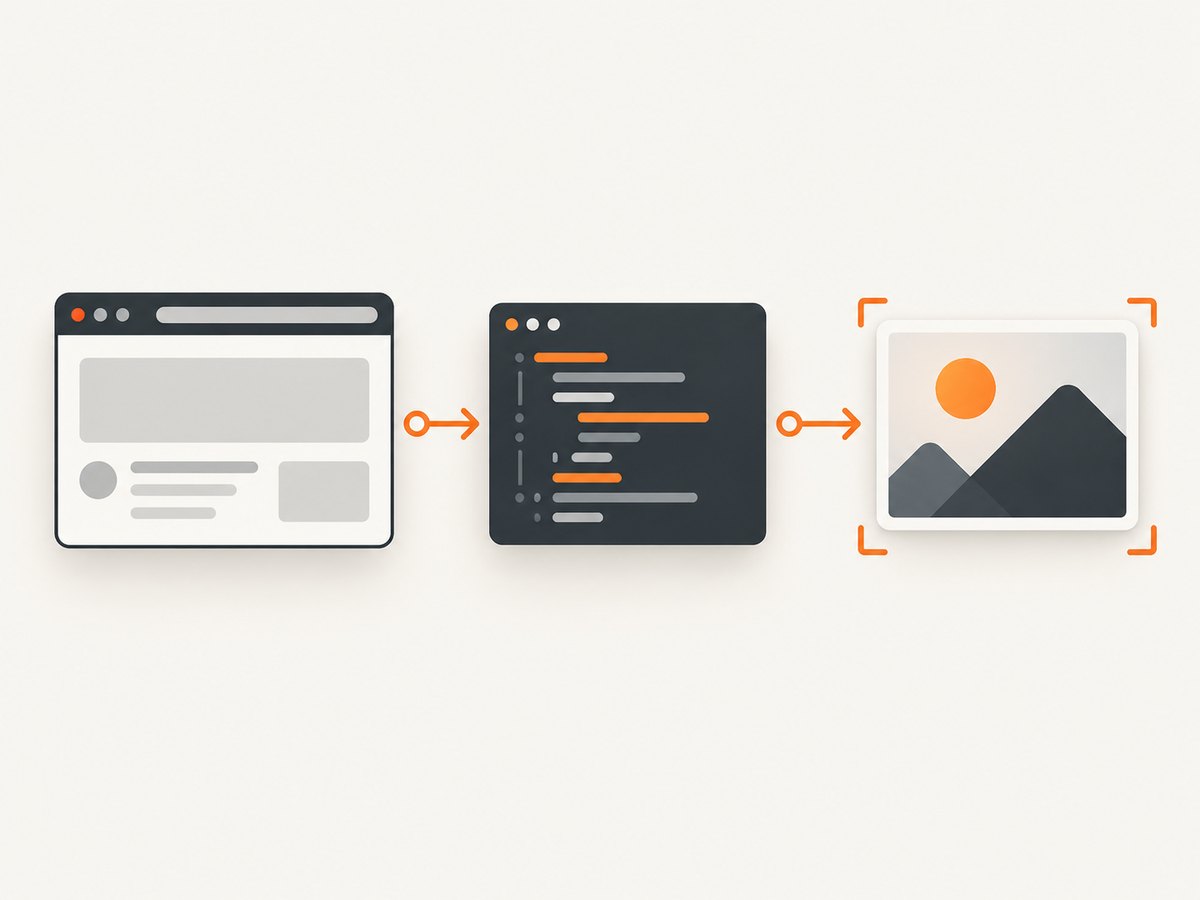
JavaScript: connect to Chrome and reuse the first open tab
import { chromium } from 'playwright';

const browser = await chromium.connectOverCDP('http://localhost:9222');
const contexts = browser.contexts();
if (contexts.length === 0) throw new Error('No browser context is available');

const context = contexts[0];
const pages = context.pages();
if (pages.length === 0) throw new Error('No open page is available');

const page = pages[0];
console.log('Current URL:', page.url());
console.log('Title:', await page.title());
await page.screenshot({ path: 'existing-tab.png', fullPage: true });

await browser.close();
The compact pattern is:
const browser = await chromium.connectOverCDP('http://localhost:9222');
const context = browser.contexts()[0];
const page = context.pages()[0];
Always check that a context and page exist. A successful protocol connection does not guarantee that the tab your script expects is open. If several tabs are present, select one by URL, title, or a page-specific marker:
const page = context.pages().find(p => p.url().includes('/dashboard'));
if (!page) throw new Error('Dashboard tab was not found');
await page.bringToFront();
Python: connect over CDP
from playwright.sync_api import sync_playwright

with sync_playwright() as p:
    browser = p.chromium.connect_over_cdp("http://localhost:9222")
    contexts = browser.contexts
    if not contexts:
        raise RuntimeError("No browser context is available")

    context = contexts[0]
    pages = context.pages
    if not pages:
        raise RuntimeError("No open page is available")

    page = pages[0]
    print("Current URL:", page.url)
    print("Title:", page.title())
    page.screenshot(path="existing-tab.png", full_page=True)
    browser.close()
For asynchronous Python, use await p.chromium.connect_over_cdp(...) inside an async_playwright context. Python exposes the same conceptual methods; see the Python BrowserType API.
Connect with a CDP WebSocket endpoint
Some tools provide a browser WebSocket endpoint such as ws://host:port/devtools/browser/<id>. Pass that URL directly:
const browser = await chromium.connectOverCDP(
  'ws://localhost:9222/devtools/browser/your-browser-id'
);
Use the endpoint that represents the browser connection, rather than a page-specific target, when your environment provides both. An HTTP debugging URL lets Playwright discover contexts and tabs.
Connect to a Playwright browser server
browserType.connect() is for a browser launched through Playwright’s own server protocol. The launching process obtains browserServer.wsEndpoint(); a second process connects to that endpoint.
Launch server
import { chromium } from 'playwright';

const browserServer = await chromium.launchServer({ headless: false });
console.log(browserServer.wsEndpoint());
// Keep this process alive while another process connects.
Connect from another process
import { chromium } from 'playwright';

const browser = await chromium.connect('ws://127.0.0.1:PORT/...');
const context = browser.contexts()[0];
const page = context.pages()[0] ?? await context.newPage();
console.log(await page.title());
await browser.close();
The connecting and launching Playwright instances must match in major and minor version. If they do not, upgrade or pin both processes to the same Playwright release. This protocol path is the better choice when you control the browser launch and need Playwright’s fullest behavior.
Understand CDP’s limits
Playwright states that CDP attachment is supported only for Chromium-based browsers and is significantly lower fidelity than the Playwright protocol connection. Most navigation, locator, evaluation, and screenshot workflows work, but behavior can differ for advanced features. If a feature behaves unexpectedly, reproduce it with a browser launched by Playwright and compare.
CDP also inherits the way the external browser was launched. Missing launch arguments, enterprise policies, extensions, or unusual user-data settings can affect pages and automation. Treat the endpoint as an integration boundary rather than assuming it is identical to a normal Playwright launch.
Persistent contexts: preserve state without attaching to a live browser
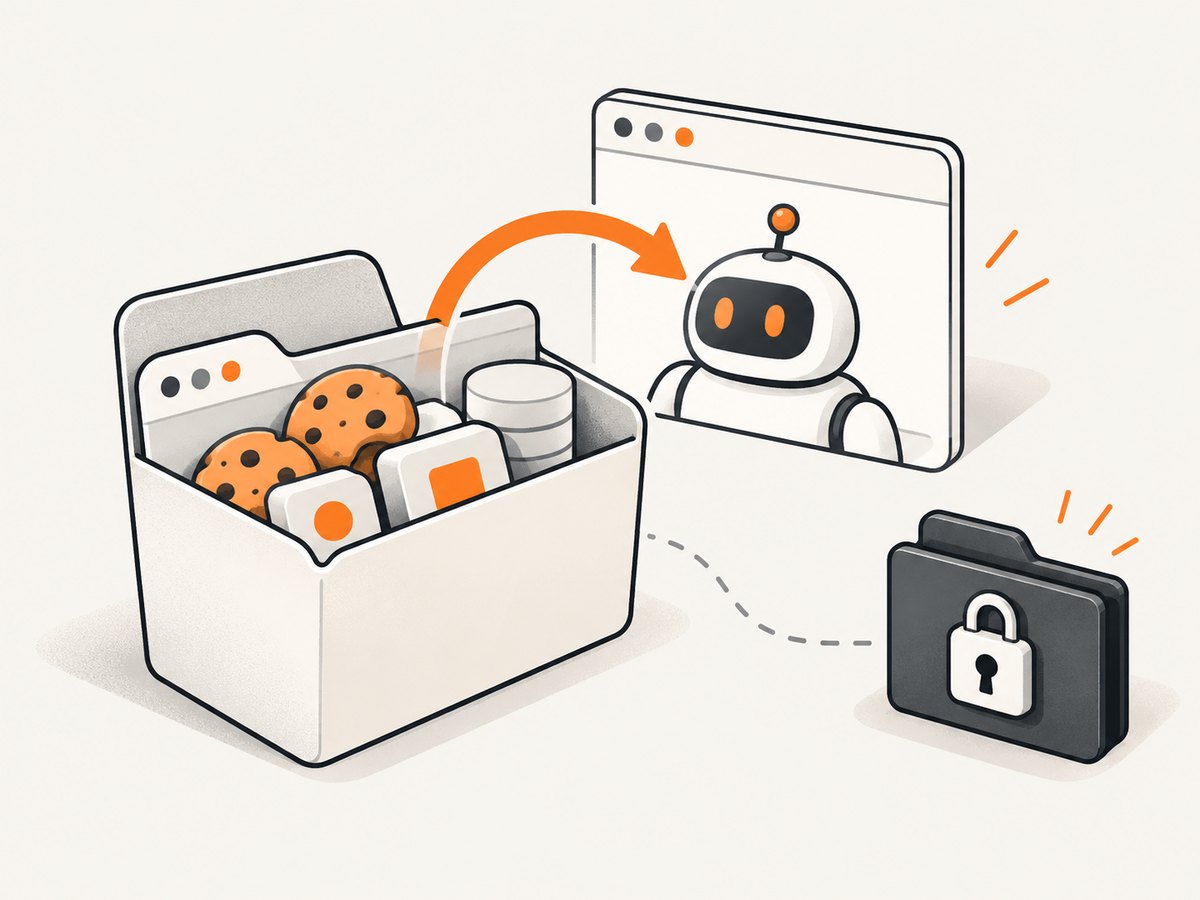
If your real requirement is “stay logged in after the script exits,” launch a dedicated persistent context:
import { chromium } from 'playwright';

const context = await chromium.launchPersistentContext('./.pw-profile', {
  headless: false
});
const page = context.pages()[0] ?? await context.newPage();
await page.goto('https://example.com');
await context.close();
The directory stores cookies, local storage, and other profile data. It is not a way to take over a separate browser process. Do not point it at Chrome’s regular default profile. Playwright warns that automating the default profile is unsupported after recent Chrome policy changes and can cause pages not to load or the browser to exit. Use a separate directory dedicated to automation.
Do not start two browser processes with the same profile directory at once. Profile locking can fail, corrupt state, or cause one process to exit.
Reuse authentication state instead of a live tab
When a test or job only needs a logged-in session, save Playwright’s storage state and load it in later runs:
// After logging in
await context.storageState({ path: 'playwright/.auth/user.json' });

// In a later run
const context = await browser.newContext({
  storageState: 'playwright/.auth/user.json'
});
Authentication files may contain cookies and headers that can impersonate an account. Restrict file permissions, keep them outside source control, and add the directory to .gitignore. Rotate the session if the file is exposed.
Finding and validating the endpoint
- Confirm the browser was started with remote debugging, or obtain the WebSocket endpoint from the process that called
launchServer(). - From the same machine, verify the debugging address is reachable. A connection refused error usually means the browser is not listening or the port is wrong.
- Connect and print
browser.contexts().lengthand each context’spages()URLs. - Select a page using a stable URL or DOM marker instead of assuming index zero when multiple tabs are open.
- Navigate only after confirming that taking over the tab is safe for the user or process that owns it.
for (const [i, ctx] of browser.contexts().entries()) {
  console.log('Context', i, 'pages:', ctx.pages().map(p => p.url()));
}
Security checklist
- Keep a CDP endpoint bound to localhost or behind strong access control. Anyone who can reach it may control the browser and the operating-system user.
- Never publish a debugging URL in logs, issue trackers, browser pages, or public infrastructure.
- Use a dedicated automation profile and a separate machine user where practical.
- Protect saved authentication state like a password.
- Close the connection when the job finishes, but coordinate ownership: closing a connected browser can affect the process that launched it.
Reliability and performance practices
- Wait for application readiness. After attaching, use a meaningful locator or response rather than an arbitrary short delay.
- Handle disappearing tabs. A user can close or navigate a tab between discovery and action; catch errors and reselect by URL.
- Use bounded timeouts. Set action and navigation timeouts so a stuck page does not consume a worker forever.
- Minimize repeated attachment. Keep one connection for a short batch of operations when the browser owner allows it. Reconnecting for every action adds protocol overhead.
- Expect shared state. Extensions, popups, service workers, and user navigation can change page state while your script runs. Isolate jobs when deterministic output matters.
- Prefer Playwright protocol for controlled infrastructure. It avoids version drift and offers higher fidelity than CDP.
Troubleshooting common errors
| Error or symptom | Likely cause | Fix |
|---|---|---|
ECONNREFUSED |
No process is listening at the host and port | Start the browser with remote debugging, verify the port, and check container or firewall networking. |
| Connected browser has zero contexts | The endpoint is wrong, the browser has not finished starting, or the target does not expose the expected context | Use the browser-level CDP endpoint, wait for startup, and print contexts immediately after connecting. |
| Connected context has no pages | No tab is open in that context | Fail clearly or call context.newPage() if creating a tab is acceptable. |
browserType.connect reports a version mismatch |
Launching and connecting Playwright versions differ in major or minor version | Pin both processes to the same Playwright version. |
| Chromium works but Firefox or WebKit does not | CDP attachment supports Chromium-based browsers only | Launch and connect through Playwright’s protocol, or use the engine’s supported automation path. |
| Pages fail to load or Chrome exits | Automation is using the regular Chrome profile or conflicting launch arguments | Create a new dedicated user-data directory and launch it explicitly. |
| Locator behavior differs after CDP attach | CDP is lower fidelity than the Playwright protocol, or the external launch configuration differs | Reproduce with launchServer, compare behavior, and simplify the workflow or switch protocols. |
| Login disappears in the next run | State was stored only in a temporary context | Use a persistent context or save and load storageState. |
Or skip the browser setup
If your goal is a reliable image of a page rather than interaction with a user’s live tab, ScreenshotNeo handles the capture in one request. Its API accepts a URL and returns PNG, JPEG, WebP, or PDF. See the ScreenshotNeo API documentation for all options.
curl -G "https://api.screenshotneo.com/v1/shot" -d access_key=YOUR_API_KEY --data-urlencode url=https://stripe.com -o shot.webpimport requests
r = requests.get("https://api.screenshotneo.com/v1/shot", params={"access_key": "YOUR_API_KEY", "url": "https://stripe.com"}, timeout=90)
open("shot.webp", "wb").write(r.content)const q = new URLSearchParams({ access_key: 'YOUR_API_KEY', url: 'https://stripe.com' });
const res = await fetch(`https://api.screenshotneo.com/v1/shot?${q}`);Cookie and consent banners, newsletter popups, and chat widgets are removed before the shot. Bot checks, blank pages, failed loads, timeouts, and cache hits are not billed; response headers identify the page verdict and billing result. ScreenshotNeo also provides an MCP server with take_screenshot, get_page_info, and capture_pdf tools for Claude, Cursor, and other MCP clients. The Free plan includes 1,000 screenshots per month with no card; paid plans start at $5 for 3,000 shots.
Create a free ScreenshotNeo account and start with the 1,000 monthly screenshots.
FAQ
Can Playwright attach to an already open Firefox window?
Not through CDP. The documented CDP path supports Chromium-based browsers. Use a Playwright-launched browser and its protocol when the engine supports that workflow.
Will connecting over CDP log the user out?
Attaching does not inherently clear cookies or local storage, but your script can change or delete them. Avoid calling context cleanup APIs or navigating the user’s tab unless that is intentional.
Should I use a persistent context or storage state?
Use a persistent context when you want a reusable browser profile and may need profile-level behavior. Use storage state when you want a portable, explicit authentication artifact for controlled test or job setup.
Can two scripts control the same connected browser?
They may be able to connect, but actions can race and tabs can change underneath each other. Coordinate ownership or give each job its own browser and profile.
What is the safest default for CI?
Launch a dedicated Playwright browser with a dedicated profile, save only the required authentication state, and avoid exposing a CDP endpoint beyond the CI host.


