How to Connect TestCafe to Chrome Running in Docker
Run TestCafe and Chromium in one Docker container, or connect a separate Chrome instance through TestCafe’s remote-browser mode.
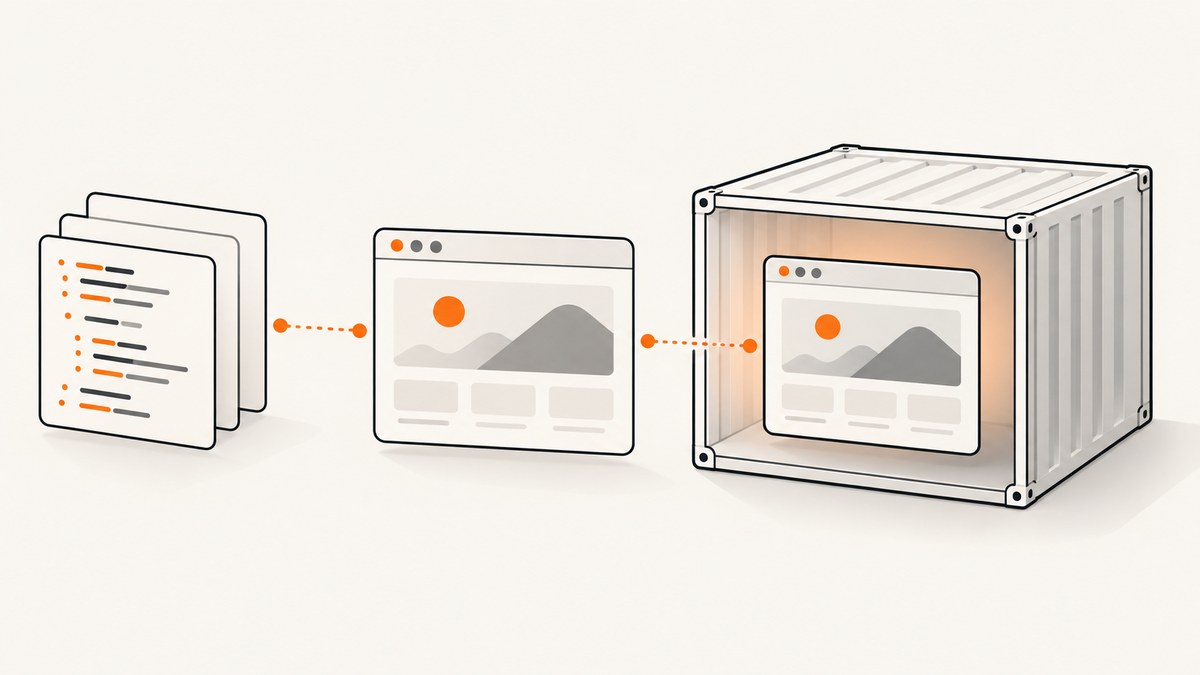
To connect TestCafe to Chrome running in Docker, the simplest supported setup is to run the official testcafe/testcafe image, mount your tests, and pass the chrome browser alias. The image includes TestCafe and preconfigured Chromium and Firefox. If Chrome runs outside that container, use TestCafe remote-browser mode and make sure Chrome can reach the TestCafe server URL.
1. Run TestCafe and Chrome in the same container
Use this approach when the bundled Chromium version and a shared container are suitable for your tests. Install Docker, then run:
docker pull testcafe/testcafe

docker run --rm \
  -v "$PWD/tests:/tests" \
  -it testcafe/testcafe \
  chrome /tests/test.js
Replace tests/test.js with your test file. Mount the directory containing the test and its dependencies. Page models, utility files, and Node modules must be in the mounted directory or one of its child directories so the container can read them.
The image provides Chromium and Firefox with TestCafe preconfigured. The chrome alias selects Chrome-compatible Chromium in the image; use firefox to select Firefox. See the TestCafe Docker image guide for the image workflow.
Run headless or pass browser flags
TestCafe supports the :headless suffix. In containers where automatic CI detection does not apply, explicitly pass Chromium flags commonly needed in restricted environments:
docker run --rm \
  -v "$PWD/tests:/tests" \
  -it testcafe/testcafe \
  'chrome --disable-gpu --no-sandbox --disable-dev-shm-usage' \
  /tests/test.js
For a headless run, use chrome:headless as the browser alias. If you need a fixed Chrome DevTools Protocol port, the browser guide documents an alias such as chrome:headless:cdpPort=9223. Choose a port that is available in your environment.
2. Connect to Chrome outside the TestCafe container
Use remote-browser mode when Chrome runs on the host, in another container, or on a separate machine that you manage independently. TestCafe starts its server and prints a URL. Open that URL in Chrome to establish the remote connection; Chrome must be able to reach the URL.
Chrome on the Docker host with host networking
docker run --rm \
  --net=host \
  -v "$PWD/tests:/tests" \
  -it testcafe/testcafe \
  remote /tests/test.js
This uses host networking so the TestCafe server is reachable through the host network. The Docker guide cautions that host networking can weaken container security. Use it only when its network and isolation trade-offs fit your environment.
Publish TestCafe ports for another host or container
TestCafe documents ports 1337 and 1338 as defaults. Publish them and provide a hostname that the remote browser can use to reach the TestCafe server:
docker run --rm \
  --add-host=testcafe-host:127.0.0.1 \
  -p 1337:1337 \
  -p 1338:1338 \
  -v "$PWD/tests:/tests" \
  -it testcafe/testcafe \
  --hostname testcafe-host \
  remote /tests/test.js
Replace testcafe-host and the host mapping with an address resolvable and reachable from the Chrome environment. The example mapping to 127.0.0.1 is suitable only when that address correctly routes the remote browser to the TestCafe server in your setup. In a separate container, use a shared Docker network and the TestCafe service name, or use an address reachable from the browser.
If either default port is already occupied, stop the conflicting process or select free ports, publish those ports, and pass the selected values with TestCafe’s --ports option. Consult the Docker guide and remote browsers guide for the current CLI details.
Remote connection sequence
- Start TestCafe with the
remotebrowser alias. - Read the URL printed by TestCafe.
- Open that URL in the Chrome instance. The browser must be able to reach the TestCafe host and ports.
- Keep the TestCafe process running while the browser connects and the tests execute.
Remote and mobile browser runs require native automation to be disabled. The remote browser guide describes the remote workflow and configuration.
3. Start remote Chrome from the JavaScript API
Use the API when a Node.js runner should control the TestCafe server lifecycle. This example creates a browser connection, prints its URL for Chrome, waits for the browser to signal readiness, then runs the test.
const createTestCafe = require('testcafe');

(async () => {
  const testcafe = await createTestCafe('localhost', 1337, 1338);
  const runner = testcafe.createRunner();
  const remoteConnection = await testcafe.createBrowserConnection();

  console.log(`Open this URL in Chrome: ${remoteConnection.url}`);

  remoteConnection.once('ready', async () => {
    try {
      const failedCount = await runner
        .src('test.js')
        .browsers(remoteConnection)
        .run();
      console.log(`Failed tests: ${failedCount}`);
    } finally {
      await testcafe.close();
    }
  });
})().catch((error) => {
  console.error(error);
  process.exitCode = 1;
});
Run this where the testcafe package is installed and ensure test.js is available relative to the process. In a container, mount the test and runner files. If Chrome is on another machine, configure the server hostname and ports so remoteConnection.url resolves and routes correctly from that machine. The BrowserConnection API reference explains that the connection URL is used by remote browsers to connect to a TestCafe server.
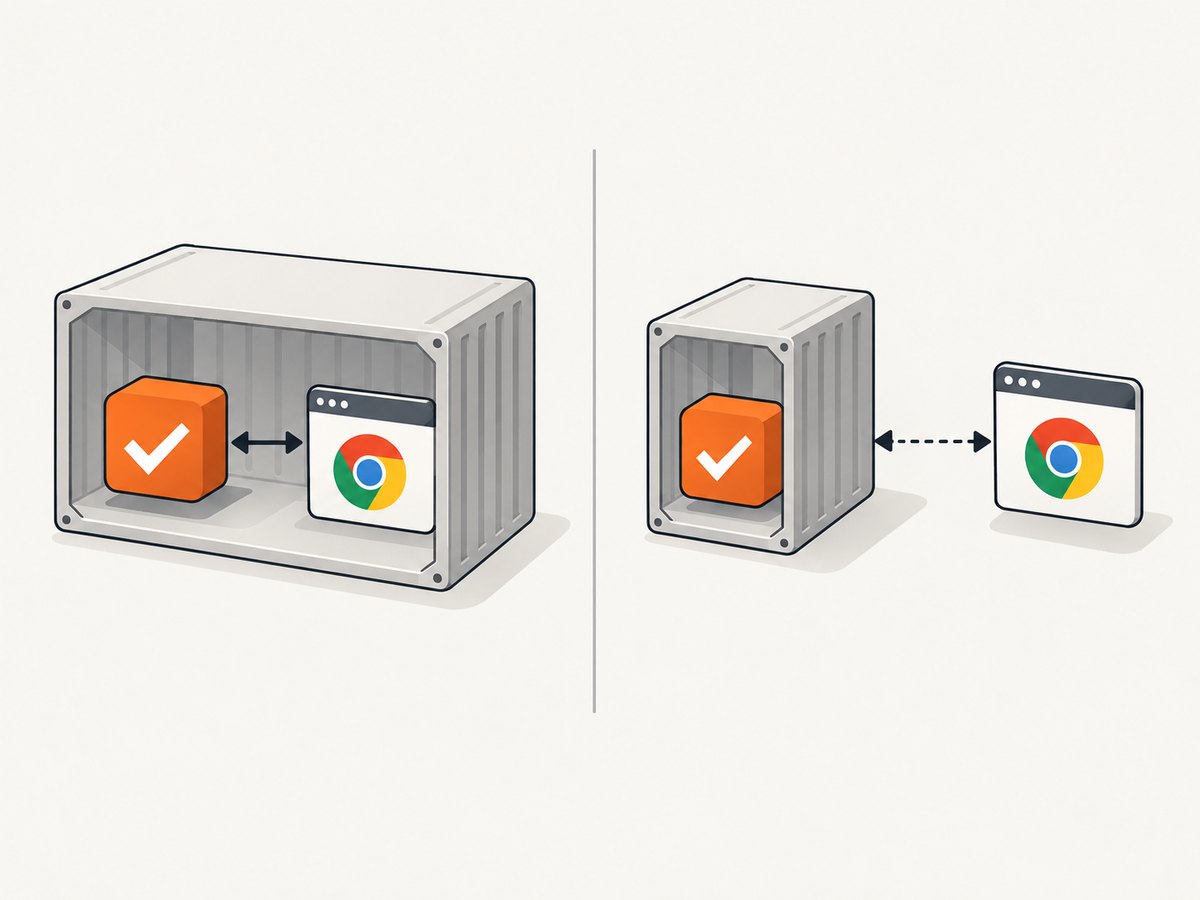
4. Choose the container layout
| Design | Use it when | What to configure |
|---|---|---|
| TestCafe and bundled Chromium together | You want the shortest setup and the bundled browser is suitable. | Mount test files and dependencies; choose chrome or chrome:headless. |
| Chrome on the host | You need to manage the browser separately but it can reach TestCafe. | Remote mode; host networking or reachable published ports and URL. |
| Chrome in another container or machine | Browser and test runner need separate lifecycle or environments. | Remote mode, resolvable hostname, reachable ports, and TestCafe URL access. |
The same-container design reduces network and connection setup. A separate browser makes browser management independent, but adds hostname, port, and remote URL configuration. In either design, ensure that test files and their imports are visible where TestCafe runs.
5. Troubleshoot common failures
| Symptom | Likely cause | Fix |
|---|---|---|
| Chrome fails to start in CI or exits immediately | Container restrictions or CI detection did not add the needed Chromium flags. | Pass --no-sandbox and --disable-dev-shm-usage; add --disable-gpu if needed, as in the example above. |
| Remote Chrome cannot open the TestCafe URL | The advertised hostname resolves incorrectly, ports are not published, or a firewall/network blocks access. | Use a hostname and address reachable from Chrome, publish the configured ports, and check connectivity from the browser’s network. |
| TestCafe reports a port is in use | Another process occupies port 1337 or 1338. | Stop the conflicting process or select free TestCafe ports; publish and pass the same selected ports. |
| Test file or module cannot be found | The file or dependency is outside the mounted directory. | Mount the test project directory and reference the in-container path under the mount point. |
| Remote run waits indefinitely for a browser | Chrome has not opened the printed connection URL, or it cannot reach the server. | Open the exact URL printed by TestCafe from Chrome and verify hostname, routing, and port exposure. |
| Remote or mobile browser automation fails | Native automation is enabled for a run that requires it to be disabled. | Disable native automation using the relevant TestCafe configuration for the remote/mobile run. |
6. Reliability, performance, and cost considerations
- Make CI repeatable: Use the official image and mount a complete test project so browser and test dependencies are present together. Select explicit Chromium flags if CI detection is inconsistent.
- Keep remote routes stable: Remote mode depends on the browser reaching the TestCafe URL for the whole run. Make hostname resolution and port publishing part of the container or CI configuration.
- Limit exposed ports: Publish only the TestCafe ports needed by the remote browser. Host networking can weaken isolation, so weigh its convenience against the container’s security needs.
- Browser startup and test speed: Same-container execution avoids configuring an external browser route. Actual runtime depends on the test suite, page behavior, browser startup, and environment; the cited TestCafe documentation provides no benchmark for these setups.
- Infrastructure cost: Docker itself does not set a TestCafe service price. Account for the compute used to run the container and any separately managed Chrome host. No reliable fixed cost can be stated without the CI or hosting provider and workload.
Or skip the browser setup
If your goal is to capture a page image rather than run browser interaction tests, ScreenshotNeo provides a website screenshot API and MCP server. The API call is one GET request; see the ScreenshotNeo API documentation for parameters and response details.
curl -G "https://api.screenshotneo.com/v1/shot" \
  -d access_key=YOUR_API_KEY \
  --data-urlencode url=https://stripe.com \
  -o shot.webp
import requests
r = requests.get(
"https://api.screenshotneo.com/v1/shot",
params={"access_key": "YOUR_API_KEY", "url": "https://stripe.com"},
timeout=90,
)
open("shot.webp", "wb").write(r.content)const q = new URLSearchParams({ access_key: 'YOUR_API_KEY', url: 'https://stripe.com' });
const res = await fetch(`https://api.screenshotneo.com/v1/shot?${q}`);
if (!res.ok) throw new Error(`Screenshot request failed: ${res.status}`);
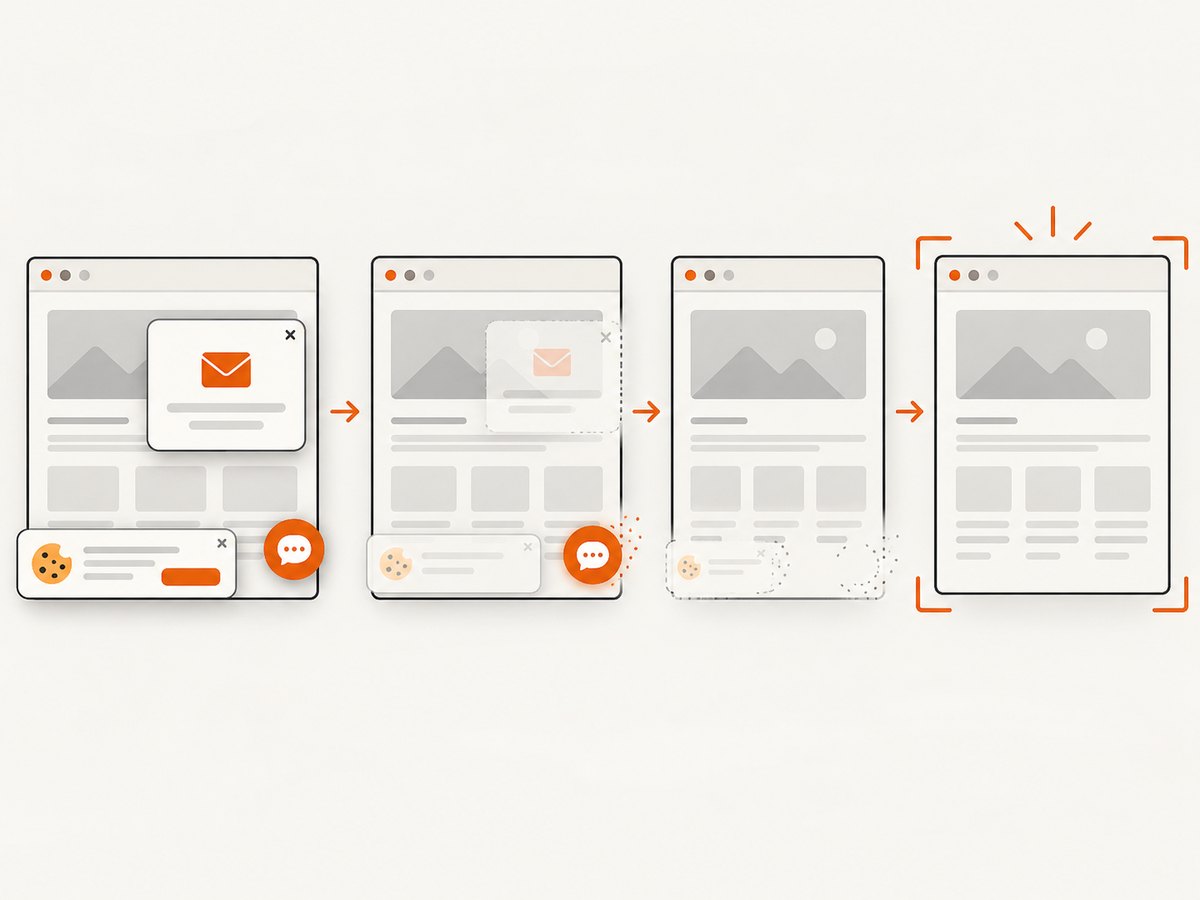
await Bun.write('shot.webp', res);Cookie and consent banners, newsletter popups, and chat widgets are removed before the shot; each cleanup step can be turned off. Bot checks, blank pages, timeouts, failed loads, and cache hits are not billed, with response headers indicating the page verdict and billing status. An MCP server provides take_screenshot, get_page_info, and capture_pdf tools for AI agents. The free plan includes 1,000 screenshots per month with no card; paid plans start at $5 for 3,000 shots.
Sign up for ScreenshotNeo and get 1,000 screenshots a month free, with no card.
FAQ
Can TestCafe and Chrome run in the same Docker container?
Yes. The official testcafe/testcafe image includes TestCafe and preconfigured Chromium; mount your test project and use the Chrome alias.
Does Chrome have to run inside the TestCafe container?
No. TestCafe remote-browser mode connects to a Chrome instance outside the container through the URL exposed by the TestCafe server.
Which ports should I publish?
The documented defaults are 1337 and 1338. Publish those or choose free replacements and configure TestCafe to use the selected ports.
Is ScreenshotNeo a replacement for TestCafe?
No. TestCafe runs browser tests and interactions. ScreenshotNeo captures website screenshots or PDFs through an API or MCP server.


