How to Connect to a Local MCP Server
Configure Claude Desktop or VS Code to launch a local MCP server, verify the connection, fix common errors, and control access safely.
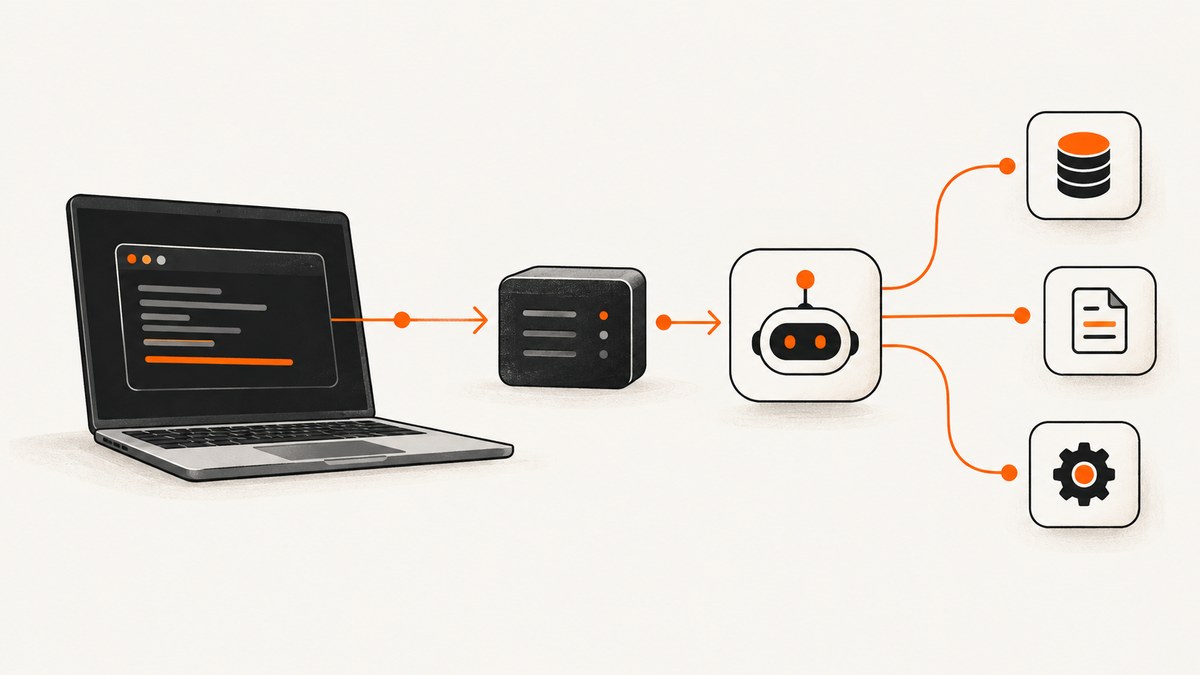
To connect to a local MCP server, configure your MCP client to launch the server as a local stdio process. The configuration supplies the executable command, arguments, environment variables, working directory, and sometimes the files or other resources the server may access. Restart or refresh the client, then confirm the server status and inspect its logs.
The exact JSON differs between clients. Claude Desktop uses an mcpServers object, while VS Code uses a servers object and normally includes type: "stdio". Do not paste one client’s configuration into another unchanged.
What a local MCP connection does
Model Context Protocol (MCP) separates the AI host from the tools it can use. Your desktop client is the MCP client. The local server is an executable process that advertises tools, resources, or prompts over its standard input and output streams.
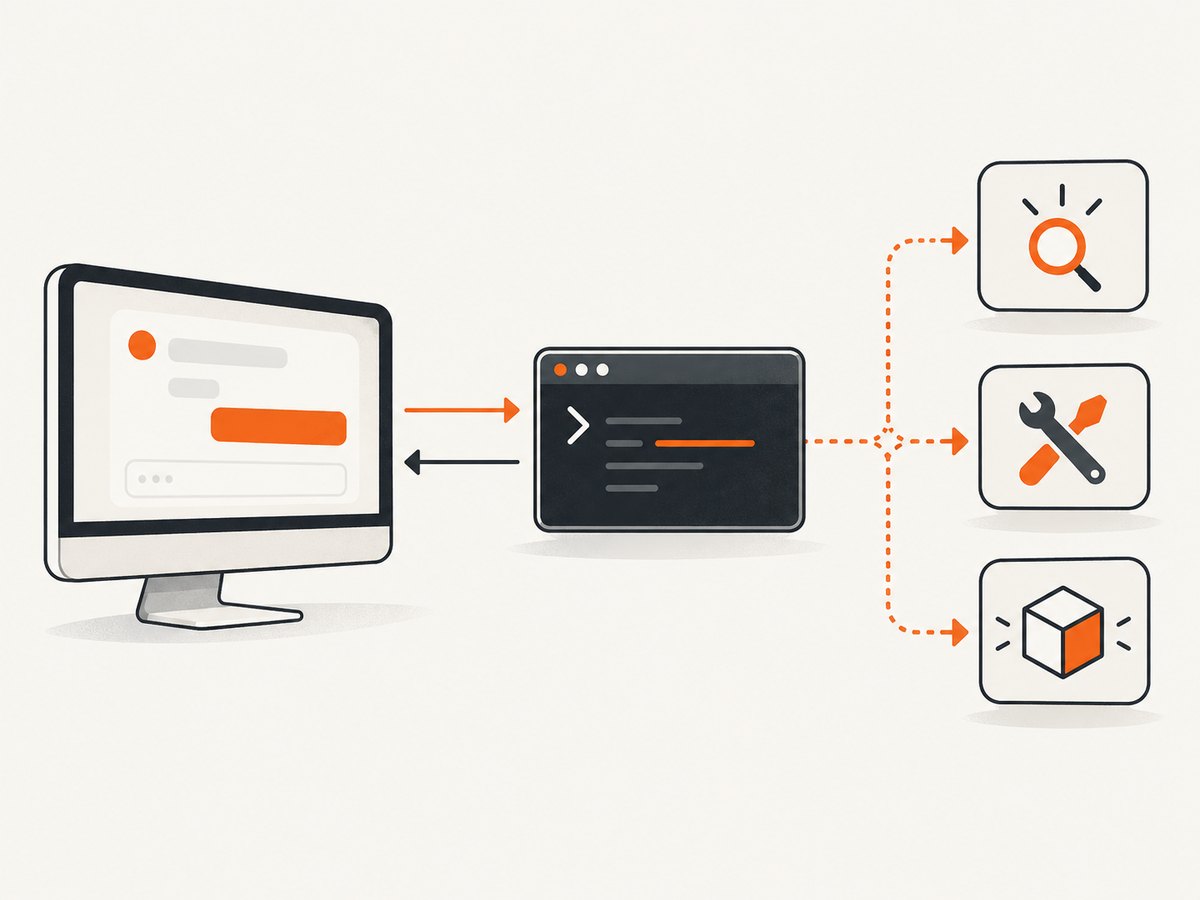
When you add a server entry, the host generally performs this sequence:
- Resolve the command, either from the system
PATHor from an absolute path. - Start the process with the configured arguments, environment, and working directory.
- Open a stdio MCP session.
- Discover the server’s capabilities.
- Display the tools or resources in the client.
A local server runs with the permissions of the user who launched the host application. “Local” does not mean isolated. Review the publisher, source code, command, arguments, environment variables, and access scope before enabling it.
Before you configure the server
- Install the runtime and package manager required by the server, such as Node.js, Python, or another runtime documented by its publisher.
- Install the server using the publisher’s official instructions. Use the exact command and package name from that documentation.
- Run the command manually in a terminal once. This catches missing runtimes, permissions, and invalid arguments before the client is involved.
- Decide whether the server belongs in your user profile or in one project workspace.
- List the minimum directories, credentials, and network access the server needs.
Do not invent a package name from an example. The command in your client configuration must match the server’s own installation guide.
Connect a local MCP server to Claude Desktop
1. Open Claude Desktop’s developer configuration
In Claude Desktop, open Settings, choose Developer, and select Edit Config. The documented configuration locations are:
- macOS:
~/Library/Application Support/Claude/claude_desktop_config.json - Windows:
%APPDATA%\Claude\claude_desktop_config.json
The MCP project’s local-server guide uses a top-level mcpServers object. A minimal entry looks like this:
{
  "mcpServers": {
    "my-local-server": {
      "command": "your-command",
      "args": ["your-server-arguments"]
    }
  }
}
Replace the command and arguments with the values supplied by the server publisher. If the executable is not on Claude Desktop’s path, use its absolute path.
2. Restrict arguments and filesystem access
Some servers receive paths as positional arguments. The MCP filesystem example, for instance, passes specific directories so the server only works with those locations. Start with the smallest set of directories needed for the task.
{
  "mcpServers": {
    "files": {
      "command": "your-filesystem-server-command",
      "args": ["/Users/alex/Documents/project"]
    }
  }
}
This is an illustrative shape. Use the real server command and argument format from its documentation. On Windows, quote and escape backslashes correctly, or use a path format accepted by the server.
3. Restart Claude Desktop completely
Save the file, quit Claude Desktop rather than merely closing a window, and start it again. The client reads the server list during startup.
4. Verify the connection
Open the chat’s Connectors picker or return to Settings > Developer. Confirm that the server is connected and that its tools appear. The developer view also exposes connection logs. A server entry in the JSON file is not proof that the process started successfully.
Connect a local MCP server to VS Code
Use the MCP interface
VS Code provides an MCP server interface for adding and managing servers. Follow the current command or chat prompt to add a local server, then choose the stdio option when the server is a local process.
Use a workspace configuration
For a project-specific setup, create .vscode/mcp.json in the workspace. VS Code’s configuration uses a top-level servers object:
{
  "servers": {
    "my-local-server": {
      "type": "stdio",
      "command": "your-command",
      "args": ["your-server-arguments"]
    }
  }
}
The command must be available on the system path or specified with a full executable path. args is an optional array passed to the command. VS Code also supports user-profile configuration when you want the server available across workspaces.
Configure environment, a working directory, and secrets
VS Code’s MCP configuration reference documents env, envFile, and cwd. Use them only when required by the server:
{
  "servers": {
    "project-tools": {
      "type": "stdio",
      "command": "/opt/tools/project-mcp",
      "args": ["serve"],
      "cwd": "${workspaceFolder}",
      "envFile": "${workspaceFolder}/.env.mcp"
    }
  }
}
Keep API keys out of a committed workspace file. Prefer the client’s secret-input facility or an ignored environment file, and check that the host can read it. Environment expansion is client-specific; verify the syntax in the current VS Code reference.
Start and inspect the server
Use VS Code’s MCP management controls to start or restart the entry. Open the MCP output or log view and look for a successful initialization followed by tool discovery. If the server is listed but no tools appear, inspect both the client log and the server’s own documentation: capability support depends on the particular client and server.
Generic stdio configuration pattern
Across clients, the important fields are the same even when their names differ:
| Setting | Purpose | Typical mistake |
|---|---|---|
| Command | Executable the client launches | Using a shell alias that the GUI process cannot see |
| Arguments | Server mode, package, paths, or flags | Wrong order, quoting, or a directory that does not exist |
| Environment | API keys and runtime settings | Putting secrets in a shared workspace file |
| Working directory | Base directory for relative paths | Assuming it is the directory shown in your terminal |
| Access scope | Directories or resources exposed to the server | Granting an entire home directory when one project is enough |
Some clients support network transports as well as stdio. Use a network transport only when both the selected client and the server document support for it. A local stdio process is the usual starting point for a server running on your own computer.
Security and access boundaries
VS Code warns that local MCP servers can execute arbitrary code on the computer. Treat a server configuration like any other command you are about to run:
- Review the publisher and source repository.
- Pin or verify dependencies where the publisher recommends it.
- Use an absolute executable path when PATH ambiguity matters.
- Pass only the directories needed for the task.
- Provide only the environment variables the server needs.
- Do not expose private keys, password stores, or your whole home directory unnecessarily.
- Stop the process and remove the entry if behavior is unexpected.
Filesystem arguments are an access boundary, not merely convenience options. A server that can write a directory can generally perform the file operations available to the running user in that directory.
Why your local MCP server is not connecting
| Symptom | Likely cause | Fix |
|---|---|---|
| Nothing starts | The command is misspelled or unavailable to the GUI process | Run it in a terminal, then use an absolute path or install the required runtime. |
| “Command not found” | Your shell PATH differs from the client’s PATH | Use the full executable path and restart the client. |
| JSON will not load | Trailing comma, invalid quote, or malformed Windows path | Validate the JSON and escape backslashes. Keep values as strings. |
| Server disappears after editing | The host has not reloaded its configuration | Quit and restart Claude Desktop, or restart the entry through VS Code’s MCP controls. |
| Server appears but has no tools | Initialization failed or the server does not advertise the capability | Read client logs, run the server manually, and check its official capability list. |
| Authentication fails | Missing or incorrectly expanded environment variable | Confirm the variable name, value, and client-supported env/envFile syntax. |
| A path argument fails | The directory is missing or inaccessible to the client user | Use an existing absolute path and test permissions as that user. |
| Windows variable expansion fails | A documented Claude configuration edge case involving APPDATA |
Use the explicitly expanded value described in the current MCP guide. |
| Unexpected files or actions are visible | The server was granted too much access | Stop it, review arguments and permissions, then reduce the scope. |
A repeatable diagnosis sequence
- Copy the exact command and arguments from the client configuration.
- Run that command manually from a terminal.
- Confirm the executable, runtime, working directory, and required environment variables.
- Check JSON syntax and path escaping.
- Restart or reload the host application.
- Read the client log and the server’s stderr output.
- Reduce the configuration to one server and one minimal directory, then add options back one at a time.
Performance, reliability, and operating cost
Startup time is usually dominated by the runtime and dependency loading. Keep a long-lived server process when the client supports it instead of launching a new process for every tool call. A stable working directory and explicit executable path reduce failures caused by shell state.
For reliability, pin compatible runtime versions, keep configuration in version control when it contains no secrets, and document required environment variables. Use a workspace configuration for project-specific tools so unrelated projects do not inherit access.
A local server does not add an API bill by itself, but it consumes local CPU, memory, disk, and network resources. Servers that crawl websites, invoke browsers, or process large files can use substantially more resources than a simple metadata tool. Monitor the process if calls become slow or the host becomes unresponsive.
Or skip the browser setup: use ScreenshotNeo
If your MCP workflow needs website screenshots, ScreenshotNeo provides an MCP server with take_screenshot, get_page_info, and capture_pdf tools for Claude, Cursor, and other MCP clients. You can still connect that MCP server using the client-specific steps above, or call its HTTP API directly.

One GET request returns a PNG, JPEG, WebP, or PDF. See the ScreenshotNeo API documentation for the complete parameter list.
cURL
curl -G "https://api.screenshotneo.com/v1/shot" -d access_key=YOUR_API_KEY --data-urlencode url=https://stripe.com -o shot.webpPython
import requests
r = requests.get("https://api.screenshotneo.com/v1/shot", params={"access_key": "YOUR_API_KEY", "url": "https://stripe.com"}, timeout=90)
open("shot.webp", "wb").write(r.content)
Node.js
const q = new URLSearchParams({ access_key: 'YOUR_API_KEY', url: 'https://stripe.com' });
const res = await fetch(`https://api.screenshotneo.com/v1/shot?${q}`);
ScreenshotNeo removes cookie and consent banners, newsletter popups, and chat widgets before capture. Bot checks, CAPTCHAs, blank pages, timeouts, failed loads, and cache hits cost nothing; response headers identify the page verdict and whether the shot was billed. The API also supports full-page capture with lazy images loaded, element selectors, dark mode, device presets, custom viewports, retina scale, PDF paper settings and page ranges, custom CSS and JavaScript, clicks, selector or network-idle waits, request blocking, headers, cookies, user agents, authorization, timezone, geolocation, transparent backgrounds, resizing, TTL caching, signed image links, asynchronous jobs with signed webhooks, bulk capture of up to 100 URLs, a usage API, and an OpenAPI specification.
There is a free allowance of 1,000 screenshots each month with no card. Paid plans start at $5 for 3,000 shots, and every feature is included on every plan. Create a free ScreenshotNeo account to get started.
Frequently asked questions
Can I use the same MCP JSON in Claude Desktop and VS Code?
No. Claude Desktop’s documented top-level key is mcpServers; VS Code uses servers and its stdio entries include type. Adapt the command and fields to the selected client.
Should I use a workspace or user configuration?
Use a workspace entry when the server belongs to one project and needs project-specific access. Use a user entry for a tool you intentionally want in multiple workspaces.
Does a local MCP server need an HTTP port?
Not for the normal local setup. A stdio server is launched as a child process and communicates through standard input and output. A network transport requires explicit support from both sides.
Why does it work in my terminal but not in the desktop app?
Desktop applications often have a different PATH, working directory, and environment. Use an absolute command path, configure required variables explicitly, and inspect the client logs.
How do I remove a server safely?
Disable or delete its entry in the client configuration, restart or stop it through the client controls, and remove any credentials or directory permissions that are no longer needed.


