How to Control a Cloud Browser with Live VNC
Connect to a cloud browser over CDP or WebSocket, watch it in a live view, and safely hand control to a person when automation needs help.
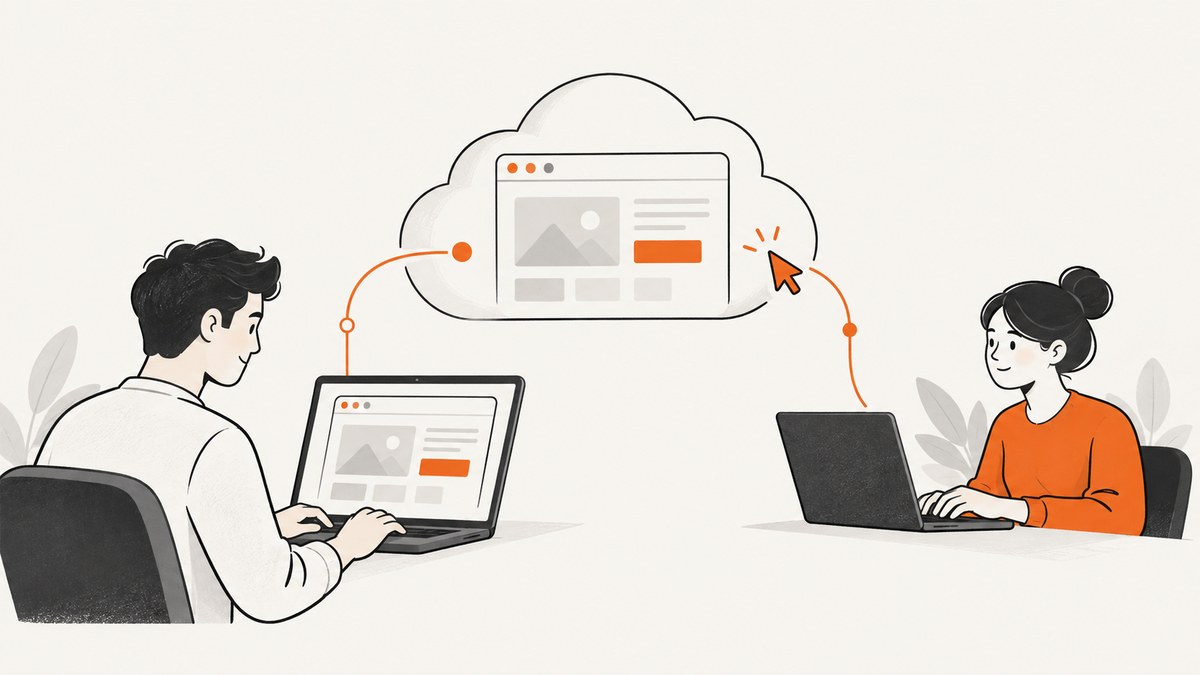
Use a managed cloud browser with an authenticated WebSocket or Chrome DevTools Protocol (CDP) endpoint, connect with Playwright or Puppeteer, and open the provider’s live-view URL when a person must watch or operate the session. “Live VNC” describes the visual control layer people expect, but many hosted services implement it with browser screencasting and DevTools rather than a literal VNC server.
The reliable pattern is:
- Create a remote browser session and receive its authenticated endpoint.
- Attach Playwright, Puppeteer, or a CDP client.
- Run normal navigation and automation code.
- Generate a live-view, screencast, or human-handoff link for inspection or takeover.
- Pause automation while a human operates the page, then verify state before resuming.
- Close the session, or reconnect within the provider’s retention window if more work is required.
Browserless documents BaaS connections over WebSocket and a LiveURL handoff flow. Cloudflare Browser Run documents Live View for real-time interaction with a running session. Their interfaces differ, so treat the endpoint, viewer URL, authentication, and session lifetime as provider-specific settings.
How the architecture works
A cloud browser is a real browser process running in a provider’s infrastructure. Your application does not send screenshots back and forth as its primary control channel. It opens a secure WebSocket or CDP connection, and the automation library sends browser commands through that connection.
The visual layer is separate. A provider may expose a browser-native screencast, a DevTools frontend URL, a LiveURL, or an interactive debugger. The viewer receives frames and pointer or keyboard input, while the automation connection continues to exist in parallel. This separation lets a script run unattended and still gives a person a way to approve a login, solve an allowed challenge, inspect a failure, or complete an unusual form.
| Layer | Purpose | Typical interface |
|---|---|---|
| Session | Starts the remote browser and creates tabs | Provider API |
| Automation | Navigation, selectors, downloads, assertions | WebSocket, CDP, or Playwright endpoint |
| Visual control | Watch, click, type, and inspect remotely | Live view, screencast, DevTools, or hybrid URL |
| Lifecycle | Reconnect, expire, and close the browser | Session ID and retention policy |
Step 1: Create and secure a browser session
Use the provider’s API to create a session. Keep the API token on your server. Do not put it in a browser bundle, a public HTML page, a client-side log, or a URL that users can copy.
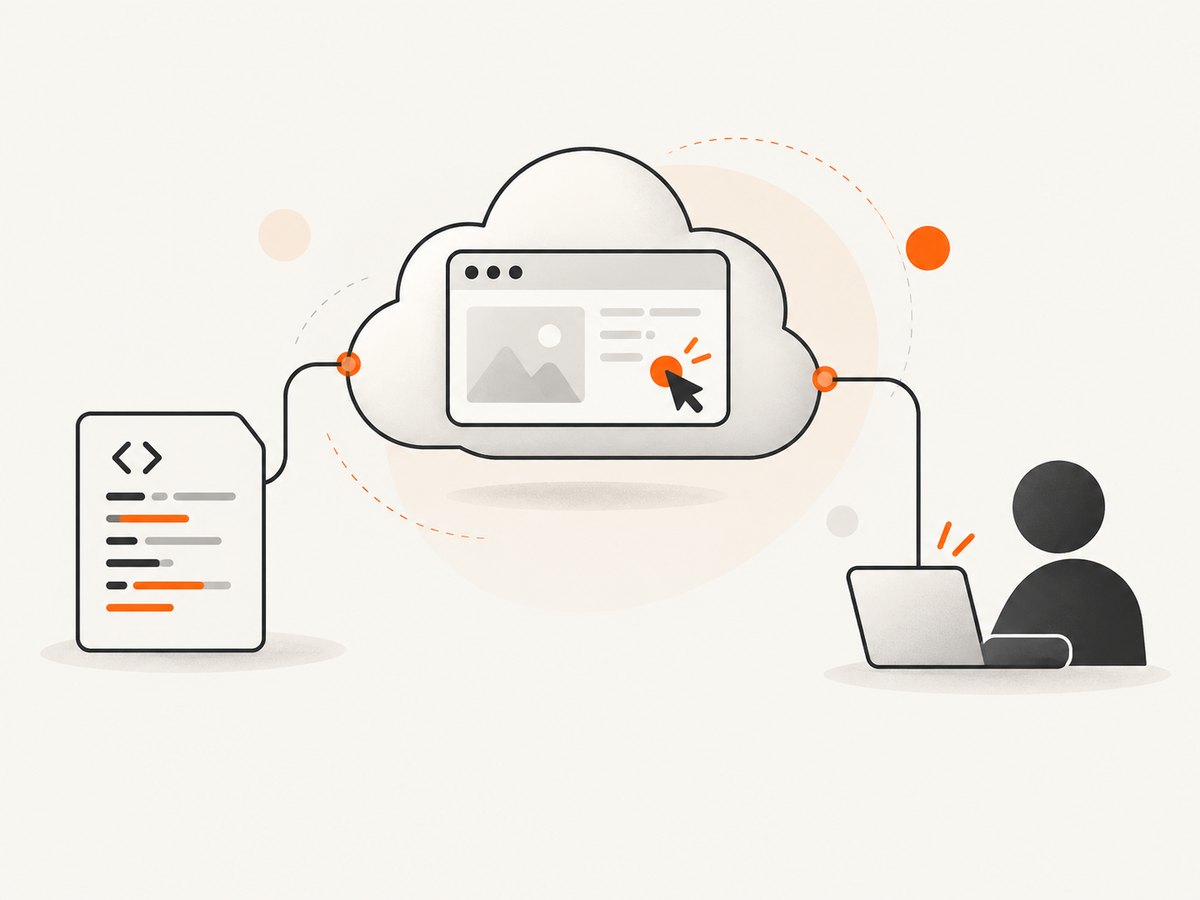
Record these values in your job state:
- Session ID and creation time.
- Authenticated WebSocket or CDP endpoint.
- Live-view URL, if the provider returns one.
- Browser engine and region.
- Expiration or reconnect deadline.
- Current automation phase, such as
awaiting_humanorresuming.
Generate a short-lived or access-controlled viewer link when the provider supports it. A live URL is a privileged control surface: anyone who receives it may be able to read page contents, use logged-in accounts, or change data.
Step 2: Connect with Playwright
Use native Playwright connection when the provider supplies a Playwright endpoint. Use connectOverCDP when it supplies a Chromium CDP endpoint. Browserless documents both patterns as well as Puppeteer WebSocket connections.
Playwright over CDP (Node.js)
import { chromium } from 'playwright';

const cdpEndpoint = process.env.BROWSER_CDP_ENDPOINT;
if (!cdpEndpoint) throw new Error('BROWSER_CDP_ENDPOINT is required');

const browser = await chromium.connectOverCDP(cdpEndpoint);
const context = browser.contexts()[0] ?? await browser.newContext();
const page = context.pages()[0] ?? await context.newPage();

await page.goto('https://example.com', { waitUntil: 'domcontentloaded' });
console.log(await page.title());

// Keep the session open while a human uses the live-view URL.
// Close only when the workflow is finished.
await browser.close();
Playwright native endpoint (Node.js)
import { chromium } from 'playwright';

const browser = await chromium.connect(process.env.PLAYWRIGHT_ENDPOINT);
const page = await browser.newPage();
await page.goto('https://example.com');
await page.screenshot({ path: 'result.png', fullPage: true });
await browser.close();
Playwright in Python
import os
from playwright.sync_api import sync_playwright

with sync_playwright() as p:
    with p.chromium.connect_over_cdp(os.environ['BROWSER_CDP_ENDPOINT']) as browser:
        context = browser.contexts[0] if browser.contexts else browser.new_context()
        page = context.pages[0] if context.pages else context.new_page()
        page.goto('https://example.com', wait_until='domcontentloaded')
        print(page.title())
        page.screenshot(path='result.png', full_page=True)
Puppeteer over WebSocket
import puppeteer from 'puppeteer-core';

const browser = await puppeteer.connect({
  browserWSEndpoint: process.env.BROWSER_WS_ENDPOINT
});
const pages = await browser.pages();
const page = pages[0] ?? await browser.newPage();
await page.goto('https://example.com', { waitUntil: 'domcontentloaded' });
console.log(await page.title());
await browser.disconnect();
Do not call browser.close() if you intend to hand the session to another process and the provider treats closing the client as closing the browser. Check the provider’s lifecycle rules; some services distinguish disconnecting your client from terminating the remote session.
Step 3: Open the live view and hand control to a person
Open the returned viewer URL in a protected operator interface. Show the operator which workflow step needs attention and provide a “Resume automation” action. Pause scripted actions before enabling pointer and keyboard input.
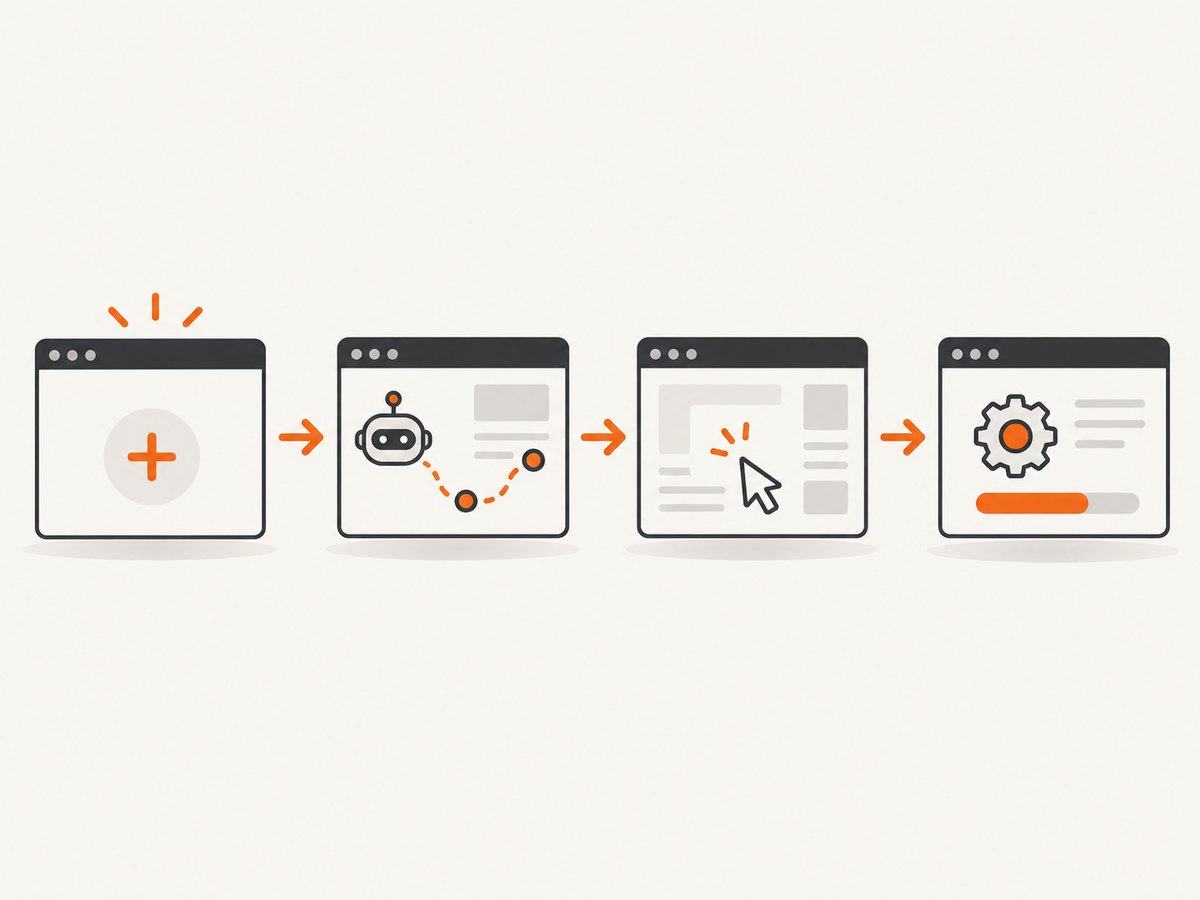
// State machine sketch
const states = ['running', 'awaiting_human', 'resuming', 'complete', 'failed'];

async function requestHumanStep(session) {
  await session.pauseAutomation();
  await session.setState('awaiting_human');
  return {
    liveUrl: session.liveViewUrl,
    expiresAt: session.expiresAt
  };
}

async function resumeAfterHumanStep(session) {
  await session.setState('resuming');
  // Re-check URL, title, selectors, and authentication state.
  const page = await session.page();
  await page.waitForLoadState('domcontentloaded');
  if (!(await page.locator('[data-step-complete]').count())) {
    throw new Error('Human step was not completed');
  }
  await session.setState('running');
}
The example uses provider-neutral methods because session APIs differ. The important behavior is portable: stop competing input, let the operator act, then validate observable state instead of assuming the click succeeded.
Keeping automation and human input from racing
Input races are the most common source of flaky handoffs. A script may submit a form while the operator is editing it, or navigation may replace the page during a click. Use an explicit lock.
- Acquire a workflow lock before every automation phase.
- Release it and mark the session
awaiting_humanbefore exposing the viewer. - Reject or queue automation commands while the lock belongs to the operator.
- After takeover, check URL, selected values, visible errors, and expected cookies or storage state.
- Reacquire the lock before continuing.
For long handoffs, persist only the state you need. Reconnectable sessions may retain cookies, local storage, cache, page position, and in-memory state. That is convenient, but it also means a later operator may inherit authenticated data.
Provider options and trade-offs
| Option | Visual control | Connection | Best fit | Check before adopting |
|---|---|---|---|---|
| Browserless BaaS with Hybrid/LiveURL | Shareable live stream and human handoff | Authenticated WebSocket; Puppeteer or Playwright | Existing automation that occasionally needs intervention | Token handling, regional endpoint, concurrency, handoff behavior, persistence, plan limits |
| Cloudflare Browser Run Live View | Hosted interface from a generated DevTools frontend URL | Sessions created with Puppeteer, Playwright, or CDP | Teams already using Browser Run | URL security, target or tab selection, latency, lifecycle, current product limits |
| Browserless self-hosted Docker Live Debugger | In-browser screencast with DevTools and debugger | Container-hosted browser endpoints | Private deployment and infrastructure control | Capacity, updates, network isolation, security, feature availability |
Browserless describes BaaS as a way to run existing Puppeteer or Playwright code in the cloud. Cloudflare describes Live View as real-time interaction with a remote Browser Run session. Read the current Browserless documentation and Cloudflare Browser Run documentation for endpoint syntax and product limits.
Connection details that matter in production
Authentication
Use environment variables or a secrets manager for provider tokens. Rotate them, redact query strings in logs, and never log a complete live URL. If a viewer URL cannot be scoped or expired, put it behind your own authenticated route.
Latency and regions
Place the browser near the target website and your operators when possible. A live viewer adds frame and input latency. Avoid workflows that depend on a rapid sequence of human clicks; provide clear checkpoints instead.
Browser engine and target tabs
Choose Chromium, Chrome, Firefox, WebKit, or a CDP-compatible target deliberately. A DevTools URL may open one tab while your automation is attached to another. Enumerate pages and select by URL, title, or a stable application marker.
Session persistence
Set a retention window long enough for the human task, but no longer. Close completed sessions and clear sensitive state. Reconnect within the documented window when a network interruption affects only your client.
Observability
Log session ID, workflow phase, endpoint type, page URL, and elapsed time. Capture browser console and network diagnostics when the provider exposes them. Do not store passwords, payment data, or unrestricted page screenshots in ordinary logs.
Or skip the browser setup
If your goal is a clean screenshot or PDF rather than interactive takeover, ScreenshotNeo provides a single request to capture a URL. It handles browser startup, waiting, and rendering for you.
cURL (see the ScreenshotNeo API docs):
curl -G "https://api.screenshotneo.com/v1/shot" -d access_key=YOUR_API_KEY --data-urlencode url=https://stripe.com -o shot.webpPython:
import requests
r = requests.get("https://api.screenshotneo.com/v1/shot", params={"access_key": "YOUR_API_KEY", "url": "https://stripe.com"}, timeout=90)
open("shot.webp", "wb").write(r.content)Node.js:
const q = new URLSearchParams({ access_key: 'YOUR_API_KEY', url: 'https://stripe.com' });
const res = await fetch(`https://api.screenshotneo.com/v1/shot?${q}`);
ScreenshotNeo removes cookie and consent banners, newsletter popups, and chat widgets before capture. Bot checks, blank pages, timeouts, failed loads, and cache hits are not billed, and response headers identify the page verdict and billing result. It also provides an MCP server with take_screenshot, get_page_info, and capture_pdf tools for Claude, Cursor, and other MCP clients. The Free plan includes 1,000 screenshots per month without a card; paid plans start at $5 for 3,000.
Create a free ScreenshotNeo account and get 1,000 screenshots each month with no card.
Troubleshooting
| Symptom | Likely cause | Fix |
|---|---|---|
| WebSocket authentication fails | Missing, expired, or URL-encoded token | Generate a new endpoint, keep the token server-side, and copy the provider’s exact query format. |
| CDP connects but no page appears | Wrong target or context | List contexts and pages, then select the tab by URL or a stable marker. |
| Viewer is blank | Expired link, blocked viewer origin, or ended session | Generate a fresh link, check session status, and verify the operator can reach the provider domain. |
| Clicks happen twice | Automation and human input are active together | Pause automation and enforce a single-owner lock before enabling the viewer. |
| Human changes disappear | Automation navigated or reloaded after takeover | Wait for the resume signal, then verify URL, form values, and application state before continuing. |
| Reconnect returns a new page | Retention window expired or a new session was created | Reconnect before expiry and persist the original session ID; otherwise restart the workflow safely. |
| High interaction latency | Operator, browser, and target are far apart | Choose a nearer region, reduce unnecessary animations, and use larger checkpoints instead of fine-grained clicking. |
| Session leaks sensitive data | Viewer URL or retained profile was shared too broadly | Expire links, restrict access, shorten retention, and clear cookies or storage after completion. |
Reliability and cost checklist
- Use bounded navigation and action timeouts.
- Retry connection setup with backoff, but do not blindly repeat side-effecting clicks.
- Give every session an owner, expiry, and cleanup handler.
- Record whether failure occurred before connection, during navigation, or during human handoff.
- Estimate cost from browser minutes, concurrency, storage, and viewer traffic; provider pricing and limits vary by plan.
- For screenshots, cache intentionally and avoid recapturing unchanged pages. ScreenshotNeo lets you choose a cache TTL and reports cache hits without billing them.
FAQ
Is Live VNC the same as VNC?
Not necessarily. “Live VNC” is a useful description of visual remote control. Hosted browser products may use browser screencast, CDP, or a DevTools frontend instead of the VNC protocol.
Can I use a normal Playwright script?
Yes. Connect it to the provider’s native Playwright endpoint or use connectOverCDP for a Chromium CDP endpoint.
Should automation keep running during takeover?
No. Pause it, give the human exclusive input ownership, and resume only after validating the resulting page state.
How long should a session remain reconnectable?
Only as long as the workflow needs. Longer retention improves recovery but preserves more sensitive browser state.
Do I need a live browser to produce a static screenshot?
No. A screenshot API such as ScreenshotNeo can perform the capture without your application managing a remote browser session.


