How to Control Page Breaks in NHtmlToPdf
Force, avoid, and debug PDF page breaks in NHtmlToPdf with CSS, custom pagination, and practical fixes for blank space and clipping.
Use paged-media CSS to control ordinary page breaks in NHtmlToPdf-style HTML-to-PDF workflows. Put page-break-before: always on the block that must start on a new page, page-break-after: always on the block that must end a page, and page-break-inside: avoid on small images, cards, or related blocks that should remain together.
These properties are part of CSS paged media. EO.Pdf documents the same approach for its HTML-to-PDF converter, which paginates automatically unless CSS or custom pagination changes the result. The examples below are plain HTML and CSS, so they can be passed through your NHtmlToPdf conversion pipeline.
Force a section to start on a new page
Apply the break to the next section’s block. A heading is often the clearest target:
<h1 class="chapter-start">Chapter 2</h1>

<style>
.chapter-start {
  page-break-before: always;
}
</style>
You can also use an inline declaration:
<div style="page-break-before: always;">
  Start this section on a new page.
</div>
The always value requests a forced break before the generated block. The W3C paged-media specification defines page-break-before and page-break-after for block-level boxes in paged media.
Force a break after a block
Use page-break-after: always when the current block must be the last content before a new page:
<section class="appendix">
  <h2>Appendix</h2>
  <p>This section ends before the next section.</p>
</section>

<style>
.appendix {
  page-break-after: always;
}
</style>
Choose one side of the boundary. Setting both a preceding element’s page-break-after and the next element’s page-break-before can make the intent harder to maintain.
Keep images, cards, and related content together
Use page-break-inside: avoid on the smallest meaningful block:
<style>
figure,
.keep-together {
  page-break-inside: avoid;
}
</style>

<figure class="keep-together">
  <img src="diagram.png" alt="Architecture diagram">
  <figcaption>Request flow</figcaption>
</figure>
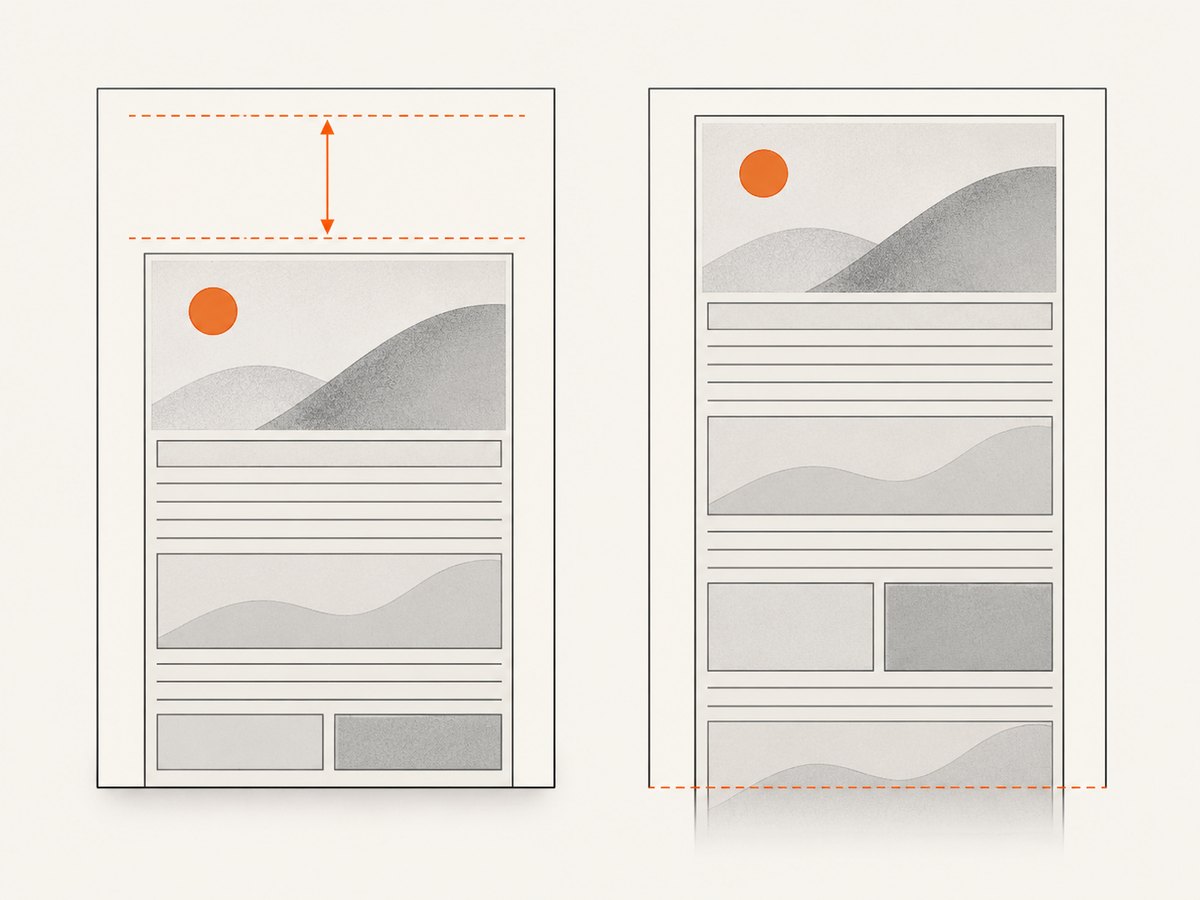
EO.Pdf specifically documents this rule for images and other blocks. It is a request to avoid an internal break, not a guarantee that an arbitrarily large element can fit on one page. A block taller than the available page can flow into the footer area and be clipped at the page boundary.
Use a reusable print stylesheet
Keeping pagination rules in a print stylesheet makes the HTML easier to maintain:
<link rel="stylesheet" href="print.css" media="print">/* print.css */
@media print {
.new-page {
page-break-before: always;
}
.end-page {
page-break-after: always;
}
.keep-together {
page-break-inside: avoid;
}
/* Avoid forcing a break on every heading. */
h1, h2, h3 {
page-break-after: avoid;
}
}If your converter uses screen media by default, configure its print-media option or load the stylesheet without a media restriction. EO.Pdf exposes UsePrintMedia and UserStyleSheet through HtmlToPdfOptions; verify the equivalent setting and member names in the version installed in your project.
A complete HTML example
This document demonstrates a forced chapter break, a figure kept together, and a block that ends a page:
<!doctype html>
<html>
<head>
  <meta charset="utf-8">
  <style>
    @page {
      margin: 18mm;
    }

    body {
      font-family: Arial, sans-serif;
      font-size: 11pt;
      line-height: 1.45;
    }

    .chapter-start {
      page-break-before: always;
    }

    .keep-together {
      page-break-inside: avoid;
    }

    .section-end {
      page-break-after: always;
    }

    img {
      max-width: 100%;
      height: auto;
    }
  </style>
</head>
<body>
  <h1>Chapter 1</h1>
  <p>Introductory content.</p>

  <figure class="keep-together">
    <img src="diagram.png" alt="System diagram">
    <figcaption>The complete diagram stays together when it fits.</figcaption>
  </figure>

  <h1 class="chapter-start">Chapter 2</h1>
  <p>This heading starts on a fresh page.</p>

  <section class="section-end">
    <h2>Appendix</h2>
    <p>The following content begins on the next page.</p>
  </section>

  <p>Final notes.</p>
</body>
</html>
What automatic pagination does
The converter normally fills each page and creates breaks when the available page area is exhausted. CSS rules alter that flow. A forced break starts or ends a page at a known block boundary; an avoid rule adds an unbreakable range that the paginator tries to keep intact.
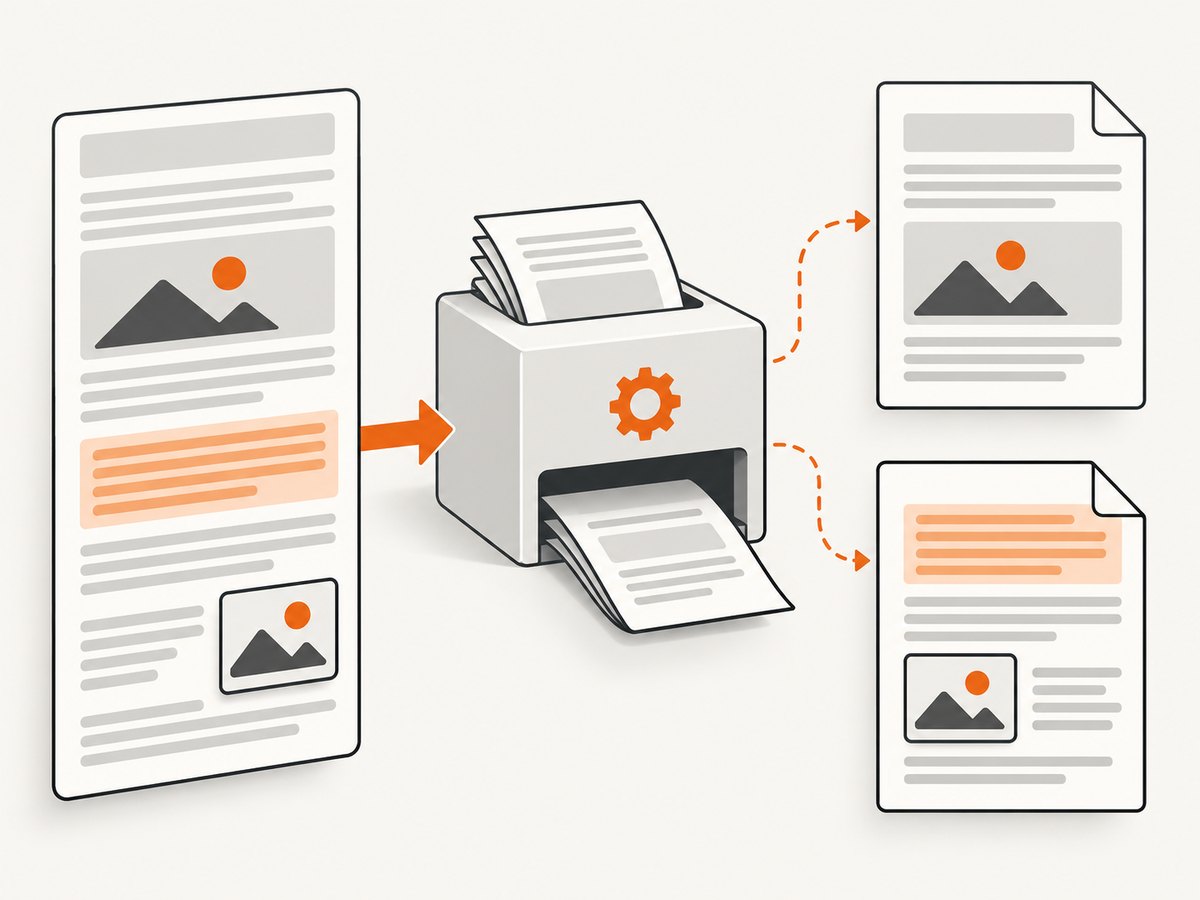
Use forced breaks for editorial boundaries such as chapters, invoices, or certificates. Use avoid rules for compact units such as a heading with its first paragraph, a figure with its caption, or a small table row group. Do not apply page-break-inside: avoid to an entire long article or large container.
Why content leaves blank space
A blank area at the bottom of a page is often the result of a block that cannot be split. EO.Pdf describes text lines as unbreakable ranges and adds ranges for page-break-inside: avoid. Overlapping ranges combine into a larger unbreakable range. If that combined range does not fit in the remaining space, the converter moves it to the next page.
Check these causes:
- A broad
page-break-inside: avoidrule on a long section or container. - Nested avoid rules that combine several blocks into one large range.
- Fixed or absolutely positioned elements overlapping normal-flow content.
- Text with a
line-heightsmaller than itsfont-size, causing line ranges to overlap. - A forced break that occurs earlier than expected.
Prevent clipping at the bottom of a page
First make sure the unbreakable block can physically fit inside the printable page area after margins, headers, and footers are included. If it cannot, remove the avoid rule or split the content into smaller blocks. Resize oversized images with max-width: 100%, use a reasonable height, and avoid placing a large fixed-height element inside a keep-together container.
.keep-together {
  page-break-inside: avoid;
}

.keep-together img {
  display: block;
  max-width: 100%;
  height: auto;
}
Custom pagination when CSS is not enough
For layout-aware pagination, EO.Pdf documents a paginator workflow:
- Create an
HtmlToPdfSessionwith the required options. - Load the URL or HTML.
- Call
session.CreatePaginator(). - Inspect the paginator’s pages and document nodes.
- Review page-break properties and ranges, including
PageBreakMode,PageBreakRange, and text-nodePageBreakLineRanges. - Adjust the required ranges and call the relevant page’s
PageAgain(...)method to rerun paging for that page and later pages. - Render with
session.RenderAsPDF(paginator).
The vendor example uses PageAgain(500) as an example limit for later pages. Treat that number as sample code, not a universal page size. Class and member availability can depend on the EO.Pdf release in use. NHtmlToPdf projects should apply the same principle through the pagination API exposed by their installed converter rather than copying an API from another product.
Headers and footers are separate from body breaks
Page decorations do not determine where body content breaks. EO.Pdf provides HeaderHtmlFormat, FooterHtmlFormat, and an AfterRenderPage callback for recurring labels or drawings. Header and footer templates can use variables such as {page_number} and {total_pages}. Configure these independently from page-break-before, page-break-after, and page-break-inside.
Pagination troubleshooting checklist
| Symptom | Likely cause | Fix |
|---|---|---|
| Break rule is ignored | The selector does not match the rendered element, or the target is not a block in the converter’s paged layout. | Inspect the final HTML, target a section or heading, and confirm the stylesheet is loaded. |
| Two blank pages appear | Forced breaks are set on both adjacent blocks, or a hidden element still participates in layout. | Keep one forced rule at the boundary and remove unused hidden blocks. |
| A whole paragraph moves | Avoid rules or overlapping line ranges create an unbreakable region. | Remove broad avoid rules and correct line-height/font-size overlap. |
| An image is clipped | The image or its parent is taller than the available page area. | Scale the image, split the block, or remove page-break-inside: avoid. |
| Content overlaps the footer | A keep-together block cannot fit between the page margins and footer. | Reduce the block height or let it split; verify footer and margin settings. |
| Breaks differ between environments | Different converter versions, fonts, media settings, or asset load timing. | Pin the converter version, embed or install required fonts, wait for assets, and compare the final PDFs. |
| Styles work in a browser but not in PDF | The converter supports a different CSS subset or is using screen media. | Use simple block-level rules, enable print media when supported, and verify the deployed version’s options. |
Performance and reliability considerations
- Prefer local CSS selectors over paginator-wide rewrites. They are easier to reason about and usually require less layout work.
- Keep avoid regions small. Large unbreakable ranges increase blank space and can trigger clipping.
- Use stable fonts and dimensions. Font substitution changes line wrapping, which changes page boundaries.
- Wait for images, web fonts, and other assets before conversion. A missing asset changes the height used by pagination.
- Keep page size, margins, header height, and footer height explicit so the available body area is predictable.
- Inspect PDFs at every boundary after changing CSS. Documentation describes behavior, but the actual HTML, assets, fonts, and installed converter release determine the output.
Or skip the browser setup
If your goal is a clean screenshot or PDF of a web page rather than controlling a local HTML-to-PDF engine, ScreenshotNeo provides a single GET request. See the ScreenshotNeo API documentation for the available options.
curl -G "https://api.screenshotneo.com/v1/shot" -d access_key=YOUR_API_KEY --data-urlencode url=https://stripe.com -o shot.webpimport requests
r = requests.get("https://api.screenshotneo.com/v1/shot", params={"access_key": "YOUR_API_KEY", "url": "https://stripe.com"}, timeout=90)
open("shot.webp", "wb").write(r.content)const q = new URLSearchParams({ access_key: 'YOUR_API_KEY', url: 'https://stripe.com' });
const res = await fetch(`https://api.screenshotneo.com/v1/shot?${q}`);ScreenshotNeo removes cookie and consent banners, newsletter popups, and chat widgets before capture. Bot checks, blank pages, failed loads, timeouts, and cache hits are not billed, and the response identifies the result with X-Page-Verdict and X-Billed headers. Its MCP server lets AI agents use take_screenshot, get_page_info, and capture_pdf. The free plan includes 1,000 screenshots a month with no card; paid plans start at $5 for 3,000.
Create a free ScreenshotNeo account.
FAQ
Should I use page-break-before or page-break-after?
Use page-break-before on the section that must start on a new page. Use page-break-after when the preceding block must end the page. Pick the rule that best expresses ownership of the boundary.
Can page-break-inside: avoid guarantee that a block never splits?
No. It asks the converter to avoid an internal break. A block taller than the available page can overflow or be clipped, so split or resize oversized content.
Why does a heading move together with the next paragraph?
A stylesheet may apply an avoid rule to the heading’s parent or to a larger container. Narrow the rule to the intended block and check for overlapping unbreakable ranges.
Where should page numbers be configured?
Configure page numbers in the converter’s header or footer feature. EO.Pdf documents header/footer formats and the {page_number} and {total_pages} variables separately from body pagination.
Do CSS page-break properties work with every HTML-to-PDF engine?
Support varies by engine and release. Use block-level elements, verify the converter’s print-media behavior, and validate the generated PDF with the exact version deployed.


