How to Control Automatic Page Breaks in wkhtmltopdf
Force page breaks, keep blocks together, and diagnose unexpected pagination in wkhtmltopdf with CSS and command-line examples.
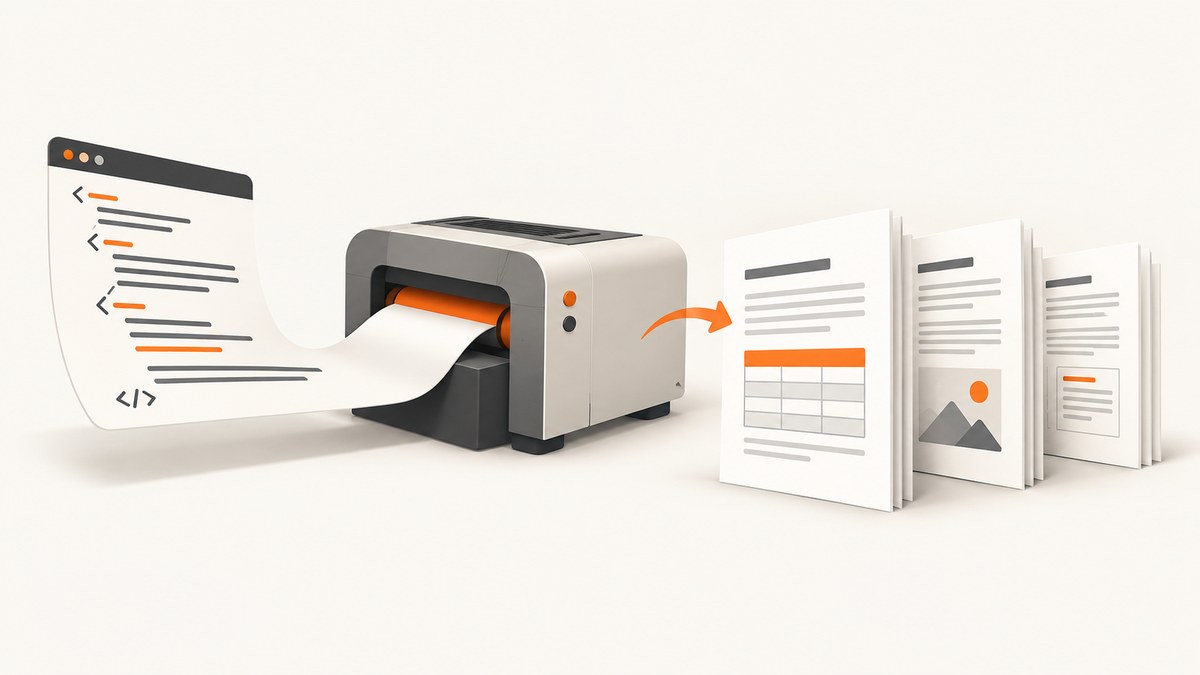
wkhtmltopdf paginates HTML into PDF pages. To control where breaks happen, use CSS page-break-before and page-break-after with always to request a break, and page-break-inside: avoid to ask the renderer to keep a block together. Then check the available page area: paper size, orientation, and margins affect where automatic breaks fall. An oversized block still has to be paginated; avoid cannot make it fit on one page.
This guide covers the CSS rules, runnable HTML and command-line examples, page geometry, print styles, tables, troubleshooting, and the limits of these controls. The properties follow the CSS paged-media definitions; wkhtmltopdf accepts an HTML page object and provides options that affect its PDF output. See the wkhtmltopdf usage documentation and CSS 2.2 page-break properties.
1. Choose the right kind of break
First decide whether a break is mandatory or merely undesirable. A forced break belongs before or after the element that should mark the boundary. A keep-together rule belongs on a block that should stay intact when there is enough room.
| Goal | CSS | Effect |
|---|---|---|
| Start a heading or section on a new page | page-break-before: always |
Requests a forced break before that block. |
| End a section on its current page | page-break-after: always |
Requests a forced break after that block. |
| Keep a notice, short table, or similar block together | page-break-inside: avoid |
Asks the renderer not to split inside that block. |
| Let the renderer paginate normally | auto |
Leaves the break decision to normal pagination. |
These are CSS properties for block-level elements in paged media. Apply them to a block such as a heading, paragraph, div, or table, and make sure the selector matches the element in the HTML actually being converted.
2. Force a new page before or after content
To begin an appendix on a fresh page, give its heading a class and force the break before it:
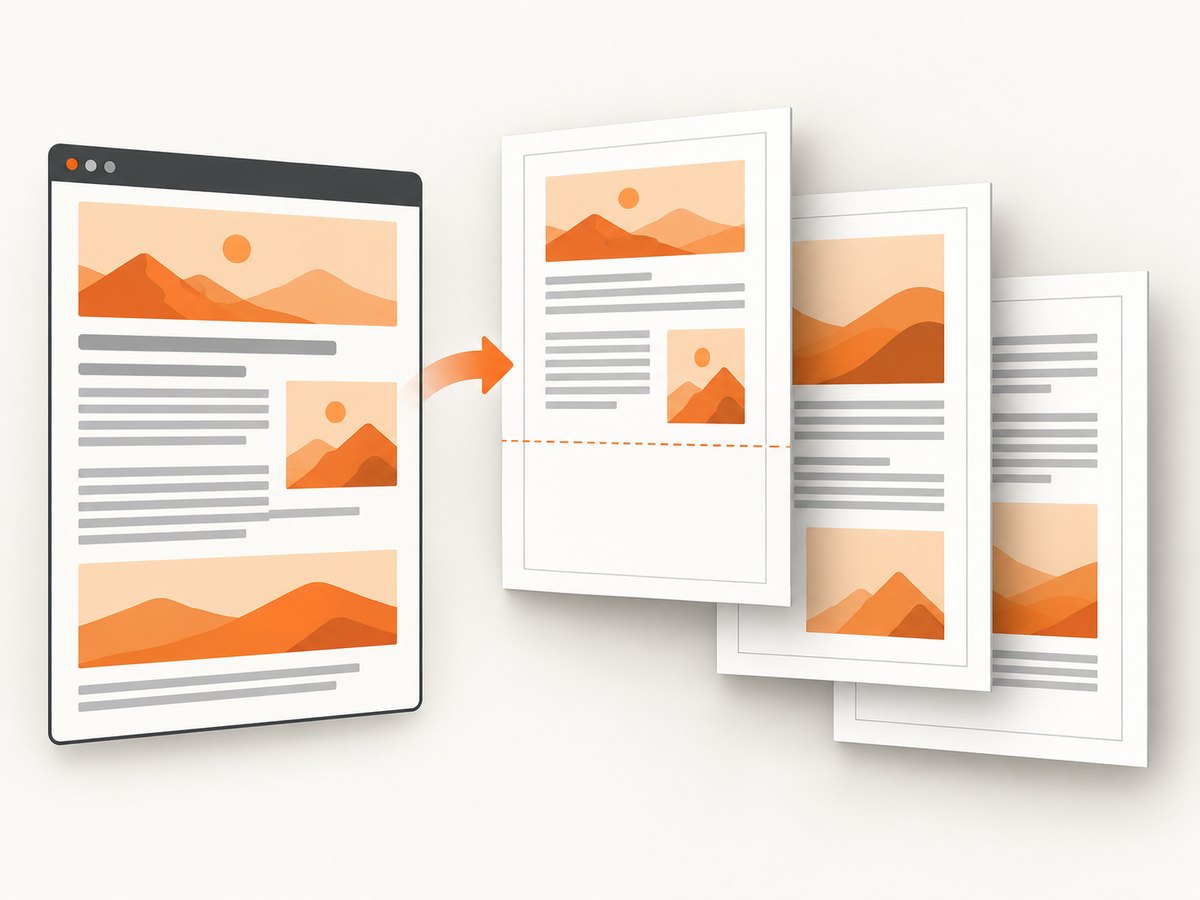
<h2 class="new-page">Appendix</h2>
<p>Appendix content starts here.</p>
.new-page {
page-break-before: always;
}To request a break after a section instead, put the rule on the section block:
<section class="appendix">
<h2>Appendix</h2>
<p>Appendix content.</p>
</section>.appendix {
page-break-after: always;
}The location of the rule matters. A break before a heading can leave the heading at the top of the next page with its following content. A break after a container starts the following content on a new page. Avoid adding both rules around the same boundary unless you intend to request a break on each side of the element.
Use a dedicated break element when it clarifies the document
A dedicated empty block is useful when the break is a deliberate boundary in the source rather than a property of the preceding or following section:
<div class="page-break"></div>
<h2>Appendix</h2>.page-break {
page-break-before: always;
}Keep the element block-level, and keep it in the converted markup. If the selector does not match or the stylesheet is not loaded, the rule has no effect.
3. Ask the renderer to keep a block together
For a compact notice or table row group that should not be divided when it can fit, apply page-break-inside: avoid to the relevant block:
.keep-together {
page-break-inside: avoid;
}<div class="notice keep-together">
<h3>Important notice</h3>
<p>Keep this short explanation with its heading.</p>
</div>Use the smallest meaningful container. If you apply the rule to an entire long chapter, the chapter may be taller than a page and cannot be kept intact. Smaller sections give the renderer room to place a complete block where it fits while allowing surrounding content to flow.
For a table, try the rule on the table or the specific block that must remain intact. The CSS definition applies to block-level boxes; actual table pagination can depend on the document structure and renderer. Check the generated PDF, especially for large tables and rows that approach the usable page height. The property expresses a request to avoid a split, not a guarantee that all content fits.
4. Runnable example: HTML, CSS, and wkhtmltopdf
Save this as breaks.html. It includes a forced appendix page, a keep-together notice, and a print-media stylesheet. Replace or expand the sample text to match your document.
<!doctype html>
<html>
<head>
<meta charset="utf-8">
<title>Page break example</title>
<style>
body { font: 12pt sans-serif; }
.new-page {
  page-break-before: always;
}
.keep-together {
  page-break-inside: avoid;
}
@media print {
.screen-only { display: none; }
}
</style>
</head>
<body>
<h1>Report</h1>
<p>Main report content goes here.</p>
<div class="keep-together">
<h2>Short notice</h2>
<p>This block should remain together if there is enough room.</p>
</div>
<h2 class="new-page">Appendix</h2>
<p>Appendix content begins after a forced page break.</p>
</body>
</html>Convert it with the command below:
wkhtmltopdf --print-media-type \
  --page-size A4 \
  --orientation Portrait \
  --margin-top 15mm \
  --margin-right 15mm \
  --margin-bottom 15mm \
  --margin-left 15mm \
  breaks.html breaks.pdf
The command follows wkhtmltopdf’s documented form: global options, then page object(s), then the output file. The example uses the local HTML file as one page object. Use --page-size or explicit --page-width and --page-height, choose an orientation, and set the four margins as needed. Those options affect the space available for content, so they also affect automatic break locations. The --print-media-type page option is relevant when your intended styles are under @media print.
5. Page geometry changes pagination
A CSS rule does not determine every break by itself. The renderer must fit content into a page area. Changing the paper size, orientation, width, height, or margins changes that area and can move automatic breaks even if the HTML and CSS stay the same.
- Paper size: use
--page-sizefor a named size such as A4 or Letter. - Explicit dimensions: use
--page-widthand--page-heightwhen the output needs custom dimensions. - Orientation:
--orientationchanges the page’s width-to-height arrangement. - Margins:
--margin-top,--margin-right,--margin-bottom, and--margin-leftreduce the usable content area.
For example, a notice that fits near the bottom of a page with small margins may move to the next page when the bottom margin grows. That is expected: less content fits in the page area. When pagination looks wrong, confirm geometry before adding more forced breaks.
6. Check the stylesheet and conversion mode
When a page-break declaration appears to be ignored, verify the complete path from HTML to PDF:
- Confirm that the stylesheet is present in the HTML or linked at a location available to the conversion.
- Check that the selector matches the intended element and that it is block-level.
- If rules are inside
@media print, pass--print-media-typeso the print styles are active. - Inspect the output PDF after changing one variable at a time: selector, media mode, or page geometry.
A rule in a stylesheet that the converter never receives cannot affect pagination. Likewise, a selector aimed at a class that is absent from the converted source cannot apply. Diagnose those basic causes before treating a break as a renderer limitation.
7. Common problems and fixes
| Symptom | Likely cause | What to change |
|---|---|---|
page-break-before: always has no visible effect |
The rule is missing, the selector does not match, the stylesheet is unavailable, or the target is not block-level. | Check the converted HTML, class name, stylesheet path, and element display behavior. Put the rule on a block-level heading or container. |
| Print-only layout rules do not apply | The stylesheet uses @media print, but conversion is not using print media. |
Use wkhtmltopdf’s --print-media-type page option. |
A notice still splits despite page-break-inside: avoid |
The block is taller than the available page area, or the declaration does not apply to the intended block. | Verify the selector and block. Shorten or divide oversized content, or adjust page geometry. Avoid cannot shrink content. |
| Breaks move after changing a PDF option | Page size, orientation, or margins changed the available content area. | Restore the intended geometry, then review where the content fits before adding manual breaks. |
| A heading appears alone at the bottom of a page | The heading itself has no forced break, but the following content does not fit in the remaining area. | Group the heading with a suitable following block and ask the renderer to keep that group together, provided it can fit on a page. |
| Extra blank pages appear near a deliberate boundary | Break rules may be applied both before and after adjacent blocks. | Inspect neighboring elements and keep one clear rule at the intended boundary. |
The heading-and-content grouping in the table is a layout technique: apply page-break-inside: avoid to a wrapper containing both when the combined block can fit. It cannot solve a group that exceeds the page area.
8. Edge cases and practical limits
Oversized blocks
An image, table, notice, or other block can exceed the usable height of a page. In that case there is no way to keep the whole block on one page without changing the content or available area. page-break-inside: avoid is not a size constraint. Reduce or split the content, or adjust page dimensions and margins where appropriate.
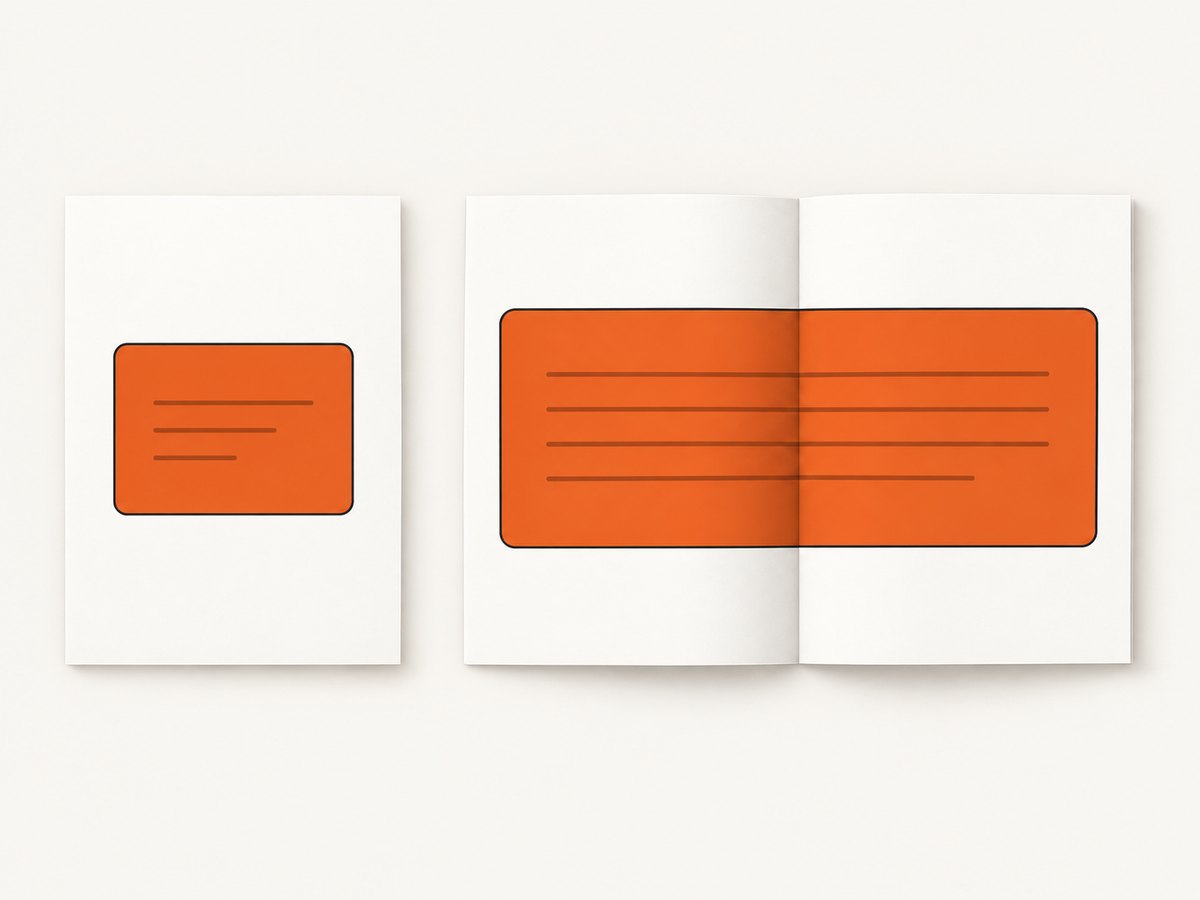
Forced breaks can create sparse pages
always asks for a mandatory break at the selected boundary. If the previous page has plenty of room, a forced break can leave that space unused. Use it for true document boundaries such as a new appendix, not as a general fix for every inconvenient automatic break.
Nested containers
If both a child and a parent have break rules, the effective layout can be difficult to reason about. Start with one rule on the smallest container that expresses the intended behavior, then add another only if the generated PDF demonstrates a specific need.
Available room varies
A keep-together request may be satisfiable on one page and not another because the remaining space differs. The renderer can move a block to a later page if that lets it stay intact. If it still does not fit in the available page area, it must paginate the content.
9. Performance, reliability, and cost considerations
These CSS properties control pagination; they do not reduce the amount of HTML the renderer must process. For reliable output, keep the page geometry and styles explicit, use selectors that are easy to audit, and inspect the resulting PDF whenever source content or geometry changes. A document with deliberate breaks can still paginate differently when its text or layout grows.
The dossier provides no benchmark or cost figure for wkhtmltopdf, so this guide makes no speed or price claim. For a repeatable conversion, record the command options alongside the HTML and CSS, particularly page size, orientation, margins, and print-media selection. When a long document changes, check the boundaries around forced sections and blocks marked to stay together.
10. Alternative when the deliverable is a page capture
wkhtmltopdf is the tool in this guide for controlling HTML-to-PDF pagination. If your actual deliverable is a screenshot or a PDF capture of a webpage and you do not need wkhtmltopdf’s page-break controls, ScreenshotNeo offers a one-request capture API. It is a website screenshot API and MCP server from ScreenshotNeo; see the API documentation for its request options.
Or skip the browser setup
Use this cURL request to capture a webpage as a WebP image:
curl -G "https://api.screenshotneo.com/v1/shot" \
  -d access_key=YOUR_API_KEY \
  --data-urlencode url=https://stripe.com \
  -o shot.webp
The same request in Python:
import requests

r = requests.get(
    "https://api.screenshotneo.com/v1/shot",
    params={"access_key": "YOUR_API_KEY", "url": "https://stripe.com"},
    timeout=90,
)
open("shot.webp", "wb").write(r.content)
And in Node.js:
const q = new URLSearchParams({
  access_key: 'YOUR_API_KEY',
  url: 'https://stripe.com'
});
const res = await fetch(`https://api.screenshotneo.com/v1/shot?${q}`);
ScreenshotNeo removes cookie banners, popups, and chat widgets before the shot. Bot checks, blank pages, and failed loads are never billed. Its MCP server lets AI agents take screenshots, and 1,000 screenshots a month are free with no card; paid plans start at $5 for 3,000. For a page capture without browser setup, sign up for the free plan.
Frequently asked questions
Can I force a page break before a heading?
Yes. Put page-break-before: always on the block-level heading or a wrapper immediately before the section.
Is page-break-inside: avoid a guarantee?
No. It asks the renderer to avoid a break inside the block. It cannot fit a block that is taller than the usable page area.
Should I use a break before or after?
Use before when the target section must start on a new page; use after when the current block must end a page before following content.
Do margins affect where breaks occur?
Yes. Margins change the usable content area, so they can change automatic pagination and whether a keep-together block fits.


