How to Control PDF Margins in Playwright
Set precise Playwright PDF margins with page.pdf(), CSS @page, explicit units, and predictable page-size precedence.
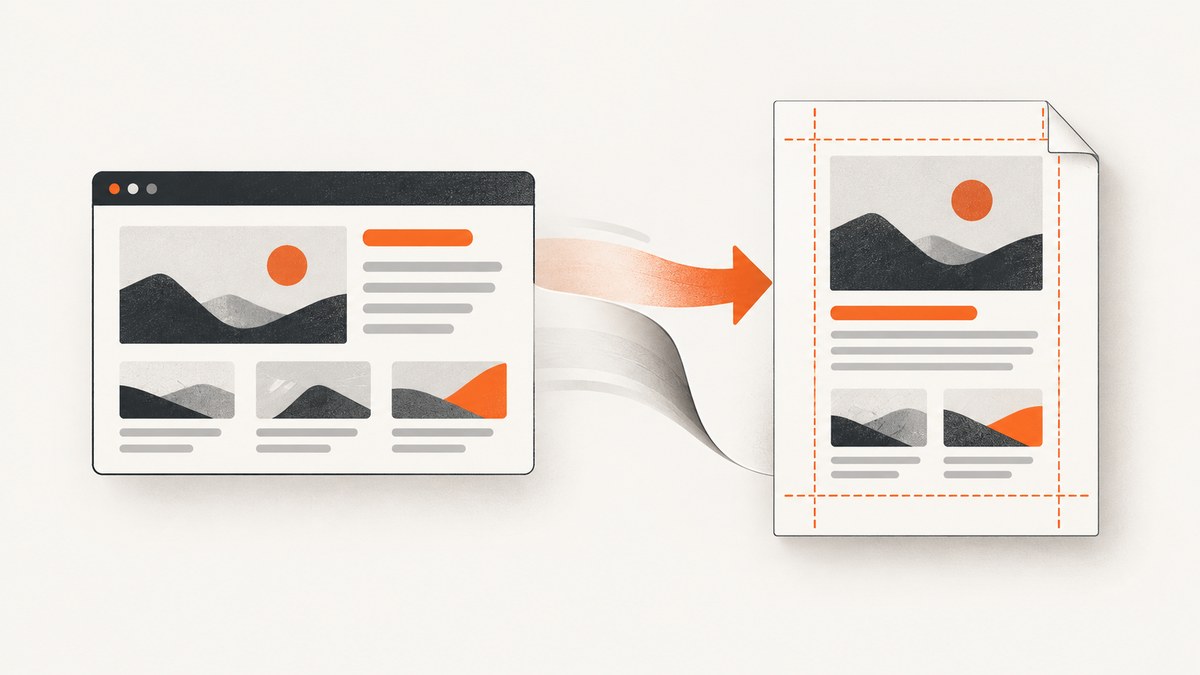
Playwright PDF margins are controlled in two places: the margin object passed to page.pdf(), and CSS @page rules. Use the API option for export-specific settings, or let CSS own the print layout. Set explicit units such as mm, cm, in, or px, and make page-size precedence explicit with preferCSSPageSize.
The safest workflow is:
- Choose one authoritative layer for margins.
- Set the paper size with
format,width/height, or CSS. - Use
preferCSSPageSize: truewhen CSS should control paper size. - Remember that PDFs use print media by default.
- Inspect the generated PDF whenever CSS and API settings are combined.
Set margins with page.pdf()
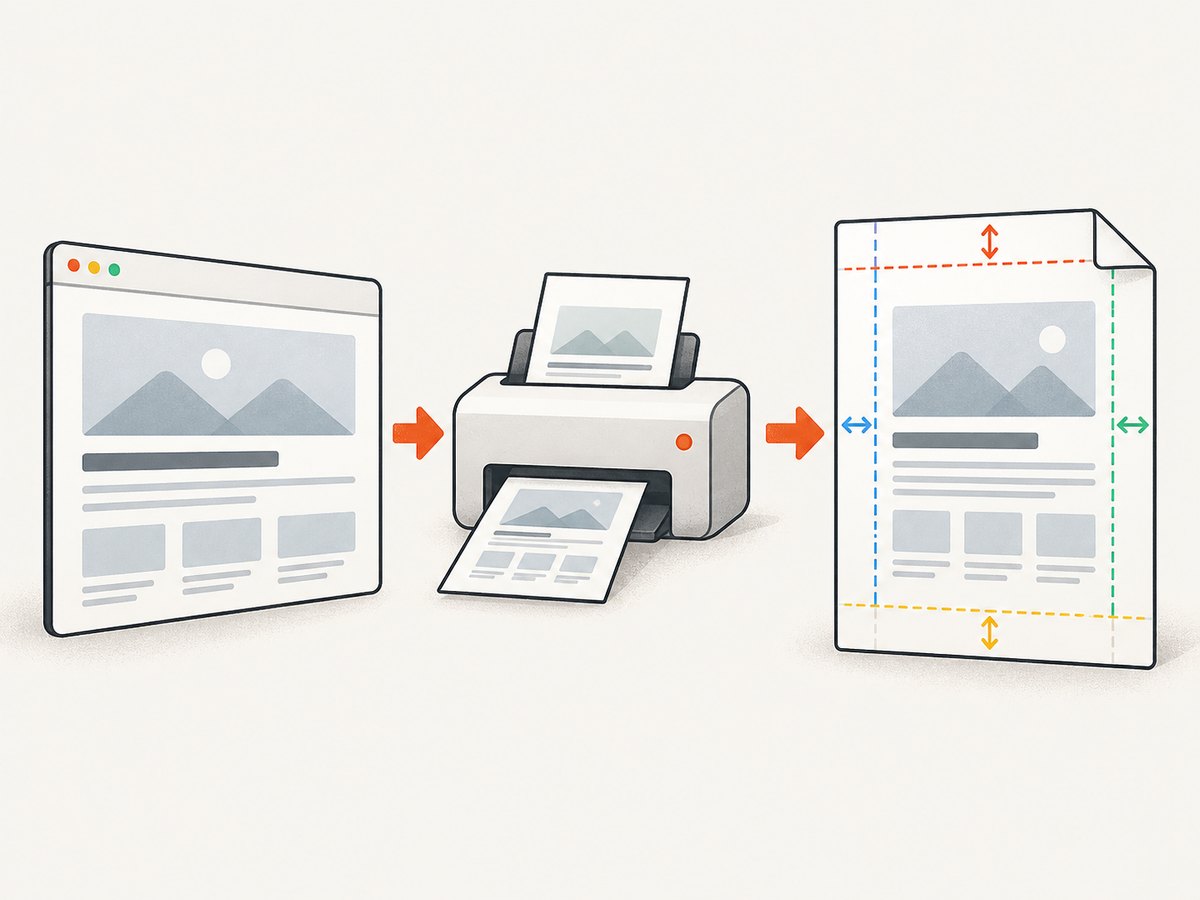
The margin object has four sides: top, right, bottom, and left. Each value can include a unit. Unlabeled numbers are interpreted as pixels; labeled values are clearer for documents that must print consistently.
JavaScript
import { chromium } from 'playwright';

const browser = await chromium.launch();
const page = await browser.newPage();
await page.goto('https://example.com', { waitUntil: 'networkidle' });

await page.pdf({
  path: 'output.pdf',
  format: 'A4',
  margin: {
    top: '20mm',
    right: '15mm',
    bottom: '20mm',
    left: '15mm'
  },
  printBackground: true
});

await browser.close();
Python
from playwright.async_api import async_playwright

async def main():
    async with async_playwright() as p:
        browser = await p.chromium.launch()
        page = await browser.new_page()
        await page.goto('https://example.com', wait_until='networkidle')

        await page.pdf(
            path='output.pdf',
            format='A4',
            margin={
                'top': '20mm',
                'right': '15mm',
                'bottom': '20mm',
                'left': '15mm',
            },
            print_background=True,
        )
        await browser.close()

import asyncio
asyncio.run(main())
Playwright documents that paper margins default to none, so any visible whitespace can also come from your document’s CSS, the selected paper size, or content layout. The JavaScript page.pdf() API and Python page.pdf() API list the supported units and defaults.
Use CSS @page for print layout
CSS is useful when the same print rules should apply to browser print preview and automated PDF generation. Define page size and margins in an @page rule, then remove the browser’s default body margin.
@page {
  size: A4;
  margin: 20mm 15mm 20mm 15mm;
}

@media print {
  html, body {
    margin: 0;
    padding: 0;
  }

  .no-print {
    display: none;
  }
}
The four values are ordered clockwise: top, right, bottom, left. One value applies to all sides, two values apply to vertical and horizontal sides, and four values specify each side. The CSS2 page model defines page-level margin declarations such as @page { margin: 2cm }.
Choose which layer controls margins
| Situation | Recommended owner | Reason |
|---|---|---|
| Different margins for each export | page.pdf({ margin }) |
Settings stay close to the export code. |
| Shared print design and browser print preview | CSS @page |
One stylesheet defines the print layout. |
| CSS declares the paper size | CSS plus preferCSSPageSize: true |
CSS size takes precedence over API paper settings. |
| Service-generated documents with fixed paper settings | API format and margin |
The service controls output regardless of page styles. |
Avoid silently assigning ownership to both layers. If CSS has @page { margin: ... } and the API also has a margin object, keep the values identical or remove one definition. This makes reviews and future changes predictable.
Control paper size and precedence
Playwright accepts a named format such as A4 or Letter, or explicit width and height. When format is supplied, it takes priority over width and height. The documented default format is Letter.
await page.pdf({
  path: 'letter.pdf',
  format: 'Letter',
  margin: { top: '0.5in', right: '0.5in', bottom: '0.5in', left: '0.5in' }
});

await page.pdf({
  path: 'custom.pdf',
  width: '210mm',
  height: '297mm',
  margin: { top: '12mm', right: '12mm', bottom: '12mm', left: '12mm' }
});
When CSS owns the page size, use:
await page.pdf({
  path: 'css-sized.pdf',
  preferCSSPageSize: true,
  printBackground: true
});
The default for preferCSSPageSize is false. With the default, Playwright can scale CSS content to fit the API-selected paper. With true, a CSS @page size takes precedence. Make this choice explicit whenever you are debugging unexpected whitespace or scaling.
Units, scaling, and printable area
- Millimeters: best for physical documents such as A4 reports.
- Centimeters: convenient for regional print specifications.
- Inches: useful for Letter-sized documents and office templates.
- Pixels: useful for screen-oriented layouts, but physical output depends on PDF rendering and printer settings.
Playwright’s scale defaults to 1 and accepts values from 0.1 to 2. Scaling changes the apparent size of content inside the page; it does not replace a margin definition.
await page.pdf({
  path: 'compact.pdf',
  format: 'A4',
  margin: { top: '10mm', right: '10mm', bottom: '10mm', left: '10mm' },
  scale: 0.9,
  printBackground: true
});
Headers and footers consume space inside the printable page area. If you enable them, increase the corresponding top or bottom margin and test for collisions. Backgrounds are disabled by default; set printBackground: true when colored sections or images are part of the design.
Print CSS versus screen CSS
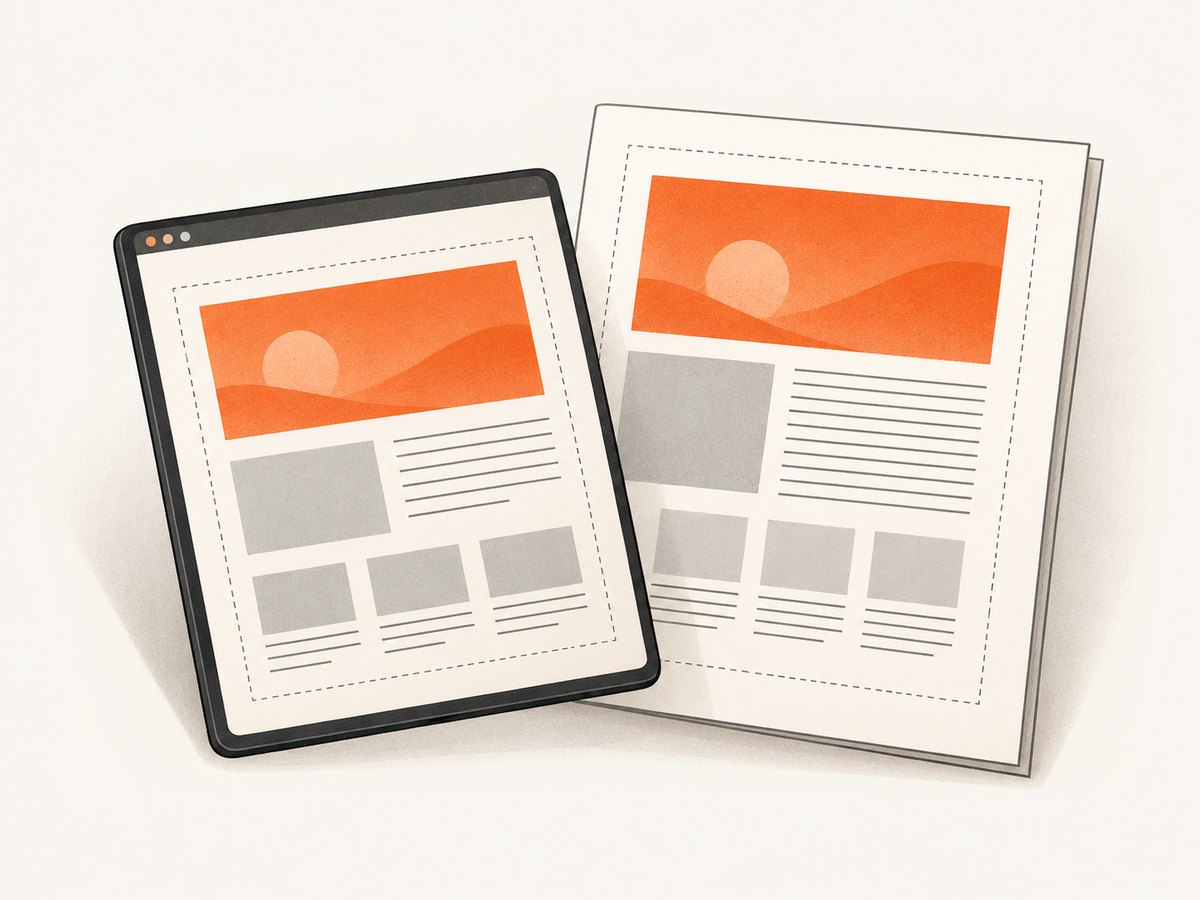
page.pdf() generates a PDF using print CSS media by default. If your layout only looks correct under screen styles, explicitly emulate screen media before exporting:
JavaScript
await page.emulateMedia({ media: 'screen' });
await page.pdf({
  path: 'screen-styled.pdf',
  format: 'A4',
  margin: { top: '15mm', right: '15mm', bottom: '15mm', left: '15mm' }
});
Python
await page.emulate_media(media='screen')
await page.pdf(
    path='screen-styled.pdf',
    format='A4',
    margin={'top': '15mm', 'right': '15mm', 'bottom': '15mm', 'left': '15mm'},
)
Prefer print media for formal documents. Use screen media only when you intentionally want the on-screen layout, including its responsive breakpoints and colors.
Remove default whitespace
When a PDF has a border around the content, inspect all three common sources:
- Body margin: browsers commonly apply a default margin. Set
body { margin: 0 }in print CSS. - API margin: check every side in the
marginobject. - CSS page margin: inspect
@pagerules loaded by the document and by imported stylesheets.
@page { margin: 0; }
@media print {
  html, body { margin: 0; padding: 0; }
  * { box-sizing: border-box; }
}
If you need a 5 mm safe area, keep it in one place, for example @page { margin: 5mm }, and leave the API margin unset. This avoids accidentally adding the same margin twice.
Diagnose unexpected whitespace and page breaks
Playwright issue #34423, opened against version 1.49.1, describes extra margins when a document has a CSS @page rule while prefer_css_page_size is false. The practical response is to make page-size ownership explicit, then verify the effective print styles and selected paper size.
- Log the exact
format,width,height, margin values, andpreferCSSPageSize. - Temporarily remove the API margin and test CSS alone.
- Temporarily remove
@pageand test API settings alone. - Set
preferCSSPageSize: truewhen CSS size is authoritative. - Open the PDF in a viewer that reports page dimensions, then compare them with the intended size.
- Check for transforms, fixed-width containers, and oversized images that can force layout changes.
Complete export pattern with controlled content
import { chromium } from 'playwright';

const browser = await chromium.launch();
const page = await browser.newPage({
  viewport: { width: 1280, height: 900 },
  deviceScaleFactor: 1
});

await page.setContent(`
  <!doctype html>
  <html>
    <head>
      <style>
        @page { size: A4; margin: 18mm 16mm 20mm 16mm; }
        @media print {
          html, body { margin: 0; padding: 0; font: 11pt/1.45 sans-serif; }
          h1 { break-after: avoid; }
          .section { break-inside: avoid; }
        }
      </style>
    </head>
    <body>
      <h1>Quarterly report</h1>
      <section class="section">Content goes here</section>
    </body>
  </html>`, { waitUntil: 'load' });

await page.pdf({
  path: 'report.pdf',
  preferCSSPageSize: true,
  printBackground: true,
  displayHeaderFooter: false
});

await browser.close();
Use break-inside: avoid for cards or sections that should stay together, but do not apply it to very large containers: the browser may move an entire oversized block and leave a large blank region.
Common errors and fixes
| Symptom | Likely cause | Fix |
|---|---|---|
| Margins appear twice | Both CSS @page and API margin define spacing. |
Choose one owner or make values identical. |
| CSS paper size is ignored | preferCSSPageSize remains false. |
Set preferCSSPageSize: true. |
| Colors or backgrounds are missing | printBackground is false. |
Set printBackground: true. |
| Screen layout differs from PDF | Print media styles are active. | Use emulateMedia({ media: 'screen' }) deliberately, or add print rules. |
| Content is clipped at an edge | Fixed width exceeds the page’s content box after margins. | Use responsive widths, reduce margins, or select a larger paper size. |
| Blank space follows a heading | break-inside: avoid or forced page breaks move the next block. |
Remove the rule from oversized containers and inspect break properties. |
| Invalid margin error | Malformed unit or unsupported value. | Use strings such as '20mm', '0.5in', or '24px'. |
Performance and reliability
PDF generation waits for the page to load and then lays out every page. Reduce failures by waiting for the content your document actually needs, rather than using an arbitrary short delay. For image-heavy pages, wait for critical images or fonts and consider a bounded timeout. Reuse a browser process for batches of exports, but create a fresh page or context per job so cookies and print settings do not leak between documents.
For reliable output:
- Pin a Playwright version in your project and update it intentionally.
- Use deterministic fonts and host assets where the renderer can reach them.
- Set explicit paper size, margins, media mode, and background behavior.
- Capture a representative PDF in CI and inspect page count, dimensions, and file size.
- Give navigation and PDF generation separate timeouts so a slow site does not hang a worker indefinitely.
There is no universal “best” margin. The right value depends on the physical printer, binding, headers, and the density of your content. Keep a small safety area for printers that cannot print to the edge, even when the PDF itself has zero margins.
Or skip the browser setup
If you need a rendered PDF from a URL without maintaining Chromium workers, ScreenshotNeo exposes a single screenshot and PDF API. Its PDF options include paper size, margins, landscape mode, and page ranges. It also supports custom CSS and JavaScript, waiting for selectors or network idle, cookies and headers, and full-page capture with lazy images loaded.
Use the ScreenshotNeo API documentation for the complete parameter list. A PDF request can be made with the same endpoint:
cURL
curl -G "https://api.screenshotneo.com/v1/shot" \
  -d access_key=YOUR_API_KEY \
  --data-urlencode url=https://stripe.com \
  -d format=pdf \
  -d paper_size=A4 \
  -d margin_top=20mm \
  -d margin_right=15mm \
  -d margin_bottom=20mm \
  -d margin_left=15mm \
  -o report.pdf
Python
import requests

params = {
    "access_key": "YOUR_API_KEY",
    "url": "https://stripe.com",
    "format": "pdf",
    "paper_size": "A4",
    "margin_top": "20mm",
    "margin_right": "15mm",
    "margin_bottom": "20mm",
    "margin_left": "15mm",
}
r = requests.get("https://api.screenshotneo.com/v1/shot", params=params, timeout=90)
r.raise_for_status()
open("report.pdf", "wb").write(r.content)
Node.js
const q = new URLSearchParams({
  access_key: 'YOUR_API_KEY',
  url: 'https://stripe.com',
  format: 'pdf',
  paper_size: 'A4',
  margin_top: '20mm',
  margin_right: '15mm',
  margin_bottom: '20mm',
  margin_left: '15mm'
});
const res = await fetch(`https://api.screenshotneo.com/v1/shot?${q}`);
if (!res.ok) throw new Error(`HTTP ${res.status}`);
const fs = await import('node:fs/promises');
await fs.writeFile('report.pdf', Buffer.from(await res.arrayBuffer()));
ScreenshotNeo accepts consent banners before capture and removes more than 60 known consent platforms, newsletter popups, and chat widgets; each step can be turned off. Bot checks, blank pages, timeouts, failed loads, and cache hits are not billed, and response headers identify the page verdict and billing status. Its MCP server provides take_screenshot, get_page_info, and capture_pdf tools for Claude, Cursor, and other MCP clients. The Free plan includes 1,000 shots per month without a card; paid plans start at $5 for 3,000 shots. Create a free ScreenshotNeo account.
Cost and caching considerations
Local Playwright costs are mainly your compute, browser maintenance, and queue capacity. A hosted API trades that operational work for per-capture billing. With ScreenshotNeo, cache hits are free, and you can choose a cache TTL. For repeated documents, use a stable URL and appropriate TTL; for rapidly changing content, shorten the TTL or disable caching. Bulk capture supports up to 100 URLs per call, which can reduce request overhead for batches.
FAQ
What is the default Playwright PDF margin?
Paper margins default to none. Any whitespace may come from body CSS, an @page rule, layout sizing, or the selected viewer and printer.
Can I use pixels for margins?
Yes. Playwright accepts px, in, cm, and mm. Physical units are usually easier to reason about for printed documents.
Does format override CSS size?
By default, API paper settings can win. Set preferCSSPageSize: true when the CSS @page size must take precedence.
Why does my PDF look different from the browser?
PDF generation uses print media by default. Compare your print stylesheet with screen styles, and call emulateMedia only when screen styling is intentional.
How do I create borderless output?
Set API margins to zero or use @page { margin: 0 }, then remove body padding and margin. Your physical printer may still impose a non-printable edge.


