How to Control Screenshot Quality in C#
Screenshot quality depends on capture scope, pixel dimensions, format, compression, and visual fidelity. Here’s what .NET MAUI exposes and how to choose the right next step.
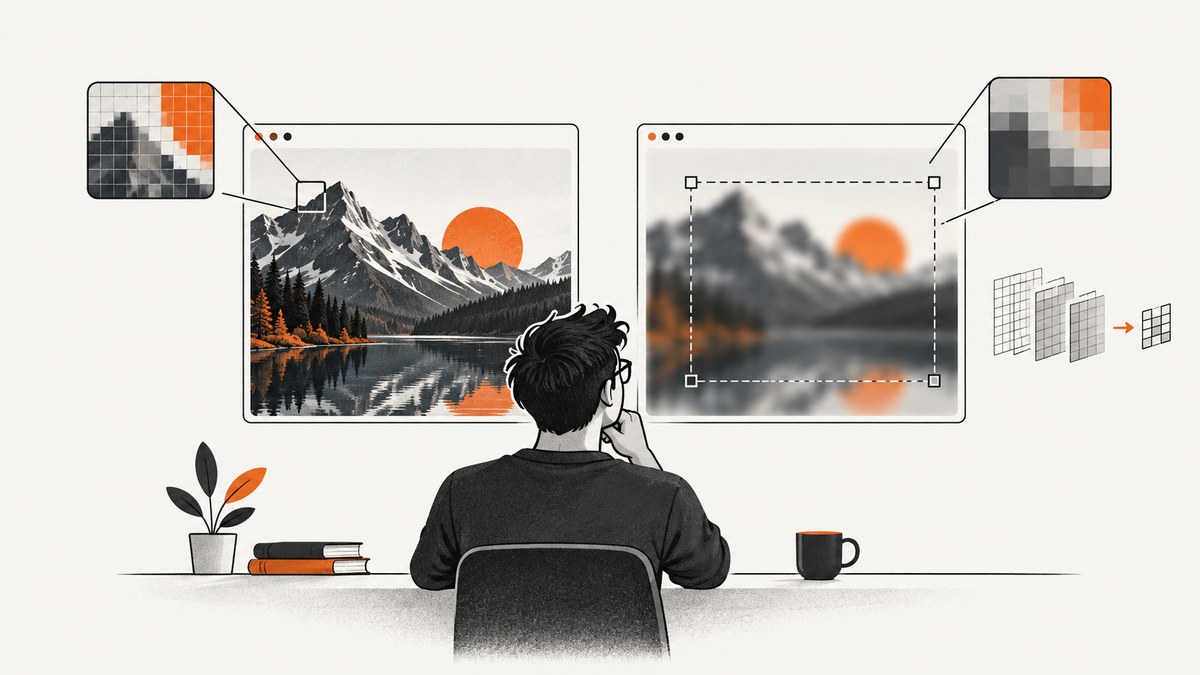
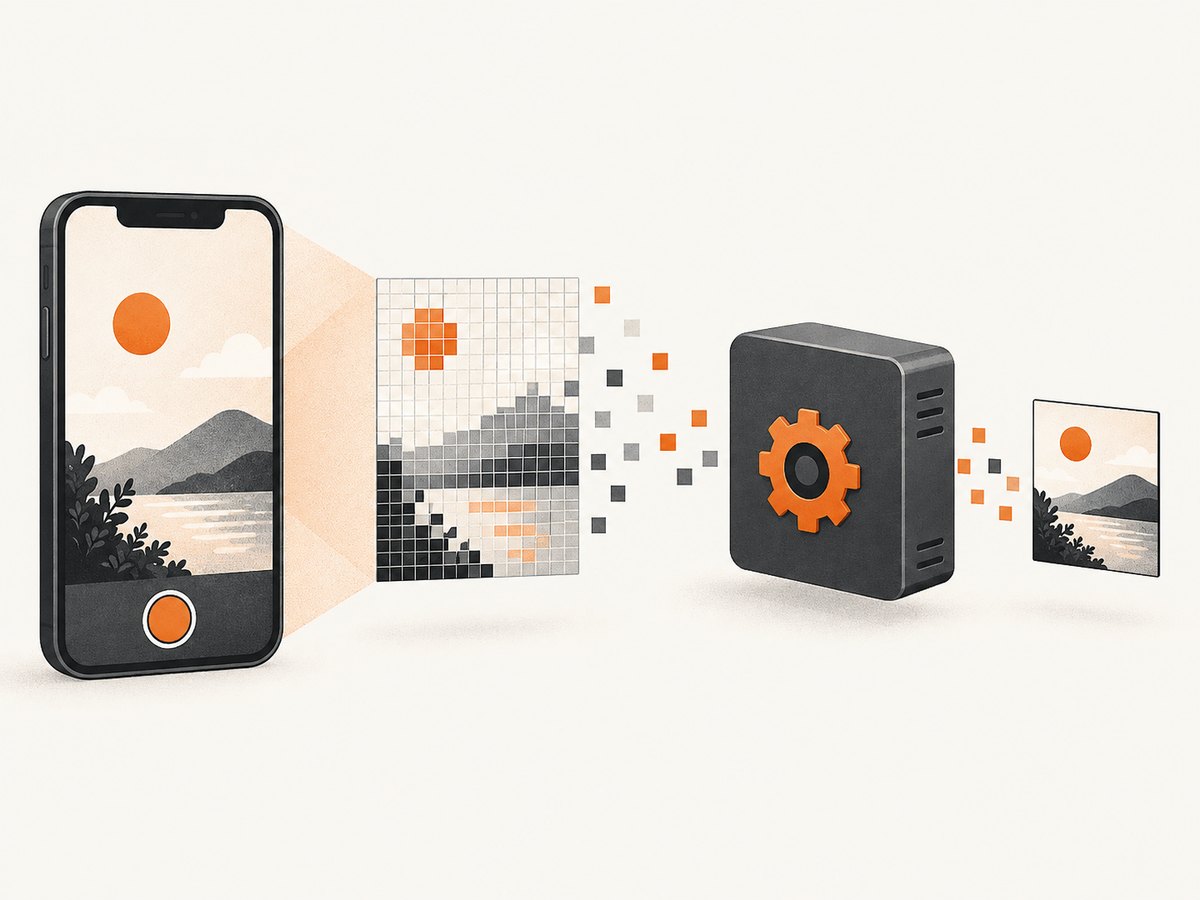
In C#, there is no universal screenshot-quality setting. The right control depends on what you are capturing and which framework or platform API does the capture. For .NET MAUI, Screenshot.Default.CaptureAsync() captures the app’s currently displayed screen; the documented API does not take a quality, output-size, format, or compression argument. If you need to control those, identify the image encoder or platform capture API that writes the final image.
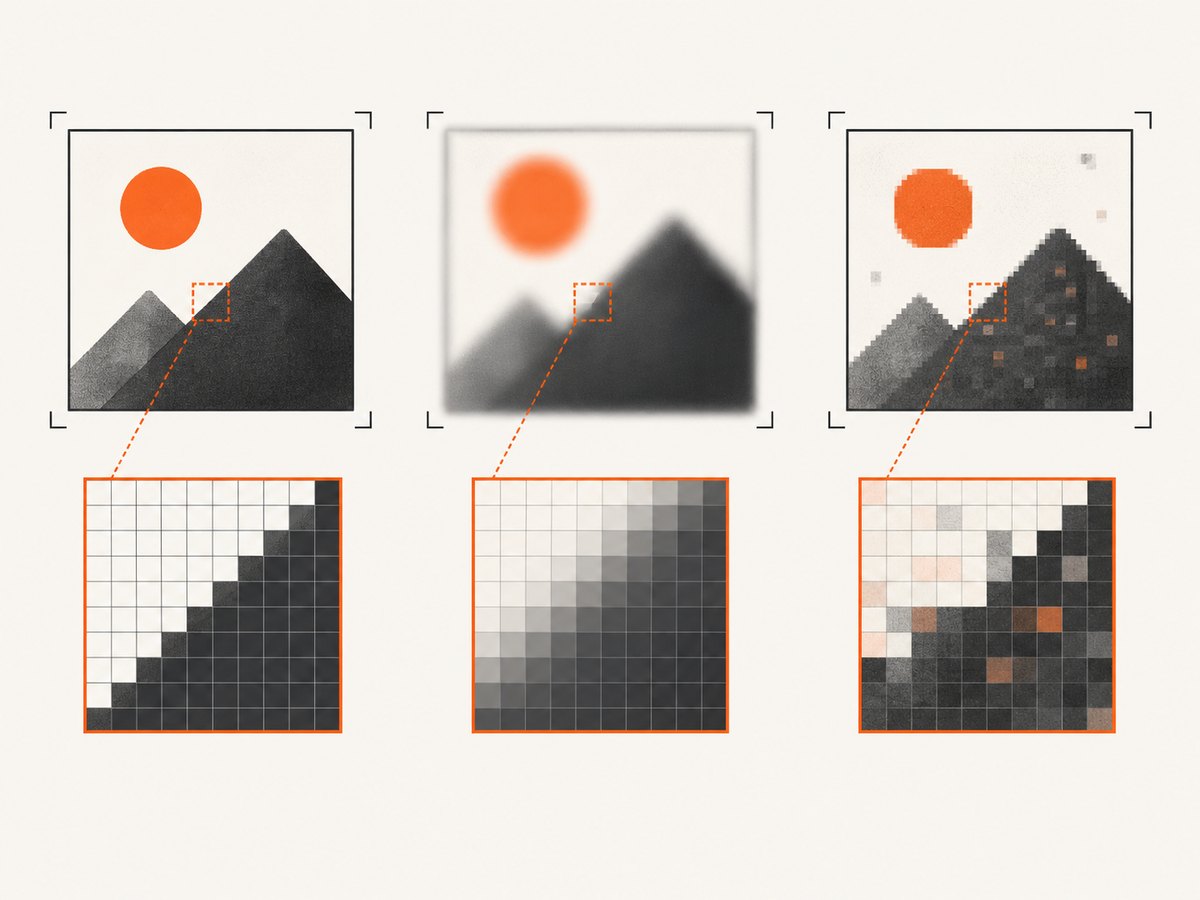
First decide which meaning of “quality” matters: captured pixel dimensions, crop or region, output format, compression, or visual fidelity. These are separate choices. For example, a high-quality JPEG cannot restore detail lost because the captured image had too few pixels or was enlarged later.
ScreenshotNeo is for capturing browser-rendered web pages through an API or MCP server; it is not a replacement for capturing a MAUI app screen or Windows desktop.
1. Identify the capture target
Choose the target before searching for a quality property:
- .NET MAUI app screen: Microsoft documents
Microsoft.Maui.Media.Screenshotfor capturing the current displayed screen of the app. - Windows window or desktop: choose a Windows-specific capture API or library. The documentation in this guide does not establish a general C# desktop-capture API or its settings.
- Browser-rendered page: use browser automation or a screenshot service. Browser viewport, full-page behavior, device scale, and image encoding are separate concerns.
- Apple-native screen capture: Apple’s ScreenCaptureKit has its own configuration model. Its controls do not describe .NET MAUI behavior.
Microsoft’s .NET MAUI screenshot guide describes capturing the currently displayed app screen. The CaptureAsync API reference documents the asynchronous capture method and notes that capture may be unsupported.
2. Capture a .NET MAUI app screen
Check support before capturing, call CaptureAsync(), and open a stream from the returned result. This example writes the captured stream to a file in the app’s cache directory:
using Microsoft.Maui.Media;

public static async Task<string?> CaptureAppScreenAsync()
{
    if (!Screenshot.Default.IsCaptureSupported)
    {
        return null;
    }

    var result = await Screenshot.Default.CaptureAsync();
    if (result is null)
    {
        return null;
    }

    var path = Path.Combine(FileSystem.CacheDirectory, "app-screen.png");
    await using var input = await result.OpenReadAsync();
    await using var output = File.Create(path);
    await input.CopyToAsync(output);

    return path;
}
The MAUI API returns an IScreenshotResult with information including width and height, and a stream for the capture. Those dimensions describe the result; they are not settings passed to CaptureAsync(). Do not assume this example changes output encoding to PNG: the method shown copies the result stream as supplied by the platform. Use the format and extension that match the actual result in your target environment, or pass the stream through an encoder whose format and quality behavior you have verified.
Depending on the target and framework version, unsupported capture can be reported with FeatureNotSupportedException. Handle that exception if capture may be called on targets where the capability is unavailable:
using Microsoft.Maui.Media;

public static async Task<IScreenshotResult?> TryCaptureAsync()
{
    try
    {
        if (!Screenshot.Default.IsCaptureSupported)
        {
            return null;
        }

        return await Screenshot.Default.CaptureAsync();
    }
    catch (FeatureNotSupportedException)
    {
        return null;
    }
}
Keep the returned stream and result within their documented lifetime and dispose streams when finished. If your app captures while a modal, animation, or transient overlay is visible, the captured screen may include it; arrange the app state before capture if that is not desired.
3. Separate resolution, format, compression, and fidelity
| Quality question | What it controls | What to verify |
|---|---|---|
| How many pixels? | Output width and height | Whether the capture API accepts dimensions, or merely reports the captured dimensions |
| Which area? | Full screen, window, element, or crop | Whether the API exposes a region or crop operation |
| Which file type? | PNG, JPEG, HEIC, or another format | Supported formats of the encoder or capture API in the target framework |
| How much compression? | Lossy encoding strength and resulting size | The encoder’s documented quality range and what its values mean |
| Does it look right? | Colors, dynamic range, cursor, shadows, and visible UI | Platform-specific capture behavior and any color or range settings |
For MAUI, the documented screenshot method offers no configurable dimensions or compression setting. Treat its reported dimensions as observations. If you need a smaller image, resize after capture; if you need a specific format or lossy compression, use an image-writing API that documents those options for your target framework. Confirm the encoder’s format support and quality scale rather than assuming a universal “quality 80” convention.
As a platform-specific contrast, Apple’s ScreenCaptureKit SCScreenshotConfiguration documents output width and height, content type choices including HEIC, JPEG, and PNG, dynamic-range configuration, and capture regions. These are Apple API properties, not C# or MAUI settings.
4. Diagnose blurry or unexpectedly large captures
- Check the original dimensions. Compare the screenshot’s pixel width and height with the size at which it will be displayed or printed.
- Look for later resizing. Enlarging a capture beyond its original pixel dimensions can make it appear soft. Preserve the original and compare before and after each transformation.
- Check encoding separately. If the source looks crisp but fine text or edges look degraded in the saved file, inspect whether a lossy encoder was applied and check its documented settings.
- Verify the capture scope. A whole-screen capture may differ from the window, region, or UI element you intended to show.
- Check the displayed app state. A capture taken during loading, animation, or a transient overlay may faithfully record the wrong moment.
- Check color and range expectations. Capture and display paths can vary by platform; do not infer HDR or color behavior from another platform’s API.
This sequence is diagnostic guidance, not a claim about a measured MAUI encoder or a universal cause of blur.
5. Performance, reliability, and cost
- Performance: capturing and then encoding or resizing adds work and may require buffering image data. Avoid repeated captures if one capture can be reused for multiple output sizes or formats.
- Reliability: check support and handle unsupported-feature errors. Treat capture as asynchronous, and decide what your app should do when no screenshot is available.
- Storage: choose a suitable destination and manage temporary files. Cache storage is useful for short-lived output; use an appropriate persistent location if the image must survive app cleanup.
- Cost: the MAUI API itself has no per-shot service pricing described in the cited documentation. Any encoder, cloud storage, or capture service you add has its own costs and terms.
6. Troubleshooting
| Symptom | Likely cause | What to do |
|---|---|---|
| Capture is unsupported | The current target does not provide this capability | Check IsCaptureSupported; handle FeatureNotSupportedException and provide a fallback. |
| No file appears | The stream was not copied, the operation failed, or the destination path is unsuitable | Await the capture and stream operations, verify the path, and handle I/O exceptions. |
| File extension and contents disagree | The captured stream was copied without conversion | Do not infer format from the filename. Use a verified encoder to convert, or use the correct extension for the source format. |
| Image is soft | Insufficient source pixels, later enlargement, or lossy encoding | Inspect source dimensions and compare the unmodified capture before changing encoding. |
| Wrong screen or overlay is visible | The app was in an unexpected state at capture time | Wait until the intended content is displayed and remove or close transient UI before capturing. |
| Output size is not configurable | CaptureAsync() has no documented size parameter |
Resize the result afterward or select a platform API that explicitly supports output dimensions. |
7. A practical decision checklist
- [ ] Name the target: app screen, desktop/window, browser page, or platform-native capture.
- [ ] Decide whether the requirement concerns pixels, crop, format, compression, or visual content.
- [ ] Confirm the selected API exposes the control you need; do not infer it from result properties.
- [ ] Confirm encoder format support and quality semantics for the exact framework and target.
- [ ] Compare the original capture with the final saved and displayed image.
- [ ] Handle unsupported capture and file or stream failures.
Or skip the browser setup
If the target is a website, ScreenshotNeo captures it with one GET request. See the ScreenshotNeo API docs for available parameters:
curl -G "https://api.screenshotneo.com/v1/shot" -d access_key=YOUR_API_KEY --data-urlencode url=https://stripe.com -o shot.webpimport requests
r = requests.get(
"https://api.screenshotneo.com/v1/shot",
params={"access_key": "YOUR_API_KEY", "url": "https://stripe.com"},
timeout=90,
)
open("shot.webp", "wb").write(r.content)const q = new URLSearchParams({ access_key: 'YOUR_API_KEY', url: 'https://stripe.com' });
const res = await fetch(`https://api.screenshotneo.com/v1/shot?${q}`);ScreenshotNeo removes cookie banners, newsletter popups, and chat widgets before the shot. Bot checks, blank pages, and failed loads are never billed. An MCP server lets AI agents take screenshots, and 1,000 screenshots a month are free with no card; paid plans start at $5 for 3,000. Sign up for 1,000 free screenshots a month.
FAQ
Can I pass a JPEG quality value to MAUI’s CaptureAsync?
No such argument is documented for the MAUI CaptureAsync() method. Choose an encoder separately if you need control over output encoding.
Does the MAUI screenshot result let me set output width and height?
The cited documentation describes result dimensions, not configurable dimensions for this method.
Can I use Apple’s screenshot configuration from a C# MAUI app?
The Apple documentation describes ScreenCaptureKit properties for Apple’s platform. It does not establish that they are exposed through MAUI or available as cross-platform C# controls.
Should I use PNG or JPEG?
Choose based on the encoder and the image’s requirements. Verify supported formats and compression behavior in the API that writes the output; the MAUI capture documentation cited here does not prescribe a format choice.


