How to Control Video Playback in Embedded Editors
Control embedded video with provider settings for basic behavior and a player API for custom playback. Learn the YouTube, Vimeo and Wistia options and limits.
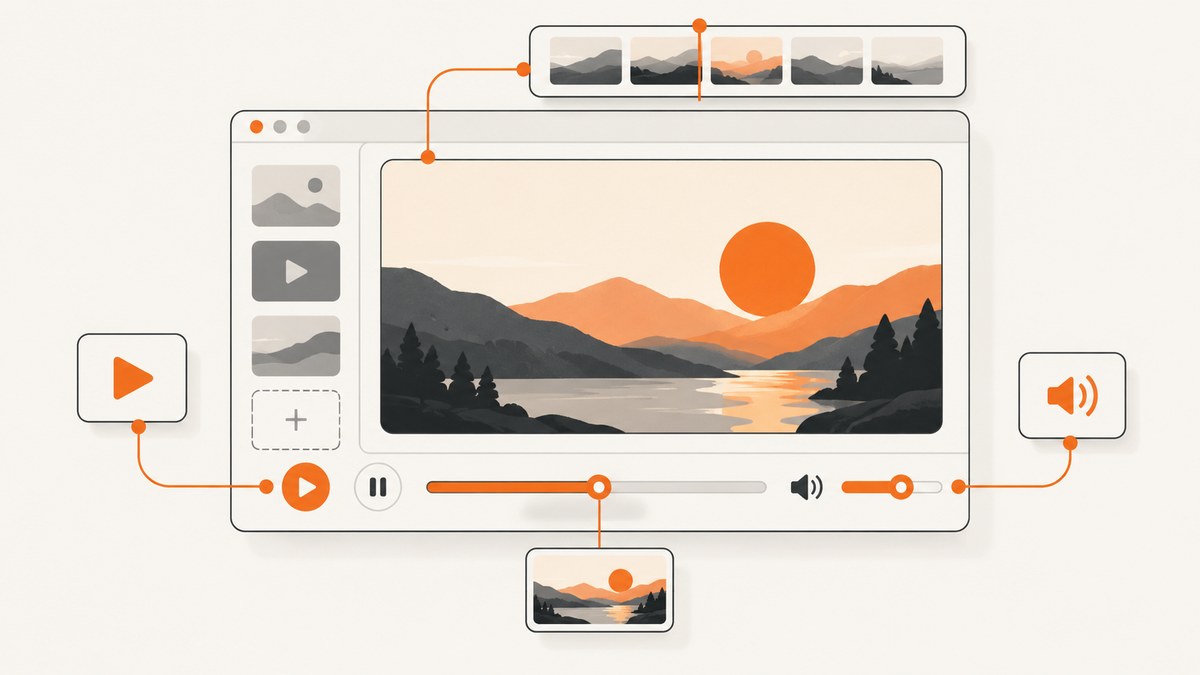
Direct answer: Set basic behavior in the video provider’s embed settings or supported URL parameters. For custom interactions such as play, pause, seek, volume changes or responding to playback events, use the provider’s player API. An editor may expose only some of these options. Autoplay can be blocked by browsers or devices, so always leave viewers a discoverable way to start playback.
This guide covers the common workflow for YouTube, Vimeo and Wistia embeds, with runnable examples for provider APIs and a practical checklist for testing an embed in its target editor. The exact controls depend on the provider, the embed type and the editor’s handling of custom code.
1. Decide which kind of control you need
First separate configuration from runtime interaction. Configuration sets the initial or general behavior of an embed: whether controls appear, whether playback is muted, whether a video loops, and where playback starts. Runtime interaction means issuing commands after the player loads or reacting to its state while the page is open.
| Need | Use | Typical example |
|---|---|---|
| Choose initial playback and visible controls | Provider embed settings or documented URL parameters | Set a start time or show/hide supported controls |
| Play, pause, seek or adjust volume from page code | Provider player API or SDK | Pause when a dialog opens |
| React when playback changes | Provider player-state events | Update surrounding page content after a video ends |
| Change an option through a visual editor | Editor controls, if available | Toggle autoplay in an embed block |
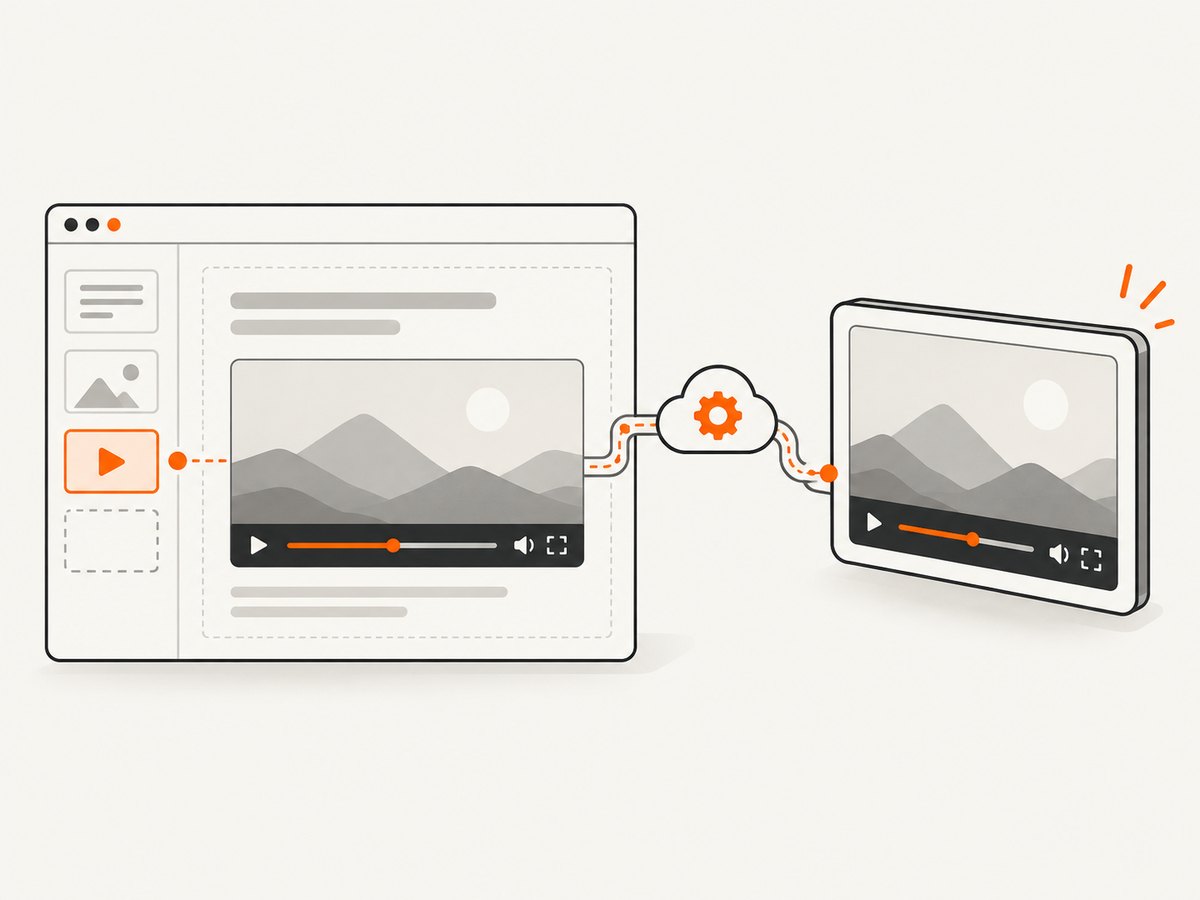
An iframe is a separate document. A page script generally cannot reach into it and control its player with ordinary DOM calls. Use the provider’s supported API, and confirm that the editor permits the required script or embed format. A visual editor may sanitize code or provide only a subset of provider settings.
2. Configure playback in the editor or embed
- Insert the provider’s supported embed block or iframe using the editor’s recommended method.
- Open the block’s settings and look for playback, controls, start time, mute, looping and end behavior.
- When a setting is not exposed, check the provider’s documented embed parameters. Use only parameters supported for that provider and embed type.
- Save and preview the published page. Editor preview behavior can differ from the final page, especially when scripts or iframe attributes are restricted.
Do not assume an option in the provider dashboard is available in every editor, or that an editor toggle overrides the provider’s own embed settings. Inspect the final embed configuration and test the result in the actual page.
YouTube: use the IFrame Player API for custom actions
YouTube’s IFrame Player API supports JavaScript commands to play, pause, stop, seek, adjust volume, retrieve player information and listen for player-state changes. YouTube’s reference specifically advises using pauseVideo() when the intent is to pause. Basic embed configuration can also use documented parameters such as a start time; see [YouTube’s embed help](https://support.google.com/youtube/answer/171780?hl=en) and [IFrame API reference](https://developers.google.com/youtube/iframe_api_reference).
The following standalone HTML page loads a video player and adds play, pause and seek controls. Replace the example video ID with one you are allowed to embed. The page must be served from a web server for normal browser testing; save it as youtube-player.html.
<!doctype html>
<html lang="en">
<meta charset="utf-8">
<meta name="viewport" content="width=device-width, initial-scale=1">
YouTube player controls
<div id="player"></div>
<button id="play">Play</button>
<button id="pause">Pause</button>
<label>Seek to seconds <input id="seconds" type="number" min="0" value="30"></label>
<button id="seek">Seek</button>
<pre id="state" aria-live="polite">Loading player…</pre>
<script>
  let player;
  const state = document.getElementById('state');
  window.onYouTubeIframeAPIReady = () => {
    player = new YT.Player('player', {
      width: '640', height: '390', videoId: 'M7lc1UVf-VE',
      playerVars: { playsinline: 1 },
      events: {
        onReady: () => { state.textContent = 'Ready'; },
        onStateChange: event => {
          state.textContent = `Player state: ${event.data}`;
        },
        onError: event => { state.textContent = `Player error: ${event.data}`; }
      }
    });
  };
  document.getElementById('play').onclick = () => player?.playVideo();
  document.getElementById('pause').onclick = () => player?.pauseVideo();
  document.getElementById('seek').onclick = () => {
    const seconds = Math.max(0, Number(document.getElementById('seconds').value) || 0);
    player?.seekTo(seconds, true);
  };
</script>
<script src="https://www.youtube.com/iframe_api"></script>
</html>
The example uses an explicit click to start playback. If you add autoplay, browser policy may prevent it; a rejected or blocked autoplay should leave the player ready for a viewer’s click. Do not build a page that depends on autoplay to reveal essential instructions.
Vimeo: configure the embed or control it with the SDK
Vimeo provides embed parameters and a Player SDK. Its documentation covers settings such as autoplay, muted audio, looping and skip-ahead behavior, though availability can depend on the specific embed and account settings. When the play/pause button is hidden, Vimeo says keyboard controls remain active and the SDK can provide playback control. See [Vimeo’s SDK embed options](https://developer.vimeo.com/player/sdk/embed), [player parameters](https://help.vimeo.com/hc/en-us/articles/12426260232977-About-Player-Parameters) and [customization guide](https://help.vimeo.com/hc/en-us/articles/12426259745937-How-to-customize-the-embedded-player).
This example assumes the Vimeo player iframe is already present. Add the Vimeo Player SDK script, then bind commands to user actions. Replace the iframe’s video URL with your own Vimeo embed URL.
<iframe id="vimeo-player"
  src="https://player.vimeo.com/video/76979871"
  width="640" height="360" allow="autoplay; fullscreen; picture-in-picture"
  allowfullscreen></iframe>
<button id="vimeo-play">Play</button>
<button id="vimeo-pause">Pause</button>
<button id="vimeo-seek">Seek to 30 seconds</button>
<pre id="vimeo-state" aria-live="polite">Loading…</pre>
<script src="https://player.vimeo.com/api/player.js"></script>
<script>
  const vimeo = new Vimeo.Player(document.getElementById('vimeo-player'));
  const output = document.getElementById('vimeo-state');
  vimeo.ready().then(() => { output.textContent = 'Ready'; });
  vimeo.on('play', () => { output.textContent = 'Playing'; });
  vimeo.on('pause', () => { output.textContent = 'Paused'; });
  vimeo.on('ended', () => { output.textContent = 'Ended'; });
  document.getElementById('vimeo-play').onclick = () => vimeo.play().catch(showError);
  document.getElementById('vimeo-pause').onclick = () => vimeo.pause().catch(showError);
  document.getElementById('vimeo-seek').onclick = () => vimeo.setCurrentTime(30).catch(showError);
  function showError(error) { output.textContent = `Could not control player: ${error.message}`; }
</script>
The SDK calls are asynchronous, so handle failures rather than assuming a command succeeded. Playback speed can be changed by viewers from the control bar when that control is available. Preserve keyboard operation and avoid hiding every way to operate the player.
Wistia: choose control visibility, autoplay and end behavior
Wistia exposes player control customization, autoplay options and end behavior choices such as pausing on the last frame, resetting or looping. Its embed options cover control visibility and playback settings. Wistia cautions that autoplay is not available in every browser or mobile context, including cases involving iOS and Safari. Consult [Wistia’s controls documentation](https://support.wistia.com/en/articles/8274271-customize-the-player-controls) and (https://docs.wistia.com/docs/embed-options-and-plugins) for the supported syntax and current option details.
Wistia embeds can be configured in provider settings or through documented embed options. Since the exact embed style and its option syntax can vary, use Wistia’s current embed code and documented options rather than copying YouTube or Vimeo parameters into it. If custom code is unavailable in your editor, configure the player in Wistia and use the editor’s embed block.
3. Add custom controls without making playback fragile
- Wait until the player is ready. Attach controls after the provider API reports readiness. Disable or defer controls until then.
- Keep a user action. Start playback from a click or tap. Autoplay restrictions vary by browser, device and context.
- Keep controls discoverable. If you hide the provider’s controls, supply accessible alternatives and verify keyboard use. Hidden controls can make a video unusable.
- Handle asynchronous errors. A player may reject a command because it is not ready, unavailable or disallowed by configuration.
- Use player events for state. Don’t infer that a click successfully started playback; update your page when the provider reports the resulting state.
- Make seek values valid. Clamp negative or invalid time values and consider that a live stream may not support seeking like a recorded video.
- Respect editor boundaries. Some hosted site builders remove scripts, disallow external SDKs or sandbox custom HTML. Use a supported integration or the provider’s native embed block.
4. Test the published embed
- Publish or preview using the same editor and embed method intended for real visitors.
- Check the initial state: poster, muted state, visible controls and start position.
- Test play, pause, seek and volume where implemented. Confirm events reflect what happened.
- Test keyboard navigation and screen-reader labels for custom buttons. Ensure focus is visible.
- Try autoplay only as an enhancement. Test the target browsers and mobile devices and verify that a manual start path works.
- Check responsive layout, fullscreen behavior and any editor preview or consent overlays that may cover the player.
- Open the browser console and network panel if the SDK fails to load or commands have no effect.
This is practical guidance based on the providers’ different settings and documented autoplay limits; there is no universal browser matrix that guarantees the same result for every embed, editor and device.
5. Troubleshooting
| Symptom | Likely cause | Fix |
|---|---|---|
| Autoplay does not start | Browser or mobile policy blocked it, or the editor/provider configuration disallows it. | Keep a visible play action; check the provider’s autoplay and mute settings; test on the target device. |
| Play/pause button does nothing | Code is targeting the iframe DOM instead of the provider API, the API script did not load, or the player is not ready. | Use the provider SDK/API, wait for its ready event, and inspect console/network errors. |
| Works in local HTML, fails in the editor | The editor sanitized scripts, changed the iframe or blocks external code. | Use the editor’s provider block, approved custom-code area or documented integration. Verify the published embed. |
| Seek command is ignored or fails | Invalid time, unsupported live content or a command sent before readiness. | Validate the time, wait for ready and check provider-specific restrictions. |
| Player controls are hidden and users cannot operate video | Controls were disabled without an alternative. | Restore provider controls or provide accessible buttons and confirm keyboard control. |
| State display gets out of sync | The page assumes a command worked without listening for player events. | Update state from provider events and handle rejected commands. |
| Video does not embed at all | Privacy, sharing or embed permissions restrict it; URL or video ID may be wrong. | Verify the provider’s share/embed permission and use its generated embed URL. |
6. Performance, reliability and cost
Playback control code is usually small; the embedded video and player SDK are the larger dependencies. Load a player only where needed, avoid creating multiple instances for the same iframe, and defer nonessential setup until the embed is visible if your page architecture supports it. A screenshot or static preview is not a substitute for verifying interactive playback.
For reliability, keep provider controls available as a fallback, avoid making page functionality depend on autoplay, and handle unavailable videos or SDK load failures. Provider settings and browser behavior can change the final result, so include the published page and actual target devices in release checks.
Provider-specific pricing and account eligibility are outside the scope of the cited playback documentation. Check your video host’s current plan and embed requirements before relying on account-dependent options.
7. Capture a playback setup for review
If you need a visual record of the editor page or embed configuration, a screenshot captures the page’s visible state; it does not prove that playback works. Use the player itself and browser testing to validate interaction. For automated visual review, capture a stable page state after the player has loaded and avoid interpreting a static image as evidence of video behavior.
Or skip the browser setup
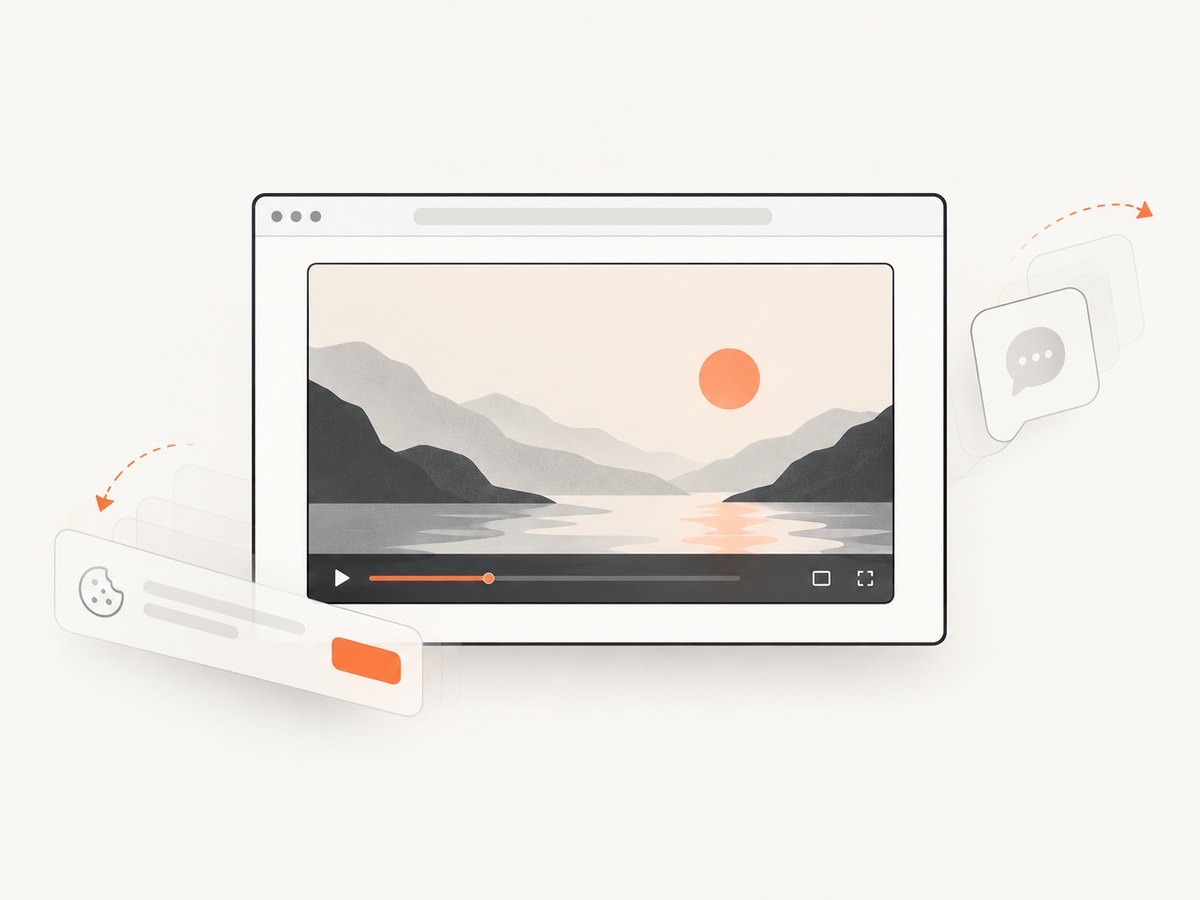
ScreenshotNeo is a website screenshot API and MCP server for developers. One GET request can return a PNG, JPEG, WebP or PDF. Cookie banners are accepted and removed along with known newsletter popups and chat widgets before capture; each cleanup step can be turned off. Bot checks, blank pages, timeouts, failed loads and cache hits cost nothing, and response headers report the page verdict and billing status. Its MCP server gives Claude, Cursor and other MCP clients screenshot, page-info and PDF tools. See the [ScreenshotNeo documentation](https://screenshotneo.com/docs/) and [ScreenshotNeo](https://screenshotneo.com).
curl -G "https://api.screenshotneo.com/v1/shot" -d access_key=YOUR_API_KEY --data-urlencode url=https://stripe.com -o shot.webpPython:
import requests
r = requests.get("https://api.screenshotneo.com/v1/shot", params={"access_key": "YOUR_API_KEY", "url": "https://stripe.com"}, timeout=90)
open("shot.webp", "wb").write(r.content)
Node.js:
const q = new URLSearchParams({ access_key: 'YOUR_API_KEY', url: 'https://stripe.com' });
const res = await fetch(`https://api.screenshotneo.com/v1/shot?${q}`);
ScreenshotNeo includes full-page and element capture, device presets, custom CSS and JavaScript, selector and network-idle waits, caching, signed links, async jobs and bulk capture. Free includes 1,000 shots monthly with no card; paid plans start at $5 for 3,000 shots. Sign up for 1,000 free screenshots a month with no card.
8. FAQ
Can I control a video inside any page editor?
Only to the extent the editor allows provider settings, embed parameters or custom scripts. Check the editor’s supported embed method.
Can I control an iframe with ordinary JavaScript?
Use the hosting provider’s API or SDK. The iframe is a separate document, and provider APIs are the supported route for its playback controls.
Should I hide the provider’s controls?
Only if you retain an accessible, discoverable way to operate the player. Vimeo documents keyboard control when its play/pause control is hidden.
Does a screenshot confirm playback works?
No. It records a visual frame. Test playback commands and events in a browser on the intended page and device.


