How to Convert an Adobe Express Webpage to PDF
Export an Adobe Express webpage as a tagged PDF, add an optional timestamp, and check what happens to interactive or animated content.

To save an Adobe Express webpage as a PDF, open the webpage in Adobe Express, select Download, choose whether to add a timestamp, review the accessibility-tag option, and select Download PDF. The accessibility-tags checkbox is enabled by default. Keep it enabled if you want a tagged PDF that supports screen readers. After downloading, inspect the PDF if the page uses animation, interactive controls, or dynamic content: those effects are not preserved, and some pages may render differently in PDF format. Adobe’s webpage download instructions describe this export flow.
1. Convert the webpage in Adobe Express
- Open Adobe Express and open the webpage project you want to export. If you have not finished designing it, complete the page and review its layout first.
- Select Download from the webpage editor.
- Decide whether to select Add timestamp. This adds the current date and time to the exported PDF. Leave it off if the document should not show when you made the export.
- Review Add accessibility tags. It is enabled by default. Leave it enabled for a tagged PDF intended to support screen-reader access, unless you have a specific reason to omit the tags.
- Select Download PDF and wait for the file to download.
- Open the downloaded PDF and check it before sharing or archiving it.
The key distinction is that the webpage’s Download control begins the export; Download PDF is the final format-specific action. Adobe documents webpage export as a way to download a page in HTML or PDF formats. For the PDF workflow, use the controls in the webpage editor rather than looking for a general file-conversion action.
Before you download: a short checklist
- Confirm that you opened the webpage project, not a separate document or uploaded file.
- Decide whether the current date and time should appear in the PDF.
- Check that accessibility tags remain enabled if screen-reader support is a goal.
- Identify animations, interactive elements, and dynamic content that need a PDF review.
- After export, open the file and check every page, including its layout and links or controls that matter to the reader.
2. Choose the timestamp and accessibility options
Add timestamp
Add timestamp is optional. Select it when readers need to know when the PDF was generated, such as when you are distributing a dated copy for review. It inserts the current date and time. Leave it unchecked when the date is irrelevant or could make a reusable document look out of date. If you plan to export again later, remember that a new export with the option enabled will carry the current timestamp.
Add accessibility tags
The Add accessibility tags checkbox is enabled by default. Adobe says these tags help make the PDF accessible for screen readers and that the option can be unchecked. For a PDF people will read with assistive technology, leave the option enabled. Tags are one part of accessibility; do not treat the checkbox alone as proof that every part of the document works well for every reader. Review the exported file and make sure its content is understandable in the form you are distributing.
| Option | What to consider | Practical choice |
|---|---|---|
| Add timestamp | Should the PDF show when this export was made? | Enable it for a dated snapshot; otherwise leave it off. |
| Add accessibility tags | Do you want tags that support screen-reader access? | Usually keep the default enabled setting. |
| Download PDF | Is PDF the format you need to share or archive? | Select it to finish the PDF export. |
3. Inspect the PDF, especially if the page is interactive
A PDF is a fixed document format, so it cannot preserve every behavior of a webpage. Adobe’s Generate webpage documentation warns that some pages may not render correctly because of format limitations, and that interactive or animated effects will not be preserved in the exported PDF. That affects what you should promise readers: the PDF is a static representation of the page, not a second copy of the live experience.
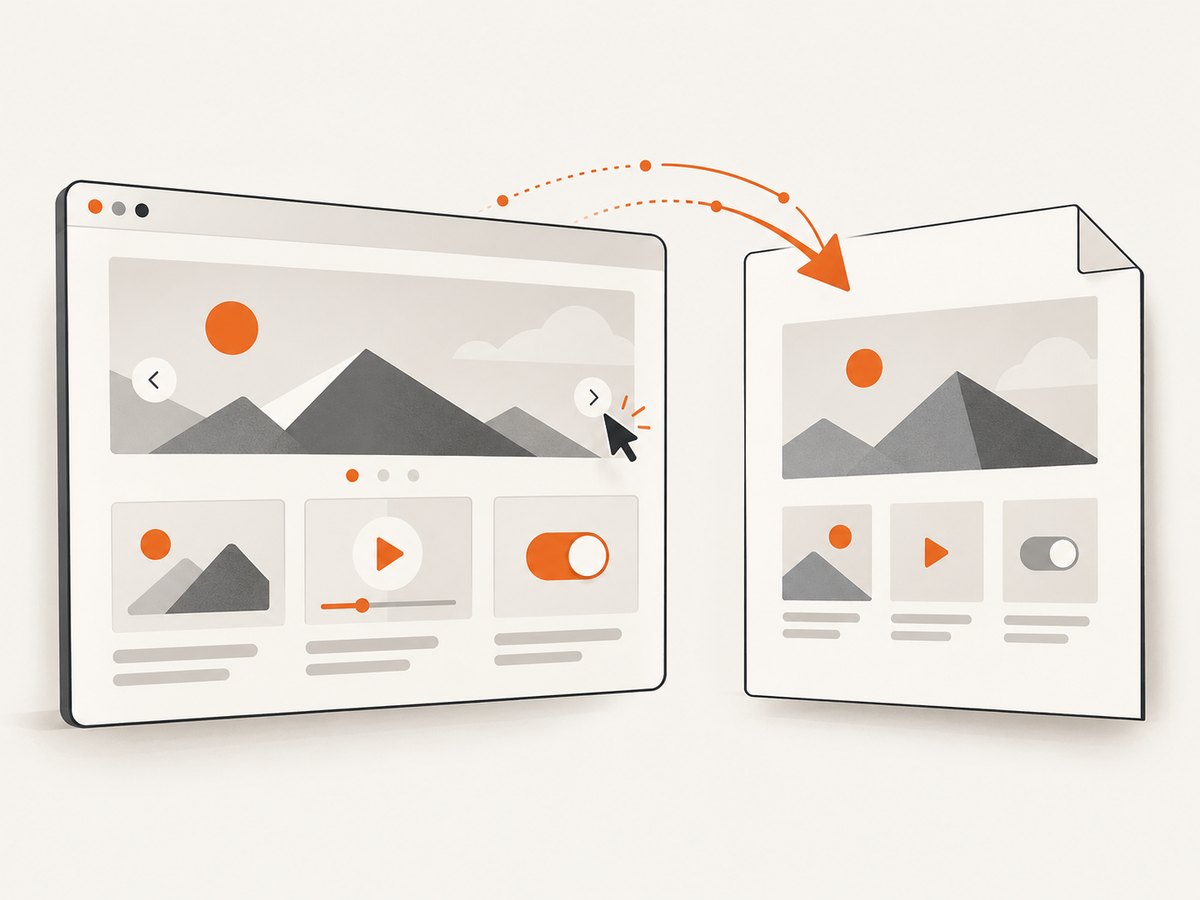
After downloading, check the exported pages for missing or shifted content, unexpected breaks, and elements that depended on interaction or animation. If an animation communicated an important step, make sure its key information is still understandable in the static document. If a control opened or revealed content, verify that the information readers need is present in the PDF. Keep the live webpage available when its interactive behavior is essential.
Use this review sequence:
- Open the PDF rather than relying only on the download completing.
- Scan every page for layout problems or missing content.
- Check text and visual details that were animated or revealed by an interaction on the webpage.
- Confirm the timestamp, if enabled, is appropriate for the copy you are sharing.
- For an accessibility-focused deliverable, keep tags enabled during export and review the resulting document in the way your publishing process requires.
4. Do not confuse webpage export with Convert to PDF
Adobe Express also has a separate Document > Convert to PDF quick action for uploaded Microsoft Word, Excel, PowerPoint, or image files. That is a file-conversion workflow: you provide one of those supported kinds of files and convert it to PDF. It is not the sequence for exporting an Adobe Express webpage.
If your source is an Adobe Express webpage project, use the webpage editor’s Download control and then Download PDF. If your source is an uploaded office document or image, the separate document-conversion tool may be the relevant workflow. Choosing based on the source avoids searching in the wrong place for the webpage export control.
5. Troubleshooting common export problems
| Problem | Likely reason | What to do |
|---|---|---|
| You cannot find “Download PDF.” | You may be in a different Adobe Express tool or looking for the final action before starting the webpage download flow. | Open the webpage project, select Download, then look for the PDF action in that flow. |
| You are looking at “Convert to PDF.” | You opened the quick action for uploaded office or image files. | Return to the webpage project and use its Download control. |
| The exported PDF looks different from the webpage. | Some pages may not render correctly due to format limitations. | Inspect the downloaded PDF and account for any affected content before sharing it. |
| An animation or interactive effect is missing. | Interactive and animated effects are not preserved in the exported PDF. | Use the live webpage for the interactive experience, and make sure essential information is available in the static export. |
| The PDF has no timestamp. | Add timestamp was not selected during export. | Export again and select the timestamp option if the date and time are needed. |
| You are unsure whether the PDF has accessibility tags. | The option may have been changed during export, or you may not know which setting was used. | When exporting again, review Add accessibility tags and leave it enabled for a tagged PDF. |
| You expected an uploaded file to become a webpage PDF. | Webpage export and document conversion handle different source types. | Use the webpage flow for an Express webpage; use the separate conversion action for supported uploaded office or image files. |
6. Export choices at a glance
There are two distinct decisions: whether you need Adobe Express’s PDF export or a capture of a published webpage, and which export options matter for your document. Adobe Express is the direct choice when your source is an Adobe Express webpage project and you want its PDF export. A screenshot service is a different approach: it captures a web page from a URL, which can be useful when the page is already published and you want a visual snapshot. A screenshot should not be described as a replacement for checking Adobe’s exported document, especially when tags or the webpage’s interactive content matter.
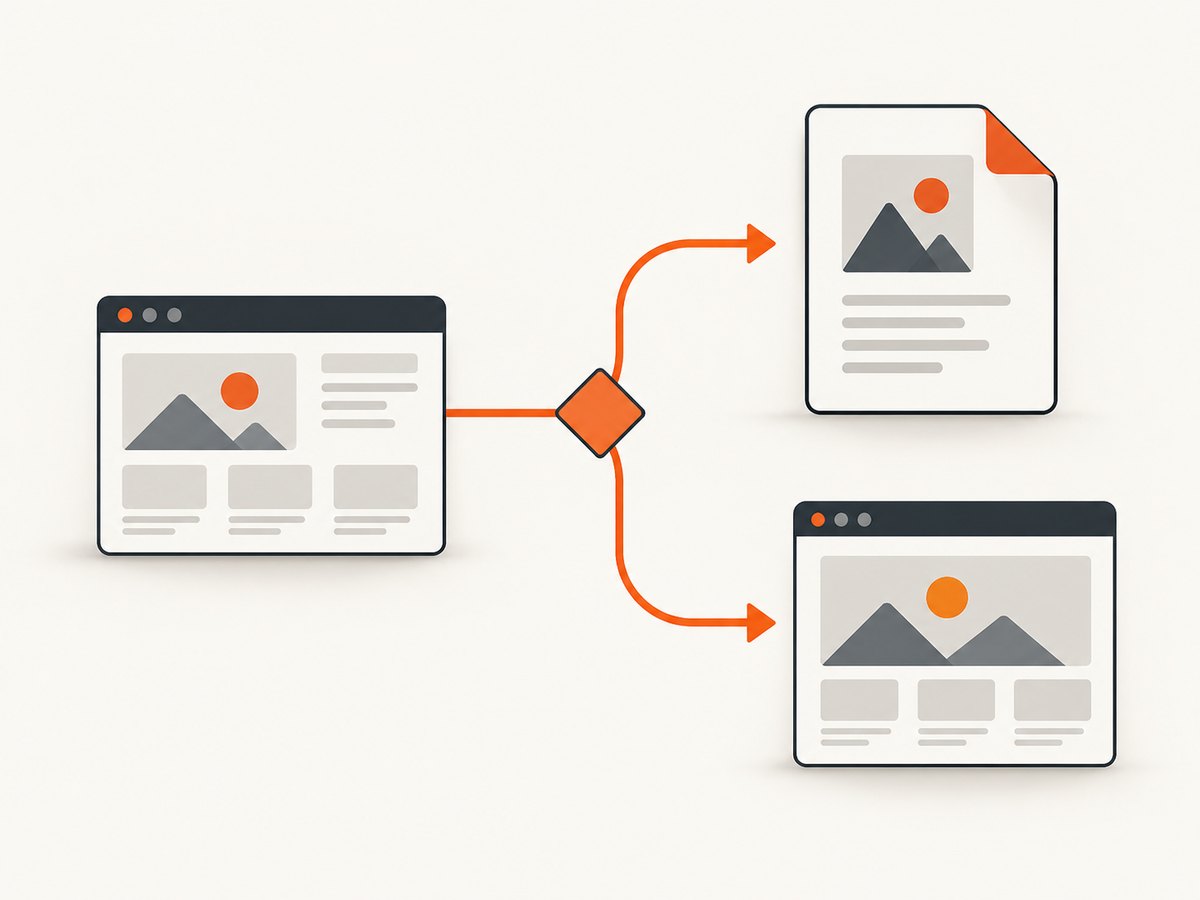
For the Adobe Express PDF, choose a timestamp based on whether readers need the export date, retain accessibility tags when screen-reader support matters, and inspect the result if the page is dynamic. For a published URL snapshot, consider whether a captured image or PDF is the deliverable you need. The two workflows start from different sources and serve different purposes.
7. Or skip the browser setup
If what you need is a capture of a published webpage URL rather than Adobe Express’s project export, ScreenshotNeo is a website screenshot API and MCP server. One GET request takes a URL and returns a screenshot. Here is the cURL example, using Stripe as the target URL:
curl -G "https://api.screenshotneo.com/v1/shot" -d access_key=YOUR_API_KEY --data-urlencode url=https://stripe.com -o shot.webpReplace YOUR_API_KEY with your key and change the URL to the published page you want to capture. This example saves a WebP screenshot; it is a URL capture, not the Adobe Express webpage-project PDF export. See the ScreenshotNeo API documentation for the API.
Equivalent examples in Python and Node.js:
import requests

r = requests.get(
    "https://api.screenshotneo.com/v1/shot",
    params={"access_key": "YOUR_API_KEY", "url": "https://stripe.com"},
    timeout=90,
)
open("shot.webp", "wb").write(r.content)
const q = new URLSearchParams({ access_key: 'YOUR_API_KEY', url: 'https://stripe.com' });
const res = await fetch(`https://api.screenshotneo.com/v1/shot?${q}`);ScreenshotNeo removes cookie banners, newsletter popups, and chat widgets before the shot; each cleanup step can be turned off. Bot checks, blank pages, failed loads, timeouts, and cache hits are not billed, and response headers say which page verdict and billing status applied. Its MCP server gives AI agents tools for taking screenshots, getting page information, and capturing PDFs. The free plan includes 1,000 screenshots a month with no card; paid plans start at $5 for 3,000 shots. Every feature is available on every plan.
Sign up for ScreenshotNeo’s free plan to get 1,000 screenshots a month with no card.
8. Performance, reliability, and cost considerations
For Adobe Express, the practical reliability step is to inspect the downloaded file. The documented format limitations mean that a successful download does not guarantee every webpage detail will translate exactly into a PDF. Keep the source webpage available for interactive content, and review the static export before you distribute it.
For URL capture with ScreenshotNeo, the response’s X-Page-Verdict and X-Billed headers identify the page outcome and billing status. The supplied product facts state that clean shots are billed; bot checks or CAPTCHAs, blank pages, timeouts, failed loads, and cache hits cost nothing. Use those headers when you need to distinguish a successful capture from an unsuccessful or cached result. The available plans are Free: 1,000 shots/month; Starter: $5 for 3,000; Growth: $15 for 15,000; Pro: $39 for 60,000; Scale: $99 for 250,000; and Business: $249 for 1,000,000. Yearly billing gives two months free. These are screenshot API plan limits and prices, not Adobe Express PDF-export charges.
FAQ
How do I save my Adobe Express webpage as a PDF?
Open the webpage, select Download, review the timestamp and accessibility-tag options, then select Download PDF.
Where is Download PDF in Adobe Express?
Start from the webpage editor’s Download control. The PDF action is part of that webpage export flow.
Can I add a timestamp to an Adobe Express PDF?
Yes. Select Add timestamp during export to include the current date and time.
Will Adobe Express animations work in the PDF?
No. Adobe says interactive and animated effects are not preserved in the exported PDF. Review the file for other format differences as well.
How do I make an Adobe Express PDF accessible?
Leave Add accessibility tags enabled during export. It is enabled by default and supports screen-reader access.
Can I use Convert to PDF for an Express webpage?
The separate quick action is for uploaded Word, Excel, PowerPoint, or image files. Use the webpage editor’s download flow for an Adobe Express webpage.
Primary Adobe references: Download a webpage in Adobe Express; Generate a webpage; Convert files to PDF.


