How to Convert an ASP File to PDF
Convert a live Classic ASP page to PDF with Edge, understand local .asp files, and automate reliable PDF capture with ScreenshotNeo.

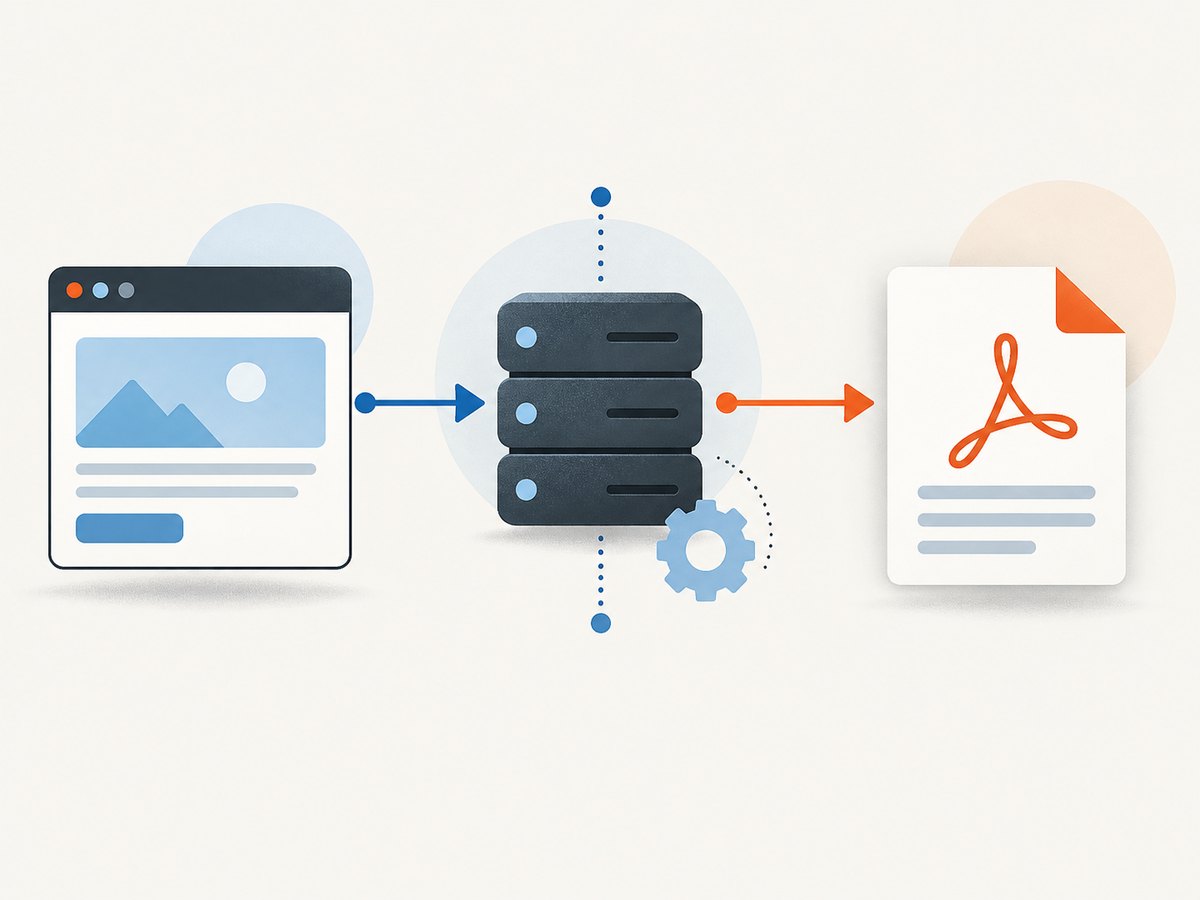
Short answer: If the ASP page is available at a working URL, open it in Microsoft Edge, choose Settings and more > Print (or press Ctrl+P on Windows or Command+P on macOS), select a PDF destination, check the preview, and save. This captures the rendered webpage. It does not convert the original server-side ASP source code.
1. Decide which kind of ASP file you have
The extension .asp usually means Classic ASP: a server-side scripting environment that generates a response such as HTML. IIS processes the page before a browser receives it. Microsoft describes Classic ASP as “a server-side scripting environment” for dynamic web applications (Microsoft Learn: Build a Classic ASP Website on IIS).
| What you have | Use this approach |
|---|---|
A live URL ending in .asp that opens normally |
Print the rendered page from Edge, or capture the URL with an automated browser/PDF service. |
Only a downloaded .asp source file |
Set up the original runtime and dependencies first. Renaming it to .pdf or printing the source will not recreate the page. |
A file ending in .aspx |
Confirm that it is ASP.NET Web Forms. Do not apply Classic ASP instructions without checking the application. |
2. Convert a live ASP page to PDF in Microsoft Edge
- Open the complete ASP URL in Microsoft Edge. Wait for the page to finish loading and verify that tables, images, logged-in content, and dynamic sections are present.
- Open Settings and more (the three-dot menu), then choose Print. You can also press Ctrl+P on Windows or Command+P on macOS.
- In the print dialog, choose the available PDF destination, such as a system “Save as PDF” printer. The exact destination name depends on your operating system.
- Set the page range, paper size, orientation, margins, scale, background graphics, and headers or footers as needed.
- Review the preview at every page break. Check that images loaded, wide tables are not clipped, and repeating headers or footers are acceptable.
- Save the PDF, open it separately, and inspect the saved file rather than relying only on the preview.
If the site supports Edge Immersive Reader, it can provide a less cluttered print view. Availability depends on the page and site.
Print settings that usually matter
- Layout: Use landscape for wide reports and portrait for letters or narrow forms.
- Scale: Reduce scale only when content is clipped; excessive reduction makes text hard to read.
- Margins: Narrow margins can fit more content but may collide with printer or PDF boundaries.
- Background graphics: Enable this when colors, shaded table cells, or background images carry meaning.
- Headers and footers: Disable browser-generated URLs, dates, and titles when the document already supplies its own header.
- Page breaks: If you control the ASP page, add print CSS such as
break-before,break-after, andbreak-insiderules and test the result in preview.
3. Why a local .asp file does not convert directly
A downloaded ASP file may contain HTML mixed with server-side script, COM components, database calls, session checks, includes, and references to other application files. Opening it with a file:// URL either shows source or produces an incomplete page because the server-side code is not being executed.
To render a local application, reproduce the environment it expects: an IIS site, the IIS ASP module, the correct application files, data connections, permissions, configuration, and any required authentication or session state. Microsoft’s IIS documentation explains the Classic ASP runtime and module configuration. Only after the page renders at an HTTP(S) URL should you use the Edge print workflow.
Do not assume that an ASPX converter applies to Classic ASP. .aspx identifies a different ASP.NET Web Forms family, and a product designed for ASP.NET may not execute Classic ASP code.
4. Automate PDF generation for a Classic ASP application
For recurring reports, invoices, or archival jobs, treat PDF generation as a rendering and deployment problem. Your automation must reach the page with the right URL, authentication, cookies, data, fonts, and assets, then wait until the page is complete before creating the PDF.
Self-managed headless browser option
The community project ChromeASP documents using headless Chrome to produce PDF or image output from a URL or HTML snippet. Its documented setup requires Chrome on the machine or server and is intended for self-managed Windows or local IIS environments; the project warns that it may not be useful on shared hosting. Review the current project documentation, secure any endpoint that accepts a URL or HTML, and validate it in your own deployment before relying on it in production.
An archived Microsoft Azure example also uses a server-side executable run as a WebJob. That architecture illustrates the operational work involved—process isolation, deployment, permissions, timeouts, and storage—but it is dated and should not be copied as current Azure guidance without checking the present platform documentation.
Automation checklist
- Use a stable HTTPS URL and make authentication explicit with a short-lived account, cookie, or token.
- Wait for the report’s completion marker, not just the initial HTML response.
- Set a finite navigation and rendering timeout.
- Install the fonts used by the report and verify remote images and stylesheets are reachable.
- Restrict URL or HTML inputs to prevent an internal-service request vulnerability.
- Keep generated files outside executable web directories and apply retention rules.
- Compare representative PDFs after browser or application updates.
5. Or skip the browser setup: ScreenshotNeo
ScreenshotNeo captures a page URL through one API request and can return a PDF. The API accepts full-page capture, waits, custom headers and cookies, user agents, JavaScript, CSS, timezone, geolocation, and PDF paper, margin, orientation, and page-range options. See the ScreenshotNeo API documentation for the complete parameter list.

For an ASP page that is already reachable at a URL, the basic request is:
curl -G "https://api.screenshotneo.com/v1/shot" -d access_key=YOUR_API_KEY --data-urlencode url=https://your-site.example/report.asp -o report.pdfPython:
import requests

r = requests.get(
    "https://api.screenshotneo.com/v1/shot",
    params={"access_key": "YOUR_API_KEY", "url": "https://your-site.example/report.asp"},
    timeout=90,
)
r.raise_for_status()
open("report.pdf", "wb").write(r.content)
Node.js:
const q = new URLSearchParams({ access_key: 'YOUR_API_KEY', url: 'https://your-site.example/report.asp' });
const res = await fetch(`https://api.screenshotneo.com/v1/shot?${q}`);
if (!res.ok) throw new Error(`ScreenshotNeo returned ${res.status}`);
const pdf = Buffer.from(await res.arrayBuffer());
require('node:fs').writeFileSync('report.pdf', pdf);
ScreenshotNeo removes cookie and consent banners, newsletter popups, and chat widgets before capture. Bot checks, blank pages, timeouts, failed loads, and cache hits are not billed; response headers identify the page verdict and whether the request was billed. It also provides an MCP server with take_screenshot, get_page_info, and capture_pdf tools for Claude, Cursor, and other MCP clients. The Free plan includes 1,000 shots per month with no card; paid plans start at $5 for 3,000 shots. Create a free ScreenshotNeo account.
6. Common errors and fixes
| Symptom | Likely cause | Fix |
|---|---|---|
| The PDF contains ASP source code | The file was opened locally instead of being executed by IIS. | Deploy the application to IIS with Classic ASP enabled, or use the original working URL. |
| The page is blank | Authentication failed, the report needs a session, or scripts/data have not finished loading. | Sign in first, pass the required cookies or headers, wait for a report-ready element, and inspect the page directly in a browser. |
| Images or CSS are missing | Relative paths, blocked mixed content, private asset URLs, or unavailable fonts. | Use absolute HTTPS asset URLs, make assets reachable to the rendering environment, and install required fonts. |
| A table is cut off | Portrait layout or fixed-width CSS exceeds the printable area. | Use landscape, adjust scale or margins, and add print-specific CSS. |
| Pages break in the wrong places | Browser pagination differs from screen layout. | Add print break rules, avoid splitting rows where possible, and verify the PDF at the target paper size. |
| Edge has no obvious PDF destination | The operating system exposes a different printer name or no PDF printer. | Check the installed system printers or add a PDF printer supplied by the operating system. |
| Automated capture times out | The page waits forever on a request, redirect, CAPTCHA, or unavailable dependency. | Set bounded timeouts, inspect network and server logs, remove nonessential third-party requests, and provide a deterministic ready signal. |
| A local ASP page cannot connect to its database | The recreated environment lacks connection strings, permissions, or the original data. | Restore the application configuration and least-privilege access, or generate the PDF from the original hosted environment. |
7. Reliability, performance, and cost considerations
- Reliability: Save the response only after checking its status and content type. Record the source URL, capture time, options, and application version so a document can be reproduced.
- Performance: Reuse a browser process in a controlled worker, reduce unnecessary third-party resources, and cache stable assets. Large full-page reports and high-resolution images take longer and consume more memory.
- Dynamic data: Generate from a stable report snapshot when possible. Otherwise, wait for a server-side completion marker and prevent users from changing the data during capture.
- Security: Protect credentials and cookies, restrict who can request captures, validate destination URLs, and never expose an unrestricted “render any URL” endpoint.
- Cost: Self-hosting shifts cost to servers, browser maintenance, storage, and operations. ScreenshotNeo bills only clean shots; bot checks, blank pages, timeouts, failed loads, and cache hits cost nothing. Its plans are Free (1,000/month), Starter ($5 for 3,000), Growth ($15 for 15,000), Pro ($39 for 60,000), Scale ($99 for 250,000), and Business ($249 for 1,000,000); yearly billing gives two months free.
8. FAQ
Can I rename an .asp file to .pdf?
No. The extension does not contain a rendered document, and renaming cannot execute Classic ASP or create PDF structure.
Does printing include data loaded after page load?
Only if the data has finished rendering before the print operation. Wait for the final table, chart, or report marker and confirm it in preview.
Can I convert an ASP page that requires login?
Yes, if the browser or capture service receives valid authentication and the session remains active. Test authorization, redirects, and private assets separately.
Is ASP the same as ASP.NET?
No. Classic ASP uses the .asp convention; ASP.NET Web Forms commonly uses .aspx. Identify the runtime before choosing tooling.
What should I provide when asking for help?
Include whether you have a URL or only source, the exact extension, IIS/runtime details, authentication method, a description of missing content, and a sample page that can be reproduced safely.


