How to Convert Base64 Screenshots Directly in Cypress
Learn how to read a Cypress screenshot as base64, convert it to a Blob or data URL, and move large-image work into Node safely.
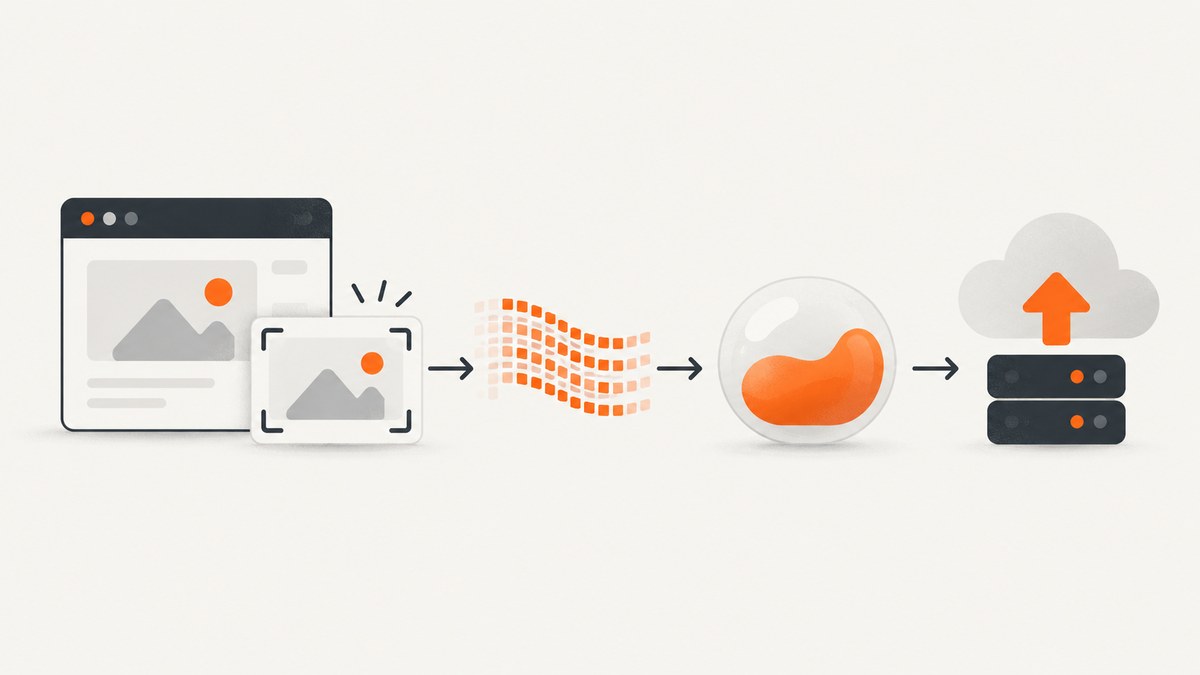
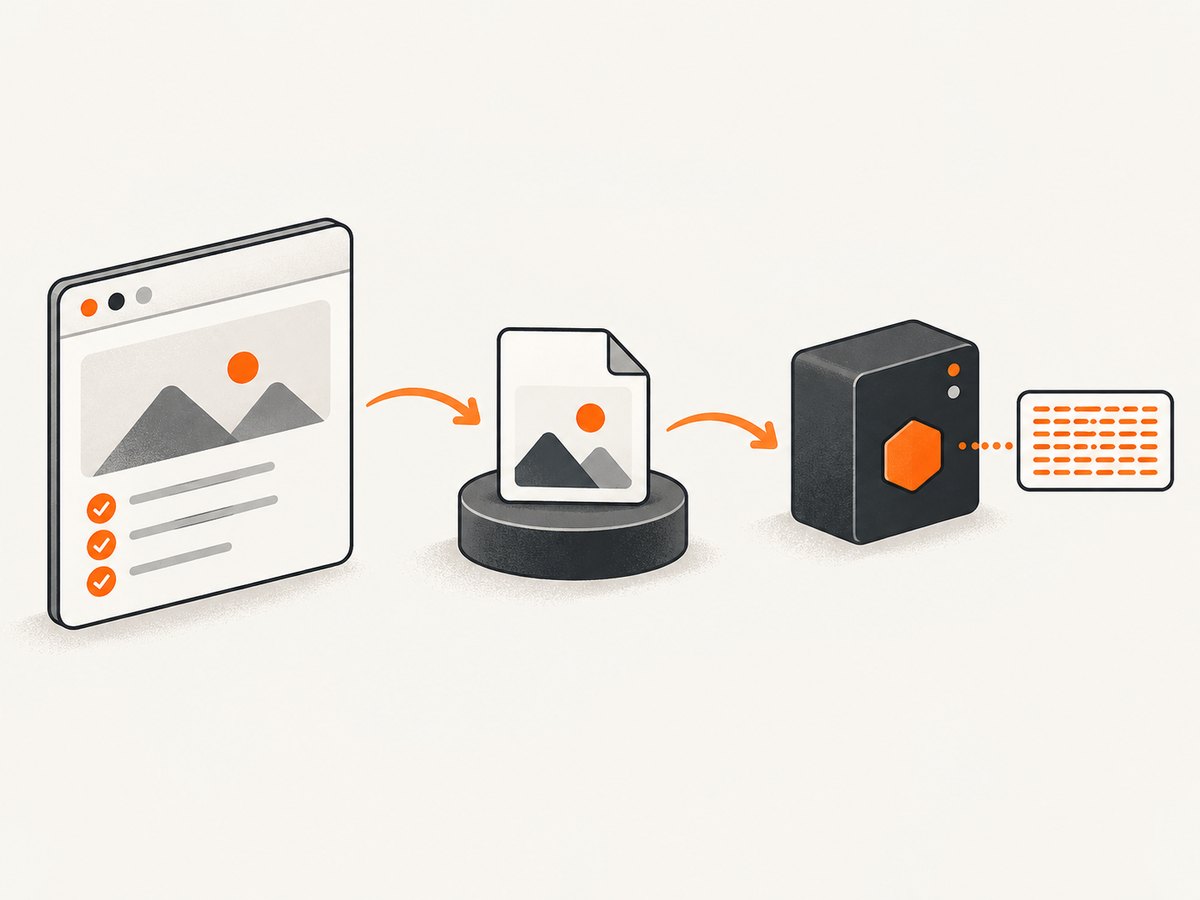
Direct answer: cy.screenshot() saves a PNG file and yields the original subject; it does not return screenshot bytes or a base64 string. Read the saved path supplied to onAfterScreenshot with cy.readFile(path, 'base64'). Convert that string with Cypress.Blob.base64StringToBlob(base64, 'image/png') when an API needs a Blob. For Node-side processing, use Cypress’s after:screenshot event or a cy.task().
This article covers browser-side base64, Blob and data URL conversions, Node workflows, timing, large files, common errors and production concerns. Cypress documents the command behavior in its screenshot API, the Node callback in the after:screenshot event API, and conversion helpers in the Cypress.Blob API.
1. Read the screenshot file as base64
Cypress writes screenshots to the configured screenshots folder (by default, cypress/screenshots). Named screenshots are stored relative to the spec file. The reliable handoff point is the path in the onAfterScreenshot callback.
describe('base64 screenshot', () => {
  it('reads the PNG after Cypress writes it', () => {
    cy.visit('https://example.com')

    cy.screenshot('page', {
      onAfterScreenshot(_element, props) {
        cy.readFile(props.path, 'base64').then((base64) => {
          expect(base64).to.match(/^[A-Za-z0-9+/]+={0,2}$/)
          cy.log(`base64 length: ${base64.length}`)
        })
      },
    })
  })
})
The callback receives metadata such as the absolute or resolved screenshot path, dimensions and file information. Keep the read operation in Cypress’s command queue. The callback-plus-cy.readFile() composition is a practical pattern based on the documented APIs; if command scheduling in your Cypress version or project is awkward, capture the path in outer state and enqueue the read after cy.screenshot(), or move the operation to a Node task.
Capture the base64 value for the next test step
it('passes base64 to an upload step', () => {
  let screenshotBase64

  cy.visit('/checkout')
  cy.screenshot('checkout', {
    onAfterScreenshot(_element, props) {
      cy.readFile(props.path, 'base64').then((base64) => {
        screenshotBase64 = base64
      })
    },
  })

  cy.then(() => {
    expect(screenshotBase64).to.be.a('string')
    cy.request({
      method: 'POST',
      url: '/api/visual-evidence',
      body: { image: screenshotBase64, mimeType: 'image/png' },
    })
  })
})
Use cy.then() after the screenshot command so the dependent work runs after Cypress has completed the queued file read. Do not assign a value synchronously immediately after cy.screenshot(); Cypress commands are asynchronous and queued.
2. Convert the base64 string to a Blob
A raw base64 value contains only the encoded bytes. A browser Blob adds a binary-like object and MIME type that work well with fetch, FormData, previews and upload libraries.
it('converts the PNG to a Blob', () => {
  cy.visit('/dashboard')

  cy.screenshot('dashboard', {
    onAfterScreenshot(_element, props) {
      cy.readFile(props.path, 'base64').then((base64) => {
        const blob = Cypress.Blob.base64StringToBlob(base64, 'image/png')

        expect(blob).to.be.instanceOf(Blob)
        expect(blob.type).to.equal('image/png')
        expect(blob.size).to.be.greaterThan(0)

        const form = new FormData()
        form.append('file', blob, 'dashboard.png')

        return cy.window().then((win) =>
          win.fetch('/api/upload', {
            method: 'POST',
            body: form,
          }),
        )
      })
    },
  })
})
Cypress includes the Blob utility as Cypress.Blob. Its conversion methods, including base64StringToBlob(), return a Blob in current versions; Cypress records that these return types changed from promises to direct values in version 5.0.0. Pass the correct MIME type. Cypress screenshots described here are PNG files, so use image/png.
Upload with a data URL when the API requires one
A data URL is different from raw base64 because it includes a prefix such as data:image/png;base64,. Construct it only when the receiving API expects that representation.
cy.readFile(props.path, 'base64').then((base64) => {
  const dataUrl = `data:image/png;base64,${base64}`
  cy.window().then((win) => {
    const preview = win.document.createElement('img')
    preview.src = dataUrl
    preview.alt = 'Cypress screenshot preview'
    win.document.body.appendChild(preview)
  })
})
If you already have an image source and need a data URL, Cypress.Blob also documents imgSrcToDataURL(). Do not prepend the header twice: a value beginning with data:image/png;base64, is already a data URL, while the value from cy.readFile(path, 'base64') is raw base64.
3. Keep large-image work in Node
cy.readFile() transfers the complete file into the browser process. That is convenient for small screenshots, but large full-page images can increase browser memory and command-log payloads. Cypress recommends a Node-side task when you need filesystem access, image processing or only a derived result.
Use the after:screenshot event
The after:screenshot event runs in the Cypress Node process after the image is written. It provides an absolute path and metadata. Cypress and browser commands are unavailable there.
// cypress.config.js
const { defineConfig } = require('cypress')
const fs = require('node:fs/promises')

module.exports = defineConfig({
  e2e: {
    setupNodeEvents(on) {
      on('after:screenshot', async (details) => {
        const base64 = await fs.readFile(details.path, { encoding: 'base64' })
        await fs.writeFile(`${details.path}.b64`, base64, 'utf8')
        console.log({ path: details.path, bytes: details.size, base64Length: base64.length })
      })
    },
  },
})
This handler is appropriate for writing to object storage, computing a digest, resizing with a Node image library or forwarding the file to another process. Return values from the event are not automatically available in the browser test; use a task or an external service when the spec needs a result.
Use cy.task() for an explicit browser-to-Node handoff
// cypress.config.js
const { defineConfig } = require('cypress')
const fs = require('node:fs/promises')

module.exports = defineConfig({
  e2e: {
    setupNodeEvents(on, config) {
      on('task', {
        async readScreenshotBase64(filePath) {
          return fs.readFile(filePath, { encoding: 'base64' })
        },
      })
      return config
    },
  },
})
// in a spec
let screenshotPath
cy.screenshot('report', {
onAfterScreenshot(_element, props) {
screenshotPath = props.path
},
})
cy.then(() => cy.task('readScreenshotBase64', screenshotPath))
.then((base64) => {
expect(base64).to.be.a('string')
})Tasks execute in Node and should return serializable values. For very large images, prefer a task that uploads or transforms the file and returns an ID, URL or digest instead of returning the entire base64 string to the browser.
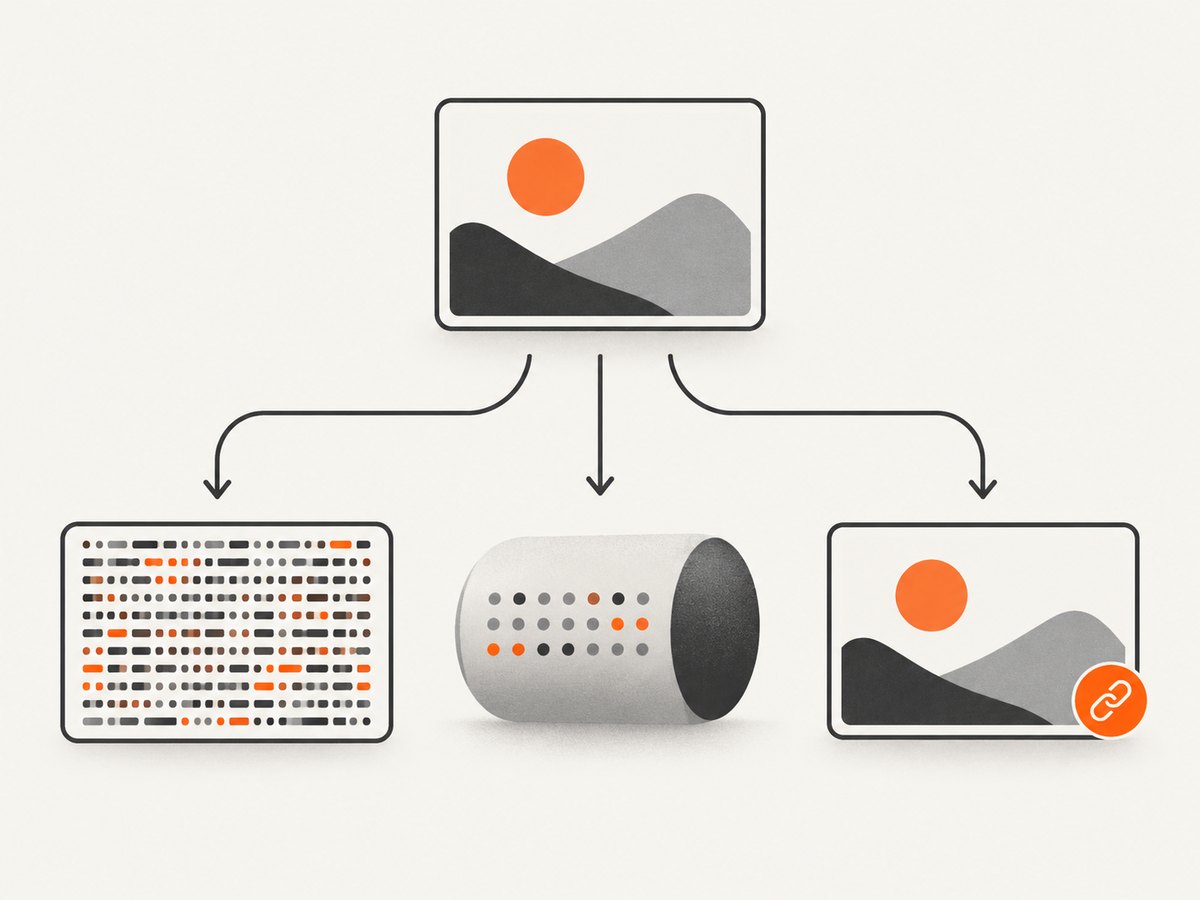
4. Choose the right representation
| Representation | Use it when | Notes |
|---|---|---|
| Raw base64 | An API accepts an encoded string or JSON field | No MIME prefix; larger than binary data |
| Blob | Uploading with fetch/FormData or using browser APIs |
Include the correct MIME type |
| Data URL | Setting an image src or an API explicitly requires a data URL |
Includes data:image/png;base64, |
| File path | Node processing, archival or command-line tools | Avoids copying image bytes into the browser |
Base64 increases payload size compared with the original binary file. If your endpoint accepts multipart form data or a file stream, use a Blob in the browser or the path directly in Node. If it accepts JSON only, send raw base64 and document the MIME type separately.
5. Screenshot options that affect the bytes
Conversion does not change how Cypress captures the image. Configure capture first, then read the resulting file.
- Name and folder: the screenshot name and spec path determine the saved location.
- Full page: use the screenshot options supported by your Cypress version when the complete scrollable document is required.
- Element capture: call
cy.get(selector).screenshot()for a specific subject; the callback still supplies the written path. - Blackout and scaling: masking selectors or changing scale changes the resulting dimensions and base64 length.
- Overwrite behavior: choose unique names or configure overwrite behavior to avoid reading an older file.
Capture is asynchronous and can take around 100 ms. The page may change between command invocation and the actual image. Wait for the UI state you need before calling cy.screenshot(), and assert the callback path rather than assuming a hard-coded filename.
6. Troubleshooting
“I expected cy.screenshot() to return base64”
Cause: the command yields the same subject it received. Fix: read props.path in onAfterScreenshot, or use after:screenshot/cy.task().
“props.path is undefined”
Cause: the callback signature was omitted or the value was read outside the callback. Fix: use onAfterScreenshot(_element, props) { ... } and inspect props.path. Keep any later command in the Cypress chain.
“Cypress is not defined” in after:screenshot
Cause: that event runs in Node, not the browser. Fix: use Node’s fs APIs there. Cypress commands are unavailable in the event handler.
“The upload rejects my Blob”
Cause: the MIME type or multipart field name does not match the server contract. Fix: use image/png, provide a filename such as shot.png, and match the endpoint’s expected field.
“The server says the base64 is malformed”
Cause: a data URL prefix was added when raw base64 was expected, or the prefix is missing when a data URL is required. Fix: send exactly one representation and validate whether the value starts with data:.
“The test runs out of memory”
Cause: a large full-page file was read and copied into the browser. Fix: process the absolute path in Node with after:screenshot or a task, and return only a small result.
“The image shows an earlier state”
Cause: screenshot capture is asynchronous. Fix: wait for a selector, animation completion or network-driven UI update before capturing, then read the callback path.
7. Reliability, performance and cost considerations
- Reliability: use callback metadata instead of reconstructing paths. Avoid collisions by including a test or timestamp identifier in screenshot names.
- Performance: keep browser-side reads for small images. For full-page captures, Node-side processing avoids transferring the entire file through the browser.
- Payloads: base64 is convenient for JSON but increases transfer size. Prefer multipart or filesystem streaming where your receiver supports it.
- Reproducibility: wait for deterministic UI state, disable unstable animations where appropriate, and record dimensions and the capture path with the derived value.
- Security: screenshots can contain account data. Do not log complete base64 strings, and remove temporary files after upload when your retention policy requires it.
8. Or skip the browser setup
If your goal is a clean website image rather than a screenshot tied to a Cypress test, ScreenshotNeo returns a PNG, JPEG, WebP or PDF from one GET request. The API accepts the URL directly, so there is no browser runner, screenshot folder or base64 conversion step to maintain.
cURL:
curl -G "https://api.screenshotneo.com/v1/shot" \
  -d access_key=YOUR_API_KEY \
  --data-urlencode url=https://stripe.com \
  -o shot.webp
Python:
import requests

r = requests.get(
    "https://api.screenshotneo.com/v1/shot",
    params={"access_key": "YOUR_API_KEY", "url": "https://stripe.com"},
    timeout=90,
)
r.raise_for_status()
open("shot.webp", "wb").write(r.content)
Node.js:
const q = new URLSearchParams({ access_key: 'YOUR_API_KEY', url: 'https://stripe.com' });
const res = await fetch(`https://api.screenshotneo.com/v1/shot?${q}`);
if (!res.ok) throw new Error(`Screenshot failed: ${res.status}`);
const bytes = Buffer.from(await res.arrayBuffer());
await fs.promises.writeFile('shot.webp', bytes);
See the ScreenshotNeo documentation for request options. Before capture it accepts cookie and consent banners and removes more than 60 known consent platforms, newsletter popups and chat widgets; each cleanup step can be turned off. Bot checks, CAPTCHAs, blank pages, timeouts, failed loads and cache hits are not billed, and response headers identify the page verdict and whether it was billed. ScreenshotNeo also provides an MCP server with take_screenshot, get_page_info and capture_pdf for Claude, Cursor and other MCP clients. The Free plan includes 1,000 screenshots per month with no card; paid plans start at $5 for 3,000 shots, and every feature is available on every plan.
Create a free ScreenshotNeo account and start with 1,000 screenshots per month at no charge.
9. FAQ
Can I get a JPEG or WebP base64 value from Cypress?
Cypress’s screenshot output in this workflow is PNG. If you need another format, convert the saved PNG in Node with an image-processing tool, then encode the converted file there.
Should I use fixture() instead of readFile()?
Use cy.readFile(path, 'base64') when the path is created or changes during the test. A fixture is better for a stable file checked into the project.
Can I call cy.readFile() inside after:screenshot?
No. The event runs in Node. Read with Node’s filesystem APIs there, or pass the path to a cy.task().
How do I verify that conversion preserved the image?
Check the Blob MIME type and size, then upload or render it. For stronger verification, compare a checksum calculated from the original file and the decoded bytes in Node.
Why is my base64 string much larger than the PNG?
Base64 encoding adds transport overhead. Keep the binary file or Blob when the receiving API supports it, and reserve JSON base64 for interfaces that require text.


