How to Convert a Chrome File to PDF Online
Save any webpage or HTML file as a PDF from Chrome, with desktop, mobile, troubleshooting, automation, and API options.
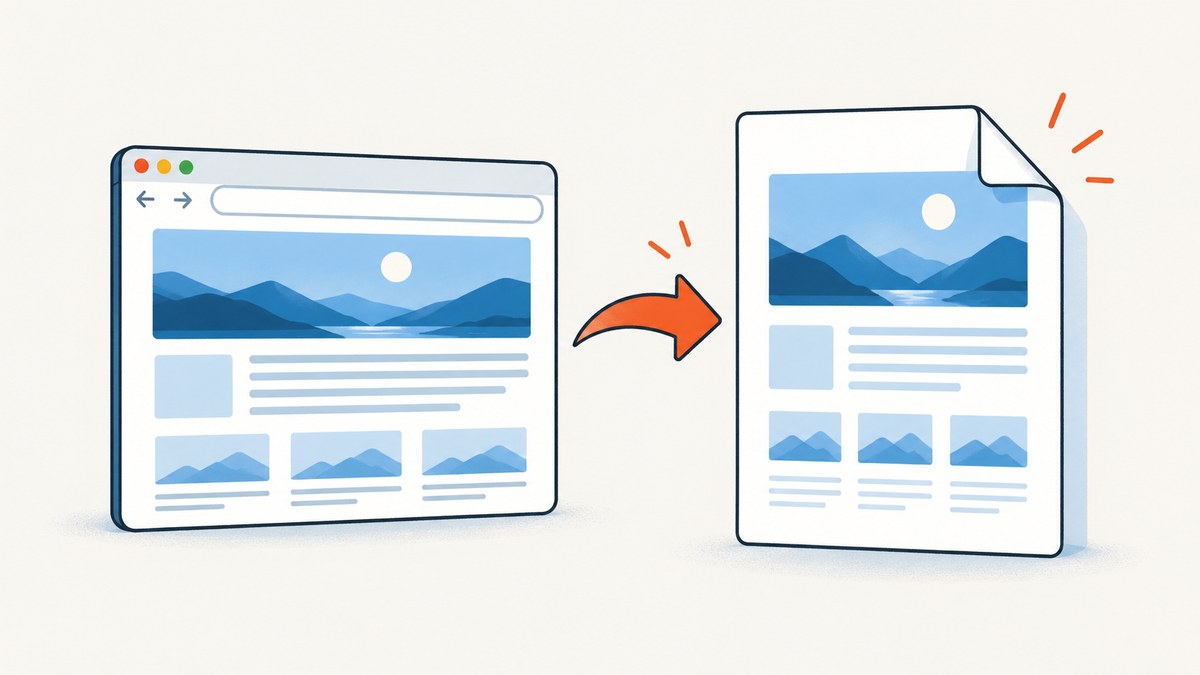
Short answer: Open the webpage or file in Google Chrome, press Ctrl+P on Windows/Linux or Command+P on Mac, choose Save as PDF as the destination, adjust the print settings, and click Save. Chrome creates the PDF through its local print workflow, so you do not need to install software or upload the page to an online converter.
Google documents the same workflow in Chrome Help. The steps below cover desktop, mobile, local HTML files, layout control, privacy, extensions, automation, common failures, and an API option for developers.
1. Convert a Chrome webpage to PDF on desktop
- Open the webpage, image, or HTML file in Chrome.
- Open the print dialog with File > Print, Ctrl+P on Windows/Linux, or Command+P on macOS.
- In Destination, select Save as PDF. If it is hidden, open the destination menu or choose See more.
- Choose the pages to include. You can save all pages or enter a range such as
1-3. - Select portrait or landscape orientation, paper size, margins, scale, and whether to include headers and footers.
- Click Save, choose a folder and filename, then confirm.
The resulting file is a normal PDF that can be opened, shared, uploaded to Google Drive, or attached to an email. The exact labels can vary slightly by Chrome version and operating system.
2. Save a local Chrome file as PDF
Chrome can print a local HTML document, image, or text file in the same way as a website.
- Open the file in Chrome. You can drag it into a Chrome window or use File > Open File.
- Press Ctrl+P or Command+P.
- Set Destination to Save as PDF.
- Set the page range, layout, margins, and scale.
- Save the PDF to your chosen folder.
If the file is downloaded instead of opened, open it from Chrome’s download list or drag it into a new tab. For a file URL, Chrome may require permission before scripts, fonts, or local images load correctly.
3. Print settings that change the PDF
| Setting | Use it when | What to check |
|---|---|---|
| Pages | You need only part of a long page | Use a range such as 2-5 or individual pages. |
| Layout | The page is wide or contains tables | Use landscape for wide content; portrait is better for normal articles. |
| Paper size | The PDF will be printed or must match a standard | Choose Letter, A4, or the required paper format. |
| Margins | Content is clipped or too close to the edge | Try Default, Minimum, or None. Check the preview after changing it. |
| Scale | Columns overflow or text is too small | Use a custom percentage to fit content without excessive whitespace. |
| Headers and footers | You need the URL, title, date, or page numbers | Enable them for references; disable them for a cleaner document. |
| Background graphics | Colors, charts, or colored panels must remain visible | Enable background graphics. It can increase file size. |

4. Make a webpage fit correctly
Print preview shows how Chrome will paginate the page. If a heading is separated from its content, a table is cut across pages, or the right side is missing:
- Switch between portrait and landscape.
- Reduce scale slightly, such as to 90% or 80%.
- Try narrower margins.
- Disable headers and footers if they consume useful space.
- Wait for images, charts, and fonts to finish loading before opening print preview.
- Use the page’s own print stylesheet when the site provides a Print button.
Some pages deliberately change their appearance for printing. Navigation, advertisements, cookie notices, videos, and interactive controls may be hidden or replaced by print CSS. That is expected behavior.
5. Convert a Chrome page to PDF on a phone or tablet
Mobile controls depend on the operating system and Chrome version.
Android
- Open the page in Chrome.
- Open the three-dot menu and choose Share or Print.
- Select a PDF save destination, such as Save as PDF.
- Choose a folder and save the file.
iPhone and iPad
- Open the page in Chrome and use Share.
- Choose Print if it is available.
- Use the print preview and the system share sheet to save the document as a PDF in Files or another destination.
Because mobile menus change, look for a share or print action that exposes a PDF destination. For a long page, verify that the saved document contains all expected pages.
6. Upload the PDF to Google Drive
After saving the file, open Google Drive in a browser and choose New > File upload, then select the PDF. You can also use Drive for desktop to synchronize the folder where Chrome saves files.
7. When a Chrome extension is useful
Chrome’s built-in print workflow is enough for a straightforward PDF. An extension can help when you need editing or document tools after conversion. Adobe’s Acrobat extension for Chrome adds browser PDF tools for tasks such as viewing, filling, commenting, signing, and compressing. To enable it, open Extensions > Manage extensions, locate Acrobat, and turn it on. Access to local HTML files may require enabling Allow access to file URLs in the extension settings.
Review an extension’s permissions and data handling before using it with private documents. A local Save as PDF operation keeps the conversion in Chrome’s print workflow; an extension or online service may process the page according to its own policies.
8. Automate webpage-to-PDF capture
For one page, Chrome is usually fastest. For recurring reports, many URLs, authenticated pages, or server-side jobs, use a browser automation tool or a screenshot API. Automation must wait for the page to load, handle cookies and authentication, and choose PDF page settings explicitly.

Or skip the browser setup
ScreenshotNeo provides a website capture API and MCP server. Its PDF features support paper size, margins, landscape mode, and page ranges. The API can also wait for a selector, delay, or network idle, load lazy images, use custom headers and cookies, and run custom JavaScript before capture. See the ScreenshotNeo documentation for the PDF request options.
cURL
curl -G "https://api.screenshotneo.com/v1/shot" -d access_key=YOUR_API_KEY --data-urlencode url=https://stripe.com -o shot.webpPython
import requests

r = requests.get(
    "https://api.screenshotneo.com/v1/shot",
    params={"access_key": "YOUR_API_KEY", "url": "https://stripe.com"},
    timeout=90,
)
r.raise_for_status()
open("shot.webp", "wb").write(r.content)
Node.js
const q = new URLSearchParams({ access_key: 'YOUR_API_KEY', url: 'https://stripe.com' });
const res = await fetch(`https://api.screenshotneo.com/v1/shot?${q}`);
if (!res.ok) throw new Error(`HTTP ${res.status}`);
const file = await res.arrayBuffer();
await Bun.write('shot.webp', file);
Use the PDF output and page options documented by ScreenshotNeo when the result must be a PDF. Cookie banners, newsletter popups, and chat widgets are removed before the shot. Bot checks, blank pages, failed loads, timeouts, and cache hits are not billed, and the response reports the page verdict and billing result in X-Page-Verdict and X-Billed headers. An MCP server lets Claude, Cursor, and other MCP clients call take_screenshot, get_page_info, and capture_pdf.
ScreenshotNeo includes 1,000 shots per month on the free plan with no card. Paid plans start at $5 for 3,000 shots, and every feature is available on every plan. Create a free ScreenshotNeo account.
9. Common problems and fixes
| Problem | Likely cause | Fix |
|---|---|---|
| Save as PDF is missing | The destination menu is collapsed or a system printer is selected. | Open the destination menu, choose See more, and select Save as PDF. |
| Images are blank | Images are lazy-loaded or the page was printed before loading finished. | Scroll through the page, wait for images, then reopen print preview. |
| Background colors disappeared | Background graphics are disabled. | Enable Background graphics in print settings. |
| Text or tables are clipped | The layout is wider than the selected paper. | Use landscape, reduce scale, or choose narrower margins. |
| Only the visible part was saved | The page uses a scroll container or an application view. | Use the site’s print view, expand the content first, or use a PDF capture tool that supports full-page rendering. |
| Fonts look different | A web font did not finish loading or is blocked. | Wait for the page to settle, reload, and confirm the font is available before printing. |
| Links or form controls do not work | Printing creates a static PDF representation. | Use the original webpage for interaction. A PDF may preserve links but not live controls. |
| Local file scripts fail | Chrome restricts local-file access or the file expects a web server. | Run the file from a local development server or enable the extension permission only when necessary. |
| The PDF is too large | High-resolution images or background graphics are included. | Disable backgrounds, lower image dimensions in the source, or compress the PDF afterward. |
10. Privacy, reliability, and cost considerations
- Privacy: Chrome’s built-in Save as PDF uses the local print workflow. An extension, hosted converter, or API may handle page content under its own data practices.
- Reliability: Dynamic pages can change between loads. Wait for network activity and lazy content to finish, and capture authenticated pages with the required session data.
- Performance: Large pages, web fonts, videos, and many images increase render time and PDF size. Restrict page ranges and disable unnecessary backgrounds when possible.
- Cost: Chrome’s native conversion has no service charge. Online converters and APIs may charge by conversion or usage. ScreenshotNeo does not bill failed loads, blank pages, bot checks, timeouts, or cache hits.
11. FAQ
Can I convert a Chrome file to PDF without downloading software?
Yes. Chrome’s print dialog can save webpages and local files as PDFs without an additional application.
Does Chrome upload my webpage to Google when I choose Save as PDF?
The native operation creates the PDF through Chrome’s local print workflow. A separate extension or online converter can have different data handling.
Can I save only selected pages?
Yes. Enter a page range in the print dialog, such as 1-2 or 4-6.
Can Chrome convert a scanned PDF into searchable text?
Chrome’s PDF viewer can perform OCR on scanned PDFs so text can be searched and selected. Google states that this conversion is completed on the device without sending the data to Google or third parties.
Why does the PDF not look exactly like the webpage?
Print stylesheets, blocked resources, responsive layouts, and dynamic content can change the printed result. Use print preview and adjust layout, scale, margins, and background graphics.


