How to Convert a Chrome HTML Page to PDF
Save a Chrome webpage as a PDF on desktop or Android, check print settings, and understand the documented options on iPhone and iPad.
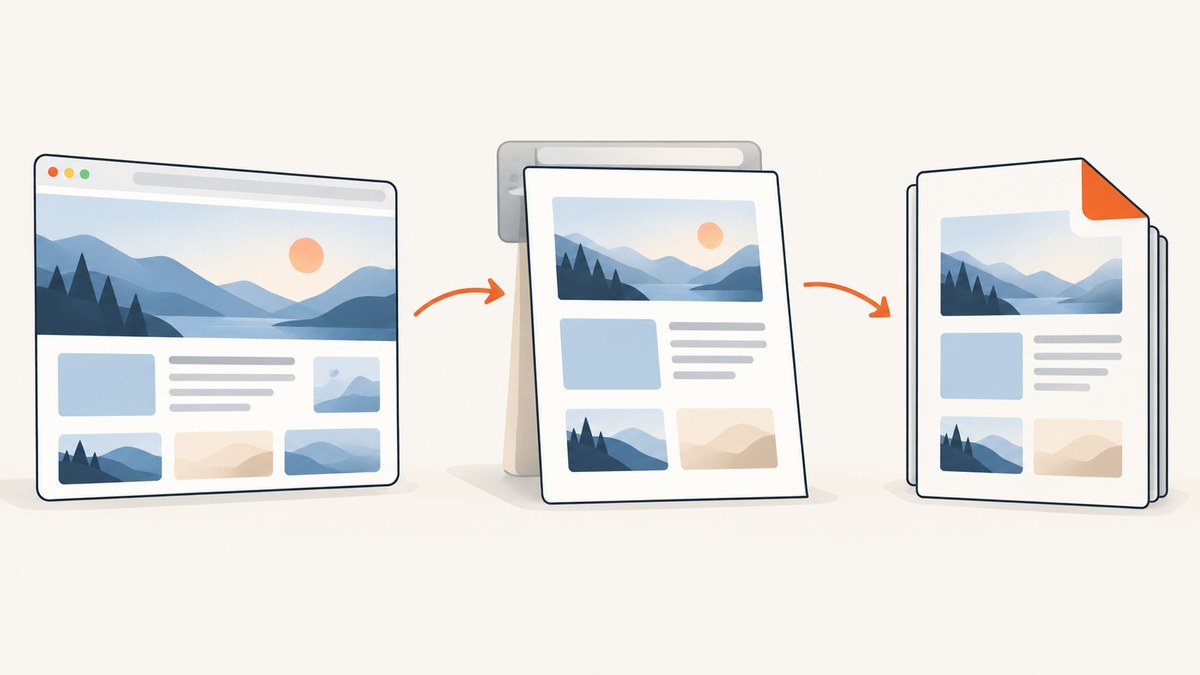
To convert a webpage open in Chrome into a PDF, open Chrome’s print preview and choose Save as PDF. On desktop, use File > Print (or Ctrl+P on Windows and Linux, Command+P on Mac). On Android, tap More > Share > Print, then select Save as PDF. The documented iPhone and iPad Chrome instructions describe AirPrint rather than a Chrome PDF-save destination, so use the Safari method below if you need to save a PDF on iOS.
This creates a PDF from the page’s print rendering. It does not necessarily preserve the page exactly as it looks on screen: websites can use different print layouts, omit interactive elements, or split content across pages. Preview the result before saving.
1. Save a Chrome webpage as PDF on a computer
Chrome’s built-in print workflow works on Windows, Linux, and Mac and does not require a physical printer.
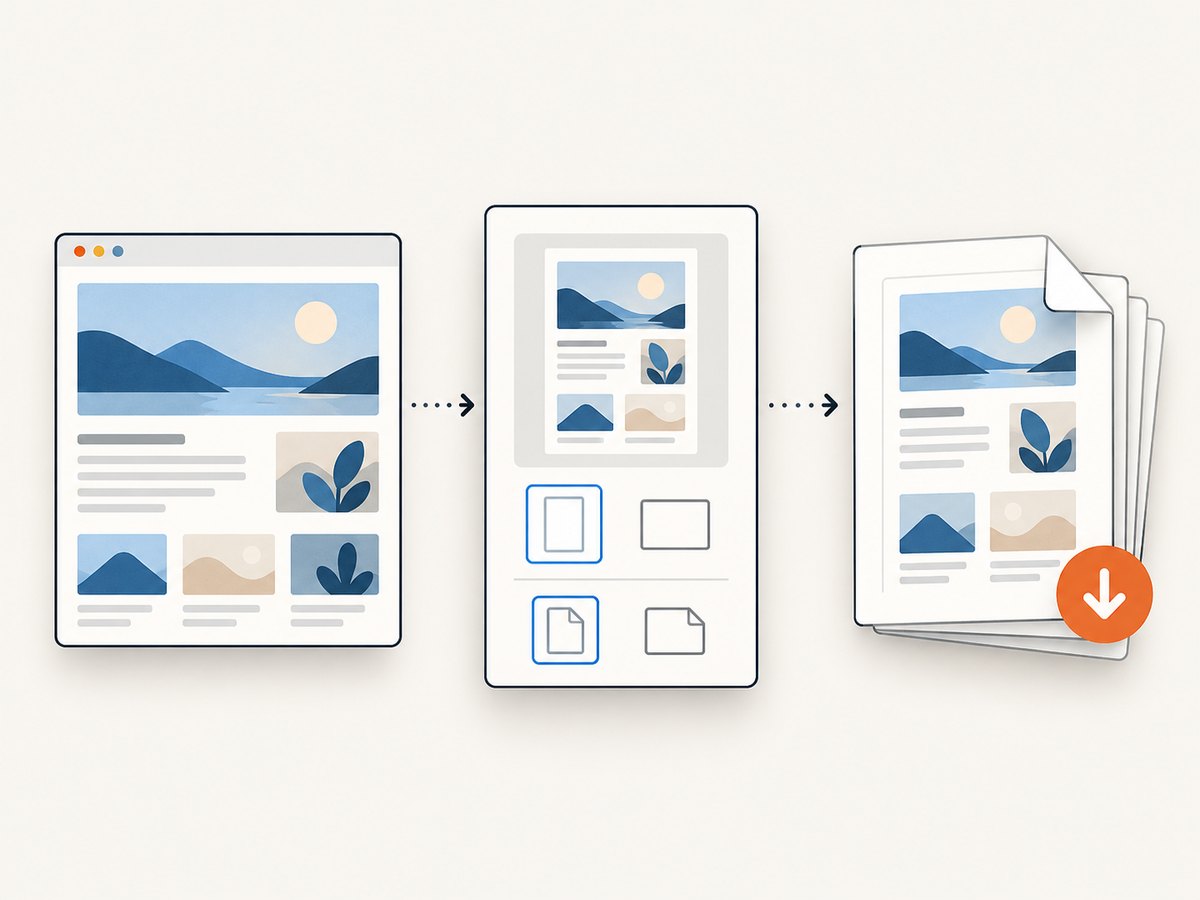
- Open the webpage in Chrome and wait for the content you need to appear.
- Open print preview: choose File > Print, press Ctrl+P on Windows or Linux, or press Command+P on Mac.
- In the print destination selector, choose Save as PDF.
- Review the preview and the print settings. Adjust settings that are available and relevant, such as page size, orientation, margins or scale, page range, headers and footers, and background graphics.
- Click Save, then choose a filename and location if Chrome asks.
The file is saved as a PDF on your computer. If you need a copy in Google Drive, Google documents a “Save to Google Drive” destination that requires the extension. Another option is to save the PDF locally and upload it to Drive. Neither Drive route is required to create the PDF. See Google’s desktop printing instructions.
Choose settings based on the page
| Setting | When to check it |
|---|---|
| Page size | Choose a paper size appropriate for reading or printing. A mismatch can cause unexpected wrapping or scaling. |
| Orientation | Try landscape for wide tables or diagrams if the control is available. |
| Margins or scale | Adjust if text or columns are clipped, or if content is too small. The exact controls depend on the print dialog. |
| Page range | Use a range when you need only selected pages, if the interface offers that option. |
| Headers and footers | Turn these on or off according to whether you want page details such as a title, URL, date, or page number. |
| Background graphics | Check this when colored backgrounds or visual elements matter; backgrounds may be omitted if the option is off. |
Google’s Chrome Enterprise documentation identifies controls for default page size, headers and footers, and background graphics. On managed browsers, policy settings can affect which choices users can change. Check the controls actually displayed in your print preview rather than assuming every Chrome installation exposes the same options. Google’s Chrome policy documentation describes those managed settings.
2. Save a PDF from Chrome on Android
- Open the webpage in Chrome.
- Tap More (the three-dot menu), then tap Share.
- Choose Print.
- Review or expand the print settings if needed, and select Save as PDF as the destination.
- Tap the save action, choose a location if prompted, and finish saving.
The available controls and file picker can differ by Android version and device. Confirm the selected destination says Save as PDF before completing the action. Google’s documented Android path is More > Share > Print, followed by Save as PDF.
3. What about Chrome on iPhone or iPad?
Google’s current Chrome instructions for iPhone and iPad describe using Share > Print to print through AirPrint. They do not document a Chrome-specific Save as PDF destination. The documented path is for sending a print job to an AirPrint printer, so do not expect it to match desktop or Android PDF saving. See Google’s Chrome instructions for iPhone and iPad.
Safari alternative: Apple documents a way to save a webpage as a PDF using Safari. Open the page in Safari, tap Share, tap Markup, tap Done, then choose Save File To and a destination. This is an Apple-documented Safari workflow, not a Chrome PDF-save path. Follow Apple’s Safari instructions.
4. Print to PDF versus Save Page As
These are different operations:
- Print to PDF creates a PDF rendition of the page using print layout. It is suited to a document you want to read, share, or print as pages.
- Save Page As downloads a webpage as a webpage file or related web content, depending on the chosen format. It is not the same as exporting a PDF.
Chrome’s File > Save Page As command is a separate download workflow. Use print preview and Save as PDF when the required output is a PDF. Google explains the distinct download workflow in its computer download help.
5. Check the PDF before you rely on it
Webpages are designed for screens, and their print rendering can differ. Before sharing or archiving a PDF, scan the preview and the saved file for these issues:
- Missing content: Some sites defer loading images or text until you scroll. Scroll through the page first, wait for content to load, then reopen print preview.
- Broken page breaks: A heading may land at the bottom of one page while its content starts on the next. Adjust scale or margins if available; a site-specific print layout may also control pagination.
- Clipped wide content: Tables or code blocks can extend beyond the printable width. Try landscape orientation or a smaller scale if shown.
- Missing colors or images: Review the background graphics control. Some sites deliberately simplify or hide elements in print mode.
- Unexpected headers and footers: Toggle the corresponding option if the browser offers it.
- Blank or partial preview: Wait for the page to finish loading and check whether the site requires sign-in or interaction to reveal the content.
For long pages, inspect more than the first page: check the final page, page numbering, and any tables or images that span pages. If the PDF must reproduce the visual page rather than a print-friendly document, a screenshot-based capture may be a better fit.
6. Troubleshooting common problems
| Problem | Likely cause | What to try |
|---|---|---|
| There is no “Save as PDF” destination | You may be on iPhone or iPad, where Chrome’s documented instructions describe AirPrint, or a managed desktop browser may restrict print choices. | On desktop or Android, inspect the destination selector in print preview. On iOS, use the documented Safari alternative if it fits your workflow. For a managed computer, ask the administrator whether print destinations are controlled by policy. |
| The PDF is missing sections | Content may not have loaded yet, may require scrolling, or may be hidden by the site’s print layout. | Wait, scroll through the page to trigger lazy-loaded content, then reopen preview. If the site provides a print or export button, consider using it. |
| Text is too small or clipped | The page is wider than the paper size or the print scale is unsuitable. | Try landscape for wide content, adjust scale or margins if available, or choose a larger paper size where appropriate. |
| Backgrounds or colors are absent | Background graphics may be disabled, or the site may omit decorative styling in print. | Check the background graphics option in preview. If it is not available, the output is controlled by the browser or site’s print styling. |
| Printing is blocked or controls are missing | Browser management policies can set defaults or restrict user control. | Check which settings are available. On a managed device, consult the administrator or use an unmanaged browser profile if permitted. |
| The saved file is a webpage, not a PDF | You used Save Page As rather than the print destination. | Open print preview and select Save as PDF as the destination. |
7. Automate a webpage screenshot or PDF with an API
If you need a repeatable capture in a script or backend job, browser print preview is a manual workflow. ScreenshotNeo provides a website screenshot API and MCP server. It can return PNG, JPEG, WebP, or PDF; see the ScreenshotNeo site and API documentation. The example below requests a PDF by setting the output format to PDF; consult the docs for the supported request parameters and configuration.
curl -G "https://api.screenshotneo.com/v1/shot" \
  -d access_key=YOUR_API_KEY \
  --data-urlencode url=https://example.com \
  -d format=pdf \
  -o page.pdf
import requests
r = requests.get(
"https://api.screenshotneo.com/v1/shot",
params={
"access_key": "YOUR_API_KEY",
"url": "https://example.com",
"format": "pdf",
},
timeout=90,
)
r.raise_for_status()
with open("page.pdf", "wb") as f:
f.write(r.content)const q = new URLSearchParams({
access_key: 'YOUR_API_KEY',
url: 'https://example.com',
format: 'pdf',
});
const res = await fetch(`https://api.screenshotneo.com/v1/shot?${q}`);
if (!res.ok) throw new Error(`Capture failed: ${res.status}`);
const bytes = new Uint8Array(await res.arrayBuffer());
await import('node:fs/promises').then(fs => fs.writeFile('page.pdf', bytes));These are direct requests to the documented API base. Keep the API key on the server or in a protected environment variable; do not embed it in public frontend code. Use a URL-encoding library when constructing requests so query strings and special characters are transmitted correctly. For advanced PDF settings, capture timing, and other available options, refer to the ScreenshotNeo docs.
Or skip the browser setup
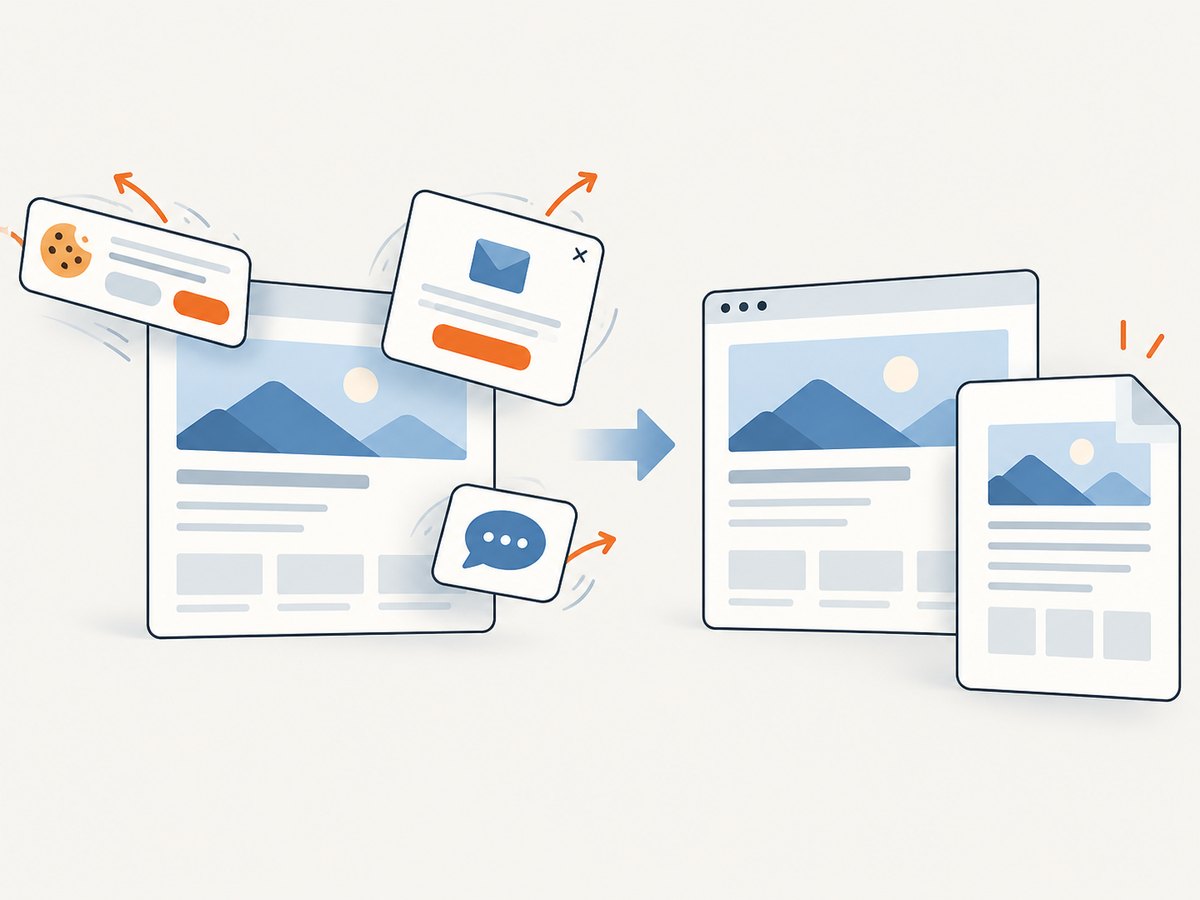
ScreenshotNeo takes a URL and returns a screenshot or PDF in one API request. Its clean-shot workflow accepts cookie and consent banners like a visitor and removes more than 60 known consent platforms, newsletter popups, and chat widgets; each step can be turned off. Bot checks and CAPTCHAs, blank pages, timeouts, failed loads, and cache hits cost nothing, and response headers identify the page verdict and billing status. Its MCP server offers take_screenshot, get_page_info, and capture_pdf for Claude, Cursor, and other MCP clients.
curl -G "https://api.screenshotneo.com/v1/shot" \
  -d access_key=YOUR_API_KEY \
  --data-urlencode url=https://example.com \
  -d format=pdf \
  -o page.pdf
There are 1,000 screenshots per month on the free plan with no card required. Paid plans start at $5 for 3,000 screenshots. Sign up for ScreenshotNeo and get 1,000 free screenshots a month, with no card.
8. Performance, reliability, and cost
For an occasional document, Chrome’s built-in desktop or Android workflow is direct and has no service cost. The main reliability factor is whether the page has finished rendering the content you need and how its print layout behaves. Preview before saving, especially for long pages, interactive apps, and content behind sign-in.
For recurring captures, automation can make the steps repeatable, but remote rendering depends on the target site loading successfully and on choosing sensible wait conditions. A screenshot API can also make output format and capture settings explicit. Consider the cost per successful capture, what happens on failed pages, and whether caching can reduce repeated work. ScreenshotNeo says only clean shots are billed and lists plan limits and prices on its site; check current details before choosing a plan. Its stated monthly options are Free with 1,000 shots, Starter $5 for 3,000, Growth $15 for 15,000, Pro $39 for 60,000, Scale $99 for 250,000, and Business $249 for 1,000,000. Yearly billing gives two months free, and every feature is on every plan.
9. Frequently asked questions
Does Chrome convert HTML source code into a PDF?
Print to PDF captures the rendered webpage’s print layout, not the raw HTML source. To preserve source code, use a source download or developer workflow separately.
Can I make a PDF without installing a printer?
Yes. On desktop and Android, choose the virtual Save as PDF destination in the documented print workflow; no physical printer is needed.
Will links in the page remain clickable?
That can depend on how the page and PDF are rendered. Check the saved document if clickable links are a requirement.
Why does my PDF look different from the webpage?
Print rendering can apply a separate layout and pagination rules. Review print preview and adjust the available print settings; some changes are controlled by the website itself.
Is Save Page As a way to export PDF?
No. Save Page As downloads a webpage using a separate Chrome download workflow. Use the print destination Save as PDF to create a PDF.
Sources: Chrome printing on desktop, Chrome printing on Android, Chrome printing on iPhone and iPad, Chrome print policies, Chrome downloads, and Apple’s Safari PDF instructions.


