How to Convert Chrome HTML Content to JPG
Learn how to save Chrome HTML content as a JPG, including visible screenshots, full-page captures, headless Chrome, local HTML files, and automation.
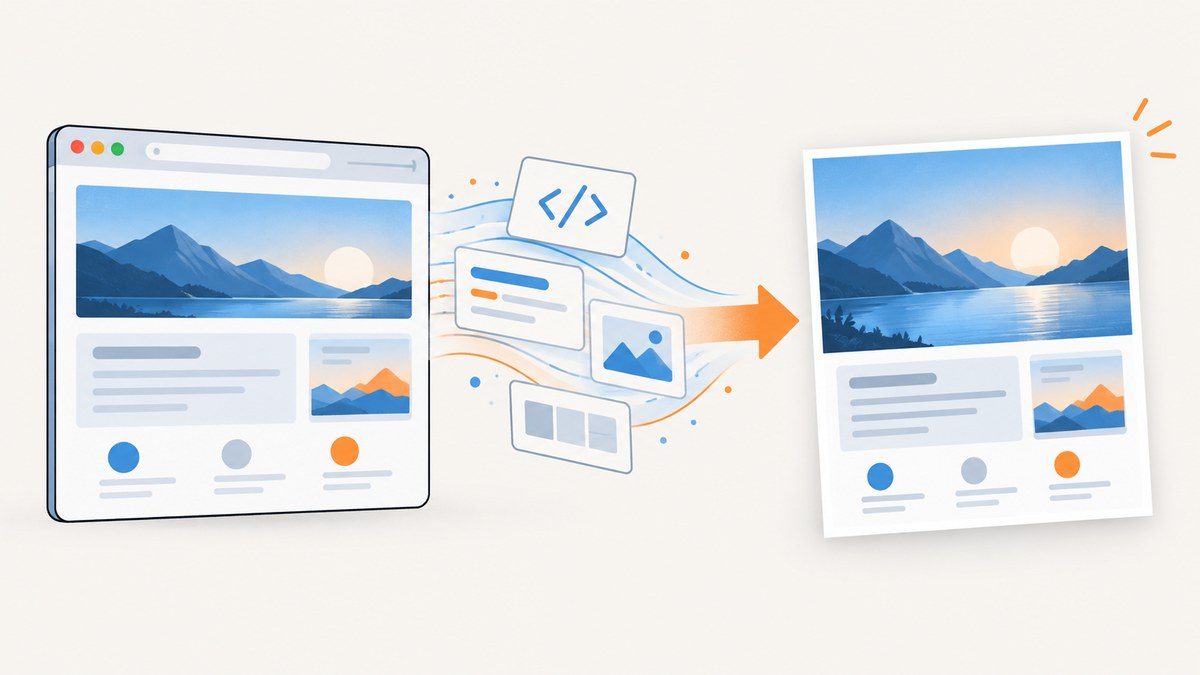
Short answer: Chrome’s Save Page As feature saves HTML files or MHTML archives, not JPG images. To create a JPG, render the page in Chrome, capture the visible area or the full page, then export the resulting PNG as JPG. Chrome Headless documents PNG output for --screenshot, so automated workflows also need a PNG-to-JPG conversion step.
Choose the method that matches your goal:
| Goal | Best method | JPG step |
|---|---|---|
| Current viewport | Chrome screenshot or capture utility | Export PNG as JPG |
| Entire long webpage | Full-page browser capture | Use direct JPG export or convert PNG |
| Local HTML file | Headless Chrome with --screenshot |
Convert the PNG |
| Repeatable automation | Headless Chrome, Puppeteer, or an API | Convert the image unless JPG is supported directly |
1. Save the visible Chrome page as a JPG
For a one-off image of what is currently visible, use your operating system’s screenshot tool or a browser capture utility. Save the result as PNG first if that is the available format, then open it in an image editor and choose Export or Save As JPG.
- Open the page in Chrome and wait until the content you need is visible.
- Set the browser zoom and window size to the composition you want.
- Capture the viewport with your system screenshot tool or a browser capture extension.
- Open the PNG in an image editor.
- Export as JPG and choose a quality level. Around 80–90% is usually a practical balance for web images.
This captures only the viewport. It will not automatically include content below the fold.
2. Capture a complete webpage, including content below the fold
A normal screenshot captures the visible viewport. For a long page, use a capture feature that explicitly supports full-page screenshots. Some Chrome extensions can download a full page as PNG or JPG; for example, the GoFullPage listing records JPG download support in its version 3.7 changelog. Another Chrome Web Store listing, Webpage to HD Image, describes capture of webpages and local HTML files with JPG, PNG, TIFF, WebP, BMP, and SVG output. Listings and permissions can change, so confirm the current format support and capture scope before relying on an extension.
Full-page capture checklist
- Wait for fonts, images, and client-rendered content to finish loading.
- Scroll through the page once if sections load only when they enter the viewport.
- Check sticky headers and fixed chat widgets; they may repeat down the stitched image.
- Inspect the bottom of the output for clipped lazy-loaded content.
- Confirm the extension’s permissions and whether processing occurs locally or remotely.
Full-page capture is not identical to printing. A screenshot creates one continuous image, while printing to PDF creates pages with pagination and margins.
3. Convert a local HTML file to JPG with Headless Chrome
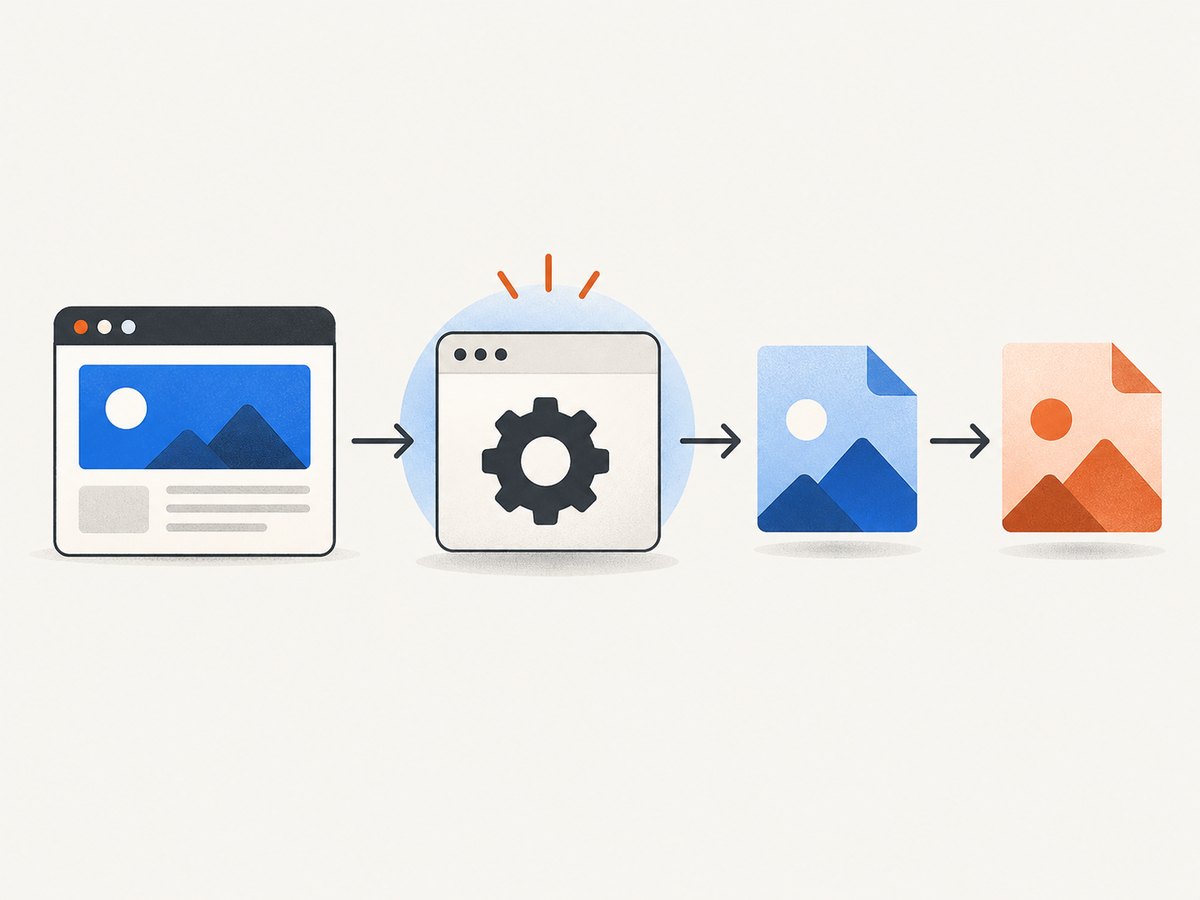
Chrome Headless documents --screenshot as producing a PNG file and --print-to-pdf as producing a PDF. The --timeout option limits how long Chrome waits before capturing, even if the page continues loading. Therefore, the reliable automation pattern is: render HTML, save PNG, convert PNG to JPG.
Linux or macOS
google-chrome --headless --disable-gpu \
  --screenshot=page.png \
  --window-size=1440,1200 \
  --timeout=10000 \
  file:///absolute/path/page.html

magick page.png -background white -alpha remove -quality 88 page.jpg
Use the executable available on your system, such as chromium or chromium-browser. ImageMagick’s magick command performs the format conversion. The white background matters when the PNG contains transparency; JPG does not support an alpha channel.
Windows PowerShell
chrome.exe --headless --disable-gpu --screenshot=page.png --window-size=1440,1200 --timeout=10000 file:///C:/work/page.html
magick page.png -background white -alpha remove -quality 88 page.jpg
Capture the full document height
Headless Chrome’s basic screenshot command uses the viewport dimensions. For a document taller than the viewport, use a browser automation library that can request a full-page screenshot, or use a capture service with a full-page option. If you must use the CLI alone, measure the document height with browser automation first and pass a sufficiently tall window size; extremely tall images can exceed memory or image-dimension limits.
4. Convert an HTML string or file with Puppeteer
Puppeteer drives headless Chrome and supports URLs, HTML strings, and local files. Spatie’s Browsershot provides a higher-level PHP interface over Puppeteer. Check the current project documentation for installation prerequisites before adopting either library.
Node.js and Puppeteer
import puppeteer from 'puppeteer';

const browser = await puppeteer.launch({headless: true});
const page = await browser.newPage();
await page.setViewport({width: 1440, height: 1200, deviceScaleFactor: 1});
await page.goto('file:///absolute/path/page.html', {waitUntil: 'networkidle0'});
await page.screenshot({path: 'page.png', fullPage: true, type: 'png'});
await browser.close();
Convert the resulting file with ImageMagick:
magick page.png -background white -alpha remove -quality 88 page.jpgFor dynamic pages, replace a generic network-idle wait with an explicit selector or application-ready signal when possible. A page can be network-idle while JavaScript is still rendering content.
5. Use Chrome’s Save Page As or MHTML only when you need an archive
Chrome’s More > More Tools > Save Page As workflow saves a webpage and its resources. The pageCapture extension API saves a tab as MHTML and requires the pageCapture permission. These are useful for preserving a page for later viewing, but neither is documented as a JPG export.
If your downloaded file ends in .html, .htm, or .mhtml, you performed an archive/save operation. Open that file in Chrome, render it, and then capture or automate a screenshot.
6. Print to PDF, then convert to JPG
Chrome can print a page with Ctrl+P on Windows/Linux or Command+P on macOS. Choose a PDF destination, then rasterize the PDF:
pdftoppm -jpeg -r 150 input.pdf page
# Produces page-1.jpg, page-2.jpg, and so on
This route is useful when you need paper size, margins, or page ranges. It can change the layout compared with a continuous screenshot, so choose it for paginated output rather than as a shortcut to a long single image.
7. Or skip the browser setup
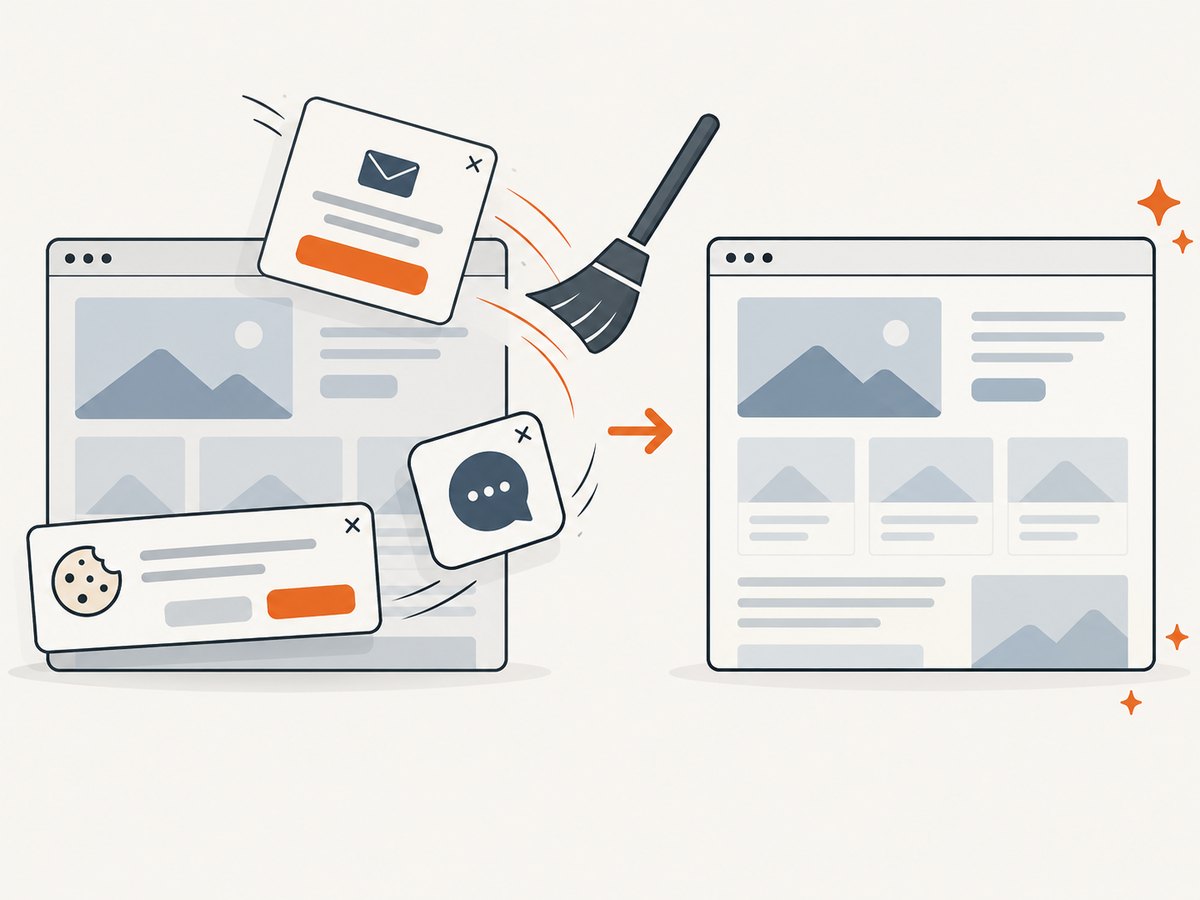
ScreenshotNeo returns a rendered PNG, JPEG, WebP, or PDF from one GET request. It can load lazy images for full-page captures, remove cookie and consent banners, newsletter popups, and chat widgets before capture, and capture a selected element or an entire page. See the ScreenshotNeo API documentation for all options.
cURL
curl -G "https://api.screenshotneo.com/v1/shot" -d access_key=YOUR_API_KEY --data-urlencode url=https://example.com -o shot.webpPython
import requests

r = requests.get("https://api.screenshotneo.com/v1/shot", params={"access_key": "YOUR_API_KEY", "url": "https://example.com"}, timeout=90)
r.raise_for_status()
open("shot.webp", "wb").write(r.content)
Node.js
const q = new URLSearchParams({ access_key: 'YOUR_API_KEY', url: 'https://example.com' });
const res = await fetch(`https://api.screenshotneo.com/v1/shot?${q}`);
if (!res.ok) throw new Error(`Screenshot failed: ${res.status}`);
const fs = await import('node:fs/promises');
await fs.writeFile('shot.webp', Buffer.from(await res.arrayBuffer()));
Set the output format and capture behavior with the API options documented by ScreenshotNeo, including full-page capture, viewport and device presets, retina scale, dark mode, custom CSS and JavaScript, selector waits, delays, network-idle waits, hidden selectors, request blocking, cookies, headers, user agents, timezone, geolocation, caching, and signed links.
ScreenshotNeo reports the result in X-Page-Verdict and X-Billed headers. Bot checks and CAPTCHAs, blank pages, timeouts, failed loads, and cache hits are not billed. An MCP server also lets Claude, Cursor, and other MCP clients call take_screenshot, get_page_info, and capture_pdf.
Create a free ScreenshotNeo account for 1,000 screenshots per month with no card. Paid plans start at $5 for 3,000 screenshots.
8. Options that affect the JPG result
| Option | Effect | Typical choice |
|---|---|---|
| Viewport width and height | Controls the responsive breakpoint and visible area | Match the target device |
| Device scale factor | Increases pixel density | Use 2 for sharper retina output |
| Full page | Includes the document below the fold | Use for articles and landing pages |
| Wait condition | Determines when capture occurs | Prefer a ready selector for dynamic apps |
| Background | Controls transparent or solid pixels | Use white before JPG conversion |
| JPEG quality | Trades file size for detail | 80–90 for web delivery |
9. Troubleshooting
The file is HTML or MHTML, not JPG
You used Save Page As or the pageCapture API. Open the saved page in Chrome and capture it, or automate a screenshot.
Headless Chrome produced PNG
That is the documented --screenshot output. Convert it with ImageMagick, Pillow, or another image converter.
The JPG has a black or unexpected background
PNG transparency cannot be represented in JPG. Flatten the image against white or another chosen color during conversion.
Lazy-loaded sections are missing
The page may load content only after scrolling, or capture may have occurred before rendering completed. Scroll through the page, wait for a known selector, or use a full-page workflow that loads lazy images.
Fonts or icons look different
Capture after web fonts finish loading. In automation, wait for document.fonts.ready or an application-specific ready signal. Confirm that the runtime can reach the font and asset hosts.
A sticky header appears repeatedly
Full-page stitchers may capture fixed-position elements in every viewport segment. Hide the selector before capture or use a renderer that handles fixed elements.
The page is clipped
Check viewport dimensions, document height, browser maximum image dimensions, and whether the page uses nested scroll containers. Capture the relevant element when the main document is not the scrolling surface.
Images are blurry
Increase the device scale factor or capture resolution, then choose an appropriate JPEG quality. Upscaling a low-resolution PNG after capture cannot restore detail.
Automation times out
Increase the timeout only after checking for blocked resources, authentication, infinite requests, or JavaScript errors. A longer wait does not guarantee that a page has reached its usable visual state.
10. Performance, reliability, and cost notes
- Performance: Full-page captures and high device scale factors create larger images and use more memory than viewport captures.
- Reliability: Use explicit readiness signals, stable viewport settings, and a visual check for pages with animations, consent dialogs, or lazy loading.
- File size: JPG is smaller than PNG for photographic or gradient-heavy pages, but text and sharp UI edges can show compression artifacts.
- Privacy: Review extension permissions and processing behavior before capturing private or authenticated pages. Do not assume that a third-party extension keeps content local unless its current documentation says so.
- API cost: ScreenshotNeo bills only clean shots. Bot checks, blank pages, timeouts, failed loads, and cache hits are not billed, and every response identifies the verdict and billing status.
FAQ
Can Chrome directly save a webpage as JPG?
Chrome’s documented Save Page As flow saves webpage files, not JPG. Use a screenshot workflow and convert or export the image.
What is the easiest way to convert a local HTML file?
Open it in Chrome, capture it, and convert the PNG to JPG. For repeatable work, use Headless Chrome or Puppeteer.
Should I use PNG or JPG for webpage screenshots?
PNG preserves crisp text and transparency. JPG is smaller and convenient when a JPG-only destination is required.
How do I capture only one element?
Use an automation library’s element screenshot support or an API option that accepts a CSS selector, then convert the resulting image to JPG if necessary.
Can a PDF be converted to one long JPG?
Yes, but PDF pages are paginated. Rasterize each page or combine them afterward if you need one continuous image.


