How to Convert Code into an Image
Turn source code into a polished image, capture a selection from your editor, or automate a screenshot of code rendered on a webpage.
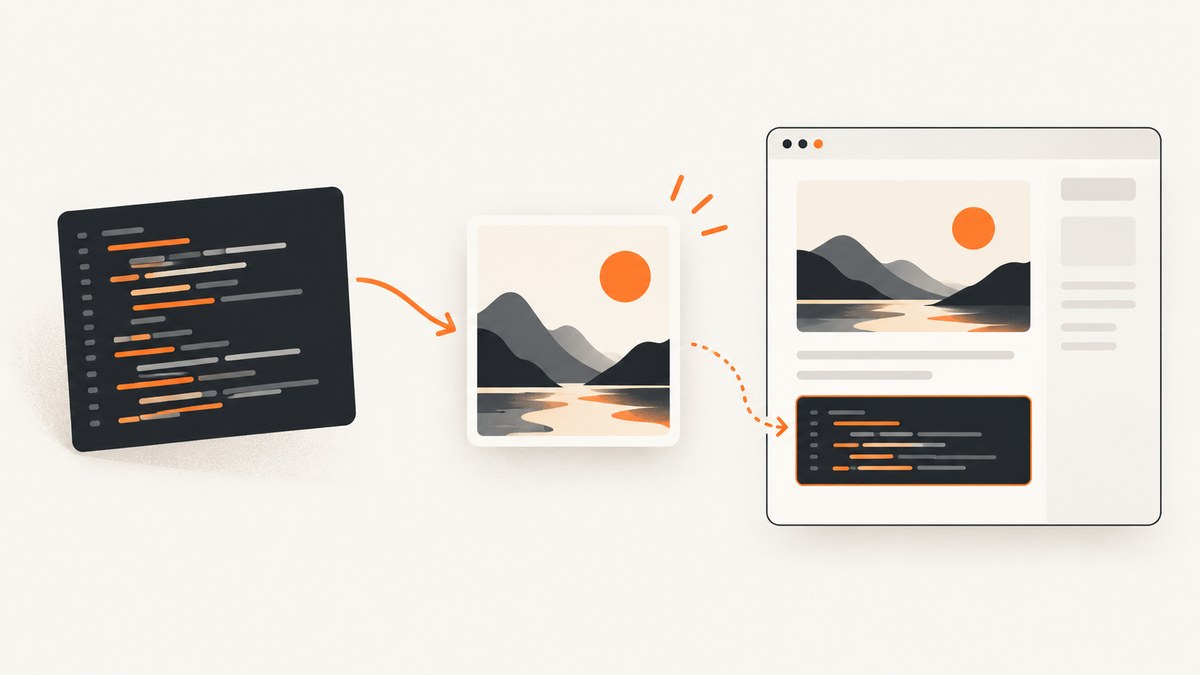
To convert code into an image, first decide where the code lives. For a polished shareable image made from a source snippet, use a code-image generator such as Carbon: paste or import the snippet, set its language and appearance, then export. For code already displayed in a web page, use browser automation such as Playwright to capture the rendered element or page. If the code is in an editor, an extension can turn a selection into an image from that workflow.
These approaches solve different problems. A generator styles source text; a screenshot captures rendered pixels. This guide walks through each route, including a runnable Playwright example, output and readability choices, privacy considerations, and common failure fixes.
1. Choose the right workflow
| What you have | Good starting point | What the image represents |
|---|---|---|
| A source snippet or file | Carbon | Styled code rendered by a code-image tool |
| A selected passage in VS Code | An editor screenshot extension | The extension’s preview of the selection |
| A code block already on a webpage | Playwright screenshot | The browser’s rendered pixels |
Carbon describes its purpose as making it easy to create and share images of source code. Its documentation covers typing or pasting code, importing a file or GitHub gist, adjusting syntax theme and appearance, and exporting PNG or SVG. The VS Code Marketplace listing reviewed for this guide describes selecting code, previewing it, adjusting its appearance, and copying or saving PNG, SVG, or GIF. Confirm that a specific extension is maintained and compatible with your installed editor before relying on it. [Carbon] [VS Code Marketplace]
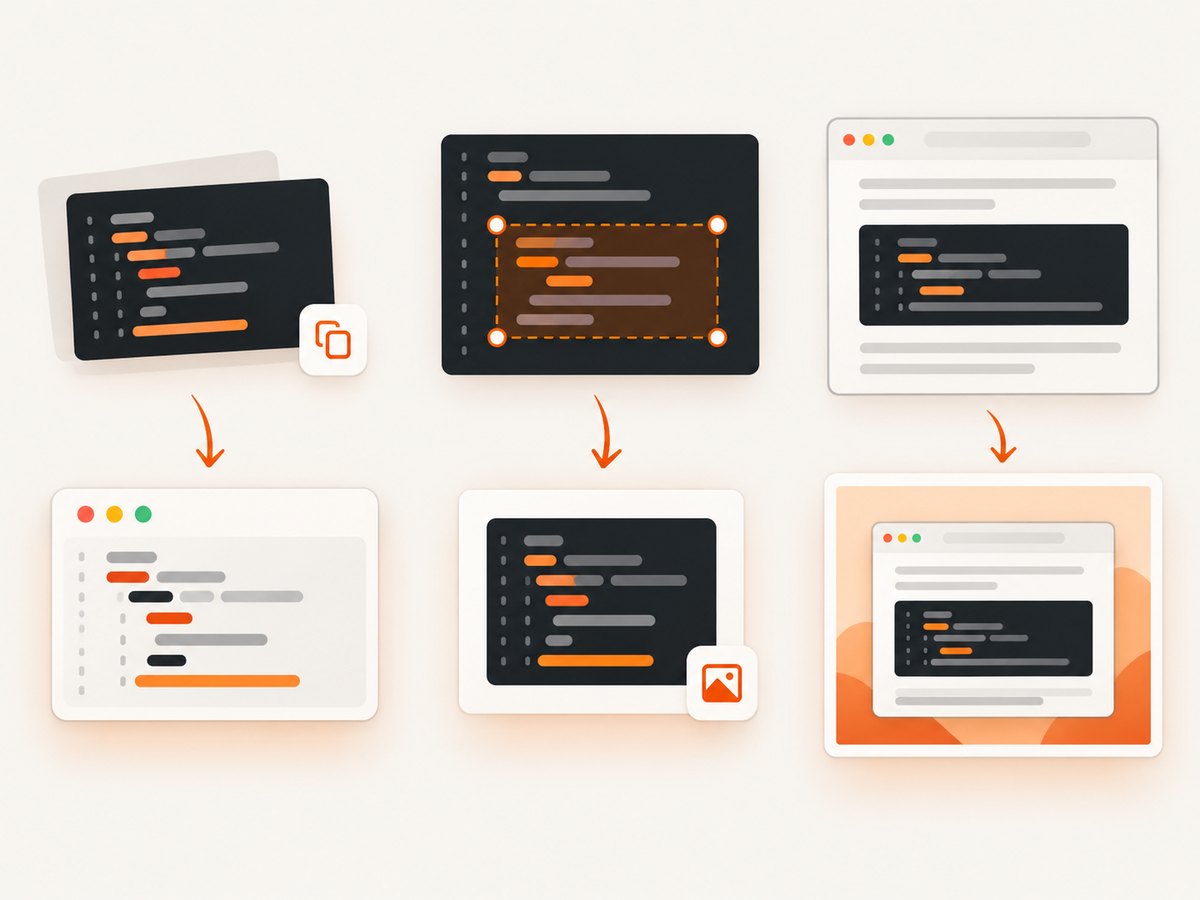
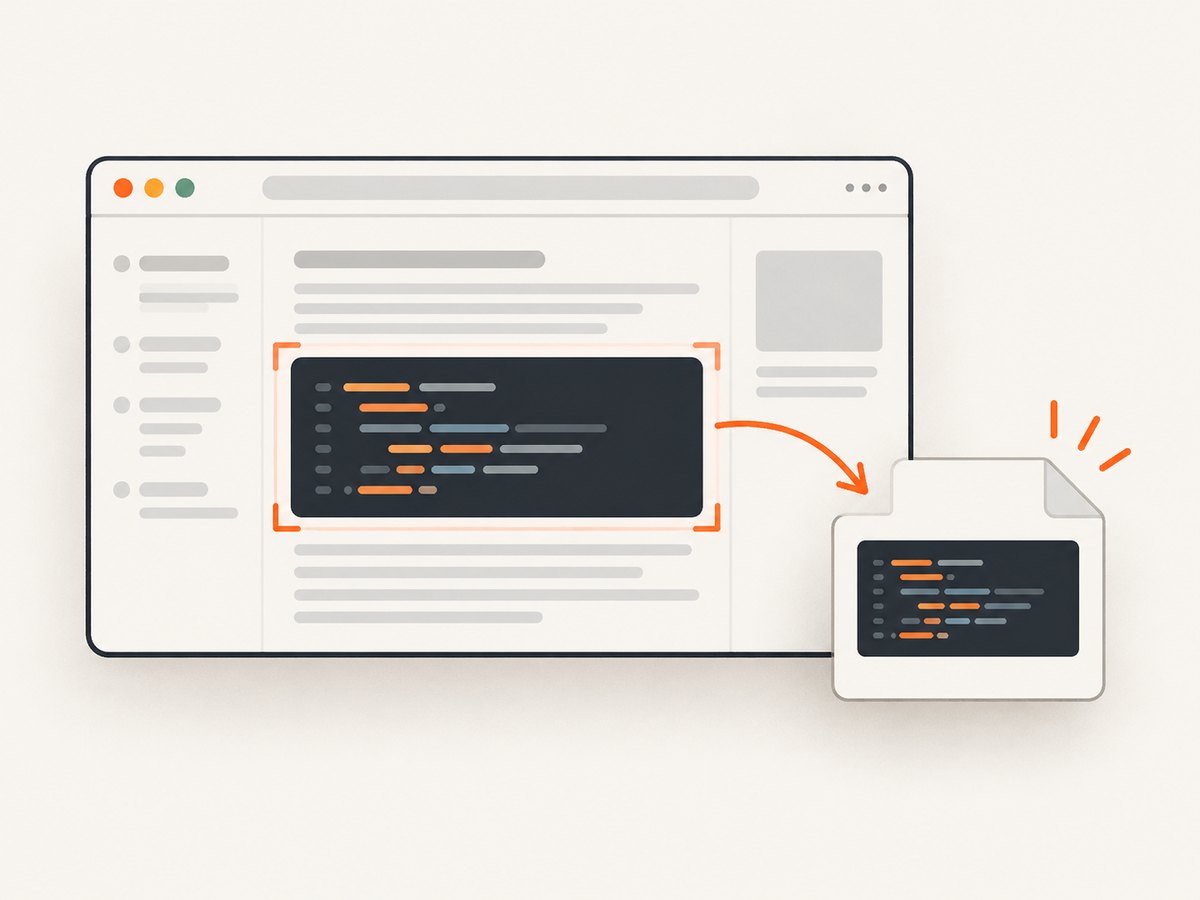
Use browser automation when the target is already arranged in a page and you need repeatable captures, such as documentation images or regression artifacts. Playwright can capture a viewport, a selected element, or a full page; its screenshot API supports PNG, JPEG, and WebP output. [Playwright Screenshots guide] [Playwright screenshot API]
2. Make a styled image from a source snippet
For a static image to put in documentation, a tutorial, or a presentation, a purpose-built generator is usually the shortest route. The code is rendered with syntax colors and a chosen visual frame rather than captured from an editor window.
- Open Carbon and paste or type the snippet. If your code is in a file or GitHub gist, use the import option documented by the project.
- Set the language explicitly. Syntax highlighting depends on interpreting the source as the right language; check that keywords, strings, and comments look sensible.
- Choose a theme and framing. Keep the contrast strong and avoid decoration that competes with the code.
- Check the complete snippet at the size where readers will see it. Long lines can become tiny or be clipped in a narrow image.
- Export PNG for a raster image or SVG when a scalable vector image suits your publishing workflow. Carbon documents both formats; check its current interface for available controls.
Before exporting, remove unrelated lines and keep the image focused on one idea. If readers may need to copy or inspect the source, provide the code as text or link to its source as well: an image is not searchable or reliably copyable code.
3. Capture code from your editor
If the code is already open in VS Code, an editor extension can avoid copying it into another workflow. The reviewed Marketplace listing describes selecting lines, opening a preview, adjusting the appearance, then copying or saving the result. It lists PNG, SVG, and GIF output. The exact controls and compatibility depend on the extension, so review its current listing and maintenance status before installing it. [VS Code Marketplace]
- Select only the lines that explain the point. Include needed context such as a function signature, but avoid a full file when a small example will do.
- Open the extension’s preview and inspect the entire selection, including the first and last lines.
- Adjust the theme, spacing, or framing if supported, and confirm the text remains readable at the intended display size.
- Copy or save the image in a format supported by the extension. Reopen the saved file to catch cropping or export issues.
For private or proprietary code, check the extension’s data handling and permissions. The Marketplace listing alone does not establish whether code is transmitted or retained. The same caution applies to online snippet generators: the reviewed feature documentation does not establish their privacy or retention practices. Check current terms before uploading secrets or sensitive source.
4. Screenshot a rendered code block with Playwright
Use Playwright when you want the browser’s actual presentation: the webpage’s fonts, syntax styling, surrounding layout, and responsive behavior. The example below opens a page, waits for a code element, and saves just that element as a PNG. Install Playwright and its Chromium browser in your project before running it, following the official installation instructions. [Playwright installation]
import { chromium } from 'playwright';

const browser = await chromium.launch();
const page = await browser.newPage({
  viewport: { width: 1280, height: 900 },
  deviceScaleFactor: 2,
});

try {
  await page.goto('https://example.com/docs', {
    waitUntil: 'domcontentloaded',
    timeout: 30_000,
  });

  const codeBlock = page.locator('pre code').first();
  await codeBlock.waitFor({ state: 'visible', timeout: 15_000 });
  await codeBlock.screenshot({ path: 'code-block.png' });
} finally {
  await browser.close();
}
Save the file as capture-code.mjs and run it with node capture-code.mjs after installing the Playwright package and browser. Replace the example URL and selector with the actual page and code block. The try/finally ensures the browser closes even if navigation or capture fails.
Capture a whole page or a viewport
For a full page, use await page.screenshot({ path: 'page.png', fullPage: true }). For the current viewport, omit fullPage. Element screenshots are often easier to read because they exclude unrelated page content. Playwright also documents screenshot options for image type, clipping, and other capture behavior; consult the API for the version installed in your project. [Screenshot API options]
await page.screenshot({
  path: 'page.webp',
  type: 'webp',
  fullPage: true,
});
PNG is a safe choice for crisp text. JPEG can be useful when file size matters and some compression artifacts are acceptable. WebP is another documented option. The best format depends on where the asset will be used; inspect the actual output at its final display size.
Wait for content that loads late
A code block may appear only after client-side rendering, a tab click, or a network request. Prefer waiting for the specific element rather than adding an arbitrary long delay. If the page requires interaction, perform it before locating the target:
await page.goto('https://example.com/docs', { waitUntil: 'domcontentloaded' });
await page.getByRole('tab', { name: 'JavaScript' }).click();
const code = page.locator('pre code').first();
await code.waitFor({ state: 'visible', timeout: 15_000 });
await code.screenshot({ path: 'javascript-example.png' });
Use a selector tied to the intended block when there are multiple examples. For a page you control, add a stable attribute such as data-testid; for a third-party page, inspect its DOM and choose a selector that survives ordinary layout changes. A selector matching the first pre code can silently capture the wrong example.
5. Make the result readable and dependable
- Choose the capture boundary. Capture the code element for a focused image; capture the page only when the surrounding context matters.
- Set the viewport deliberately. A narrow viewport can wrap long lines; a wide one can create an image that becomes unreadable when embedded. Match the intended use.
- Use device scale factor for crispness. A larger device scale factor produces more image pixels for the same CSS viewport. It also increases output dimensions and file size.
- Wait for fonts and syntax rendering. If styles or fonts load after the element appears, wait for the relevant ready condition before capture. Avoid relying on a fixed sleep unless the page offers no observable condition.
- Account for dynamic content. Animations, rotating banners, timestamps, and personalized pages can make repeated images differ. Disable or wait out animation when you control the page, and capture a stable state.
- Check clipping and overflow. Long code lines may extend beyond a container. Inspect the output and adjust viewport or target dimensions rather than assuming a screenshot includes hidden overflow.
For reliable automation, capture a known URL and state, use explicit timeouts, wait for the target selector, and save failures with enough context to diagnose them. If a site changes markup, a brittle CSS selector may stop matching. Treat the selector and the expected output as part of the capture script that needs maintenance.
6. Or skip the browser setup
If the code is already on a webpage and you want a screenshot without installing and managing a browser, ScreenshotNeo provides a website screenshot API. Its documented API accepts one GET request for a URL and returns an image or PDF. For more capture options, see the ScreenshotNeo API documentation.
curl -G "https://api.screenshotneo.com/v1/shot" -d access_key=YOUR_API_KEY --data-urlencode url=https://example.com/docs -o shot.webpimport requests
r = requests.get(
"https://api.screenshotneo.com/v1/shot",
params={"access_key": "YOUR_API_KEY", "url": "https://example.com/docs"},
timeout=90,
)
open("shot.webp", "wb").write(r.content)const q = new URLSearchParams({
access_key: 'YOUR_API_KEY',
url: 'https://example.com/docs',
});
const res = await fetch(`https://api.screenshotneo.com/v1/shot?${q}`);
if (!res.ok) throw new Error(`Screenshot request failed: ${res.status}`);
await Bun.write('shot.webp', res);The Node example uses Bun’s file-writing helper. In Node.js, save the response with the built-in filesystem module:
import { writeFile } from 'node:fs/promises';

const q = new URLSearchParams({
  access_key: 'YOUR_API_KEY',
  url: 'https://example.com/docs',
});
const res = await fetch(`https://api.screenshotneo.com/v1/shot?${q}`);
if (!res.ok) throw new Error(`Screenshot request failed: ${res.status}`);
await writeFile('shot.webp', Buffer.from(await res.arrayBuffer()));
ScreenshotNeo removes cookie and consent banners, newsletter popups, and chat widgets before capture; each cleanup step can be turned off. Bot checks, blank pages, failed loads, timeouts, and cache hits are not billed, and response headers report the page verdict and billing status. Its MCP server gives AI agents tools to take screenshots, get page information, and capture PDFs. The free plan includes 1,000 screenshots monthly with no card; paid plans start at $5 for 3,000. Sign up free and get 1,000 screenshots a month with no card.
7. Troubleshooting
| Symptom | Likely cause | Fix |
|---|---|---|
| Image is blank or missing the code | Wrong selector, delayed render, or code is in a hidden tab | Inspect the page structure, activate the tab, and wait for the target to be visible before capture. |
| Capture times out | Slow navigation, blocked resources, or an overly strict wait condition | Use a suitable navigation event, set a realistic timeout, and wait for the code element rather than every network request to finish. |
| Text is too small | Too much code or an oversized capture area | Capture one block, trim unrelated lines, increase the displayed image size, or create multiple images. |
| Long lines are cut off | The code container or viewport clips horizontal overflow | Increase viewport width, adjust the page layout when possible, or use a source-snippet generator for a tailored composition. |
| Syntax colors are absent | Language was misidentified or page highlighting has not run | Set the language in the generator, or wait until the page’s highlighting is applied. |
| Saved file is not the expected format | Extension, screenshot type, or export setting mismatch | Set the format explicitly where supported and check the generated file in an image viewer. |
| Repeated captures differ | Animations, timestamps, rotating content, or personalized state | Capture a stable state, disable motion where you control the page, and use the same viewport and inputs. |
8. Performance, reliability, and cost
For a one-off snippet, manual export avoids writing and maintaining automation. For repeated captures, a browser script has setup and runtime cost: the browser must launch, navigate, render fonts and styles, and write the image. Reuse a browser process for a batch of pages instead of launching one browser per image, while keeping pages or contexts isolated when their state must not mix.
Image dimensions affect storage and transfer time. Retina captures and full-page screenshots can be much larger than a cropped code block. Choose PNG when text fidelity matters; compare the resulting file with JPEG or WebP if the destination supports them and size is a concern. Automated captures can also fail when a third-party page changes, so record which URL and selector were used and make the capture state reproducible.
Carbon and editor extensions document image-generation workflows, but the reviewed material does not establish pricing, privacy guarantees, or retention behavior. Check current product terms before using them with confidential code. Playwright is an open-source browser automation framework; operating browser-based capture still consumes your compute and requires dependency upkeep. For hosted website captures, ScreenshotNeo offers a free allowance and paid tiers described above. Check its current plan details before choosing a tier.
9. Frequently asked questions
Can I convert code to an image without taking a screenshot?
Yes. A code-image generator renders source text into a designed image. That is different from a screenshot, which captures how code appears in an editor or browser.
Should I share code as an image or text?
Use text when readers need to copy, search, run, or adapt it. An image works well as a visual aid, but include an accessible source or code block for practical use.
Can Playwright screenshot code that is not on a webpage?
Playwright captures browser-rendered content. For a raw snippet, use a generator or render the snippet in a page first.
Which image format should I choose?
PNG is a straightforward choice for sharp text; SVG is documented by Carbon for export, and Playwright supports PNG, JPEG, and WebP. Choose based on destination support and verify legibility after export.
Is it safe to paste proprietary code into an online generator?
The feature pages reviewed here do not establish data handling or retention. Check the provider’s current terms, and avoid uploading secrets unless the handling meets your requirements.


