How to Convert contenteditable HTML to PDF
Export contenteditable HTML to a usable PDF with print CSS, browser libraries, or a server API. Includes code, pagination fixes, and troubleshooting.
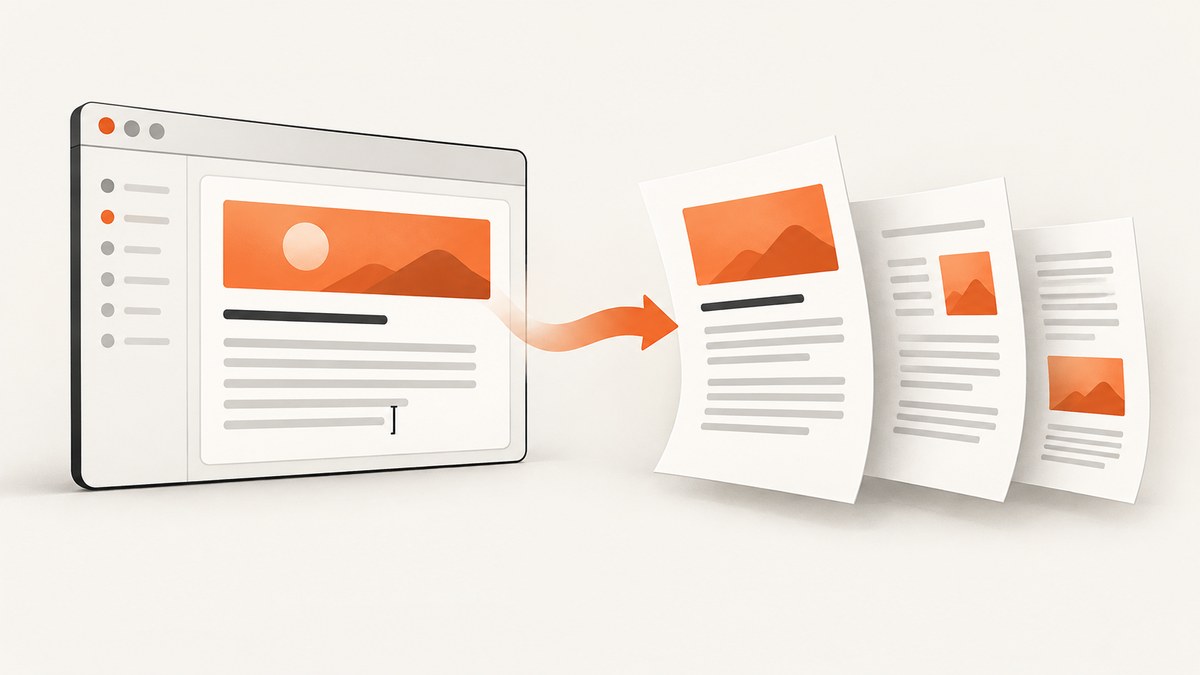
To convert contenteditable HTML to PDF, start with the browser’s native print pipeline: keep the document in a dedicated element, add print-only CSS, and call window.print() from an Export button. The browser creates the print preview, where the user can choose Save as PDF. This preserves selectable text and uses the browser’s layout engine.
Use a DOM-to-PDF library such as html2pdf.js when you need to target one element and trigger a direct download. Use a hosted HTML-to-PDF API when conversion must run on a server or in a background job.
1. Prepare the editable document
Export the content region, not the whole editor interface. Toolbars, selection handles, buttons and status messages should remain outside the export node or be hidden in print styles.
<main class="editor-shell">
  <div class="toolbar" aria-label="Editor tools">
    <button id="exportPdf" type="button">Export PDF</button>
  </div>

  <article id="document" class="document" contenteditable="true">
    <h1>Project brief</h1>
    <p>Edit this content, then export it as a PDF.</p>
    <h2>Requirements</h2>
    <ul>
      <li>Preserve headings and lists</li>
      <li>Keep text selectable</li>
    </ul>
  </article>
</main>
Before starting generation, make sure the DOM contains the latest saved editor value. If your editor framework stores content separately, synchronise that state first. A stale DOM produces a stale PDF.
2. Add print-specific CSS
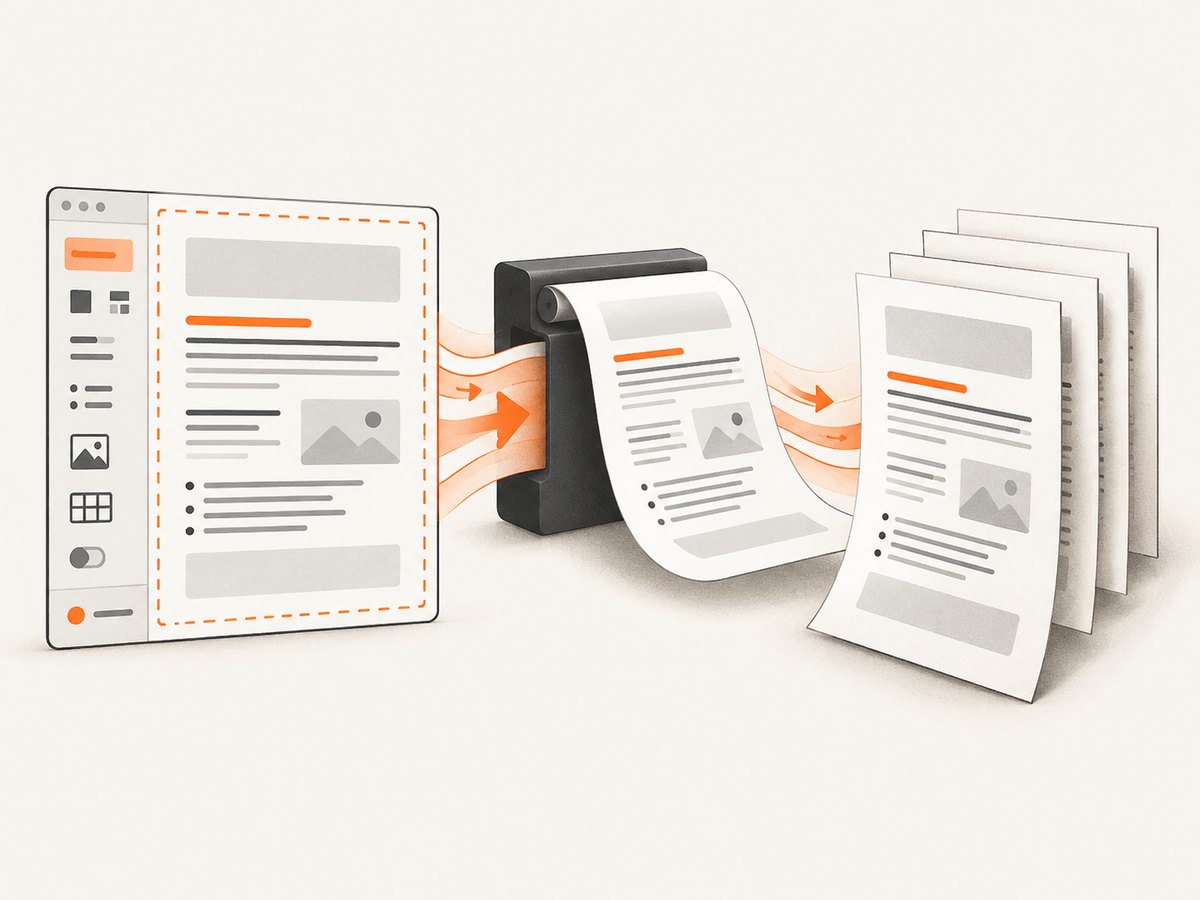
@media print lets you remove screen-only controls and restyle the document for paper. @page controls paper size, orientation and margins where the browser supports those settings. See MDN’s guides to printing and paged media.
:root {
  --paper-width: 8.5in;
}

.document {
  max-width: var(--paper-width);
  margin: 2rem auto;
  padding: 2rem;
  background: white;
  color: #1f2937;
  font: 16px/1.55 system-ui, sans-serif;
}

@page {
  size: A4;
  margin: 18mm 16mm;
}

@media print {
  .toolbar,
  [contenteditable="true"]:focus,
  .screen-only {
    display: none !important;
  }

  html,
  body {
    margin: 0;
    background: white;
  }

  .document {
    max-width: none;
    margin: 0;
    padding: 0;
    color: #000;
    box-shadow: none;
  }

  h1,
  h2,
  h3 {
    break-after: avoid;
  }

  table,
  figure,
  blockquote,
  pre {
    break-inside: avoid;
  }

  p,
  li {
    orphans: 3;
    widows: 3;
  }

  a {
    color: inherit;
    text-decoration: none;
  }
}
Do not hide the editable region itself with a broad selector. Hide only controls and decorations. If the editor adds focus outlines or placeholder elements, give those elements a print-only rule.
3. Trigger the browser’s PDF flow
Call window.print() from a user action. The print dialog and final destination are controlled by the browser and operating system.
const exportButton = document.querySelector('#exportPdf');
const editor = document.querySelector('#document');

exportButton.addEventListener('click', () => {
  if (!editor.textContent.trim()) {
    alert('Add some content before exporting.');
    return;
  }

  window.print();
});
Tell users that this action opens print preview and that they should select a PDF destination. Browser settings, installed fonts, zoom, headers and footers can change the final file, so preview in the browsers you support.
Set a PDF filename
Browsers generally let users choose the filename in the print dialog. You cannot reliably force a filename through window.print(). If deterministic filenames are required, use a client-side library or server-side conversion.
4. Preserve page structure and pagination
Long editable documents need deliberate break rules. Keep headings with the following content, avoid splitting tables and figures, and test lists, code blocks, images and footnotes at page boundaries.
.chapter {
  break-before: page;
}

.keep-together {
  break-inside: avoid;
}

@media print {
  .document img {
    max-width: 100%;
    height: auto;
  }

  .document pre {
    white-space: pre-wrap;
    overflow-wrap: anywhere;
  }
}
Very large images can create unexpectedly long pages or memory pressure. Constrain their print width and ensure the source image has loaded before opening print preview. Web fonts may fall back if they are not available or have not finished loading.
5. Direct browser downloads with html2pdf.js
Use html2pdf.js when you need to render a selected DOM node and start a download without relying on the print dialog. Its documented pipeline combines html2canvas and jsPDF (project documentation).
<script src="https://cdnjs.cloudflare.com/ajax/libs/html2pdf.js/0.10.1/html2pdf.bundle.min.js"></script>
<script>
  const button = document.querySelector('#exportPdf');
  const element = document.querySelector('#document');

  button.addEventListener('click', async () => {
    const options = {
      margin: [12, 12, 12, 12],
      filename: 'project-brief.pdf',
      image: { type: 'jpeg', quality: 0.95 },
      html2canvas: {
        scale: 2,
        useCORS: true,
        backgroundColor: '#ffffff'
      },
      jsPDF: {
        unit: 'mm',
        format: 'a4',
        orientation: 'portrait'
      },
      pagebreak: {
        mode: ['css', 'legacy']
      }
    };

    await html2pdf().set(options).from(element).save();
  });
</script>
This approach is convenient, but it does not create a native browser print representation. The html2canvas documentation explains that it reconstructs an image from DOM information and supported CSS rather than taking a true browser screenshot (documentation). html2pdf.js also warns that text can become non-selectable or non-searchable and that output files can be large. Validate text selection, search, fonts, images and page breaks with realistic documents.
Wait for images and fonts
async function waitForAssets(root) {
  const images = [...root.querySelectorAll('img')];
  await Promise.all(images.map(img => {
    if (img.complete) return Promise.resolve();
    return new Promise(resolve => {
      img.addEventListener('load', resolve, { once: true });
      img.addEventListener('error', resolve, { once: true });
    });
  }));

  if (document.fonts?.ready) {
    await document.fonts.ready;
  }
}

button.addEventListener('click', async () => {
  await waitForAssets(element);
  await html2pdf().set(options).from(element).save();
});
6. Handle cross-origin images and iframes
Canvas-based rendering is subject to browser origin rules. An image hosted on another origin may be omitted or taint the canvas unless the server supplies suitable CORS headers. The html2canvas FAQ documents these restrictions. Proxy images through an origin you control or configure the asset server for CORS; do not assume useCORS can override server policy. Cross-origin iframes generally cannot be read by page JavaScript.
7. Server-side HTML-to-PDF APIs
A managed service fits background jobs, centralised document generation and environments where a browser cannot run. HTML2PDF.app documents an authenticated API that accepts raw HTML or a public URL and returns PDF bytes (API documentation). Adobe documents HTML-to-PDF in PDF Services (official documentation).
Before sending editor content, check how the service loads linked CSS, images, fonts and scripts; whether private URLs or credentials could be exposed; how long requests take; and how failures are reported. Confirm current pricing and data-retention terms directly with the provider.
8. Complete minimal example
<!doctype html>
<html lang="en">
<head>
  <meta charset="utf-8">
  <title>Editable PDF export</title>
  <style>
    body { margin: 0; background: #e5e7eb; }
    .toolbar { padding: 1rem; background: #111827; }
    .document { max-width: 8.5in; min-height: 11in; margin: 2rem auto; padding: 1in; background: #fff; }
    @page { size: A4; margin: 18mm; }
    @media print {
      .toolbar { display: none !important; }
      body { background: #fff; }
      .document { max-width: none; min-height: auto; margin: 0; padding: 0; }
    }
  </style>
</head>
<body>
  <div class="toolbar">
    <button id="exportPdf" type="button">Export PDF</button>
  </div>
  <article id="document" class="document" contenteditable="true">
    <h1>Editable report</h1>
    <p>Replace this text, then choose Export PDF.</p>
  </article>
  <script>
    document.querySelector('#exportPdf').addEventListener('click', () => window.print());
  </script>
</body>
</html>
9. Or skip the browser setup
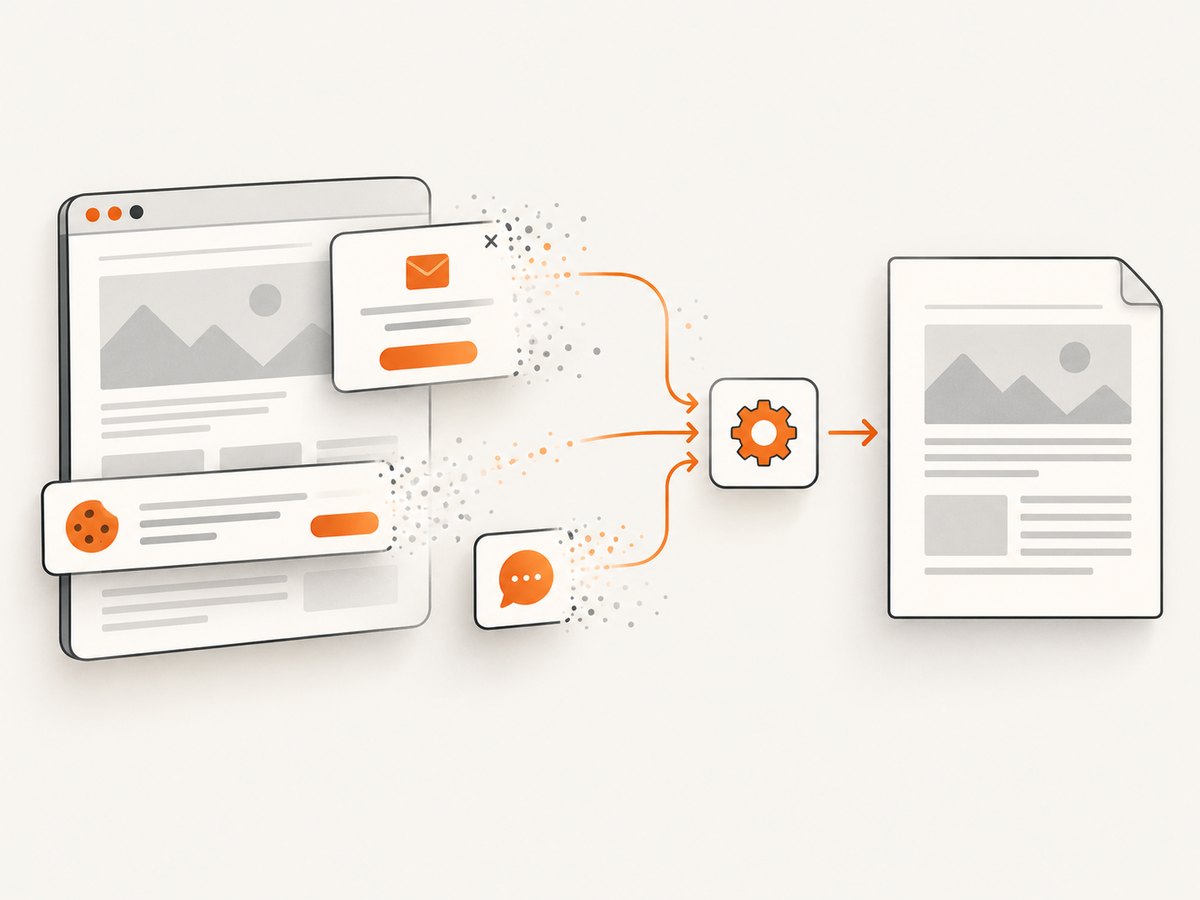
ScreenshotNeo provides a website screenshot and PDF API. One GET request can capture a URL as a PDF, PNG, JPEG or WebP. Its capture steps can accept consent banners and remove more than 60 known consent platforms, newsletter popups and chat widgets before capture. Bot checks, blank pages, timeouts, failed loads and cache hits are not billed, and the response identifies the result with X-Page-Verdict and X-Billed headers. An MCP server provides take_screenshot, get_page_info and capture_pdf tools for Claude, Cursor and other MCP clients.
For a public editor preview, publish the document at a URL and call the PDF endpoint:
curl -G "https://api.screenshotneo.com/v1/shot" \
  -d access_key=YOUR_API_KEY \
  --data-urlencode url=https://example.com/report \
  -d format=pdf \
  -o report.pdf
See the ScreenshotNeo API documentation for authentication and options. The same endpoint supports full-page capture, CSS-selector element capture, custom CSS and JavaScript, waits, headers, cookies, user agents, authorization, timezone, geolocation, PDF paper settings, margins, landscape mode and page ranges.
import requests

r = requests.get(
    "https://api.screenshotneo.com/v1/shot",
    params={"access_key": "YOUR_API_KEY", "url": "https://example.com/report", "format": "pdf"},
    timeout=90,
)
r.raise_for_status()
open("report.pdf", "wb").write(r.content)
const q = new URLSearchParams({
access_key: 'YOUR_API_KEY',
url: 'https://example.com/report',
format: 'pdf'
});
const res = await fetch(`https://api.screenshotneo.com/v1/shot?${q}`);
if (!res.ok) throw new Error(`ScreenshotNeo returned ${res.status}`);
const pdf = Buffer.from(await res.arrayBuffer());
await import('node:fs/promises').then(fs => fs.writeFile('report.pdf', pdf));The Free plan includes 1,000 shots per month without a card. Paid plans start at $5 for 3,000 shots; every feature is available on every plan. Create a free ScreenshotNeo account.
10. Troubleshooting
| Symptom | Likely cause | Fix |
|---|---|---|
| Toolbar appears in the PDF | Screen-only controls are not hidden in print media. | Add a specific @media print rule with display: none. |
| Export contains old text | Application state was not written to the DOM. | Synchronise the saved editor value before calling print or generating the PDF. |
| Text is missing or not selectable | Canvas-based rendering rasterised the content. | Use native print for selectable text, or validate the library output against your accessibility requirements. |
| Images disappear | Cross-origin restrictions, failed requests or images not yet loaded. | Wait for image loads, configure CORS or proxy assets through a permitted origin. |
| Content is cut between pages | The renderer does not support a CSS rule or an element is taller than one page. | Use break-inside: avoid for small blocks, add explicit breaks for chapters, and test oversized tables and images. |
| Fonts differ | Font files were unavailable or not loaded at capture time. | Wait for document.fonts.ready, provide fallbacks and verify the font license for server use. |
| PDF is unexpectedly huge | Large raster images or a high canvas scale. | Resize source images, reduce scale or use native print for text-heavy documents. |
| Server conversion cannot load assets | Private URLs, blocked network access or relative paths. | Use absolute URLs, provide authenticated resource access where supported, and inspect service logs. |
| ScreenshotNeo returns a non-clean verdict | The page showed a bot check, blank result, timeout or failed load. | Read X-Page-Verdict, adjust waits or access settings, and retry only when the page is actually ready. |
11. Performance, reliability and cost
- Native print: usually the lightest client-side path because the browser already owns layout and pagination. The user must interact with print preview.
- html2pdf.js: runs in the browser and avoids a server request, but large DOM trees and high canvas scales consume memory. Keep documents bounded and measure output size.
- Managed APIs: move rendering cost and browser maintenance to a provider. Account for network latency, request limits, asset loading and service-specific rendering differences.
- Repeatability: fix viewport, fonts, timezone, locale and resource versions when reproducible output matters. Compare PDFs across supported browsers and operating systems.
- Retries: retry transient network failures with a limit and backoff. Do not blindly retry invalid HTML, blocked authentication or deterministic CORS failures.
- Data handling: avoid putting secrets in editor HTML or public URLs. Review retention and processing terms before sending sensitive documents to a hosted converter.
12. Decision checklist
- Choose
window.print()when users can use a print dialog and selectable text matters. - Choose a DOM-to-PDF library when you need element targeting and a direct browser download, and image-like text is acceptable.
- Choose a server API when jobs must run centrally, asynchronously or without a user browser.
- Test long headings, tables, lists, code, images, external fonts, links, page breaks and empty documents.
- Define what happens when content is still loading, an image fails, a page is empty or conversion times out.
FAQ
Can contenteditable itself generate a PDF?
No. It provides an editable DOM. A print pipeline, browser library or server converter must turn that DOM into PDF output.
Is browser print better than html2pdf.js?
For selectable text and browser CSS fidelity, start with print CSS. For a targeted element and direct download, evaluate html2pdf.js and test its rasterisation tradeoffs.
Why does my PDF look like one large image?
Canvas-based tools commonly rasterise the rendered DOM. Use native print when text search and selection are requirements.
Can I export only part of the editor?
Yes. Put the intended content in its own element and pass that node to the library, or isolate it with print styles before calling window.print().
How do I make the same PDF on every machine?
Use a controlled server renderer, pin fonts and assets, and define viewport, locale, timezone and print settings. Native user print settings can vary.


