How to Convert a Data URL to an Image in JavaScript
Display a data URL directly with JavaScript, or convert it to a Blob for downloads, canvas work, and other APIs. Includes runnable examples and fixes for common errors.

A data URL is already a URL for an inline resource. To display an image data URL in a browser, assign the complete string to an HTMLImageElement‘s src, then wait for it to load or decode. You do not need to turn it into a Blob or draw it on a canvas just to show it.
const image = new Image();
image.src = dataUrl;
document.body.append(image);
await image.decode();
console.log(image.naturalWidth, image.naturalHeight);
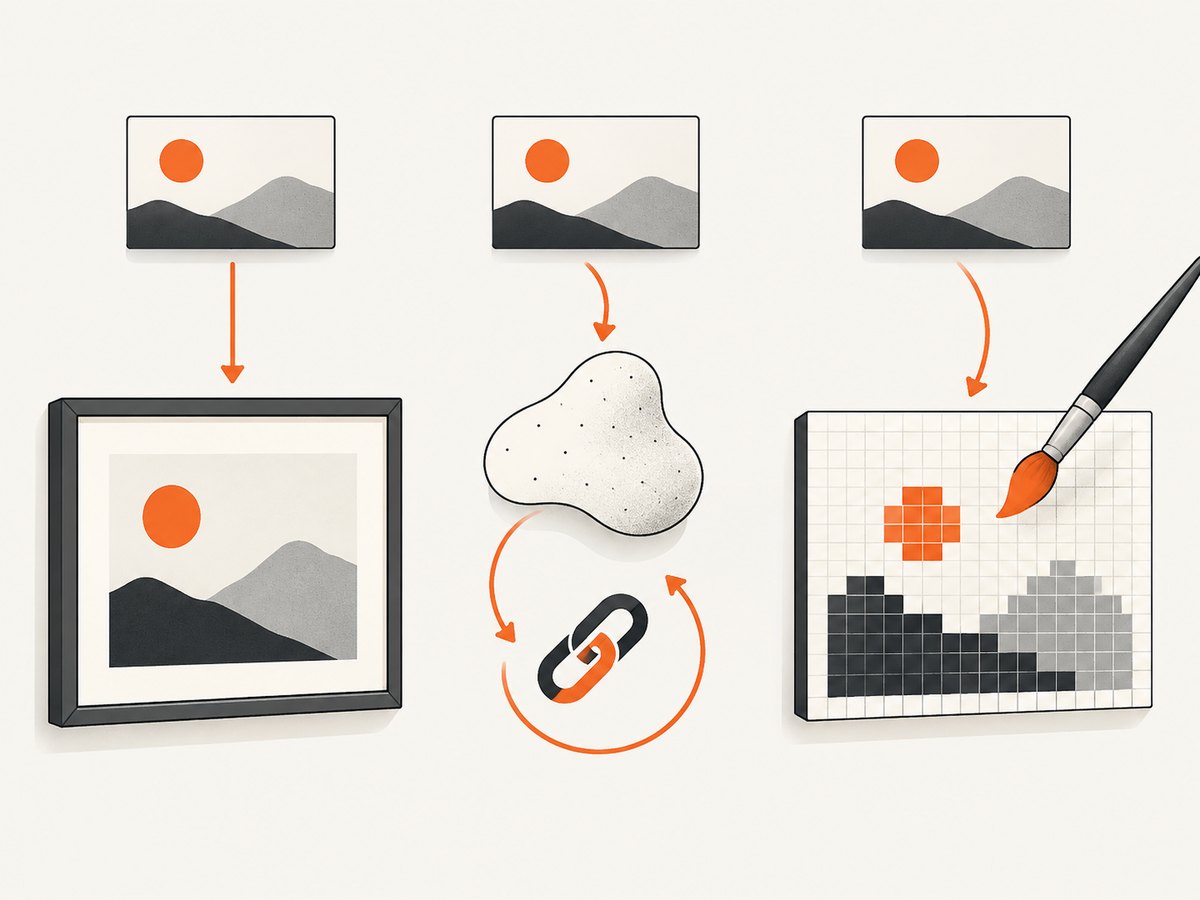
Use a Blob when another API needs binary data or you want an object URL. Use canvas when you need pixels, resizing, drawing, or a newly encoded image. This guide covers those paths, their limitations, troubleshooting, and how to choose among them.
1. Understand the data URL format
A data URL has the general form data:[<media-type>][;base64],<data>. The comma separates metadata from the payload. For an image, declare a suitable image MIME type such as image/png, image/jpeg, or image/webp. If the media type is omitted, the default is text/plain;charset=US-ASCII, which does not describe an image. The ;base64 marker indicates that the payload is base64-decoded; without it, the payload is URL-encoded. See MDN’s guide to data: URLs.
For example, data:image/png;base64,iVBORw0KGgo... declares a PNG whose payload is base64. Keep the prefix and payload together when assigning the value to src. A bare base64 string is not itself a complete data URL.
2. Display the image directly
For ordinary display, create an image element and assign the full data URL. The browser loads it as an image resource. If subsequent code needs its natural dimensions or must draw it, wait for loading first.

function loadImage(dataUrl) {
  return new Promise((resolve, reject) => {
    const image = new Image();

    image.onload = () => resolve(image);
    image.onerror = () => reject(new Error("Could not load image data URL"));
    image.src = dataUrl;
  });
}

const image = await loadImage(dataUrl);
document.body.append(image);
console.log(`${image.naturalWidth} × ${image.naturalHeight}`);
This is a browser example: Image and document are web platform APIs. It works in a module or other context that supports top-level await; otherwise, put the calls in an async function. If you only need to place an image in markup, you can also assign the data URL to an existing <img> element’s src.
Wait for load or decode?
The load event confirms the image resource loaded. The decode() method returns a promise that resolves when the image is decoded and ready to render. Either is useful when code needs reliable dimensions or will draw the image. Handle rejection so malformed or unsupported data does not become an unhandled promise.
async function loadAndDecode(dataUrl) {
  const image = new Image();
  image.src = dataUrl;
  await image.decode();
  return image;
}

try {
  const image = await loadAndDecode(dataUrl);
  console.log(image.naturalWidth, image.naturalHeight);
  document.body.append(image);
} catch (error) {
  console.error("Image could not be decoded", error);
}
For broad failure handling, install onerror before setting src, as in the first example. Avoid reading width immediately after assigning src: the request and decode may not have completed yet. naturalWidth and naturalHeight report the intrinsic dimensions once available.
3. Convert the data URL to a Blob
Some APIs accept a Blob or binary data rather than a URL string. In browsers, fetch() can consume a data URL and its response can be read as a Blob:
async function dataUrlToBlob(dataUrl) {
  const response = await fetch(dataUrl);
  if (!response.ok) {
    throw new Error(`Could not read data URL: ${response.status}`);
  }
  return response.blob();
}

const blob = await dataUrlToBlob(dataUrl);
console.log(blob.type, blob.size);
Use this when an upload API accepts a Blob, a file-like object, or a multipart form field. For example:
const blob = await dataUrlToBlob(dataUrl);
const form = new FormData();
form.append("image", blob, "image.png");

const response = await fetch("/upload", {
  method: "POST",
  body: form
});
if (!response.ok) throw new Error(`Upload failed: ${response.status}`);
The filename is a form field hint; choose an extension consistent with the image format. A data URL’s MIME type and the filename extension should agree. For an API that expects raw bytes instead of multipart data, pass a Blob body with the appropriate request headers specified by that API.
4. Create an object URL for local display or download
A Blob can be exposed through a temporary blob: object URL. This can be useful when you want to treat locally held bytes as a resource URL, such as displaying a generated file or linking to a download.
const blob = await dataUrlToBlob(dataUrl);
const objectUrl = URL.createObjectURL(blob);

const image = new Image();
image.src = objectUrl;
await image.decode();
document.body.append(image);

// Revoke when the image no longer needs the URL.
URL.revokeObjectURL(objectUrl);
Manage the URL’s lifetime. Revoke it when the user-facing interaction that depends on it is finished; do not revoke it immediately after assigning src if the rendered image still needs to support actions such as opening or saving it. MDN explains the blob: URL lifecycle.
For a download, keep the object URL alive while the link is available, then revoke it when the download workflow is over. If a component creates object URLs repeatedly, clean up old URLs when replacing the image and when the component is removed. This prevents unnecessary retention of the underlying Blob.
5. Use canvas for pixels and transformations
Canvas is appropriate when you need to read or modify pixels, draw the image into a new composition, resize it, or export it in another image format. It adds work and memory use, so skip it for simple display.
async function dataUrlToPngBlob(dataUrl) {
  const image = new Image();
  image.src = dataUrl;
  await image.decode();

  const canvas = document.createElement("canvas");
  canvas.width = image.naturalWidth;
  canvas.height = image.naturalHeight;

  const context = canvas.getContext("2d");
  if (!context) throw new Error("Canvas 2D context is unavailable");
  context.drawImage(image, 0, 0);

  const blob = await new Promise(resolve => canvas.toBlob(resolve, "image/png"));
  if (!blob) throw new Error("Image export failed");
  return blob;
}
To resize, set the canvas dimensions to the desired output size and draw into that destination rectangle:
context.drawImage(image, 0, 0, outputWidth, outputHeight);To inspect pixels, call getImageData(x, y, width, height) after drawing. It returns pixel channel data and can consume substantial memory for large regions. For image output, canvas.toBlob() is generally preferable to canvas.toDataURL() when you need a file or binary result. toDataURL() encodes the whole image into an in-memory string and can run into browser URL length limits. Use it when a serialized data URL is specifically required or the output is small. Unsupported export formats may fall back to PNG. See MDN on canvas.toDataURL() and the WHATWG canvas element.
6. Choose the right route
| Goal | Use | Why |
|---|---|---|
| Show an image | image.src = dataUrl |
Direct path with no conversion. |
| Supply bytes to an API | fetch(dataUrl) then response.blob() |
Produces a Blob suitable for file-oriented APIs. |
| Display local Blob bytes | URL.createObjectURL(blob) |
Provides a temporary resource URL; remember cleanup. |
| Read or alter pixels | Canvas | Supports drawing, readback, and image export. |
| Serialize a small result as text | canvas.toDataURL() |
Returns an encoded data URL, with memory and size tradeoffs. |
For a large existing data URL, converting it into another representation may temporarily keep the original string and decoded bytes in memory at the same time. If you control the source, prefer receiving or generating a Blob directly instead of first building a large base64 string. Base64 adds encoding overhead to the payload, and data URLs are best reserved for cases where inline serialization is useful.
7. Security and origin considerations
An image rendering successfully does not guarantee that a canvas can expose its pixels. If a canvas draws cross-origin content and the remote server has not permitted cross-origin access, the canvas becomes tainted. Readback and export operations such as getImageData(), toBlob(), and toDataURL() can then fail with a SecurityError. The remote server must provide the required CORS permission for the image to remain readable by canvas. See MDN’s guide to cross-origin images in canvas.
Data URLs are inline resources and modern browsers treat them as unique opaque origins. Do not assume a data URL inherits the creator document’s origin. This matters when reasoning about origin checks and embedding policies. Also treat data URLs as input: if they come from an untrusted source, validate the expected MIME type and size before processing or storing them. A very large payload can use considerable memory even though it is represented as a string.
8. Troubleshooting
| Symptom | Likely cause | Fix |
|---|---|---|
Broken image icon or onerror |
Malformed data URL, missing comma, invalid payload, or wrong MIME type. | Check the data: prefix, comma, declared image type, and encoding. Confirm the bytes match the declared format. |
| Base64 text is treated as a bad URL | The payload was assigned without its data URL metadata. | Use data:image/png;base64,..., with the correct media type. |
| Image appears as text or does not decode | The type was omitted or defaults to plain text. | Include an image MIME type such as image/png. |
| Dimensions are zero or stale | Code reads dimensions before loading or decoding finishes. | Await image.decode() or wait for load before reading naturalWidth and naturalHeight. |
SecurityError from canvas |
The canvas is tainted by a cross-origin image without permission. | Serve the image with suitable CORS headers and load it with the appropriate CORS setup, or avoid pixel readback. |
toBlob() returns null |
The browser could not produce the requested output. | Check the canvas dimensions and requested type; handle null and use a supported format such as PNG. |
| Memory spikes or slow page | Large encoded string plus decoded image and canvas buffers coexist. | Avoid data URLs for large assets, use Blob/object URLs, and reduce canvas dimensions when possible. |
| Image disappears after display | The object URL was revoked while still in use. | Keep the URL until the relevant display/download interaction is complete, then revoke it. |
9. Performance, reliability, and cost
Direct assignment to src has the fewest steps for display and avoids allocating an extra Blob or canvas buffer. Decoding still costs work proportional to the image, so very large images can affect responsiveness. For transformations, downscale into a smaller canvas when that meets the output requirement, and avoid repeatedly decoding the same data URL in a render loop.
Blob conversion and object URLs are reliable browser primitives, but they add lifecycle management: retain the URL while needed, then revoke it. Canvas processing can require another full pixel buffer and exporting adds encoding work. Prefer toBlob() for large outputs instead of creating a second large base64 string with toDataURL(). There is no paid service required for these built-in browser operations; the practical costs are CPU time, memory, and any upload or storage used by the surrounding application.
10. Capture a live webpage as an image instead
If what you actually have is a webpage URL and need its rendered screenshot, converting a data URL is a different task from loading and processing an already encoded image. You can use a browser automation setup to open the page and capture it, or use a screenshot API. ScreenshotNeo is a website screenshot API and MCP server from Yorker Media; it returns PNG, JPEG, WebP, or PDF from one GET request. See ScreenshotNeo and its API documentation.
Or skip the browser setup
curl -G "https://api.screenshotneo.com/v1/shot" -d access_key=YOUR_API_KEY --data-urlencode url=https://stripe.com -o shot.webpimport requests
r = requests.get("https://api.screenshotneo.com/v1/shot", params={"access_key": "YOUR_API_KEY", "url": "https://stripe.com"}, timeout=90)
open("shot.webp", "wb").write(r.content)const q = new URLSearchParams({ access_key: 'YOUR_API_KEY', url: 'https://stripe.com' });
const res = await fetch(`https://api.screenshotneo.com/v1/shot?${q}`);ScreenshotNeo accepts cookie banners and removes more than 60 known consent platforms, newsletter popups, and chat widgets before the shot; each step can be turned off. Bot checks, blank pages, failed loads, timeouts, and cache hits cost nothing, with page verdict and billing information in response headers. Its MCP server gives AI agents tools to take screenshots, get page information, and capture PDFs. The free plan includes 1,000 screenshots a month with no card; paid plans start at $5 for 3,000. Every feature is on every plan.
Create a free ScreenshotNeo account for 1,000 screenshots a month, no card required.
11. Frequently asked questions
Can I convert a data URL without using canvas?
Yes. Assign it to an image’s src to display it, or use fetch(dataUrl).then(response => response.blob()) when binary data is required. Canvas is only needed for pixel operations or image transformations.
Does assigning a data URL to src decode it synchronously?
No. Set the source, then wait for load or decode() before depending on the decoded image or its intrinsic dimensions.
Why would a data URL image render but fail when I export canvas?
Rendering and canvas readback have different security conditions. A canvas that contains content without the required origin permission is tainted, which blocks pixel access and export.
Should I store images as data URLs?
Use them when inline serialization is useful and the payload is modest. For larger data, a Blob or ordinary image resource is generally more memory-conscious than keeping a large encoded string.


