How to Convert a DOC File to PNG
Convert a DOC to PNG page by page or extract an embedded picture. Use Word, LibreOffice, PDF and command-line workflows.
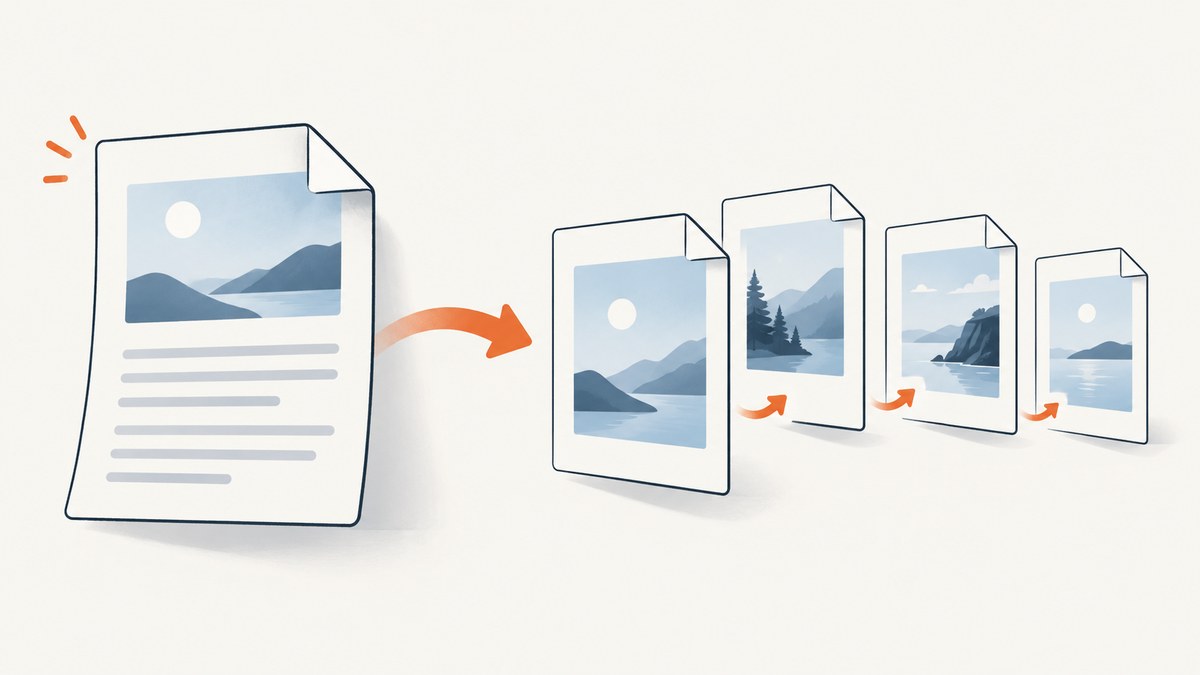
There are two different jobs hidden in “convert a DOC file to PNG”:
- Save one picture inside the document: select the illustration and export it as PNG.
- Render every document page: convert each page into a separate PNG image.
Choose the workflow that matches your goal. Word’s documented Save as Picture command is for a selected graphic; it is not a whole-document page renderer. Microsoft’s instructions list PNG as an available format.
1. Save an embedded picture as PNG in Microsoft Word
- Open the DOC or DOCX file in Word.
- Click the picture, chart, shape, SmartArt object, text box or other graphic you want to extract.
- Right-click the selected object and choose Save as Picture.
- Choose a folder and select PNG Portable Network Graphics Format (*.png) in the file-type menu.
- Give the file a name and click Save.
This exports the selected object only. It does not include surrounding paragraphs, headers, footers or the rest of the page. Microsoft lists photos, shapes, charts, SmartArt, digital ink and text boxes among the graphics that can be saved this way.
When PNG is the right choice
PNG preserves sharp text, line art and transparency well. Keep the original DOC when the content must remain editable, and keep a PDF when text needs to stay selectable or the document must preserve print layout.
2. Export whole DOC pages with LibreOffice
For page images, LibreOffice Writer provides a PNG graphics export filter. Its export settings include pixel width, pixel height, page number, transparency and antialiasing. The exact command-line behavior can vary by installed LibreOffice release, so inspect the output after conversion.
Graphical method
- Open the DOC in LibreOffice Writer.
- Choose File → Export (or File → Export as → Export as Image, depending on version).
- Select PNG as the image format.
- Choose the page or pages to export.
- Set pixel dimensions, transparency and antialiasing if the export dialog exposes them.
- Save, then check the generated files and their dimensions.
Command-line method
LibreOffice documents the general soffice --convert-to syntax and lists DOC input and the Writer PNG output filter in its filter reference. A typical starting point is:
mkdir -p png-output
soffice --headless --convert-to png:"writer_png_Export" --outdir png-output input.doc
Treat this as a version-dependent recipe. Some releases may export one page, prompt for filter options, or produce a different filename pattern. Confirm the result with:
ls -lh png-output
file png-output/*
If your release does not create the expected page images, open the document in Writer and use the graphical export, or use the PDF workflow below.
Controlling dimensions and quality
- Pixel width and height: increase them when the PNG will be printed or displayed at a large size.
- Antialiasing: keep it enabled for smoother text and vector edges unless you need pixel-hard output.
- Transparency: enable it only when transparent page backgrounds are useful; opaque white is safer for ordinary document pages.
- Page number: export the required page rather than converting the entire document when only one page is needed.
Large pixel dimensions increase memory use and file size. Test one representative page before processing a large batch.
3. Use PDF as an intermediate format
When direct DOC-to-PNG export is unavailable, save the document as PDF in Word or another compatible word processor, then rasterize each PDF page. Microsoft’s Word file-format reference documents PDF save and open support for the listed Word versions.
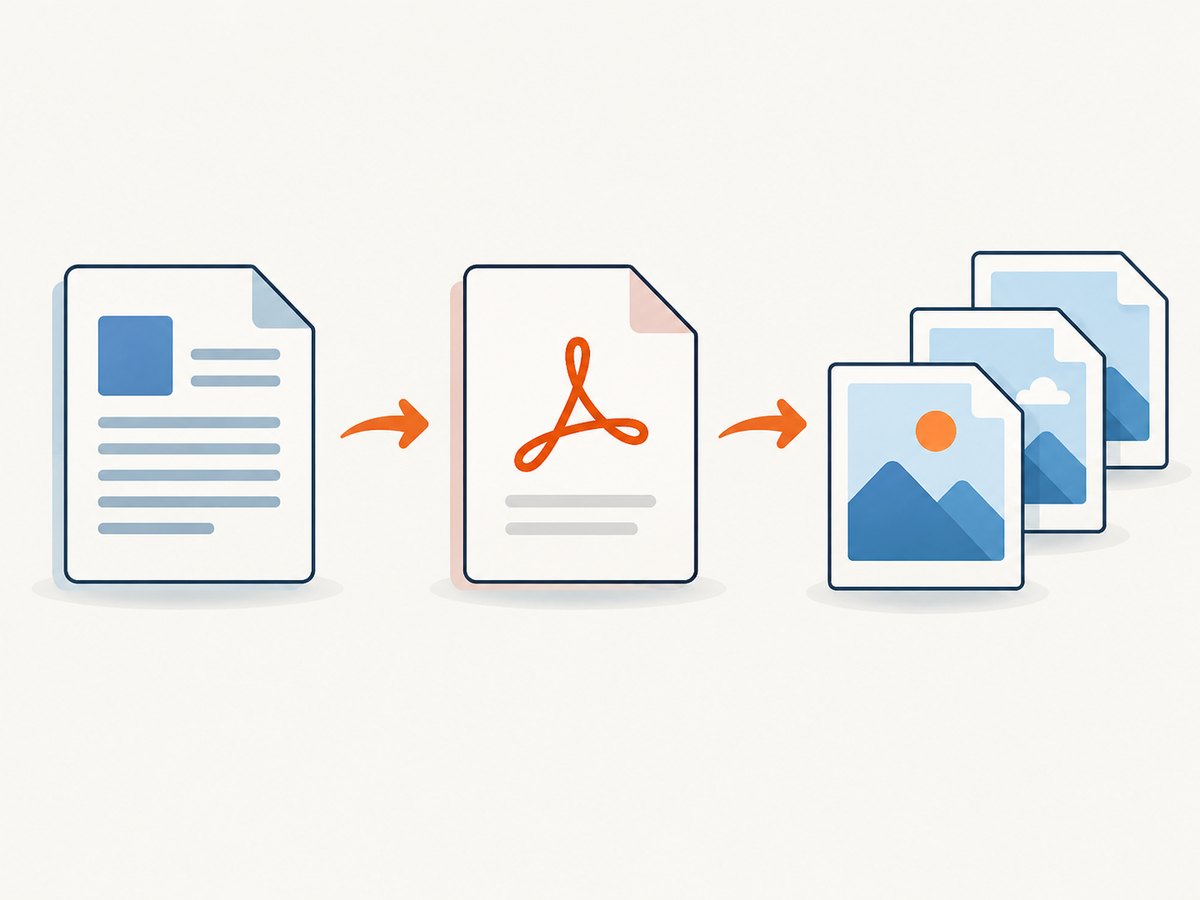
Save the DOC as PDF
- Open the DOC.
- Choose File → Save As or Export.
- Select PDF.
- Choose a standard or high-quality option appropriate for your use.
- Open the PDF and verify page count, fonts, images and page breaks before rasterizing.
Rasterize PDF pages with ImageMagick
ImageMagick can read PDF files through Ghostscript. Install both components, then run:
magick -density 150 document.pdf page-%03d.pngThe -density value controls the render resolution. Higher values create larger, sharper images. To render only selected pages, use an input range:
magick -density 150 document.pdf[0-2] page-%03d.pngImageMagick notes that PDF page-box selection can change the rendered bounds. If content is unexpectedly cropped or includes extra margins, inspect the PDF’s page boxes and adjust the rendering settings.
Check the result
identify page-*.pngConfirm that the number of PNGs matches the number of pages you intended to render, dimensions are consistent, and no headers, footers or margins were clipped.
4. Choosing the right DOC-to-PNG workflow
| Goal | Recommended path | What you get |
|---|---|---|
| Extract one embedded photo, chart or shape | Word → Save as Picture → PNG | The selected graphic only |
| Render pages with adjustable pixel dimensions | LibreOffice PNG export | Page images with export controls |
| Use a broadly compatible fallback | DOC → PDF → ImageMagick | One raster image per PDF page |
| Create one long image | Render pages, then stitch them separately | A custom composite, not a normal page export |
PNG is a raster format. It will not preserve selectable text, document structure or editability. Keep the DOC or PDF alongside the images when those properties matter.
5. Batch conversion and automation
Convert a folder with LibreOffice
mkdir -p png-output
for doc in input/*.doc; do
  soffice --headless --convert-to png:"writer_png_Export" --outdir png-output "$doc"
done
Run this on a small sample first. File names, page handling and filter options differ across LibreOffice versions.
Convert PDFs in a shell loop
mkdir -p png-output
for pdf in pdf-input/*.pdf; do
  name=$(basename "$pdf" .pdf)
  magick -density 150 "$pdf" "png-output/${name}-%03d.png"
done
Use a naming scheme that preserves the source filename and zero-padded page number. It keeps pages ordered in file browsers and downstream processing systems.
6. Troubleshooting
Word does not show “Save as Picture”
Cause: the object is not selected, or it is ordinary text rather than a graphic. Fix: click the illustration’s border until the graphic is selected. For a full page, use LibreOffice or the PDF route instead.
The PNG contains only the picture, not the whole page
Cause: Save as Picture exports a selected object. Fix: render the document page through LibreOffice or convert to PDF and rasterize.
LibreOffice creates no PNG files
Cause: the installed release may not accept the filter string or may handle page export through the GUI. Fix: check soffice --version, try the graphical export, and inspect the output directory and terminal messages.
Fonts or line breaks changed
Cause: the converter does not have the document’s fonts, or the DOC uses layout behavior that differs between applications. Fix: install the required fonts, open and review the file in the same application used to author it, then export to PDF before rasterizing.
Pages are cropped after ImageMagick conversion
Cause: PDF page boxes affect the rendered bounds. Fix: inspect the PDF’s MediaBox, CropBox and TrimBox, then adjust the PDF export or ImageMagick settings.
Images look blurry
Cause: the raster resolution is too low. Fix: raise LibreOffice’s pixel dimensions or increase ImageMagick’s -density, then check file size and memory use.
The output has an unwanted transparent background
Cause: transparency was enabled during export. Fix: disable transparency or place the PNG on a white background in the next processing step.
7. Performance, reliability and cost considerations
- Resolution drives cost: higher pixel dimensions consume more memory and disk space.
- PDF adds a validation step: it is usually easier to inspect page boundaries before rasterizing than after a direct export.
- Batch safely: process a few files first, record page counts, and stop on conversion errors instead of silently accepting missing pages.
- Preserve source files: PNG cannot be edited like a DOC and may not retain selectable text.
- Check output deterministically: compare expected page count, image dimensions and file names before publishing or uploading results.
8. Or skip the browser setup
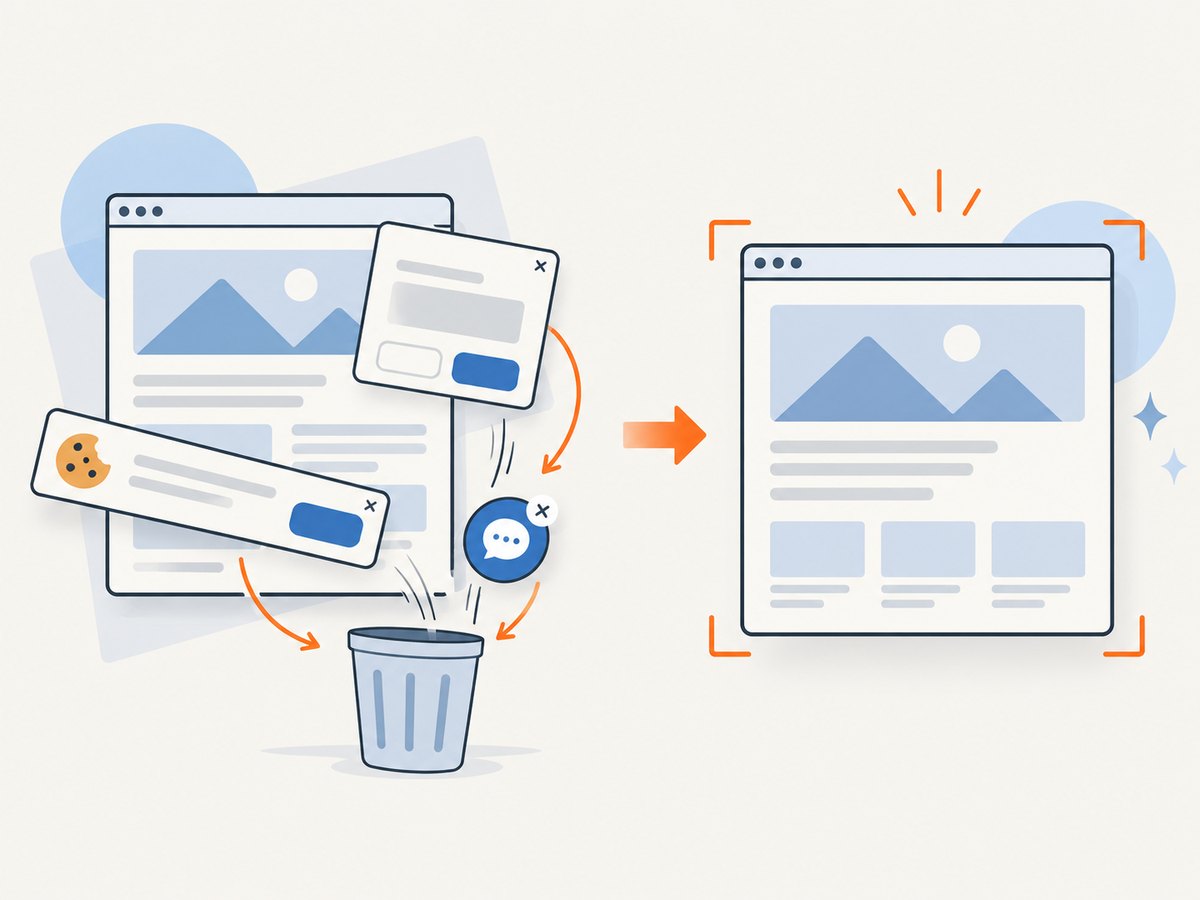
If your DOC is already available through a browser-based preview page and you need a clean image of that rendered page, ScreenshotNeo can capture the URL with one GET request. It is a webpage screenshot API, so it does not parse a local DOC file directly; first expose the document through an accessible preview URL.
See the ScreenshotNeo API documentation for options.
curl -G "https://api.screenshotneo.com/v1/shot" -d access_key=YOUR_API_KEY --data-urlencode url=https://example.com/document-preview -o shot.webpimport requests
r = requests.get("https://api.screenshotneo.com/v1/shot", params={"access_key": "YOUR_API_KEY", "url": "https://example.com/document-preview"}, timeout=90)
open("shot.webp", "wb").write(r.content)const q = new URLSearchParams({ access_key: 'YOUR_API_KEY', url: 'https://example.com/document-preview' });
const res = await fetch(`https://api.screenshotneo.com/v1/shot?${q}`);Cookie banners, newsletter popups and chat widgets are removed before the shot. Bot checks, blank pages and failed loads are never billed, and response headers identify the page verdict and billing status. An MCP server lets AI agents take screenshots, and the free plan includes 1,000 screenshots a month with no card; paid plans start at $5 for 3,000. Create a free ScreenshotNeo account.
9. FAQ
Can I convert a DOC directly to one PNG?
Yes, if you mean a rendered page and your converter exports one page image. For multi-page documents, expect one PNG per page unless you deliberately stitch them into a single long image.
Does converting to PNG preserve selectable text?
No. PNG is a raster image. Keep the DOC or PDF when users need to search, copy or edit text.
Which method preserves page layout best?
A DOC-to-PDF export followed by PDF rasterization is a practical, inspectable route. Review the PDF before rendering because page boxes and fonts affect the final bounds.
Can Word export an entire document with Save as Picture?
The documented command is for a selected graphic. Use a page-rendering workflow for complete pages.
What should I verify before using converted images?
Check page count, dimensions, crop boundaries, fonts, images, transparency and file naming. Compare at least one PNG with the source document at 100% zoom.


