How to Convert DOCX to PDF with a Free API
Convert DOCX files to PDF with a hosted API: compare a card-free trial with a restricted development sandbox, and follow runnable cURL, Python, and Node.js examples.
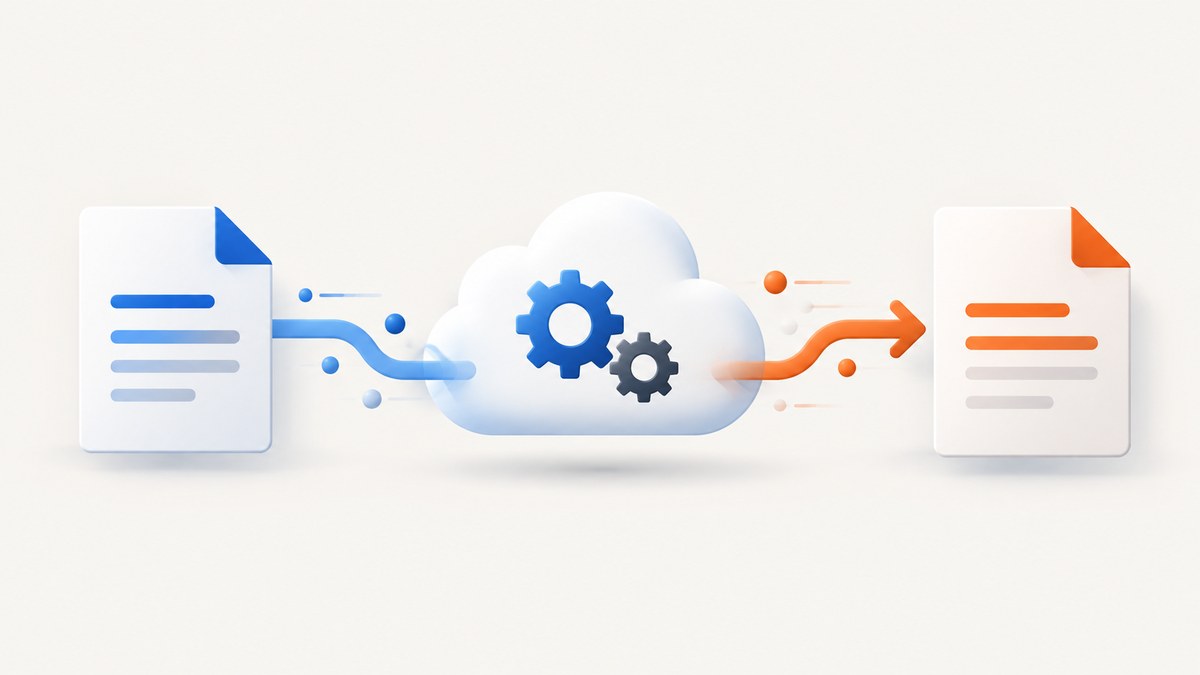
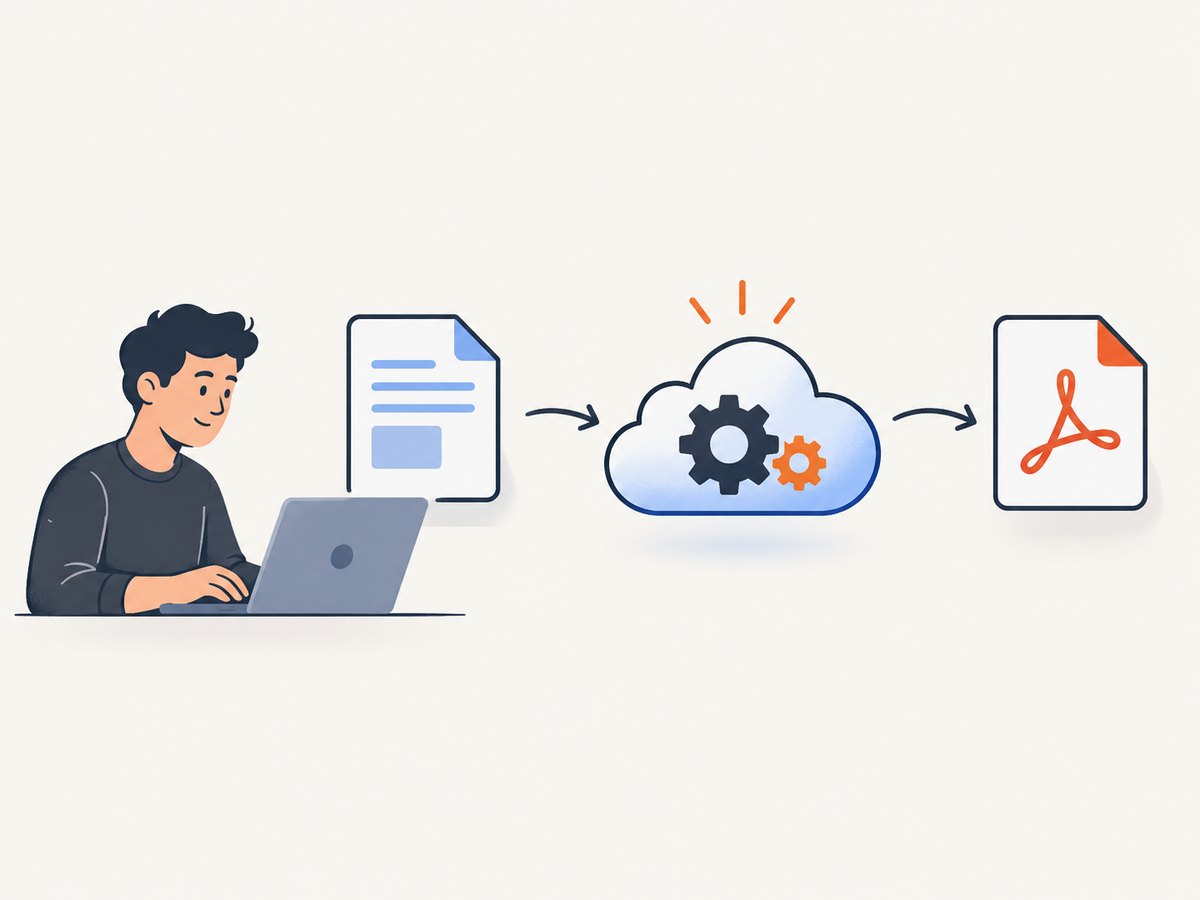
To convert a DOCX file to PDF with a hosted API, send the document to a conversion service, request PDF output, then save or retrieve the resulting file. ConvertAPI documents a direct multipart upload endpoint, /convert/docx/to/pdf. Its getting-started guide says new accounts include a card-free trial of 250 conversions; that is a trial allowance, not a permanent free production tier. CloudConvert uses a job made up of import, convert, and export tasks. Its API sandbox supports unlimited jobs and tasks but is restricted to whitelisted files and intended for development.
This guide walks through both request models and provides runnable examples. The documentation establishes how to call the services, but does not establish comparative conversion quality. Test your own documents—especially complex layouts—before relying on either service in production.
1. Choose what “free” needs to mean
A free API can mean a temporary trial, a development sandbox, or an ongoing production quota. Those are different offers. The documentation reviewed for these examples establishes the first two, not a general, unrestricted free production plan.
| Option | Request model | What the documented free access means | Result retrieval |
|---|---|---|---|
| ConvertAPI | Send a DOCX file directly to a conversion endpoint. | New accounts get a card-free trial of 250 conversions. | Temporary download URL with StoreFile=true, or inline Base64 without it. |
| CloudConvert | Create a job with import, convert, and export tasks. | Sandbox allows unlimited jobs and tasks, restricted to whitelisted files and intended for development. | The export task provides a result URL in the quickstart flow. |
For a first integration, ConvertAPI’s direct upload is a compact path from local file to output. CloudConvert’s task model makes each stage explicit and supports importing from a URL in its quickstart. Before selecting either for production or confidential files, check current pricing, quotas, limits, retention, privacy terms, and regional processing in the provider’s current documentation. The sources cited here do not settle all of those details.
2. Convert a local DOCX with ConvertAPI
Create an account and obtain an API token. Keep it on the server or in a secret manager; do not put it in browser JavaScript, a public repository, or a client application distributed to users. ConvertAPI’s example authenticates with a Bearer token and sends the uploaded document in a multipart field named File. See the [ConvertAPI getting-started guide](https://www.convertapi.com/docs/getting-started) and the [DOCX-to-PDF OpenAPI schema](https://www.convertapi.com/docs/openapi-schema) for the current endpoint details.
cURL
export CONVERTAPI_TOKEN='YOUR_API_TOKEN'
curl --fail-with-body --silent --show-error \
  --request POST 'https://v2.convertapi.com/convert/docx/to/pdf?StoreFile=true' \
  --header "Authorization: Bearer ${CONVERTAPI_TOKEN}" \
  --form 'File=@input.docx' \
  --output response.json
With StoreFile=true, the documented response includes a download URL. The URL is available for three hours, so download the result promptly. The command above saves the API response JSON, not the PDF itself. Extract the URL from the response using a JSON parser, then download that URL. For example, with jq installed:
pdf_url=$(jq -r '.Files[0].Url' response.json)
curl --fail-with-body --silent --show-error "$pdf_url" --output output.pdf
Confirm the JSON field structure against the live response and current API schema before depending on it in automation. Avoid logging the token or temporary URL in systems where logs are broadly accessible.
Python
This example uses the requests package. Install it with python -m pip install requests. It streams the source file as multipart form data, asks the API to store the result temporarily, then downloads the returned file URL.
import os
import requests

TOKEN = os.environ["CONVERTAPI_TOKEN"]
endpoint = "https://v2.convertapi.com/convert/docx/to/pdf"

with open("input.docx", "rb") as docx:
    response = requests.post(
        endpoint,
        params={"StoreFile": "true"},
        headers={"Authorization": f"Bearer {TOKEN}"},
        files={"File": ("input.docx", docx,
                        "application/vnd.openxmlformats-officedocument.wordprocessingml.document")},
        timeout=120,
    )
response.raise_for_status()
data = response.json()
pdf_url = data["Files"][0]["Url"]

pdf_response = requests.get(pdf_url, timeout=120)
pdf_response.raise_for_status()
with open("output.pdf", "wb") as pdf:
    pdf.write(pdf_response.content)
Set the timeout to fit your workload, and handle request timeouts and non-success HTTP responses in the calling application. For large files, consider streaming the download to disk rather than holding the full response in memory. The example uses the documented temporary URL flow; without StoreFile=true, ConvertAPI documents inline Base64 output instead.
Node.js
This example uses Node.js with its built-in fetch, FormData, and Blob APIs. Use a Node release that supports those globals, or use a compatible HTTP and multipart package for your runtime. It reads a local file, uploads it as File, then writes the downloaded PDF.
import { readFile, writeFile } from 'node:fs/promises';

const token = process.env.CONVERTAPI_TOKEN;
if (!token) throw new Error('Set CONVERTAPI_TOKEN');

const bytes = await readFile('input.docx');
const form = new FormData();
form.append('File', new Blob([bytes]), 'input.docx');

const response = await fetch(
  'https://v2.convertapi.com/convert/docx/to/pdf?StoreFile=true',
  { method: 'POST', headers: { Authorization: `Bearer ${token}` }, body: form }
);
if (!response.ok) {
  throw new Error(`ConvertAPI returned ${response.status}: ${await response.text()}`);
}
const data = await response.json();
const pdfUrl = data.Files[0].Url;
const pdfResponse = await fetch(pdfUrl);
if (!pdfResponse.ok) throw new Error(`PDF download failed: ${pdfResponse.status}`);
await writeFile('output.pdf', Buffer.from(await pdfResponse.arrayBuffer()));
Do not manually set the multipart Content-Type header when using FormData; the runtime must add the boundary. Use the current OpenAPI schema to confirm parameter names and response fields if you adapt this into a long-lived client.
3. Build a DOCX-to-PDF job with CloudConvert
CloudConvert’s quickstart models a conversion as a job with three tasks: import the input, convert it, and export the result. The quickstart demonstrates importing a file from a URL. For local-file workflows, check the current API documentation for supported upload and storage paths. The job example below follows the URL-import pattern; replace the sample with a URL that CloudConvert can access.
curl --fail-with-body --silent --show-error \
  --request POST 'https://api.cloudconvert.com/v2/jobs' \
  --header 'Authorization: Bearer YOUR_CLOUDCONVERT_API_TOKEN' \
  --header 'Content-Type: application/json' \
  --data '{
    "tasks": {
      "import-source": {
        "operation": "import/url",
        "url": "https://example.com/input.docx"
      },
      "convert-document": {
        "operation": "convert",
        "input": "import-source",
        "input_format": "docx",
        "output_format": "pdf"
      },
      "export-result": {
        "operation": "export/url",
        "input": "convert-document"
      }
    }
  }'
Inspect the response for job and task status, wait until the conversion and export finish, and then retrieve the exported URL. A job request being accepted is not proof that the PDF is ready. Production code should track the job state and handle failure states, rather than assuming the first response contains a finished output. The [CloudConvert quickstart](https://cloudconvert.com/docs/getting-started/quickstart-guide) shows the job flow; the [API introduction](https://cloudconvert.com/docs/getting-started/introduction) describes the restricted development sandbox.
4. Validate the PDF against your documents
DOCX is a document format with layout behavior that can depend on fonts, page settings, embedded content, and application-specific features. The cited API documentation explains the request mechanics, not a guarantee of identical rendering. Build a small representative test set before processing user files at scale.
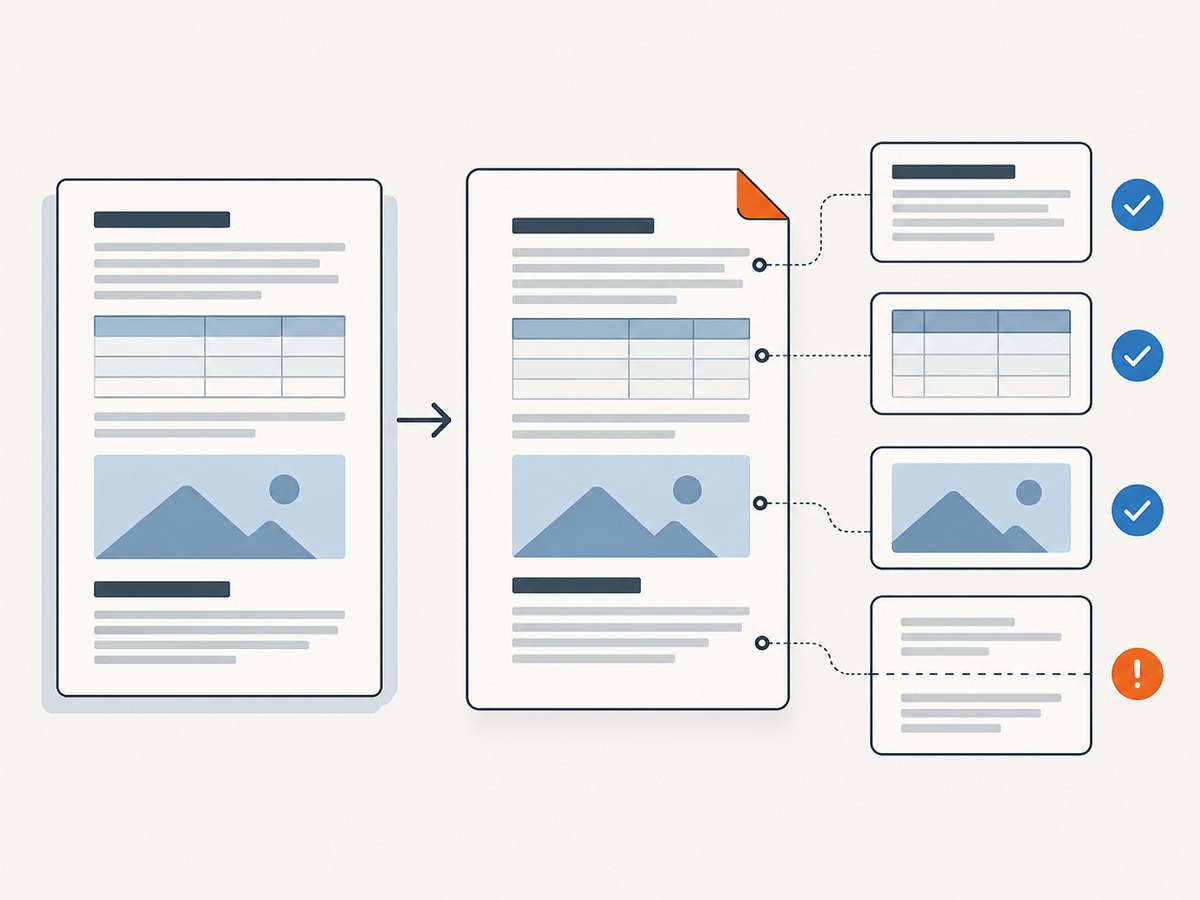
- Include ordinary text documents as well as tables, headers and footers, page breaks, columns, footnotes, and images if your users rely on them.
- Include documents with custom fonts or embedded objects where those occur in your workload.
- Check page count, text placement, clipping, image quality, links, and the final PDF’s ability to open in your target readers.
- Compare against an agreed reference produced by the software or workflow your users consider authoritative.
- Repeat checks when changing providers, conversion settings, or source document templates.
Do not infer fidelity from a successful HTTP response. It confirms that the API returned a response; application-level checks need to inspect the actual output.
5. Errors, edge cases, and fixes
| Symptom | Likely cause | What to do |
|---|---|---|
| 401 or 403 response | Missing, invalid, or improperly supplied credential. | Check the Bearer token, account access, and environment variable. Never paste the secret into a client-side app. |
| Upload is rejected | The request does not use the expected multipart field, or the local path is wrong. | Use the documented File field and verify that the process can read the file. Consult the current schema for request requirements. |
| JSON parsing or missing URL error | The request failed, returned an error body, or the response shape differs from an assumed field. | Check the HTTP status and error body before parsing success fields. Inspect the current schema and actual response. |
| Temporary result link no longer works | The ConvertAPI stored URL has expired; documentation says it is available for three hours. | Download the PDF soon after conversion, or choose a workflow that stores the result in your own controlled storage. |
| CloudConvert job has no output yet | Tasks are still processing or one failed. | Check job and task status, wait for completion, and retrieve the export only after it succeeds. |
| Conversion succeeds but PDF layout is wrong | A font, layout feature, embedded object, or rendering difference affects this DOCX. | Reproduce with a small sample, inspect the source and output, and validate with the provider against your required document features. |
| Request hangs or times out | Upload or conversion took longer than the client timeout or network conditions interrupted the request. | Set a suitable timeout, handle retries carefully, and avoid blindly repeating a request if you cannot determine whether it already completed. |
For retries, distinguish transient transport errors from a definitive conversion error. Use bounded retries with backoff for transient failures, and record a request or job identifier where available so operators can investigate. Do not retry invalid credentials or malformed input unchanged.
6. Performance, reliability, and cost
The documentation reviewed here does not provide a comparable speed benchmark, production quota table, or file-size limit for both services. Measure your own files and verify current provider limits and prices before building estimates. Include upload, conversion, polling or retrieval, and storage in the end-to-end time and cost model.
For throughput, avoid sending a large batch of synchronous uploads from a single request handler if the caller cannot wait. Queue work, store an application-level status, and deliver the result when ready. CloudConvert’s task model makes job progress explicit. With a direct request model, your application still needs to track attempts, failures, and output persistence.
For reliability, retain the original input until the result has been validated and safely stored, subject to your own data policy. Set explicit network timeouts, capture useful error details without secrets, and monitor success at the document level. Confirm how each provider handles retention, confidential data, regional processing, and deletion before sending sensitive documents; the cited guides do not establish those terms comprehensively.
For cost, distinguish trial or sandbox access from paid production use. ConvertAPI’s documented 250-conversion card-free trial can help evaluate the workflow. CloudConvert’s sandbox is for development and limited to whitelisted files. Neither fact establishes that unrestricted production conversion is free. Verify current plans, quotas, and overage terms on the provider’s official site before launch.
7. Or skip the browser setup
ScreenshotNeo is a website screenshot API and MCP server, not a DOCX-to-PDF converter. If your workflow also needs a screenshot of a web page or rendered PDF preview, it can capture that page with one GET request. Its clean-shot flow accepts cookie banners and removes more than 60 known consent platforms, newsletter popups, and chat widgets before capture; those steps can be turned off. Bot checks, blank pages, timeouts, failed loads, and cache hits cost nothing, and responses identify the page verdict and billing state. Its MCP server gives Claude, Cursor, and other MCP clients the take_screenshot, get_page_info, and capture_pdf tools.
For DOCX-to-PDF conversion, use the conversion workflow above. For a web screenshot, see the [ScreenshotNeo documentation](https://screenshotneo.com/docs/) and use this one-call example:
curl -G "https://api.screenshotneo.com/v1/shot" -d access_key=YOUR_API_KEY --data-urlencode url=https://stripe.com -o shot.webp1,000 screenshots a month are free with no card. Paid plans start at $5 for 3,000 screenshots. [Create a free ScreenshotNeo account](https://screenshotneo.com/account/sign-up/) to try the screenshot API.
FAQ
Is there a permanently free DOCX-to-PDF API in these examples?
The cited documentation establishes a card-free ConvertAPI trial and a restricted CloudConvert development sandbox. It does not establish a permanent, unrestricted free production plan for either service.
Can I convert a file from my computer with CloudConvert’s quickstart request?
The shown quickstart pattern imports from a URL. Check CloudConvert’s current documentation for its supported local upload or storage integration flow; do not assume the URL-import example uploads a local file.
Will the API preserve every Word layout exactly?
The cited documentation does not establish perfect fidelity. Validate representative documents with the fonts, layout features, and embedded content your users need.
Can I use ScreenshotNeo to convert a DOCX file to PDF?
No. ScreenshotNeo captures web pages as images or PDFs. Use a document conversion API for DOCX input; ScreenshotNeo is relevant when you also need a web page screenshot or rendered page capture.


