How to Convert DOM to SVG and Embed It in a PDF
Learn when DOM-to-SVG works, how to embed HTML with foreignObject, rebuild native vectors, and export a reliable PDF.
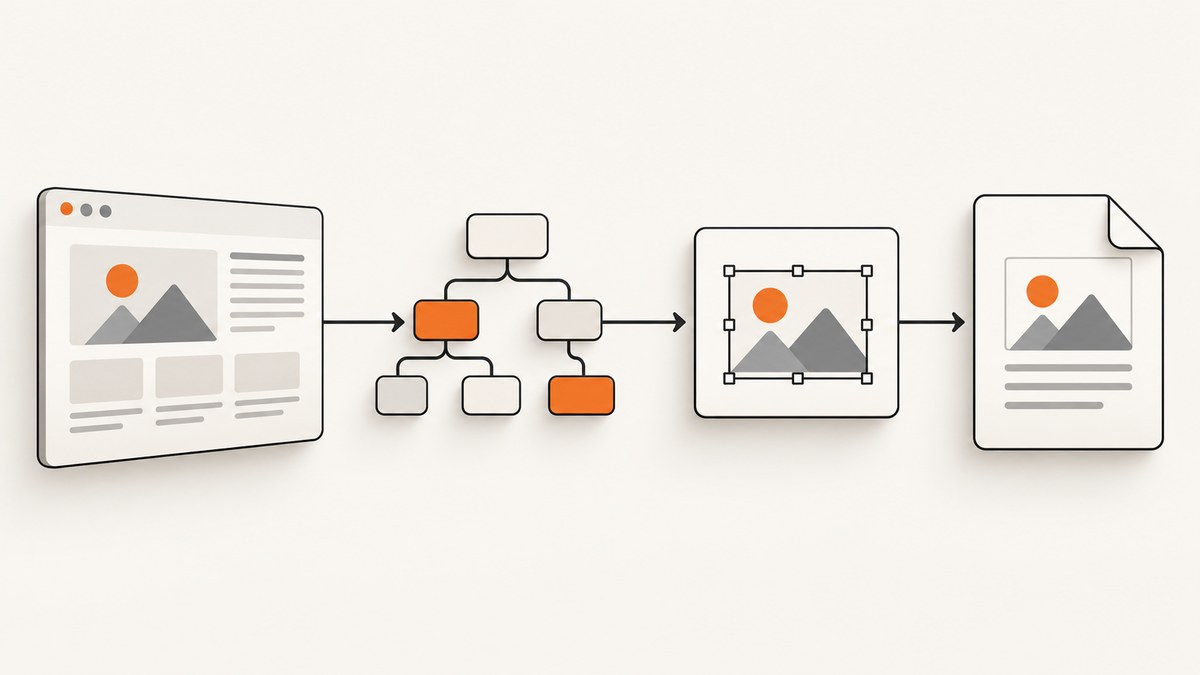
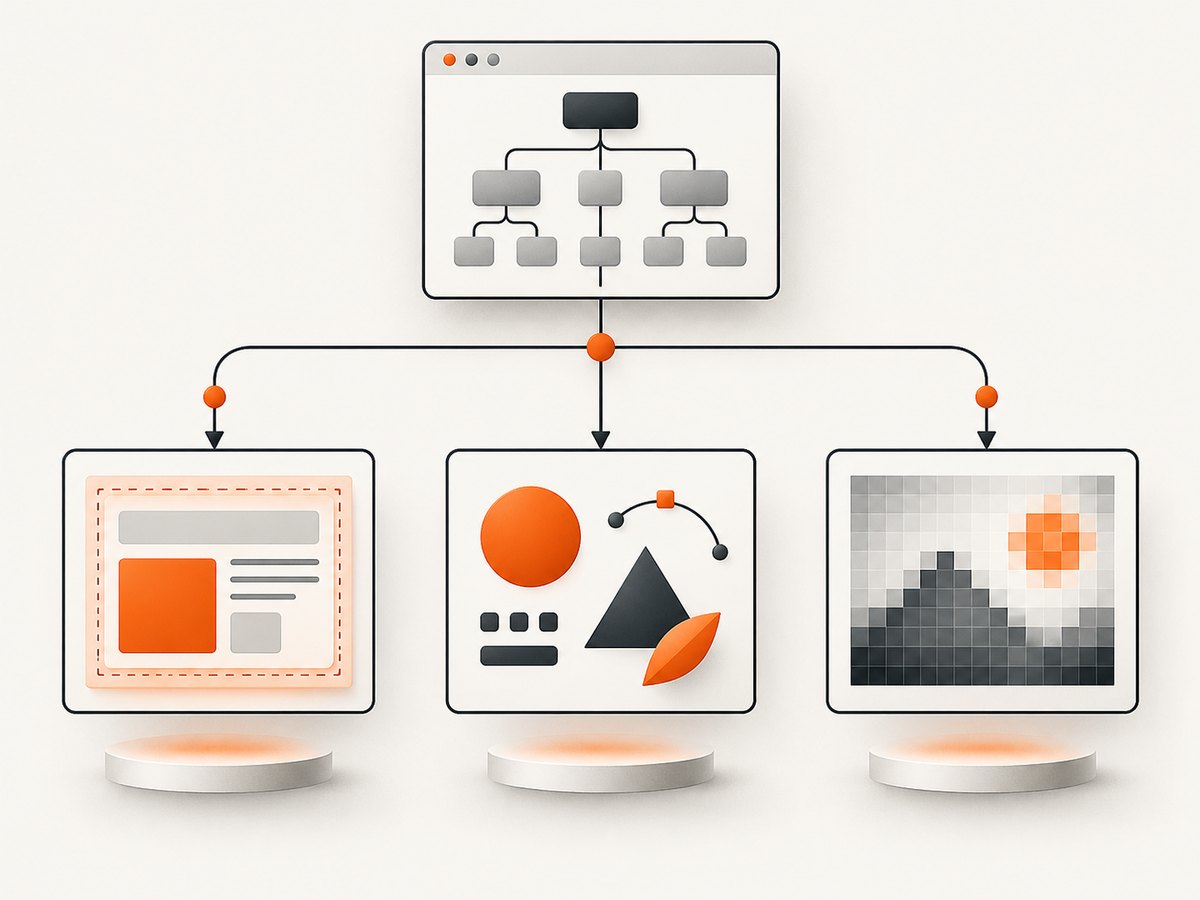
Short answer: there is no general, lossless operation that turns every live HTML DOM tree and its computed CSS into equivalent native SVG geometry. You must choose what to preserve. Use SVG <foreignObject> when you want to package an HTML fragment inside SVG; rebuild important content with native SVG paths, shapes, and text when you need portable vector output; or render a DOM-derived image when browser-like appearance matters more than editable vectors.
This distinction controls whether your PDF contains searchable text, scalable geometry, embedded HTML, or rasterized regions. Test the complete SVG-to-PDF pipeline you intend to ship because SVG and PDF support different feature sets.
1. Decide what “DOM to SVG” means
| Goal | Recommended route | What it preserves | Main limitation |
|---|---|---|---|
| Keep an HTML fragment’s appearance | SVG foreignObject |
HTML structure inside an SVG region | Requires a renderer that supports embedded XHTML; it is not native SVG geometry |
| Produce portable, scalable artwork | Rebuild with native SVG | Paths, shapes, and SVG text | You must translate layout and styling yourself |
| Capture what a browser-like renderer produces | DOM-to-canvas or screenshot rendering | A visual representation | Output is generally raster; CSS coverage and cross-origin rules apply |
MDN describes foreignObject as a region for content from another XML namespace, and the W3C specification defines its positioning rectangle and namespace processing. An SVG file can therefore contain HTML, but that is different from converting every HTML layout operation into SVG paths and text. See MDN’s foreignObject reference and the W3C SVG embedded-content specification.
2. Route A: wrap a DOM subtree in SVG foreignObject
This browser-side example clones an element, copies its computed styles into inline styles, creates an SVG root with explicit dimensions, and places XHTML inside a foreignObject. It returns a serialized SVG string that you can save or send to an SVG-to-PDF converter.
<div id="invoice" style="width:720px;padding:32px;background:white;color:#111;font:16px Arial">
  <h1>Invoice</h1>
  <p>This content remains HTML inside the SVG.</p>
</div>
<script>
function domToForeignObjectSvg(node) {
  const rect = node.getBoundingClientRect();
  const width = Math.ceil(rect.width);
  const height = Math.ceil(rect.height);
  if (!width || !height) throw new Error('Target element has no measurable size');

  const clone = node.cloneNode(true);
  const sourceNodes = [node, ...node.querySelectorAll('*')];
  const cloneNodes = [clone, ...clone.querySelectorAll('*')];
  sourceNodes.forEach((source, i) => {
    const target = cloneNodes[i];
    if (!target) return;
    const computed = getComputedStyle(source);
    for (const property of computed) {
      target.style.setProperty(property, computed.getPropertyValue(property), computed.getPropertyPriority(property));
    }
  });

  const svg = document.createElementNS('http://www.w3.org/2000/svg', 'svg');
  svg.setAttribute('xmlns', 'http://www.w3.org/2000/svg');
  svg.setAttribute('xmlns:xlink', 'http://www.w3.org/1999/xlink');
  svg.setAttribute('width', width);
  svg.setAttribute('height', height);
  svg.setAttribute('viewBox', `0 0 ${width} ${height}`);

  const foreignObject = document.createElementNS('http://www.w3.org/2000/svg', 'foreignObject');
  foreignObject.setAttribute('x', '0');
  foreignObject.setAttribute('y', '0');
  foreignObject.setAttribute('width', width);
  foreignObject.setAttribute('height', height);

  const wrapper = document.createElementNS('http://www.w3.org/1999/xhtml', 'div');
  wrapper.setAttribute('xmlns', 'http://www.w3.org/1999/xhtml');
  wrapper.style.width = `${width}px`;
  wrapper.style.height = `${height}px`;
  wrapper.appendChild(clone);
  foreignObject.appendChild(wrapper);
  svg.appendChild(foreignObject);
  return new XMLSerializer().serializeToString(svg);
}

const svgText = domToForeignObjectSvg(document.querySelector('#invoice'));
const blob = new Blob([svgText], { type: 'image/svg+xml' });
const link = document.createElement('a');
link.href = URL.createObjectURL(blob);
link.download = 'invoice.svg';
link.click();
URL.revokeObjectURL(link.href);
</script>
Make the wrapper reliable
- Use the same measured width and height for the SVG root,
viewBox,foreignObject, and HTML layout. - Declare both the SVG namespace and the XHTML namespace. Namespace-aware serialization prevents an XML parser from treating embedded HTML as unknown SVG elements.
- Copy inherited and stylesheet-based properties deliberately.
cloneNode(true)copies markup, not the final cascade. - Make fonts, images, and other assets available to the renderer. Inline critical CSS and data-encode small images when the conversion environment cannot reach the original page.
- Remove animations, caret states, hover-only styles, and timers before serialization so the result is deterministic.
External assets and security boundaries
Images loaded from another origin may be blocked by browser security rules unless the server supplies appropriate CORS headers or you use a permitted proxy. Cross-origin iframes are not readable by page JavaScript. The html2canvas documentation explains these same-origin and proxy constraints. A server-side PDF renderer may have its own network, certificate, and authentication restrictions.
3. Route B: rebuild important content as native SVG
Native SVG is the dependable choice when downstream tools need paths, selectable text, predictable scaling, or editable artwork. Recreate the parts that matter instead of serializing arbitrary HTML.
<svg xmlns="http://www.w3.org/2000/svg" width="720" height="240" viewBox="0 0 720 240">
  <rect width="720" height="240" rx="12" fill="#ffffff"/>
  <path d="M40 64H680" stroke="#d0d7de"/>
  <text x="40" y="48" font-family="Arial, sans-serif" font-size="28" fill="#111111">Invoice</text>
  <text x="40" y="110" font-family="Arial, sans-serif" font-size="16" fill="#333333">Native SVG text remains addressable by SVG-aware tools.</text>
  <rect x="40" y="145" width="180" height="44" rx="6" fill="#2563eb"/>
  <text x="62" y="173" font-family="Arial, sans-serif" font-size="16" fill="#ffffff">Approved</text>
</svg>
Map layout coordinates explicitly. Decide whether text must remain searchable, whether fonts may be embedded under their licenses, and whether filters or effects can be rasterized. Keep the source SVG because PDF supports a different feature set; the Inkscape documentation describes SVG-to-PDF export and its text and filter trade-offs.
4. Route C: render a DOM-derived image
html2canvas traverses DOM information and builds a representation from the CSS properties it understands. It does not take an actual browser screenshot, and its documentation warns that output may differ from the page. Use this route when a rendered image is acceptable.
import html2canvas from 'html2canvas';

const target = document.querySelector('#invoice');
const canvas = await html2canvas(target, {
  backgroundColor: '#ffffff',
  scale: window.devicePixelRatio,
  useCORS: true
});
const pngBlob = await new Promise(resolve => canvas.toBlob(resolve, 'image/png'));
const form = new FormData();
form.append('file', pngBlob, 'invoice.png');
// Send form to your PDF service or place the image in a PDF document.
Unsupported CSS, cross-origin images, iframes, web fonts, filters, and very large canvases are common sources of differences. Compare the output with the original page before relying on it for regulated or pixel-sensitive documents.
5. Export SVG to PDF with Inkscape
- Save the serialized or native SVG as
document.svg. - Open it in the same renderer used in production and inspect dimensions, clipping, fonts, images, and filters.
- Export with the installed Inkscape version:
inkscape --export-filename=document.pdf document.svgOpen the resulting PDF in the intended reader. Check page size, scale, clipping, text selection and search, font substitution, and rasterized effects. Inkscape notes that some SVG features can be lost during PDF export because PDF has a different feature model. Keep both the editable SVG and the final PDF.
Text, fonts, and effects
- Keep text as text when searchability and accessibility matter.
- Embed fonts only when licensing permits; otherwise expect substitution on another machine.
- Convert decorative text to paths when exact appearance matters more than searchability.
- Expect filtered effects to be rasterized or changed. Inspect shadows, blur, masks, and blend modes at final size.
6. A production checklist
- Write down the required output: embedded HTML appearance, raster capture, or native vector structure.
- Measure the target and choose one unit system. Set SVG width, height, and
viewBoxconsistently. - Freeze dynamic state: wait for fonts and images, disable animation, and choose a timezone and locale.
- For
foreignObject, include XHTML namespaces, computed styles, and reachable assets. - For native SVG, encode the important layout as explicit shapes, paths, and text.
- Render the SVG in the actual conversion engine.
- Export to PDF and inspect clipping, page bounds, fonts, text selection, images, and filters.
- Store the SVG beside the PDF so you can correct or re-export it later.
7. Troubleshooting
| Symptom | Likely cause | Fix |
|---|---|---|
| Blank PDF or blank foreignObject | Renderer does not support embedded XHTML, or namespace is missing | Declare the XHTML namespace, test the target renderer, or rebuild as native SVG |
| Content is clipped | Root dimensions, viewBox, foreignObject bounds, and fragment size disagree | Measure once, round up, and reuse the same width and height everywhere |
| Styles disappear | Clone copied markup but not inherited or external CSS | Inline critical styles or copy computed styles into the clone |
| Images are missing | CORS, blocked network access, or relative URLs that no longer resolve | Allow CORS, use a permitted proxy, use absolute URLs, or embed data URLs |
| Web fonts are substituted | Font loading finished after capture or the converter cannot fetch the font | Wait for document.fonts.ready, make fonts reachable, or embed licensed fonts |
| Cross-origin iframe is empty | Browser same-origin policy | Render the iframe from its own origin or use a server-side integration with authorization |
| PDF text cannot be selected | Content was rasterized or converted to paths | Use native SVG text and a PDF path that preserves text |
| SVG looks right but PDF differs | SVG feature has no direct PDF equivalent | Inspect filters, masks, blend modes, and fonts; simplify or rasterize intentionally |
| Large pages run out of memory | Huge canvas, full-page bitmap, or excessive DOM size | Capture sections, reduce scale, stream assets, or use a PDF-oriented layout |
8. Performance, reliability, and cost
Serialization itself is usually cheaper than a full browser render, but copying every computed property across a large subtree is O(n) in the number of elements and can produce a large SVG. Cache stable CSS, capture only the needed subtree, and avoid embedding duplicate assets. Native SVG is typically smaller than a high-resolution raster image for line art, while photographs and complex effects may be smaller or more faithful as images.
Reliability comes from controlling inputs: wait for fonts and images, use fixed viewport and device scale, set a timeout, log the serialized SVG, and compare PDFs in the same viewer. Treat conversion as a compatibility boundary and keep a regression set containing long text, missing fonts, transparent backgrounds, RTL text, images, clipping, and filters.
There is no universal cost or speed figure for this workflow. Measure your own renderer, page sizes, asset counts, and concurrency. If a PDF contains a large raster region, reducing pixel dimensions can lower memory and output size; if searchable text matters, preserve text instead of flattening the page.
9. Or skip the browser setup
ScreenshotNeo is a website screenshot API and MCP server. It can return PNG, JPEG, WebP, or PDF from one request, with options for full-page capture, lazy images, CSS selectors, custom CSS and JavaScript, waiting, blocking resources, headers, cookies, user agents, timezone, geolocation, resizing, caching, signed links, asynchronous jobs, bulk capture, and PDF page settings. Before capture it accepts cookie or consent banners and removes more than 60 known consent platforms, newsletter popups, and chat widgets; each step can be turned off. Bot checks, blank pages, timeouts, failed loads, and cache hits are not billed, and the response identifies the verdict and billing status in X-Page-Verdict and X-Billed headers.

See the ScreenshotNeo documentation for the complete parameter list. Replace the URL with the page you need:
curl -G "https://api.screenshotneo.com/v1/shot" -d access_key=YOUR_API_KEY --data-urlencode url=https://stripe.com -o shot.webpimport requests
r = requests.get("https://api.screenshotneo.com/v1/shot", params={"access_key": "YOUR_API_KEY", "url": "https://stripe.com"}, timeout=90)
open("shot.webp", "wb").write(r.content)const q = new URLSearchParams({ access_key: 'YOUR_API_KEY', url: 'https://stripe.com' });
const res = await fetch(`https://api.screenshotneo.com/v1/shot?${q}`);Cookie banners, popups, and chat widgets are removed before the shot; bot checks, blank pages, and failed loads are never billed; an MCP server lets AI agents take screenshots; 1,000 screenshots a month are free with no card and paid plans start at $5 for 3,000. Create a free ScreenshotNeo account.
10. FAQ
Does foreignObject create true SVG paths?
No. It embeds HTML as foreign content. Use native SVG reconstruction when downstream tools require paths and SVG-native text.
Can every SVG be converted to a searchable PDF?
No. Text may be rasterized, converted to paths, substituted, or dropped depending on the exporter and features used. Inspect the exported file.
Should I use html2canvas for pixel-perfect screenshots?
Only if its supported CSS and security model match your page. Its documentation states that it builds a representation from DOM information rather than taking an actual screenshot.
What should I keep in source control?
Keep the source HTML or data model, the generated SVG, conversion settings, and the final PDF. The SVG is the most useful artifact for diagnosing layout and export differences.


