How to Convert and Download a Web Page as a PDF
Save any web page as a clean PDF with Chrome, Firefox, or Edge, fix layout problems, automate captures, and avoid browser setup with ScreenshotNeo.
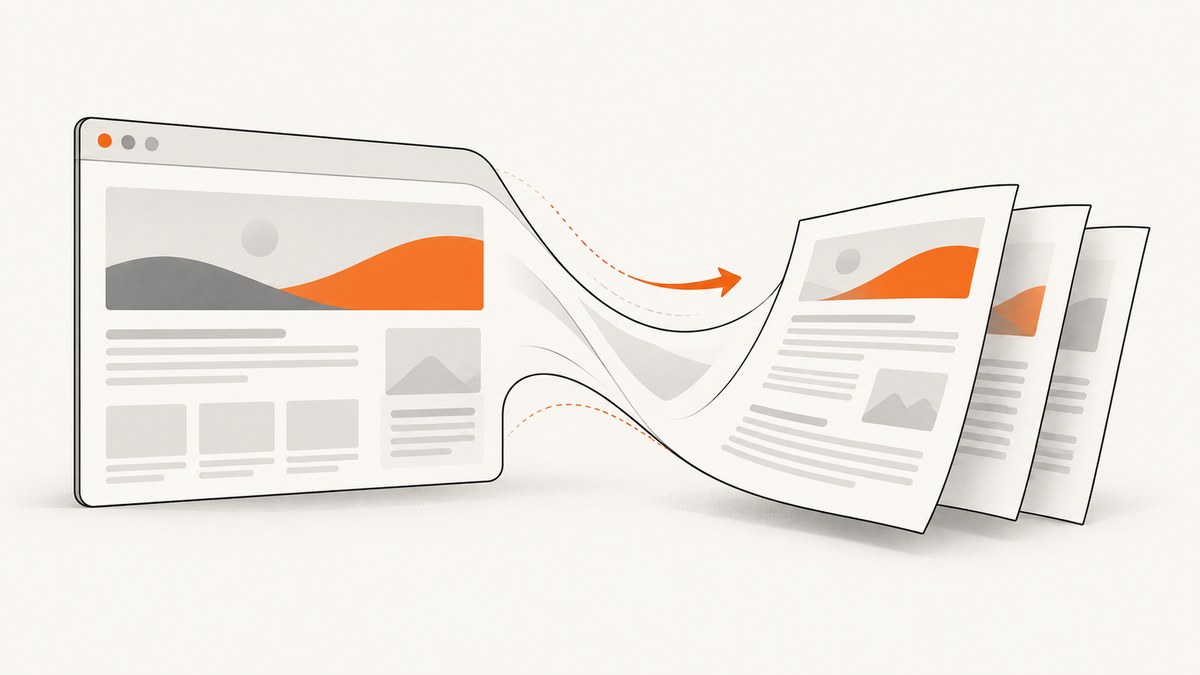
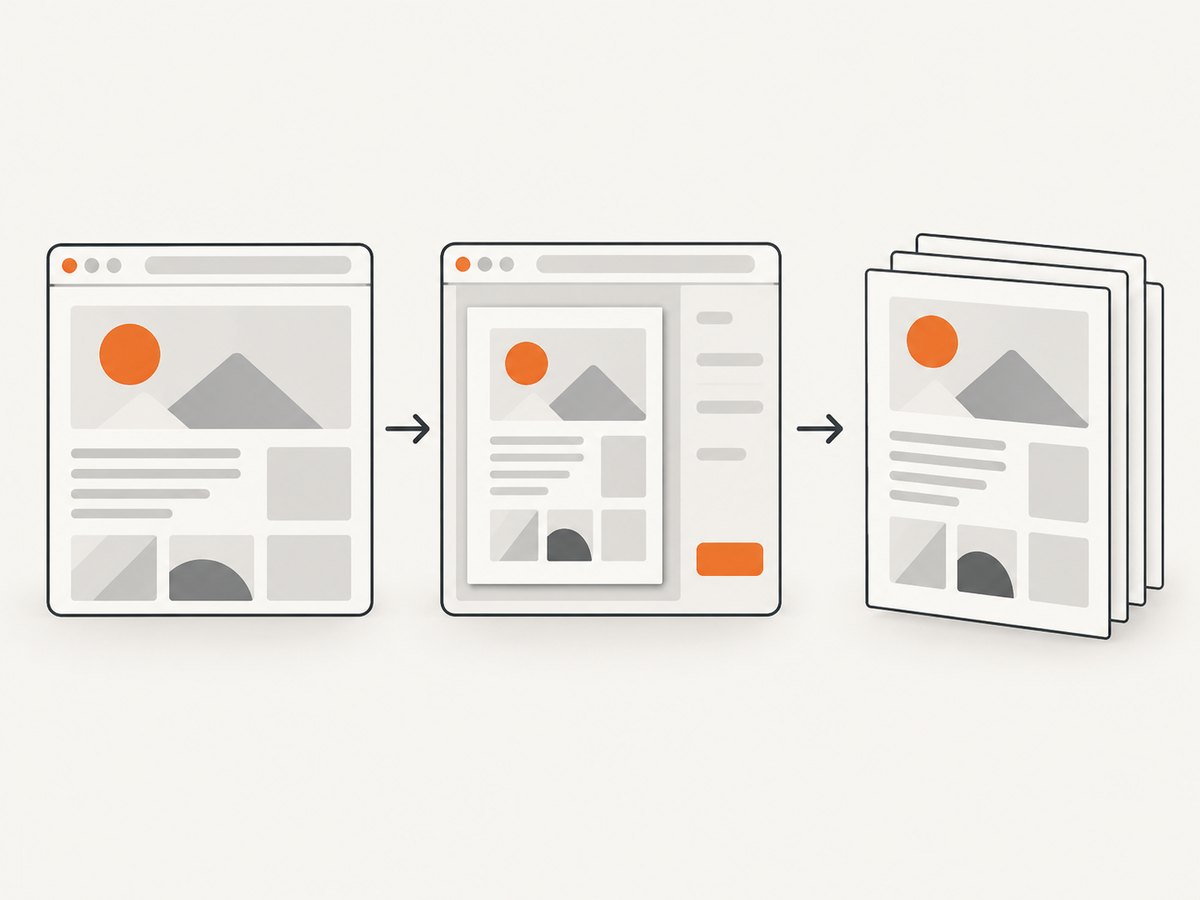
To convert a web page to a PDF, open the exact page, use your browser’s Print command, choose the PDF destination, check the preview, and save the file. Chrome labels the destination Save as PDF; Firefox uses Save to PDF; Edge exposes a PDF destination in its print flow. Preview the result before saving because print CSS can change pagination, visibility, colors, and layout.
Quick answer: the reliable browser method
- Open the complete URL you want to preserve. Wait for images, charts, embedded content, and lazy-loaded sections to finish loading.
- Open Print. Use Ctrl+P on Windows or Linux, or Command+P on macOS. Firefox also provides a Print menu command.
- Select the browser’s PDF destination: Save as PDF in Chrome, Save to PDF in Firefox, or the PDF option shown by Edge.
- Inspect the preview. Check page count, headings, images, tables, links, margins, page breaks, and whether important background graphics are visible.
- Adjust orientation, scale, margins, paper size, color, background graphics, headers, footers, or page range.
- Click Save or Print, select a filename and folder, then reopen the PDF to verify it.
The browser’s print workflow creates a paginated PDF. It is different from downloading the page source or its assets with Save Page As.
Google Chrome
Save a page as PDF
- Open the page in Chrome.
- Choose File > Print, or press Ctrl+P on Windows/Linux or Command+P on Mac.
- Set Destination to Save as PDF.
- Expand More settings if you need paper size, orientation, scale, margins, headers and footers, or background graphics.
- Set a page range when you only need selected pages, then click Save.
Chrome saves downloaded files to its default download location unless you change that location. If a PDF opens in a browser tab instead of downloading, change Chrome’s PDF-document setting to prefer downloading.
Save the webpage as a file instead
For an offline webpage bundle rather than a paginated PDF, choose More > More tools > Save Page As. Select a location and save. This preserves a webpage file and related resources; it does not render the page into PDF pages.
Mozilla Firefox
- Open the page and choose Menu > Print….
- In print preview, set Destination to Save to PDF.
- Choose portrait or landscape orientation, paper size, scale, margins, colors, backgrounds, headers, footers, and a page range.
- Review each preview page and click Save.
Firefox may offer a simplified format. Use it when you want the article’s main content without surrounding navigation. Mozilla notes that webpages can appear differently on paper than on screen, so preview the complete output. When the built-in controls are insufficient, Mozilla documents using an extension such as Print Edit WE to edit the page before printing.
Microsoft Edge
- Open the page and choose Settings and more > Print, or press Ctrl+P on Windows or Command+P on macOS.
- Choose the PDF destination exposed by the print dialog.
- Set paper size, orientation, scale, margins, page range, colors, and backgrounds as needed.
- Preview the pages and save the PDF.
Remove clutter with Immersive Reader
When available, activate Immersive Reader using the address-bar icon or F9 on Windows, then print. Edge’s clutter-free print option can remove surrounding material such as ads and site navigation.
Print only a selection
Select the text or images you need, right-click the selection, and choose Print. This creates a PDF from the selected content when Edge exposes that workflow. If the normal preview does not show the required destination, Edge also provides a system print dialog option.
Make the PDF clean and readable
Remove ads, menus, and sidebars
- Use Firefox’s simplified format when it is offered.
- Use Edge Immersive Reader before printing.
- For other pages, remove unnecessary elements with a print-cleanup extension, then open Print again.
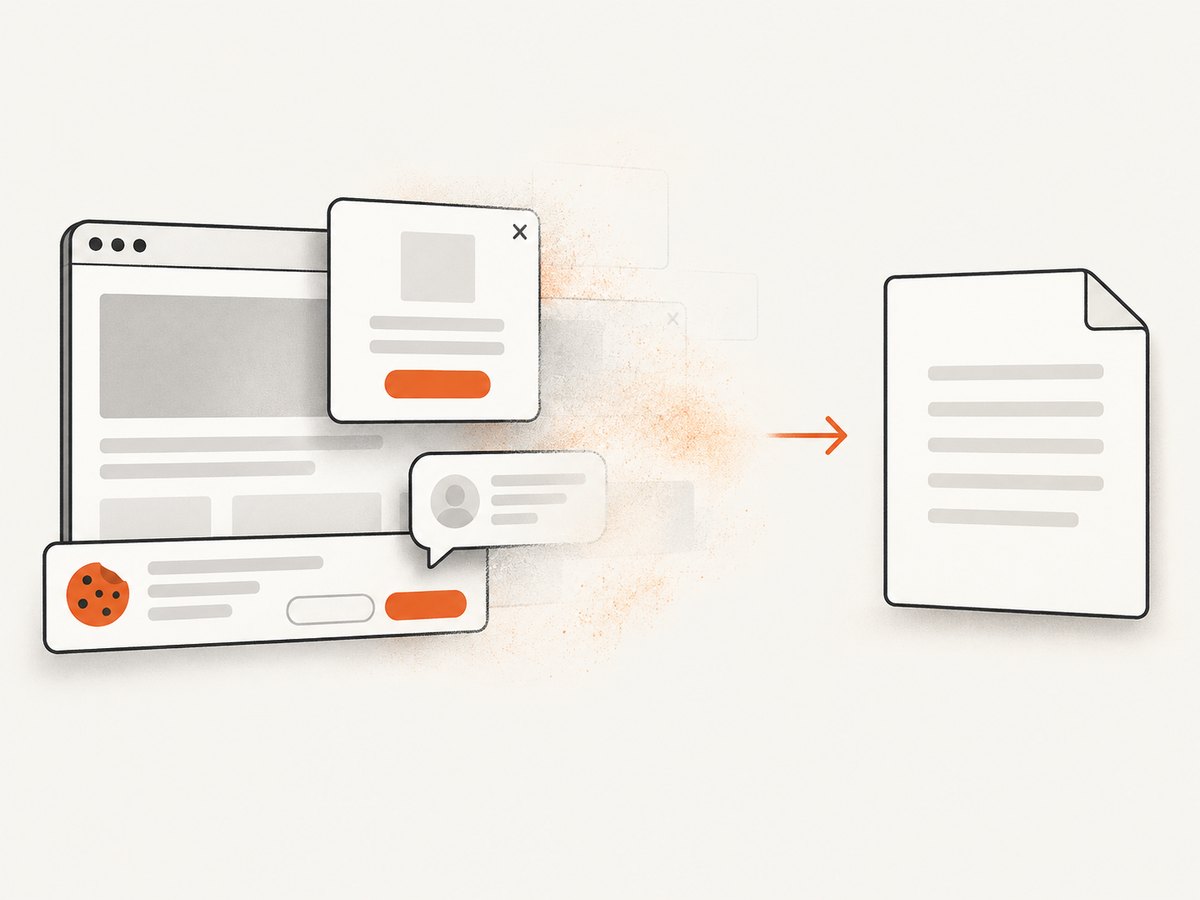
- If you control the site, add print CSS that hides navigation, dialogs, cookie notices, and interactive controls.
Prevent cut-off text and images
- Switch between portrait and landscape.
- Reduce the scale slightly when wide tables or code blocks run past the page edge.
- Change margins and paper size.
- Use the preview page by page. A heading at the bottom of a page, a split table, or an orphaned image may require a scale or page-break adjustment.
Keep backgrounds and colors
Enable Background graphics in Chrome or the equivalent Backgrounds setting in Firefox and Edge. Backgrounds increase visual fidelity but can increase ink usage when the PDF is printed later.
Save only part of a long page
Use the print dialog’s page-range field when the needed material maps cleanly to PDF pages. In Edge, selected-content printing can be more precise when you only need a passage, chart, or group of images.
Why the screen and PDF look different
Print layout is a separate rendering context. A site can define print-specific CSS that hides navigation, changes fonts, removes backgrounds, or inserts page breaks. Responsive layouts can also switch at the print viewport width. JavaScript-driven content may not be present if it has not finished loading before the print preview opens.
Before saving, scroll through the page once, wait for lazy images, expand any sections you need, and close transient dialogs. Then inspect the PDF itself after saving; a successful download does not guarantee that every visual element was included.
Or skip the browser setup
ScreenshotNeo provides a website capture API and MCP server. It can return a screenshot or PDF from one request, with controls for full-page capture, lazy images, CSS and JavaScript, waiting conditions, cookies, headers, user agents, timezones, geolocation, paper size, margins, landscape mode, and page ranges. See the ScreenshotNeo documentation for the current PDF request options and parameter names.
For a direct capture request, replace the URL with the page you need:
curl -G "https://api.screenshotneo.com/v1/shot" -d access_key=YOUR_API_KEY --data-urlencode url=https://stripe.com -o shot.webpimport requests
r = requests.get("https://api.screenshotneo.com/v1/shot", params={"access_key": "YOUR_API_KEY", "url": "https://stripe.com"}, timeout=90)
open("shot.webp", "wb").write(r.content)const q = new URLSearchParams({ access_key: 'YOUR_API_KEY', url: 'https://stripe.com' });
const res = await fetch(`https://api.screenshotneo.com/v1/shot?${q}`);Use the PDF operation and its paper, margin, orientation, and page-range parameters as documented when your output must be a PDF rather than an image. ScreenshotNeo removes cookie and consent banners, newsletter popups, and chat widgets before capture. Bot checks, blank pages, timeouts, failed loads, and cache hits are not billed, and response headers identify the page verdict and billing status. Its MCP server includes capture_pdf so Claude, Cursor, and other MCP clients can request PDFs directly.
Create a free ScreenshotNeo account for 1,000 screenshots each month with no card; paid plans start at $5 for 3,000 shots.
Automating repeatable PDF jobs
For a small number of pages, browser print is usually sufficient. Automation is useful for recurring reports, documentation snapshots, archives, or many URLs.
Use stable capture conditions
- Wait for a selector that indicates the article is complete, or wait for network idle when the page loads data asynchronously.
- Use a fixed viewport and device preset so line wrapping stays consistent.
- Set a timezone and geolocation when dates or localized content affect the document.
- Supply cookies, authorization, custom headers, or a user agent for private pages.
- Block ads, trackers, unnecessary requests, or resource types to reduce noise and loading work.
- Use custom CSS to hide print-only clutter and custom JavaScript to expand content before capture.
Capture one element or the full document
A full-page capture is appropriate for an article or report. Capturing one element by CSS selector is better when the page includes unrelated navigation or when you need a specific invoice, chart, or article body. Full-page mode can load lazy images that are below the initial viewport.
Handle repeated jobs
Choose a cache TTL when the same URL is requested repeatedly. Use asynchronous jobs with signed webhooks for long-running captures, bulk capture for up to 100 URLs per call, and the usage API to monitor consumption. Signed links are available when a public <img> tag must reference a capture without exposing a private request in page code.
Troubleshooting checklist
| Symptom | Likely cause | Fix |
|---|---|---|
| Ads or navigation fill the PDF | The page has no clean print layout | Use Firefox simplified format, Edge Immersive Reader, a cleanup extension, or custom CSS before printing. |
| Right side of a table is missing | Content is wider than the paper | Use landscape, reduce scale, increase paper size, or adjust margins. |
| Images are blank | Lazy loading or network requests were unfinished | Wait for images, scroll through the page, and reopen Print. For automation, wait for a selector or network idle. |
| Colors disappear | Background printing is disabled | Enable background graphics or backgrounds in the print settings. |
| Only the first part is present | The page was still loading or a range was selected | Wait for completion, clear the page range, and preview all pages. |
| The file cannot be found | It was saved to the browser’s default download directory | Check download history and change the browser download location. |
| The PDF opens instead of downloading | The browser is configured to open PDFs | Change Chrome’s PDF-document setting to download files, or use Save As from the viewer. |
| Automated capture shows a bot check | The site presented a challenge instead of content | Respect the site’s access controls. With ScreenshotNeo, bot checks and failed loads are identified in response headers and are not billed. |
| Private page redirects to login | Authentication cookies or headers were absent | Provide the required cookies, Authorization header, or custom headers in the capture request. |
| PDF pagination changes between runs | Viewport, fonts, content, or timing changed | Fix the viewport and device, wait for a stable selector, and control timezone and other locale inputs. |
Performance, reliability, and cost considerations
Browser workflow
Manual printing has no service charge and is practical for occasional documents. Its output depends on the local browser, installed fonts, extensions, login state, network timing, and the page’s current content. Repeating the same job across machines can produce different pagination.
Automated workflow
Reduce capture time and variability by blocking trackers and unnecessary resource types, using a selector wait instead of an arbitrary long delay, and enabling caching when content can be reused. For many URLs, bulk capture reduces request orchestration. Asynchronous jobs and signed webhooks keep long captures out of a short-lived request.
ScreenshotNeo’s plans include every feature: Free provides 1,000 shots per month with no card; Starter is $5 for 3,000; Growth is $15 for 15,000; Pro is $39 for 60,000; Scale is $99 for 250,000; and Business is $249 for 1,000,000. Yearly billing gives two months free. Only clean shots are billed; cache hits and failed, blank, timed-out, or bot-check responses cost nothing.
FAQ
Is Print to PDF the same as Save Page As?
No. Print to PDF renders a paginated document. Save Page As downloads a webpage file and its related resources for offline use.
Can I save just one article section?
Use a page range when the section occupies known PDF pages. In Edge, select the content and use its selected-content print workflow when available.
Why did my PDF lose clickable links?
Check the browser’s print preview and PDF viewer. Some print configurations preserve links while others treat the output as a visual document. A browser or extension can also alter link handling.
How do I make a PDF with a transparent background?
Standard browser printing generally targets paper and opaque pages. For automated image output, ScreenshotNeo supports transparent backgrounds; consult its documentation for the applicable capture format and option.
Can an AI agent create the PDF?
Yes. ScreenshotNeo’s MCP server provides a capture_pdf tool for Claude, Cursor, and other MCP clients.


