How to Convert a Downloaded Webpage to PDF in Chrome
Convert a saved webpage to PDF in Chrome on desktop or Android, fix common print issues, and automate clean PDF captures when needed.
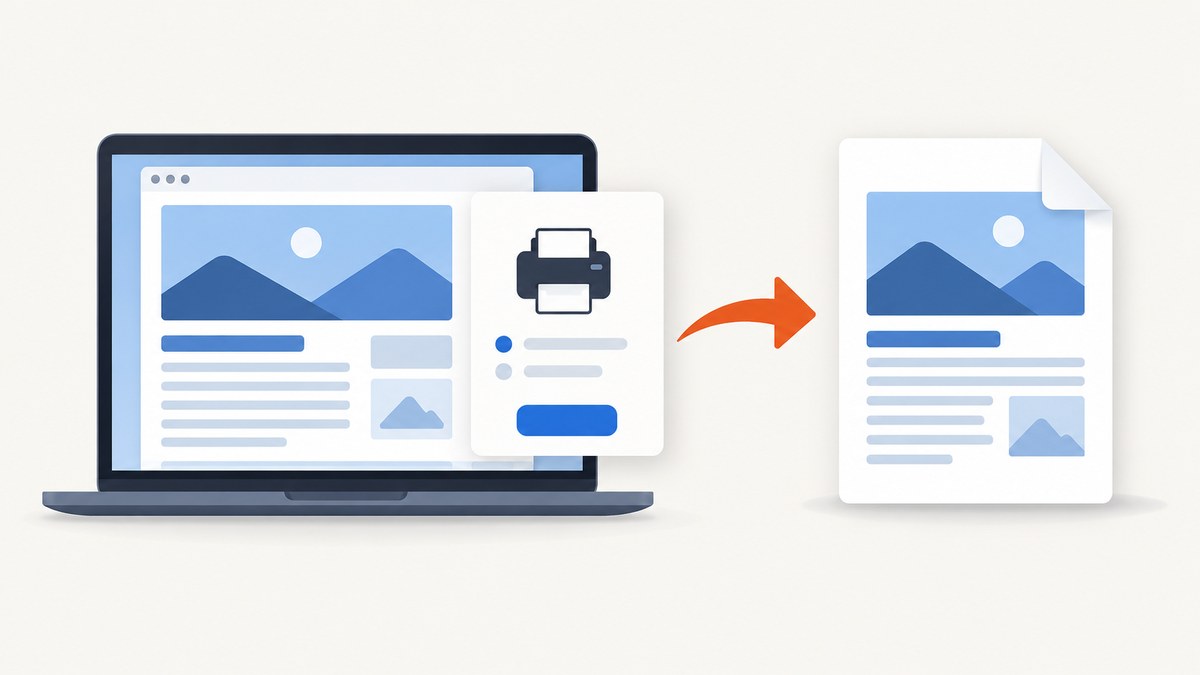
On a computer, open the downloaded webpage in Chrome, choose File > Print (Ctrl+P on Windows/Linux or Command+P on Mac), select a PDF destination, then save. On Android, open the page in Chrome and use More > Share > Print > Save as PDF.
This guide explains both workflows, the difference between Save Page As and Save as PDF, settings that can affect the result, and fixes for common problems.
1. The desktop method: print a downloaded webpage to PDF
- Open Chrome.
- Open the downloaded webpage file. You can open it from Chrome’s file picker or drag it into a Chrome window.
- Open print preview with File > Print, Ctrl+P on Windows/Linux, or Command+P on Mac. Google’s Chrome instructions document these routes.
- In the print dialog, choose the PDF destination offered by your operating system.
- Review the print settings shown by your system, then choose the save command.
- Pick a folder and filename, and save the PDF.
The exact destination names and available settings depend on the operating system and managed-device policy. If no PDF destination appears, see the troubleshooting section below.
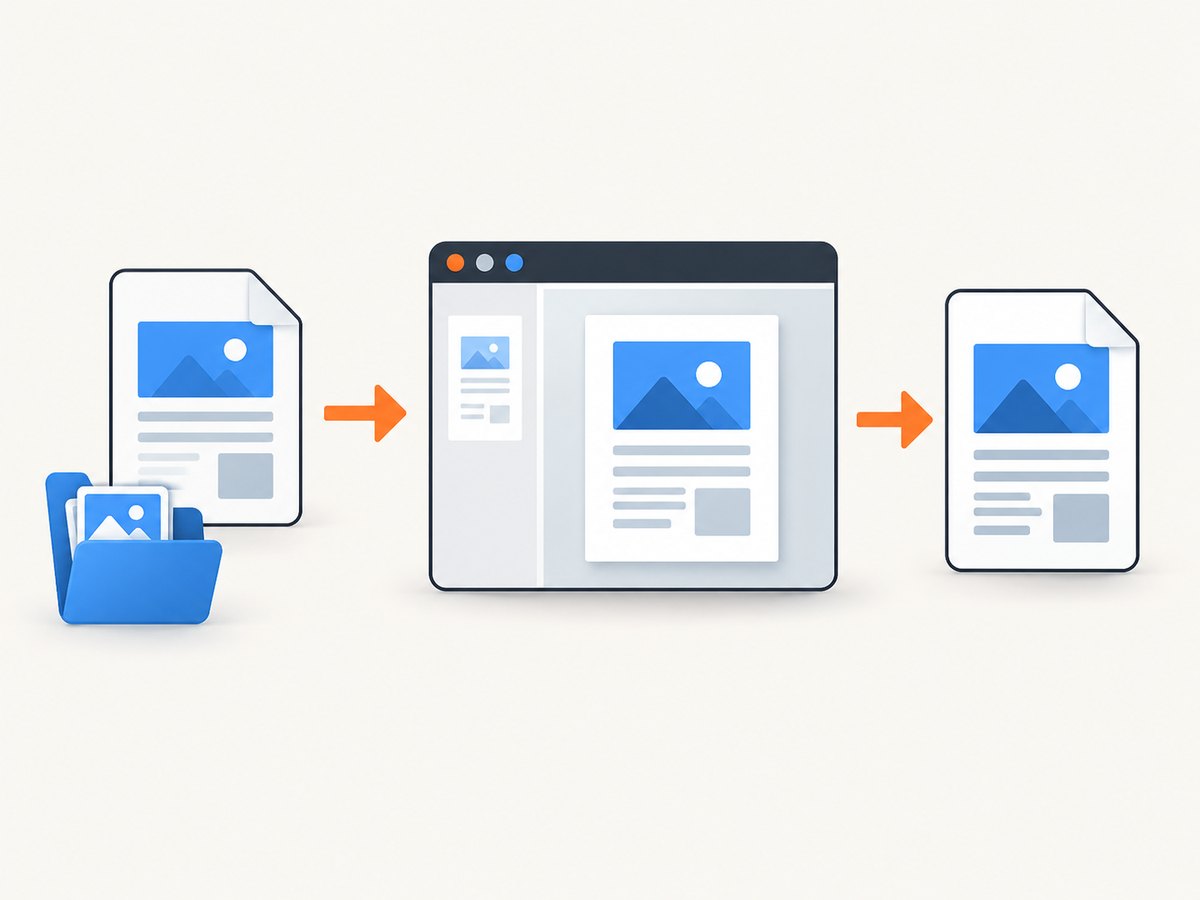
If the page is already open as a local file
A saved page may consist of an HTML file plus a companion folder containing images, stylesheets, or scripts. Open the HTML file itself in Chrome before printing. If the companion folder was moved or renamed, the page can look incomplete; printing cannot restore missing assets.
2. Android Chrome: Save as PDF
- Open the downloaded page, or navigate to the page you want to save, in the Chrome app.
- Tap More (the three-dot menu).
- Tap Share, then Print.
- In print preview, select Save as PDF.
- Choose a location on the device and save.
This is the Android flow described in Chrome’s Android help. Menu labels can vary slightly with Android versions and device manufacturers.
3. “Save Page As” versus “Save as PDF”
| Action | Result | Use it when |
|---|---|---|
| Save Page As | Downloads a webpage file, usually HTML plus related resources. | You need an offline copy that remains a webpage. |
| Save as PDF in print preview | Creates a fixed PDF document from the page as rendered by Chrome. | You need a shareable, printable, or archival document. |
Chrome’s download help treats these as different operations. Saving a page first does not create a PDF; open that saved page and use the print workflow.
4. Choosing a destination
Use the local PDF destination when you want a file on the computer or phone. Chrome’s computer help also documents saving to Google Drive, but that route may require the Save to Google Drive extension or Drive software, depending on how you use it. You can also upload a locally saved PDF through the Drive website. Neither Drive route is required for a local PDF.
5. Getting a clean, complete PDF
- Wait until the page has finished rendering before opening print preview.
- Check the preview for missing images, clipped sections, or blank pages.
- If the downloaded page depended on remote assets, confirm that those assets are still available. An offline HTML copy may not contain everything the original page loaded.
- Use the print settings exposed by your system for the page size, orientation, margins, scale, and other layout controls when they are available.
- For a long page, scroll through the preview before saving so you catch a broken page break.
6. When a PDF opens in Chrome instead of downloading
Chrome can be configured either to open PDFs in its built-in viewer or to download them. In Chrome’s PDF settings, choose the behavior you want: Download PDFs or Open PDFs in Chrome. The setting is described in Chrome’s download help.
7. Troubleshooting
No PDF option appears
The available destinations come from the operating system, browser configuration, and device management policy. Reopen print preview and inspect the destination list. On a managed computer, an administrator may have removed destinations. If the device offers no PDF destination, save the page file and use a PDF-capable print destination supplied by your operating system.
The preview is blank
Confirm that the page itself displays in Chrome before printing. A blank local page often means the HTML references files that were not downloaded, or that the page requires network access. Re-download the complete page and its companion resources, then reopen the HTML file.
Images or styles are missing
Check whether the downloaded page has its associated resource folder beside the HTML file. Moving only the HTML file breaks relative paths. If the original page required remote resources, reconnect to the network and download a complete copy before printing.
The PDF has unexpected page breaks
Review the layout and scale controls shown in print preview. Web pages do not all define print layouts consistently, so a page can split differently from its on-screen view. Inspect the preview before saving and adjust the available settings.
Android does not show “Save as PDF”
Use the Chrome app’s More > Share > Print route and inspect the destination selector in print preview. The exact printer and destination list depends on the Android device and installed print services.
Chrome saves a webpage file instead of a PDF
You selected Save Page As. Close that dialog, open print preview with Ctrl+P or Command+P, and select the PDF destination there.
8. Automating PDF capture with ScreenshotNeo
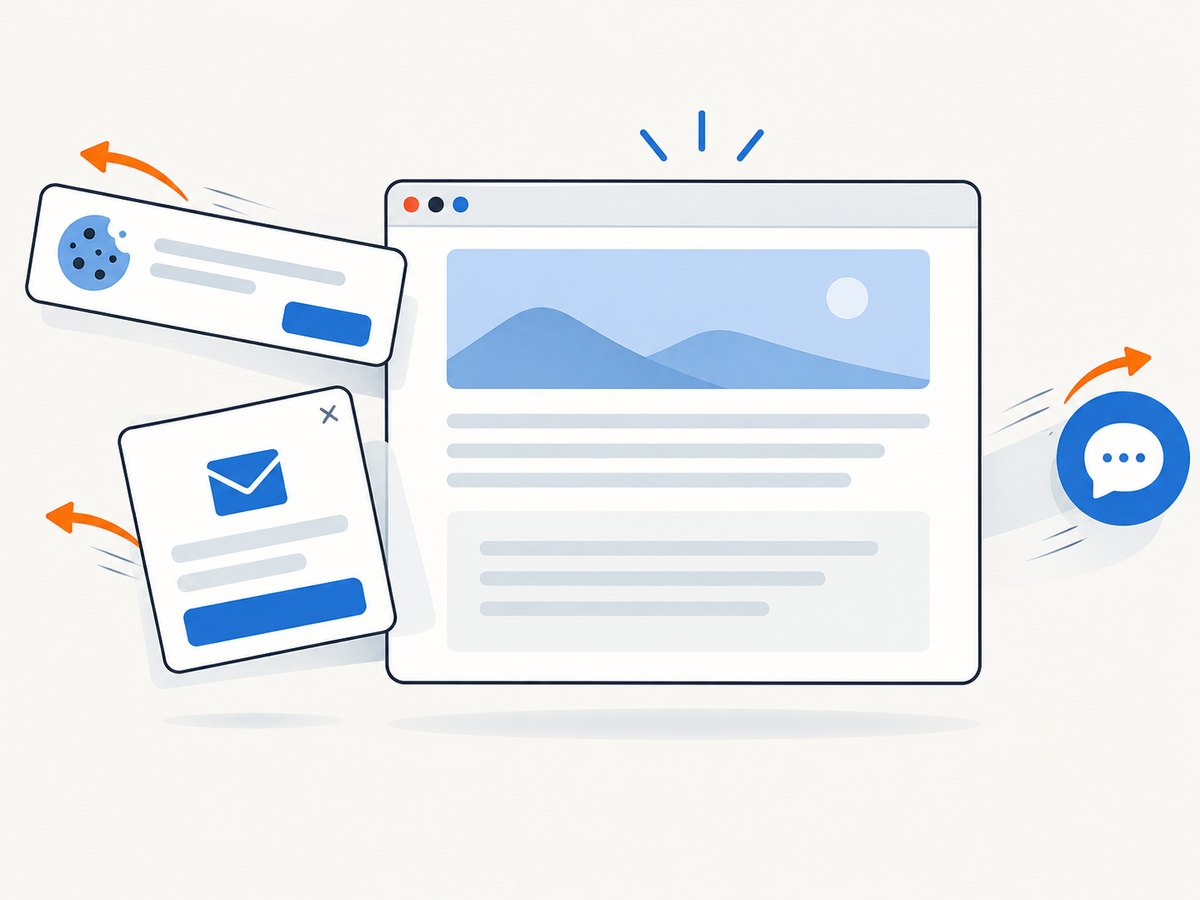
Chrome is practical for an occasional local conversion. For repeatable captures from URLs, ScreenshotNeo provides website screenshots and PDFs through an API and an MCP server. It accepts cookie and consent banners like a visitor, removes more than 60 known consent platforms plus newsletter popups and chat widgets before capture, and lets you turn each cleanup step off. Bot checks, blank pages, timeouts, failed loads, and cache hits are not billed; responses identify the page verdict and billing result in X-Page-Verdict and X-Billed headers.
9. Or skip the browser setup
Use the one-call API for a URL instead of maintaining a browser-print workflow. The same endpoint can return PNG, JPEG, WebP, or PDF output; see the ScreenshotNeo API documentation for PDF parameters and the full option list.
curl -G "https://api.screenshotneo.com/v1/shot" -d access_key=YOUR_API_KEY --data-urlencode url=https://stripe.com -o shot.webpimport requests
r = requests.get("https://api.screenshotneo.com/v1/shot", params={"access_key": "YOUR_API_KEY", "url": "https://stripe.com"}, timeout=90)
open("shot.webp", "wb").write(r.content)const q = new URLSearchParams({ access_key: 'YOUR_API_KEY', url: 'https://stripe.com' });
const res = await fetch(`https://api.screenshotneo.com/v1/shot?${q}`);ScreenshotNeo also supports full-page capture with lazy images loaded, CSS-element capture, device presets and custom viewports, dark mode, retina scale, PDF paper sizes and page ranges, custom CSS and JavaScript, clicks, selector or network-idle waits, request blocking, headers, cookies, user agents, authorization, timezone, geolocation, transparent backgrounds, resizing, caching with a chosen TTL, signed links, asynchronous jobs with signed webhooks, bulk capture for up to 100 URLs per call, usage reporting, and an OpenAPI specification. Its MCP server exposes take_screenshot, get_page_info, and capture_pdf for Claude, Cursor, and other MCP clients.
There is a free tier of 1,000 screenshots per month with no card. Paid plans start at $5 for 3,000 shots; yearly billing gives two months free, and every feature is available on every plan.
Create a free ScreenshotNeo account and start with 1,000 screenshots a month at no charge.
10. Reliability, performance, and cost notes
- Local Chrome: the result depends on the downloaded file, its linked assets, your device’s print destination, and the page’s print layout.
- Repeated URL captures: an API avoids manual print steps and can use caching, waits, resource blocking, and asynchronous jobs for predictable processing.
- Billing: ScreenshotNeo bills only clean shots. Failed loads, bot checks, blank pages, timeouts, and cache hits are free, with the outcome reported in response headers.
- Throughput: bulk capture supports up to 100 URLs per call; caching and blocking unnecessary resources can reduce repeated work.
11. FAQ
Can I convert a page that I saved with Save Page As?
Yes. Open the saved HTML file in Chrome, then use File > Print or the keyboard shortcut and select a PDF destination.
Does printing to PDF require a physical printer?
No. Select the PDF destination offered by the operating system; a physical printer is not required for the local workflow.
Why does my PDF look different from the webpage?
PDF output follows the print rendering and settings exposed by Chrome and your operating system. Some pages also define print-specific layouts.
Can I automate a local file with ScreenshotNeo?
ScreenshotNeo captures URLs. For a local downloaded file, use Chrome’s print workflow or host the page at an accessible URL first.
Where can I find Chrome’s official instructions?
Use Google’s guides for computer printing, Android printing, downloads and PDF behavior, and PDF management in Chrome.


