How to Convert Dynamic HTML to PDF in Java
Convert JavaScript-rendered HTML to PDF with Playwright Java, or use a JVM renderer for controlled static documents. Includes runnable code and troubleshooting.

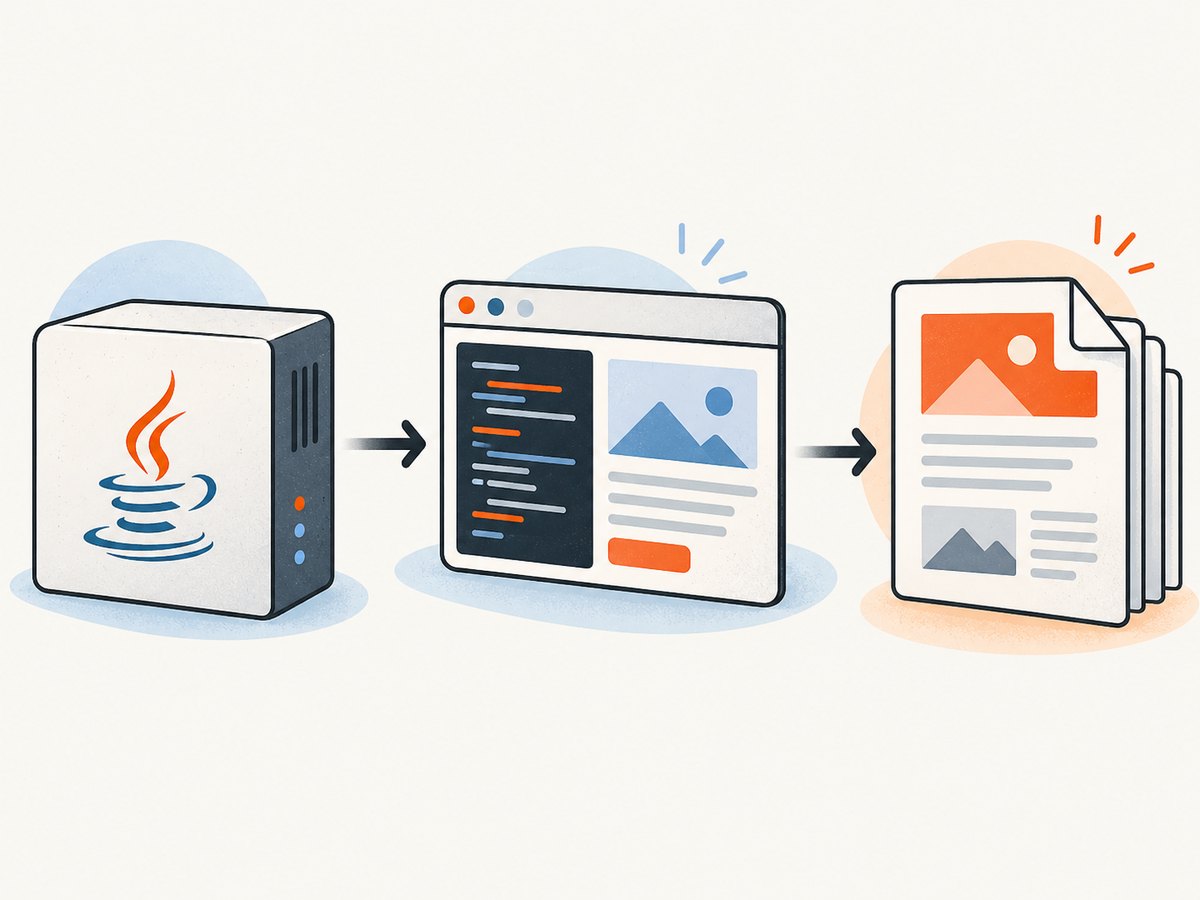
Direct answer: If the HTML depends on JavaScript to create or update its content, render it in a browser from Java, wait until the required content is ready, then call Playwright Java’s Page.pdf(). A static HTML-to-PDF renderer does not run the page’s JavaScript. For controlled markup that fits a limited HTML/CSS subset, OpenHTMLtoPDF can be a JVM-based option. [Playwright Page.pdf()] [OpenHTMLtoPDF]
This guide focuses on producing a PDF from JavaScript-rendered HTML. It covers a URL, inline dynamic markup, print media, output options, readiness, alternatives, and common failures. The key decision is whether a real browser must execute JavaScript and apply modern browser layout.
1. Choose the rendering approach
| Approach | Choose it when | Know the limitation |
|---|---|---|
| Playwright Java | The page runs JavaScript, uses modern browser layout, or already exists as a website or app. | You must manage browser readiness, print styling, and browser lifecycle. |
| OpenHTMLtoPDF | You control well-formed XHTML or limited HTML and can keep CSS within its supported subset. | It does not execute JavaScript and does not implement many modern standards, including flex and grid. |
| Adobe PDF Services Java SDK | Your workflow uses a data-driven template whose DOM is updated with JavaScript before conversion. | The cited sample documents this workflow; it does not establish current service pricing, limits, or comparative performance. |
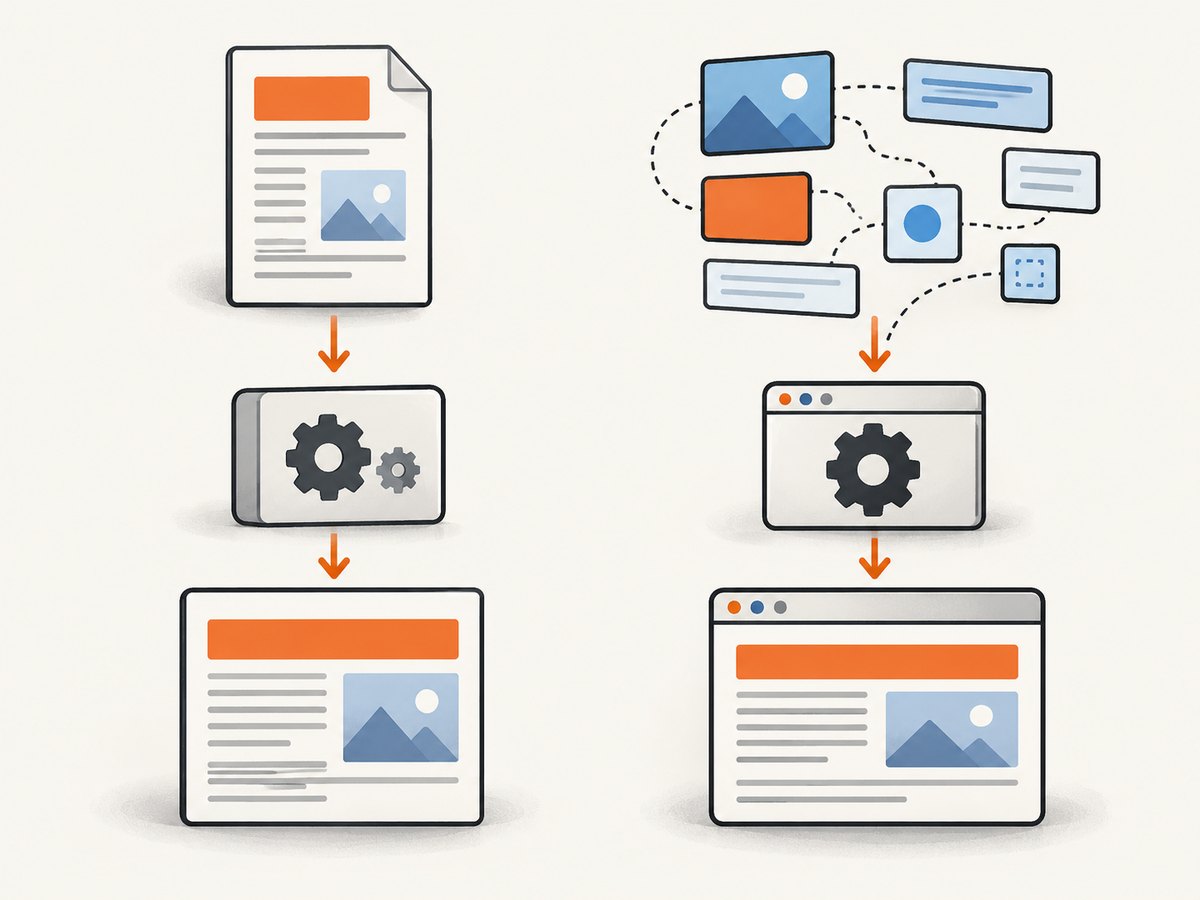
“Dynamic HTML” often means the browser assembles the content after the initial document arrives. A renderer that receives only the original HTML cannot reproduce browser-side changes unless it executes the JavaScript or is given the already-rendered result. For a live site or client-rendered application, start with Playwright. For a controlled invoice or report template, a constrained JVM renderer may be simpler if the markup and CSS fit its capabilities. [OpenHTMLtoPDF project documentation] [Adobe PDF Services Java SDK samples]
2. Convert a JavaScript-rendered page with Playwright
The example below launches Chromium, navigates to a URL, waits for a page-specific content selector, then saves a PDF. The selector is an example: replace it with an element that appears only after the content your document needs is ready.
Dependency
Add the Playwright Java library to your Maven project. Use the version approved for your project; the Playwright Java documentation includes current installation instructions and browser setup. [Playwright for Java: getting started]
<dependency>
  <groupId>com.microsoft.playwright</groupId>
  <artifactId>playwright</artifactId>
  <version>1.55.0</version>
</dependency>
Install the matching browser binaries using the documented Playwright browser installation command for your operating system and build setup. Browser installation is separate from adding the Java dependency; a missing browser executable prevents launch.
Runnable Java example: capture a URL as PDF
import com.microsoft.playwright.Browser;
import com.microsoft.playwright.BrowserType;
import com.microsoft.playwright.Page;
import com.microsoft.playwright.Playwright;
import com.microsoft.playwright.options.WaitUntilState;

import java.nio.file.Paths;

public class HtmlToPdf {
  public static void main(String[] args) {
    String url = args.length > 0 ? args[0] : "https://example.com";
    String readySelector = args.length > 1 ? args[1] : "main";

    try (Playwright playwright = Playwright.create()) {
      Browser browser = playwright.chromium().launch(
          new BrowserType.LaunchOptions().setHeadless(true));
      try {
        Page page = browser.newPage();
        page.navigate(url, new Page.NavigateOptions()
            .setWaitUntil(WaitUntilState.DOMCONTENTLOADED)
            .setTimeout(60_000));

        // Wait for the page-specific signal that the required content exists.
        page.locator(readySelector).waitFor();

        page.pdf(new Page.PdfOptions()
            .setPath(Paths.get("output.pdf"))
            .setFormat("A4")
            .setPrintBackground(true)
            .setPreferCSSPageSize(true));
      } finally {
        browser.close();
      }
    }
  }
}
Run it with the project’s normal Java command, passing a target URL and selector as arguments, for example java HtmlToPdf https://example.com main after compiling with the dependency on the classpath. In a Maven project, run the class through your configured exec plugin or package it and launch it with the project dependencies available.
Why wait for a selector? A navigation lifecycle event describes document loading, not necessarily completion of a particular application’s asynchronous data work. The selector should correspond to the actual content needed in the PDF. Some pages need an application-specific signal, a different selector, or a deliberate short delay for a known late update. Do not assume one generic wait state proves the application is finished. [Playwright navigation and loading]
Render inline dynamic HTML
For a template supplied by your application, set the HTML directly, including the JavaScript that populates it, and wait for the resulting content before printing. The wait condition below checks for a populated element.
String html = """
  <!doctype html>
  <html>
    <head><meta charset=\"utf-8\"></head>
    <body>
      <main id=\"report\">Loading report…</main>
      <script>
        const report = document.querySelector('#report');
        report.textContent = 'Revenue report: $42,000';
        report.dataset.ready = 'true';
      </script>
    </body>
  </html>
  """;

page.setContent(html);
page.locator("#report[data-ready='true']").waitFor();
page.pdf(new Page.PdfOptions()
    .setPath(Paths.get("report.pdf"))
    .setFormat("A4")
    .setPrintBackground(true));
When your page fetches data asynchronously, set a readiness marker only after the data has been applied and the content is in its final state. For example, your application can mark the root element as ready after its render completes. If the page is third-party and cannot expose a marker, choose a reliable visible element or a condition specific to the page. A fixed delay is easy to add but can be both too short on a slow run and unnecessarily long on a fast one.
3. PDF media and output options
Playwright’s PDF generation uses print CSS media by default. This matters when your site has print styles that hide navigation, change colors, or rearrange content. If you need the screen stylesheet instead, emulate screen media before generating the PDF. [Playwright Page.pdf() API]
page.emulateMedia(new Page.EmulateMediaOptions().setMedia("screen"));
page.pdf(new Page.PdfOptions()
    .setPath(Paths.get("screen-style.pdf"))
    .setPrintBackground(true));
Choose output options deliberately. The Java API documents controls for paper format, explicit width and height, margins, background printing, and honoring the page size declared in CSS. [Playwright Page.pdf() options]
| Option | When to use it | Practical note |
|---|---|---|
format |
Standard paper such as A4 or Letter. | Use this when output should follow a familiar paper size. |
width, height |
A custom page dimension. | Use dimensions supported by the API and verify the resulting layout. |
margin |
Keep text away from the paper edge or reserve space. | Set each side intentionally if the default is unsuitable. |
printBackground |
Include background colors and images. | Without it, some designs lose visual background styling in print output. |
preferCSSPageSize |
The document defines its intended size with CSS @page. |
Lets the CSS page rule take precedence over the API paper format. |
landscape |
Wide tables or landscape reports. | Check page breaks and overflow after changing orientation. |
Example with explicit margins and landscape output:
page.pdf(new Page.PdfOptions()
    .setPath(Paths.get("wide-report.pdf"))
    .setFormat("A4")
    .setLandscape(true)
    .setMargin(new com.microsoft.playwright.options.Margin()
        .setTop("12mm")
        .setRight("10mm")
        .setBottom("12mm")
        .setLeft("10mm"))
    .setPrintBackground(true));
Check the installed Playwright Java API for the precise option types and available controls for your chosen version. PDF layout is also affected by the page’s print CSS, font availability, image loading, and paper dimensions. A visually correct browser viewport is not automatically a correctly paginated print document.
4. Static HTML with OpenHTMLtoPDF
OpenHTMLtoPDF is appropriate when you control the document input and can work within its supported HTML and CSS subset. The project describes support for well-formed XML/XHTML, some HTML5, and CSS 2.1. It explicitly does not run JavaScript and does not implement many modern standards such as flexbox and grid. That makes it a poor fit for converting a live client-rendered application as-is. [OpenHTMLtoPDF project documentation]
Minimal usage for an already complete, static XHTML document:
import com.openhtmltopdf.pdfboxout.PdfRendererBuilder;
import java.io.FileOutputStream;

public class StaticHtmlToPdf {
  public static void main(String[] args) throws Exception {
    String xhtml = "<html xmlns=\"http://www.w3.org/1999/xhtml\">"
        + "<head><title>Report</title></head>"
        + "<body><h1>Monthly report</h1>"
        + "<p>Content is prepared before rendering.</p>"
        + "</body></html>";

    try (FileOutputStream output = new FileOutputStream("static-report.pdf")) {
      PdfRendererBuilder builder = new PdfRendererBuilder();
      builder.withHtmlContent(xhtml, null);
      builder.toStream(output);
      builder.run();
    }
  }
}
Use the project’s installation instructions to select and add the appropriate OpenHTMLtoPDF artifact and version. If your document relies on browser JavaScript, CSS grid or flex, or other unsupported layout behavior, simplify and transform the markup for this renderer or use a browser-based route. Do not treat it as a drop-in browser.
5. Data-driven templates and PDF services
Adobe PDF Services’ Java SDK samples include a dynamic HTML workflow in which provided data and JavaScript update the HTML DOM before conversion. This is a documented option when your application already uses that service workflow. The sample establishes that this route exists; it does not establish current pricing, service limits, or comparative performance. Check the service’s current official documentation for operational details before adopting it. [Adobe PDF Services Java SDK samples]
For any service-based conversion, keep the source template, data, and conversion step explicit. Validate the completed document output and handle service errors and credentials according to that service’s current documentation.
6. Or skip the browser setup
If your goal is to get a screenshot of the rendered page rather than a PDF, ScreenshotNeo offers a website screenshot API and MCP server. Its one-call API returns an image or PDF, and its documented options include PDF output settings. It is useful when you want the page captured without managing a browser installation in your Java application. See the ScreenshotNeo API documentation.
curl -G "https://api.screenshotneo.com/v1/shot" \
  -d access_key=YOUR_API_KEY \
  --data-urlencode url=https://stripe.com \
  -o shot.pdf
Cookie banners are accepted and removed before the capture, along with known newsletter popups and chat widgets. Bot checks, blank pages, and failed loads are never billed; response headers identify the page verdict and billing status. An MCP server lets AI agents use screenshot tools. The Free plan includes 1,000 shots per month with no card; paid plans start at $5 for 3,000. Every feature is on every plan. If PDF output is the goal, set the documented PDF parameters for the request; the example uses the API endpoint and target URL, and the API docs explain output options.
Sign up for 1,000 free screenshots a month, with no card.
7. Troubleshooting
| Symptom | Likely cause | Fix |
|---|---|---|
| PDF contains a loading message or missing data | The PDF was generated before application-side rendering or data fetching finished. | Wait for a content-specific selector or application readiness marker after data is applied. |
| Browser launch fails or executable is missing | The Java dependency is present but the matching browser binary is not installed or available in the runtime environment. | Install the browser binaries using Playwright’s documented setup and ensure the runtime can access them. |
| Colors or backgrounds disappear | Print output omits background graphics by default. | Enable printBackground and review print CSS. |
| PDF looks different from the page | PDF generation uses print media by default, or print styles change layout. | Review @media print; emulate screen media when screen styling is required. |
| Content is clipped or breaks awkwardly | Paper size, margins, orientation, or print rules do not fit the content. | Adjust format, dimensions, margins, and landscape setting; add print-specific page-break rules and inspect long tables. |
| Images or fonts are missing | Resources may not have loaded, be reachable, or be available to the browser process. | Wait for the needed assets or application-ready state; verify their URLs and runtime access. |
| OpenHTMLtoPDF output omits dynamic content or modern layout | The input depends on JavaScript or CSS outside the renderer’s supported subset. | Pre-render or simplify the document, or use a browser engine for the page. |
| Navigation timeout | The page is slow, long-lived, or waiting for a lifecycle condition that does not suit it. | Use a suitable navigation readiness condition and a separate page-specific content wait; set timeouts based on the application. |
8. Performance, reliability, and cost
Rendering a PDF requires a browser process and page layout when using Playwright. The cited documentation defines the capability and controls, but provides no universal performance benchmark or deployment cost. Measure with your own page complexity, asset sizes, fonts, and concurrency. Reuse a browser process across jobs where your application architecture permits, create an isolated page for each job, and close resources reliably. Avoid launching a fresh browser for every document unless isolation requirements call for it.
For reliability, bound navigation and readiness waits, record which stage failed, and treat a missing required selector as a conversion failure rather than silently printing an incomplete page. Pages can change over time, so a selector that once represented readiness may need maintenance. For repeatable output, control the template, data, fonts, viewport assumptions, and print styles. The available sources do not establish a universal cost comparison among Playwright, OpenHTMLtoPDF, and a PDF service; evaluate infrastructure and service pricing for your deployment.
9. Implementation checklist
- Confirm whether JavaScript is required to produce the final content.
- Choose Playwright for browser-dependent pages; choose a JVM renderer only when its HTML/CSS support fits.
- Define a real readiness signal for asynchronous application content.
- Decide whether the output should use print CSS or screen CSS.
- Set page size, margins, background printing, and orientation deliberately.
- Test long pages, missing assets, slow responses, and page breaks.
- Close browser and page resources in success and failure paths.
10. FAQ
Can I convert a React or other client-rendered page directly?
Yes, with a browser-based renderer such as Playwright: navigate to the page, wait for the application content, then generate the PDF. The static renderer route does not execute the client-side JavaScript.
Does Playwright print what I see on screen?
By default, PDF generation uses print media CSS. Emulate screen media first if the PDF should use screen styling.
Should I use a fixed sleep to wait for the page?
A delay may suit a known, controlled update, but it does not confirm content readiness. Prefer a page-specific selector or application signal where possible.
Is OpenHTMLtoPDF a browser replacement?
No. It is a JVM renderer for a constrained set of markup and styles, and it does not run JavaScript.
Can ScreenshotNeo return a PDF?
Yes. ScreenshotNeo’s API supports PDF output with PDF-related settings documented in its API guide.


