How to Convert Microsoft Edge Pages to JPG
Capture a full Edge page, verify the file type, and export a true JPG when needed—with automation options for repeatable screenshots.
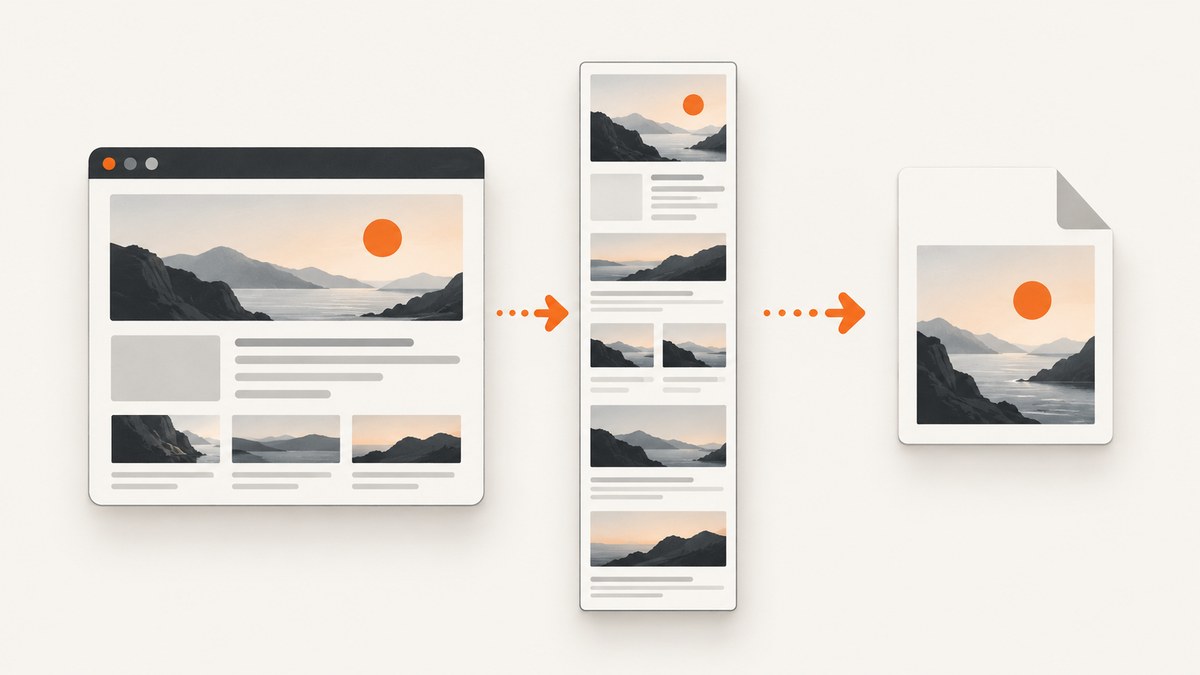
Short answer: In Microsoft Edge, open the page, choose Screenshot (formerly Web capture) from the three-dot menu or press Ctrl+Shift+S where supported. Choose Capture full page or Capture area, save the image, then verify its format. Microsoft documents saving an image but does not promise that the file is always JPEG, so export it as JPG/JPEG in an editor when JPEG is required.
1. Capture an Edge page and save it as an image
- Open the target URL in Microsoft Edge and wait for the page to finish loading.
- Open the … menu and select Screenshot. In older Edge builds this command is named Web capture. You can also try Ctrl+Shift+S. Microsoft notes that the name, shortcut and availability can vary by browser version, device and market.
- Select Capture full page to include content below the viewport, or Capture area and drag around a region.
- Review the result, then choose the save command and a location.
- Inspect the saved file’s extension and actual encoding. Rename only when the bytes already are JPEG; otherwise use an explicit export step below.
Edge’s Screenshot feature is intended for webpage captures, including content outside the visible screen. The official feature descriptions say the result can be copied or saved as an image, but they do not document a guaranteed JPG/JPEG encoding or a format selector.
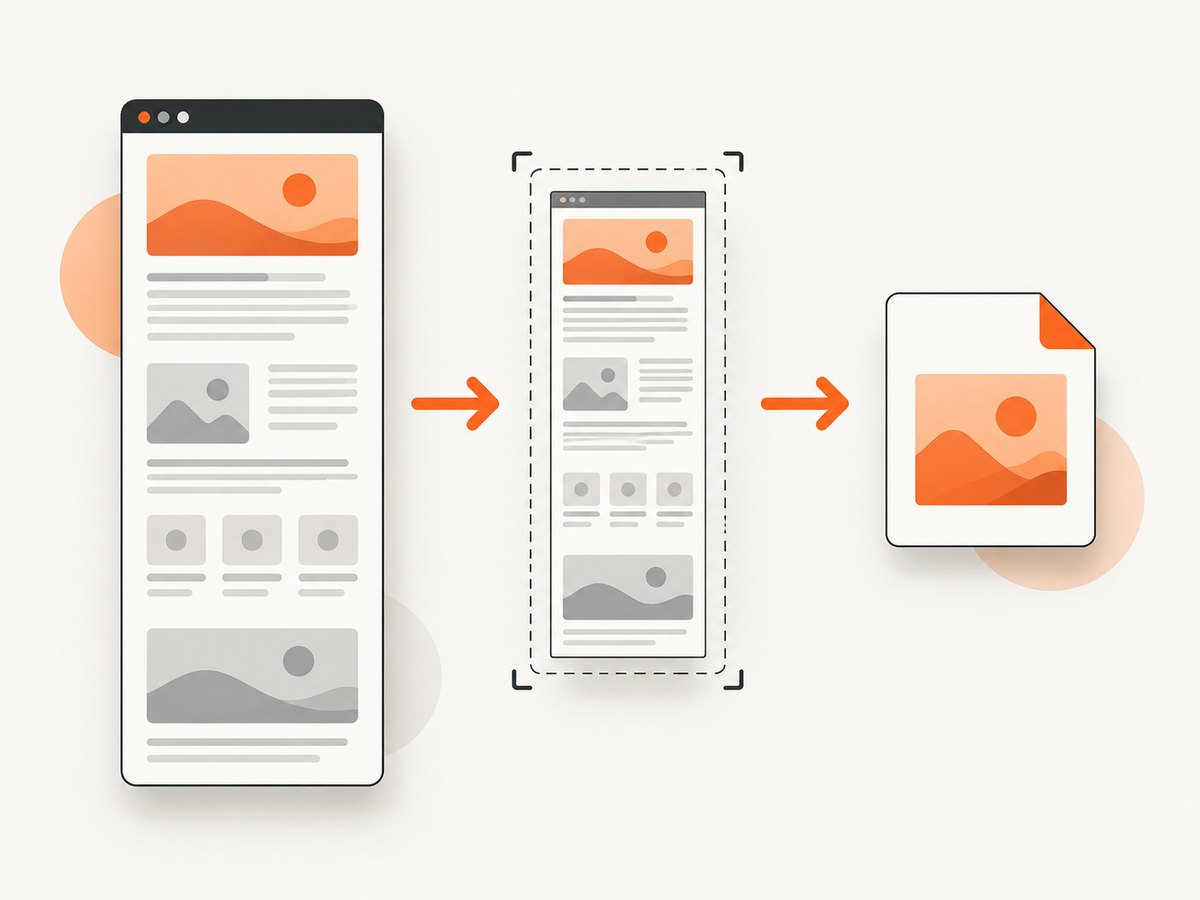
2. Make a real JPEG when Edge saved another image format
A file named page.jpg is not necessarily a JPEG. Check the file type first, then convert.
Check on Windows
Get-Item .\page.* | Select-Object Name,Length
# Optional: inspect the signature with a file-identification utility
Opening the image in Paint, Photos or another editor and choosing Save as or Export → JPEG is the simplest reliable conversion. Keep the original capture until you have opened the exported JPG and checked that it is complete.
Convert with Python and Pillow
from pathlib import Path
from PIL import Image

source = Path("edge-capture.png")
output = Path("edge-capture.jpg")
with Image.open(source) as image:
    if image.mode in ("RGBA", "LA") or (image.mode == "P" and "transparency" in image.info):
        background = Image.new("RGB", image.size, "white")
        if image.mode != "RGBA":
            image = image.convert("RGBA")
        background.paste(image, mask=image.getchannel("A"))
        image = background
    else:
        image = image.convert("RGB")
    image.save(output, "JPEG", quality=92, optimize=True, progressive=True)
print(output, output.stat().st_size, "bytes")
Install Pillow with python -m pip install Pillow if it is not already available. JPEG is lossy; keep PNG when you need pixel-perfect text or transparency.
3. Choose the right capture scope
| Goal | Edge choice | What to expect |
|---|---|---|
| Entire article, landing page or long document | Capture full page | Captures below the viewport; very long or script-heavy pages may take longer. |
| One chart, paragraph or hero section | Capture area | You select the rectangle; browser chrome is excluded. |
| Only what is currently visible | Windows Snipping Tool | Captures screen, window or a selected region. |
| Print-ready document | Edge Print (Ctrl+P) | Use print settings and PDF output; this is not a documented direct JPG workflow. |
4. Full-page captures that do not look right
- Lazy-loaded images are missing: scroll through the page first, wait for images to appear, then run Screenshot again.
- Sticky headers repeat: use Capture area around the content or hide the fixed header with a CSS rule in a controlled copy of the page.
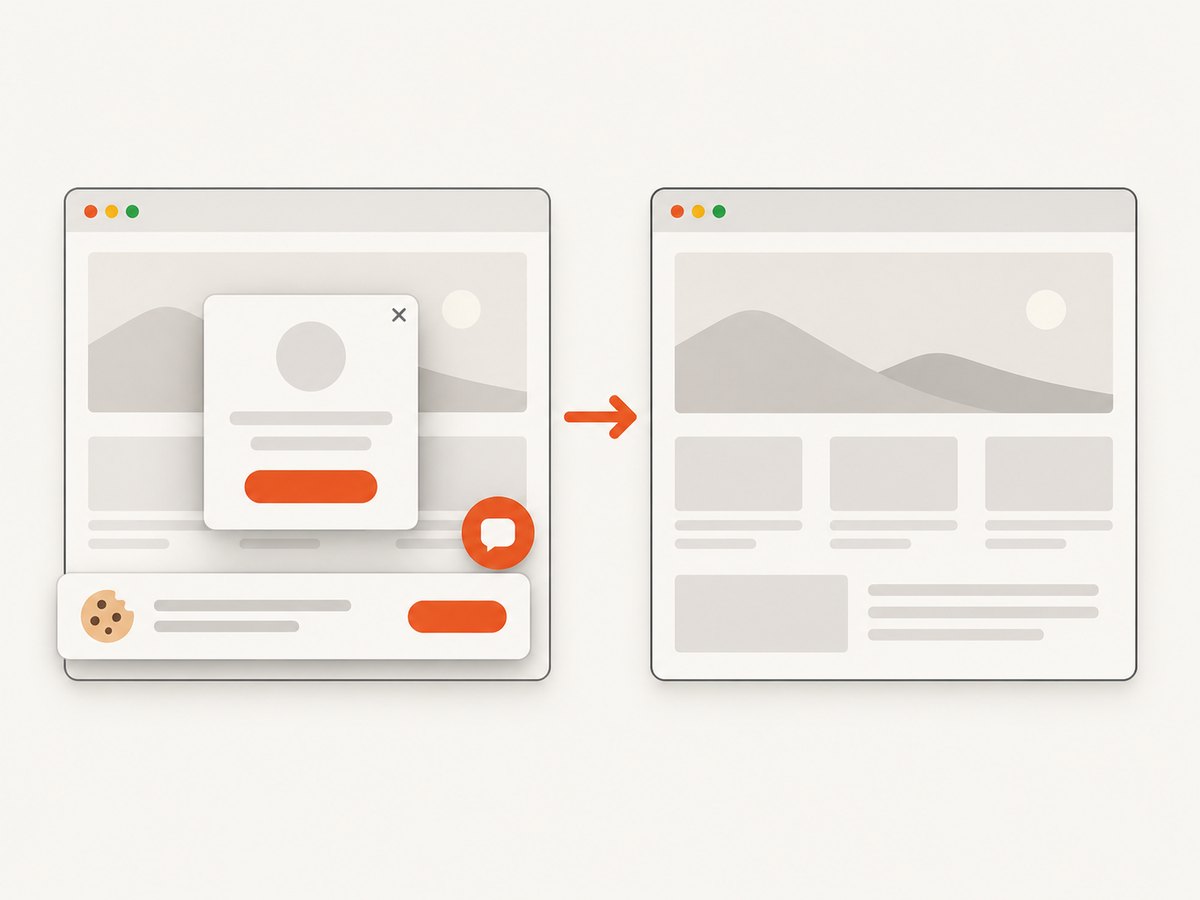
- Cookie banners, chat bubbles or popups cover content: dismiss them before capture. A private window can help isolate extension-injected overlays.
- Infinite scroll never ends: capture a finite section or use the page’s print/PDF view.
- Animated content changes between sections: pause the animation or capture smaller regions for a consistent result.
- Cross-origin or protected content is blank: confirm that you are signed in, that the resource is allowed in the current profile, and that the page has finished loading.
5. Windows Snipping Tool alternative
Open Snipping Tool from the Start menu, choose a rectangle, window, full-screen or other available mode, take the snip, annotate if needed, and save it. Microsoft documents Snipping Tool for screen, window and selected-area captures. It is useful for visible pixels; Edge Screenshot is the built-in route for a whole webpage beyond the viewport.
6. Why Print to PDF is different
Ctrl+P opens Edge’s print dialog, where scaling and background graphics can be adjusted. Save to PDF when you need a paginated, selectable document. To obtain JPG images from that PDF, convert each page with a separate PDF-to-image tool; the print dialog itself is not documented as a JPG exporter. Print output can also omit scripts, sticky elements or screen-only styling.
7. Extensions and compatibility
Some Edge Add-ons listings advertise full-page capture with JPG export. Treat an extension as optional: verify that it supports your current Edge version, read its permissions and privacy policy, and test on non-sensitive pages. A listing is not a compatibility guarantee. The native Screenshot workflow is sufficient for most captures.
8. Automate conversion with ScreenshotNeo
If you need repeatable captures from a build, script or backend, ScreenshotNeo returns a PNG, JPEG, WebP or PDF from one GET request. See the ScreenshotNeo API documentation for the complete option list.
cURL
curl -G "https://api.screenshotneo.com/v1/shot" -d access_key=YOUR_API_KEY --data-urlencode url=https://stripe.com -o shot.webpPython
import requests
r = requests.get("https://api.screenshotneo.com/v1/shot", params={"access_key": "YOUR_API_KEY", "url": "https://stripe.com"}, timeout=90); open("shot.webp", "wb").write(r.content)
Node.js
const q = new URLSearchParams({ access_key: 'YOUR_API_KEY', url: 'https://stripe.com' }); const res = await fetch(`https://api.screenshotneo.com/v1/shot?${q}`);For JPEG output, pass the image-format option documented by the API and save with a .jpg extension. ScreenshotNeo supports full-page capture with lazy images loaded, CSS-element capture, device presets or custom viewports, retina scale, custom CSS and JavaScript, clicks, selector waits, delays, network-idle waits, blocked ads and resource types, headers, cookies, user agents, authorization, timezone, geolocation, transparent backgrounds, resizing, caching with a chosen TTL, signed links, asynchronous jobs with signed webhooks, bulk capture (up to 100 URLs per call), usage reporting and an OpenAPI specification. Common screenshot-API parameter names are accepted to ease migration.
Or skip the browser setup
ScreenshotNeo accepts consent banners as a visitor and removes more than 60 known consent platforms, newsletter popups and chat widgets before capture; each cleanup step can be disabled. Bot checks/CAPTCHAs, blank pages, timeouts, failed loads and cache hits are not billed, and response headers identify the page verdict and whether it was billed. Its MCP server provides take_screenshot, get_page_info and capture_pdf tools for Claude, Cursor and other MCP clients. The Free plan includes 1,000 screenshots per month without a card; paid plans start at $5 for 3,000 shots. Create a free ScreenshotNeo account.
9. Troubleshooting checklist
| Symptom | Likely cause | Fix |
|---|---|---|
| Screenshot command is missing | Older build, managed policy or unsupported device | Update Edge, check the … menu, try Ctrl+Shift+S, or use Snipping Tool. |
| Saved file is PNG/WebP, not JPG | Edge did not expose an encoding choice | Open it in an editor or use Pillow, export as JPEG, then verify. |
| JPG has a black/solid background | Source had transparency | Flatten onto white (or another color) before JPEG export. |
| Only the viewport was captured | Capture area or screen snip was used | Choose Capture full page and wait for lazy content. |
| Text is blurry | Low-resolution source or repeated JPEG recompression | Capture at native/retina scale and convert once at a high quality setting. |
| Automation returns an error | Missing key, inaccessible URL or timeout | Check the key and URL, increase timeout, and inspect ScreenshotNeo’s X-Page-Verdict and X-Billed headers. |
10. Performance, reliability and cost
- Full-page captures require more layout and image work than viewport captures. Let the page settle and avoid unnecessary repeated conversions.
- JPEG reduces file size but introduces artifacts around small text; choose PNG for archival screenshots and JPEG for compact delivery.
- For repeat jobs, cache a stable page or use ScreenshotNeo’s configurable TTL cache. Cache hits are not billed.
- When a page can fail or show a bot check, inspect the response verdict before storing the image. ScreenshotNeo does not bill bot checks, blank pages, timeouts or failed loads.
- Keep API keys server-side, set explicit request timeouts, retry transient failures with backoff, and record the URL, timestamp and output format for reproducibility.
11. FAQ
Does Edge guarantee JPG output?
No. Microsoft documents saving a capture as an image but does not promise JPEG encoding or a format selector. Verify and export explicitly when JPG is mandatory.
Can I capture an entire page without an extension?
Yes. Edge Screenshot/Web capture includes Capture full page. Availability can vary by version, device and market.
Is a PDF the same as a JPG?
No. PDF is a print-oriented, paginated document. Convert it to images separately if you need JPG files.
What should I use for an automated pipeline?
Use a screenshot API such as ScreenshotNeo when you need repeatable URLs, controlled waits, cleanup of overlays, format selection and response-level billing information.


