How to Convert Microsoft Edge Pages to PDF Online for Free
Save any webpage as a PDF from Microsoft Edge for free. Follow the print steps, fix preview problems, and automate captures when needed.

Yes. Microsoft Edge can convert a webpage to a PDF for free without installing a converter. Open the page, choose Print, select Save as PDF (or your operating system’s PDF printer), adjust the layout, preview it, and save the file.
1. Save a webpage as a PDF in Microsoft Edge
- Open the webpage in Microsoft Edge and wait for the content you need to finish loading.
- Open the Settings and more menu (the three dots) and choose Print. You can also right-click the page and choose Print.
- Use the keyboard shortcut instead: press Ctrl+P on Windows or Command+P on macOS.
- In the printer or destination list, choose Save as PDF. If that option is unavailable, choose the operating system’s PDF printer.
- Set the page range, paper size, orientation, margins, scale, headers and footers, and background graphics.
- Review the preview. Check that headings, images, tables, and page breaks look correct.
- Select Print or Save, choose a folder and filename, and confirm.
The resulting PDF is created by the local print workflow. A paid online converter is not required for this basic conversion.
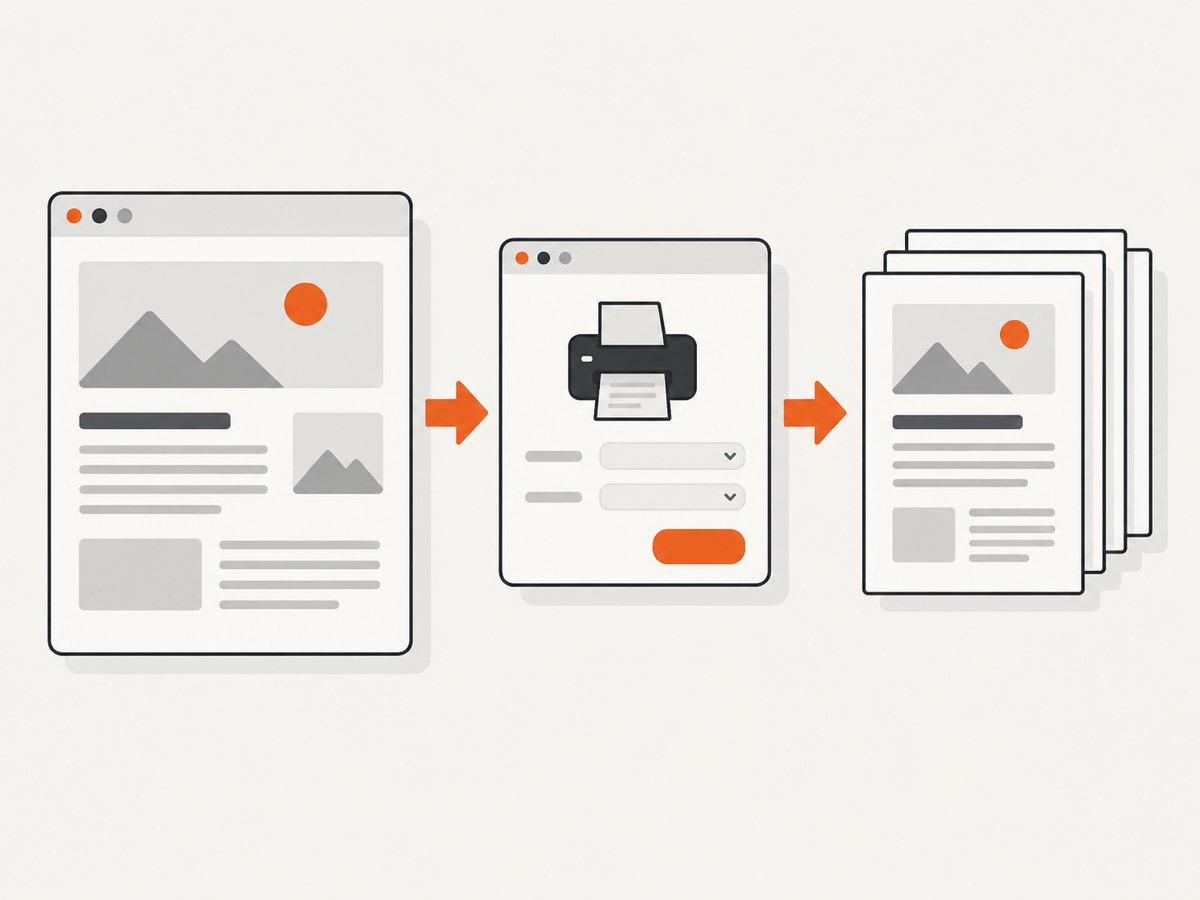
What the print settings do
| Setting | Use it when |
|---|---|
| Pages or page range | You need the entire page, selected pages, or a custom range. |
| Paper size | The document must match Letter, A4, or another paper format. |
| Orientation | Landscape gives wide tables and diagrams more room; portrait suits normal articles. |
| Margins | You want more readable whitespace or more content per page. |
| Scale | The preview clips content or creates awkward page breaks. |
| Headers and footers | You need to include or remove the URL, date, title, or page numbers. |
| Background graphics | The page uses colored panels, backgrounds, or design elements that should appear in the PDF. |
2. Make the PDF cleaner before printing
Webpages often include navigation, advertisements, recommendation boxes, and chat controls that do not belong in a document. When the site supports it, open Immersive Reader from the address bar or press F9, then start the print workflow. Immersive Reader can remove surrounding material such as ads and site navigation, although availability depends on the website.
Print only part of a webpage
- Drag across the text, images, or table you want to export.
- Right-click the selection and choose Print.
- Choose Save as PDF and adjust the same page settings.
- Preview the result and save it.
This is useful for a single recipe, section, specification, or quotation instead of the whole page.
Long pages, lazy images, and interactive content
Scroll through a long page once before printing so images and sections that load on demand have a chance to appear. Expand accordions, open the tabs you need, and wait for charts or tables to finish rendering. The print output reflects the page state Edge has loaded; it does not automatically preserve every interactive state or animation.
3. Or skip the browser setup
If you need a repeatable PDF or screenshot workflow, ScreenshotNeo provides a website capture API and MCP server. It can return a PDF from one request, while handling common clutter before capture.
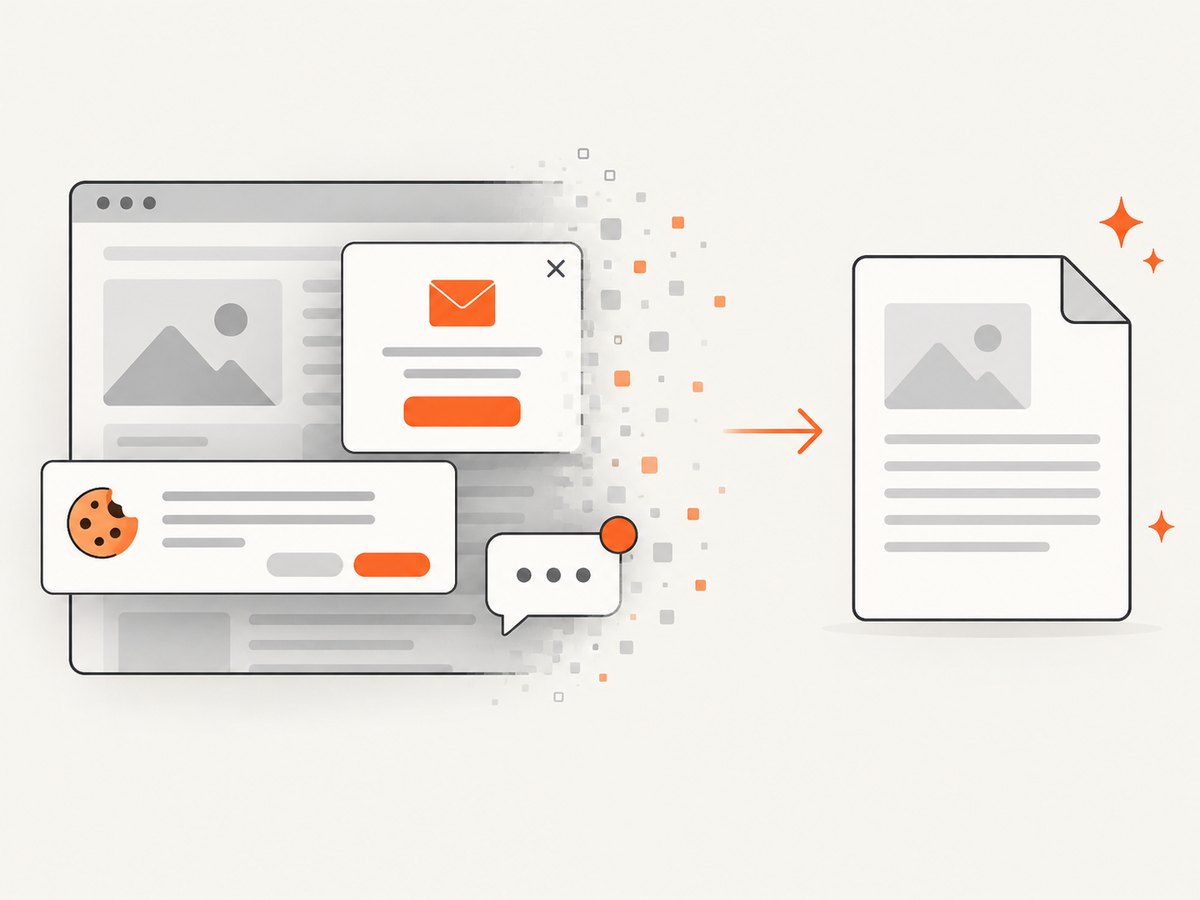
See the ScreenshotNeo API documentation for the complete options. This cURL request captures the target page as a PDF:
curl -G "https://api.screenshotneo.com/v1/shot" \
  -d access_key=YOUR_API_KEY \
  --data-urlencode url=https://stripe.com \
  -d format=pdf \
  -o page.pdf
Python:
import requests

r = requests.get(
    "https://api.screenshotneo.com/v1/shot",
    params={
        "access_key": "YOUR_API_KEY",
        "url": "https://stripe.com",
        "format": "pdf",
    },
    timeout=90,
)
r.raise_for_status()
open("page.pdf", "wb").write(r.content)
Node.js:
const q = new URLSearchParams({
  access_key: 'YOUR_API_KEY',
  url: 'https://stripe.com',
  format: 'pdf'
});

const res = await fetch(`https://api.screenshotneo.com/v1/shot?${q}`);
if (!res.ok) throw new Error(`HTTP ${res.status}`);
const bytes = new Uint8Array(await res.arrayBuffer());
await Bun.write('page.pdf', bytes);
For PDFs, configure paper size, margins, landscape mode, and page ranges as needed. Other available controls include full-page capture with lazy images loaded, waiting for a selector, delay, or network idle, custom CSS and JavaScript, clicking an element, hiding selectors, blocking ads or resource types, custom headers and cookies, timezone and geolocation, caching with a chosen TTL, asynchronous jobs with signed webhooks, bulk capture of up to 100 URLs per call, and a usage API.
Cookie and consent banners, newsletter popups, and chat widgets can be removed before capture. Bot checks, blank pages, timeouts, failed loads, and cache hits are not billed; response headers identify the page verdict and whether the request was billed. An MCP server provides take_screenshot, get_page_info, and capture_pdf tools for Claude, Cursor, and other MCP clients.
Create a free ScreenshotNeo account for 1,000 screenshots a month with no card. Paid plans start at $5 for 3,000 shots.
4. Troubleshooting Edge PDF export
Print preview does not appear
Cancel the dialog and try again. If it still fails, close and restart Edge, reopen the page, and press Ctrl+P (or use the Print menu) again. This is Microsoft’s documented first response to print-preview failures.
The PDF is missing images or sections
- Wait for the page to finish loading before printing.
- Scroll through the page to trigger lazy-loaded images.
- Expand collapsed sections and open tabs that must appear.
- Try enabling background graphics if colored content is missing.
- Reduce the scale or switch to landscape for wide content.
The page is cluttered
Use Immersive Reader when the site supports it, or print a selected portion of the page. You can also hide unnecessary page sections with the site’s own reader or print view if one is provided.
Text or tables are cut off
Choose a larger paper size, landscape orientation, narrower margins, or a smaller scale. Check every page in the preview, especially pages containing wide tables, code blocks, or charts.
Fonts or colors look different
Web fonts may finish loading after the first print attempt. Reload the page, wait, and preview again. Enable background graphics when the design depends on colored backgrounds.
5. Privacy, reliability, and cost choices
| Workflow | Best for | Trade-offs |
|---|---|---|
| Edge Print → Save as PDF | One-off documents and private pages | Local and free, but manual and dependent on the page’s print layout. |
| Immersive Reader then Print | Articles with navigation and ads | Cleaner output when supported; not available on every site. |
| Selected-content printing | A section or excerpt | Fast for partial exports; selection boundaries can be difficult on complex layouts. |
| ScreenshotNeo API | Repeatable, automated, or bulk captures | Requires an API key; usage is metered, with a free monthly allowance. |
Edge’s built-in workflow keeps the basic conversion on your computer. An API is useful when a server, scheduled job, application, or AI agent must produce the same output repeatedly. ScreenshotNeo bills only clean shots; failed loads, bot checks, blank pages, timeouts, and cache hits are not billed, and the response reports the verdict and billing status.
6. FAQ
Can I convert an Edge page to PDF without installing software?
Yes. Edge’s Print command and the Save as PDF destination handle the conversion.
What is the fastest shortcut?
Press Ctrl+P on Windows or Command+P on macOS.
Can I save only one section?
Yes. Select the content, right-click it, choose Print, and save the selection as a PDF.
Does Edge include a PDF reader?
Yes. Edge includes a built-in PDF reader for local, online, and embedded PDF files.
When should I use an API instead of Edge?
Use an API when you need scheduled captures, many URLs, consistent settings, webhooks, or integration with an application or AI agent. For a single private page, Edge’s local print flow is usually sufficient.


