How to Convert an SVG File Opened in Microsoft Edge to PNG
Edge can capture an SVG as it appears on screen, but a converter is the better choice for a PNG with controlled dimensions or transparency.
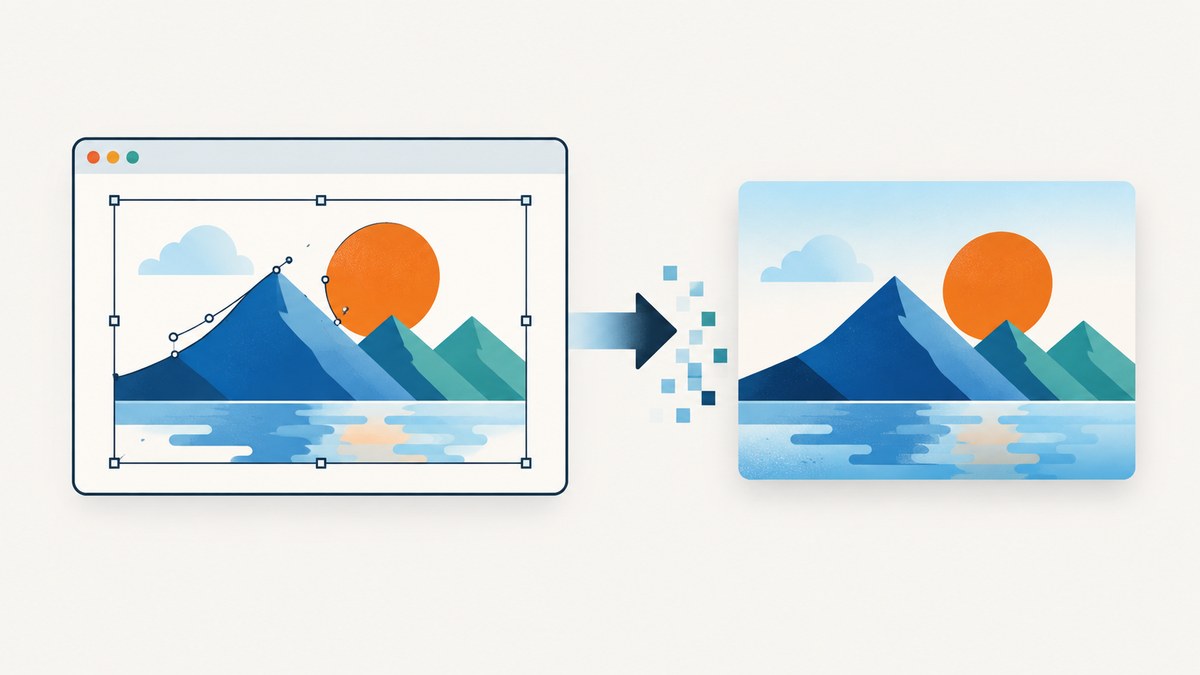
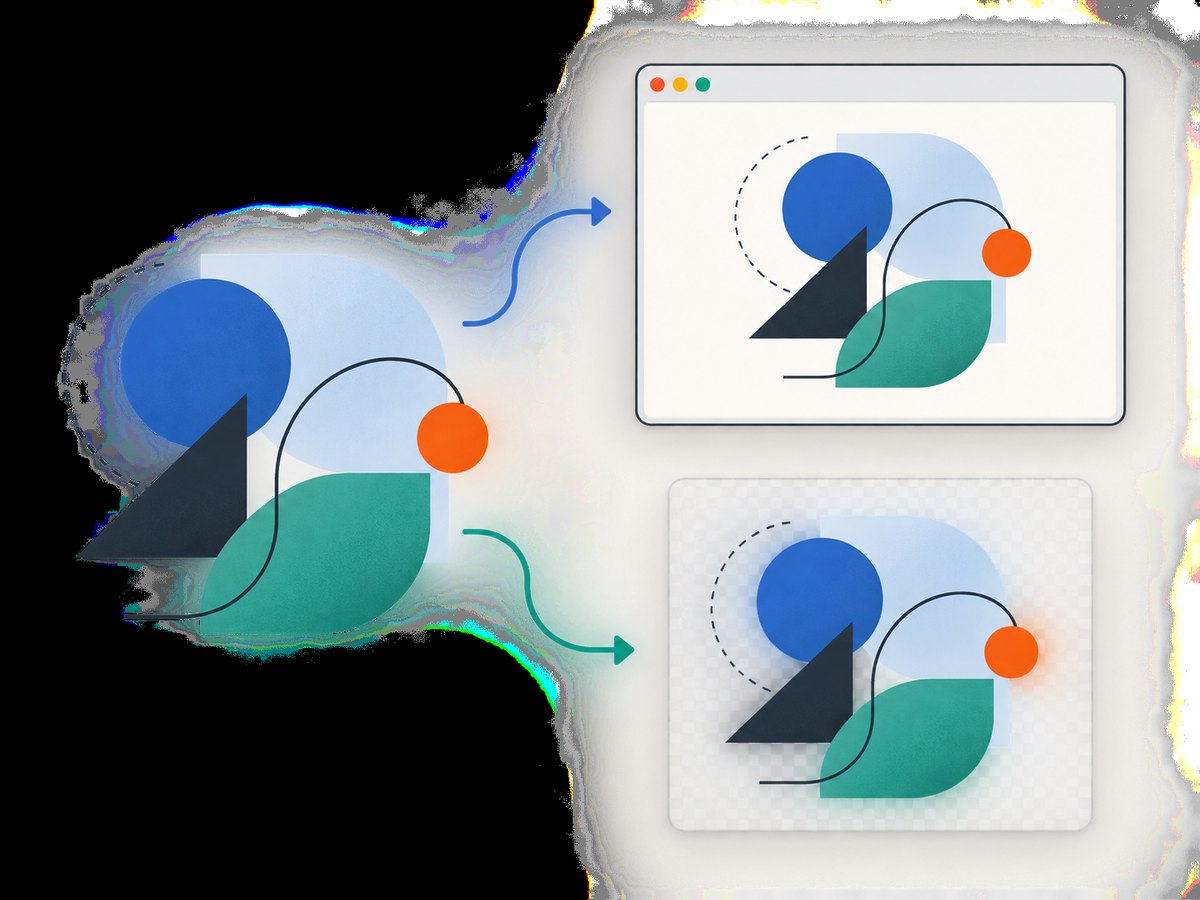
If an SVG is open in Microsoft Edge, you can use Edge’s Screenshot feature to capture its visible rendering. That gives you an image of what is currently displayed. For a real SVG-to-PNG export—with a chosen size, repeatable output, or transparent background—use Inkscape or ImageMagick. Edge’s documented Screenshot workflow does not promise a source-level SVG conversion or a particular saved file format. Microsoft’s instructions describe capturing a full page or selected area, then copying or saving the capture; availability can vary by device, market, and browser version.
This guide explains both routes, with runnable commands for single files and batch use. If all you need is a quick picture of the browser view, use Edge. If you need dependable pixel dimensions or the SVG’s transparent canvas, export the file directly.
1. Choose between a screenshot and an SVG export
| Need | Use | Why |
|---|---|---|
| A quick picture of what Edge currently shows | Edge Screenshot | Fast and built into the browser; captures the displayed view. |
| Specific pixel dimensions or repeatable output | Inkscape or ImageMagick | Export tools render the SVG file directly and offer output controls. |
| Transparent background | Dedicated export tool | Browser and screen captures may include the displayed page background; ImageMagick documents transparent background handling. |
| Many files or automation | Inkscape or ImageMagick CLI | Commands can be scripted and rerun consistently, subject to installed renderer and version. |
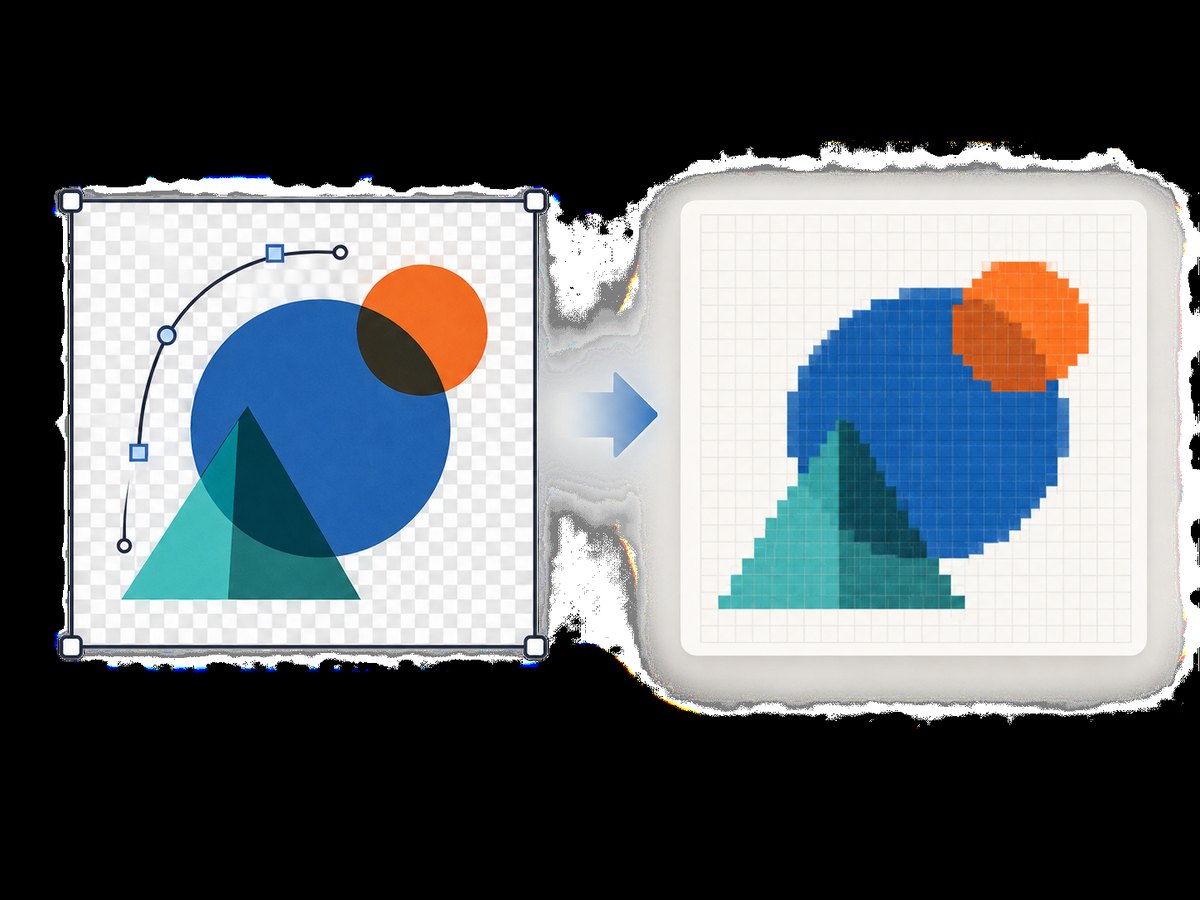
An SVG stores vector instructions. A PNG stores pixels. Exporting rasterizes the vector artwork at a chosen size; a screenshot instead captures a rendering at the size and scale used on screen. Renaming file.svg to file.png changes only the filename, not the data.
2. Capture the displayed SVG with Microsoft Edge
- Open the SVG in Edge and adjust the browser view so the artwork is presented as you want it. If the SVG is embedded in a page, account for surrounding page content and any page background.
- Open Screenshot from the right-click menu or Edge Settings menu, or press Ctrl+Shift+S.
- Choose a full-page capture or select the region containing the SVG.
- Use the screenshot overlay’s copy or save action. Check the resulting file in an image viewer and confirm its format and dimensions; the Microsoft guidance does not establish a universal output extension for every environment.
Use this route when visual fidelity to the current browser view matters more than exact export dimensions. A selection can include unwanted margins or crop the art if the region is drawn too tightly. Browser zoom and display scaling affect the visible rendering and therefore can affect a screen capture. Edge Screenshot availability and controls may differ across versions and devices.
Edge’s SVG clipboard support is a separate feature: Microsoft announced support for SVG data in the Async Clipboard API starting with Edge 124. That helps web applications copy and paste SVG content; it does not convert an SVG file to PNG. Similarly, printing to PDF creates a document workflow, not a PNG export.
3. Export a PNG using Inkscape
Inkscape is a good choice when you want direct SVG export and predictable dimensions. Install Inkscape for your operating system, then use its command line or open the artwork in the application and export it as PNG. The command line is particularly useful for a repeatable job.
Basic command-line export
inkscape --export-type=png --export-filename=output.png input.svgThis writes output.png. The Inkscape command-line documentation also supports setting export dimensions. For example, request a width of 1200 pixels:
inkscape --export-type=png --export-filename=output.png --export-width=1200 input.svgTo export the drawing bounds rather than the page bounds, use the export-area option supported by your installed version:
inkscape --export-type=png --export-area-drawing --export-filename=output.png input.svgCheck inkscape --help on the installed version if an option is rejected. Inkscape’s documentation demonstrates direct SVG-to-PNG export and notes that export mode can generate an output name automatically; specifying --export-filename makes the destination explicit. To write PNG bytes to standard output for piping into another program:
inkscape --export-type=png --export-filename=- input.svg > output.pngGUI workflow
For a one-off export, open the SVG in Inkscape, choose its PNG export function, inspect the export area and pixel dimensions, then save the output. Exact menu labels can vary by version, so use the installed application’s export panel rather than relying on a fixed menu path. Confirm the exported PNG in an image viewer before using it.
Batch export
On macOS or Linux shells, a simple loop can export a directory of SVGs. Review the output path and naming convention first, especially if PNGs already exist.
for file in ./*.svg; do
  [ -e "$file" ] || continue
  base="${file##*/}"
  base="${base%.svg}"
  inkscape --export-type=png --export-filename="./${base}.png" "$file" || exit 1
done
4. Export with ImageMagick
ImageMagick can read SVG input and write PNG. Its output depends on which SVG renderer is configured: its documentation says it uses Inkscape when available in the execution path, otherwise RSVG, then its internal MSVG renderer if neither is available. The documented default resolution is 96 dpi. For reliable output across machines, identify the renderer in use and inspect the actual output size and appearance.
Basic conversion
magick input.svg output.pngTo request a maximum render size, ImageMagick documents the -size option:
magick -size 1200x1200 input.svg output.pngThe SVG format documentation warns that -size is ignored when the Inkscape renderer is used because of an Inkscape-side limitation. If output dimensions must be exact, prefer Inkscape’s explicit export width or height option, or test the ImageMagick renderer installed in your environment.
For transparent background handling, use:
magick -background none input.svg output.pngVerify transparency in an image editor that shows a checkerboard, or inspect the PNG’s alpha channel. If the artwork itself has a filled background, the background option does not remove that artwork; it affects the canvas behind it.
Batch conversion
mkdir -p png
for file in ./*.svg; do
  [ -e "$file" ] || continue
  base="${file##*/}"
  base="${base%.svg}"
  magick "$file" "png/${base}.png" || exit 1
done
Batch output can differ if files rely on external fonts, linked images, CSS, or renderer-specific behavior. Keep the source dependencies available and use the same software versions and rendering stack when repeatability matters.
5. Control size, area, and background
Choose the export area
SVGs may have a page or viewBox larger than the visible artwork. Exporting the page can produce margins; exporting the drawing bounds can tightly frame visible objects. Decide which is intended before conversion. For Inkscape, use the page or drawing area option and check the output dimensions. For ImageMagick, inspect how the configured renderer interprets the SVG’s viewBox and dimensions.
Choose pixel dimensions
Do not infer output dimensions from the SVG’s CSS width alone. An SVG can express physical units, CSS units, and a viewBox. The rasterizer resolves these into pixels, and resolution settings affect the result. ImageMagick documents 96 dpi as its SVG default. For web assets, specify the desired pixel width or height where supported, then check the other dimension and aspect ratio. Avoid stretching width and height independently unless distortion is intended.
Preserve transparency
PNG supports alpha transparency; a capture of a browser page can instead show a white or colored page background. Use a direct export with transparent canvas settings when transparency matters, and check that the SVG artwork itself does not paint a background rectangle.
6. Common problems and fixes
| Symptom | Likely cause | Fix |
|---|---|---|
| The saved capture is not a PNG or has an unexpected extension | Edge’s screenshot save behavior varies; the documented workflow does not guarantee a universal type. | Inspect the file type. Use Inkscape or ImageMagick for a guaranteed PNG export route. |
| The PNG has the wrong dimensions | A screenshot follows the displayed capture size, or a renderer interpreted SVG dimensions differently. | Export directly and set width/height explicitly. Confirm the resulting pixel dimensions. |
| There is a white background | The capture included the page background, or the SVG contains a background shape. | Use a direct transparent export and check the SVG for a filled background object. |
ImageMagick ignores -size |
The configured Inkscape renderer has the documented limitation. | Set dimensions with Inkscape’s export options or use a compatible renderer, then verify output. |
| Fonts or symbols look different | A font is missing, substituted, or rendered differently by the installed SVG backend. | Install the required font or convert text to paths in a trusted source copy; compare using the same renderer in production. |
| Images or styles are missing | The SVG references external files or stylesheets that are unavailable from the conversion environment. | Keep referenced assets beside the source or embed them where appropriate; inspect the SVG’s linked resources. |
| Command reports unknown option | The command differs from the installed application version. | Run inkscape --help or magick -help and adapt to that version’s documented options. |
| Conversion fails on an untrusted SVG | SVG is XML-based and may contain complex or external content; renderer policies and dependencies can reject it. | Use files from trusted sources, update the converter, and avoid enabling permissive parsing features without a specific trusted-input need. |
ImageMagick specifically marks options for entity substitution, parsing huge SVG files, and embedded SVG support as features for trusted sources. Do not enable those settings casually for user-supplied or unknown files.
7. Performance, reliability, and cost
Edge is convenient for an occasional capture because it requires no separate SVG conversion command, but a screenshot is tied to a displayed view and may need manual cropping. Direct export is more repeatable and better suited to exact dimensions or batches. Runtime depends on file complexity, fonts, external resources, renderer, machine, and output size; no single timing applies to all SVGs.
For repeatable builds, pin the converter version, keep fonts and linked resources consistent, set output dimensions, and fail the job when the command exits unsuccessfully. For large batches, process sequentially or with controlled concurrency so memory use does not spike. Keep a copy of the original SVG: PNG is raster output and does not retain editable vector paths.
Edge, Inkscape, and ImageMagick provide free ways to handle this task. Your operational cost is setup and maintenance: installed software, fonts, and scripts. If your actual task is capturing web pages as screenshots rather than converting local SVG artwork, a screenshot API may remove browser setup from that separate workflow.
8. Or skip the browser setup
For website screenshots, ScreenshotNeo is a screenshot API and MCP server. It captures webpages as PNG, JPEG, WebP, or PDF; it is not a general local-SVG-to-PNG converter. If the SVG is hosted in a webpage and you want a screenshot of that page, one GET request can capture it. See the ScreenshotNeo API documentation for parameters and response behavior.
curl -G "https://api.screenshotneo.com/v1/shot" -d access_key=YOUR_API_KEY --data-urlencode url=https://stripe.com -o shot.webpimport requests
r = requests.get("https://api.screenshotneo.com/v1/shot", params={"access_key": "YOUR_API_KEY", "url": "https://stripe.com"}, timeout=90)
open("shot.webp", "wb").write(r.content)const q = new URLSearchParams({ access_key: 'YOUR_API_KEY', url: 'https://stripe.com' });
const res = await fetch(`https://api.screenshotneo.com/v1/shot?${q}`);ScreenshotNeo removes cookie banners, popups, and chat widgets before capture; bot checks, blank pages, and failed loads are never billed; an MCP server lets AI agents take screenshots; and 1,000 screenshots a month are free with no card, with paid plans starting at $5 for 3,000. Sign up for the free plan.
9. Frequently asked questions
Can I convert an SVG to PNG by changing the extension?
No. Renaming does not rasterize vector data. Open and export the SVG with a converter.
Will Edge preserve a transparent background in a screenshot?
A screenshot records the rendered view, so it may include the browser page’s background. Use a direct SVG export and verify the PNG alpha channel when transparency is required.
Does Edge’s SVG clipboard support create a PNG?
No. The clipboard feature concerns copying and pasting SVG data between applications; it is separate from raster export.
Which option should I use for a folder of SVGs?
Use a scripted Inkscape or ImageMagick export, keep renderer dependencies consistent, and check a sample output before processing the full folder.


