How to Convert ER Diagram Code to an Image
Convert Mermaid, PlantUML, or Graphviz ER diagram code into sharp PNG, SVG, JPEG, or PDF files with practical workflows and troubleshooting.
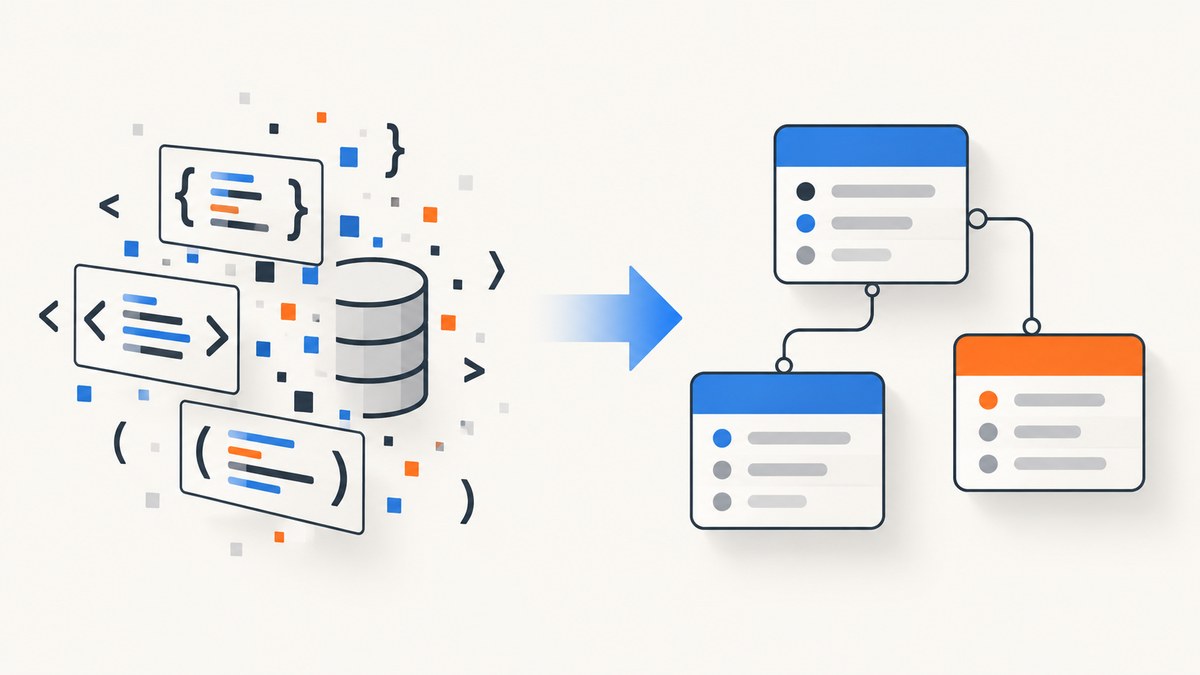
To convert ER diagram code to an image, first identify its syntax, then open it in a renderer that supports that syntax, fix any parse errors, preview the diagram, and export the format your destination requires.
Use a Mermaid renderer for an erDiagram block, PlantUML for PlantUML source, and Graphviz for DOT files. Keep the original source file beside the exported image so you can regenerate it after a schema change.
1. Identify the ER diagram syntax
| Source starts with | Use | Typical workflow |
|---|---|---|
erDiagram |
Mermaid | Paste into the Mermaid Live Editor, preview, then export PNG or SVG. |
@startuml and @enduml |
PlantUML | Open a PlantUML editor or local PlantUML installation, preview, then export PNG, SVG, or PDF. |
digraph or graph |
Graphviz DOT | Run the dot command or use a Graphviz-compatible editor, then select an output driver. |
Do not paste Markdown fences such as ```mermaid into an editor that expects only diagram source. Remove the fences first.
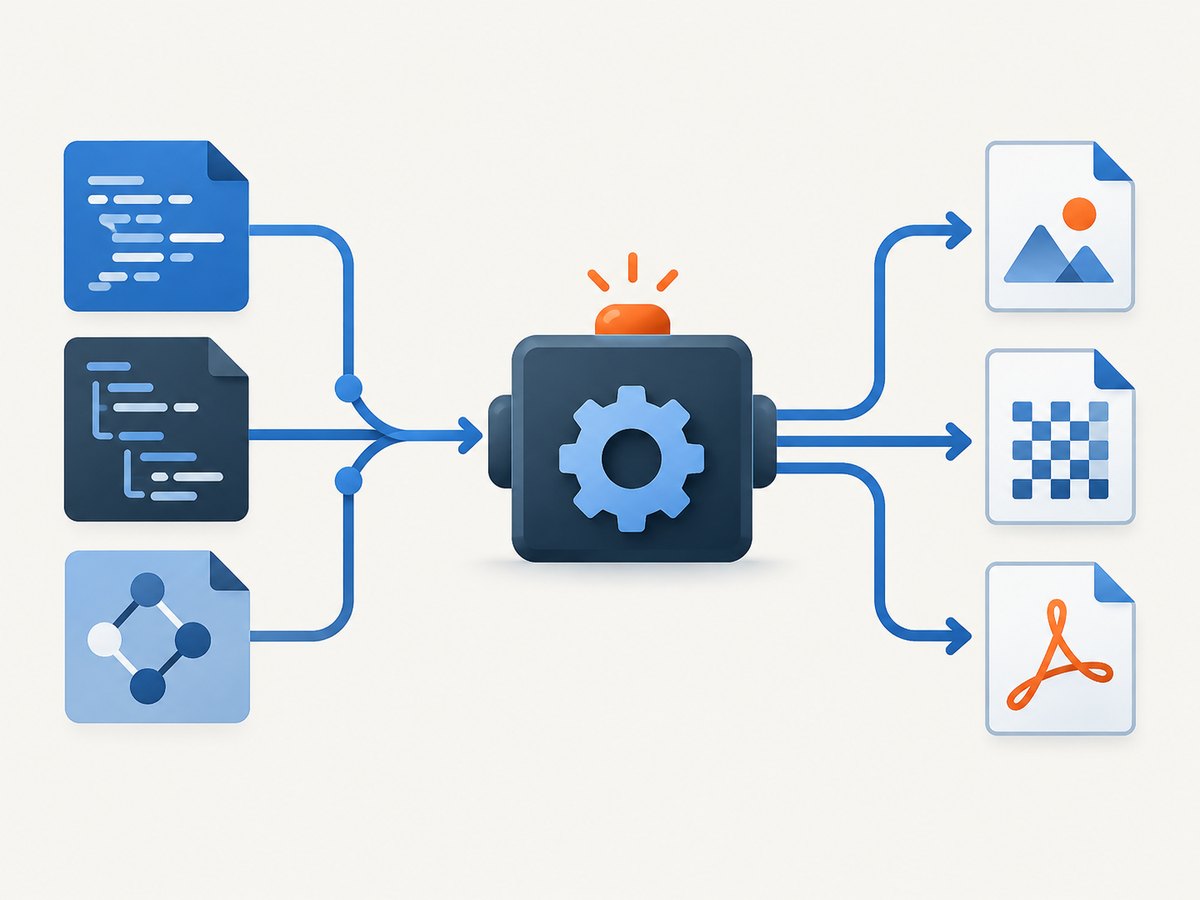
2. Convert Mermaid ER diagram code
Mermaid’s official guide documents ER diagrams and its Live Editor supports previewing and exporting diagrams. Mermaid Chart’s export documentation describes PNG, SVG, PDF, and MMD output. Use Mermaid Live Editor for a browser workflow.
Example Mermaid source
erDiagram
    CUSTOMER ||--o{ ORDER : places
    ORDER ||--|{ ORDER_ITEM : contains
    PRODUCT ||--o{ ORDER_ITEM : includes

    CUSTOMER {
        int id PK
        string email
    }
    ORDER {
        int id PK
        int customer_id FK
        date created_at
    }
    ORDER_ITEM {
        int order_id FK
        int product_id FK
        int quantity
    }
    PRODUCT {
        int id PK
        string name
    }
Browser steps
- Open the Mermaid Live Editor or another Mermaid-compatible renderer.
- Paste only the
erDiagramsource. - Wait for the preview to render.
- Fix the first syntax error shown by the editor before investigating later messages.
- Use the export control to save SVG or PNG. Mermaid Chart also documents PDF and MMD export.
Choose SVG when the diagram must stay sharp at different sizes, such as a website, documentation system, or print layout. Choose PNG for slides and documents that expect a raster image. For a dense diagram, increase the PNG export scale instead of stretching a small bitmap.
3. Convert PlantUML ER diagram code
PlantUML uses plain text and supports ER diagrams. Its documented workflow is to enter source, preview the result, and export an image such as PNG, SVG, or PDF. Start with the PlantUML site or a PlantUML editor.
Example PlantUML source
@startuml
entity CUSTOMER {
  * id : int <>
  --
  email : string
}
entity ORDERS {
  * id : int <>
  customer_id : int <>
  created_at : date
}
CUSTOMER ||--o{ ORDERS : places
@enduml - Open a PlantUML editor or your local PlantUML setup.
- Paste the complete source, including
@startumland@enduml. - Preview the diagram and correct the first reported error.
- Export PNG for ordinary document use, SVG for scalable output, or PDF for a page-oriented report.
4. Convert Graphviz DOT to an image
For DOT source, use Graphviz. The official output documentation covers SVG drivers, compressed SVG, and inline SVG. A typical local conversion is:
dot -Tsvg schema.dot -o schema.svg
# Compressed SVG
dot -Tsvgz schema.dot -o schema.svgz
# Header-less SVG for HTML inlining
dot -Tsvg_inline schema.dot -o schema-inline.svg
# Raster output when supported by your installed build
dot -Tpng schema.dot -o schema.png
Check the installed Graphviz version and available output drivers before relying on a raster format:
dot -VExample DOT source
digraph schema {
  rankdir=LR;
  CUSTOMER [shape=record, label="{CUSTOMER|id PK|email}"];
  ORDERS [shape=record, label="{ORDERS|id PK|customer_id FK|created_at}"];
  CUSTOMER -> ORDERS [label="places"];
}
Graphviz layout attributes affect readability. For a wide schema, a left-to-right direction can reduce vertical growth. Short entity and relationship labels give the layout engine more room.
5. Choose the right output format
| Format | Use it when | Trade-off |
|---|---|---|
| SVG | Web pages, documentation, print, or any destination that may resize the diagram | Remains sharp, but some systems handle raster images more easily. |
| PNG | Slides, tickets, documents, and general interchange | Can become pixelated when enlarged; export at a higher scale for dense diagrams. |
| JPEG | A destination requires a solid-background raster image | Lossy compression can soften text and relationship lines. |
| Reports, proposals, or page-oriented delivery | May need page-size and pagination review. | |
| MMD or source file | Version control and future regeneration | It is editable source, not the rendered image. |
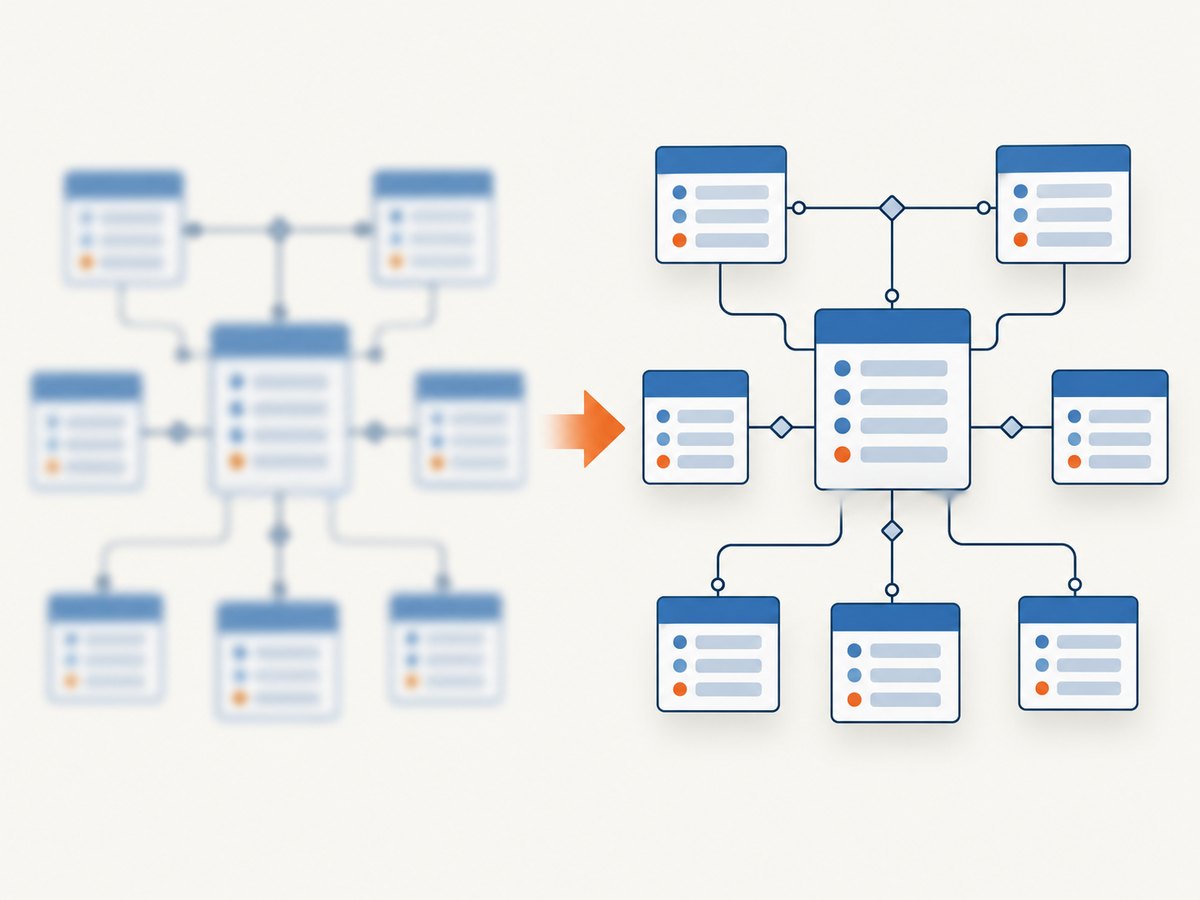
6. Make the export reproducible
- Commit the Mermaid, PlantUML, or DOT source file.
- Record which renderer and output format produced the image.
- Regenerate after schema changes instead of editing the exported bitmap by hand.
- Keep labels short and unambiguous so the renderer can lay out relationships cleanly.
- Use SVG as the default archival image when consumers support it, and generate PNG derivatives for systems that require raster files.
7. Troubleshooting
| Symptom | Likely cause | Fix |
|---|---|---|
| “Unexpected token” or an immediate parse error | The source is being sent to the wrong renderer, or Markdown fences are included. | Confirm whether the file is Mermaid, PlantUML, or DOT and remove the fences. |
| Many follow-on errors | The first syntax error caused the parser to lose its place. | Fix the first error, then render again. |
| Entities are missing | The entity declaration or relationship syntax does not match the selected language. | Compare the source with a minimal example for that renderer and add entities one at a time. |
| Text is clipped | The canvas or page is too small for the diagram. | Shorten labels, change the layout direction, reduce excess padding, or export SVG. |
| PNG looks blurry | A low-resolution bitmap was enlarged. | Increase export scale or switch to SVG. |
| Relationships overlap | There are too many long labels or tightly connected entities. | Use concise labels, split the diagram into logical views, or adjust the renderer’s layout direction. |
| Graphviz rejects an output flag | Your installed build does not include that driver. | Run dot -V, inspect the installed drivers, and choose one that is available. |
| Browser editor will not render private schema data | The source contains information your policy does not allow sending to a hosted editor. | Use a local renderer and keep the source inside your development environment. |
8. Performance, reliability, and cost
Rendering time grows with the number of entities, relationship crossings, and label length. Large diagrams are easier to read when split into bounded-context or feature-level views. SVG avoids repeated high-resolution raster exports and is usually the safer format for responsive documentation.
For a repeatable build, treat the diagram source as the input and the image as a generated artifact. Store both, pin the renderer version where your build allows it, and check the exported file into the destination that consumes it. When a hosted editor is used, review the project’s privacy requirements before pasting proprietary schema details.
Local tools generally avoid per-image service charges but require installation and maintenance. Hosted renderers reduce setup work but depend on the service and may have account or privacy constraints. Keep the source so a failed export can be retried without reconstructing the diagram.
Or skip the browser setup
If your rendered ER diagram is available at a URL, ScreenshotNeo can capture it with one GET request. It accepts PNG, JPEG, WebP, or PDF output and has options for full-page capture, custom CSS, waiting for a selector or network idle, dark mode, device presets, retina scale, and more. See the ScreenshotNeo API documentation for the complete option list.
cURL
curl -G "https://api.screenshotneo.com/v1/shot" -d access_key=YOUR_API_KEY --data-urlencode url=https://example.com/diagram.html -o shot.webpPython
import requests
r = requests.get("https://api.screenshotneo.com/v1/shot", params={"access_key": "YOUR_API_KEY", "url": "https://example.com/diagram.html"}, timeout=90)
open("shot.webp", "wb").write(r.content)
Node.js
const q = new URLSearchParams({ access_key: 'YOUR_API_KEY', url: 'https://example.com/diagram.html' });
const res = await fetch(`https://api.screenshotneo.com/v1/shot?${q}`);
const body = Buffer.from(await res.arrayBuffer());
require('fs').writeFileSync('shot.webp', body);
ScreenshotNeo accepts the cookie or consent banner before capture and removes more than 60 known consent platforms, newsletter popups, and chat widgets; each step can be turned off. Bot checks, blank pages, timeouts, failed loads, and cache hits cost nothing, and the response identifies the result with X-Page-Verdict and X-Billed headers. Its MCP server provides take_screenshot, get_page_info, and capture_pdf tools for Claude, Cursor, and other MCP clients.
The Free plan includes 1,000 screenshots per month with no card. Paid plans start at $5 for 3,000 shots; every feature is included on every plan. Create a free ScreenshotNeo account.
FAQ
Can I convert ER code directly without opening an editor?
Yes, when your syntax has a compatible local renderer. Graphviz provides the dot command for DOT files; Mermaid and PlantUML can be rendered with compatible local installations or automated services.
Should I export SVG or PNG?
Choose SVG when the image may be resized or printed. Choose PNG when the destination expects a raster image, and increase its export scale for dense diagrams.
Is an MMD file an image?
No. MMD preserves Mermaid source for editing and regeneration. Export SVG, PNG, JPEG, or PDF for a rendered deliverable.
Why does the same schema look different in different tools?
Mermaid, PlantUML, and Graphviz use different parsers and layout engines. Use the renderer intended for your source syntax and keep the source format unchanged during conversion.


