How to Convert Files to PDF with a Free App
Convert Word files, images, web pages and paper documents to PDF for free using built-in apps, local tools or browser converters.
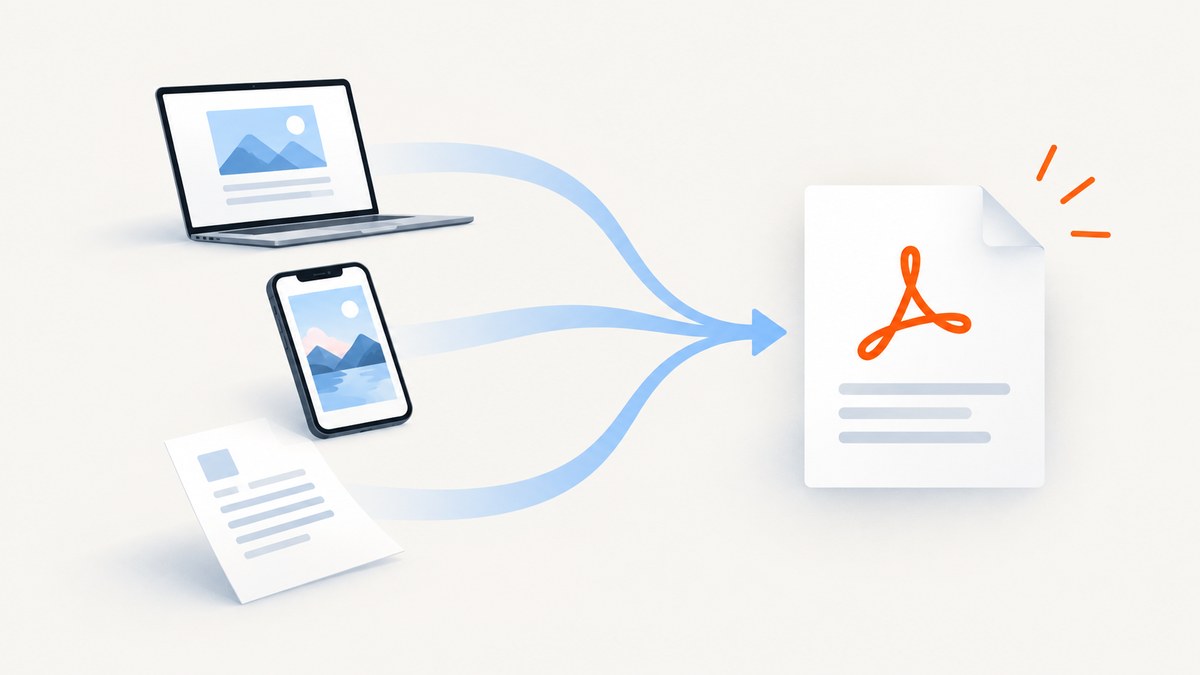
Use the free workflow already included on your device first. Microsoft Office can export Word, Excel and PowerPoint files to PDF. On an iPhone, use Share → Print and expand the preview, or choose Files → Quick Actions → Create PDF. For paper documents, scan with Adobe Scan or another scanner, then run OCR if the PDF needs searchable text. A browser converter such as Acrobat on the web is convenient when you do not have a suitable desktop app, but it uploads the source file.
This guide shows which free method fits each source, how to preserve layout and selectable text, when OCR is necessary, and what to check when the result is wrong.
Choose the right free method
| Source | Best free route | Why choose it | Main limitation |
|---|---|---|---|
| DOCX, XLSX or PPTX | Office desktop: Save As or Export → PDF | Layout and selectable text stay local | Requires an installed Office app |
| Image or phone photo | iPhone Files → Quick Actions → Create PDF, or a scan app | Fast and private on the device | A photo PDF may not contain selectable text |
| Web page, email or note on iPhone | Share → Print → expand preview → Share | Works without a separate converter | Print layouts can differ from the screen |
| Paper document | Adobe Scan or another scanner, then OCR | Corrects perspective and creates searchable text | OCR can misread names, numbers and tables |
| Mixed files without a desktop app | Acrobat on the web | Runs in a browser and supports common Office and image formats | Files are uploaded to Adobe cloud storage; check current limits |
Convert Word, Excel or PowerPoint on Windows or Mac
Office desktop is usually the best choice for an Office file because the original stays on your computer. Microsoft documents PDF and XPS export in its Office desktop apps: Save or convert to PDF or XPS.
- Open the file in Word, Excel or PowerPoint.
- Choose File → Save As or File → Export.
- Select PDF as the file type.
- Choose a location and save.
- Open the PDF and inspect page breaks, fonts, images and links.
Useful Office options
- Choose Minimum size when the PDF is mainly for online publishing and file size matters.
- Choose a higher-quality or standard publishing option when printed output matters.
- Use PDF/A or the archival setting when your organization requires a long-term preservation format.
- In PowerPoint, confirm whether hidden slides, speaker notes or handouts should be included.
- In Excel, set the print area, orientation and scaling before exporting; otherwise wide sheets can become unreadable.
Convert a file or photo to PDF on iPhone
For a file already in Files, the quickest route is built in:
- Open the Files app.
- Long-press the file or image.
- Choose Quick Actions → Create PDF.
- Rename or move the resulting PDF.
For a web page, email, note or document that has a Share button, use the print preview method documented by Adobe: How to convert a file to PDF on iPhone.
- Open the item and tap Share.
- Choose Print.
- On the preview, pinch outward with two fingers to open the full-page PDF view.
- Tap Share again.
- Choose Save to Files or another destination.
This method is useful for web pages and messages because it prints the content currently exposed by the app. Check the PDF afterward for clipped columns, missing background graphics or unexpected page breaks.
Convert files with a free browser app
When no desktop converter is installed, Acrobat on the web can convert Word, PowerPoint, Excel and JPG files. Adobe’s documented sequence is Convert → Convert to PDF, select the converter matching the source, choose the file, then select Continue: Convert files to PDFs in Acrobat on the web.
- Open Acrobat on the web and sign in if requested.
- Select Convert, then Convert to PDF.
- Choose Word, PowerPoint, Excel or JPG conversion.
- Select your file and choose Continue.
- Download the result or open it from Adobe cloud storage.
Because this workflow uploads the source, do not use it for confidential contracts, identity documents or private customer data unless your organization allows that service. Account requirements and usage limits can change, so check the current Adobe page before relying on it for batch work.
Turn paper documents and photos into searchable PDFs
A camera photo placed inside a PDF is still just an image. It is not searchable until optical character recognition (OCR) has analyzed it. Adobe’s Paper to PDF tutorial describes scanning with a connected scanner or the free Adobe Scan mobile app, enhancing the scan and selecting Recognize text.
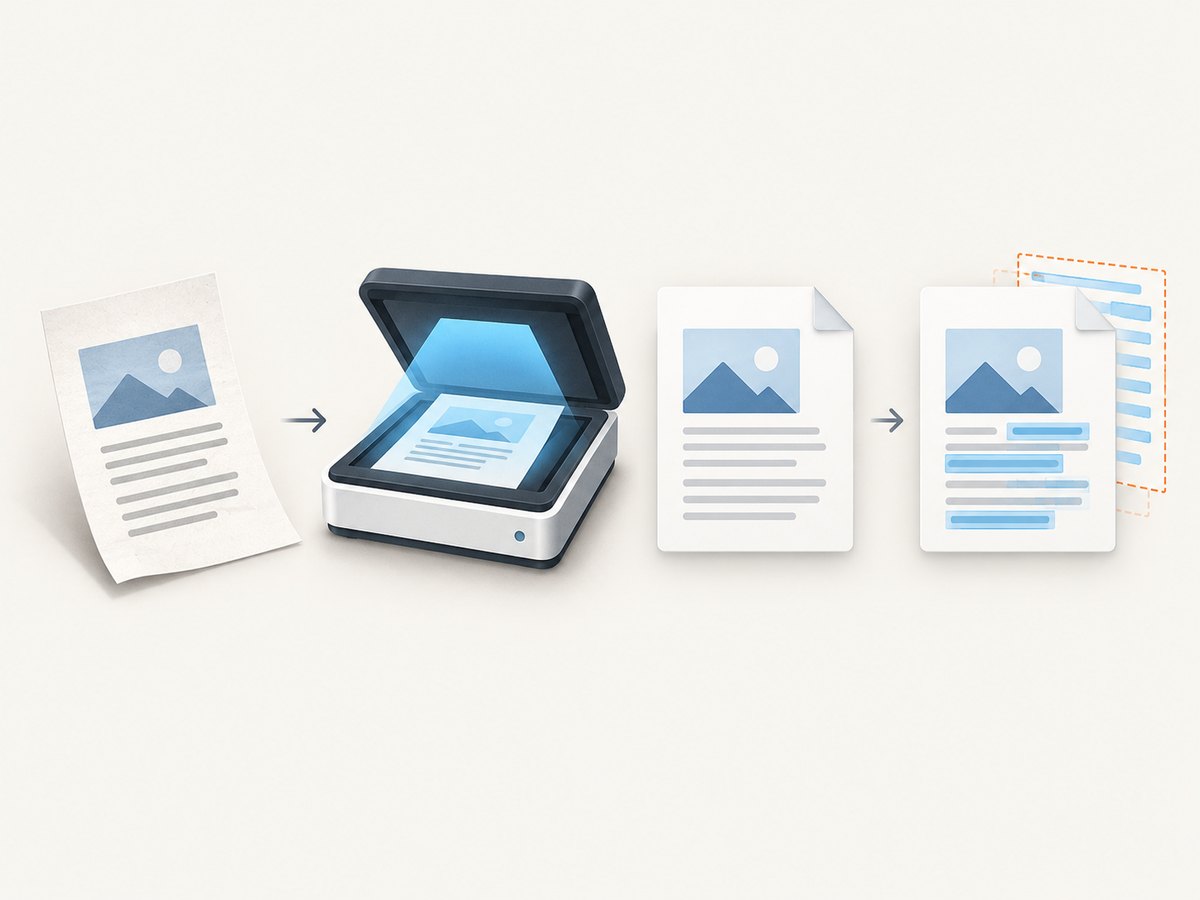
- Place the paper on a flat, well-lit surface.
- Scan it with Adobe Scan or another scanner app.
- Crop edges and correct perspective.
- Adjust contrast so text is distinct from the background.
- Run OCR or choose Recognize text.
- Search the PDF for a word and proofread names, numbers and tables.
OCR errors are more likely with handwriting, skewed pages, low contrast, unusual fonts and multi-column tables. Keep the original scan when the PDF will be used as evidence.
Convert a web page to PDF with ScreenshotNeo
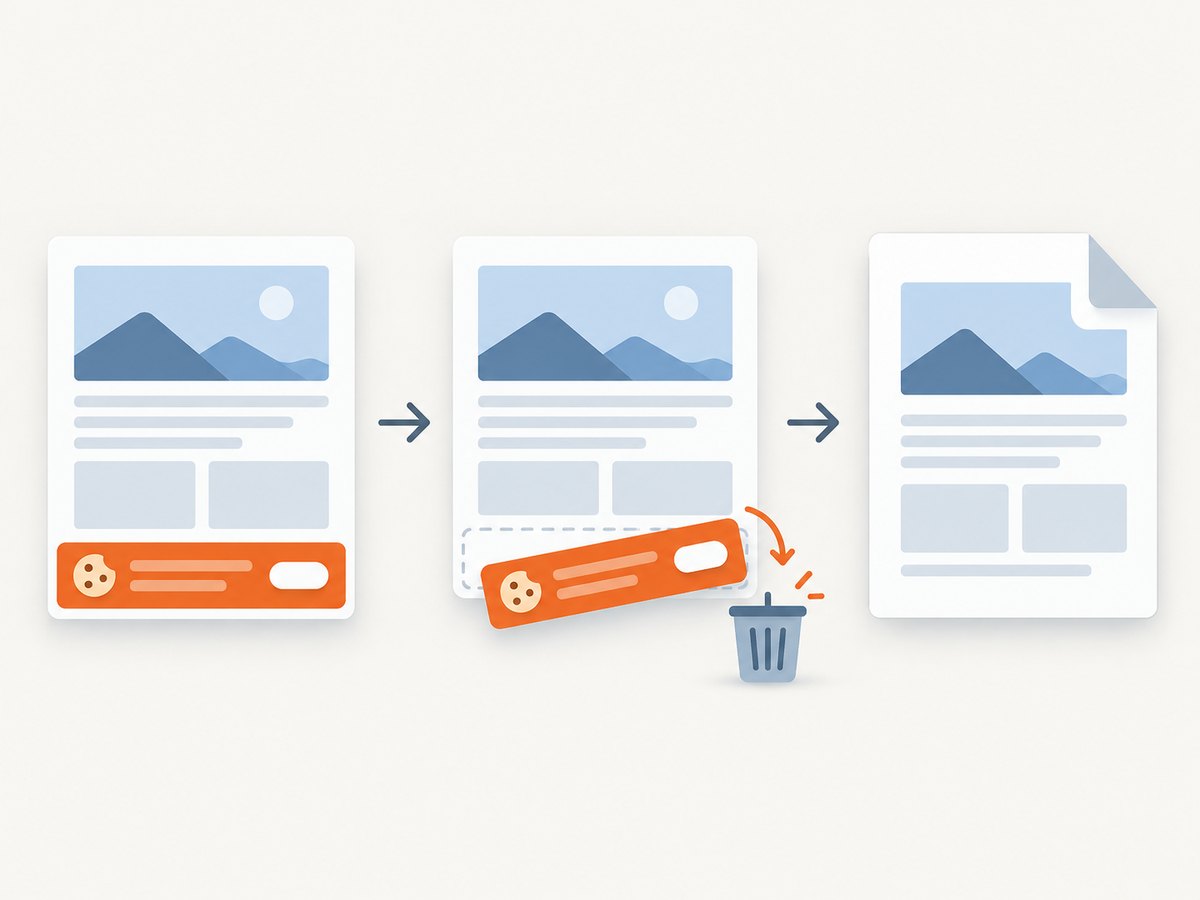
If the “file” is really a public web page, an API can automate capture from a URL. ScreenshotNeo returns a clean screenshot or PDF from one GET request. It accepts cookie and consent banners before capture and removes more than 60 known consent platforms, newsletter popups and chat widgets. Bot checks, blank pages, timeouts, failed loads and cache hits are not billed, and response headers identify the page verdict and billing result.
Or skip the browser setup
Use the ScreenshotNeo API when you need repeatable web-page capture in a script or pipeline. See the ScreenshotNeo API documentation for PDF settings such as paper size, margins, landscape mode and page ranges.
curl -G "https://api.screenshotneo.com/v1/shot" -d access_key=YOUR_API_KEY --data-urlencode url=https://stripe.com -o shot.webpimport requests
r = requests.get("https://api.screenshotneo.com/v1/shot", params={"access_key": "YOUR_API_KEY", "url": "https://stripe.com"}, timeout=90)
open("shot.webp", "wb").write(r.content)const q = new URLSearchParams({ access_key: 'YOUR_API_KEY', url: 'https://stripe.com' });
const res = await fetch(`https://api.screenshotneo.com/v1/shot?${q}`);Cookie banners, popups and chat widgets are removed before the shot. Bot checks, blank pages and failed loads are never billed. An MCP server lets AI agents take screenshots with Claude, Cursor or any MCP client. The Free plan includes 1,000 screenshots a month with no card; paid plans start at $5 for 3,000. Create a free ScreenshotNeo account.
Preserve quality and privacy
- Keep text selectable: export the original Office document directly instead of printing a screenshot.
- Use OCR only when needed: OCR adds a text layer but can introduce recognition mistakes.
- Check privacy: local Office and iPhone workflows keep the source on your device; browser converters upload it.
- Check archival needs: use PDF/A when a records policy requires it.
- Review the output: conversion does not automatically merge files, rearrange pages, sign, edit or compress them. Confirm that the selected app and plan support those tasks.
Troubleshooting
| Problem | Likely cause | Fix |
|---|---|---|
| Text is not selectable | The PDF contains only a photo or scan | Run OCR, then search for a known word and proofread the result. |
| Excel columns are cut off | Print area, scaling or orientation was not set | Set the print area, choose landscape and adjust scaling before export. |
| Fonts or page breaks changed | The converter lacks a font or uses different rendering rules | Install or embed required fonts where supported, then export from the original Office app. |
| iPhone PDF has unexpected pages | Print preview includes the app’s print layout | Review the preview, remove unwanted pages and try Files → Create PDF for local files. |
| Browser conversion will not start | Unsupported format, sign-in requirement or current usage limit | Try Office export, verify the supported format and check the converter’s current account limits. |
| OCR misreads a name or number | Blur, glare, skew or complex table layout | Rescan in better light, straighten the page and proofread critical fields against the original. |
| Web capture shows a popup or blank page | The page requires interaction, blocks automation or failed to load | Use a wait condition, custom headers or cookies where supported; inspect the ScreenshotNeo verdict headers. |
Performance, reliability and cost
For occasional Office files, local export is usually the fastest path because there is no upload or download. Browser conversion adds transfer time and depends on the service’s current limits. Scanning quality has more effect on OCR accuracy than the PDF file extension itself.
For automated web captures, cache repeated URLs when the content can be reused, choose an appropriate wait condition, and use asynchronous jobs or bulk capture for larger workloads. ScreenshotNeo offers caching with a TTL you choose, async jobs with signed webhooks, bulk capture for up to 100 URLs per call, and a usage API. Only clean shots are billed; cache hits and failed captures are free.
FAQ
Is Microsoft Word’s PDF export free?
It is included when you have access to the Office desktop app. Use Save As or Export and select PDF.
Can I convert a JPG to PDF without installing an app?
Yes. On iPhone, use Files → Quick Actions → Create PDF. A browser converter can also accept JPG, subject to its current account and usage rules.
Does every PDF support search?
No. A scan or photo needs OCR before its text can be searched or selected.
Which method is safest for confidential files?
Use a local Office or device workflow when possible. Browser converters upload the source to cloud storage.
Can conversion merge, compress or sign PDFs?
Not automatically. Those are separate operations, and availability depends on the app and plan you choose.


