How to Convert a Full-Page Screenshot to PDF
Learn when to convert a full-page screenshot to PDF, when to print a webpage, and how to create reliable PDFs on desktop, iPhone, Android, Python, and Node.js.
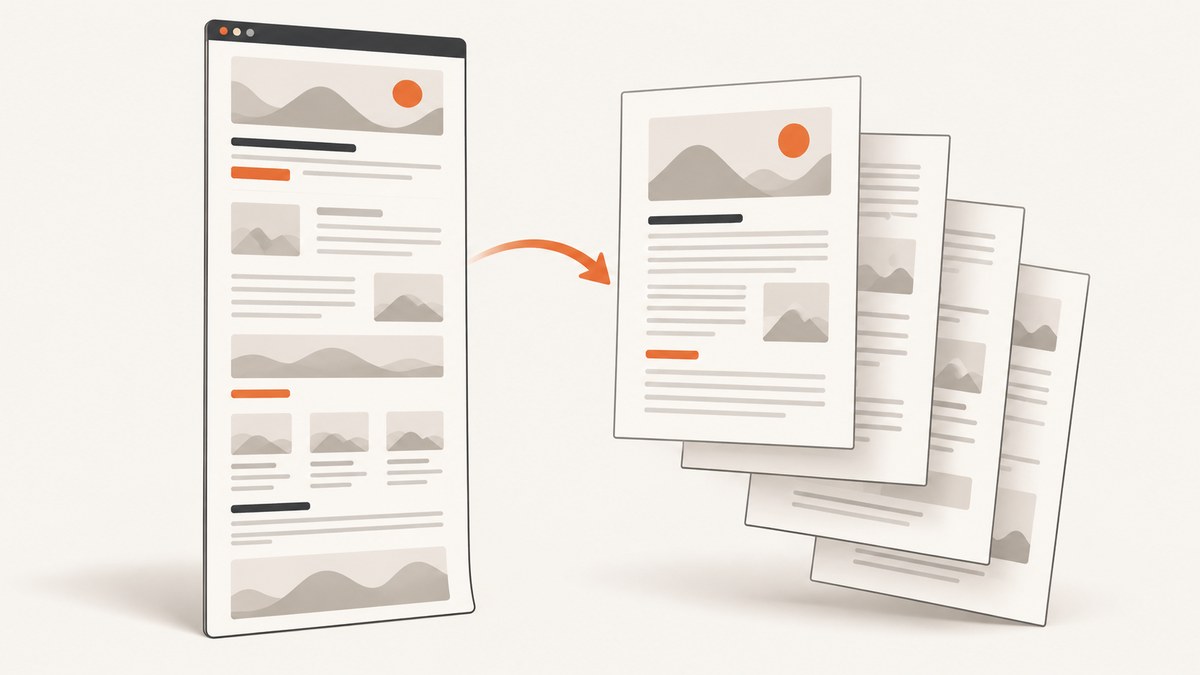
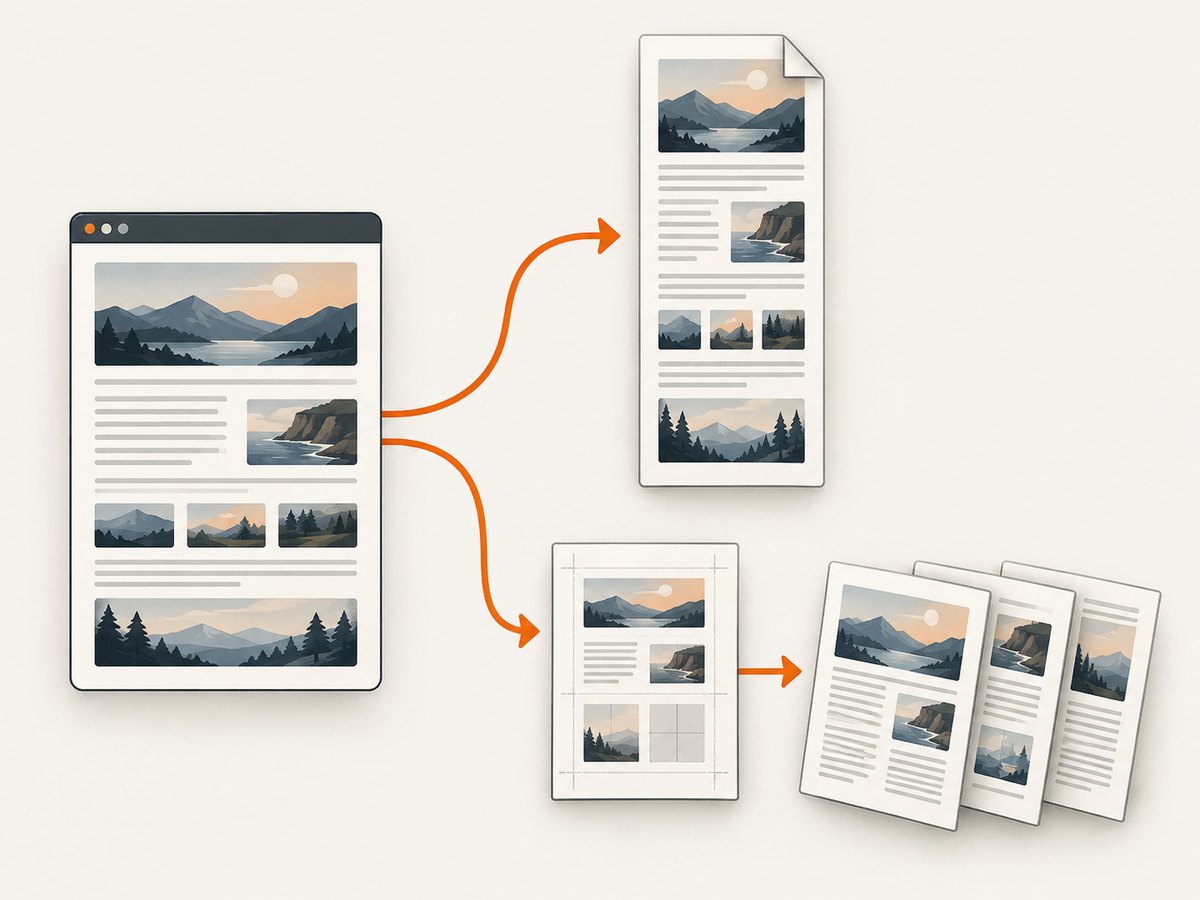
Direct answer: choose the workflow based on what you need to preserve. To keep the exact visual appearance of a full-page screenshot, capture the entire page as one image and convert that image to PDF. To create a readable document with normal pages, selectable text, and print-oriented layout, use the browser’s Print command and save as PDF. These outputs are different: image-to-PDF preserves pixels, while print-to-PDF reflows the webpage according to print CSS and pagination.
This guide covers desktop browsers, iPhone, Android, command-line conversion, Python, Node.js, common failures, and an automated API route. It also explains how to decide whether a single tall page or a multi-page PDF is appropriate.
1. Decide which PDF you actually need
| Need | Best starting method | Result |
|---|---|---|
| Preserve the literal screenshot | Full-page capture, then image-to-PDF | Pixel-faithful image in a PDF; it may be one very tall page |
| Create a conventional document | Browser Print > Save as PDF | Paginated output that may reflow, hide elements, or change breaks |
| Capture and produce a PDF automatically | Screenshot API with PDF options | Repeatable server-side output without browser setup |
| iPhone full-page capture | Firefox for iOS Full Page > Save as PDF | Direct screenshot-to-PDF flow documented by Mozilla |
A screenshot PDF is useful for visual records, design review, evidence, and pages where exact styling matters. A print PDF is better for reports, invoices, archiving, and documents people must read, search, copy, or print. If accessibility or selectable text matters, start with print-to-PDF rather than converting a raster image.
2. Convert an existing full-page screenshot image
ImageMagick command line
If you already have full-page.png, ImageMagick can place it in a PDF:
magick full-page.png full-page.pdfThis usually creates one PDF page whose dimensions match the image. To fit the image to a chosen paper size, use a resize and page geometry appropriate to your document. Check the output because aggressive scaling can make text unreadable.
Python with Pillow
Install Pillow with python -m pip install pillow, then run:
from PIL import Image

source = Image.open("full-page.png").convert("RGB")
source.save("full-page.pdf", "PDF", resolution=150.0)
print("Wrote full-page.pdf")
For a JPEG source, open the JPEG and save it the same way. Pillow does not automatically split a tall image into readable pages. If you need multiple pages, crop the image into page-sized sections first, then pass a list of RGB images to save with save_all=True and append_images.
from PIL import Image

image = Image.open("full-page.png").convert("RGB")
page_height = 1600
pages = [image.crop((0, top, image.width, min(top + page_height, image.height)))
         for top in range(0, image.height, page_height)]
pages[0].save("multi-page.pdf", "PDF", save_all=True,
              append_images=pages[1:], resolution=150.0)
print(f"Wrote {len(pages)} pages")
Choose the crop height from the target paper ratio and expected reading size. A fixed pixel height is only a starting point; test the PDF at 100% zoom and on paper if it will be printed.
Node.js with PDFKit
Install the dependency with npm install pdfkit. This example puts the screenshot on a single A4 page while preserving its aspect ratio:
const fs = require('fs');
const PDFDocument = require('pdfkit');

const doc = new PDFDocument({ size: 'A4', margin: 0 });
doc.pipe(fs.createWriteStream('full-page.pdf'));
doc.image('full-page.png', 0, 0, { fit: [595.28, 841.89], align: 'center', valign: 'center' });
doc.end();
For a tall screenshot, fitting it to one A4 page can make the content too small. A production script should calculate page breaks, draw one slice per page, and retain the same scale across slices.
3. Capture a full page in desktop browsers
Firefox desktop
Mozilla’s documented workflow is: right-click an empty part of the page, choose Take Screenshot, then select Save full page. Firefox downloads the result as an image or lets you copy it. Convert that image with the methods in the previous section. The desktop control itself should not be treated as a direct PDF exporter. Mozilla’s Firefox instructions describe the capture steps.
Chrome desktop
For a conventional webpage PDF, open the page and press Ctrl+P on Windows/Linux or Command+P on macOS. Select the PDF destination in the print dialog and save. Chrome’s available destination labels depend on your operating system and configuration. Use print preview to check margins, background graphics, headers, footers, and page breaks. See Chrome’s computer print instructions.
4. Save a full-page screenshot as a PDF on iPhone
Firefox for iOS
Mozilla documents a direct route: open the page, take a screenshot, open its thumbnail, select Full Page, tap Done, and choose Save as PDF. This is the clearest documented screenshot-to-PDF sequence in the sources for iPhone. Follow the exact labels shown by your installed version. Details are in Mozilla’s Firefox for iOS PDF guide.
Safari on iPhone
Safari supports capturing webpage content beyond the visible screen, and Apple separately documents annotating and saving a webpage as a PDF. Those are related but distinct workflows. If you need the screenshot appearance, use the full-page screenshot controls and inspect the share or save options offered by your iOS version. If you need a normal document, use Safari’s webpage-to-PDF command. Apple’s references are Take a screenshot on iPhone and Annotate and save a webpage as a PDF in Safari.
5. Save a webpage as PDF on Android
In Chrome for Android, open the page, tap More, choose Share, tap Print, select Save as PDF, choose a destination, and save. This creates a print-layout PDF rather than a raster copy of a full-page screenshot. Follow Google’s Android print instructions.
6. Automate capture and PDF generation with ScreenshotNeo
If this is a recurring job, a hosted capture endpoint avoids maintaining Playwright or browser drivers. ScreenshotNeo is a website screenshot API and MCP server. It can return PNG, JPEG, WebP, or PDF from one GET request. PDF settings include paper size, margins, landscape mode, and page ranges. Other useful capture controls include full-page mode with lazy images loaded, CSS selector element capture, custom CSS and JavaScript, click actions, selector or delay waits, network-idle waits, ad and tracker blocking, custom headers, cookies, user agents, authorization, timezone, geolocation, transparent backgrounds, resizing, caching with a chosen TTL, signed links, asynchronous jobs, signed webhooks, bulk capture of up to 100 URLs per call, and a usage API.
cURL
See the ScreenshotNeo documentation for all parameters. This request saves the PDF response:
curl -G "https://api.screenshotneo.com/v1/shot" \
  -d access_key=YOUR_API_KEY \
  --data-urlencode url=https://stripe.com \
  -d format=pdf \
  -o page.pdf
Python
import requests

r = requests.get(
    "https://api.screenshotneo.com/v1/shot",
    params={
        "access_key": "YOUR_API_KEY",
        "url": "https://stripe.com",
        "format": "pdf",
    },
    timeout=90,
)
r.raise_for_status()
open("page.pdf", "wb").write(r.content)
Node.js
const q = new URLSearchParams({
  access_key: 'YOUR_API_KEY',
  url: 'https://stripe.com',
  format: 'pdf'
});
const res = await fetch(`https://api.screenshotneo.com/v1/shot?${q}`);
if (!res.ok) throw new Error(`HTTP ${res.status}`);
const buffer = Buffer.from(await res.arrayBuffer());
require('fs').writeFileSync('page.pdf', buffer);
Important capture options
- Full page: capture the complete document and load lazy images before rendering.
- PDF layout: choose paper size, margins, landscape orientation, and page ranges to control pagination.
- Timing: wait for a selector, a fixed delay, or network idle when content is asynchronous.
- Privacy and consistency: provide headers, cookies, an authorization value, user agent, timezone, or geolocation when the page varies by session.
- Noise removal: hide selectors, block requests or resource types, and block ads or trackers.
- Repeatability: choose a cache TTL, use asynchronous jobs and signed webhooks, or submit bulk captures for up to 100 URLs.
7. Or skip the browser setup
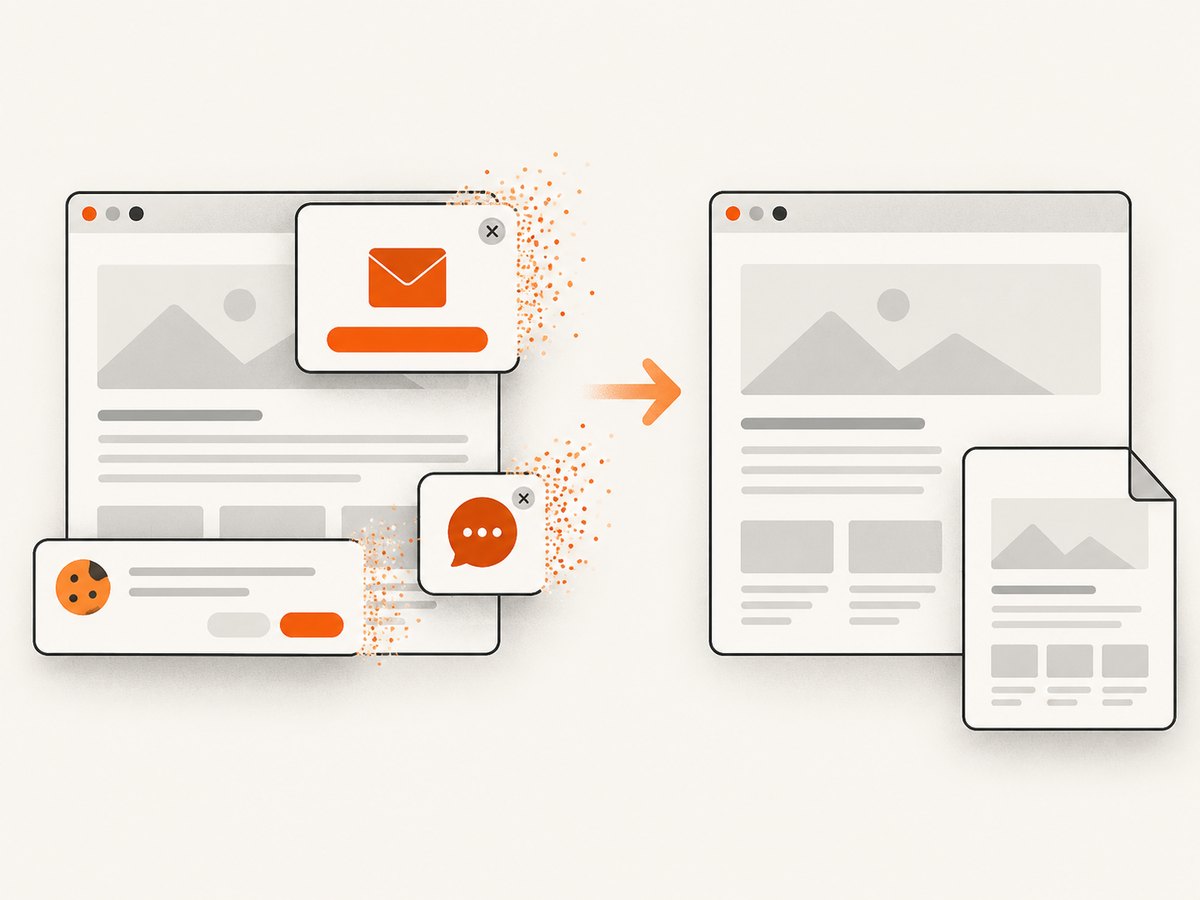
Use the one-call ScreenshotNeo request when you need an automated full-page PDF. Cookie banners, newsletter popups, and chat widgets are removed before the shot. Bot checks, blank pages, failed loads, timeouts, and cache hits are not billed, and each response reports its result in X-Page-Verdict and X-Billed headers. An MCP server provides take_screenshot, get_page_info, and capture_pdf tools for Claude, Cursor, and other MCP clients. The Free plan includes 1,000 shots per month with no card; paid plans start at $5 for 3,000 shots. Create a free ScreenshotNeo account.
8. Verify the PDF before shipping it
- Open the PDF and confirm the bottom of the source page is present.
- Check that text and images remain legible at 100% zoom.
- Inspect page breaks, margins, orientation, and scaling.
- For a screenshot PDF, confirm that the image has not been unexpectedly compressed or cropped.
- For a print PDF, check print backgrounds, hidden navigation, headers, footers, and link behavior.
- Open the file in a second PDF viewer if it will be sent to other people.
9. Troubleshooting
Only the visible screen appears
You used an ordinary screenshot instead of a full-page option. Repeat the capture with Firefox’s Save full page, an iPhone Full Page capture, or a full-page API setting.
The PDF is one extremely tall page
An image-to-PDF converter commonly preserves the source image as one page. Use a converter or script that slices the image into page-sized sections, then inspect readability. Do not solve the problem by shrinking the entire image until its text is microscopic.
Content is missing or shifted
Screenshot and print rendering are different. Compare the image conversion with print preview. If the visual appearance is required, use the screenshot route; if readable pagination is required, adjust print settings or use print-to-PDF.
Lazy images or charts are blank
Wait for a known selector, add a delay, or wait for network idle before capture. For automated jobs, ensure the page can be reached without an interactive login or bot challenge.
Cookie banners cover the page
Dismiss the banner manually before a local capture, hide its selector with browser tooling, or use ScreenshotNeo’s consent and popup cleanup.
Menus or buttons differ from the instructions
Browser, operating-system, and app versions change labels and destinations. Use the closest current command, then verify the resulting file rather than assuming every version exposes the same control.
The API response is not a PDF
Check the HTTP status, confirm the requested format is PDF, and inspect response headers before writing the body to disk. Do not open an error response as if it were a PDF. Keep the access key private and set a request timeout appropriate for long pages.
10. Performance, reliability, and cost notes
Full-page captures take longer than viewport screenshots because the browser must lay out the complete document and may load lazy resources. Waiting for network idle can improve completeness but also increases latency on pages with long-lived requests. A selector wait is usually more predictable when one component signals readiness. Use caching for repeated URLs, asynchronous jobs for long-running batches, and bulk capture when processing many pages.
Image-to-PDF conversion is local and has no service charge, but it can create large files and may produce poor pagination. Print-to-PDF usually creates smaller, more searchable documents, though the layout can differ from the screen. ScreenshotNeo bills only clean shots; bot checks, blank pages, timeouts, failed loads, and cache hits cost nothing, and the verdict and billing status are returned in headers. Select a plan based on volume: Free 1,000 per month, Starter $5 for 3,000, Growth $15 for 15,000, Pro $39 for 60,000, Scale $99 for 250,000, and Business $249 for 1,000,000. Yearly billing gives two months free, and every feature is available on every plan.
11. FAQ
Can I turn a very tall PNG into a normal multi-page PDF?
Yes. Slice the image into page-sized regions before writing the PDF, or use a converter with page-splitting and fit-to-page controls. Check that text remains readable.
Will image-to-PDF make the text selectable?
No. A screenshot is raster data. Use browser print-to-PDF or add OCR if selectable text is required.
Which method preserves CSS exactly?
A full-page screenshot followed by image-to-PDF preserves the rendered pixels most closely. Print-to-PDF follows print layout rules and can reflow content.
Can a PDF include only selected pages?
Yes. Browser print dialogs and ScreenshotNeo PDF options support page-range selection; image workflows require selecting or slicing the relevant image regions.
Why does a PDF look different on another device?
Viewer scaling, paper settings, fonts, print CSS, and image interpolation can change appearance. Inspect the saved file itself and test the intended viewing or printing path.
For a one-off document, use the browser workflow that matches your desired output. For repeatable full-page PDF generation across many URLs, ScreenshotNeo provides the capture, cleanup, PDF controls, and automation hooks in one API.


