Convert HTM to PDF: Complete Guide for Browser, CLI, and Code Workflows
Convert an HTM file to PDF with browser printing, wkhtmltopdf, or Playwright, including local assets, CSS, JavaScript, troubleshooting, and automation.
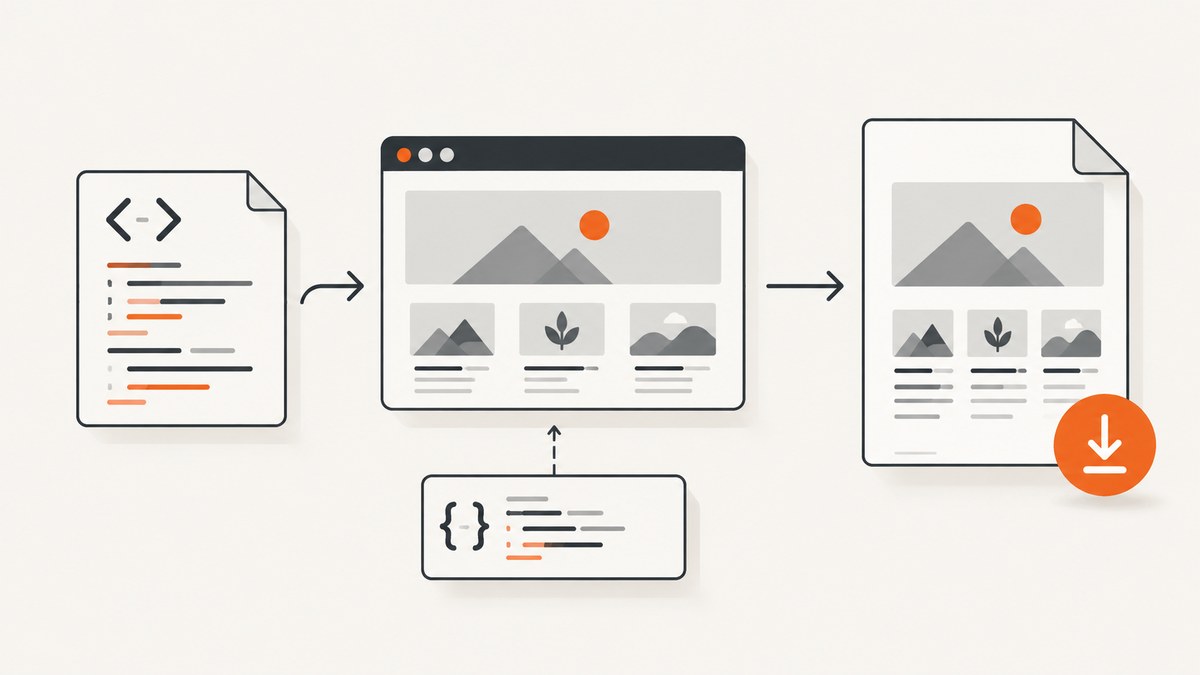
To convert an HTM file to PDF, render the document and save the rendered output as a PDF. Renaming .htm to .pdf does not perform a conversion. For a single local file, open it in a browser and use the print-to-PDF workflow. For repeatable jobs, use a renderer such as wkhtmltopdf or browser automation with Playwright’s page.pdf() API.
This guide covers one-off conversion, command-line jobs, JavaScript automation, local images and stylesheets, print CSS, page sizing, troubleshooting, and an API option when the HTML is available at a URL.
Choose a conversion method
| Situation | Best starting point | Why |
|---|---|---|
| One file, occasional conversion | Browser print to PDF | Requires no script and lets you inspect the rendered result. |
| Batch or scheduled conversion | wkhtmltopdf | A command-line renderer that accepts a page or file and writes a PDF. |
| Modern CSS or JavaScript-heavy pages | Playwright | Uses a real browser engine and exposes PDF controls through page.pdf(). |
| HTML already hosted at a URL | ScreenshotNeo | A single API request can capture a page as PDF, with cleanup and billing controls. |
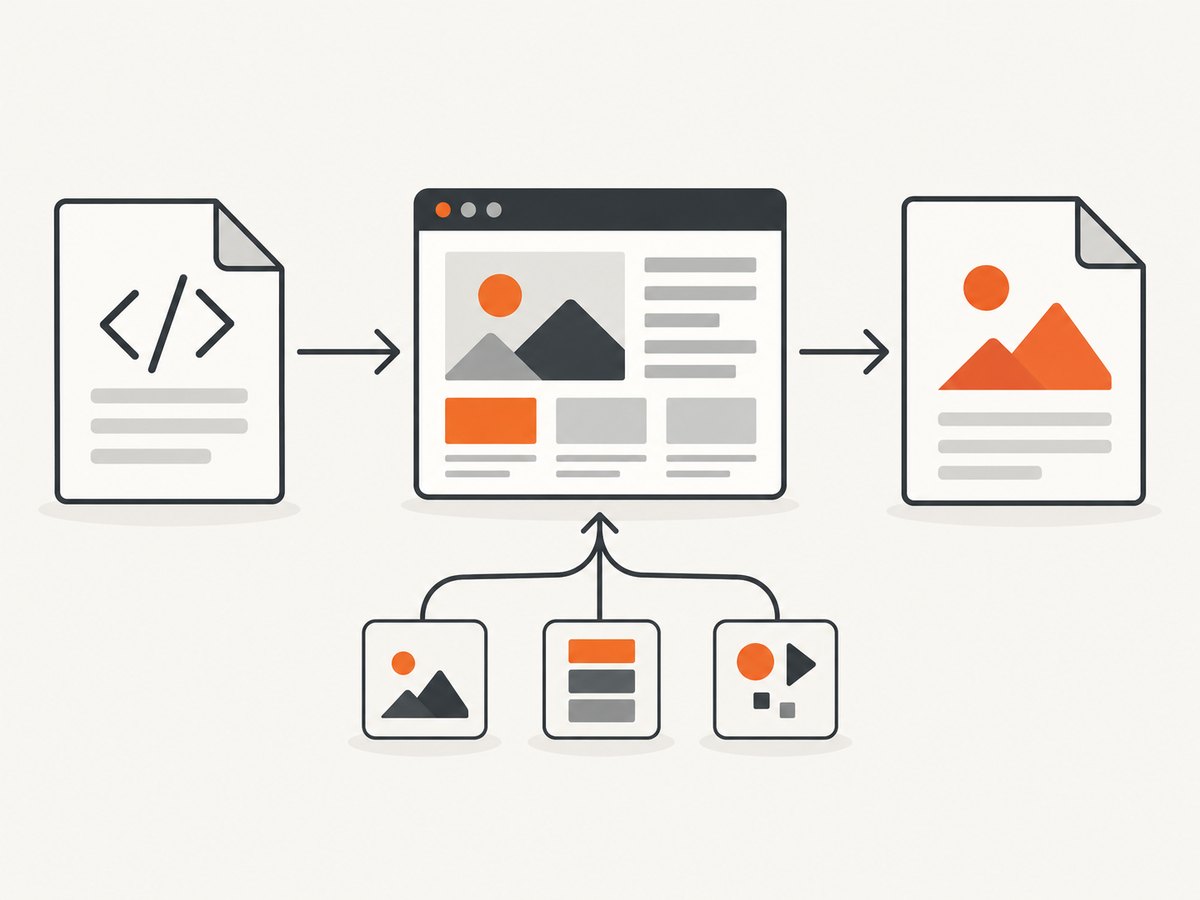
1. Convert an HTM file with a browser
- Open the
.htmfile in your browser. - Open the browser’s print command.
- Select the PDF or “Save to PDF” destination.
- Choose paper size, orientation, margins, background graphics, and page range as needed.
- Save the PDF, then inspect every page for missing images, clipped content, and unexpected page breaks.
The exact menu names vary by browser and operating system. Browser printing is practical for a one-off conversion, but it is difficult to standardize across many files or machines.
Before saving
- Keep the HTM file and its referenced assets together. Relative links such as
images/logo.pngmust resolve from the document’s location. - Check whether the document depends on JavaScript. Some pages finish rendering only after scripts run.
- Decide whether backgrounds should print. Background colors and images are commonly disabled unless explicitly enabled.
- Look for print-specific CSS such as
@media print,@page, andpage-break-*rules.
2. Convert HTM to PDF with wkhtmltopdf
wkhtmltopdf is an open-source command-line utility that renders HTML with Qt WebKit and writes a PDF. Its documentation describes page objects and options for JavaScript, print media, loading errors, and local-file access. Check the installed build because downstream packages can differ; the documented manual includes version 0.12.6 with patched Qt.
Basic conversion
wkhtmltopdf report.htm report.pdfYou can also pass a URL:
wkhtmltopdf https://example.com/report.html report.pdfUseful options
# Use print media styles
wkhtmltopdf --print-media-type report.htm report.pdf

# Allow JavaScript to run (the default in many builds; specify explicitly when needed)
wkhtmltopdf --enable-javascript report.htm report.pdf

# Wait for delayed JavaScript content
wkhtmltopdf --javascript-delay 1500 report.htm report.pdf

# Permit local files referenced by the document
wkhtmltopdf --enable-local-file-access report.htm report.pdf

# Set paper size and orientation
wkhtmltopdf --page-size A4 --orientation Portrait report.htm report.pdf

# Include backgrounds
wkhtmltopdf --background report.htm report.pdf
Use only options supported by your installed version. The wkhtmltopdf usage manual documents the available switches and their behavior.
Local assets and file access
An HTM file often references neighboring CSS, images, fonts, or JavaScript files. Preserve the directory structure expected by those relative paths. If the renderer blocks local resources, use the documented local-file-access controls and grant access only to the directories required by the document. A missing permission can produce a PDF with blank image areas or unstyled text.
3. Convert HTM to PDF with Playwright
Playwright’s page.pdf() generates a PDF using print CSS. Its API includes controls for paper format, margins, print backgrounds, page ranges, and CSS page-size preference. Consult the documentation for the version installed in your project: Page.pdf API reference.
Complete Node.js example
const { chromium } = require('playwright');

(async () => {
  const browser = await chromium.launch();
  const page = await browser.newPage({
    viewport: { width: 1280, height: 900 },
  });

  // file:// URLs need an absolute path.
  await page.goto('file:///absolute/path/report.htm', {
    waitUntil: 'networkidle',
  });

  await page.pdf({
    path: 'report.pdf',
    format: 'A4',
    printBackground: true,
    preferCSSPageSize: true,
    margin: {
      top: '16mm',
      right: '16mm',
      bottom: '16mm',
      left: '16mm',
    },
  });

  await browser.close();
})();
If the page contains content that appears after a timer or an interaction, wait for a selector or add a deliberate delay before calling page.pdf(). For a local file, confirm that all relative asset paths resolve and that the browser process has access to the directory.
Converting HTML text instead of a file
const { chromium } = require('playwright');

(async () => {
  const browser = await chromium.launch();
  const page = await browser.newPage();

  await page.setContent(`<!doctype html>
<html>
<head>
  <style>@page { size: A4; margin: 18mm; } body { font-family: sans-serif; }</style>
</head>
<body><h1>Invoice</h1><p>Rendered from an HTML string.</p></body>
</html>`, { waitUntil: 'networkidle' });

  await page.pdf({ path: 'invoice.pdf', format: 'A4', printBackground: true });
  await browser.close();
})();
4. Control layout with print CSS
PDF output follows the print layout, so CSS is often the difference between a clean document and clipped content.
@page {
  size: A4;
  margin: 16mm;
}

@media print {
  .screen-only,
  nav,
  .chat-widget {
    display: none !important;
  }

  h1, h2, h3 {
    break-after: avoid;
  }

  table, figure, pre {
    break-inside: avoid;
  }

  a {
    color: black;
    text-decoration: none;
  }
}
Use break-before, break-after, and break-inside to influence page breaks. Keep wide tables within the printable width. If the document uses a CSS @page size, Playwright can honor it with preferCSSPageSize: true; otherwise set the format explicitly.
5. Preserve images, stylesheets, and fonts
- Resolve every relative URL from the HTM file’s directory.
- Keep case-sensitive filenames exact, especially on Linux.
- Use absolute URLs only when the conversion environment can reach the network.
- Wait for images and web fonts before creating the PDF when the renderer supports page lifecycle waits.
- Inspect the output when an asset is protected, redirected, blocked, or loaded only after JavaScript runs.
For local documents, resource permissions and relative paths directly affect rendering. A PDF can be generated successfully while still missing an image or stylesheet, so a successful process exit is not proof of visual correctness.

6. Or skip the browser setup
If your HTM document is available at a URL, ScreenshotNeo can render it through one API request. It returns a clean screenshot or PDF and supports full-page capture, custom CSS and JavaScript, waiting for a selector, delay or network idle, PDF paper size, margins, landscape mode, and page ranges. See the ScreenshotNeo API documentation for the PDF option and other parameters.
curl -G "https://api.screenshotneo.com/v1/shot" \
  -d access_key=YOUR_API_KEY \
  --data-urlencode url=https://example.com/report.htm \
  -o report.pdf
import requests
r = requests.get(
"https://api.screenshotneo.com/v1/shot",
params={"access_key": "YOUR_API_KEY", "url": "https://example.com/report.htm"},
timeout=90,
)
r.raise_for_status()
open("report.pdf", "wb").write(r.content)const q = new URLSearchParams({
access_key: 'YOUR_API_KEY',
url: 'https://example.com/report.htm',
});
const res = await fetch(`https://api.screenshotneo.com/v1/shot?${q}`);
if (!res.ok) throw new Error(`HTTP ${res.status}`);
const data = Buffer.from(await res.arrayBuffer());
require('fs').writeFileSync('report.pdf', data);Cookie banners, popups, and chat widgets are removed before the shot. Bot checks, blank pages, and failed loads are never billed, and response headers identify the page verdict and whether the request was billed. An MCP server lets AI agents take screenshots. The Free plan includes 1,000 screenshots a month with no card; paid plans start at $5 for 3,000. Create a free ScreenshotNeo account.
Troubleshooting
| Symptom | Likely cause | Fix |
|---|---|---|
| PDF is blank | Page content depends on JavaScript or the renderer cannot load the file. | Wait for a selector or network idle, verify the URL, and check local-file permissions. |
| Images are missing | Relative paths are wrong, files are unavailable, or local access is blocked. | Preserve the asset tree, check filename case, and enable the renderer’s documented local access. |
| Styles are missing | Stylesheet failed to load or only screen CSS is being used. | Check stylesheet URLs and add print rules or use the renderer’s print-media option. |
| Content is cut off | Element exceeds the printable width or a fixed-height container clips it. | Set the correct paper size, reduce margins or widths, and remove restrictive fixed heights in print CSS. |
| Unexpected page breaks | Default pagination conflicts with long tables, headings, or figures. | Use break-inside: avoid for indivisible blocks and explicit breaks before major sections. |
| Fonts differ | Font files are unavailable or load after PDF generation. | Make font URLs reachable and wait until the page has finished loading before capture. |
| wkhtmltopdf rejects an option | Installed package differs from the manual or distribution build. | Run wkhtmltopdf --help and use options supported by that build. |
| Playwright times out | The page never reaches the selected lifecycle state. | Wait for a specific selector, handle long-running requests, or use a bounded delay appropriate to the page. |
Performance, reliability, and cost considerations
- Performance: Browser startup is often the largest fixed cost in a script. Reuse a browser process for multiple files, while creating isolated pages for each document.
- Reliability: Treat loading as a state to verify. Wait for the content that proves the document is ready, then check the generated file and its page count or size.
- Local resources: Keep conversion inputs deterministic. Network dependencies, redirects, delayed scripts, and unavailable fonts can change output between runs.
- Cost: Local tools have no per-document API charge, but require maintenance and runtime capacity. ScreenshotNeo bills only clean shots; bot checks, blank pages, timeouts, failed loads, and cache hits cost nothing.
- Repeatability: Pin renderer versions where possible and keep the same paper, margin, CSS, and waiting settings across runs.
Conversion checklist
- Confirm the input is an HTML document, not just a renamed file.
- Choose browser printing for a one-off job or a scripted renderer for repeated jobs.
- Verify relative images, CSS, scripts, and fonts.
- Set paper size, orientation, margins, backgrounds, and page ranges.
- Wait for JavaScript-driven content before generating the PDF.
- Inspect representative pages for clipping, missing assets, and bad breaks.
- For hosted HTML, consider ScreenshotNeo when you want API delivery and built-in cleanup.
FAQ
Can I convert HTM to PDF by changing the extension?
No. The HTML must be rendered and exported as PDF.
Which method is best for one file?
Browser print-to-PDF is usually the simplest manual workflow.
Which method is best for batch conversion?
Use wkhtmltopdf for a simple command-line pipeline or Playwright when you need browser automation and detailed rendering control.
Why does my PDF omit images?
Check relative paths, local-file permissions, network availability, and whether images finish loading before capture.
Can an HTM file with JavaScript become a PDF?
Yes, if the renderer runs the script and you wait until the required content appears.


