How to Convert HTML Code to an Image
Convert HTML to PNG, JPEG, WebP, or PDF with html2canvas, Playwright, Puppeteer, or ScreenshotNeo. Includes runnable code and troubleshooting.
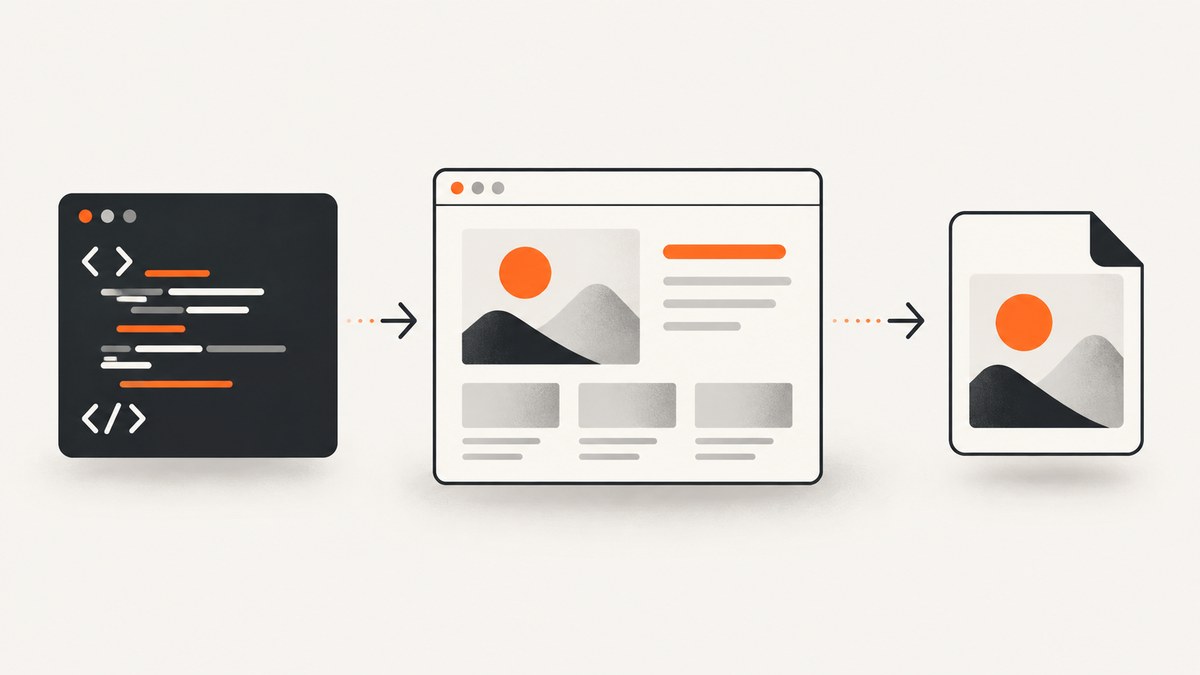
To convert HTML code to an image, choose between a browser-side canvas reconstruction and a real browser screenshot. Use html2canvas when a page needs to let a user export one element in their own browser. Use Playwright or Puppeteer when the image must match the browser’s rendered pixels, include external assets, run on a server, or be generated repeatedly. For a hosted API that removes browser setup, ScreenshotNeo accepts one GET request and returns a PNG, JPEG, WebP, or PDF.
Choose the right HTML-to-image method
| Method | Runs where | Best for | Main limitation |
|---|---|---|---|
| html2canvas | End user’s browser | Exporting a card, invoice, chart, or DOM element | Reconstructs a canvas from DOM information; it is not a literal screenshot |
| Playwright | Headless or headed browser | Server-side automation, full pages, elements, responsive views | Requires browser installation and lifecycle management |
| Puppeteer | Headless or headed Chromium | Node.js screenshot pipelines and PDF/image rendering | Primarily centered on Chromium automation |
| ScreenshotNeo | Hosted browser API | Production capture without maintaining browsers | Requires an API key and network request |
The choice depends on five questions: must the output match actual browser pixels, do cross-origin assets appear, are you capturing one element or a complete page, do you need transparency or a specific image format, and will the job run once or at production volume?
Method 1: Convert a DOM element with html2canvas
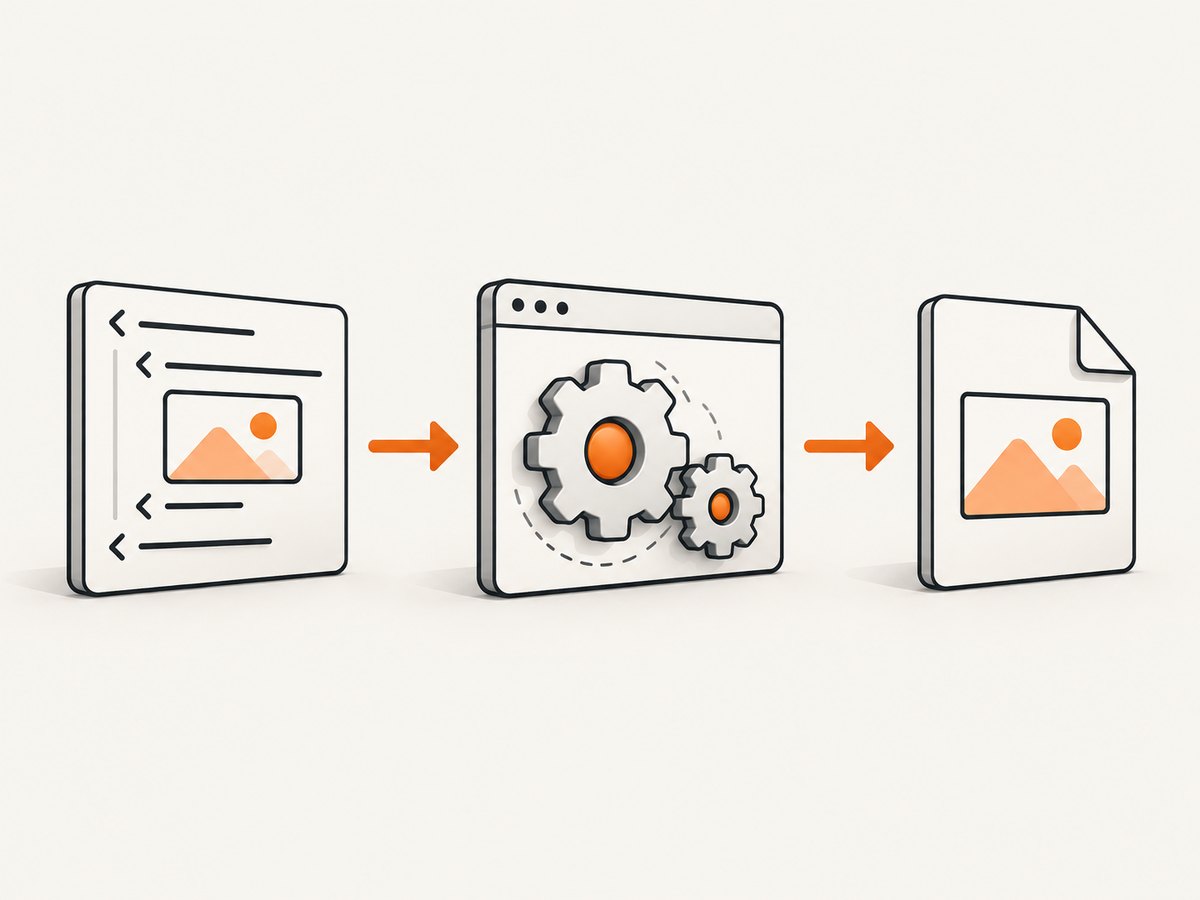
html2canvas walks the DOM and builds a canvas representation from information available to JavaScript. It then exports that canvas as a data URL or Blob. Because it recreates the scene, unsupported CSS, cross-origin resources, filters, fonts, and browser-only effects can differ from what a user sees in a native screenshot.
Basic browser example
<!doctype html>
<html lang="en">
<head>
  <meta charset="utf-8">
  <title>HTML to PNG</title>
  <script src="https://cdn.jsdelivr.net/npm/html2canvas@1.4.1/dist/html2canvas.min.js"></script>
  <style>
    #receipt { width: 420px; padding: 24px; background: white; color: #17202a; font: 16px/1.5 system-ui; }
    body { background: #e9eef3; }
  </style>
</head>
<body>
  <article id="receipt">
    <h1>Order receipt</h1>
    <p>Three seats · Total: $75</p>
  </article>
  <a id="download" download="receipt.png">Download PNG</a>
  <script>
    const element = document.querySelector('#receipt');
    const download = document.querySelector('#download');
    document.fonts.ready.then(async () => {
      const canvas = await html2canvas(element, {
        backgroundColor: '#ffffff',
        scale: window.devicePixelRatio,
        useCORS: true,
        logging: false
      });
      download.href = canvas.toDataURL('image/png');
    });
  </script>
</body>
</html>
The important steps are selecting the element, waiting for fonts and other assets, calling html2canvas(element, options), and assigning canvas.toDataURL('image/png') to a download link. The project’s examples document this export pattern.
Useful html2canvas options
| Option | Use | Practical note |
|---|---|---|
backgroundColor |
Set a solid background | Use null for transparency where the browser and output path support it |
scale |
Increase or reduce pixel density | window.devicePixelRatio gives sharper output but increases memory use |
useCORS |
Attempt CORS-enabled image loading | It cannot override a server that omits a suitable Access-Control-Allow-Origin header |
allowTaint |
Allow cross-origin images to taint the canvas | A tainted canvas cannot be exported safely; use CORS or a same-origin proxy instead |
foreignObjectRendering |
Ask the browser to render HTML through SVG foreignObject where supported | Support varies by browser and content; test before relying on it |
windowWidth, windowHeight |
Control the virtual layout viewport | Useful when responsive CSS changes the element’s appearance |
ignoreElements |
Exclude matching nodes | Return true for buttons, cursors, or private data that should not be exported |
Cross-origin images and iframes
Images from another origin must grant access with CORS headers, or they must be fetched through a proxy on your origin. Setting useCORS: true only asks the browser to use CORS; it does not grant permission. A cross-origin iframe’s document is inaccessible to html2canvas because of browser security rules. If a capture requires content inside that iframe, capture the iframe’s own page separately or use a real browser workflow with access to the page.
Wait for content before rendering
Call html2canvas only after asynchronous data, images, and web fonts are ready. For images, wait for img.decode() where available. For an application that changes after a click, perform the click first and wait for the resulting state. A fixed delay is less reliable than waiting for a specific element or state.
Method 2: Capture rendered HTML with Playwright
Playwright controls a real browser, so it captures the browser’s rendered output instead of rebuilding CSS in a canvas. Its screenshot API supports a viewport, a page, a specific locator, full-page capture, PNG, JPEG, WebP, quality settings where applicable, and a scale setting. Install it with:
npm install playwright
npx playwright install chromium
Complete Node.js example:
import { chromium } from 'playwright';

const browser = await chromium.launch({ headless: true });
const page = await browser.newPage({
  viewport: { width: 1440, height: 900 },
  deviceScaleFactor: 2,
  colorScheme: 'light'
});

await page.goto('https://example.com', { waitUntil: 'networkidle' });
await page.screenshot({ path: 'page.webp', type: 'webp', fullPage: true });

const card = page.locator('.pricing-card').first();
await card.screenshot({ path: 'card.png', type: 'png' });

await browser.close();
For pages that continue polling, networkidle may never be reached. In that case, use waitUntil: 'domcontentloaded' and then wait for a meaningful selector:
await page.goto(url, { waitUntil: 'domcontentloaded' });
await page.locator('[data-render-complete="true"]').waitFor();
await page.screenshot({ path: 'ready.png', fullPage: true });
Playwright configuration checklist
- Set a fixed viewport and device scale factor so output dimensions are repeatable.
- Use
page.emulateMedia({ colorScheme: 'dark' })for dark-mode output. - Set locale, timezone, or geolocation when those values affect rendered content.
- Use
page.addStyleTagfor temporary print or capture CSS. - Hide cookie banners, chat launchers, and animations with CSS before capture.
- Wait for web fonts with
await page.evaluate(() => document.fonts.ready). - Use an element locator for a component and
fullPage: truefor a complete document.
Method 3: Capture HTML with Puppeteer
Puppeteer exposes similar controls for Chromium. Its screenshot options include full-page capture, clipping, image type, quality for JPEG/WebP, and transparent backgrounds.
import puppeteer from 'puppeteer';

const browser = await puppeteer.launch({ headless: 'new' });
const page = await browser.newPage();
await page.setViewport({ width: 1280, height: 800, deviceScaleFactor: 2 });
await page.goto('https://example.com', { waitUntil: 'networkidle2' });
await page.screenshot({ path: 'site.png', fullPage: true, type: 'png' });
await page.screenshot({
  path: 'region.webp',
  type: 'webp',
  quality: 82,
  clip: { x: 80, y: 120, width: 700, height: 420 }
});
await browser.close();
Use a clip rectangle when you need coordinates rather than a selector. For a selector-based component, query its bounding box and pass that box to clip. Always validate that the box exists before capturing.
Convert supplied HTML and CSS strings
For server-side rendering, create a document containing the supplied markup, set its content, wait for fonts and images, and capture it. Playwright example:
const html = `<main class="invoice"><h1>Invoice 1042</h1><p>Amount due: $240</p></main>`;
const css = `.invoice { width: 700px; padding: 32px; background: white; font: 20px system-ui; }`;
await page.setContent(`<!doctype html><style>${css}</style>${html}`, {
  waitUntil: 'load'
});
await page.evaluate(() => document.fonts.ready);
await page.screenshot({ path: 'invoice.png', type: 'png' });
Sanitize untrusted HTML before inserting it into a browser context. Restrict navigation and network access when rendering user content, and avoid exposing server credentials to page scripts.
Or skip the browser setup
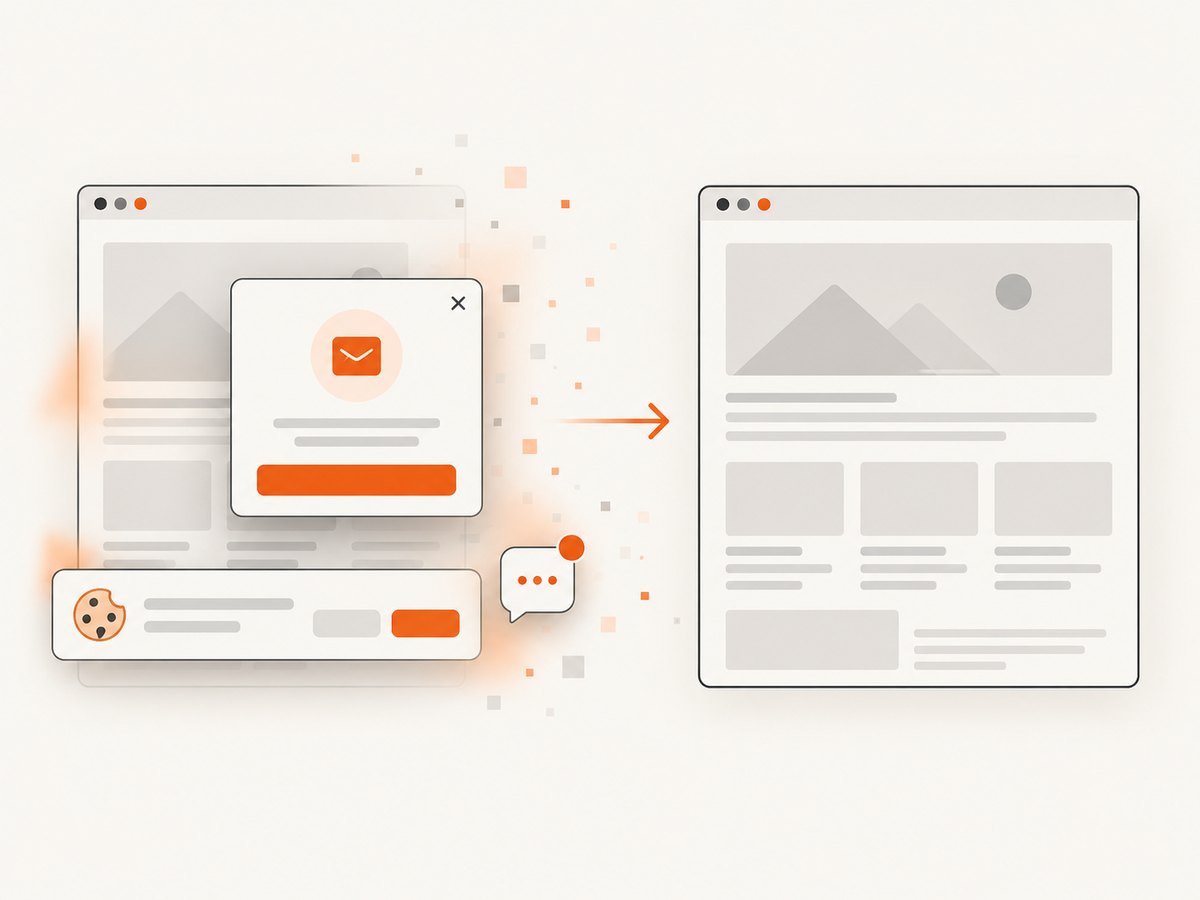
ScreenshotNeo is a hosted website screenshot API. It accepts a URL and returns an image or PDF, so there is no Playwright or Puppeteer installation to maintain. Cookie and consent banners, newsletter popups, and chat widgets are removed before the shot. Bot checks, blank pages, failed loads, timeouts, and cache hits are not billed, and the response identifies the result with X-Page-Verdict and X-Billed headers. An MCP server provides take_screenshot, get_page_info, and capture_pdf tools for Claude, Cursor, and other MCP clients.
See the ScreenshotNeo API documentation for the full parameter list. Basic cURL request:
curl -G "https://api.screenshotneo.com/v1/shot" \
  -d access_key=YOUR_API_KEY \
  --data-urlencode url=https://stripe.com \
  -o shot.webp
Python:
import requests

r = requests.get(
    "https://api.screenshotneo.com/v1/shot",
    params={"access_key": "YOUR_API_KEY", "url": "https://stripe.com"},
    timeout=90,
)
r.raise_for_status()
open("shot.webp", "wb").write(r.content)
Node.js:
const q = new URLSearchParams({ access_key: 'YOUR_API_KEY', url: 'https://stripe.com' });
const res = await fetch(`https://api.screenshotneo.com/v1/shot?${q}`);
if (!res.ok) throw new Error(`HTTP ${res.status}`);
const buffer = Buffer.from(await res.arrayBuffer());
await import('node:fs/promises').then(fs => fs.writeFile('shot.webp', buffer));
ScreenshotNeo also supports full-page capture with lazy images loaded, CSS-selector element capture, dark mode, 12 device presets or custom viewports, retina scale, custom CSS and JavaScript, clicks, selector or delay waits, network-idle waits, blocked ads and resource types, headers, cookies, user agents, Authorization, timezone, geolocation, transparent backgrounds, resizing, configurable cache TTL, signed image links, asynchronous jobs with signed webhooks, bulk capture of up to 100 URLs per call, a usage API, and an OpenAPI specification. Existing parameter names used by other screenshot APIs also work, which can simplify migration.
Plans include 1,000 screenshots per month free with no card, Starter at $5 for 3,000, Growth at $15 for 15,000, Pro at $39 for 60,000, Scale at $99 for 250,000, and Business at $249 for 1,000,000. Yearly billing provides two months free, and every feature is available on every plan. Create a free ScreenshotNeo account to get started.
Output formats, dimensions, and quality
PNG preserves sharp text and transparency and is the safest default for UI screenshots. JPEG usually produces smaller photographic images but has lossy compression and no transparency. WebP can provide smaller files with good quality when your consumers support it. A screenshot’s pixel dimensions equal the CSS dimensions multiplied by the device scale factor. A 1200 by 800 viewport at scale 2 produces a 2400 by 1600 image.
Full-page images can become very tall. Prefer element captures for cards and components, or split long documents into sections. For PDFs, use a browser’s print-to-PDF support or ScreenshotNeo’s PDF options for paper size, margins, landscape mode, and page ranges.
Troubleshooting
| Symptom | Cause | Fix |
|---|---|---|
| External images are missing in html2canvas | CORS headers are absent or the canvas is tainted | Configure the image server’s CORS policy or proxy assets through your origin; useCORS alone is not sufficient |
| Cross-origin iframe is blank | Same-origin policy prevents DOM access | Capture the iframe page separately or use a browser workflow with an appropriate capture boundary |
| Fonts look wrong | Capture occurred before web fonts loaded | Wait for document.fonts.ready and verify the font request completed |
| Screenshot is blank or partially cut off | Canvas or page dimensions exceed browser or platform limits | Reduce scale, capture an element, split the page, or use a real-browser screenshot; limits vary by browser and resources |
| CSS effects do not match | html2canvas does not implement every CSS property | Use Playwright, Puppeteer, or ScreenshotNeo when pixel fidelity matters |
| Playwright waits forever | The page keeps making network requests | Use a selector-based readiness check instead of networkidle |
| Lazy images are absent | They load only after scrolling or intersection events | Scroll through the page, wait for image completion, or use a capture service that loads lazy images |
| Element screenshot throws an error | The selector matches nothing or the element is hidden | Wait for the locator, check visibility, and verify the selector in the same viewport |
| Output has an unexpected dark or light theme | System color scheme affects CSS | Set colorScheme explicitly in Playwright or the equivalent capture option |
| API response is not an image | Authentication, URL validation, or an upstream page failure occurred | Check the HTTP status and response headers; inspect X-Page-Verdict and X-Billed for ScreenshotNeo results |
Performance, reliability, and cost
- Reuse browsers: launch one Playwright or Puppeteer browser per worker and create short-lived pages or contexts. Repeated browser launches add startup cost.
- Control concurrency: too many simultaneous pages increase CPU, memory, and network contention. Use a queue and a bounded worker pool.
- Cache stable pages: cache by URL, viewport, theme, and relevant options. In ScreenshotNeo, choose a TTL that matches how often the source changes.
- Wait for a real condition: selector or application-state checks reduce both premature captures and unnecessary delays compared with a large fixed timeout.
- Limit image size: high device scale factors and full-page captures consume more memory and produce larger files.
- Retry carefully: retry transient navigation or network errors with backoff, but do not blindly retry authentication failures or deterministic invalid URLs.
- Make jobs observable: record URL, viewport, format, duration, status, output bytes, and a content hash. For hosted captures, retain the verdict and billing headers.
- Estimate cost: self-hosting costs infrastructure and maintenance; an API charges per successful capture according to its plan. ScreenshotNeo’s failed loads, bot checks, blank pages, timeouts, and cache hits are not billed.
FAQ
Is html2canvas a real screenshot?
No. It creates a canvas representation from DOM information. For browser-pixel fidelity, use Playwright, Puppeteer, or a hosted real-browser API.
Can I convert an HTML string without opening a visible browser?
Yes. Set the string as page content in a headless Playwright or Puppeteer page, wait for fonts and assets, then call the screenshot method.
Which format should I choose?
Choose PNG for UI and transparency, JPEG for photographs where a smaller lossy file is acceptable, and WebP when modern browser support and smaller files are priorities.
Why is my full-page image enormous?
Full-page capture includes the document’s complete height, and device scale multiplies the pixel dimensions. Capture a component, reduce scale, or split the document.
Can a screenshot include content behind a cookie banner?
With a DIY browser workflow, dismiss or hide the banner before capture. ScreenshotNeo accepts consent banners and removes known consent platforms, newsletter popups, and chat widgets before the shot.