How to Convert HTML Code to a PNG Image
Render HTML in a browser, then save the result as a PNG with Puppeteer, Playwright, Python, cURL, or ScreenshotNeo.
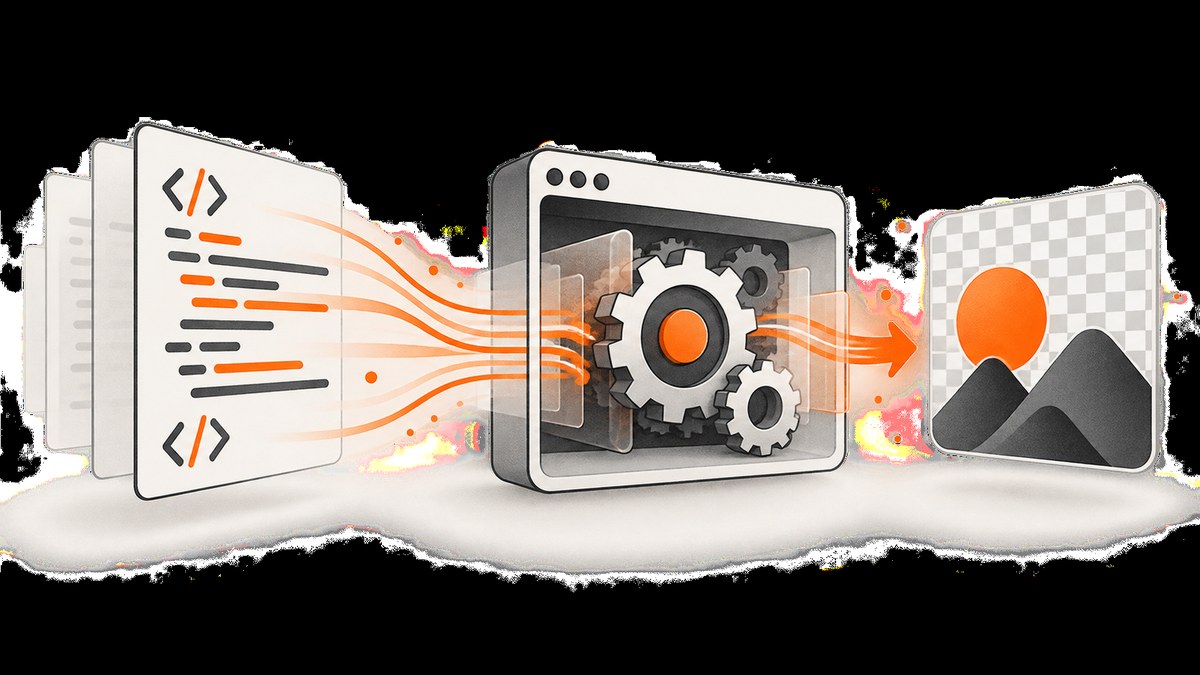
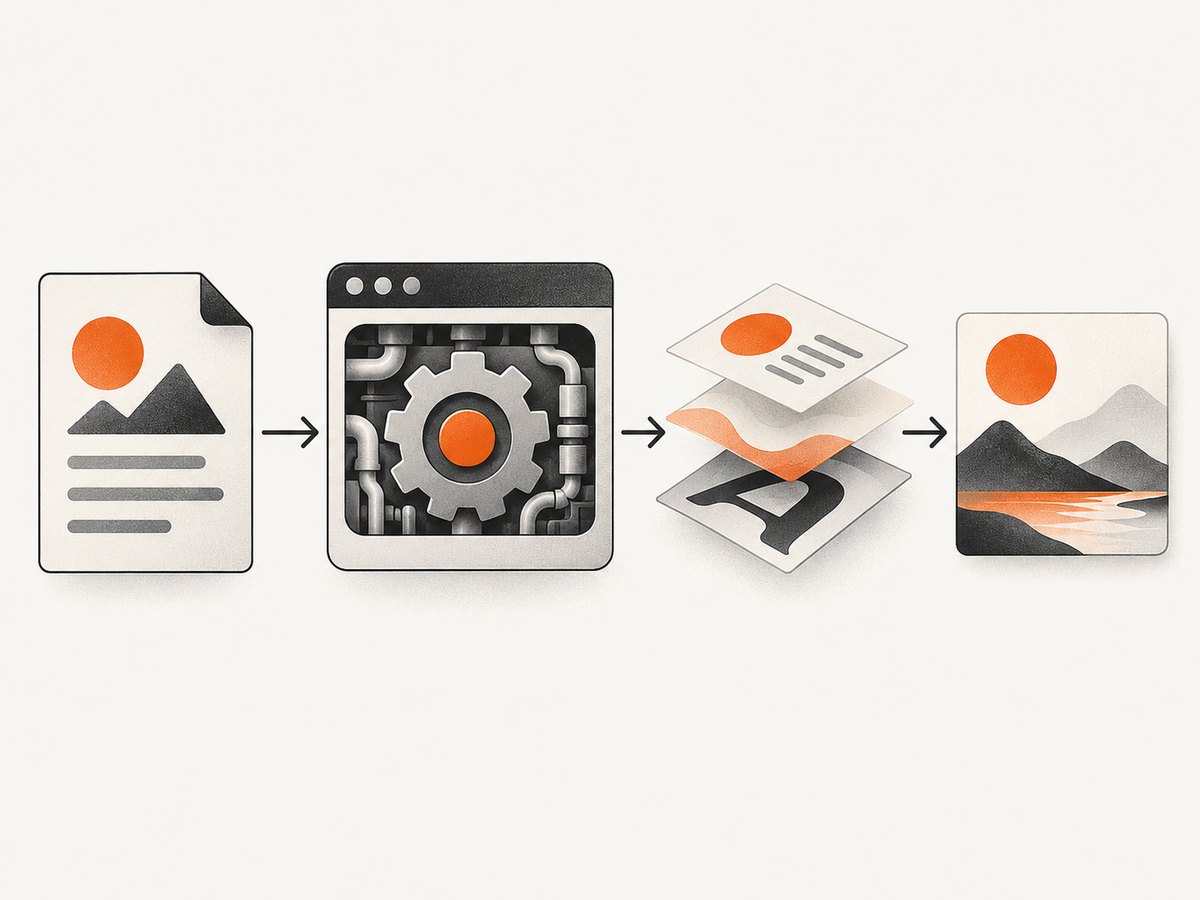
To convert HTML code to a PNG image, render the HTML in a browser engine and capture the rendered page. A browser applies CSS, loads fonts and images, runs JavaScript, and calculates the final layout; an image library that only parses markup cannot reproduce that result. Puppeteer and Playwright provide direct screenshot APIs, while wrappers such as Browsershot provide a higher-level interface over headless Chrome. The same process works for an HTML string, a local file, or a public URL.
This guide covers viewport, full-page, and element screenshots; PNG quality, transparency, waiting, fonts, dynamic content, failures, performance, cost, and production reliability. It also shows an API option when you do not want to operate a browser.
1. Choose the input and capture scope
Decide these four items before writing code:
| Decision | Choices | Use when |
|---|---|---|
| Input | HTML string, local file, URL | Strings suit generated cards; files suit templates; URLs suit existing pages. |
| Region | Viewport, full page, element | Viewport captures what is visible; full page includes the scrollable document; element isolates a component. |
| Output | PNG path or buffer | Use a path for a file, or a buffer when uploading to storage or returning an HTTP response. |
| Background | Normal or transparent | Transparent output is useful for overlays and compositing. |
| Timing | Load event, selector, delay, network idle | Choose a condition that means the content you need is ready. |
PNG is lossless and is the documented default in Playwright. It is a good fit for text, diagrams, screenshots, and UI cards. Remember that the screenshot is of the browser’s rendered pixels: viewport size, device scale, web fonts, external assets, animations, and JavaScript state all affect the result.
2. Convert an HTML string with Puppeteer
Puppeteer launches Chromium, loads markup, and writes a PNG. Install it in a Node.js project:
npm install puppeteerSave this as html-to-png.mjs:
import puppeteer from 'puppeteer';
const html = `
Rendered HTML becomes pixels
This card is captured from a browser-rendered document.
`;
const browser = await puppeteer.launch({ headless: true });
try {
const page = await browser.newPage();
await page.setViewport({ width: 1000, height: 700, deviceScaleFactor: 1 });
await page.setContent(html, { waitUntil: 'networkidle0' });
await page.screenshot({ path: 'output.png', type: 'png' });
} finally {
await browser.close();
}Puppeteer’s Page.screenshot documentation describes saving screenshots and supported options. setContent is convenient for supplied markup; for a URL, replace it with page.goto(url, { waitUntil: 'networkidle0' }).
Capture a URL, full page, or element
await page.goto('https://example.com', { waitUntil: 'networkidle2' });
await page.screenshot({ path: 'viewport.png' });
await page.screenshot({ path: 'whole-page.png', fullPage: true });
const card = await page.$('.card');
await card.screenshot({ path: 'card.png' });
A normal screenshot uses the current viewport. fullPage: true captures the full scrollable page. An element screenshot captures only the selected node. If an element is missing, wait for it first:
await page.waitForSelector('.card', { visible: true, timeout: 15000 });Control dimensions, retina scale, and transparency
await page.setViewport({ width: 1440, height: 900, deviceScaleFactor: 2 });
await page.screenshot({
  path: 'retina.png',
  type: 'png',
  omitBackground: true
});
omitBackground hides the browser’s default background. It cannot remove a background color explicitly painted by your HTML or CSS, so set the page background to transparent when you need true transparency:
await page.evaluate(() => { document.documentElement.style.background = 'transparent'; document.body.style.background = 'transparent'; });3. Convert HTML to PNG with Playwright
Playwright supports Chromium, Firefox, and WebKit and exposes page, element, full-page, and buffer screenshots. Install the package and browser:
npm install playwright
npx playwright install chromium
import { chromium } from 'playwright';
const browser = await chromium.launch();
try {
const page = await browser.newPage({
viewport: { width: 1200, height: 800 },
deviceScaleFactor: 1
});
await page.setContent('Hello PNG
See the Playwright Page API for the current screenshot options. A buffer lets you send bytes directly to object storage, a database, or an HTTP response without creating a temporary file.
4. Load local HTML and assets reliably
A local file can reference relative CSS, images, and fonts. The simplest approach is a file:// URL:
import path from 'node:path';
import { pathToFileURL } from 'node:url';

const fileUrl = pathToFileURL(path.resolve('invoice.html')).href;
await page.goto(fileUrl, { waitUntil: 'networkidle0' });
await page.screenshot({ path: 'invoice.png', fullPage: true });
For generated HTML, prefer absolute asset URLs or inline critical CSS. Relative paths often fail when the process runs from a different working directory. If fonts or images are loaded from another origin, check that the origin permits the request and that the browser process has network access.
For deterministic output, wait for fonts and images:
await page.evaluate(async () => {
  await document.fonts.ready;
  await Promise.all([...document.images].map(img =>
    img.complete ? Promise.resolve() : new Promise(resolve => {
      img.addEventListener('load', resolve, { once: true });
      img.addEventListener('error', resolve, { once: true });
    })
  ));
});
5. Handle dynamic pages, animations, and lazy loading
A page can be technically loaded while its useful content is still changing. Choose a deliberate readiness rule:
- Selector: wait for a chart, card, or application root.
- Delay: use a short fixed delay only when the page has a known animation or client-side render time.
- Network idle: useful for pages that finish loading requests, but analytics or long polling can prevent it.
- Application signal: expose a body attribute such as
data-ready="true"and wait for that selector.
await page.goto(url, { waitUntil: 'domcontentloaded' });
await page.waitForSelector('[data-ready="true"]', { timeout: 20000 });
await page.addStyleTag({ content: `
  *, *::before, *::after { animation: none !important; transition: none !important; }
` });
await page.screenshot({ path: 'stable.png', fullPage: true });
Lazy images may not load until they enter the viewport. For a full-page capture, scroll through the document before taking the screenshot:
await page.evaluate(async () => {
  await new Promise(resolve => {
    let y = 0;
    const step = 600;
    const timer = setInterval(() => {
      window.scrollBy(0, step);
      y += step;
      if (y >= document.body.scrollHeight) { clearInterval(timer); resolve(); }
    }, 100);
  });
});
await page.screenshot({ path: 'lazy-loaded.png', fullPage: true });
6. Higher-level PHP option: Browsershot
Spatie Browsershot provides a PHP interface for converting a URL or supplied HTML through Puppeteer and headless Chrome. It can be useful in Laravel or another PHP application that already manages Node and Chrome. Check the project’s current installation requirements and runtime compatibility before deployment.
use Spatie\Browsershot\Browsershot;

Browsershot::html('<h1>Hello PNG</h1>')
    ->windowSize(1200, 800)
    ->save('output.png');
7. Python and cURL alternatives
Python can drive Playwright after installing its package and browser:
pip install playwright
playwright install chromium
from playwright.sync_api import sync_playwright
html = """<html><body><h1>Hello PNG</h1></body></html>"""
with sync_playwright() as p:
browser = p.chromium.launch()
page = browser.new_page(viewport={"width": 1000, "height": 700})
page.set_content(html, wait_until="networkidle")
page.screenshot(path="output.png", full_page=True)
browser.close()cURL itself does not render HTML. It can call a screenshot service that does. For ScreenshotNeo, the complete request is:
curl -G "https://api.screenshotneo.com/v1/shot" -d access_key=YOUR_API_KEY --data-urlencode url=https://stripe.com -o shot.webp8. Or skip the browser setup
ScreenshotNeo turns one GET request into a PNG, JPEG, WebP, or PDF. The API accepts the URL and returns the rendered result, so your application does not need to package Chromium or manage browser processes. See the ScreenshotNeo documentation for all parameters.

import requests
r = requests.get("https://api.screenshotneo.com/v1/shot", params={"access_key": "YOUR_API_KEY", "url": "https://stripe.com"}, timeout=90)
open("shot.webp", "wb").write(r.content)
const q = new URLSearchParams({ access_key: 'YOUR_API_KEY', url: 'https://stripe.com' }); const res = await fetch(`https://api.screenshotneo.com/v1/shot?${q}`);Adapt the target URL and request PNG output with the documented format parameter. ScreenshotNeo removes cookie and consent banners, newsletter popups, and chat widgets before capture; each step can be turned off. Bot checks and CAPTCHAs, blank pages, timeouts, failed loads, and cache hits are not billed, and response headers identify the page verdict and billing status with X-Page-Verdict and X-Billed. Its MCP server provides take_screenshot, get_page_info, and capture_pdf for Claude, Cursor, and other MCP clients. The free plan includes 1,000 screenshots per month with no card; paid plans start at $5 for 3,000.
Create a free ScreenshotNeo account and start with 1,000 screenshots each month at no charge.
9. Screenshot options that matter in production
Viewport, full page, and element
Use a fixed viewport for visual regression tests and social cards. Use full-page capture for documentation and audits, but expect very tall PNGs and more memory use. Element capture avoids unrelated navigation and is usually faster.
Scale and dimensions
CSS pixels multiplied by device scale factor determine output pixels. A 1200 by 800 viewport at scale 2 produces a 2400 by 1600 image. Higher scale improves sharpness but increases memory, transfer size, and processing time.
CSS and JavaScript overrides
Inject print styles, hide unstable elements, set a known theme, or click a control before capture. Keep overrides in the capture script so normal visitors are unaffected.
Security boundaries
Do not load untrusted HTML in a browser with access to private services. Restrict outbound network access, sanitize supplied markup, and avoid exposing internal credentials through cookies or headers. Treat URLs as user input and enforce an allowlist when appropriate.
10. Troubleshooting checklist
| Symptom | Likely cause | Fix |
|---|---|---|
| Blank or white PNG | Capture happened before rendering, or navigation failed. | Check the URL response, wait for a known selector, and log browser console and page errors. |
| Missing fonts | Font request failed or capture ran before fonts loaded. | Use document.fonts.ready, verify network access, and provide a fallback font. |
| Images missing | Relative paths, CORS, lazy loading, or blocked requests. | Use absolute paths, wait for image completion, and scroll to trigger lazy loading. |
| Full page is clipped | Fixed containers or delayed layout changes. | Wait for content, inspect scroll height, and capture the element or page after layout stabilizes. |
| Animations differ between runs | Time-dependent CSS or JavaScript. | Disable transitions and animations, freeze clocks where possible, and use deterministic data. |
| Navigation timeout | Slow server, never-ending requests, or bot challenge. | Set a realistic timeout, wait for a selector instead of network idle, and inspect the destination manually. |
| Permission or sandbox error | Chrome cannot start with the container’s user permissions. | Use a supported container configuration and browser launch flags approved by your security policy; do not disable sandboxing casually. |
| Huge memory use | Very large full-page image or high device scale. | Capture sections, lower scale, set a maximum page height, or use an element screenshot. |
11. Performance, reliability, and cost
Launching a browser for every request is expensive. Keep one browser process alive and create isolated pages or contexts per job. Close pages in a finally block, cap concurrency, and recycle the browser after a bounded number of jobs to limit leaks. Reuse installed browser binaries in deployment images instead of downloading them at runtime.
Use timeouts at navigation, selector, and overall-job levels. Record the URL, viewport, browser version, wait condition, elapsed time, output bytes, and error category. Retry transient navigation failures with backoff, but do not retry deterministic 4xx responses or blocked pages indefinitely. For important assets, upload the resulting buffer atomically and retain the input parameters so a capture can be reproduced.
PNG size grows with pixel dimensions and visual complexity. A full-page, two-times-scale image can be many times larger than a viewport capture. If lossless PNG is not mandatory, WebP or JPEG can reduce transfer and storage costs; keep PNG for crisp text, transparency, and archival fidelity.
With a self-hosted browser, budget for Chrome memory, container CPU, browser updates, font packages, and operational work. A hosted API shifts those concerns to the service and charges by its plan. ScreenshotNeo bills only clean shots; bot checks, blank pages, timeouts, failed loads, and cache hits cost nothing, with the result stated in response headers. Its plans include Free (1,000 per month), Starter ($5 for 3,000), Growth ($15 for 15,000), Pro ($39 for 60,000), Scale ($99 for 250,000), and Business ($249 for 1,000,000); yearly billing gives two months free.
12. Frequently asked questions
Can I convert HTML without opening a visible browser window?
Yes. Puppeteer and Playwright run headless Chromium, and hosted screenshot APIs render on your behalf.
Why is my PNG different on my laptop and server?
Compare viewport, device scale, browser version, installed fonts, timezone, locale, network responses, and animation state. Any of these can change pixels.
Should I use a screenshot or PDF for a document?
Use PNG for a raster image or visual card. Use PDF when selectable text, pagination, paper size, margins, or page ranges matter.
Can I capture only one HTML component?
Yes. Puppeteer and Playwright can screenshot a selected element, and ScreenshotNeo supports element capture by CSS selector.
How do I make a transparent PNG?
Remove explicit page backgrounds, then use Puppeteer’s omitBackground or the equivalent option in your chosen tool. Verify that child elements do not paint an opaque background.
Summary
The reliable method is consistent: render the HTML in a browser, wait for the content and assets that matter, choose viewport, full-page, or element scope, then save a PNG path or buffer. Puppeteer and Playwright give precise control; Browsershot adds a PHP interface. When you want the same workflow without browser packaging and maintenance, use ScreenshotNeo’s one-call API or MCP tools and inspect its verdict and billing headers for each response.


