How to Convert HTML, CSS, and JavaScript to PNG
Convert a rendered webpage or component to PNG with Playwright, Puppeteer, or html2canvas. Includes runnable code, capture options, troubleshooting, and a no-browser-setup API option.
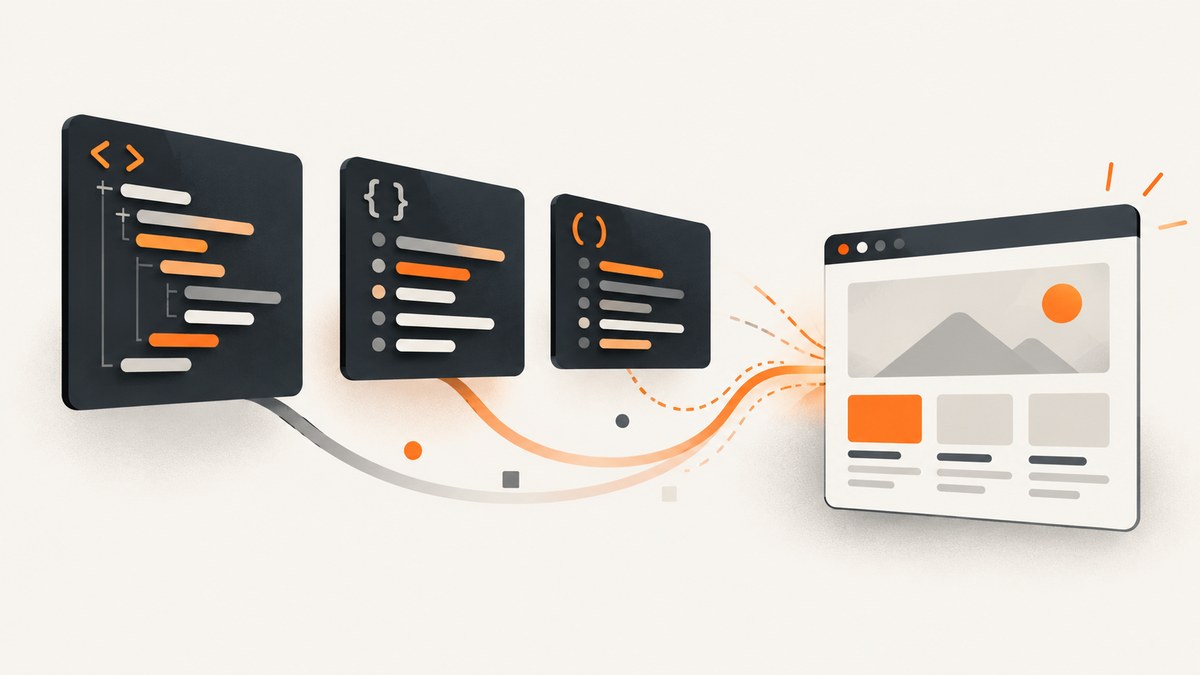
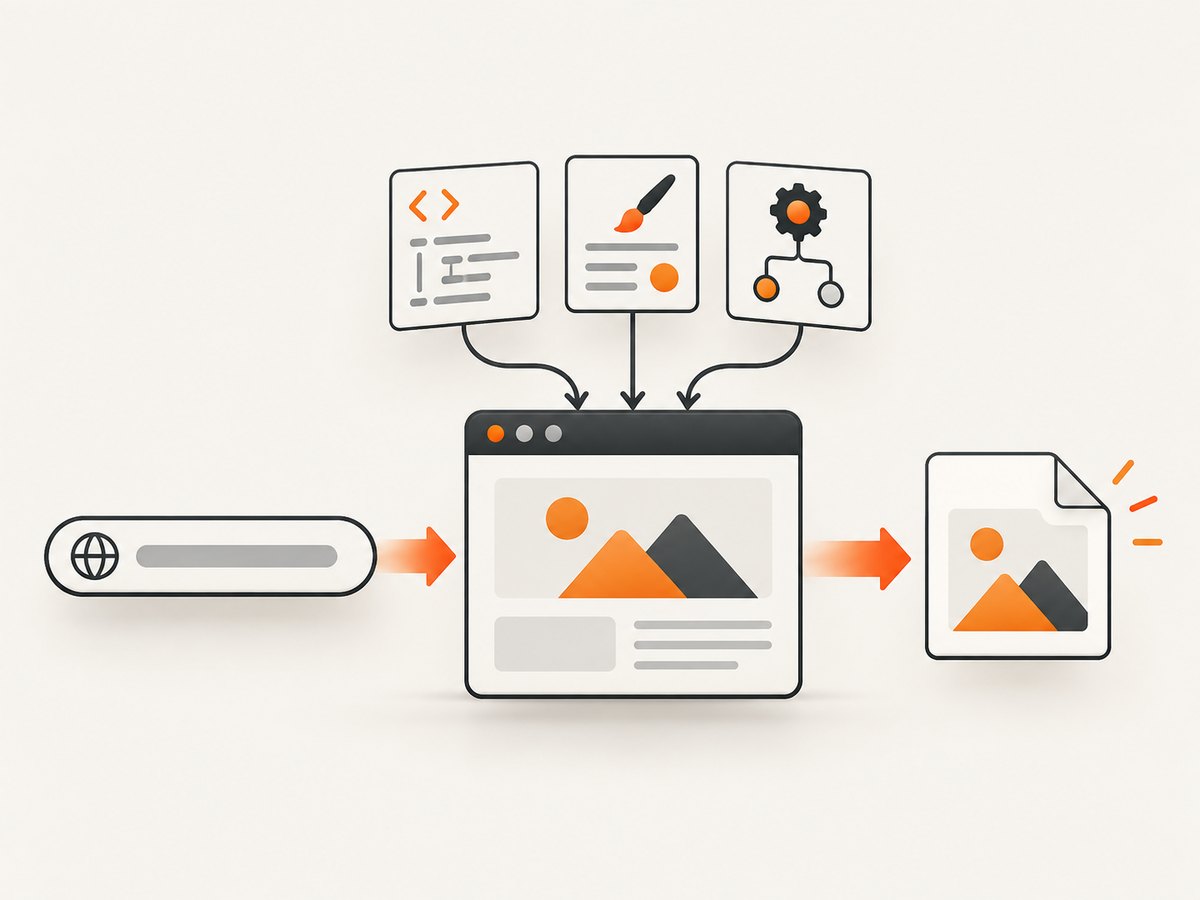
To convert HTML, CSS, and JavaScript to PNG, render the page in a browser and capture it with Playwright or Puppeteer. This produces an image of the browser-rendered page, including JavaScript-driven content. If the export must run inside a page a user already has open, html2canvas can reconstruct a canvas from DOM and style information, but it is not a literal browser screenshot and does not support every CSS property.
For a server-side script or automated job, start with Playwright or Puppeteer. For a client-side “export this component” button, try html2canvas and check its rendering and cross-origin limitations early. The examples below save PNG files and show how to control the viewport, wait for content, capture a region, and handle common failures.
1. Choose the capture method
| Method | Use it when | Trade-off |
|---|---|---|
| Playwright | You need a browser-rendered page, automation, or server-side capture. | You must run browser automation and wait for the page state you want. |
| Puppeteer | Your project already uses Puppeteer or its screenshot controls fit the job. | As with Playwright, you need to operate a browser and manage readiness. |
| html2canvas | A user should export a component from the webpage already open in their browser. | It reconstructs the image from DOM data; browser rendering and unsupported CSS may differ. |
There is no source-backed general speed or fidelity winner between Playwright and Puppeteer. Choose based on your existing project and the capture controls you need, then test the actual page. Both document page screenshot APIs. Playwright Page API · Puppeteer ScreenshotOptions.
2. Capture a rendered page with Playwright
This Node.js example opens a URL, sets a viewport, waits for the document and fonts, and saves a PNG. The readiness waits are a useful starting point, not a guarantee that every site has finished loading application data, images, or animations.
import { chromium } from 'playwright';

const browser = await chromium.launch({ headless: true });
try {
  const page = await browser.newPage({
    viewport: { width: 1440, height: 1000 },
    deviceScaleFactor: 1,
  });
  await page.goto('https://example.com', { waitUntil: 'networkidle' });
  await page.evaluate(() => document.fonts.ready);
  await page.screenshot({ path: 'page.png', fullPage: true, type: 'png' });
} finally {
  await browser.close();
}
Install Playwright in your project with npm install playwright and install its browser with npx playwright install chromium. Run the file with Node.js in an environment where the browser can launch. For CI or a server, include the browser installation in the deployment setup rather than assuming it exists on the host.
Capture one element instead of the whole page
Use a locator screenshot when the target is a chart, card, receipt, or other component. Make sure the locator resolves to the intended visible element.
const card = page.locator('#report-card');
await card.waitFor({ state: 'visible' });
await card.screenshot({ path: 'report-card.png', type: 'png' });
To capture the viewport, omit fullPage (or set it to false) on the page screenshot. To capture a particular region, use an element locator or the framework’s clipping controls. Element capture is often easier to reason about than calculating coordinates: a fixed clip can shift if layout, fonts, or viewport dimensions change.
Control readiness and repeatability
- Set the intended viewport before navigation or capture. Responsive breakpoints change layout and content.
- Wait for a concrete page state: a selector, a known application-ready signal, or a deliberate delay if the site has no better signal.
- Wait for fonts and important images when they affect layout. For images, inspect
img.completeand ensure the relevant content has loaded. - Disable or control animation if repeatable output matters. A screenshot taken halfway through a transition can differ from the next run.
- Capture the page, full document, or target element that matches the desired output.
networkidle can be convenient, but pages with persistent network connections or polling may never become idle. In that case wait for a specific selector or application signal instead. Lazy-loaded images may not appear below the fold until scrolled into view; use the page’s full-page behavior and verify the result, or scroll through the document before capturing if the page requires it.
3. Capture a rendered page with Puppeteer
Puppeteer is another browser automation option. Install it with npm install puppeteer. This complete example launches a browser, configures the viewport, navigates, and writes a full-page PNG.
import puppeteer from 'puppeteer';

const browser = await puppeteer.launch({ headless: true });
try {
  const page = await browser.newPage();
  await page.setViewport({ width: 1440, height: 1000, deviceScaleFactor: 1 });
  await page.goto('https://example.com', { waitUntil: 'networkidle0' });
  await page.evaluate(() => document.fonts.ready);
  await page.screenshot({ path: 'page.png', type: 'png', fullPage: true });
} finally {
  await browser.close();
}
For an element, select it and call its screenshot method:
const element = await page.$('#report-card');
if (!element) throw new Error('Could not find #report-card');
await element.screenshot({ path: 'report-card.png', type: 'png' });
Puppeteer also documents clipping a region and omitting the default background when transparency is needed. Check the screenshot option reference for the current option names and combinations.
4. Export a component with html2canvas
html2canvas runs in the browser and creates a canvas from the current document’s DOM and computed styles. It does not ask the browser to take a screenshot. Install it with npm install html2canvas, load it in your client-side application, and call it on the element to export.
import html2canvas from 'html2canvas';

const element = document.querySelector('#report-card');
if (!element) throw new Error('Could not find #report-card');

const canvas = await html2canvas(element, {
  backgroundColor: '#ffffff',
  scale: window.devicePixelRatio || 1,
});

const png = canvas.toDataURL('image/png');
const link = document.createElement('a');
link.href = png;
link.download = 'report-card.png';
link.click();
Run this in a browser context after the component is rendered. The project’s documentation explains the rendering model and its limitations: html2canvas documentation.
Because the output is reconstructed, validate the CSS you rely on rather than assuming every browser effect is reproduced. Cross-origin images and canvases are subject to browser security rules. html2canvas cannot bypass those restrictions, and it cannot read cross-origin iframe contents. Same-origin iframe rendering is supported. For oversized captures, the FAQ warns that browser canvas limits vary and output may be blank or partial; very tall pages may need to be split and tested on target browsers. See the html2canvas FAQ.
5. Set PNG size, scope, and appearance
| Decision | What it changes | Practical guidance |
|---|---|---|
| Viewport | Responsive layout and visible area. | Use explicit width and height to make runs comparable. |
| Viewport vs full page | Whether the image shows the current screen or the document’s full height. | Use viewport for previews; full page for long-page records, and check lazy content. |
| Element vs page | Whether to export one component or the overall page. | Prefer a stable selector when exporting a component. |
| Scale | Output pixel dimensions relative to CSS pixels. | Playwright supports CSS-pixel and device-pixel scaling. Device scale creates more pixels and a larger image. |
| Background | Whether the image includes a page background or can be transparent. | Set a known background for consistent PNGs; use transparency only when the capture API supports it. |
Playwright describes CSS scaling as one output pixel per CSS pixel, while device scaling follows the device pixel ratio. The appropriate choice depends on where the image will be displayed or processed. Higher pixel dimensions can increase memory use and file size. Avoid extremely tall, high-scale captures unless required; split long pages into sections if the browser or downstream image tools struggle.
6. Or skip the browser setup
ScreenshotNeo is a website screenshot API and MCP server for developers. One GET request returns a PNG, JPEG, WebP, or PDF. See the ScreenshotNeo site and API documentation.

curl -G "https://api.screenshotneo.com/v1/shot" \
  -d access_key=YOUR_API_KEY \
  --data-urlencode url=https://example.com \
  -o shot.png
For Python:
import requests

r = requests.get(
    "https://api.screenshotneo.com/v1/shot",
    params={"access_key": "YOUR_API_KEY", "url": "https://example.com"},
    timeout=90,
)
r.raise_for_status()
open("shot.png", "wb").write(r.content)
For Node.js:
const q = new URLSearchParams({
  access_key: 'YOUR_API_KEY',
  url: 'https://example.com',
});
const res = await fetch(`https://api.screenshotneo.com/v1/shot?${q}`);
if (!res.ok) throw new Error(`Screenshot request failed: ${res.status}`);
await import('node:fs/promises').then(async fs => {
  await fs.writeFile('shot.png', Buffer.from(await res.arrayBuffer()));
});
Cookie banners, popups, and chat widgets are removed before capture; each cleanup step can be turned off. Bot checks, blank pages, and failed loads are never billed, and response headers say the page verdict and billing status. An MCP server lets AI agents use screenshot tools. The free plan includes 1,000 screenshots a month with no card; paid plans start at $5 for 3,000. Get 1,000 free screenshots a month with no card.
7. Troubleshoot common PNG capture problems
| Symptom | Likely cause | Fix |
|---|---|---|
| PNG is blank or has missing sections | Capture ran before the app rendered, content is lazy-loaded, or a canvas hit a size limit. | Wait for a page-specific ready selector; scroll to load lazy content; reduce scale or split a very tall capture. |
| Fonts or layout differ between runs | Fonts or data were still loading, or viewport and device scale differ. | Set viewport explicitly, wait for document.fonts.ready and app readiness, and keep capture settings fixed. |
| html2canvas omits an image | The image is cross-origin or violates browser canvas security rules. | Serve the asset with suitable same-origin/CORS access, or use browser automation to capture the rendered page. html2canvas cannot override browser security. |
| html2canvas output does not match the browser | A required CSS feature is unsupported or reconstructed differently. | Check the library’s supported behavior and test a small representative component. Use Playwright or Puppeteer when browser-render fidelity is required. |
| Navigation wait never finishes | The page keeps connections open or polls continuously. | Replace network-idle waiting with a selector, application-ready signal, or bounded wait for the content you need. |
| Element selector is missing | The selector is wrong, content is conditional, or capture runs before it appears. | Check the selector in the loaded page and wait for it to become visible before taking the element screenshot. |
| Output looks soft or is unexpectedly large | Scale or device pixel ratio is higher than intended. | Choose CSS-pixel scaling or set device scale factor deliberately; compare output dimensions before raising scale. |
8. Performance, reliability, and cost
Playwright and Puppeteer require launching and maintaining a browser runtime, so account for browser installation, process cleanup, and concurrency in a server job. Reuse a browser process where the job architecture permits it, while keeping page state isolated between captures. Always close pages and browsers in cleanup paths. The cited documentation does not establish universal runtime, hosting cost, or throughput figures; measure your own pages and environment.
For reliable output, make capture inputs explicit: viewport, scale, target, wait condition, and background. Retry only failures that may be transient, with a bounded retry policy; a selector that never exists or a permanent access denial will not be fixed by repeated attempts. Record the target URL and relevant capture settings alongside generated files so differences can be diagnosed.
With html2canvas, execution uses the visitor’s browser and its available memory. Large canvases can fail or produce partial output, and platform limits vary. Test the longest realistic page and the browsers you support. For a server-side renderer, the project FAQ points to headless browser automation such as Playwright or Puppeteer rather than using html2canvas alone.
For a managed API, include request volume and output requirements in the cost calculation. ScreenshotNeo’s listed plans are Free: 1,000 shots/month; Starter: $5 for 3,000; Growth: $15 for 15,000; Pro: $39 for 60,000; Scale: $99 for 250,000; Business: $249 for 1,000,000. Yearly billing gives two months free, and every feature is on every plan. Only clean shots are billed; cache hits and failed or unusable captures do not cost anything according to the product facts supplied here. Check the response’s page-verdict and billed headers when integrating billing-sensitive workflows.
9. FAQ
Can I convert an HTML string directly to PNG?
Yes: put the markup in a browser page, include its CSS and scripts, wait for the rendered state, then capture with Playwright or Puppeteer. The image represents the page after rendering, not the source text.
Does html2canvas run in Node.js by itself?
No. It depends on browser globals such as window and document. For server-side capture, use browser automation or a screenshot API.
Should I choose Playwright or Puppeteer?
Use the framework that fits your existing stack and required capture options. The sources establish capabilities such as full-page capture, element or region targeting, scale, and transparency, but do not establish a universal winner.
Why does a PNG differ from what I see on screen?
It may have been captured at a different viewport or scale, before fonts or content loaded, during animation, or with a DOM reconstruction library that does not reproduce the browser’s rendering.
Can I capture cross-origin iframe content with html2canvas?
No. Browser security restrictions prevent access to cross-origin iframe contents; html2canvas does not bypass them.


