Better Ways to Convert HTML and CSS into an Image
Compare Playwright, Puppeteer, html2canvas, shot-scraper and ScreenshotNeo for reliable HTML and CSS image conversion.
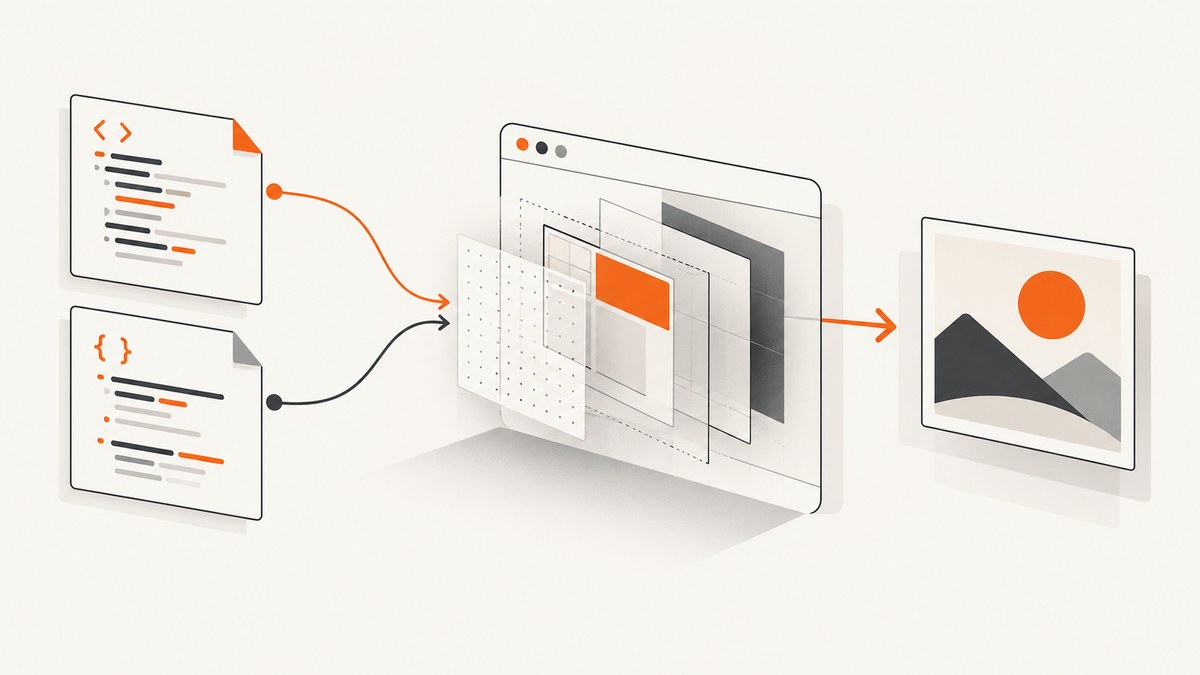
Direct answer: If the output must match what a browser displays, render the page in a real browser with Playwright or Puppeteer and capture the page or a selected element. Use html2canvas for an in-page, client-side export when its CSS, cross-origin and canvas limits fit your page. Use shot-scraper when you want a command-line workflow, including local HTML files with relative assets. For repeated server-side captures without maintaining a browser stack, ScreenshotNeo provides a single HTTP request.
HTML and CSS are instructions, not pixels. The browser resolves styles, downloads fonts and images, executes JavaScript, lays out boxes, paints layers and composites the final result. Your conversion method determines how much of that process is reproduced. The right choice depends on rendering fidelity, where the code runs, which region you need, how dynamic the page is and whether external assets are involved.
Choose a conversion method
| Need | Best starting point | Reason |
|---|---|---|
| Pixel output close to a normal browser | Playwright or Puppeteer | They capture the browser-rendered page, including layout and JavaScript results. |
| Client-side export inside your web app | html2canvas | No server browser is required, but only supported CSS and readable assets are reproduced. |
| Local HTML from a terminal | shot-scraper | Its documented file workflow includes relative CSS and image references. |
| Managed API or automated pipeline | ScreenshotNeo | Clean shots, only clean shots billed, and a $5 paid plan for 3,000 shots. |
Do not select a tool from speed claims alone. The supplied documentation does not provide a comparable benchmark. Instead, make the render deterministic: fix the viewport, device scale, fonts, image loading, animations, locale and dynamic data before capture.
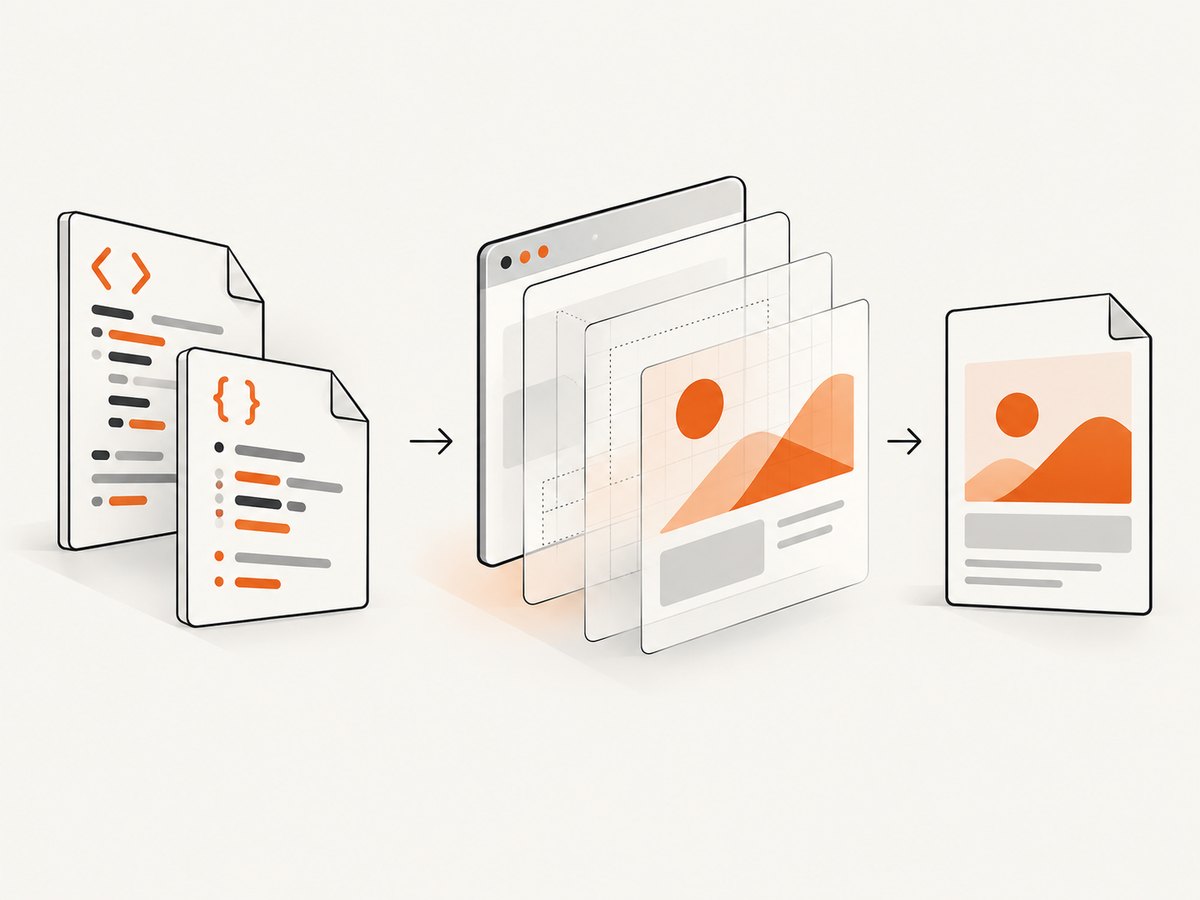
Playwright: browser-faithful screenshots
Playwright launches a browser, navigates to a URL or loads your HTML, then exposes page, full-page, element, file and in-memory buffer screenshots. This is the broadest default for repeatable automation.
Install and capture a page
npm install playwright
npx playwright install chromium
const { chromium } = require('playwright');
(async () => {
const browser = await chromium.launch();
const page = await browser.newPage({
viewport: { width: 1440, height: 900 },
deviceScaleFactor: 1
});
await page.goto('https://example.com', { waitUntil: 'networkidle' });
await page.screenshot({ path: 'page.png', fullPage: true });
await browser.close();
})();fullPage: true captures the full scrollable document. Omit it for the current viewport. To keep bytes in memory instead of writing a file, omit path and use the returned buffer:
const imageBytes = await page.screenshot({ type: 'webp', quality: 85 });Capture one element
const card = page.locator('.invoice-card');
await card.screenshot({ path: 'invoice-card.png' });
Element capture is useful for cards, charts and receipts. Make sure the selector resolves to a visible element. A hidden, detached or zero-size element will fail or produce an unusable image.
Render your own HTML and CSS
const { chromium } = require('playwright');
const fs = require('node:fs/promises');

(async () => {
  const html = await fs.readFile('./invoice.html', 'utf8');
  const browser = await chromium.launch();
  const page = await browser.newPage({ viewport: { width: 1200, height: 800 } });
  await page.setContent(html, { waitUntil: 'networkidle' });
  await page.screenshot({ path: 'invoice.png', fullPage: true });
  await browser.close();
})();
For local assets, use absolute file URLs or serve the directory over HTTP so relative paths, fonts and styles resolve predictably. Wait for web fonts and images before capture:
await page.evaluate(() => document.fonts.ready);
await page.waitForFunction(() => [...document.images].every(img => img.complete));
Make output deterministic
- Set an explicit viewport and
deviceScaleFactor. - Disable or freeze animations with an injected stylesheet.
- Use a fixed timezone, locale and test data.
- Wait for a meaningful selector, not only a short timeout.
- Close cookie dialogs and other overlays before capture.
await page.addStyleTag({ content: `*, *::before, *::after {
  animation: none !important;
  transition: none !important;
  caret-color: transparent !important;
}` });
await page.locator('[data-ready="true"]').waitFor();
Puppeteer: a natural Node.js alternative
Puppeteer documents Page.screenshot() for page images and ElementHandle.screenshot() for an individual element. Its familiar pattern is navigation, a network-idle wait, capture and browser shutdown.
npm install puppeteerconst puppeteer = require('puppeteer');
(async () => {
const browser = await puppeteer.launch();
const page = await browser.newPage();
await page.setViewport({ width: 1440, height: 900, deviceScaleFactor: 1 });
await page.goto('https://example.com', { waitUntil: 'networkidle2' });
await page.screenshot({ path: 'page.png', fullPage: true });
await browser.close();
})();For an element:
const element = await page.$('.invoice-card');
if (!element) throw new Error('invoice-card was not found');
await element.screenshot({ path: 'invoice-card.png' });
Choose Puppeteer when your existing Node code and browser tooling already use it. Choose Playwright when you want its documented cross-browser automation surface or built-in locator model. Neither should be treated as universally faster without measurements on your own pages.
html2canvas: client-side DOM reconstruction
html2canvas runs in the user’s browser and reconstructs an image by reading the DOM and CSS properties it understands. The project explicitly describes this as a “screenshot” taken directly in the user’s browser, but it is not a literal browser screenshot. Unsupported CSS can diverge from the visible page.
<script src="https://cdn.jsdelivr.net/npm/html2canvas@1.4.1/dist/html2canvas.min.js"></script>
<script>
  async function saveCard() {
    const node = document.querySelector('.invoice-card');
    const canvas = await html2canvas(node, {
      backgroundColor: '#ffffff',
      scale: window.devicePixelRatio,
      useCORS: true
    });
    const link = document.createElement('a');
    link.download = 'invoice-card.png';
    link.href = canvas.toDataURL('image/png');
    link.click();
  }
</script>
Limits you must check
- Images generally need to be same-origin, served with suitable CORS headers or fetched through a proxy. A cross-origin-tainted canvas may not be readable.
- Cross-origin iframes cannot be rendered because browser security prevents access to their documents.
- Only CSS properties implemented by html2canvas are reproduced; complex filters, blend modes or browser-specific painting may differ.
- It depends on
window,documentand computed styles, so it is client-side only. For server-side generation, its FAQ recommends a headless browser such as Puppeteer or Playwright. - Very large canvases can be blank or partially rendered. The FAQ gives rough guidance of about 32,767 pixels as a maximum dimension in desktop Chromium and Firefox, but limits vary by browser, platform and hardware.
Use html2canvas when users need an export button inside an existing page and you control the assets. Do not use it as a drop-in replacement for a browser screenshot when pixel fidelity matters.
shot-scraper for command-line and local HTML
shot-scraper documentation describes capturing a local HTML file, including relative CSS and image references. It also supports waiting after load and running JavaScript before capture.
pip install shot-scraper
shot-scraper install
shot-scraper file invoice.html -o invoice.pngWhen content appears after load, add a wait or pre-capture script using the options documented by your installed release. Keep the command and browser version pinned in CI because rendering can change when fonts, browser binaries or operating-system libraries change.
Or skip the browser setup
ScreenshotNeo is a website screenshot API and MCP server. One GET request returns PNG, JPEG, WebP or PDF. See the API documentation for the complete parameter list.
curl -G "https://api.screenshotneo.com/v1/shot" -d access_key=YOUR_API_KEY --data-urlencode url=https://stripe.com -o shot.webpimport requests
r = requests.get("https://api.screenshotneo.com/v1/shot", params={"access_key": "YOUR_API_KEY", "url": "https://stripe.com"}, timeout=90)
open("shot.webp", "wb").write(r.content)const q = new URLSearchParams({ access_key: 'YOUR_API_KEY', url: 'https://stripe.com' });
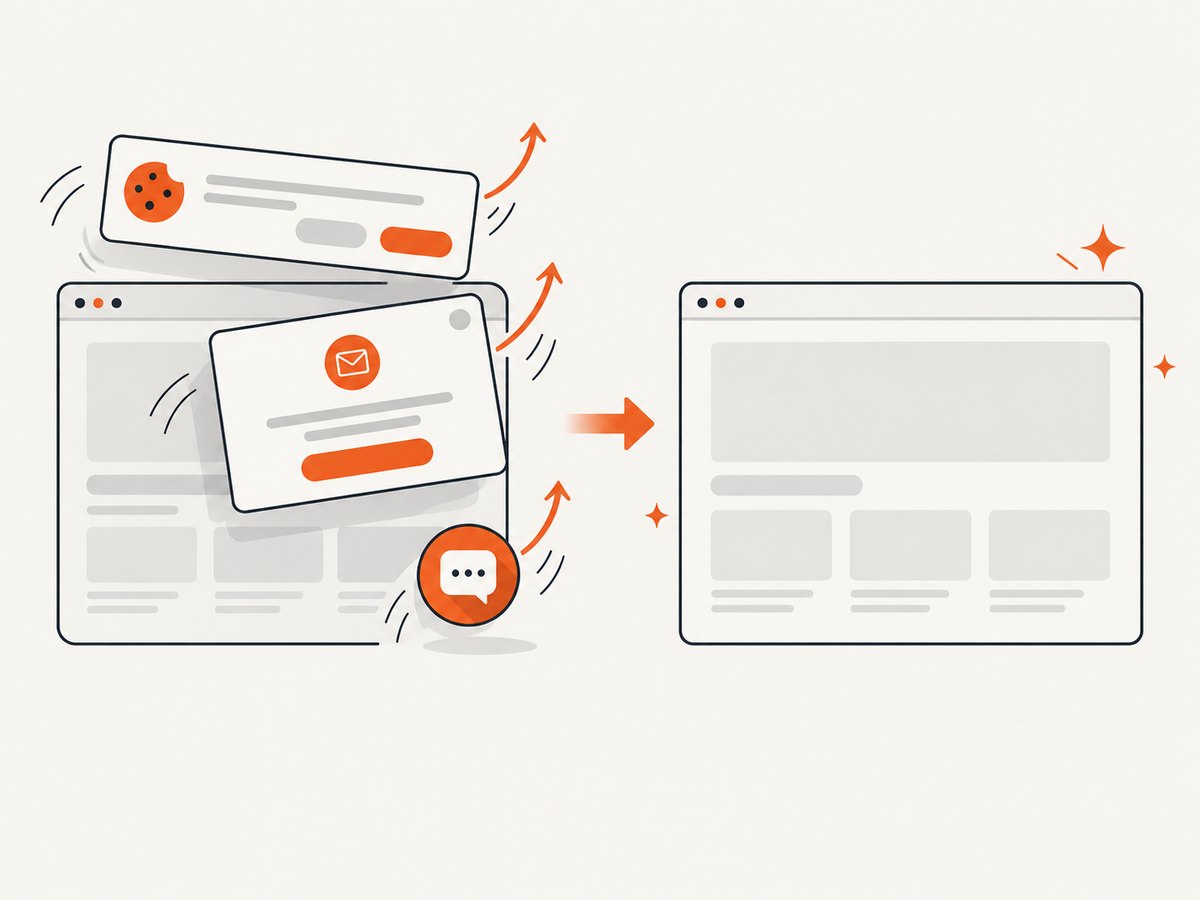
const res = await fetch(`https://api.screenshotneo.com/v1/shot?${q}`);Cookie banners, newsletter popups and chat widgets are removed before the shot. Bot checks, blank pages, failed loads, timeouts and cache hits are not billed; response headers identify the page verdict and whether it was billed. Options include full-page or CSS-element capture, dark mode, device presets or custom viewports, retina scale, PDF paper settings, custom CSS and JavaScript, clicks, selector waits, delays, network-idle waits, ad and tracker blocking, custom headers, cookies, user agents, Authorization, timezone, geolocation, transparent backgrounds, resizing, selectable cache TTL, signed image links, asynchronous jobs with signed webhooks, bulk capture of up to 100 URLs per call, a usage API and an OpenAPI specification. An MCP server provides take_screenshot, get_page_info and capture_pdf for Claude, Cursor and other MCP clients.
There is a free allowance of 1,000 shots per month with no card. Paid plans start at $5 for 3,000 shots; every feature is on every plan, and yearly billing gives two months free. Create a free ScreenshotNeo account.
Options that affect the final image
Viewport, scale and format
A wider viewport can change responsive breakpoints and line wrapping. Device scale affects pixel dimensions without changing CSS layout. PNG preserves sharp text and transparency; JPEG is smaller for photographic pages; WebP often offers a compact compromise. For print output, use PDF capture with paper size, margins, orientation and page ranges rather than stitching very tall images.
Full page versus element
Full-page capture includes the scrollable document and may expose sticky headers repeatedly or create very tall files. Element capture avoids unrelated content but requires a stable selector and enough space for the element’s contents. For virtualized lists, scroll or expand the component before capture so off-screen rows exist in the DOM.
Dynamic content and lazy assets
Network idle does not guarantee that an image lazy-load threshold was reached or that a chart finished drawing. Scroll through the page, wait for a ready marker, or use a selector-specific wait. Freeze clocks and random data when visual diffs must be stable.
Troubleshooting
| Symptom | Likely cause | Fix |
|---|---|---|
| Blank image | Navigation failed, a canvas limit was exceeded, or the target has no painted area. | Check the response and browser console, reduce dimensions, capture an element, and wait for content. |
| Fonts fall back | Web fonts have not loaded or are blocked. | Await document.fonts.ready, verify font responses and bundle a known font for CI. |
| Images missing in html2canvas | Cross-origin restrictions or missing CORS headers. | Serve images same-origin, configure CORS, or use Playwright/Puppeteer. |
| Cross-origin iframe absent | Browser security prevents reading the iframe document. | Capture the iframe’s own URL separately or use a server-side workflow with permission. |
| Element not found | Selector is wrong, content is delayed, or the element is inside a shadow root. | Wait for the selector, inspect shadow DOM explicitly and verify the page state. |
| Layout differs between runs | Viewport, device scale, fonts, locale, animation or data changed. | Pin all of them and disable transitions before capture. |
| Timeouts | A page never reaches the chosen load condition or a third-party request hangs. | Use a bounded timeout, wait for a specific readiness signal and block unnecessary resources. |
| ScreenshotNeo verdict is not clean | The target returned a bot check, blank page, timeout or failed load. | Inspect X-Page-Verdict, adjust headers or waits, and retry only when the page can render for a normal visitor. |
Performance, reliability and cost
- Browser startup: Reuse one Playwright or Puppeteer browser process and create isolated pages for jobs. Close pages and contexts to prevent memory growth.
- Concurrency: Limit parallel pages based on available CPU and memory. Too many Chromium workers cause contention and increase timeouts.
- Assets: Block ads, trackers and unneeded resource types when they do not affect the target. This reduces work but can change layout if a blocked script is required.
- Determinism: Pin browser binaries, fonts and viewport settings. Store a failure screenshot and console log so visual regressions are diagnosable.
- Retries: Retry transient navigation failures with a cap and backoff. Do not blindly retry bot checks or permanently missing selectors.
- Cost: Self-hosted browsers consume compute, storage and maintenance time. html2canvas avoids a server browser but shifts compatibility work to every client. ScreenshotNeo charges only for clean shots; bot checks, blank pages, timeouts, failed loads and cache hits are free, and its response headers show billing status.
Practical decision checklist
- Does the image need to match a real browser? Choose Playwright or Puppeteer.
- Must conversion happen in the user’s page? Check html2canvas CSS and origin constraints.
- Are you converting local files from a terminal? Use shot-scraper.
- Do you need an API, bulk jobs, signed links or AI-agent tools? Use ScreenshotNeo.
- Define the capture contract: URL, viewport, scope, format, readiness signal, timeout and retry policy.
- Test slow fonts, lazy images, consent dialogs, bot checks, long pages and cross-origin resources before production.
FAQ
Can CSS alone be converted to an image?
No. CSS needs an HTML document and a rendering engine. The engine computes layout and paints the result; a converter must either run that engine or reconstruct supported properties.
Which tool works on a server?
Playwright, Puppeteer, shot-scraper and ScreenshotNeo support server-side workflows. html2canvas depends on browser APIs and is designed for client-side use.
How do I capture a chart rendered on a canvas?
Wait until the chart library signals completion, then capture its element with a browser automation tool. html2canvas may work for same-origin canvas content, but verify the result and dimensions.
Should I use a screenshot or PDF for printing?
Use PDF when paper size, margins, orientation and page ranges matter. Use an image for previews, social cards and pixel-based asset pipelines.
How can an AI agent request a screenshot?
Connect an MCP client to ScreenshotNeo and use its take_screenshot, get_page_info or capture_pdf tools.


