How to Convert an HTML Document to JPEG
Render HTML in a browser, capture the pixels, and encode them as JPEG. Compare Chrome CLI, automation libraries, Gotenberg, and ScreenshotNeo.
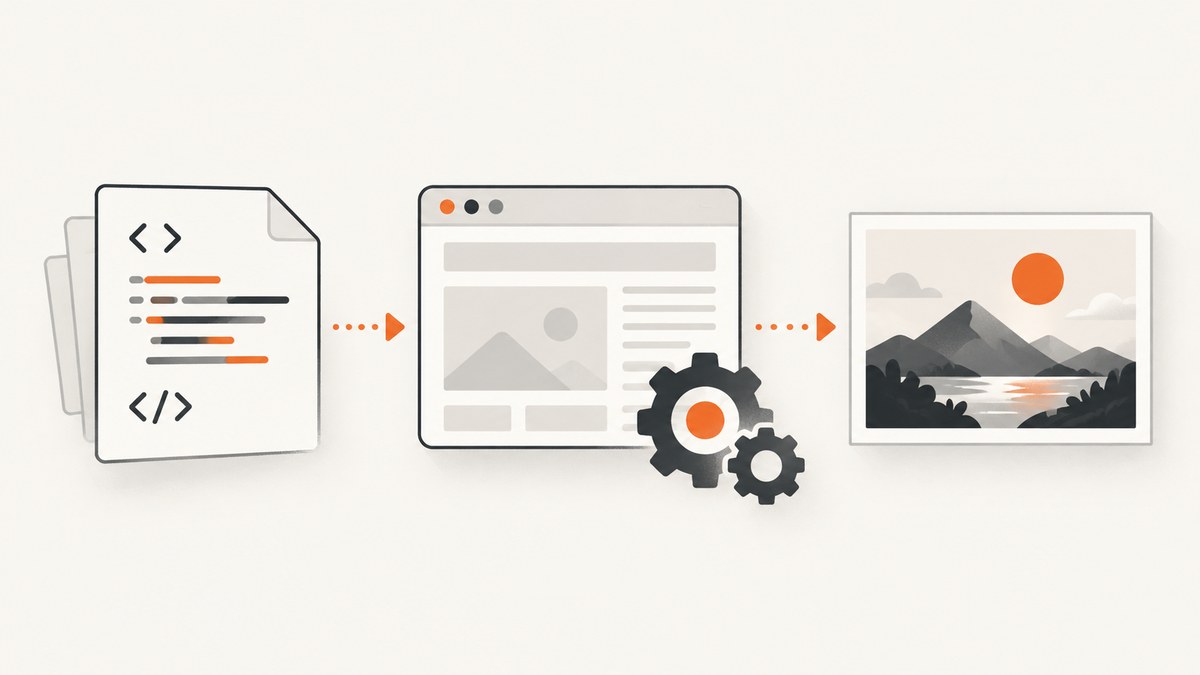
Direct answer: HTML is markup, not an image. Load the document in a browser engine, capture the rendered pixels, then encode those pixels as JPEG. Chrome Headless’ documented command-line screenshot writes PNG, so convert that PNG to JPEG, or use browser automation that supports JPEG output directly.
Choose the method that matches your input and deployment:
| Method | JPEG encoding | Best for | Main requirement |
|---|---|---|---|
| Chrome Headless CLI + converter | Second step | One-off local captures and scripts | Chrome and an image converter |
| Browser automation | Direct | JavaScript-rendered pages and repeatable jobs | Chrome plus a library such as Puppeteer or chrome-php/chrome |
| Gotenberg | Service endpoint | Teams that already run a conversion service | Gotenberg deployment |
| ScreenshotNeo | Direct API response | Remote URLs without managing browsers | ScreenshotNeo API key |
1. Decide what you are capturing
Before writing a command, decide whether the JPEG should contain the visible viewport, one element, or the entire document.
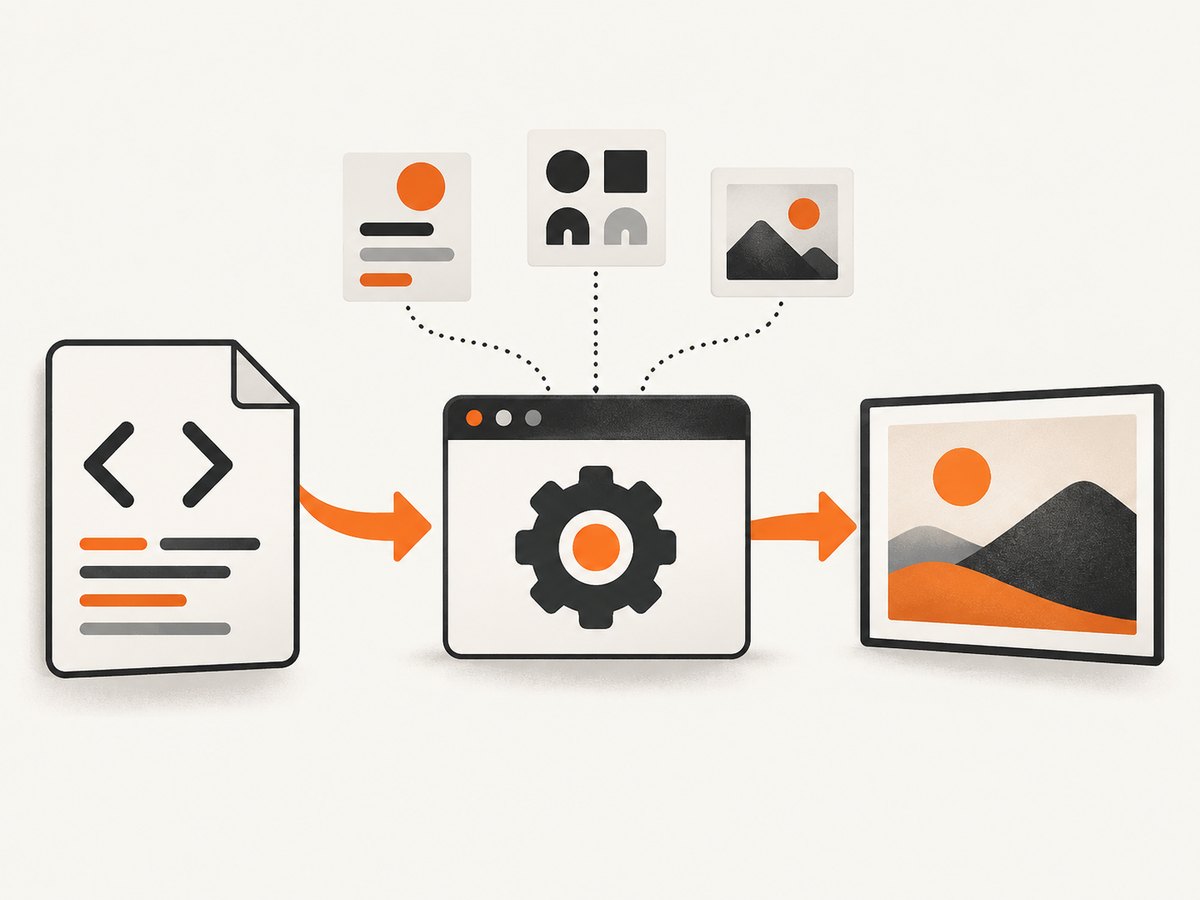
- Viewport: captures the browser’s visible area. Set width and height explicitly for repeatable output.
- Full page: captures content beyond the initial viewport when the chosen browser tool supports it.
- Element: captures a selected component, such as a chart or invoice, when the automation library supports a clip or selector.
Also decide whether the page is static or depends on JavaScript, delayed requests, fonts, or remote images. A screenshot taken before those resources settle can be incomplete.
2. Fast local workflow: Chrome Headless, then JPEG conversion
Chrome’s command-line reference documents this pattern:
chrome --headless --screenshot --window-size=412,892 https://developer.chrome.com/The command writes screenshot.png in the current directory. Convert it with an image utility such as ImageMagick:
magick screenshot.png -quality 85 output.jpgUse a quality value appropriate for your visual and file-size requirements. There is no single best value for every document; inspect representative output at the quality you choose.
Wait for dynamic content
Chrome provides --timeout to cap how long it waits before capture and --virtual-time-budget to advance time-dependent page code:
chrome --headless \
  --screenshot=page.png \
  --window-size=1440,1200 \
  --timeout=15000 \
  --virtual-time-budget=5000 \
  https://example.com/
These options help with pages that populate asynchronously, but they do not guarantee that every external request or application-specific operation has completed. Verify the resulting image when completeness matters. See the Chrome Headless mode documentation and the command-line reference.
3. Convert HTML to JPEG with browser automation
Automation gives you control over navigation, waiting, viewport dimensions, clipping, and output format. Chrome’s current Headless mode shares code with Chrome and can be driven through tools such as Puppeteer.
Node.js with Puppeteer
import puppeteer from 'puppeteer';

const browser = await puppeteer.launch({headless: true});
const page = await browser.newPage();
await page.setViewport({width: 1440, height: 1200, deviceScaleFactor: 1});
await page.goto('https://example.com/', {waitUntil: 'networkidle0', timeout: 30000});
await page.screenshot({path: 'page.jpg', type: 'jpeg', quality: 85, fullPage: true});
await browser.close();
Install Puppeteer in the project that runs this script, and ensure its Chromium runtime is available. Replace the URL with a local file or hosted document that the browser can reach.
PHP with chrome-php/chrome
The chrome-php/chrome documentation demonstrates direct JPEG output and a configurable quality value:
$screenshot = $page->screenshot([
    'format' => 'jpeg',
    'quality' => 80,
]);
$screenshot->saveToFile('/path/to/output.jpg');
For a document that extends below the viewport, use the library’s full-page pattern with captureBeyondViewport and a full-page clip. The exact setup depends on your installed version and browser launch configuration.
Python with Playwright
from playwright.sync_api import sync_playwright

with sync_playwright() as p:
    browser = p.chromium.launch(headless=True)
    page = browser.new_page(viewport={"width": 1440, "height": 1200})
    page.goto("https://example.com/", wait_until="networkidle", timeout=30_000)
    page.screenshot(path="page.jpg", type="jpeg", quality=85, full_page=True)
    browser.close()
Set an explicit viewport and choose a wait condition that matches the page. Network idle is useful for many pages, but a page can still update after network activity falls quiet.
4. Convert an HTML file and its local assets
A local document must be opened by the browser in a way that allows its stylesheets, fonts, images, and scripts to resolve. A simple approach is to serve the directory over HTTP:
python -m http.server 8000 --directory ./siteThen capture http://127.0.0.1:8000/index.html with Chrome, Puppeteer, Playwright, or another browser tool. Serving the files avoids path differences between operating systems and makes relative asset URLs behave like they do in production.
Python: render HTML, then encode with Pillow
from pathlib import Path
from PIL import Image
from playwright.sync_api import sync_playwright

html_path = Path("index.html").resolve()
with sync_playwright() as p:
    browser = p.chromium.launch(headless=True)
    page = browser.new_page(viewport={"width": 1200, "height": 900})
    page.goto(html_path.as_uri(), wait_until="load")
    page.screenshot(path="render.png", full_page=True)
    browser.close()

with Image.open("render.png") as image:
    image.convert("RGB").save("render.jpg", format="JPEG", quality=85)
JPEG has no alpha channel. Converting to RGB gives transparent areas a defined background before encoding; choose a CSS background color if the document must not render transparent regions as black or another default.
5. Use Gotenberg when you need an HTTP service
Gotenberg’s Chromium screenshot route accepts an index.html file and optional assets, with controls for screenshot dimensions and clipping. This fits batch or service integration when your team already operates Gotenberg.
Remote stylesheets, fonts, and images must be reachable from the Gotenberg container. For local assets, send the HTML and those assets together according to the service documentation. Confirm the route and options against the version you deploy.
6. Make the rendered image complete and consistent
- Fonts: wait until web fonts have loaded if typography affects layout. A missing font can change line breaks and page height.
- Images: confirm that remote URLs are accessible from the capture environment. Broken or blocked images produce blank regions.
- Lazy loading: full-page capture may need scrolling or a tool-specific full-page mode to trigger lazy images.
- Animations: freeze or wait for transitions when a deterministic frame is required.
- Cookies and authentication: provide the required cookies, headers, or login state through your automation tool.
- Color and quality: JPEG is lossy. Use PNG for pixel-perfect text, transparency, or archival screenshots; use JPEG when a smaller photographic-style image is acceptable.
7. Or skip the browser setup
ScreenshotNeo renders a URL and returns PNG, JPEG, WebP, or PDF through one GET request. Host your HTML document at a URL the service can reach, then request JPEG output with the format parameter used by the API.
cURL
curl -G "https://api.screenshotneo.com/v1/shot" \
  -d access_key=YOUR_API_KEY \
  --data-urlencode url=https://example.com/index.html \
  -d format=jpeg \
  -o document.jpg
Python
import requests

r = requests.get(
    "https://api.screenshotneo.com/v1/shot",
    params={
        "access_key": "YOUR_API_KEY",
        "url": "https://example.com/index.html",
        "format": "jpeg",
    },
    timeout=90,
)
r.raise_for_status()
open("document.jpg", "wb").write(r.content)
Node.js
const q = new URLSearchParams({
  access_key: 'YOUR_API_KEY',
  url: 'https://example.com/index.html',
  format: 'jpeg'
});
const res = await fetch(`https://api.screenshotneo.com/v1/shot?${q}`);
if (!res.ok) throw new Error(`Screenshot failed: ${res.status}`);
const fs = await import('node:fs/promises');
await fs.writeFile('document.jpg', Buffer.from(await res.arrayBuffer()));
See the ScreenshotNeo API documentation for the complete option set. It supports full-page capture, CSS-element capture, dark mode, device presets and custom viewports, retina scale, custom CSS and JavaScript, waits, request blocking, headers, cookies, user agents, authorization, timezone, geolocation, resizing, caching, signed links, asynchronous jobs, webhooks, bulk capture, usage reporting, and PDF output.
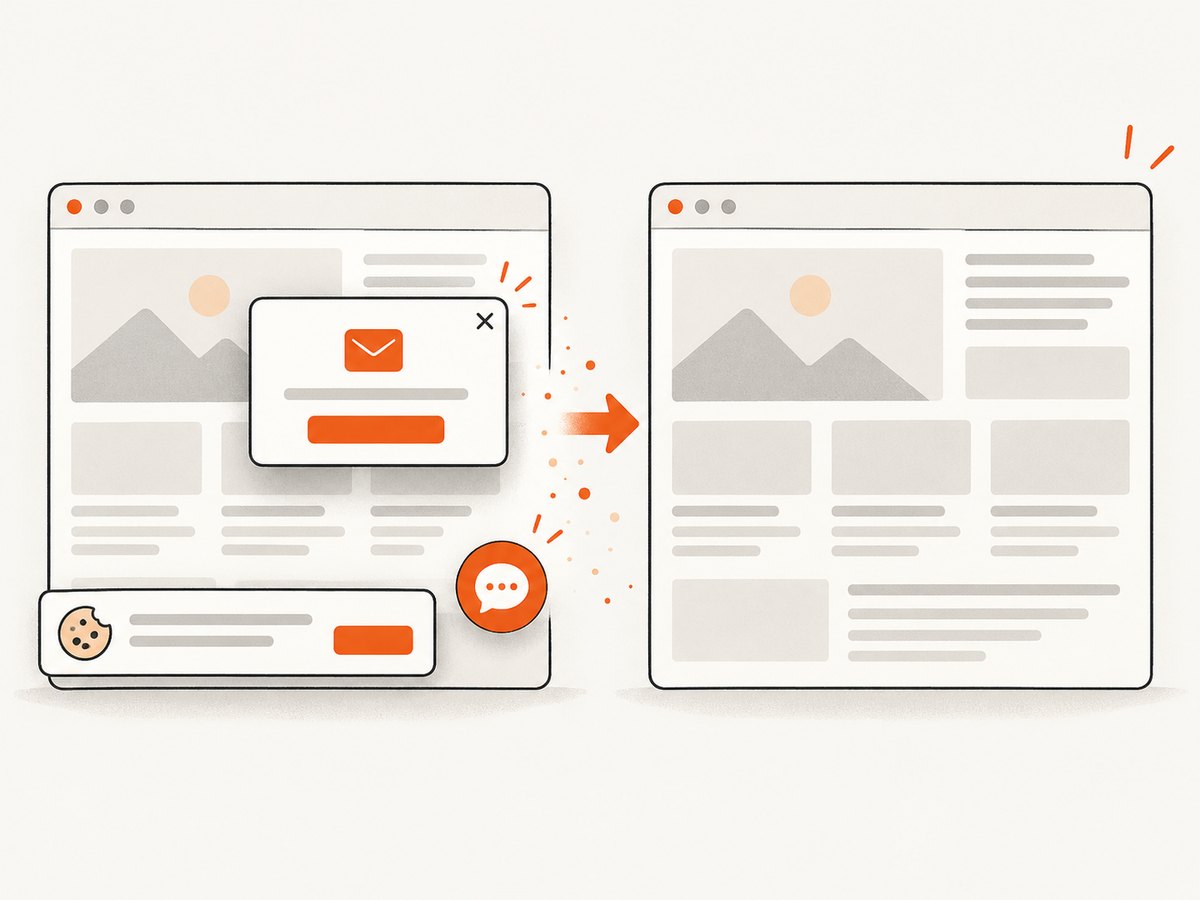
Cookie banners, newsletter popups, and chat widgets are removed before the shot. Bot checks, blank pages, timeouts, failed loads, and cache hits are not billed, and response headers identify the page verdict and billing result. An MCP server provides take_screenshot, get_page_info, and capture_pdf tools for Claude, Cursor, and other MCP clients. The Free plan includes 1,000 screenshots each month without a card; paid plans start at $5 for 3,000 screenshots.
Create a free ScreenshotNeo account and start with 1,000 screenshots per month at no charge.
8. Troubleshooting
| Symptom | Likely cause | Fix |
|---|---|---|
| Output is PNG instead of JPEG | Chrome CLI’s documented screenshot flag writes PNG. | Convert the PNG with an image utility, or use an automation API with JPEG output. |
| Page is cut off | Only the viewport was captured. | Set the viewport deliberately or enable the tool’s full-page capture option. |
| Blank or missing images | Assets are inaccessible from the browser or service. | Check URLs, authentication, firewall rules, and container network access. |
| Fonts or layout differ | Fonts have not loaded or are unavailable in the runtime. | Install/provide the required fonts and wait for them before capture. |
| Dynamic content is absent | Capture occurred before scripts finished. | Use a navigation wait, selector wait, delay, or Chrome’s timeout and virtual-time controls. |
| JPEG has black or unexpected transparent areas | JPEG cannot store transparency. | Set a CSS background and convert the rendered image to RGB before encoding. |
| Automation cannot launch Chrome | Browser binary or runtime is missing or incompatible. | Install a compatible browser/runtime and check the library’s version-specific launch instructions. |
| Service request times out | The page or an external resource does not finish loading. | Reduce blocking resources, set an appropriate timeout, and inspect the target URL independently. |
9. Performance, reliability, and cost considerations
- Reuse browsers: for automation jobs, keep a browser process alive and create separate pages or contexts instead of launching a new process for every image.
- Control dimensions: large full-page images consume more memory and take longer to encode than a fixed viewport.
- Limit waiting: use the shortest wait that reliably includes required assets. Long arbitrary delays reduce throughput without proving completeness.
- Cache stable pages: cache rendered output when the source has not changed, and invalidate it when content or CSS changes.
- Choose format deliberately: JPEG quality trades visual fidelity for file size; PNG preserves sharp text and transparency.
- Retry carefully: retry transient navigation failures, but inspect the page and response status before repeating a deterministic failure.
- Budget for your architecture: local Chrome and open-source libraries have setup and operating costs; a hosted API charges according to its plan and billing rules. The supplied sources do not provide a controlled performance or price comparison between these approaches.
10. FAQ
Can I convert HTML to JPEG without opening a browser?
Not reliably for normal web pages. The HTML must be rendered by a browser engine or equivalent layout engine before its pixels can be encoded as JPEG.
Does Chrome Headless create JPEG directly?
The documented command-line screenshot workflow names a PNG output. Use a second conversion step or an automation API that exposes JPEG output.
What JPEG quality should I use?
Choose based on the visual details and file-size target. The chrome-php/chrome example uses 80, but that is an example rather than a universal recommendation.
Why does my local HTML look different in automation?
Check viewport dimensions, installed fonts, relative asset paths, JavaScript timing, and whether the browser can access local or remote resources.
Can I capture only one element?
Yes when the chosen tool supports element selectors or clipping. Browser automation libraries and ScreenshotNeo both provide ways to target a region rather than the full document.
Sources: Chrome Headless command-line reference; Chrome Headless mode; chrome-php/chrome documentation; Gotenberg documentation; Spatie Browsershot documentation.


