How to Convert an HTML File to a JPG Screenshot
Render an HTML file in a browser and save it as a JPG with Playwright. Choose viewport or full-page capture, set JPEG quality, and troubleshoot local assets.
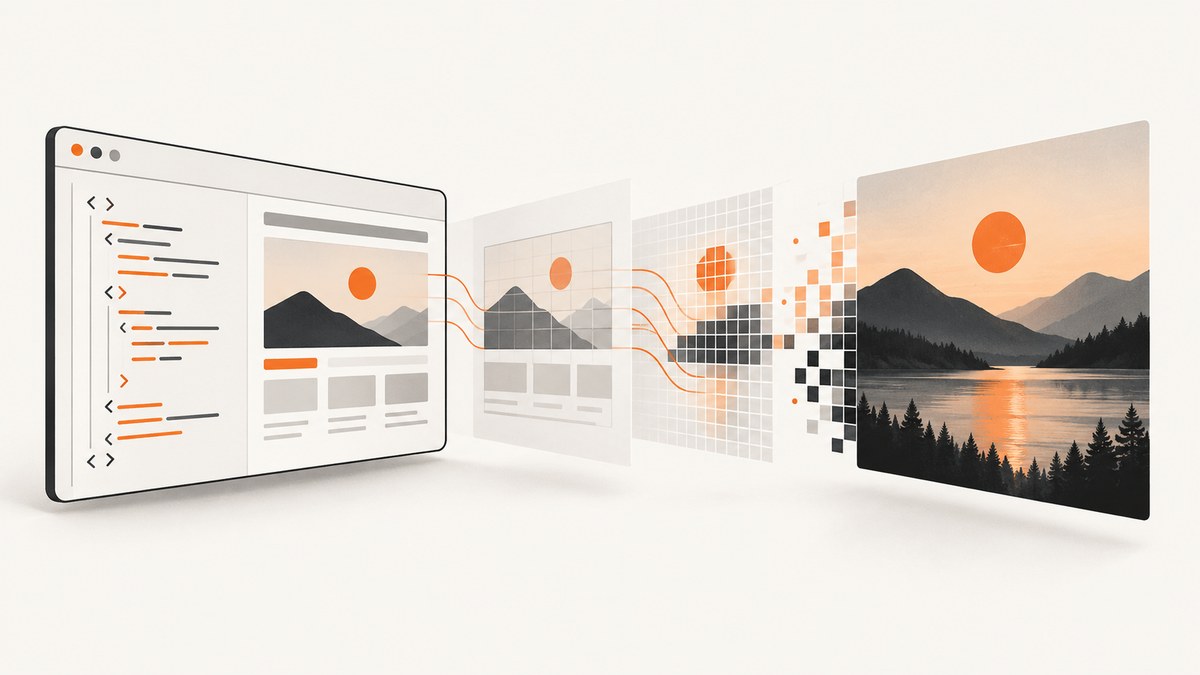
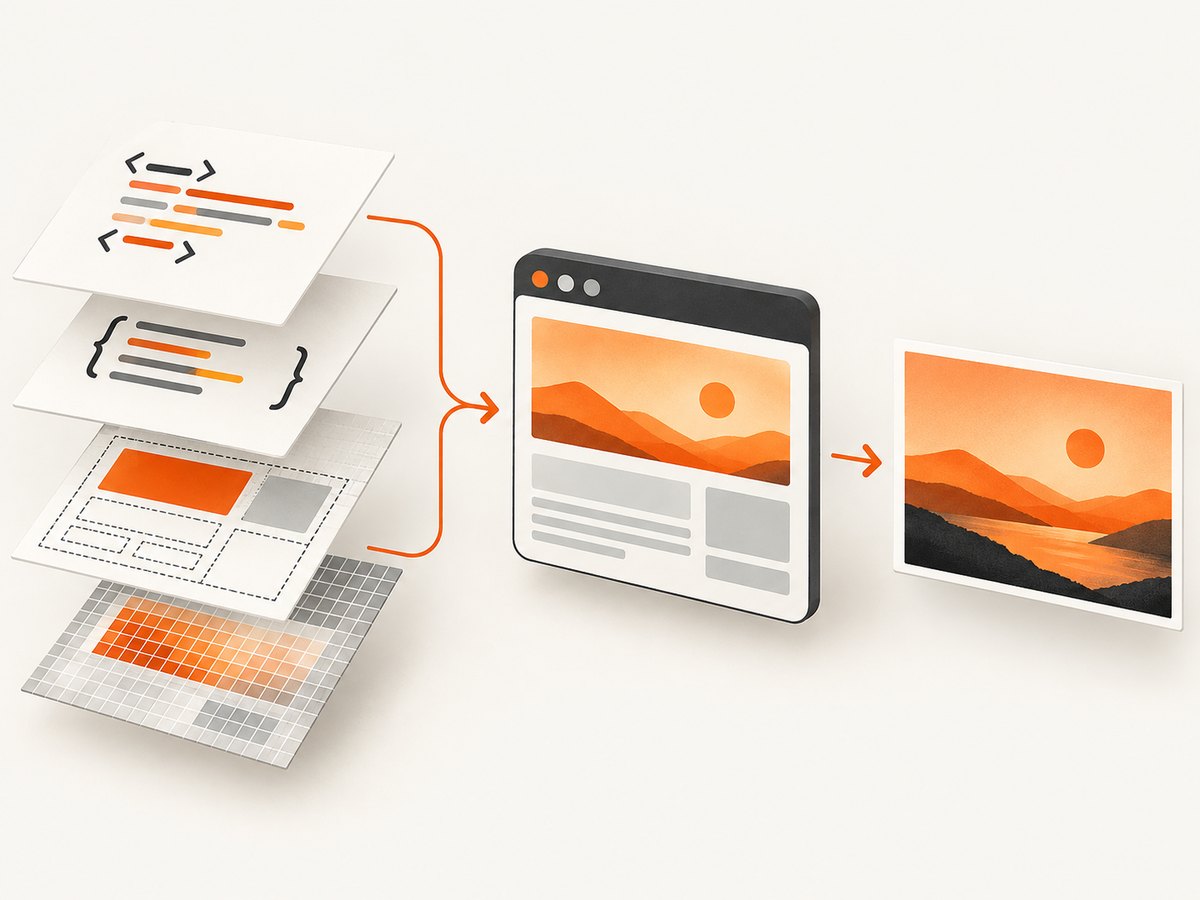
To convert an HTML file to a JPG screenshot, render it in a browser and capture the rendered page as a JPEG. Renaming page.html to page.jpg does not convert it: the browser must first lay out the HTML, apply CSS, load assets, and run any page scripts. Playwright supports JPEG screenshots, output paths, full-page capture, and JPEG quality settings. Playwright Page API
Choose the capture area first:
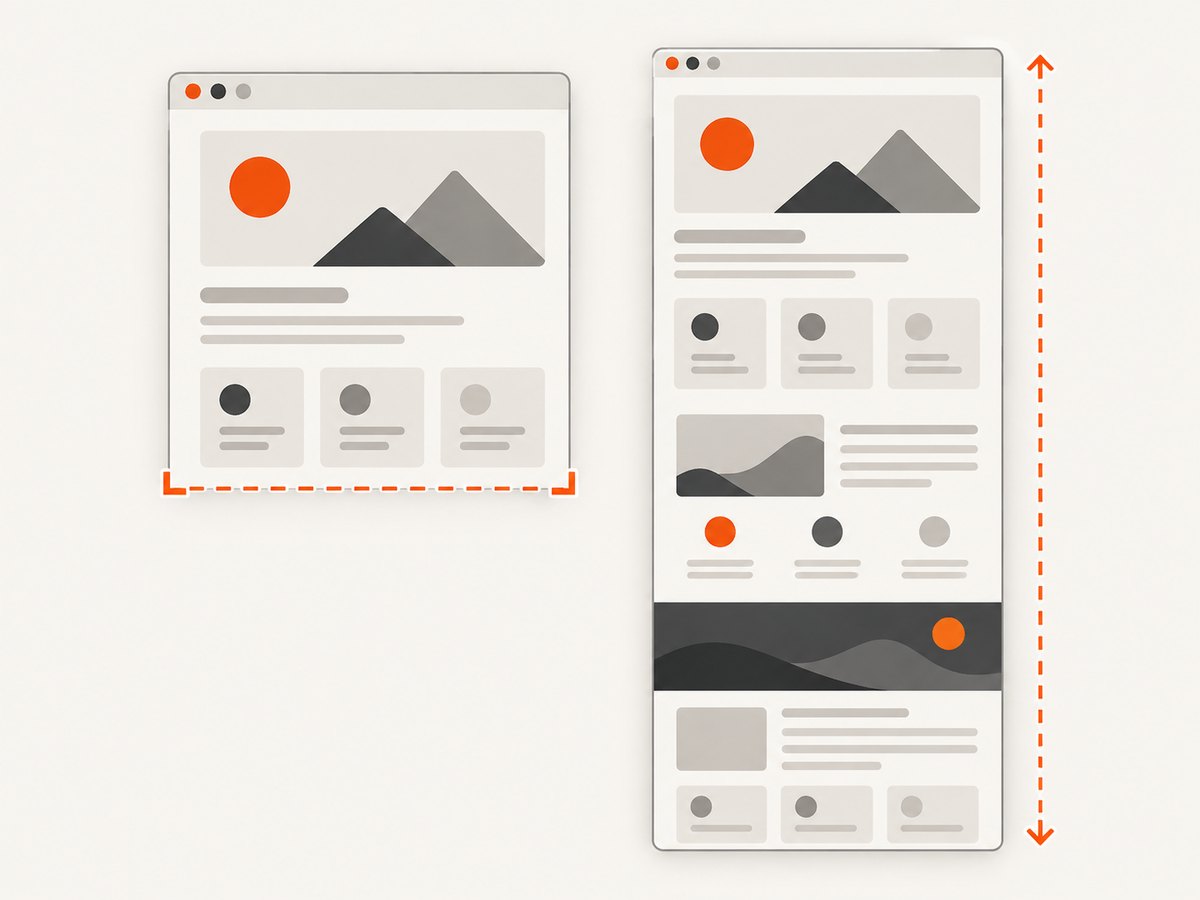
- Viewport: captures the browser’s current visible area. Use it when you want the first screen or a fixed-size preview.
- Full page: captures the entire scrollable page, including content below the fold. Use it for a document-like image or a long page.
The examples below use Playwright with Chromium. Local-file access and the availability of linked assets can depend on your operating system and project setup. If the HTML relies on a development server, run that server and capture its HTTP URL instead of opening a file URL.
1. Install Playwright and prepare the HTML file
Use a supported Node.js environment and install Playwright in a working folder. The installation command below installs the Playwright package; install its browser binaries as directed by the Playwright setup documentation if Chromium is not present.
npm init -y
npm install playwright
npx playwright install chromium
Save the page you want to capture as page.html. A minimal example is:
<!doctype html>
<html lang="en">
<head>
  <meta charset="utf-8">
  <meta name="viewport" content="width=device-width, initial-scale=1">
  <title>JPG conversion example</title>
  <style>
    body { font: 18px/1.5 sans-serif; margin: 40px; }
    main { max-width: 720px; }
  </style>
</head>
<body>
  <main>
    <h1>A rendered HTML page</h1>
    <p>This browser-rendered content will be saved as a JPG.</p>
  </main>
</body>
</html>
Relative image, stylesheet, and script paths are resolved according to how the page is opened. For predictable results, keep the file and its assets together in their expected directory structure, or serve the project locally and navigate to its URL. Remote assets also require network access and may fail because of authentication, cross-origin behavior, or host restrictions.
2. Capture the HTML file with Playwright
Create screenshot.mjs. This script opens the HTML file using a file URL, waits for the page load event, and writes a full-page JPEG. Adjust the path and options for your setup.
import { chromium } from 'playwright';
import { pathToFileURL } from 'node:url';
import { resolve } from 'node:path';

const inputPath = resolve('page.html');
const outputPath = resolve('page.jpg');
const browser = await chromium.launch({ headless: true });

try {
  const page = await browser.newPage({ viewport: { width: 1280, height: 900 } });
  await page.goto(pathToFileURL(inputPath).href, { waitUntil: 'load' });
  await page.screenshot({
    path: outputPath,
    type: 'jpeg',
    quality: 85,
    fullPage: true
  });
  console.log(`Saved ${outputPath}`);
} finally {
  await browser.close();
}
Run it from the directory containing page.html:
node screenshot.mjsFor a viewport-only image, remove fullPage: true. The screenshot output type can be inferred from the filename extension, but setting type: 'jpeg' makes the intended format explicit. Playwright’s API documents a JPEG quality default of 80; the example uses 85 as a chosen setting, not a universal best value. Playwright screenshot options
3. Use the Playwright screenshot command
Playwright also documents a command-line screenshot workflow. For a page available over HTTP, a basic command is:
npx playwright screenshot --type=jpeg --output=page.jpg http://127.0.0.1:8000/Start your local server separately and replace the URL and output filename with your own. The CLI supports JPEG output, a custom output filename, full-page capture, and a high-resolution/device-pixel option. Consult the Playwright screenshot command documentation for the current command syntax and available flags. For a local HTML file, check the command’s supported URL format in your installed version; using the scripted API and a file URL, as shown above, makes the local-file navigation step explicit.
4. Configure capture size, quality, and timing
These choices determine what the JPG contains and how it looks:
| Choice | What it changes | When to use it |
|---|---|---|
| Viewport capture | Only the visible browser area is saved. | Above-the-fold previews and fixed-size screenshots. |
fullPage: true |
Includes the full scrollable document. | Long pages, reports, or complete-page records. |
type: 'jpeg' |
Requests JPEG encoding explicitly. | When format should be unambiguous. |
path: 'page.jpg' |
Saves the image at the given path; extension can indicate format. | Saving a reusable file to a known location. |
quality |
Sets JPEG compression quality in the API. | Lower file size or fewer visible compression artifacts. |
| Viewport dimensions | Sets the browser layout width and height. | Reproducing a target screen or controlling line wrapping. |
| High-resolution CLI option | Captures at higher device-pixel resolution. | When additional pixel detail is needed; verify exact flag syntax in current docs. |
Higher JPEG quality generally preserves more detail while producing a larger file. Choose a value for your delivery needs and inspect the output; the API’s documented default of 80 is a starting point, not a quality guarantee for every page. For a specific viewport capture, set the viewport before navigation or before the screenshot. A narrow width can change responsive layouts; a full-page capture increases image height and may create a very large output for lengthy pages.
Wait for more than the initial page load when the page depends on delayed fonts, asynchronous data, or animation. The right wait condition depends on the page: wait for a known selector, an application-ready state, or a deliberate short delay if content appears after load. Avoid assuming that “load” means every third-party resource or dynamic widget is finished.
5. Verify the resulting JPG
- Confirm that
page.jpgexists at the expected output path. - Open it in an image viewer and check that the expected section is visible.
- For a long document, confirm the bottom content appears in a full-page capture.
- Check text sharpness, image loading, and layout at the chosen viewport width.
- If the image is too large, reduce JPEG quality or capture only the needed area; if details look degraded, raise quality and recapture.
A JPG is a raster image. Text will no longer be selectable, and JPEG compression can introduce artifacts around fine text and sharp edges. If the destination requires selectable text, a PDF or the original HTML is a better fit.
Or skip the browser setup
ScreenshotNeo is a website screenshot API and MCP server from Yorker Media. It can return a screenshot as PNG, JPEG, or WebP, or return a PDF. Send a URL in one GET request; for this HTML-file workflow, first make the page accessible at a URL, such as by serving the project locally for your own browser capture or hosting it somewhere reachable by the API. See the ScreenshotNeo documentation for the API options.
curl -G "https://api.screenshotneo.com/v1/shot" \
  -d access_key=YOUR_API_KEY \
  --data-urlencode url=https://stripe.com \
  -o shot.webp
import requests
r = requests.get(
"https://api.screenshotneo.com/v1/shot",
params={"access_key": "YOUR_API_KEY", "url": "https://stripe.com"},
timeout=90,
)
r.raise_for_status()
open("shot.webp", "wb").write(r.content)const q = new URLSearchParams({ access_key: 'YOUR_API_KEY', url: 'https://stripe.com' });
const res = await fetch(`https://api.screenshotneo.com/v1/shot?${q}`);
if (!res.ok) throw new Error(`Screenshot request failed: ${res.status}`);
await Bun.write('shot.webp', res);Replace the target URL with the publicly reachable page you want to capture. The supplied examples save WebP output; select JPEG using the API’s documented format parameter when you need a JPG, and verify the exact option in the docs.
- Cookie and consent banners are accepted like a visitor, and 60+ known consent platforms, newsletter popups, and chat widgets are removed before the shot; each step can be turned off.
- Bot checks, CAPTCHAs, blank pages, timeouts, failed loads, and cache hits cost nothing. Responses identify page verdict and billing status in headers.
- An MCP server gives AI agents tools to take screenshots, get page information, and capture PDFs.
- The free plan includes 1,000 shots a month with no card; paid plans start at $5 for 3,000 shots.
Start with 1,000 free screenshots a month, no card required.
Common problems and fixes
| Symptom | Likely cause | What to try |
|---|---|---|
| “Cannot find module ‘playwright’” | The script is running outside the project where Playwright was installed, or installation did not complete. | Run npm install playwright in the working folder and execute the script there. |
| Browser executable is missing | The Playwright package is installed but its Chromium binary is not. | Run npx playwright install chromium and follow any operating-system-specific setup instructions from Playwright. |
| File not found or blank screenshot | The input path is wrong, or navigation did not open the intended document. | Use an absolute path, confirm the file exists, and log the resolved path. If local file access behaves differently in your environment, serve the project and navigate to its HTTP URL. |
| Images or styles are missing | Relative paths resolve from a different location, assets are unavailable, or remote requests failed. | Check each asset URL and directory relationship. Serve the project from its expected root and confirm remote resources are reachable. |
| Text or images appear late | The page uses dynamic content, web fonts, or delayed scripts that complete after the initial load event. | Wait for a meaningful page element or application-ready signal before capturing; use a bounded delay only when there is no better readiness signal. |
| JPG cuts off lower content | The script captured only the viewport. | Set fullPage: true. Very long pages may produce very tall image files, so consider capturing sections separately when appropriate. |
| Layout differs from the browser you expected | Viewport dimensions, device pixel ratio, fonts, or responsive breakpoints differ. | Set the intended viewport, check available fonts, and use the CLI’s documented high-resolution option when needed. Verify output visually. |
| Output has visible JPEG artifacts | Compression quality is too low for fine text or edges. | Raise the API quality setting and compare output size with visual clarity. |
| Command-line option is rejected | The installed CLI version uses different options or syntax. | Check the screenshot command documentation for the installed version and use the scripted API when you need explicit control over JPEG quality. |
Performance, reliability, and cost
A local Playwright capture uses your machine’s browser resources and avoids sending the page to a screenshot API. The work and output size grow with the page: a full-page image can be much taller than a viewport screenshot, and waiting for slow assets can extend capture time. For repeatable runs, keep the viewport and wait condition consistent, close the browser in a finally block, and store output files outside temporary directories when you need to retain them.
Reliability depends on the page as well as the browser: broken URLs, blocked remote assets, scripts that never finish, and content that appears only after interaction can all affect the result. Set bounded timeouts for production automation, wait for a specific ready state where possible, and keep a copy of the input and capture settings when results must be reproducible. Playwright itself is software you run; account for installation, browser updates, and maintenance if you automate captures at scale.
The local method has no per-screenshot service fee, but it uses engineering time and compute. ScreenshotNeo offers 1,000 shots per month on its free plan with no card. Paid plans are Starter $5 for 3,000, Growth $15 for 15,000, Pro $39 for 60,000, Scale $99 for 250,000, and Business $249 for 1,000,000; yearly billing gives two months free, and every feature is on every plan. Choose based on volume and whether removing consent banners and other overlays, API access, or agent workflows saves enough setup and maintenance for your use case.
Frequently asked questions
Can I convert HTML to JPG by changing the extension?
No. An HTML file contains markup; a JPG contains rendered pixels. Open the page in a browser and take a screenshot in JPEG format.
Should I use JPG or JPEG?
They refer to the same image format for this workflow. Use either .jpg or .jpeg as the filename extension, and explicitly choose JPEG output when your capture tool supports it.
Can I capture an HTML file without hosting it?
Playwright can navigate to a local file URL in a script, as shown above. Exact behavior and asset loading can depend on the project and environment. If paths or browser restrictions cause trouble, serve the file locally and capture its HTTP URL.
Why does my full-page JPG look different from a normal screen capture?
A full-page capture includes content beyond the current viewport, and the browser may lay out responsive content according to the viewport width. Set the viewport deliberately and compare the saved image with the intended page state.
When should I choose PNG instead?
For pages dominated by small text, diagrams, or sharp-edged graphics, compare PNG if preserving crisp edges matters more than file size. Use JPEG when its compression and broad compatibility fit the destination.


