How to Convert an HTML File to an Image
Render an HTML file in a real browser and capture a viewport, full page, or element with Playwright, Puppeteer, Python, cURL, or ScreenshotNeo.

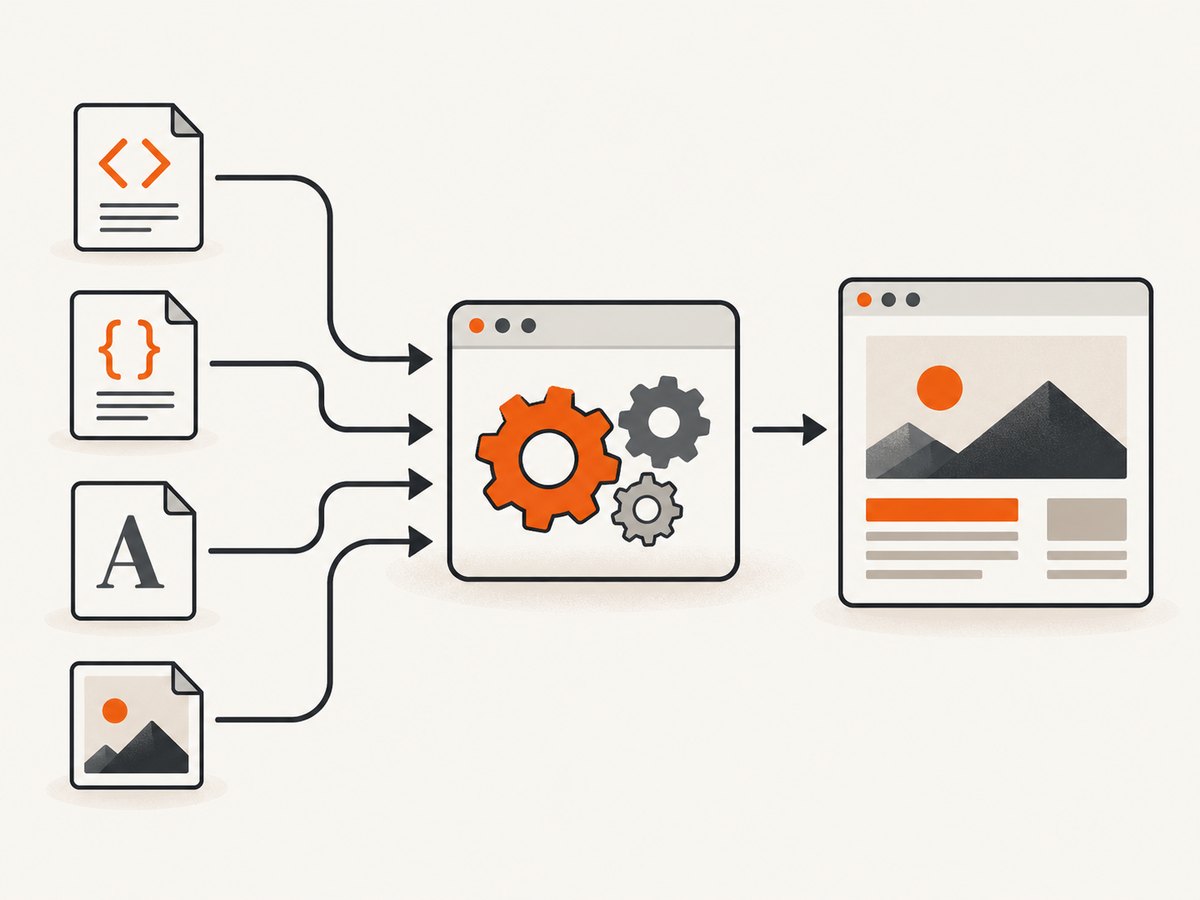
Direct answer: To convert an HTML file to an image reliably, render it in a browser and capture the rendered page. A browser applies the HTML, CSS, fonts, images, JavaScript, viewport, and device scale that determine what the user sees. For a repeatable workflow, use Playwright or Puppeteer; for a one-off conversion, a normal browser screenshot may be enough.
This guide covers viewport, full-page, and element screenshots; local files and remote URLs; fonts and image readiness; PNG, JPEG, and WebP output; Python, Node.js, cURL, Playwright, Puppeteer, and a hosted ScreenshotNeo option.
Choose the capture you actually need
Decide the output before writing code. A screenshot API can capture several different extents:
| Capture | What it contains | Typical use |
|---|---|---|
| Viewport | The visible browser area at a chosen width and height | Social cards, previews, monitoring, above-the-fold designs |
| Full page | The currently rendered scrollable document | Documentation, invoices, long reports |
| Element | One DOM element selected by CSS selector | Charts, cards, receipts, component snapshots |
Playwright defines a full-page screenshot as the full scrollable page, as if it fit on a very tall screen (Playwright screenshot documentation). It does not automatically discover every item in an infinite-scroll application. Trigger and bound lazy loading before capture when the page loads content only after scrolling.
Fastest repeatable method: Playwright with Node.js
Playwright launches a browser, opens your HTML file, waits for the visual state you specify, and writes an image. Install it in a new project:
mkdir html-shot
cd html-shot
npm init -y
npm install -D playwright
npx playwright install chromium
Create capture.mjs. This example captures a local file at a deliberate viewport, waits for fonts and images, and writes a WebP file.
import { chromium } from 'playwright';
import path from 'node:path';

const browser = await chromium.launch();
const page = await browser.newPage({
  viewport: { width: 1440, height: 900 },
  deviceScaleFactor: 1
});

const filePath = path.resolve('invoice.html');
await page.goto(`file://${filePath}`, { waitUntil: 'load' });
await page.evaluate(async () => {
  await document.fonts.ready;
  await Promise.all([...document.images].map(img => {
    if (img.complete) return img.decode?.().catch(() => {});
    return new Promise(resolve => {
      img.addEventListener('load', resolve, { once: true });
      img.addEventListener('error', resolve, { once: true });
    });
  }));
});

await page.screenshot({ path: 'invoice.webp', type: 'webp', fullPage: true });
await browser.close();
node capture.mjsUse fullPage: false (the default) for only the viewport. To capture one component, locate it and call its screenshot method:
const card = page.locator('.invoice-card');
await card.screenshot({ path: 'invoice-card.png', type: 'png' });
Opening HTML safely
A local file can reference relative CSS, fonts, and images. Resolve the absolute path and use a file:// URL as shown above. If your page expects HTTP behavior, run a local server instead:
npx serve . -l 4173await page.goto('http://127.0.0.1:4173/invoice.html', { waitUntil: 'networkidle' });Serving the file also makes fetch requests, module scripts, and origin-dependent code behave more like production. Do not expose a development server to the public internet just to take a screenshot.
Python Playwright version
Install the Python package and browser binaries:
python -m pip install playwright
playwright install chromium
from pathlib import Path
from playwright.sync_api import sync_playwright
html = Path("invoice.html").resolve()
with sync_playwright() as p:
browser = p.chromium.launch()
page = browser.new_page(viewport={"width": 1440, "height": 900}, device_scale_factor=1)
page.goto(html.as_uri(), wait_until="load")
page.evaluate("document.fonts.ready")
page.screenshot(path="invoice.png", full_page=True, type="png")
browser.close()For a selected element:
page.locator(".invoice-card").screenshot(path="invoice-card.webp", type="webp")Puppeteer alternative
Puppeteer exposes the same core choices: viewport or full-page capture, clipping, an output path, image type, and quality for lossy formats. Its official Page.screenshot API documents the current options.
npm install puppeteerimport puppeteer from 'puppeteer';
import path from 'node:path';
const browser = await puppeteer.launch();
const page = await browser.newPage();
await page.setViewport({ width: 1440, height: 900, deviceScaleFactor: 1 });
await page.goto(`file://${path.resolve('invoice.html')}`, { waitUntil: 'load' });
await page.evaluate(async () => {
await document.fonts.ready;
await Promise.all([...document.images].map(img => img.complete
? img.decode?.().catch(() => {})
: new Promise(resolve => {
img.addEventListener('load', resolve, { once: true });
img.addEventListener('error', resolve, { once: true });
})));
});
await page.screenshot({ path: 'invoice.jpeg', type: 'jpeg', quality: 90, fullPage: true });
await browser.close();Puppeteer’s practical guidance recommends waiting for web fonts and decoding current page images before capture. Those checks do not prove that a later-inserted image or CSS background has loaded, so add an application-specific readiness condition when needed (Puppeteer screenshot guide).
Format, size, and rendering options
PNG, JPEG, or WebP
- PNG: Lossless and suitable for text, diagrams, and transparency. It can be large.
- JPEG: Lossy and useful for photographic pages. Quality settings apply to lossy formats, not PNG.
- WebP: A compact choice supported by Playwright screenshot output.
Set the viewport in CSS pixels and use deviceScaleFactor when you need higher-density output. A 1440-pixel viewport at scale 2 produces a wider raster image than scale 1. Keep browser version, operating system, fonts, viewport, scale, and headless settings consistent for visual comparisons. Playwright notes that rendering can vary with the host OS, browser version, settings, hardware, power source, and headless mode (visual comparisons documentation).
Clipping and element bounds
Use an element screenshot when the page contains unrelated navigation or margins. For a fixed rectangle in Puppeteer:
await page.screenshot({
  path: 'region.png',
  type: 'png',
  clip: { x: 80, y: 120, width: 900, height: 500 }
});
Element bounds are safer than hand-maintained coordinates because layout changes move the component. Confirm that the selector matches exactly one visible element and that animations have settled.
Make the rendered state deterministic
The image records a browser state, not the source file. Control the inputs that affect that state:
- Fonts: await
document.fonts.ready. If a remote font fails, the fallback font changes line wrapping and page height. - Images: wait for
loadand, where supported,decode(). Handle errors so one broken asset does not hang the capture forever. - JavaScript: wait for the selector that proves your application finished rendering rather than relying only on a fixed delay.
- Animations: disable transitions and animations with an injected stylesheet when screenshots must be stable.
- Time and locale: freeze dates, set a timezone, and use fixed test data if the document includes dynamic values.
- Network: use
networkidleonly when background polling will eventually stop. Otherwise wait for a meaningful selector.
await page.addStyleTag({ content: `
  *, *::before, *::after {
    animation: none !important;
    transition: none !important;
    caret-color: transparent !important;
  }
` });
await page.locator('[data-rendered="true"]').waitFor();
CSS background images are not represented by document.images. If they matter, wait for the component that owns them, preload the assets, or check computed styles and network completion in your application.
Full-page and infinite-scroll edge cases
Full-page capture includes the document that exists when the screenshot starts. It does not automatically scroll through an infinite feed. A bounded loading loop can trigger lazy content:
let previousHeight = 0;
for (let i = 0; i < 10; i++) {
  const height = await page.evaluate(() => document.body.scrollHeight);
  if (height === previousHeight) break;
  previousHeight = height;
  await page.evaluate(() => window.scrollTo(0, document.body.scrollHeight));
  await page.waitForTimeout(500);
}
await page.screenshot({ path: 'feed.png', fullPage: true });
Always set a maximum number of iterations or a maximum document height. Otherwise a feed that continuously appends items can run indefinitely and produce an impractically large image.
Command-line and one-off options
For a graphical one-time conversion, open the HTML in a browser, set the desired zoom and window size, then use the browser’s screenshot or print workflow. Automation becomes worthwhile when you need repeatability, a build step, multiple viewport sizes, or an element crop.
Playwright’s CLI also documents screenshot capture and high-resolution device settings. Consult the official CLI documentation for the version installed in your project rather than copying flags from an unrelated release.
Common errors and fixes
| Error or symptom | Likely cause | Fix |
|---|---|---|
| Screenshot is blank | Navigation failed, the page is still loading, or content is behind a bot check | Log the final URL and response status, wait for a meaningful selector, and inspect the page in headed mode. |
| Fonts use the wrong typeface | Web fonts were not loaded or the font request failed | Wait for document.fonts.ready, verify font URLs, and bundle fonts for offline files. |
| Images are missing | Lazy loading, a broken URL, or capture began before decoding | Scroll or trigger lazy loading, wait for image completion, and handle failed image requests. |
| Full page cuts off content | The application renders content only after scrolling, or the page has a fixed-height container | Trigger bounded scrolling and capture the actual scroll container or the target element. |
| Element selector fails | Selector matches zero or multiple nodes, or the element is hidden | Use a stable data attribute, assert the count, scroll it into view, and wait until visible. |
| Different pixels on different machines | OS fonts, browser versions, device scale, or animation timing differ | Pin the browser and environment, set the viewport and scale, and disable motion. |
| Request hangs | Long polling, a never-resolving resource, or an infinite loading loop | Use explicit timeouts, selector-based readiness, bounded scrolling, and abort handling. |
| Local file cannot fetch data | Browser security restrictions for file:// origins |
Serve the directory over localhost and open an HTTP URL. |
Performance, reliability, and cost considerations
Launching a browser for every image is slower and consumes more memory than reusing one browser process. For batches, launch once, create isolated pages or contexts, and close each page after capture. Limit concurrency so the host does not run out of CPU or memory. Reuse a page only when its cookies, storage, and JavaScript state cannot leak between jobs.
Use viewport screenshots when a full document is unnecessary. Large full-page images require more layout work and memory. Prefer WebP or JPEG when lossless pixels and transparency are not required. Keep a stable browser image in CI and record the URL, viewport, browser version, and output settings with each artifact.
Reliability improves when readiness is tied to the page’s actual state: a rendered selector, a completed data request, or a known application event. Fixed sleeps are a fallback, not proof that all assets are ready. Add retries only for transient navigation failures and make the capture idempotent so a retry does not duplicate side effects.
Or skip the browser setup
ScreenshotNeo renders a URL and returns a PNG, JPEG, WebP, or PDF from one request. It supports full-page capture with lazy images loaded, element selectors, custom CSS and JavaScript, dark mode, device presets or any viewport, retina scale, waits for selectors, delays or network idle, headers, cookies, user agents, authorization, and caching. Read the ScreenshotNeo documentation for the complete option set.
curl -G "https://api.screenshotneo.com/v1/shot" -d access_key=YOUR_API_KEY --data-urlencode url=https://stripe.com -o shot.webpimport requests
r = requests.get("https://api.screenshotneo.com/v1/shot", params={"access_key": "YOUR_API_KEY", "url": "https://stripe.com"}, timeout=90)
open("shot.webp", "wb").write(r.content)const q = new URLSearchParams({ access_key: 'YOUR_API_KEY', url: 'https://stripe.com' });
const res = await fetch(`https://api.screenshotneo.com/v1/shot?${q}`);
const buffer = Buffer.from(await res.arrayBuffer());
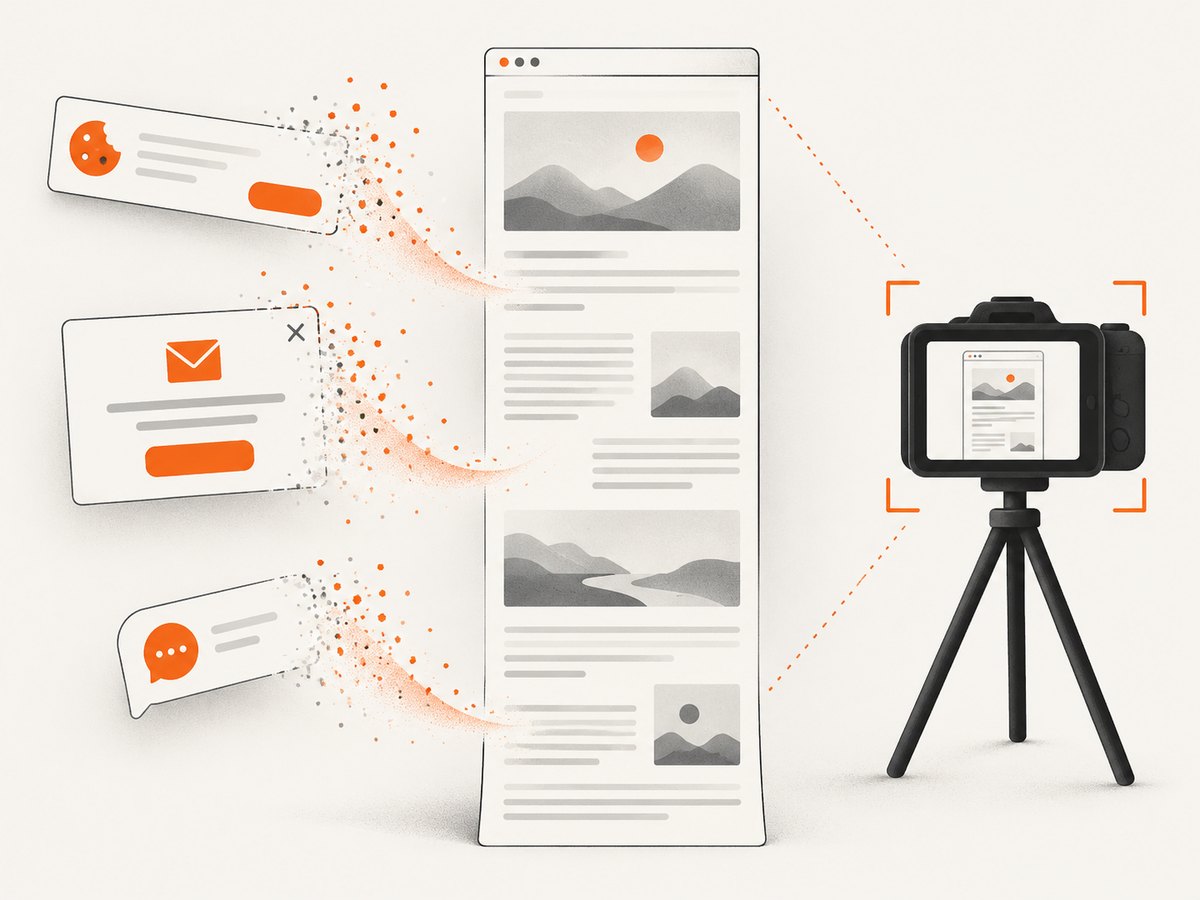
await import('node:fs/promises').then(fs => fs.writeFile('shot.webp', buffer));Cookie banners, newsletter popups, and chat widgets are removed before the shot. Bot checks, blank pages, timeouts, failed loads, and cache hits are not billed, and response headers report the page verdict and billing status. An MCP server lets Claude, Cursor, and other AI agents call take_screenshot, get_page_info, and capture_pdf. The free plan includes 1,000 screenshots each month with no card; paid plans start at $5 for 3,000 shots. Create a free ScreenshotNeo account.
FAQ
Can I convert HTML without JavaScript?
Yes. A browser can capture static HTML and CSS. JavaScript is needed only for content or layout your document creates dynamically.
Should I use full-page or viewport capture?
Use viewport capture when the target is a screen-sized preview. Use full-page capture for the complete currently rendered document, after handling lazy or infinite content.
Which format preserves transparency?
PNG is the usual choice when transparent backgrounds and lossless text rendering matter. Check the browser tool’s format support and output dimensions.
Why does my screenshot differ from the browser on my laptop?
Rendering depends on the operating system, browser version, fonts, hardware, settings, and headless mode. Pin those variables for comparisons.
Can I capture only a chart or card?
Yes. Use a stable CSS selector and an element screenshot, or use ScreenshotNeo’s element capture option.


