How to Convert an HTML File to PNG
Render a local HTML file as a PNG with Playwright or Puppeteer. Choose viewport or full-page capture, handle local assets, and troubleshoot common rendering issues.
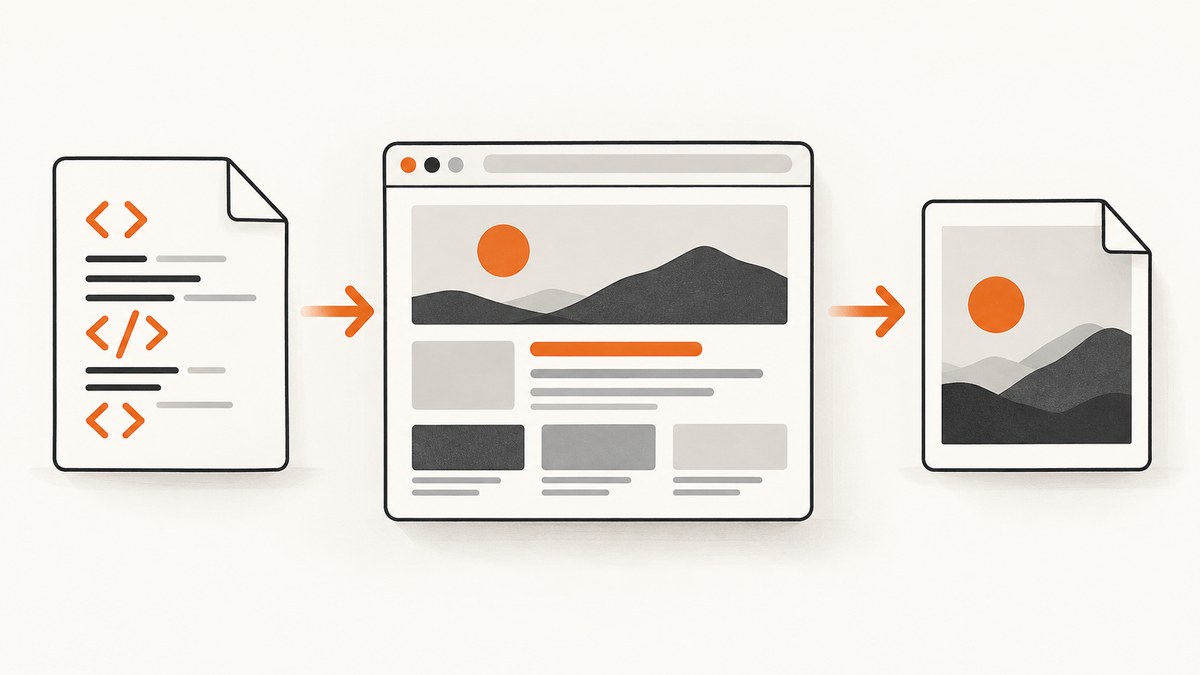
To convert an HTML file to PNG, open it in a browser and capture the rendered page. HTML is markup, not a bitmap, so the browser must first lay out the document and load its styles, fonts, images, and scripts. For repeatable results, use browser automation such as Playwright or Puppeteer and save the screenshot to an explicit .png path.
Decide first whether you want the visible viewport or the entire scrollable document. A normal screenshot captures the viewport; full-page capture extends the image to include content below the fold. Both Playwright and Puppeteer document full-page screenshot controls. Playwright Page screenshot API, Puppeteer screenshots.
1. Choose a capture method
| Method | Best when | Capture control |
|---|---|---|
| Playwright CLI | You want a documented command-line workflow. | Specify a filename and use the full-page option when needed. |
| Playwright API | You already have Node.js automation or need to control browser readiness. | Call page.screenshot() with a path and optional full-page capture. |
| Puppeteer API | Your project already uses Puppeteer or its browser setup. | Call page.screenshot() with a path and optional fullPage. |
Prefer the library already installed in your project. If there is no existing setup, Playwright offers both a screenshot CLI and an API workflow; Puppeteer documents an API workflow. A PNG is the default screenshot type in the cited APIs. Giving the output a .png extension also makes the intended format clear. Playwright screenshot CLI, Puppeteer ScreenshotOptions.
2. Prepare the HTML file and its assets
Use an absolute path to the HTML file when opening it locally, especially in scripts that may run from a different working directory. Relative references such as ./styles.css, images/chart.png, local fonts, and scripts resolve in relation to the document URL. If they fail to load, the screenshot may still be created but will not match the page you expected.
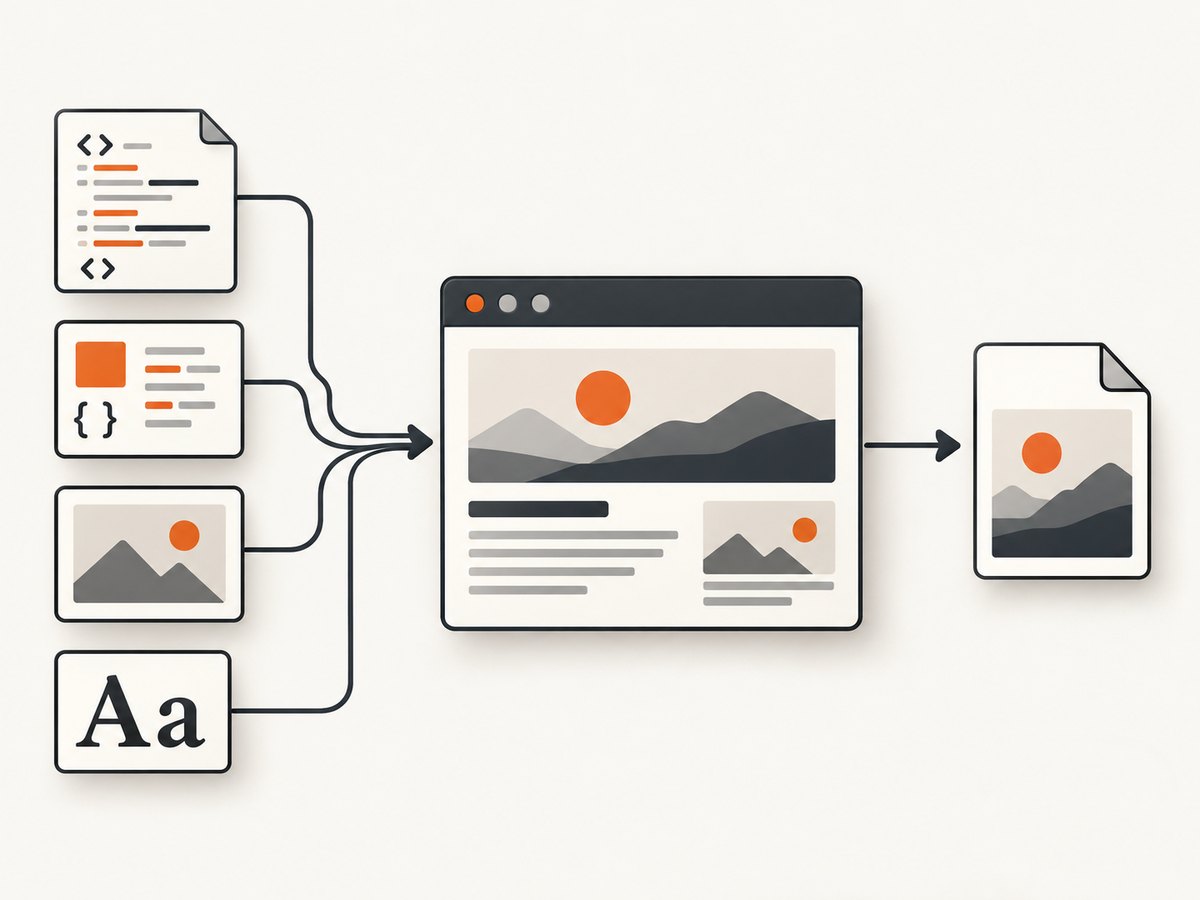
For a dependable capture, check the following before automating:
- The input HTML file exists and is readable by the process running the browser.
- Referenced assets exist at the locations expected by the HTML file.
- External resources are reachable in the environment where the browser runs.
- The page has finished the rendering work relevant to the image, including any scripts that build content dynamically.
- You know whether the output should contain just the viewport or the full document.
Browser screenshot documentation describes capture controls, but does not promise that every local font, external image, or script will load in every environment. Treat asset readiness as something to verify for your page. For local-file behavior, confirm that your chosen browser setup permits file:// navigation and resolves the document’s relative assets correctly. The examples below use an absolute file URL; if your environment restricts local-file navigation, use the local serving approach described later.
3. Convert HTML to PNG with Playwright
Using the Playwright CLI
Playwright documents a screenshot command that accepts a custom filename and supports full-page capture. PNG is the default when a different type is not specified. Replace the example path with the absolute path to your file and choose an output location you can write to.
npx playwright screenshot --full-page file:///absolute/path/to/input.html output.pngFor a viewport-only image, omit --full-page:
npx playwright screenshot file:///absolute/path/to/input.html output.pngSee the Playwright screenshot and PDF CLI documentation for the supported command options. Confirm the command-line package and browser are available in your environment before relying on it in a build job.
Using Playwright from Node.js
This runnable example loads a local HTML file, waits for the page load event, and saves a full-page PNG. Install Playwright and its browser as described in the Playwright getting started guide. The page-load wait is a basic starting point; pages that add content later may need a more specific readiness condition.
const { chromium } = require('playwright');
const { pathToFileURL } = require('node:url');
const path = require('node:path');

(async () => {
  const inputPath = path.resolve('input.html');
  const outputPath = path.resolve('output.png');
  const browser = await chromium.launch();

  try {
    const page = await browser.newPage({ viewport: { width: 1280, height: 900 } });
    await page.goto(pathToFileURL(inputPath).href, { waitUntil: 'load' });
    await page.screenshot({ path: outputPath, fullPage: true });
    console.log(`Saved ${outputPath}`);
  } finally {
    await browser.close();
  }
})().catch((error) => {
  console.error(error);
  process.exitCode = 1;
});
For only the visible viewport, change the capture call to await page.screenshot({ path: outputPath });. Playwright’s API supports a path and full-page capture; the path determines where the image is written. Page.screenshot API.
4. Convert HTML to PNG with Puppeteer
Puppeteer also documents a browser page screenshot workflow. This example opens a local file and writes a full-page PNG. Install Puppeteer in your project using its official setup instructions, then run this as a Node.js script.
const puppeteer = require('puppeteer');
const { pathToFileURL } = require('node:url');
const path = require('node:path');

(async () => {
  const inputPath = path.resolve('input.html');
  const outputPath = path.resolve('output.png');
  const browser = await puppeteer.launch();

  try {
    const page = await browser.newPage();
    await page.setViewport({ width: 1280, height: 900 });
    await page.goto(pathToFileURL(inputPath).href, { waitUntil: 'load' });
    await page.screenshot({ path: outputPath, fullPage: true });
    console.log(`Saved ${outputPath}`);
  } finally {
    await browser.close();
  }
})().catch((error) => {
  console.error(error);
  process.exitCode = 1;
});
To capture only the viewport, remove fullPage: true. Puppeteer’s screenshot options document PNG as the default type and expose the fullPage option. Puppeteer ScreenshotOptions. If Puppeteer is already part of your application, keep its existing browser launch configuration so the capture uses the same environment as the rest of your automation.
5. Pick viewport or full-page capture
Viewport capture is the right choice when the image should show the page as it appears inside a particular browser window. Set the viewport dimensions explicitly so repeated runs do not depend on an implicit default. The output shows the area currently visible in that viewport.

Full-page capture is appropriate for a long report, article, dashboard, or design preview where content below the fold belongs in the image. In Playwright, set fullPage: true or use the CLI’s full-page option. In Puppeteer, set fullPage: true. This may produce a tall image; consider whether the consuming tool or document format can handle those dimensions.
| Need | Playwright API | Puppeteer API |
|---|---|---|
| Visible viewport | page.screenshot({ path: 'output.png' }) |
page.screenshot({ path: 'output.png' }) |
| Entire scrollable page | page.screenshot({ path: 'output.png', fullPage: true }) |
page.screenshot({ path: 'output.png', fullPage: true }) |
If you need a particular viewport, use the page or browser context’s viewport configuration before capture. The screenshot API controls shown here establish capture path and page extent; inspect the resulting PNG to confirm the actual dimensions and appearance you need.
6. Make rendering repeatable
- Use the same browser setup. Run captures through the same project dependency and browser environment instead of mixing local and CI installations without checking their behavior.
- Use stable paths. Resolve both the input and output paths explicitly. This prevents the working directory from silently changing where the script reads or writes.
- Wait for the right condition. The examples wait for the page’s load event. If JavaScript inserts content later, wait for a page-specific selector or signal before capture. Avoid assuming that an initial document load means every dynamic component is finished.
- Confirm assets. Check that images, stylesheets, and fonts appear as intended. A screenshot records what the browser rendered, including missing-resource outcomes.
- Inspect the output. Open the PNG and verify content, crop, dimensions, and image quality before using it downstream.
For pages whose content depends on external services, repeatability also depends on network availability and the state of those services. If the goal is a stable artifact, use controlled page content and a deliberate readiness condition rather than relying on arbitrary pauses alone.
7. Local file edge cases
Relative assets and file URLs
A local HTML document opened with a file:// URL may resolve relative assets differently from a document served over HTTP, and browser security rules can affect access to local resources. The official screenshot references cover screenshot capture controls, not one universal local-file setup for every operating system. If a stylesheet or image does not appear, inspect the browser page’s resource loading and check the source paths. For projects that expect HTTP behavior, serve the directory locally and navigate to the resulting local web address instead of using a file URL.
Dynamic content
Pages that populate charts, data tables, or images after the load event may be captured too early. Wait for a meaningful signal from the page, such as a known element becoming visible or a loading indicator disappearing. A fixed delay can be used for simple cases, but it is less reliable when load time varies.
Long documents
A full-page screenshot can become very tall. Review the output dimensions and confirm your image viewer, upload target, or downstream processor accepts them. If only a section matters, adjust the page or capture the relevant content separately rather than producing an unnecessarily large image.
Output path and overwrites
Choose a destination that the process can write to. A relative output path is relative to the script’s current working directory, which can differ between a terminal, editor, and CI runner. The examples resolve the path so the destination is explicit. If the file already exists, a new screenshot may replace it; use unique names when keeping each run matters.
8. Troubleshooting
| Symptom | Likely cause | Fix |
|---|---|---|
| Browser cannot open the input | The path is wrong, relative to an unexpected working directory, or local-file navigation is restricted. | Resolve the HTML path absolutely, check file permissions, and confirm the browser setup allows the chosen local-file method. Serve the file locally if needed. |
| PNG exists but styles or images are missing | Relative asset paths do not resolve, or files/network resources are unavailable. | Check paths relative to the HTML document, verify the files exist, and inspect the page’s resource loading before capture. |
| Content is blank or incomplete | The page has not rendered dynamic content by the time the screenshot is taken, or a script/resource failed. | Wait for a page-specific readiness signal; verify scripts and data sources load; inspect the rendered page before capturing. |
| Screenshot cuts off below the fold | The screenshot captured only the viewport. | Enable full-page capture with fullPage: true or the Playwright CLI full-page option. |
| Output is saved in the wrong directory | A relative destination is resolved from a different current working directory. | Use an absolute output path or resolve it from a known project directory. |
| Script hangs during navigation | The page or one of its resources never reaches the selected navigation condition. | Choose a navigation readiness condition appropriate to the page, set a timeout in your automation, and handle timeout errors explicitly. Do not wait indefinitely. |
| Capture fails in automation but works locally | The automated environment may lack the browser installation, file access, or external network access available locally. | Install/configure the browser in that environment, provide the input and assets there, and avoid assuming local machine paths exist in CI. |
9. Performance, reliability, and cost
Local browser capture has no per-image API charge from Playwright or Puppeteer themselves, but it uses the compute, storage, and maintenance resources of the machine running the browser. Account for browser installation, process startup, page rendering, and output storage in a batch workflow. Reusing a browser process can avoid repeated startup work, but each page still needs its own navigation and capture; ensure pages and browsers are closed even when an error occurs.
Reliability depends on the page and environment: missing assets, slow external resources, blocked requests, dynamic content, and different browser installations can change the result. For repeatable batch jobs, pin the automation setup used by your project, provide all required local files, wait for meaningful page readiness, use finite timeouts, and record failures so one bad document does not silently appear as a successful image.
PNG is lossless and often produces larger files than lossy formats. This article’s target is PNG; if file size matters more than preserving exact pixels, assess whether another image type is acceptable for your use case. The cited screenshot APIs also support other screenshot output options, but PNG is the requested format here.
10. Or skip the browser setup
If you want a screenshot of a public web page instead of a local file, ScreenshotNeo is a website screenshot API and MCP server for developers. Send one GET request with a URL to receive a PNG, JPEG, WebP, or PDF. See the ScreenshotNeo documentation for the API options and setup.
curl -G "https://api.screenshotneo.com/v1/shot" -d access_key=YOUR_API_KEY --data-urlencode url=https://stripe.com -o shot.webpimport requests
r = requests.get(
"https://api.screenshotneo.com/v1/shot",
params={"access_key": "YOUR_API_KEY", "url": "https://stripe.com"},
timeout=90,
)
open("shot.webp", "wb").write(r.content)const q = new URLSearchParams({ access_key: 'YOUR_API_KEY', url: 'https://stripe.com' });
const res = await fetch(`https://api.screenshotneo.com/v1/shot?${q}`);
if (!res.ok) throw new Error(`Screenshot request failed: ${res.status}`);
await require('node:fs/promises').writeFile('shot.webp', Buffer.from(await res.arrayBuffer()));These examples capture a public URL. A local file path is not a publicly reachable web page; for a local HTML document, use the browser automation steps above or make the page reachable in a way the API can access. ScreenshotNeo can remove cookie banners, newsletter popups, and chat widgets before the shot. Bot checks, blank pages, failed loads, timeouts, and cache hits are never billed. Its MCP server lets AI agents use take_screenshot, get_page_info, and capture_pdf. The free plan includes 1,000 screenshots a month with no card; paid plans start at $5 for 3,000 shots. Every feature is on every plan.
Sign up for 1,000 free screenshots a month, with no card.
11. Frequently asked questions
Can I convert HTML to PNG without installing a browser automation library?
A browser still has to render the HTML. You can use a browser’s own capture facilities or an existing screenshot tool, but for repeatable scripted output the documented Playwright or Puppeteer workflows provide direct control over the capture path and page extent.
Will the PNG preserve the original HTML or CSS?
No. It is a raster image of the rendered page, not an editable document. Keep the HTML and its assets if you need to revise the layout later.
Why does my output differ from what I see in my browser?
The browser environment, viewport, page state, asset availability, and timing may differ. Match the viewport and browser setup, then verify that the same content and resources have loaded before capturing.
Can I convert a private local HTML file through ScreenshotNeo?
The one-call ScreenshotNeo example takes a URL that its service can access. A path on your computer is not such a URL. Use local browser automation for a private file unless you make the page accessible to the API.


